How to fix
Startup UpdateLibrary
on Windows
Resolve the UpdateLibrary startup issue in Windows 10 effortlessly. Follow our expert-tested solutions and get your system running smoothly in minutes!

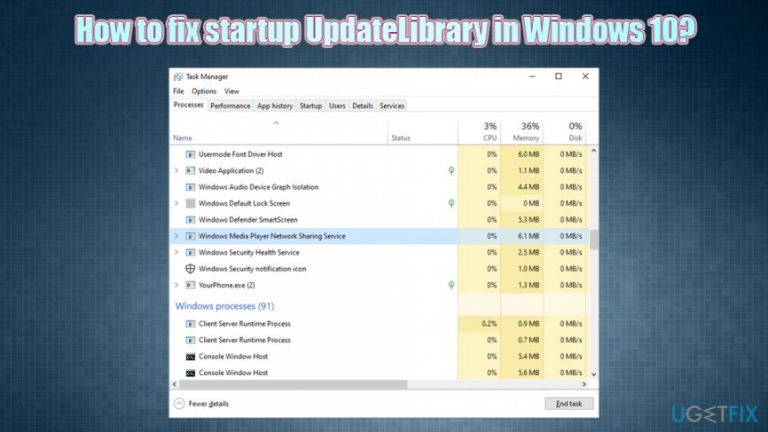
What causes How to fix startup UpdateLibrary in Windows 10?
- Wmpnscfg.exe uses excessive CPU resources
- UpdateLibrary is a scheduled task that prevents Media Player shutdown
- Many users do not engage in media sharing functionality
- Wmpnscfg.exe may be mimicked by malware
- Disabling Wmpnscfg.exe causes it to reappear upon Media Player launch
Repairs Windows system files, removes malware, and restores a clean OS state — without reinstalling.
Hi, recently, I have been going through the Task Manager and noticed that wmpnscfg.exe is using a lot of CPU power. Is it a virus? If not, then how can I fix this issue? Help would be appreciated.
Wmpnscfg.exe is a task that might be running in the background and has the description of "Windows Media Player Network Sharing Service Configuration Application." This startup item is closely related to Windows Media Player[ref en-1] and a shared library, which is called UpdateLibrary.
UpdateLibrary is essentially a scheduled task within a Windows operating system, which prevents the shut down of Media Player startup. The process allows users to stream and share media via the network with other computers through Windows Media Player. While this functionality might be useful for some, many never engage in such operations. In some cases, however, wmpnscfg.exe begins to use many resources, lagging the system and preventing users from using their computers normally. Thus, there is a need to fix UpdateLibrary startup once and for all.
While some startup items are easy to disable, UpdateLibrary startup might not be. The problem is that, as soon as users attempt to disable Wmpnscfg.exe, it comes back as soon as Windows Media Player is launched once again. In the meantime, the computer is laggy and might even crash. Therefore, it is best to disable UpdateLibrary task if it is not used.
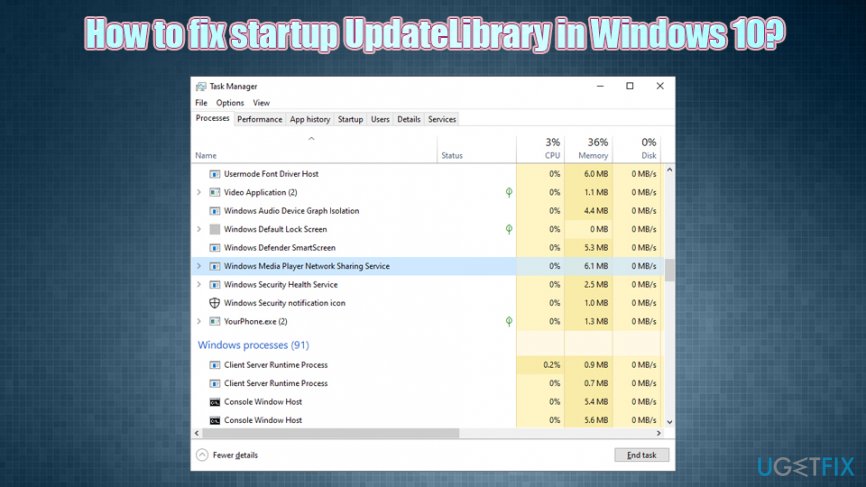
Another concern that users had was the Wmpnscfg.exe virus issue. While it is true that any executable file can be replaced or mimicked by malware,[ref en-3] the probability is quite low. Despite that, if you open your Task Manager and see any type of executable gobbing up a lot of CPU,[ref en-2] you should immediately scan your device with anti-malware software.
If malware is not connected to the UpdateLibrary Windows 10 issue, then you could try using the PC repair tool [d1] - it can automatically detect and eliminate Windows-related problems for you. Alternatively, you can check the manual solutions for the UpdateLibrary startup below.
Fix 1. Disable UpdateLibrary scheduled task
The best way to fix UpdateLibrary startup issue is to disable it via the Task Scheduler. Here's how to do it:
- Press Win + R on your keyboard
- Type in taskschd.msc and hit Enter
- In the newly opened-window, navigate to the following location:
Task Scheduler Library > Microsoft > Windows > Windows Media Sharing
- Right-click on UpdateLibrary and select Disable
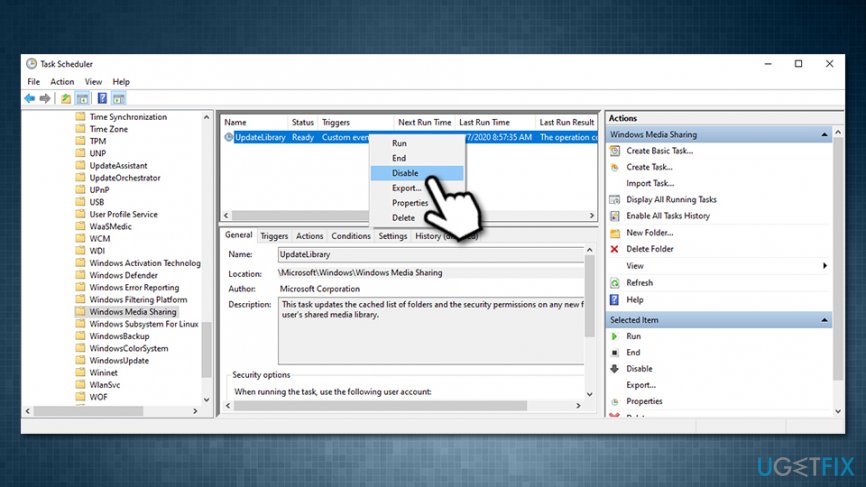
How to fix startup updatelibrary in windows 10 disable scheduled task
Fix 2. Rename wmpnscfg.exe to wmpnscfg.exe.old
- Press Ctrl + Shift + Esc to open Task Manager
- Scroll down and locate Windows Media Player Network Sharing Service
- Right-click and select Open file location
- Locate wmpnscfg.exe, right-click, and select Rename
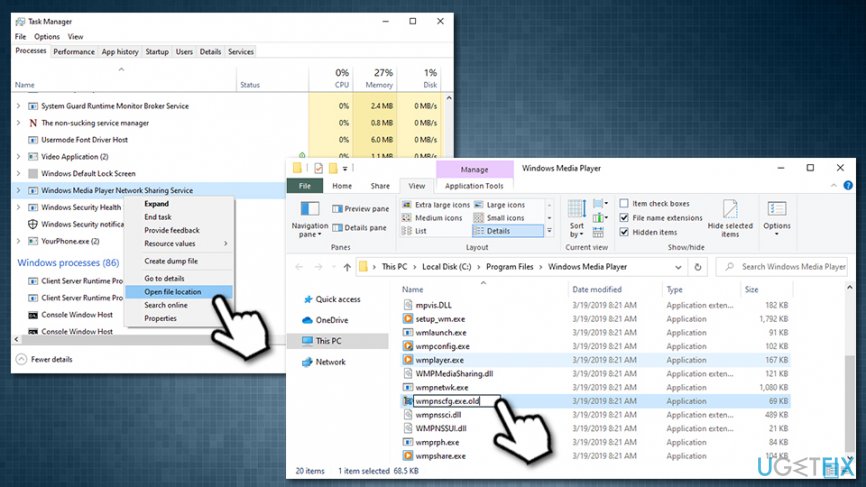
How to fix startup updatelibrary in windows 10 open file location via task manager - Replace the name with wmpnscfg.exe.old
- When notification prompt shows up, select Yes
- Now type in Notepad into Windows search and hit Enter
- Select File > Save As
- In the new window, make sure you pick All Files under Save as type and choose C:\\Program Files\\Windows Media Player location
- Type wmpnscfg.exe as name and press Save
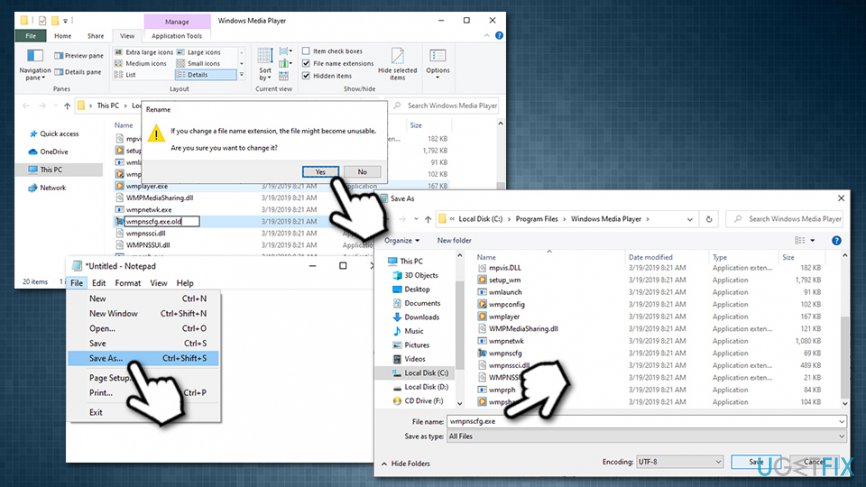
How to fix startup updatelibrary in windows 10 renamewmpnscfg exe
Fix 3. Use Windows Registry Editor
- Press Win + R on your keyboard
- Type in regedit and hit Enter
- Navigate to the following location:
HKEY_CURRENT_USER\\Software\\Microsoft\\MediaPlayer\\Preferences\\HME
- Right-click on DisableDiscovery value and pick Modify
- In the Value Data field, enter 1 instead of 0 and click OK
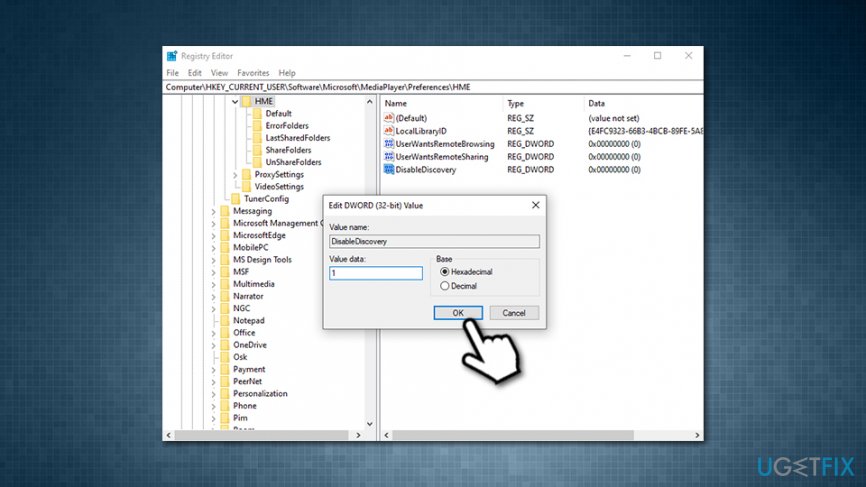
How to fix startup updatelibrary in windows 10 modify registry
Fix 4. Scan your machine with anti-malware software
As mentioned above, high CPU usage can be caused by a malware infection, so it is best to scan the computer with anti-malware software. There are plenty of options available, although a scan with Windows Defender should suffice:
- Type Security in Cortana's search bad and pick Windows Security
- Select Virus & Threat protection
- Go to Scan options
- Choose Full scan and then pick Scan now
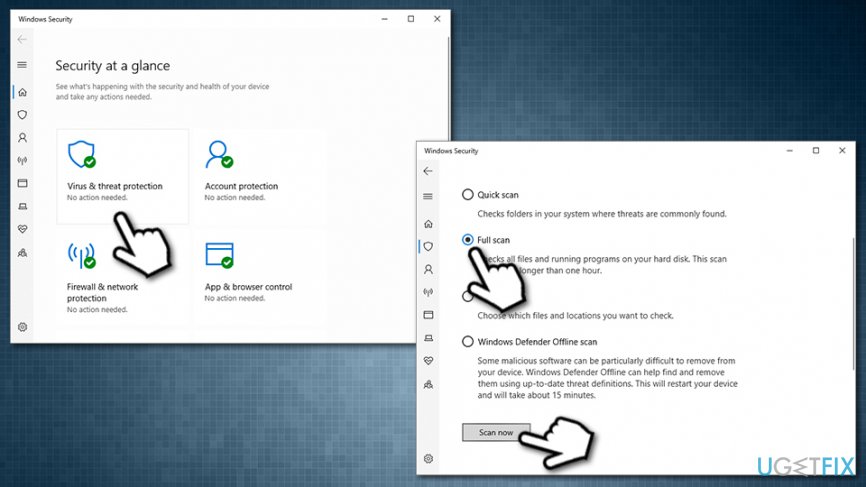
How to fix startup updatelibrary in windows 10 scan your computer for malware
Bottom line
To fix the UpdateLibrary startup issue, you can disable the UpdateLibrary scheduled task via Task Scheduler. If the problem persists, consider using a PC repair tool or scanning for malware. If none of these solutions work, further investigation may be necessary.
Frequently asked questions
The UpdateLibrary startup error in Windows 10 can be caused by a corrupted system file or a misconfiguration in the Windows Update settings.
You can disable UpdateLibrary from starting up by opening the Task Manager, navigating to the Startup tab, and disabling it from the list of startup programs.
Yes, you can repair the UpdateLibrary feature by running the System File Checker tool, which scans and repairs corrupted files in your Windows 10 system.




Report an issue
What's wrong with this guide? We review every report and update or remove content.
Report received — thank you. We'll review and fix it.
You need a free account to submit a report.
Be the first to comment