How to fix
Static noise in Bluetooth headphones
on Windows
Eliminate static noise in your Bluetooth headphones on Windows 10 or 11 effortlessly. Expert-tested solutions ensure crystal-clear audio, fixed in minutes!

What causes How to fix static noise in Bluetooth headphones in Windows?
- Interference from other wireless devices
- Outdated Bluetooth drivers
- Faulty Bluetooth drivers
- Low battery levels in Bluetooth headphones
Repairs Windows system files, removes malware, and restores a clean OS state — without reinstalling.
So recently, my JBL Bluetooth headphones started to emit some weird static noise. I initially thought this might be caused by low change, but it is not the case. Please advise on what to do.
Bluetooth headphones have transformed the way we listen to audio, providing a convenient, wireless alternative to traditional wired headphones. Leveraging Bluetooth technology, these devices allow for seamless audio transmission from your computer or mobile device to your headphones, eliminating the hassle of wires. They create a portable, private soundscape essential for enjoying music, podcasts, or handling video calls without disturbing others.
However, in recent times, several users have reported a persistent problem with static noise when using Bluetooth headphones, particularly with Windows-based systems. This static noise, akin to an old radio out of tune, can cause significant audio disruption, transforming an otherwise pleasurable listening experience into a jarring one. Alongside this, reports have emerged of audio stuttering, where the audio momentarily cuts out before resuming, adding to the annoyance.
There could be various reasons behind these issues. For one, interference from other wireless devices in the vicinity of your headphones can lead to static noise and stuttering. Bluetooth operates over the 2.4 GHz band, which is shared by numerous other devices, including Wi-Fi routers and microwave ovens. The crowded frequency can result in interference, manifesting as static noise.
Secondly, outdated or faulty Bluetooth drivers on your Windows system may also cause static noise or stuttering issues. The drivers are essential for facilitating communication between your system and the Bluetooth headphones. If these are not updated or functioning correctly, it can cause audio problems.
It is also worth noting that low battery levels in your Bluetooth headphones can induce static noise. If the headphones lack sufficient power to maintain a stable connection, it might result in sporadic transmission and reception of audio signals, leading to these issues.
Fortunately, these problems are usually rectifiable, with comprehensive instructions for resolution to follow this article. A combination of reducing interference, updating Bluetooth drivers, and ensuring optimal headphone battery levels often resolves static noise in Bluetooth headphones in Windows.
Lastly, it may be beneficial to consider using the [d1] PC repair tool, an application designed to enhance your computer's overall performance. If the issue lies within the Windows system itself, the app is likely to help you deal with the issue quickly and efficiently.
Fix 1. Reduce wireless interference
Many devices operate within the same frequency band as Bluetooth headphones. This can sometimes cause signal interference, resulting in static noise and stuttering. Limiting this interference can often improve audio quality.
- Maintain a close distance between your Bluetooth device and your headphones.
- Try to keep your Bluetooth headphones away from other wireless devices, as they can cause interference.
- Avoid using your Bluetooth headphones in proximity to household appliances like microwave ovens or Wi-Fi routers, which also operate on similar frequencies.
Fix 2. Update Bluetooth drivers
Bluetooth drivers enable communication between your operating system and Bluetooth headphones. If these drivers are outdated or incorrect, it could lead to audio issues.
- Right-click on Start and select Device Manager.
- Look for Bluetooth in the list and expand it.
- Find your Bluetooth adapter, right-click it, and select Update driver.
- Select Search automatically for drivers and wait.
- Once the process is finished, restart your computer to implement the changes.

Fix 3. Check headphone battery levels
A low battery level in your headphones can affect the quality of the Bluetooth connection and lead to audio disruptions.
- Make sure your Bluetooth headphones are fully charged before using them for extended periods.
- Regularly check the battery level of your headphones to ensure it doesn't fall too low.
- If you notice static noise when the battery level is low, charge your headphones before using them again.
Fix 4. Reset Bluetooth headphones
Sometimes, resetting your Bluetooth headphones can resolve temporary issues that might be affecting the connection and causing static noise.
- Power off your Bluetooth headphones.
- To reset your headphones, you usually need to hold down the power button for a specific amount of time. This time can vary depending on the headphone's model.
- Always refer to the specific manual or instructions provided with your headphones for the correct reset process.
Fix 5. Troubleshoot Bluetooth
Windows includes a built-in troubleshooter for Bluetooth that can identify and help resolve any technical issues.
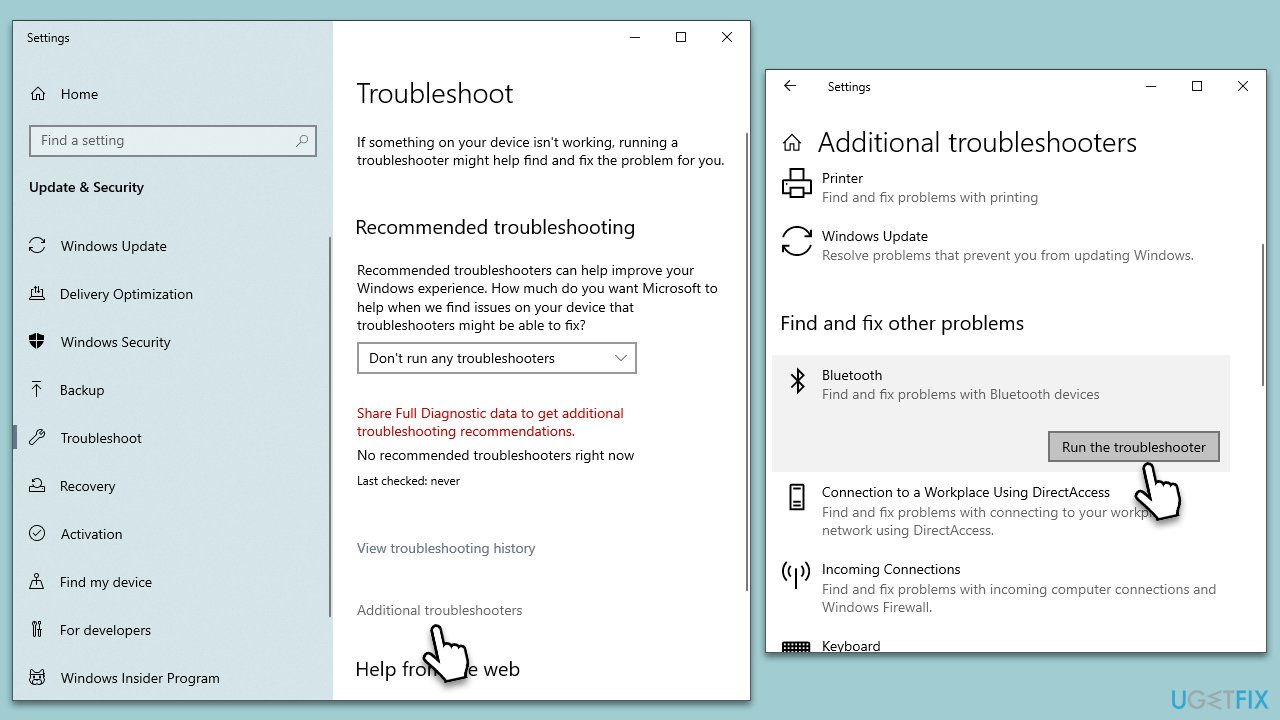
- Go to Settings on your computer, then select Update & Security.
- Click on Troubleshoot.
- Select Additional troubleshooters/Other troubleshooters.
- Choose Bluetooth and click on Run the troubleshooter.
- Follow the on-screen prompts to allow the troubleshooter to diagnose and resolve any problems.
Fix 6. Adjust audio settings
Certain settings related to audio output in your Windows system can affect the performance of Bluetooth headphones.
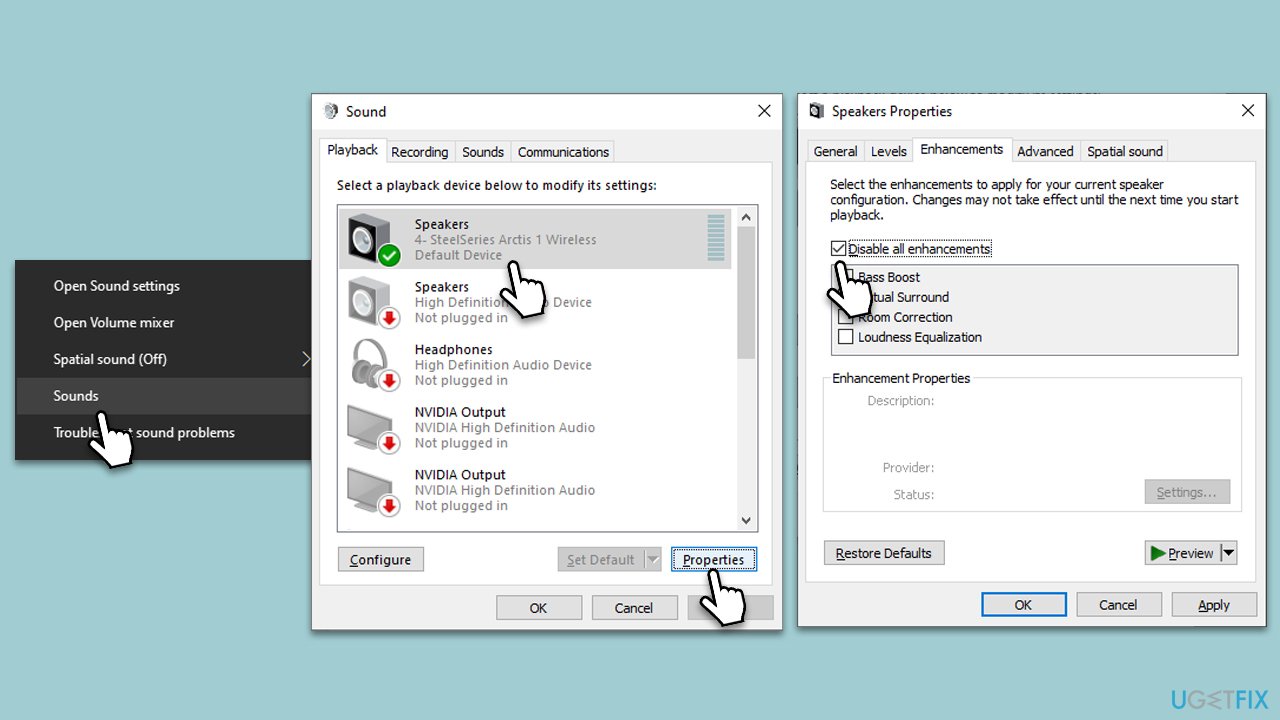
- Right-click on the Speakers icon (located on your taskbar's right corner) and select Sounds.
- Under the Playback section, ensure your Bluetooth headphones are selected.
- Click on Properties for more options.
- Here you can adjust volume levels, balance, and other settings. Make sure the volume levels are appropriate, and there is no balancing bias to one side, as it may affect the audio performance.
- If you see an Enhancements tab, try disabling all enhancements, as they sometimes can cause problems with specific devices.
Bottom line
To fix static noise in Bluetooth headphones on Windows, you should reduce interference from other devices, update your Bluetooth drivers, and ensure your headphones have sufficient battery levels. If these solutions do not resolve the issue, further troubleshooting may be necessary.
Frequently asked questions
First, ensure that your Bluetooth drivers are up to date and check the audio settings for enhancements that may cause interference. You can also try disconnecting and reconnecting the headphones to see if the static noise persists.
Yes, you can go to Settings > System > Sound, and under 'Advanced', disable any audio enhancements that could be causing the static noise. Additionally, check the Bluetooth connection quality and try re-pairing your headphones.
Start by running the Bluetooth troubleshooter in Settings > Update & Security > Troubleshoot. If the issue continues, consider resetting your Bluetooth headphones and checking for any nearby devices that may cause interference.




Report an issue
What's wrong with this guide? We review every report and update or remove content.
Report received — thank you. We'll review and fix it.
You need a free account to submit a report.
Be the first to comment