How to fix
Stdriver64.sys high CPU usage
on Windows
Resolve stdriver64.sys high CPU usage on Windows 10 and 11 effectively. Follow expert-tested solutions to optimize performance and regain control.

What causes How to fix stdriver64.sys high CPU usage in Windows?
- Outdated drivers
- Incompatible drivers
- Background processes running in loops
- Corruption within the stdriver64.sys file
- Conflicts with recent Windows updates
Repairs Windows system files, removes malware, and restores a clean OS state — without reinstalling.
Each time I open an application that uses a sound driver, I get stdriver64.sys high CPU usage. It jumps from like 0% to 50-60%. I use Windows 11 and would like to get some advice.
High CPU usage can be a significant problem in Windows, as it slows down your system, affects performance, and can lead to overheating or reduced efficiency during tasks. One particular issue that has caught the attention of many Windows users is high CPU usage linked to the stdriver64.sys file. This system driver is associated with certain third-party applications and can cause unusually high resource consumption, impacting the smooth functioning of your computer.
Stdriver64.sys is often linked to audio-related applications or drivers, specifically those from manufacturers like Sonic Studio or other audio enhancement tools. When this file begins to consume excessive CPU resources, you may notice lagging system performance, slower application response times, and higher-than-usual temperature levels.
Some users report that this issue can persist even when no intensive programs are running, which makes it more problematic as it limits overall system efficiency. It is also notable that those experiencing stdriver64.sys file high CPU usage said that system.exe consumes a lot of resources as well.
There are several reasons why stdriver64.sys might lead to high CPU usage. The most common cause is outdated or incompatible drivers that create conflicts within the system. When a driver is outdated or misconfigured, it can trigger continuous activity from stdriver64.sys, leading to high resource usage.
Background processes associated with certain audio enhancement software might also run in loops or encounter errors that cause the driver to consume more CPU than necessary. Additionally, corruption within the file itself or conflicts with recent Windows updates may further exacerbate the problem.
Addressing this issue typically involves steps like updating or reinstalling relevant drivers, disabling problematic background services, or reconfiguring specific audio software. Detailed instructions on how to manage and resolve high CPU usage caused by stdriver64.sys will be provided below, starting from the simplest solutions to more complex ones.
For those who prefer a streamlined approach, using the [d1] repair tool can help identify and fix corrupted system files and underlying issues automatically, providing a comprehensive solution for maintaining system performance.
Fix 1. Update audio drivers
Outdated or incompatible audio drivers are a common cause of high CPU usage related to stdriver64.sys. Ensuring that your drivers are up to date can resolve conflicts and reduce CPU load.
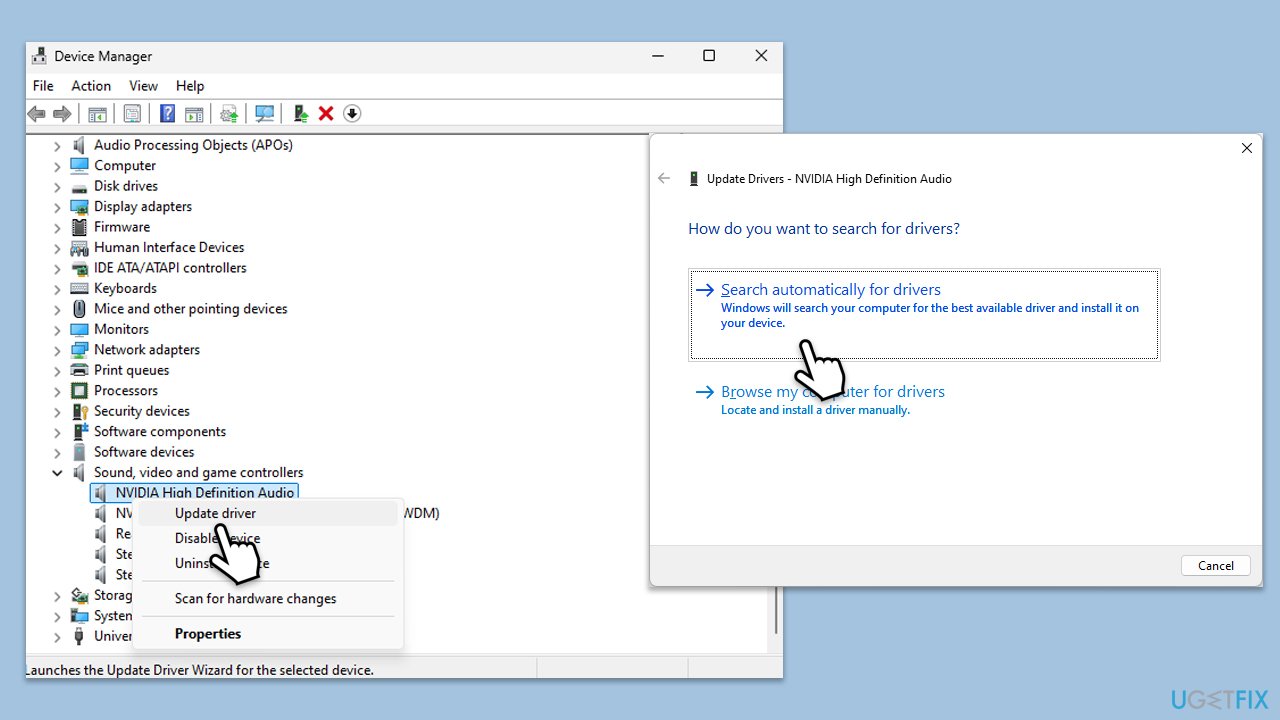
- Open Device Manager.
- Expand the Sound, video, and game controllers section.
- Right-click your audio device and select Update driver.
- Choose Search automatically for drivers.
- Follow the on-screen instructions to complete the update.
- Restart your computer after the update is installed.
Fix 2. Reinstall the audio driver
Reinstalling the driver can help if updating it does not solve the issue, as this refreshes the driver's configuration.
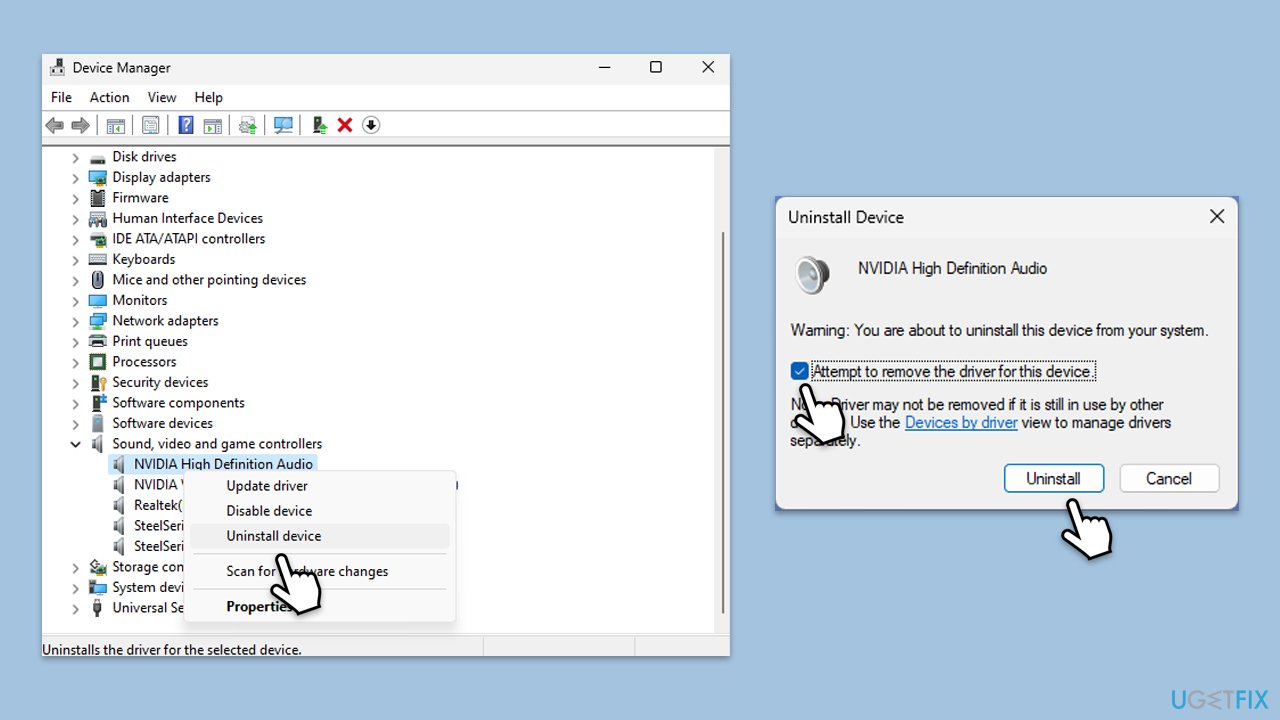
- Open Device Manager from the Start menu.
- Expand the Sound, video, and game controllers section.
- Right-click on your audio device and select Uninstall device.
- Confirm the uninstallation.
- Restart your device.
- Windows will automatically reinstall the network adapter upon reboot. If it doesn't, download the driver manually or use automatic tools such as [rev id="DriverFix"].
Fix 3. Check for Windows updates
Windows updates often contain patches and fixes that can resolve driver-related issues and improve system performance.
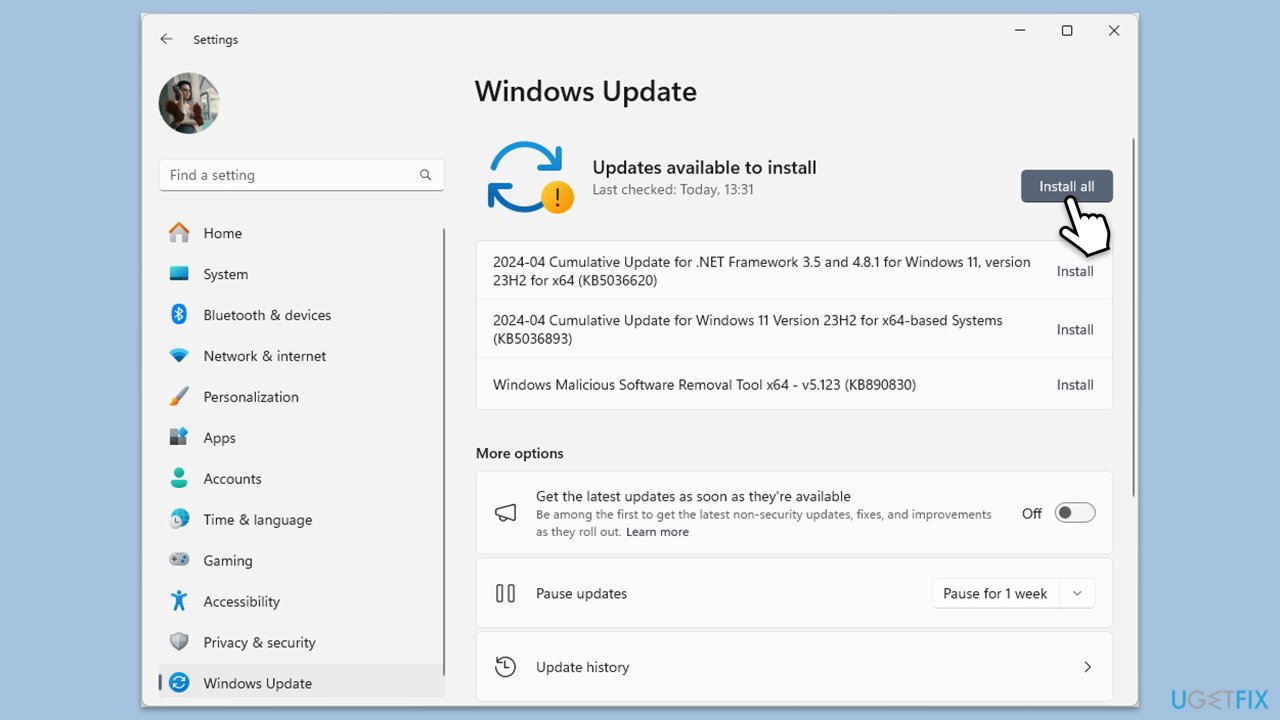
- In Windows search, type Updates and hit Enter.
- In the new window, click Check for updates/Install all and wait till everything is installed.
- Make sure you also install any available optional updates.
- When done, restart your system to implement the changes.
Fix 4. Disable audio enhancement software
Audio enhancement software running in the background can sometimes cause high CPU usage due to conflicts or excessive processing loops.
Windows 11
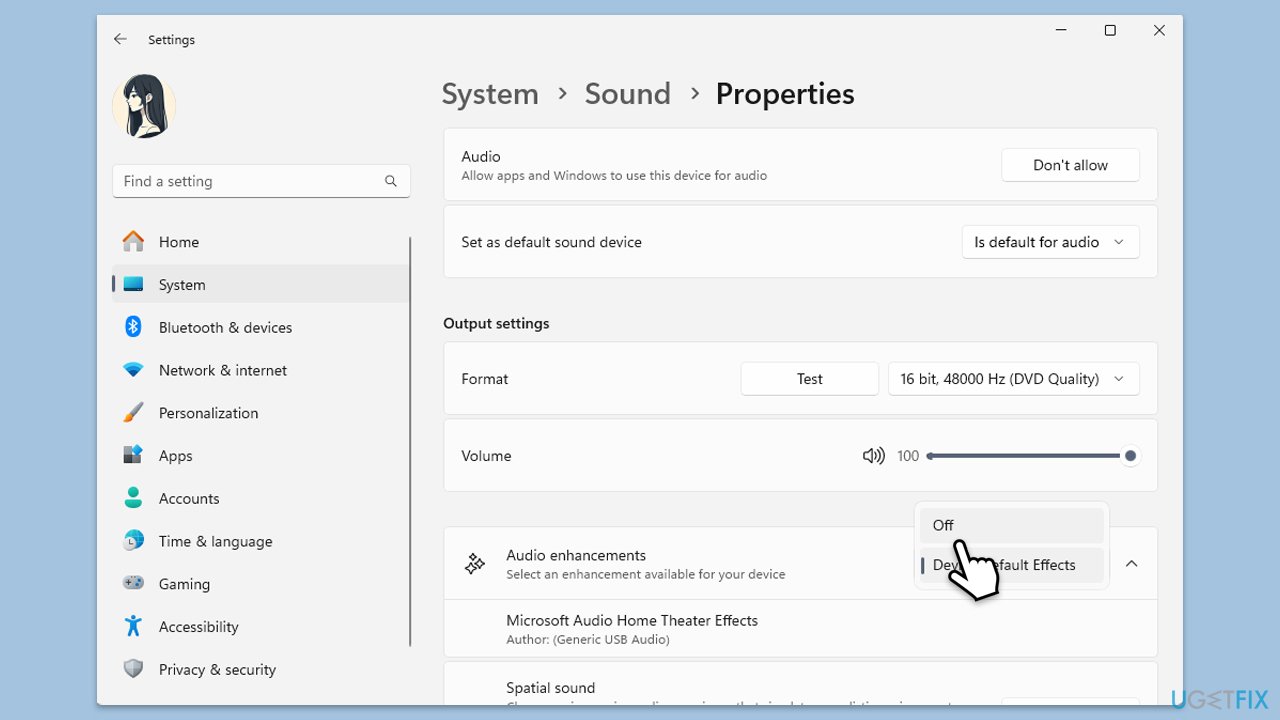
- Right-click on the speaker icon on your taskbar and pick Sound settings.
- Select the device you are using, for example, headphones.
- Under Output settings, locate the Audio enhancements section.
- Click on the drop-down menu and pick Off.
Windows 10
- Right-click on the speaker icon on your taskbar and select Sounds.
- Go to the Playback tab.
- Right-click your default playback device (like Speakers) and choose Properties.
- Navigate to the Enhancements tab.
- Check Disable all enhancements or Disable all sound effects.
- Click Apply, then OK.
Fix 5. Try Clean Boot
Performing a Clean Boot helps identify if background programs or services are causing high CPU usage. It runs Windows with minimal startup programs and services.
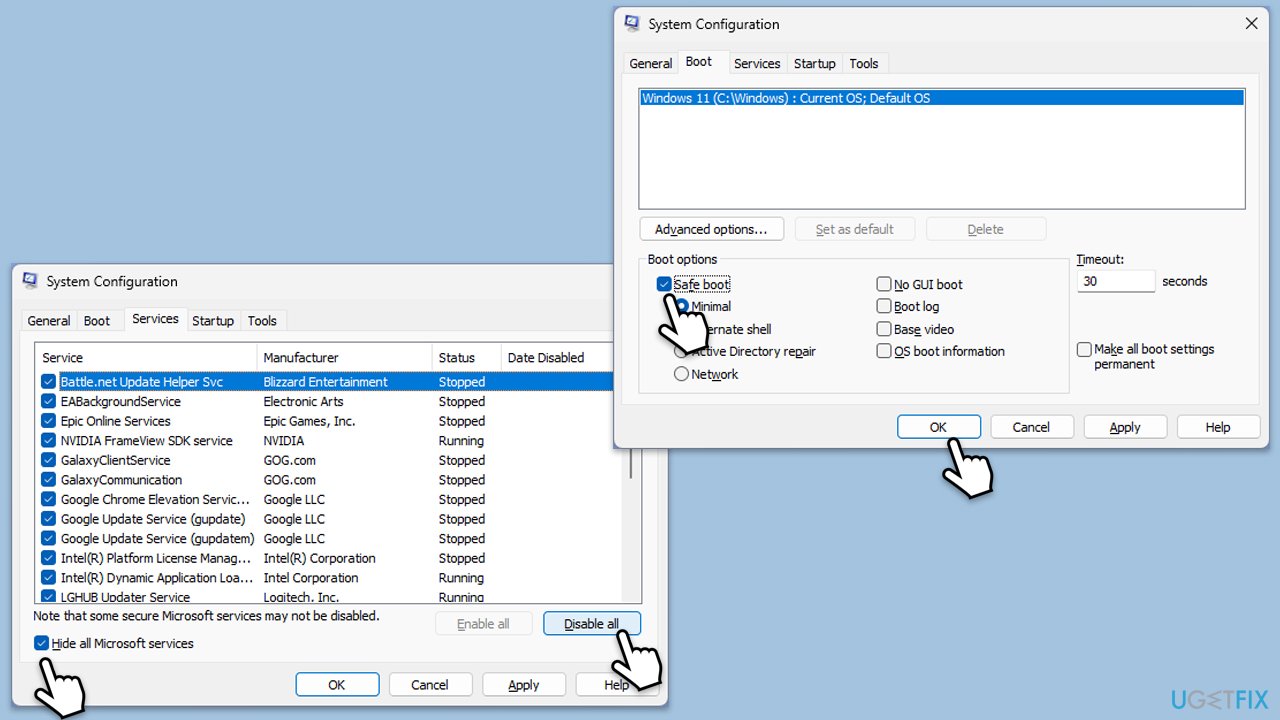
- Type msconfig in Windows search and press Enter.
- Go to the Services tab.
- Mark Hide all Microsoft services and select Disable all.
- Go to the Startup tab and click Open Task Manager.
- In the Task Manager, right-click on each of the items and select Disable, then close the Task Manager.
- Go to the Boot tab, and tick Safe Boot.
- Click Apply and OK, and restart your PC.
- To find out which app(s) is causing conflicts, enable each of the processes (or you can do it in groups), restart, and see if the problem persists. Repeat until you find the faulty app, then either update or uninstall it.
Fix 6. Run a system file check
Corrupt system files can contribute to high CPU usage by causing drivers like stdriver64.sys to malfunction. Running a system file check can identify and fix these issues.
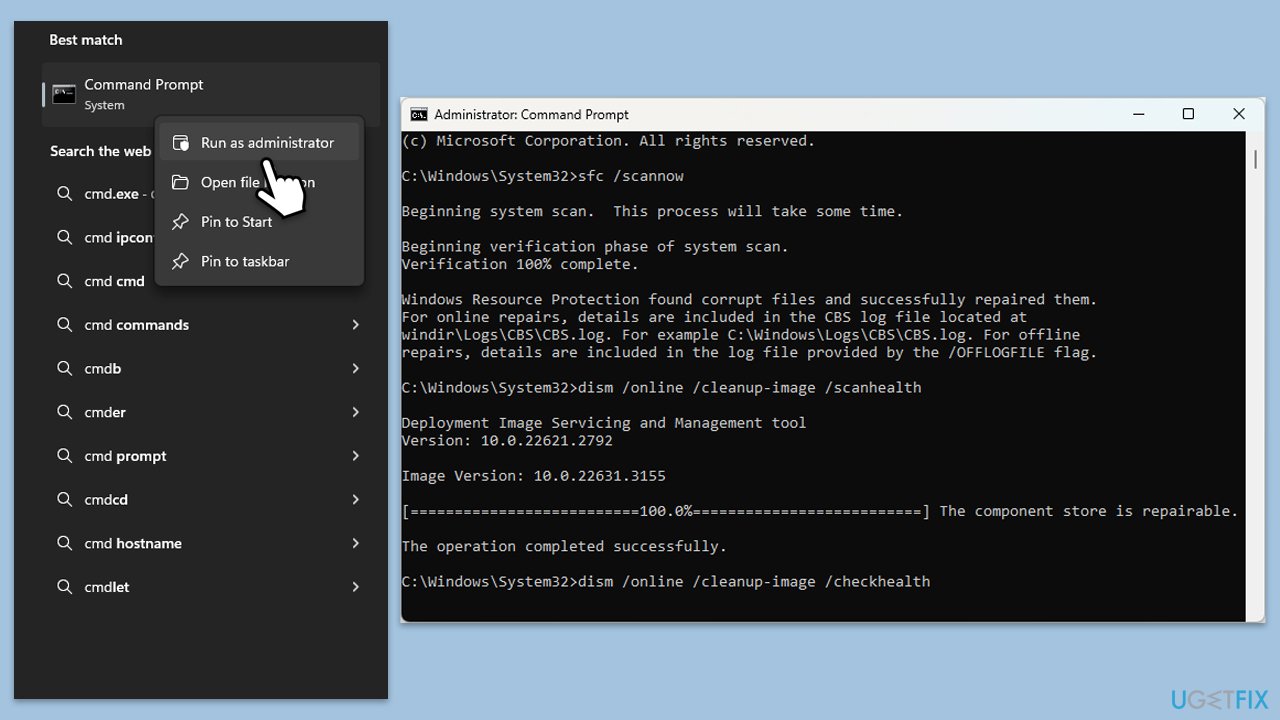
- Type cmd in Windows search.
- Right-click on Command Prompt and pick Run as administrator.
- User Account Control window will show up - click Yes when prompted.
- Then, copy and paste the following command, pressing Enter after:
sfc /scannow - Wait till the scan is finished. If Windows finds system file integrity violations, it will attempt to fix them. After this, use the set of the following commands, pressing Enter each time:
DISM /Online /Cleanup-Image /CheckHealth
DISM /Online /Cleanup-Image /ScanHealth
DISM /Online /Cleanup-Image /RestoreHealth
(Note: if you get an error executing this last command, add /Source:C:\RepairSource\Windows /LimitAccess to it and try again). - Close down the Command Prompt and restart your system.
Fix 7. Reinstall or roll back Windows updates
Recent Windows updates may cause conflicts with certain drivers. Reinstalling or rolling back updates can address these issues.
- Type Control Panel in Windows search and press Enter.
- Select Programs > Uninstall a program.
- Click on View installed updates on the left side of the window.
- Uninstall the most recent update.
- Proceed with on-screen instructions.
- Don't forget to pause the update.
Fix 8. Repair-install Windows
If other solutions do not resolve the high CPU usage issue, performing a repair-install of Windows can address deeper system-level problems. This process reinstalls Windows while keeping your files and apps intact.
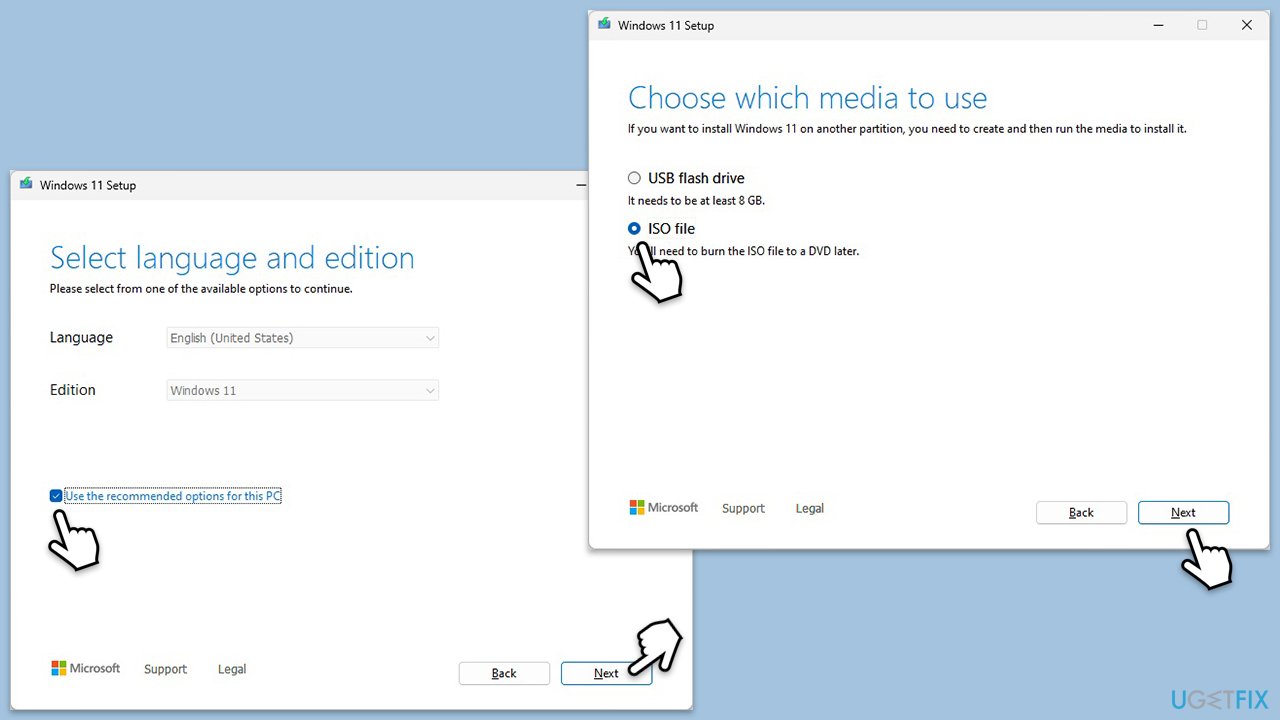
- Visit the official Microsoft website and download Windows 10 installation media (Windows 11 version).
- Double-click the installer, select Yes when UAC shows up, and agree to the terms.
- Select the ISO file and click Next, then follow the instructions to finish the process.
- Right-click on ISO and click Mount.
- Open the location of the ISO, right-click on it, and select Mount.
- Launch the installer.
- Select Upgrade this PC now and click Next.
- Windows will start downloading the needed files.
- Agree to the terms once again and click Next.
- Before installing, ensure you are happy with your choices (otherwise, you can click the Change what to keep option).
- Finally, click Install to begin the upgrade process.
Bottom line
To resolve high CPU usage caused by stdriver64.sys, you can update or reinstall relevant drivers, disable problematic background services, or reconfigure specific audio software. If these solutions do not work, consider using a repair tool for further assistance.
Frequently asked questions
High CPU usage by stdriver64.sys in Windows 10 can be caused by outdated drivers or software conflicts with Windows components. It's essential to ensure all drivers are up to date and check for any recently installed software that may interfere.
To reduce stdriver64.sys CPU usage on Windows 11, you can try disabling unnecessary startup programs and performing a clean boot. Additionally, running the Windows Update tool can help by installing important updates and patches.
Disabling stdriver64.sys is not recommended as it is a critical system driver related to your hardware. Instead, focus on troubleshooting driver conflicts or updating the driver to resolve high CPU usage.




Report an issue
What's wrong with this guide? We review every report and update or remove content.
Report received — thank you. We'll review and fix it.
You need a free account to submit a report.
Be the first to comment