How to fix
Steam Big Picture mode not working
on Windows
Resolve Steam Big Picture mode issues on Windows 10 or 11 quickly and effortlessly with expert-tested solutions. Get back to gaming in minutes!

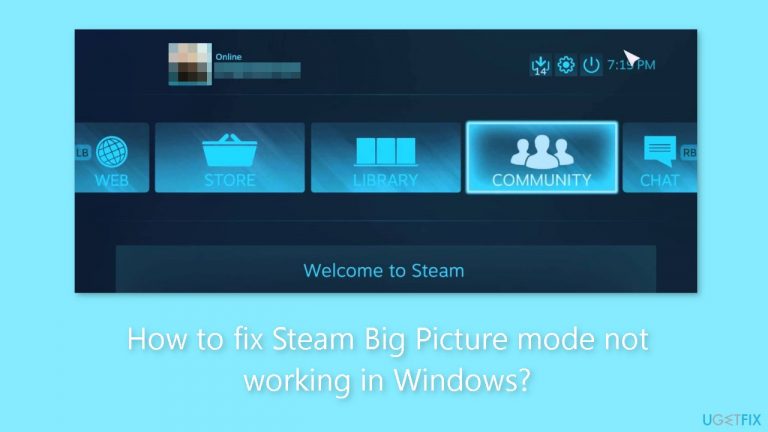
What causes How to fix Steam Big Picture mode not working in Windows?
- Compatibility issues with Windows
- Outdated Steam client
- Outdated graphics drivers
- External device connection problems
- Malfunctioning gaming controllers
Repairs Windows system files, removes malware, and restores a clean OS state — without reinstalling.
Hello. When I try to turn on Big Picture mode in Steam on my Windows PC, it does not work. Why is this happening? Any suggestions would be appreciated.
Gamers who depend on Steam's Big Picture mode to improve their gaming experience may find it frustrating since it doesn't function properly on Windows. The Steam interface is effectively given a console-like makeover in Big Picture mode, making it easier to operate and controller-friendly. For those who prefer using a gaming controller over a keyboard and mouse, this option makes navigation easier.
When this feature doesn't function as intended, users may be negatively impacted in a number of ways. The smooth transition from desktop gaming to a more console-like experience is first and foremost disrupted. For those who prefer to utilize their PC as a gaming console in a living room arrangement, this can be particularly problematic. The simplicity and use that Steam aims to provide are diminished by the inability to access Big Picture mode.
Users who have purchased gaming controllers for their PC gaming sessions can also discover that they are unable to completely utilize these devices. Big Picture mode's malfunction can degrade the gaming experience for this user base because it is designed to operate flawlessly with controllers. This problem may cause irritation and the need for time-consuming troubleshooting or workarounds.
To address compatibility issues with Windows or particular hardware configurations, Steam may provide updates or patches. Users may also need to make sure that their Windows operating system, Steam client, and graphics drivers are all up to date. Another potential troubleshooting step is disconnecting and reconnecting external devices.
In this guide, you will find 9 steps that should help you fix Steam Big picture mode not working in Windows. You can also run a maintenance tool like [d1] that can fix most system errors, BSODs,[ref en-1] corrupted files, registry[ref en-2] issues, or clear cookies and cache.[ref en-3] Otherwise, follow the step-by-step instructions below.

Solution 1. Close Steam and Run it as an Administrator
- Press Ctrl + Shift + Esc to open the Task Manager.
- In the Processes tab, right-click on Steam and select the End task option.
- Right-click on the Steam app shortcut and select Run as administrator.

Solution 2. Modify Steam .exe File
- Right-click on the Steam app shortcut and select Properties.
- In the Target field, add -tenfoot to the end of the path.
- Click Apply and then click OK.
- Double-click the Steam shortcut to open it in Big Picture mode and check if the issue persists.

Solution 3. Disconnect Peripherals
Sometimes, external devices attached to your computer, like a malfunctioning or improperly configured gaming controller, can disrupt Steam and lead to issues. To investigate this, consider temporarily disconnecting any external devices and check if it resolves the problem.
Solution 4. Install Windows Updates
- Click Start and select Settings.
- Go to the Windows Update section.
- Click Check for updates and wait.
- Go to the Advanced options and install optional updates.
- Reboot your system.

Solution 5. Clear Steam Cache
- Press the Windows key + R to open the Run dialog box.
- Type C:\Program Files (x86)\Steam in the text field and hit Enter.
- Select the appcache folder and click the trash icon at the top to delete it.

Solution 6. Update Display Driver
- Press the Windows key + X to open the Power User menu.
- Select Device Manager from the menu.
- Expand the Display adapters entry in the Device Manager.
- Right-click on the graphics card listed under Display adapters.
- Choose Update driver from the context menu.
- Now, select Search automatically for drivers from the options presented.

You can also use a dedicated utility like [rev id="DriverFix"] that can find the best drivers for your machine and install them automatically.
Solution 7. Leave Steam Beta
- Open the Steam client on your PC.
- Select Steam > Settings.
- In the Interface tab, use the drop-down menu next to Client Beta Participation to select No beta chosen.

- Click Restart Now to confirm. Wait for Steam to apply the necessary updates and switch to the standard version.
- After that, you should be able to use the Big Picture mode in Steam.
Solution 8. Reset Steam Configurations
- Close the Steam client using the Task Manager.
- Press the Windows key + R to open the Run dialog box.
- Type steam://flushconfig in the box and press Enter.
- Click OK to confirm.

Solution 9. Reinstall Steam
- Use the keyboard shortcut Ctrl + R.
- Type in control.exe in the box and press Enter.
- Select Uninstall a program.
- In the list shown, locate Steam.

- Click on Steam, then select Uninstall to remove it.
- Go to the Steam download page.
- From the top-right corner of the window, click on Install Steam.
- Follow the on-screen instructions to reinstall Steam.
Bottom line
To fix Steam Big Picture mode not working in Windows, ensure that your Windows operating system, Steam client, and graphics drivers are all up to date. Additionally, try closing Steam and running it as an administrator, and disconnecting and reconnecting external devices. If none of these solutions work, consider running a maintenance tool to address potential system errors.
Frequently asked questions
Try verifying the integrity of your game files through Steam, as corrupted files can cause crashes. Additionally, ensure that your graphics drivers are up to date for optimal performance.
Check if there are any pending updates for Steam and install them, as updates often contain bug fixes. If the problem persists, consider disabling any overlay features from third-party applications that might interfere.
Ensure that your controller settings are configured correctly within Steam, and disable any conflicting software that may be running in the background. You can also try running Steam as an administrator to eliminate permission issues.




Report an issue
What's wrong with this guide? We review every report and update or remove content.
Report received — thank you. We'll review and fix it.
You need a free account to submit a report.
Be the first to comment