How to fix
Steam Broadcasting not working
on Windows
Resolve Steam Broadcasting issues on Windows 10 and Windows 11 effortlessly. Achieve smooth streaming with expert-tested solutions that fix it in minutes.

Repairs Windows system files, removes malware, and restores a clean OS state — without reinstalling.
Hello. I tried to use Steam Broadcasting on my Windows PC but the feature does not work. Is there anything I can do to make it work?
Valve Corporation's Steam is a popular digital distribution platform for video games. It also has features for social networking, automatic updates, and multiplayer gaming. Steam Broadcasting is a feature that allows users to broadcast their gameplay live to friends or the general public. Some users, however, may experience problems with Steam Broadcasting not working on Windows.
Users who want to share their gameplay with others or watch their friends' broadcasts may be affected by this issue. It can be aggravating for those who rely on the feature to connect with others and have fun while gaming. Checking for updates, verifying the game cache, disabling the firewall or antivirus, checking the network connection, and ensuring that the system requirements are met are all possible solutions to this problem.
However, depending on the cause of the problem, the specific solution may differ. In this guide, you will find 6 steps that should help you fix Steam Broadcasting not working in Windows.
In some cases, the problem can be related to underlying operating system issues. In that case, you can try using a maintenance tool like [d1] that can fix most system errors, BSODs,[ref en-1] corrupted files, registry[ref en-2] issues, or clear cookies and cache[ref en-3] automatically. Otherwise, follow the step-by-step instructions below.
Method 1. Check Steam Servers
To begin, verify if the Steam servers are experiencing downtime or undergoing maintenance by staying informed of any related events by following @Steam on Twitter.
Method 2. Enable Steam Broadcasting
- Launch Steam.
- Navigate to Settings.
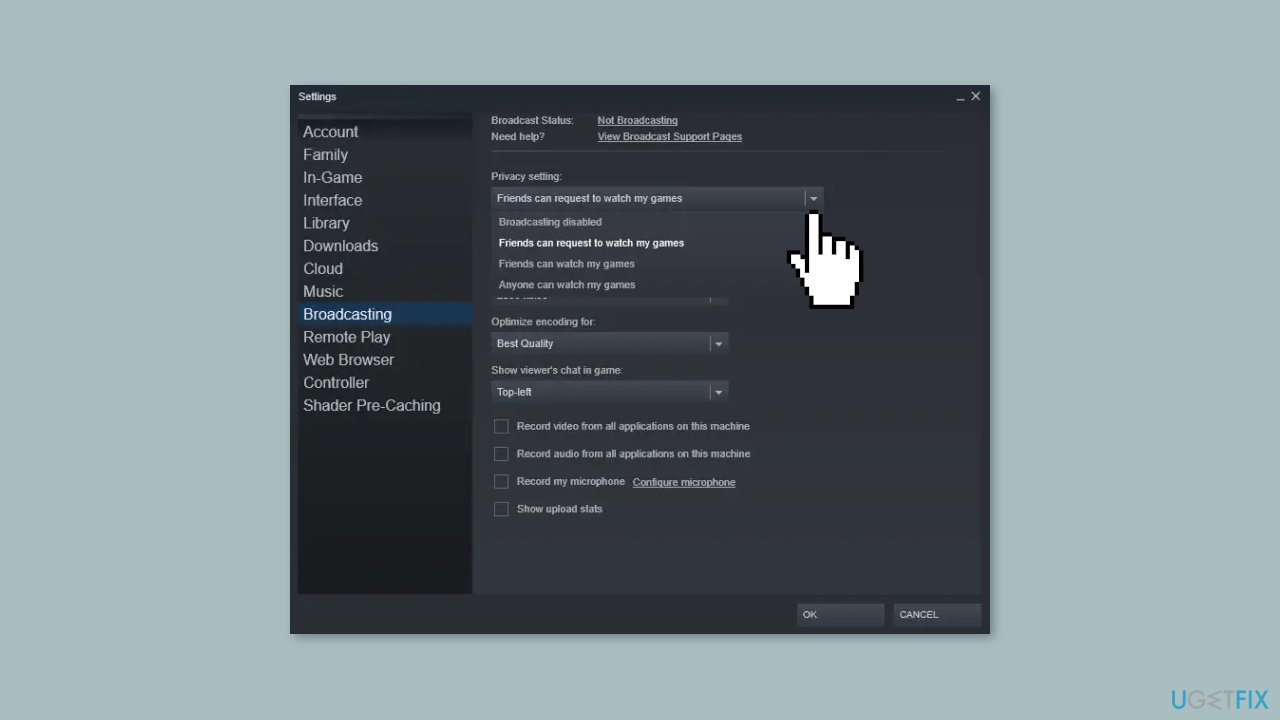
- Click on Broadcasting.
- Look for the dropdown below the Privacy setting.
- Select any option other than Broadcasting disabled from the dropdown.
Method 3. Configure Broadcasting Settings
- Launch Steam.
- Navigate to Settings.
- Click on Broadcasting.
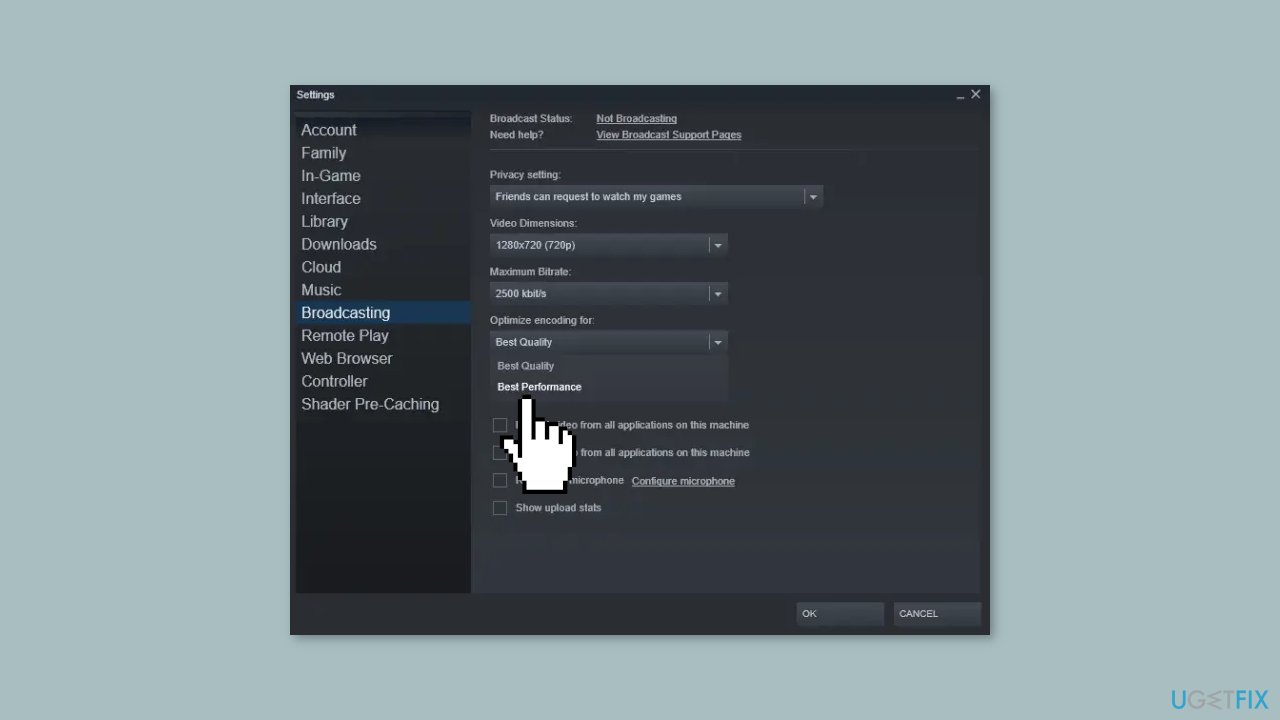
- Reduce the Video dimensions.
- Look for Optimize encoding for.
- Select Best Performance from the dropdown.
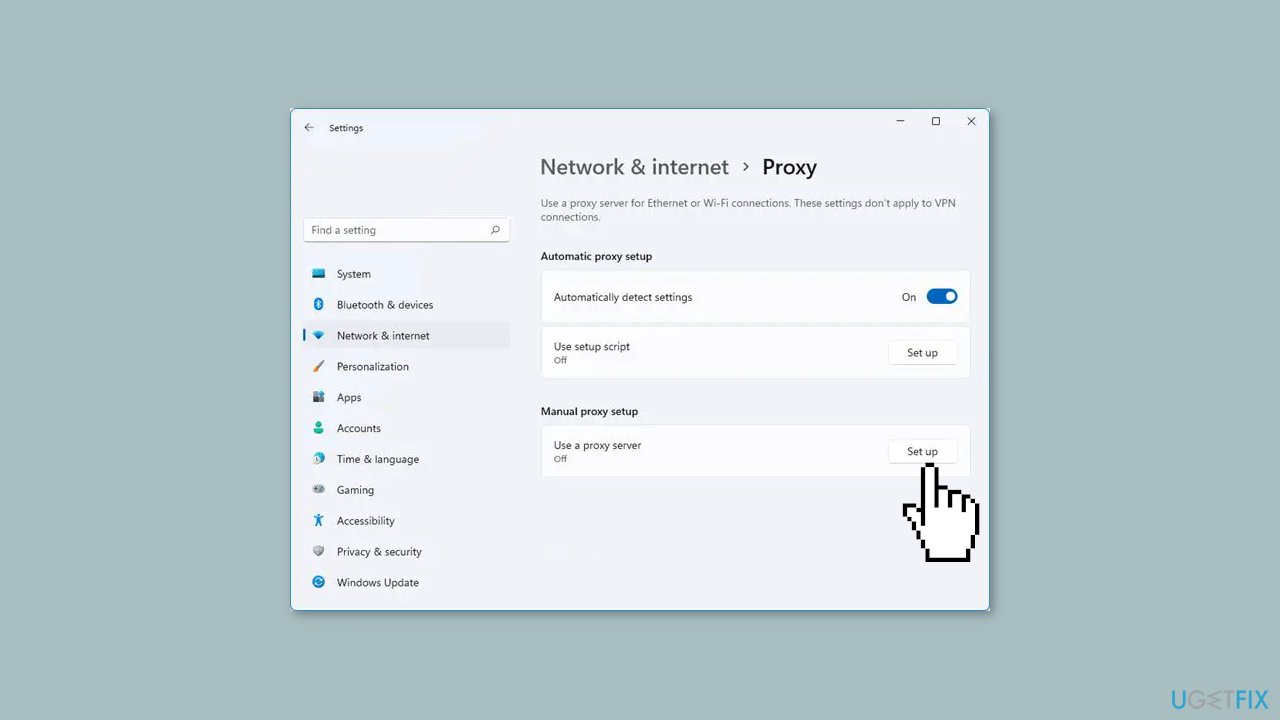
Method 4. Disable Proxy Server or VPN
Steam Broadcasting may not function properly if you are connected to a VPN or Proxy server, as they redirect your IP address to a different location. This can result in the service being unavailable in that location, causing issues with Steam Broadcasting.
- Go to Settings.
- Click on Network and Internet.
- Select Proxy.
- Click on the Use setup script button under the Automatic proxy setup section.
- Turn off the Use a proxy server button under the Manual proxy setup section.
Method 5. Allow Steam through Windows Firewall
Windows Firewall is a security feature that helps prevent unauthorized access to a user's computer or network. If the firewall is blocking Steam's connection, it can cause issues with the Steam Broadcasting feature.
- Open the Windows Defender Security Center.
- Select Firewall and Network Protection.
- Click on Allow an app through firewall.
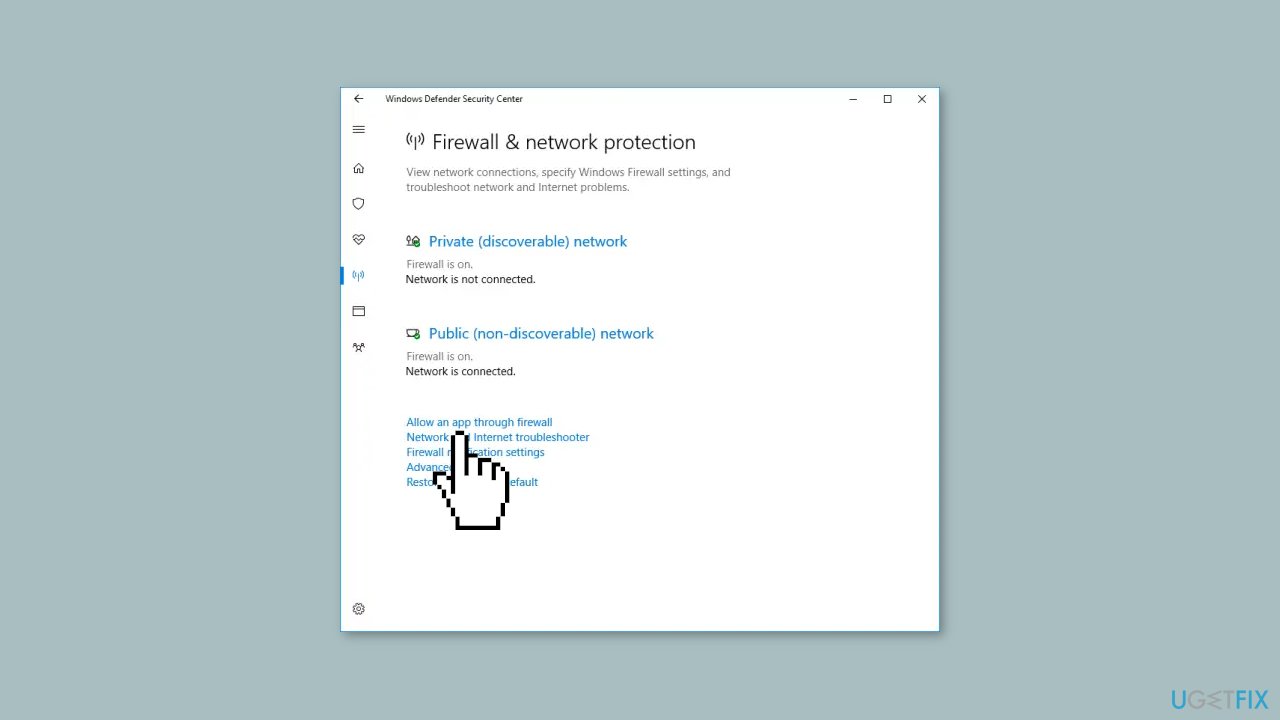
- Click on the Change Settings button and ensure that you have administrative privileges.
- From the menu, select the app that you want to allow through the Firewall. You can also add the app manually by using the Add an App option.
- Select the type of network the app can access:
Private Network will allow the app to connect to the internet only at home or work.
Public Network will allow the app to connect to the internet from anywhere, including Public WiFi hotspots.
- Click on OK.
Method 6. Contact Support
If none of the above suggestions prove to be effective, it is recommended to contact Steam Support for further assistance. They may provide additional solutions to help resolve any issues with Steam Broadcasting.
Frequently asked questions
Common issues include network connectivity problems, outdated Steam client, or incorrect broadcasting settings in Steam.
You can check your Windows firewall settings by going to Control Panel > System and Security > Windows Defender Firewall, and then ensuring that Steam is allowed through the firewall.
If updating Windows doesn't resolve the issue, try restarting Steam and your computer, and ensure that your graphics drivers are also up to date.




Report an issue
What's wrong with this guide? We review every report and update or remove content.
Report received — thank you. We'll review and fix it.
You need a free account to submit a report.
Be the first to comment