How to fix
“Steam Cloud Error”
on Windows
Resolve the "Steam Cloud Error" on Windows 10 and 11 effortlessly. Expert-tested solutions and quick fixes ensure zero traces left.


What causes How to fix “Steam Cloud Error” in Windows?
- Slow or non-existent internet connection
- Corrupt game files
- Issues with the Steam client or servers
- Third-party antivirus software interference
- Windows Firewall settings blocking Steam
Repairs Windows system files, removes malware, and restores a clean OS state — without reinstalling.
Hello. I started receiving the "Steam Cloud Error" while gaming quite often. Is there a way to fix this issue?
"Steam Cloud Error" is a common problem encountered by Steam users while playing games on Windows. Steam is a well-known digital distribution platform that enables users to purchase, download, and play video games on their computers. It also has community features like social networking, game creation, and user-generated content.
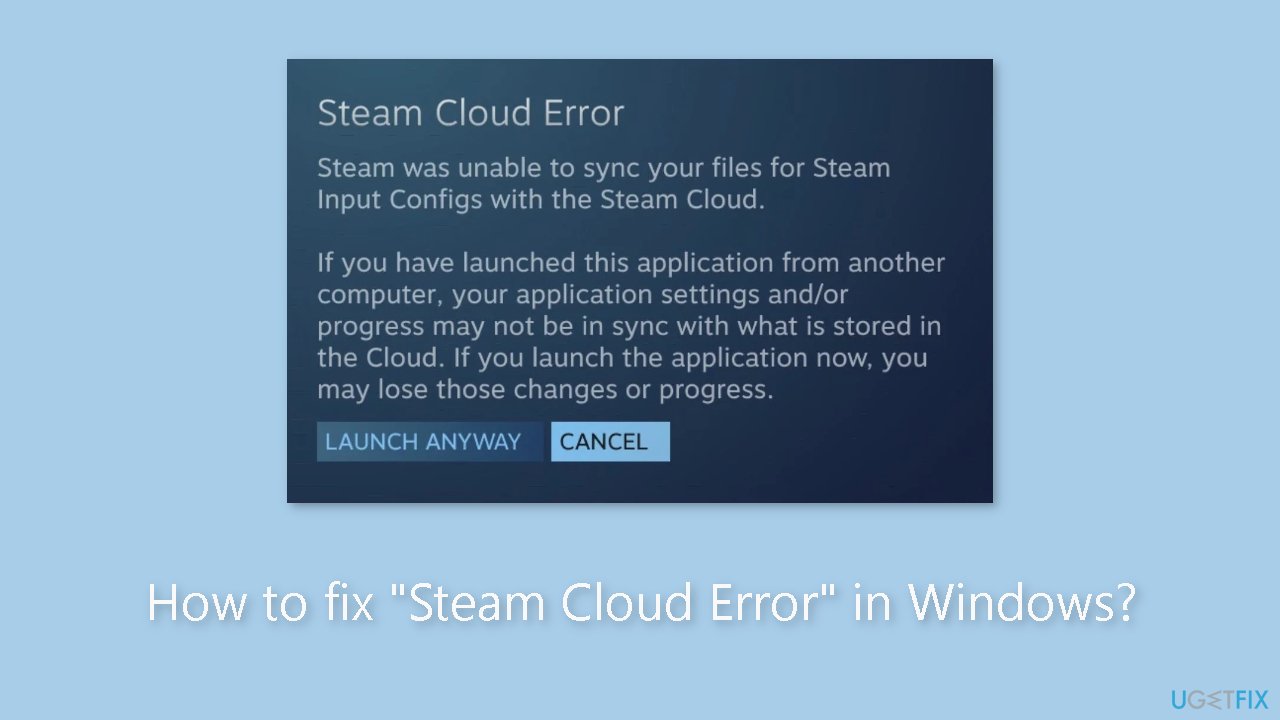
When a user plays a game on Steam, the Steam Cloud feature saves their game progress and settings to the cloud server automatically. This ensures that even if a user changes devices, they can still access their saved progress and settings. However, when attempting to sync their game progress and settings, users may receive a "Steam Cloud Error" message. This can be aggravating, especially for users who want to play their games on multiple devices.
The error message may appear due to a number of factors, including a slow or non-existent internet connection, corrupt game files, or issues with the Steam client or servers. Additionally, third-party antivirus software and Windows Firewall settings may prevent Steam from connecting to the cloud, resulting in the error message.
Users can try restarting the Steam client, checking the internet connection, verifying the integrity of game files, repairing Steam library folders, and running Steam as an administrator to resolve the issue. Disabling third-party antivirus or VPN software and ensuring Steam Cloud synchronization is enabled can also aid in the resolution of the error.
In this guide, you will find 11 steps that should help you fix "Steam Cloud Error" in Windows. If you experience any other OS-related issues, you can run a repair tool like [d1]. It can fix most system errors, BSODs,[ref en-1] corrupted files, registry[ref en-2] issues, or clear cookies and cache.[ref en-3] Otherwise, follow the step-by-step instructions below.
Method 1. Close Steam on Other Devices
Multiple users on Reddit have reported getting the Cloud Error on Steam when attempting to use a single Steam account on multiple devices without logging out of the first. If you are using one Steam account on multiple devices for gaming, it is recommended that you log out of your Steam account and close the Steam client on all devices except the one where the error is occurring.
Method 2. Restart the Steam Client
It is recommended that you restart the Steam client to ensure that the error is not caused by a temporary glitch. However, simply closing and restarting the client may not be sufficient. You should also end all Steam-related processes in Task Manager.
- Right-click on the Windows Start menu.
- Select Task Manager from the pop-up menu.
- In the Task Manager window, locate the Steam processes that are running. You may have to scroll down to find them.
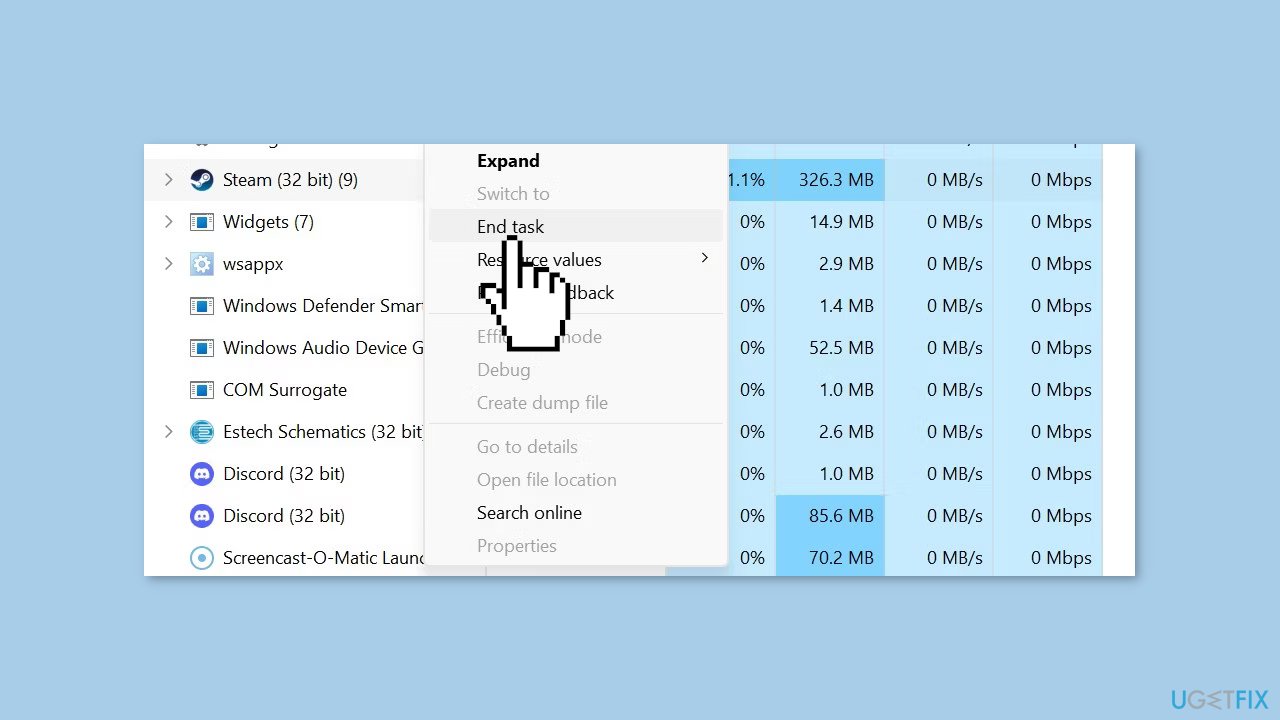
- Right-click on each Steam process and select End task from the pop-up menu. Repeat this step until all relevant processes have been terminated.
- Close the Task Manager window.
Method 3. Run Steam as an Administrator
Running Steam as an administrator grants it permission to fetch whatever data it needs to function properly, so this should circumvent any operating system restrictions that were previously prohibiting proper data syncing.
- Open the folder where Steam is installed on your computer.
- Find the Steam executable file. The default location is C:\Program Files (x86)\Steam.
- Right-click on the Steam executable file and select Properties from the pop-up menu.
- In the Properties window, select the Compatibility tab.
- Under Settings, check the box that says Run this program as an administrator.
- Click Apply and then OK to save the changes.
- Close the Properties window.
- Right-click on the Steam icon on your desktop or in your Start menu.
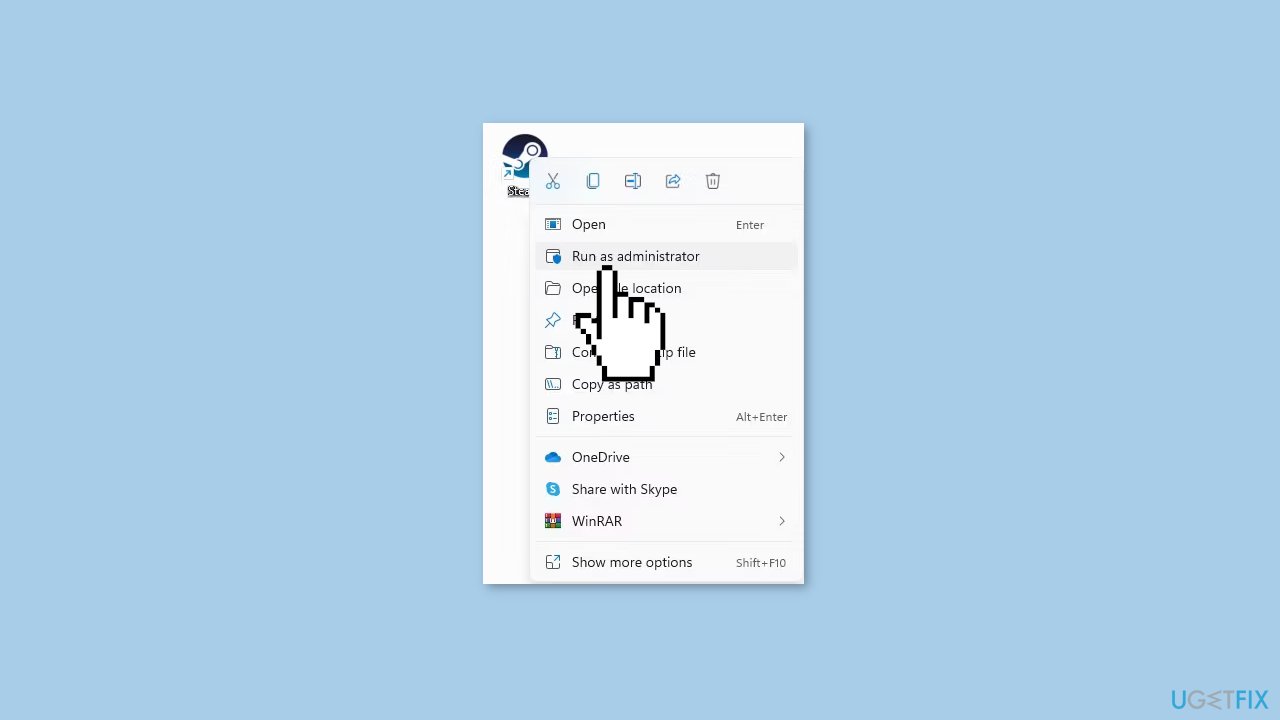
- Select Run as administrator from the pop-up menu.
- Wait for Steam to launch and log in to your account.
- Try using Steam again and see if the issue has been resolved.
Method 4. Allow Steam to Load the Synchronized Data
Allowing Steam enough time to load the synced data correctly may help to resolve this error. If you've been opening or closing games right away after launching Steam, try waiting a few moments for the client to catch up before using it again.
Method 5. Check if Steam is Down
Check if Steam is experiencing any technical difficulties because if there are any problems with Steam's servers, it can affect the Steam Cloud service, leading to the "Steam Cloud Error" message.
- To check if there are any issues with Steam, visit the official Downdetector website and see if other Steam users have reported problems.
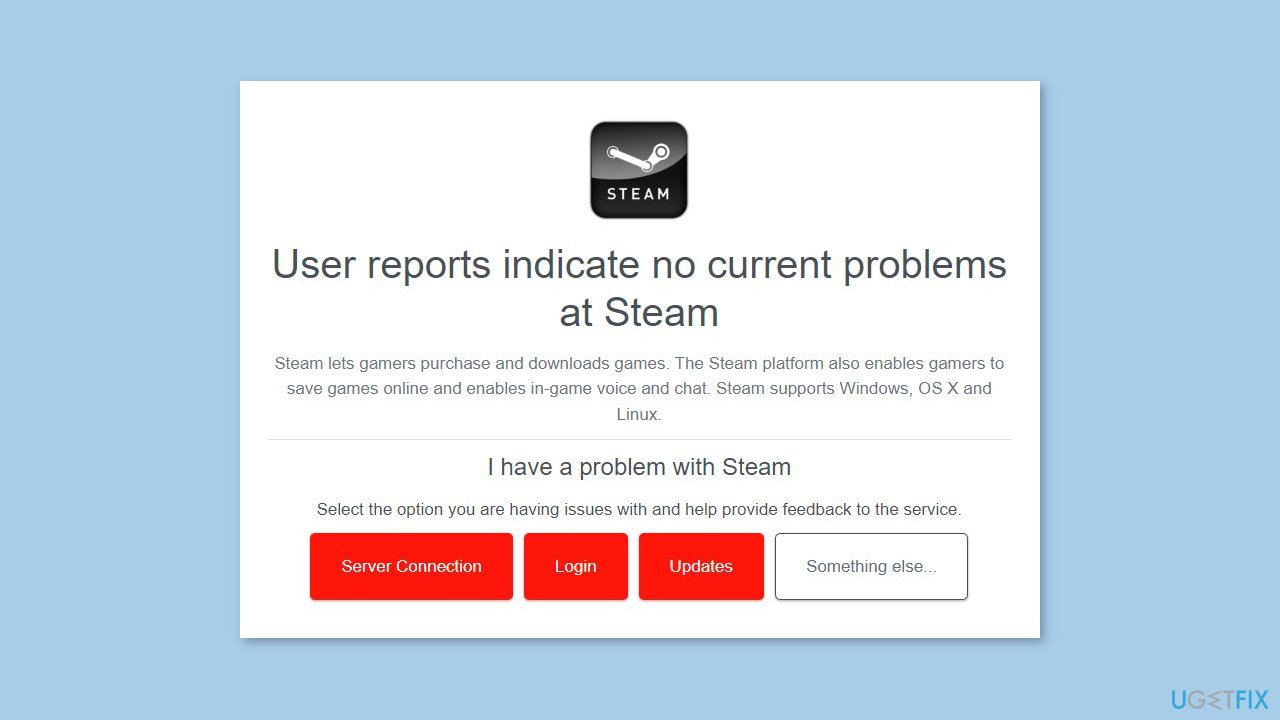
- If there are any relevant problems reported, visit Steam's official Twitter account and look for any official announcements regarding the issue.
Method 6. Rule out Game-Specific Issues
- Start the Steam client on your computer.
- Select the game that is giving you the "Steam Cloud Error" message.
- Under the Cloud Status column for the game, click on the Out of sync option.
- This will bring up an Unable to Sync window; click on Retry Sync.
- Wait for the synchronization process to complete.
- Once it's done, check if the Out of sync option has changed to Up to date.
Method 7. Verify Integrity of Game Files
If you've tried all of the previous fixes and the problem still persists, it's possible that it's due to corrupted game files, particularly those that track game progress. To rule out this possibility, use Steam's built-in feature to check the game files' integrity.
- Launch Steam on your computer.
- Click on the Library tab located at the top of the Steam window.
- Find the game that is experiencing the "Steam Cloud Error" and right-click on it.
- Select Properties from the pop-up menu.
- In the Properties window, select the Local Files tab.
- Click the Verify Integrity of Game Files... button located in the right-hand pane.
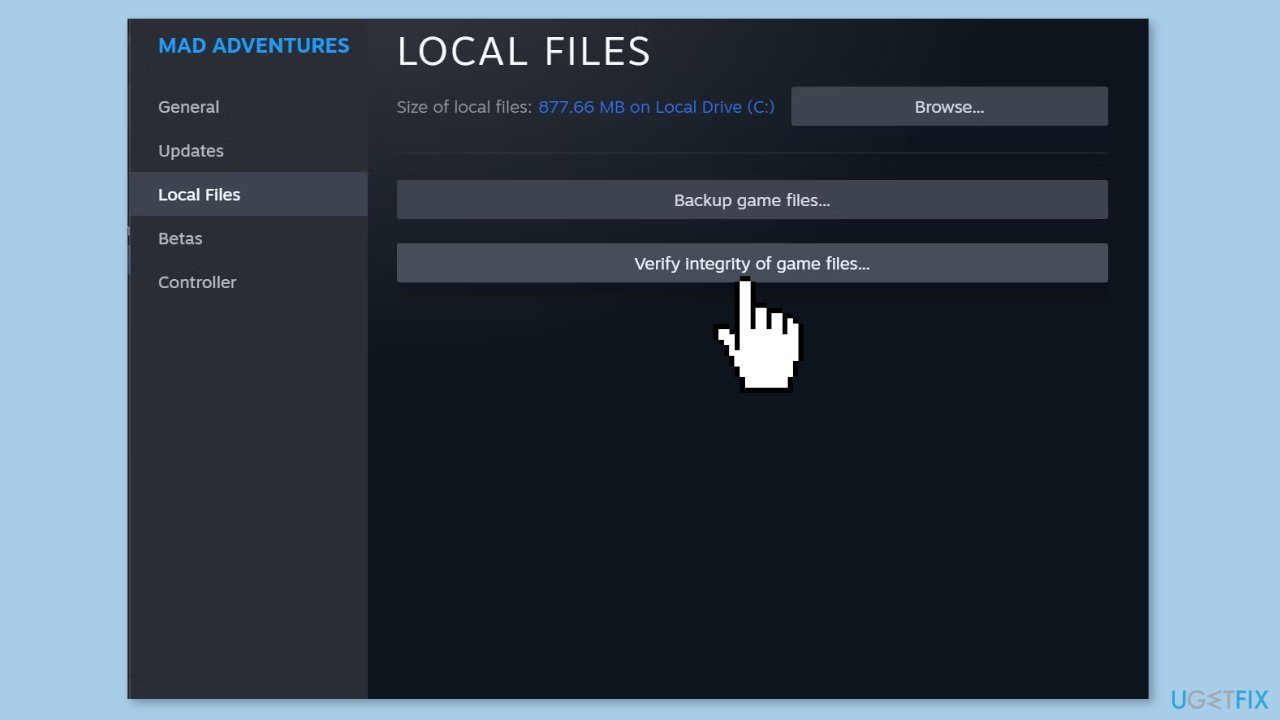
- Wait for the process to complete. This may take a few minutes depending on the size of the game and the speed of your computer.
- Once the process is complete, Steam will automatically download and replace any corrupted or missing game files.
- Close the Properties window.
- Launch the game again and see if the issue has been resolved.
Method 8. Check Internet Connection
If the Steam client is unable to load synced progress, the cause could be a slow or non-existent internet connection. As a result, you should check your internet connection to rule out this possibility.
Method 9. Repair the Steam Library Folder
- Open the Steam client on your computer.
- In the top-left corner of the window, click on the Steam menu.
- From the dropdown menu, select Settings.
- In the Settings window, navigate to the Downloads tab located on the left sidebar.
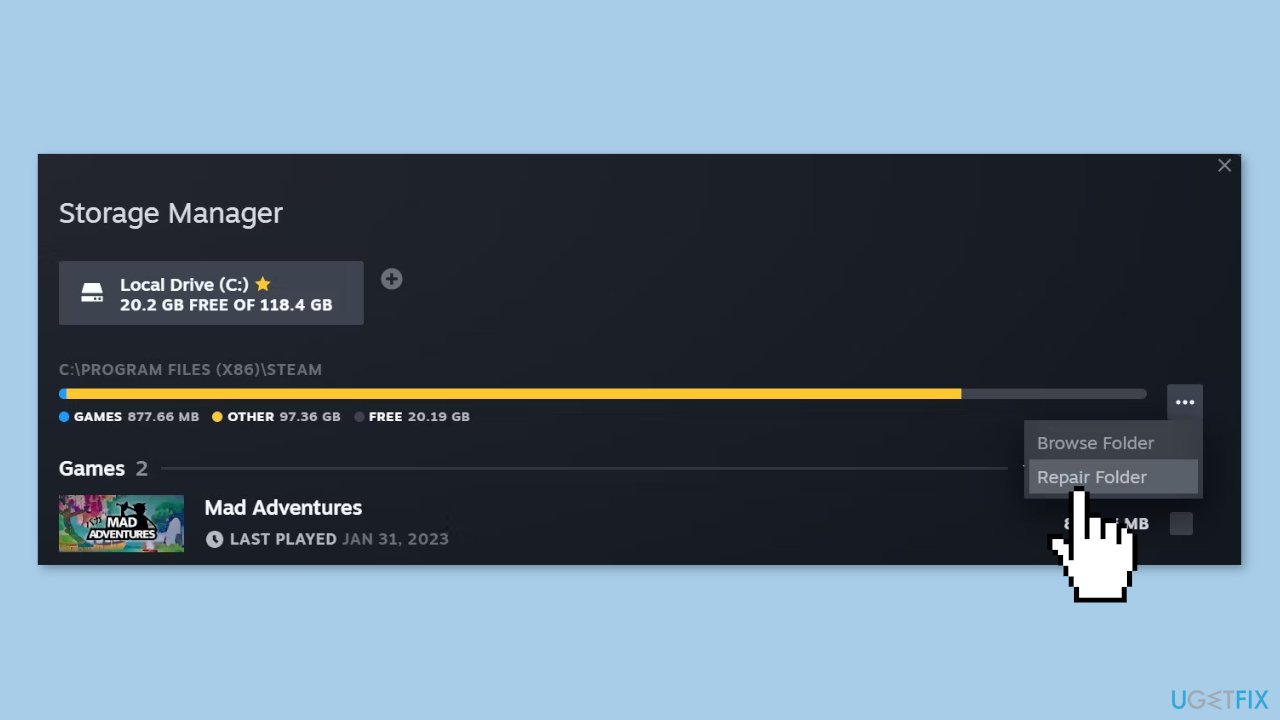
- In the right-hand pane, locate and click on Steam Library Folders.
- Next to the folder path of the affected game, click on the three horizontal dots.
- From the dropdown menu, select Repair Folder.
Method 10. Enable Cloud Synchronization
- Open the Steam client on your computer.
- In the top-left corner of the window, click on the Steam menu.
- From the dropdown menu, select Settings.
- In the Settings window, navigate to the Cloud tab located on the left sidebar.
- Ensure that the checkbox next to Enable Steam Cloud synchronization for applications that support it is checked.
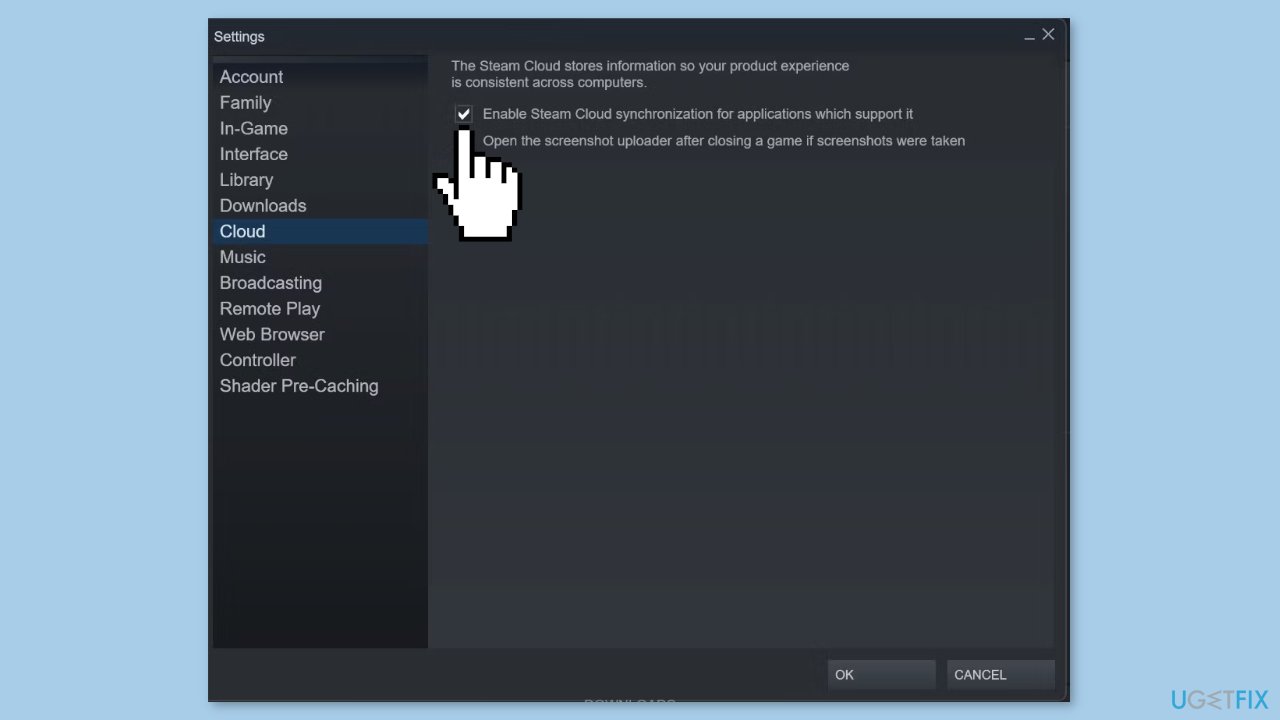
- If it is not checked, tick the checkbox and click on OK to save the changes.
- Restart Steam after enabling this setting.
- Launch the game again and check if the error has been resolved.
Method 11. Disable Third-party Antivirus and VPN
If you've already confirmed that your game files aren't corrupt but are still receiving the "Steam Cloud Error" message, it's possible that your antivirus software or Windows Firewall is preventing Steam from connecting to the cloud. You can try temporarily turning off your third-party antivirus to troubleshoot this issue. Additionally, running Steam with a VPN enabled can cause cloud sync to fail. If none of the previous solutions have worked, try disabling your VPN and seeing if that fixes the problem.
Bottom line
To fix the 'Steam Cloud Error', users can try restarting the Steam client, checking their internet connection, verifying the integrity of game files, and running Steam as an administrator. If these steps do not resolve the issue, consider disabling third-party antivirus or VPN software and ensuring Steam Cloud synchronization is enabled.
Frequently asked questions
First, ensure that Steam is up to date and then verify the integrity of your game files through the Steam client. If the issue persists, try disabling the Steam Cloud synchronization in the game's properties.
Yes, you can try allowing Steam through your Windows Firewall, as it might be blocking the connection needed for cloud saves. Go to Windows Security, select Firewall & network protection, and then allow an app through the firewall.
On Windows 11, you can also run Steam as an administrator, which may resolve permission issues related to the Steam Cloud. Additionally, check your internet connection and ensure that the Steam servers are operational.




Report an issue
What's wrong with this guide? We review every report and update or remove content.
Report received — thank you. We'll review and fix it.
You need a free account to submit a report.
Be the first to comment