How to fix
Steam download stuck at 100%
on Windows
Resolve the frustrating Steam download stuck at 100% issue on Windows 10 or 11 with our expert-tested solutions. Fixed in minutes!

What causes How to fix Steam download stuck at 100%?
- Problem with the Steam client
- Temporary issue with internet service provider
- Problem with router or modem
- Corrupted files
- Registry issues
Repairs Windows system files, removes malware, and restores a clean OS state — without reinstalling.
Hello. I wanted to download a new game but it got stuck at 100%. It has stayed like this for hours. What should I do?
Steam is a digital distribution platform that allows users to easily manage and organize their games and other content. It also provides automatic updates for games, which can save users time and effort when it comes to keeping their content up to date. Steam also offers a number of social features that allow users to connect with each other and share their gaming experiences.
However, if a Steam download is stuck at 100%, it can be a frustrating and time-consuming problem. There are a few potential causes for this issue, and fortunately, there are also a few things that you can try to fix it. One possible cause of a Steam download getting stuck at 100% is a problem with the Steam client itself. This could be due to a bug or a technical issue with the client. In this case, the best solution is to try restarting the Steam client.
Another potential cause of a Steam download getting stuck at 100% is a problem with your internet connection. This could be due to a temporary issue with your internet service provider, or it could be due to a problem with your router or modem. In this case, the best solution is to try restarting your internet equipment and then trying the download again.
If this does not work, you can find 5 other steps in this guide that should help you fix Steam download stuck at 100%. Keep in mind that the manual troubleshooting process can be lengthy. Instead, you can use a maintenance tool like [d1]. It can fix most system errors, BSODs,[ref en-1] corrupted files, registry[ref en-2] issues, or clear cookies and cache.[ref en-3] Otherwise, follow the step-by-step instructions below.
Method 1. Change the Download Region
- Launch Steam, go to the Steam menu, and click on Settings
- Next, click on the Downloads tab on the left
- Go to the Download region on the right, and select your current region or the closest one
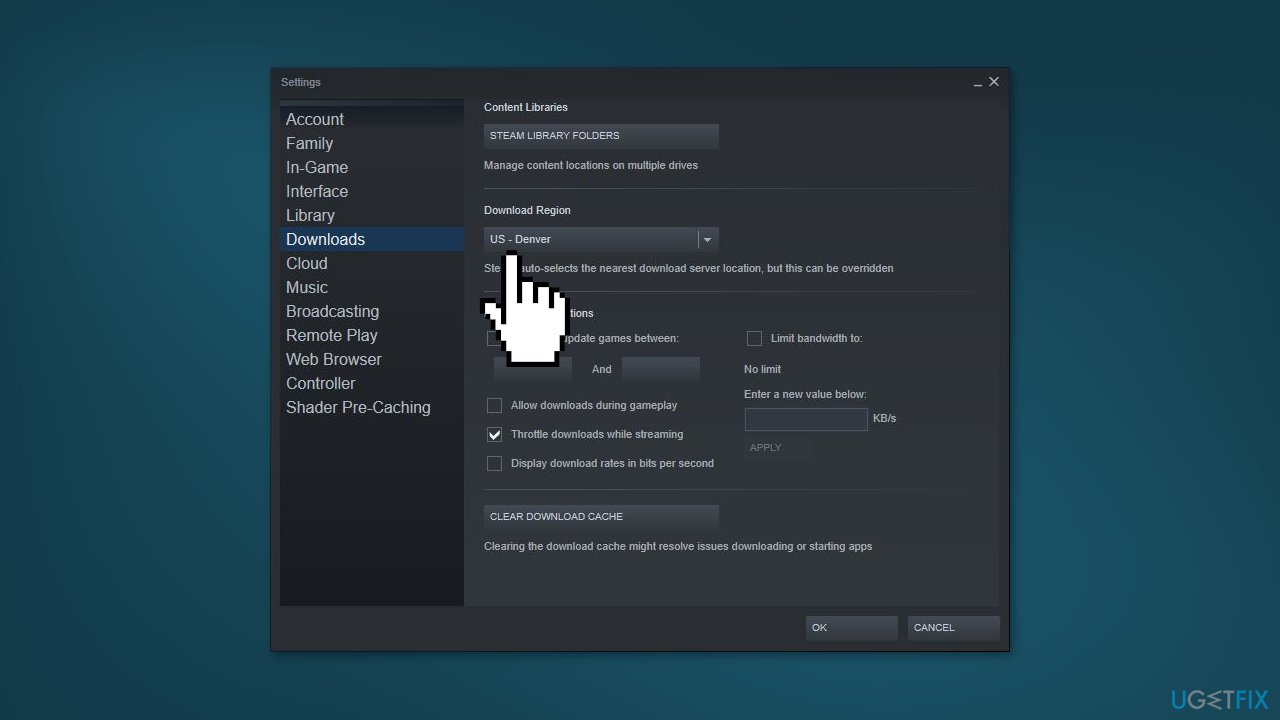
- You can also try other regions closer to your location to check if that helps resolve the issue
Method 2. Repair Library Folder
- Open Steam and click on Settings on the upper left
- In the Settings window, click on Downloads
- Now, go to the right and under Content Libraries, click on the Steam Library Folders button
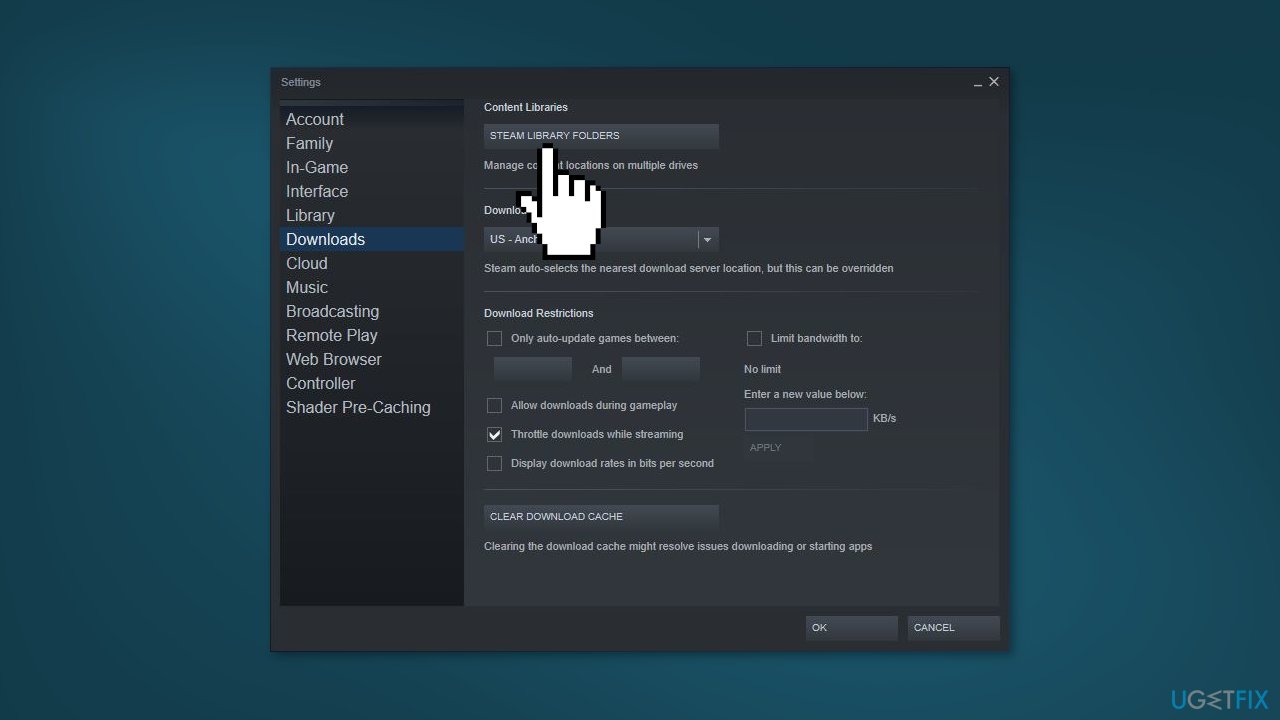
- In the Storage Manager window, click on the three dots next to the following folder and select Repair Folder:
C:\Program Files (X86)\Steam
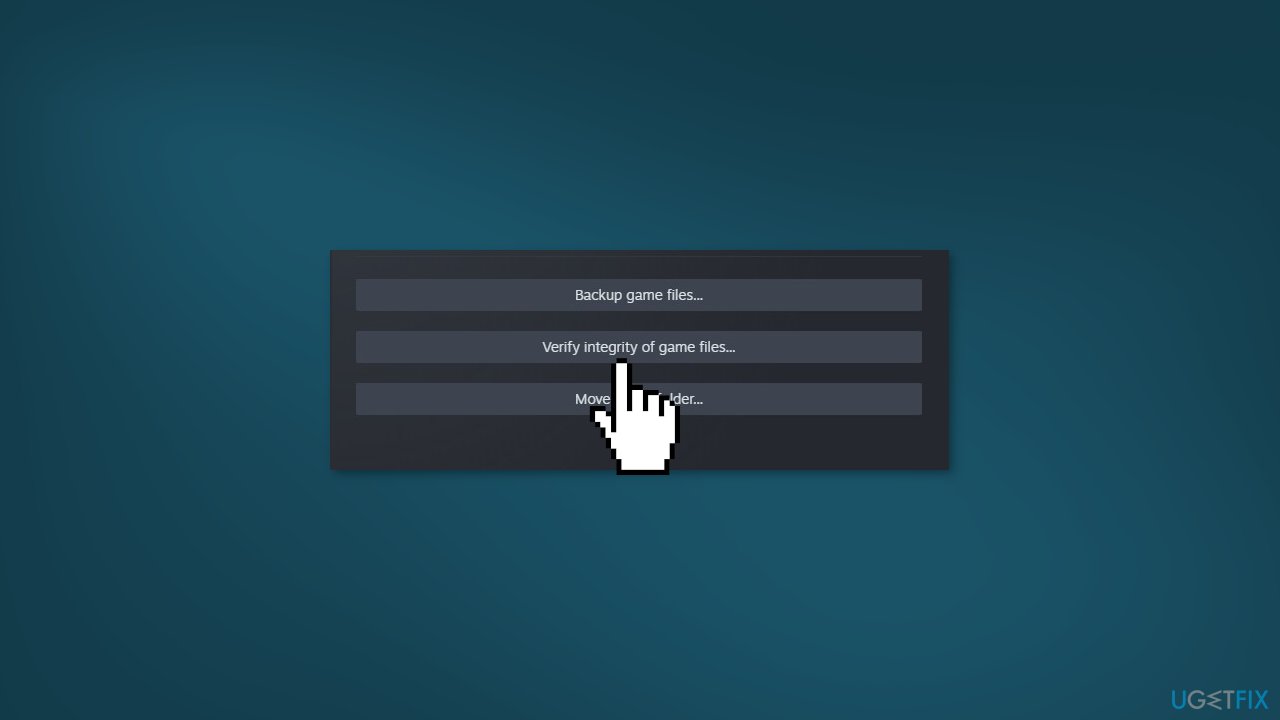
Method 3. Verify integrity of game files
- Open Steam and go to the Library
- Right-click on the game that is stuck and select Properties
- Click Local Files and then choose Verify integrity of game files
Method 4. Move Game Folder
- Open the Steam app, click on the menu, and select Settings
- Next, click on Downloads on the left side
- Click on Steam Library Folders under Content Libraries
- In the Storage Manager window, click on the + symbol next to the library folder
- Select the location from the drop-down and click on the Add button
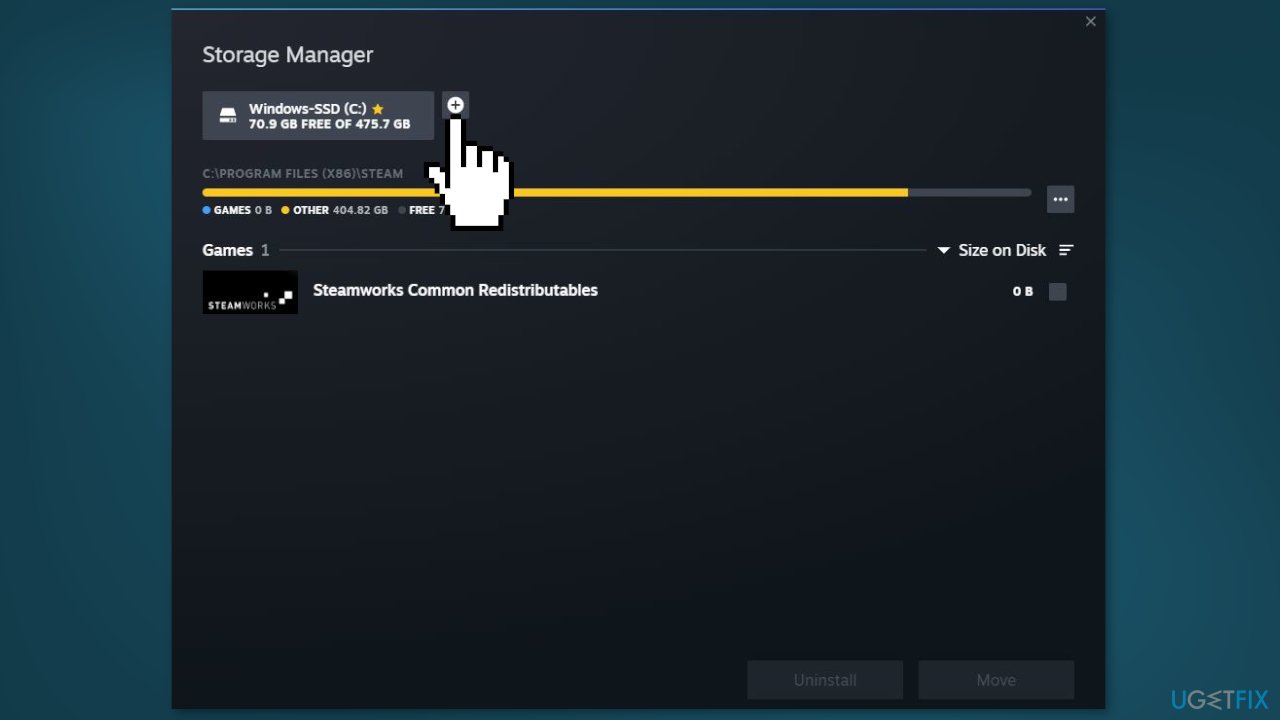
- Select the game you want to move, and click on the Move button below
- In the Move Content prompt, select the newly created location and press Move
Method 5. Reinstall Steam
- Navigate to the following location:
C:\Program Files (x86)\Steam\steamapps
- Delete all the content of the folder
- Go to Apps & Features, find Steam in the list and click Uninstall
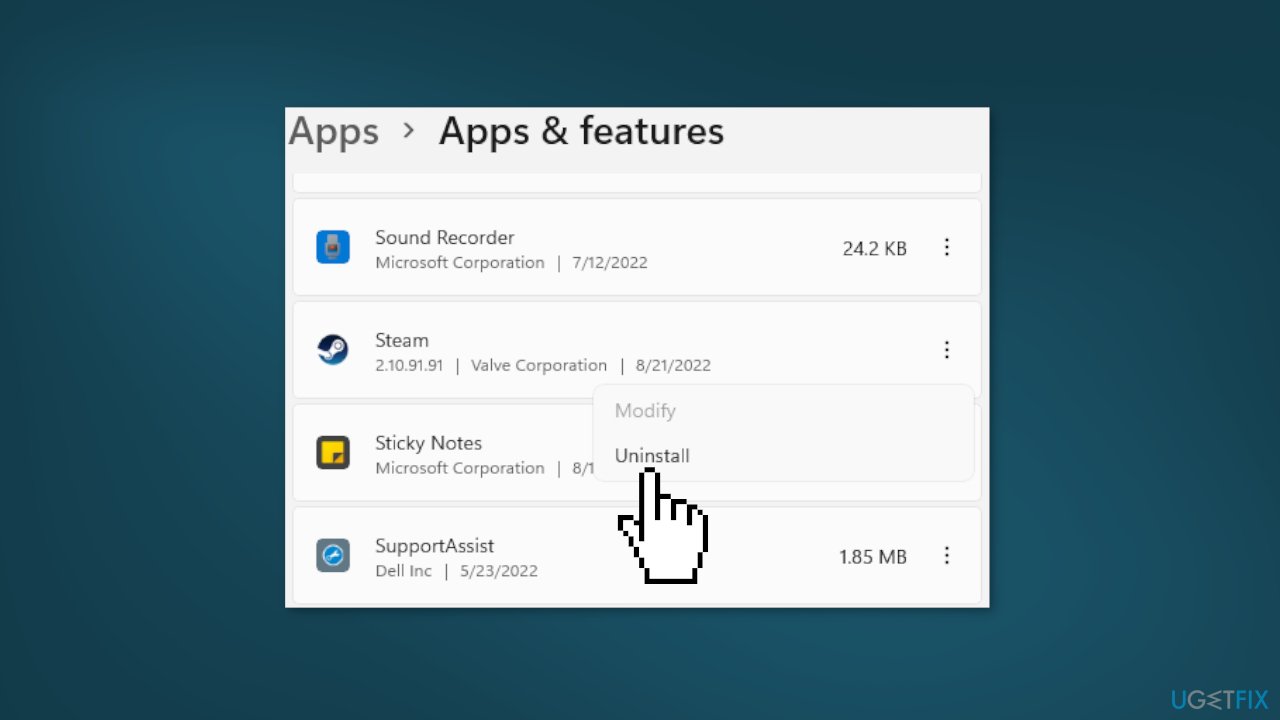
- Now redownload it
Bottom line
To fix the Steam download stuck at 100%, you can try restarting the Steam client, restarting your internet equipment, or changing the download region in the Steam settings. If these steps do not resolve the issue, consider using a maintenance tool to fix system errors or follow additional troubleshooting steps provided in the guide.
Frequently asked questions
This issue may occur due to corrupted download cache or network problems. Try clearing the download cache in Steam settings to resolve it.
You can try pausing and then resuming the download, or restarting Steam to refresh the connection and clear any temporary glitches.
Yes, ensure that your firewall or antivirus isn't blocking Steam, and consider resetting your network settings if the problem persists.




Report an issue
What's wrong with this guide? We review every report and update or remove content.
Report received — thank you. We'll review and fix it.
You need a free account to submit a report.
Be the first to comment