How to fix
Steam error 16
on Windows
Resolve Steam error 16 in Windows 10 or Windows 11 effortlessly with our expert tips. Get back to gaming in minutes, guaranteed to fix the issue!

What causes How to fix Steam error 16 in Windows?
- Steam servers are overloaded
- Network connectivity issues
- Conflicts with other software
- Corrupted or missing game files
- High server traffic during peak hours
Repairs Windows system files, removes malware, and restores a clean OS state — without reinstalling.
I recently bought a few oldish games on Steam and I can't launch some of them because of Steam error 16. What does that mean and how can I get rid of it?
There are times when users encounter different kinds of issues when using Steam - one of the most widely used digital distribution platforms for PC games. One such problem is Steam error 16, which can happen in a variety of situations, like when trying to start a game, changing your password, or altering other personal account details.
The full message, which indicates a problem preventing the successful completion of your request on Steam, reads:
The Steam Servers are too busy to handle your request for GAMENAME. Error Code (16)
Steam Error 16 generally occurs when the Steam servers are overloaded and unable to handle your request. This can be due to high server traffic, especially during peak gaming hours or major sales events. Additionally, it may arise from network connectivity issues on your end, conflicts with other software installed on your computer, or corrupted game files that prevent successful communication with Steam servers.
Another potential cause is corrupted or missing game files, which might prevent the game from launching correctly. Moreover, software conflicts with other applications installed on your system can interfere with Steam's functionality, resulting in error 16.
Steam error 16 cannot be fixed universally since it depends on a number of variables, such as your system settings and the installed applications on your computer.
Potential resolutions may involve verifying the integrity of game files to ensure they are complete and not corrupted, clearing cache files within Steam to eliminate any stored data causing issues, reinstalling the malfunctioning game to replace any problematic files, running a clean boot to minimize software conflicts, or even reinstalling Steam itself to ensure all application files are intact and updated. Detailed instructions for these troubleshooting steps are provided below this article.
Lastly, consider using a [d1] PC repair tool, which can automatically address any underlying Windows issues that might be contributing to Steam error 16.

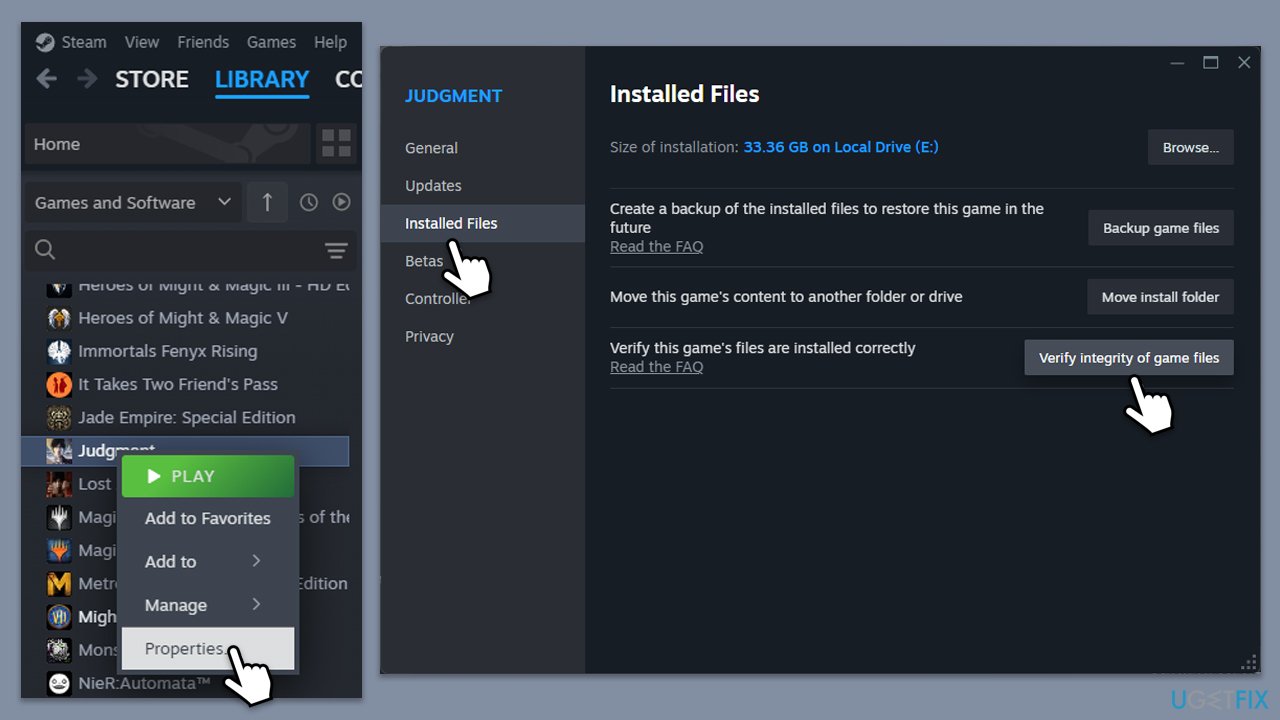
Fix 1. Verify game files
Verifying game files ensures that all the necessary files for the game are present and not corrupted, which can resolve issues that may cause Steam Error 16.
- Open Steam and go to your Library.
- Right-click on the problematic game and pick Properties.
- Go to Installed Files and click Verify integrity of game files.
- Wait till the scan is finished and attempt to launch the game again.
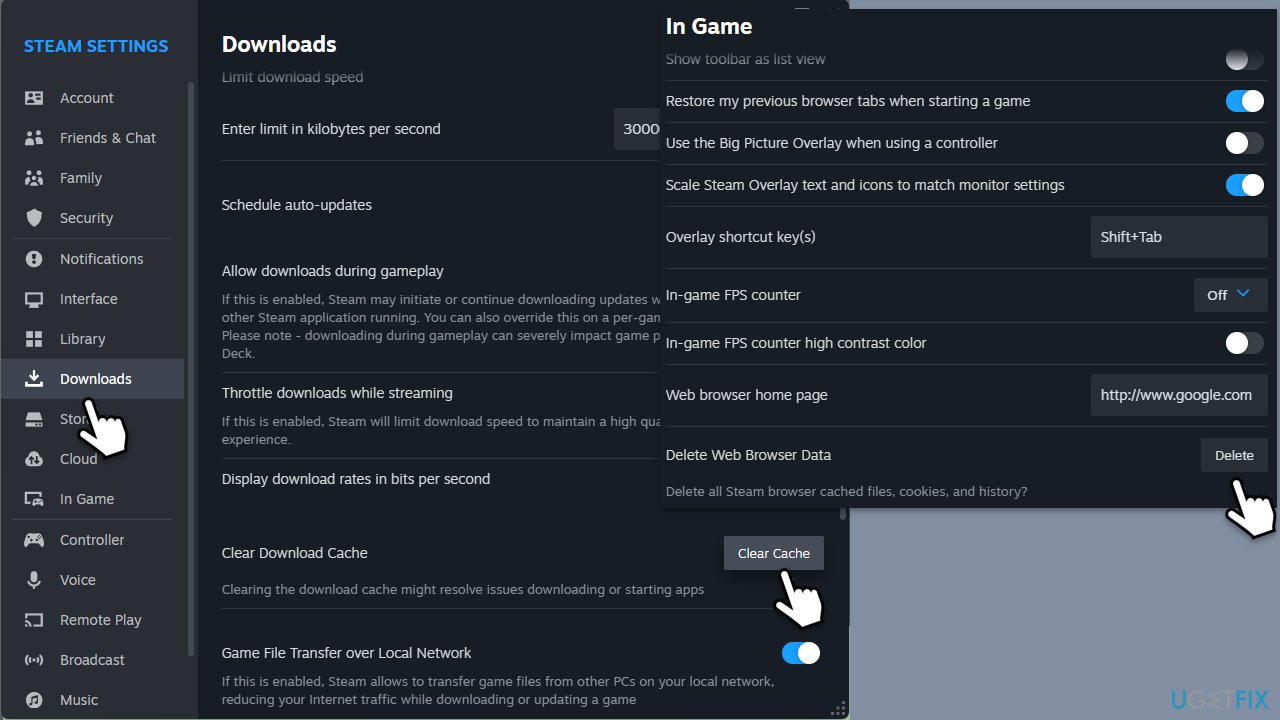
Fix 2. Clear Steam cache
Clearing the cache files can remove temporary files that might be causing conflicts or errors.
- Open the Steam app.
- Go to Steam > Settings.
- Select the Downloads section on the left.
- Scroll down to the Clear Download cache section.
- Click Clear Cache.
- Next, go to the In Game section on the left.
- Under Delete web browser data, click on Delete.
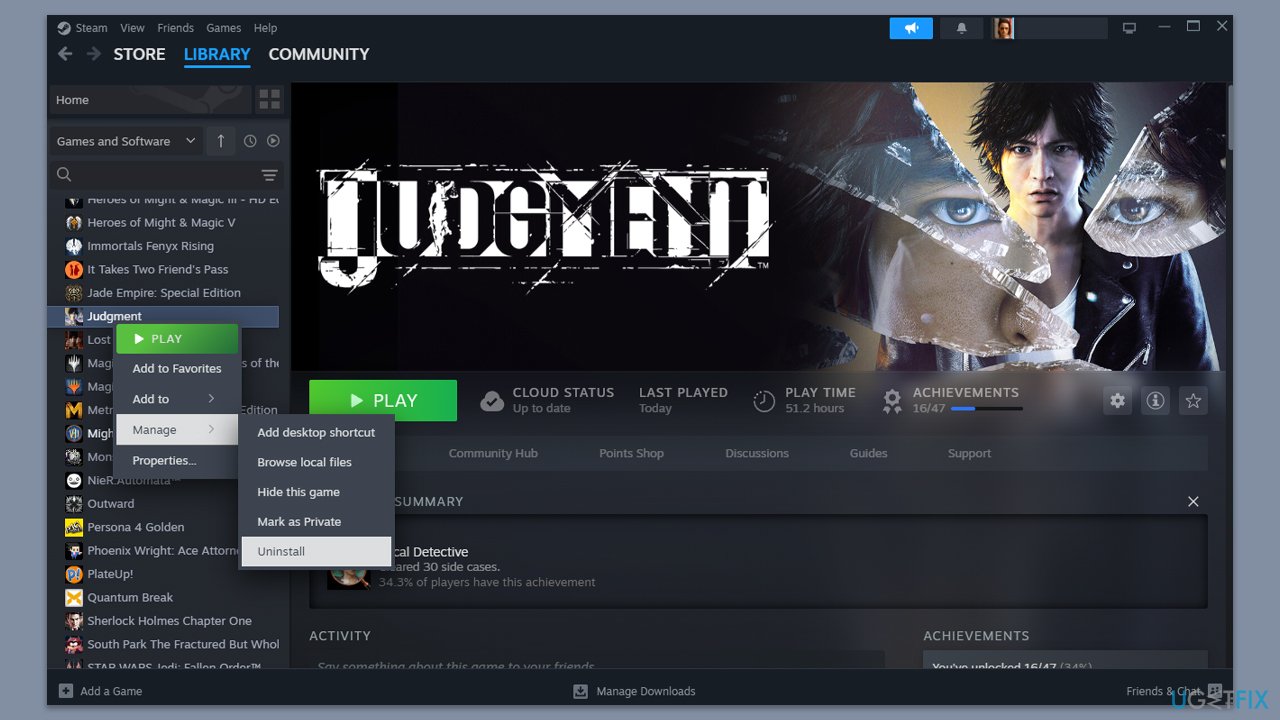
Fix 3. Reinstall the game
- Open Steam and go to your Library.
- Right-click on the game you are having trouble with.
- Select Manage > Uninstall.
- Once done, re-download the game and try launching it again.
Fix 4. Run Steam as an administrator
Running Steam with administrative privileges can resolve issues caused by permission restrictions.
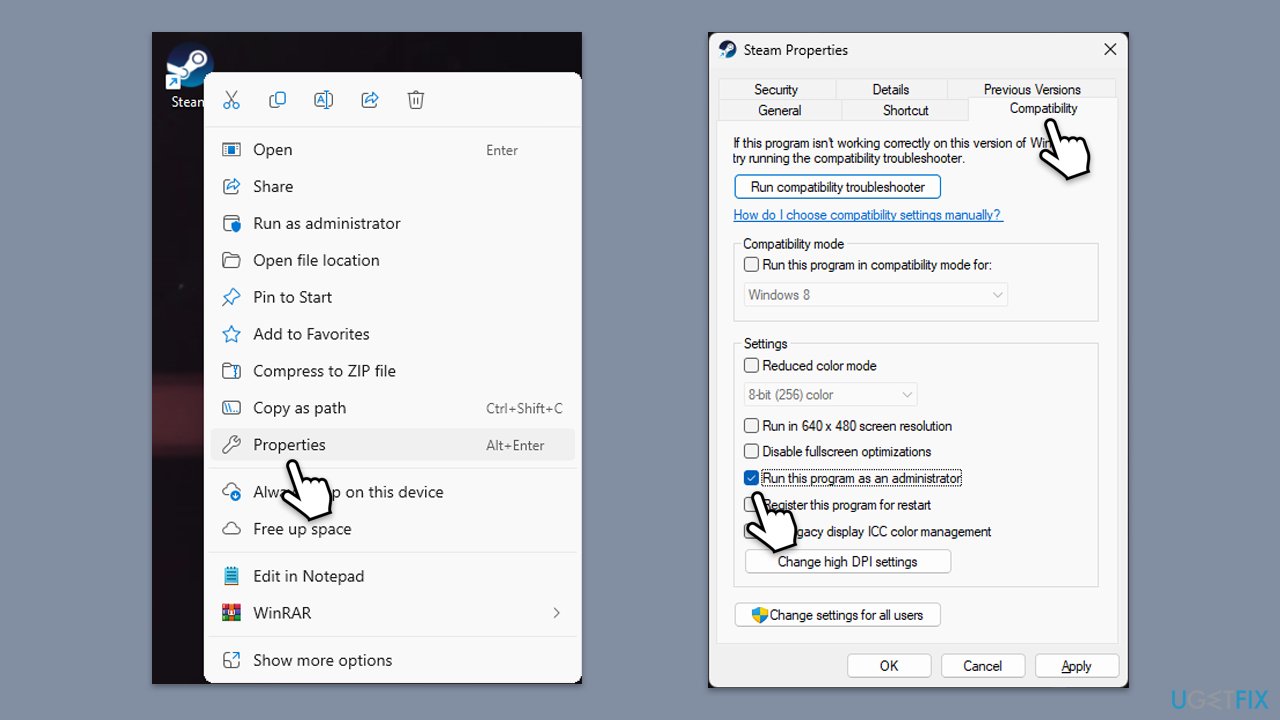
- Right-click on the Steam shortcut or executable file.
- Select Run as administrator from the context menu.
- Log in to your Steam account and check if the error is resolved.
If the issue is fixed, you can set Steam to always run as admin as follows:
- Right-click on the Steam shortcut or executable file and select Properties.
- Go to the Compatibility tab.
- Check the box next to Run this program as an administrator.
- Click Apply and then OK.
- launch the game as normal.
Fix 5. Check Steam servers
- Visit a website like DownDetector or Steam Status website to check if there are any reported issues with Steam servers.
- If there are server issues, wait until they are resolved and try accessing the Friends List again.
- If no server issues are reported, the problem likely lies within your local setup or network.
Fix 6. Reset your internet connection
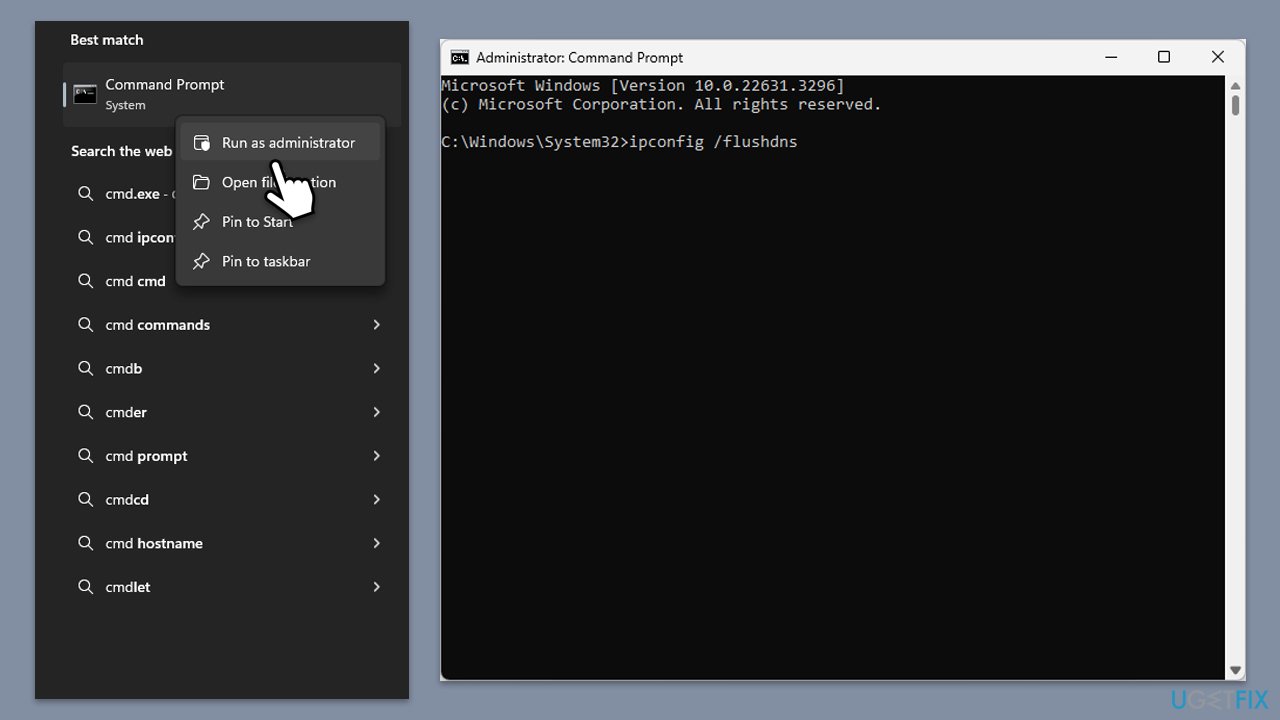
- Type cmd in Windows search.
- Right-click on Command Prompt result and pick Run as administrator.
- When the User Account Control window shows up, click Yes.
- In the new window, copy and paste the following commands, pressing Enter each time:
ipconfig /flushdns
ipconfig /registerdns
ipconfig /release
ipconfig /renew
netsh winsock reset - Reboot your system and check if the issue is resolved.
Fix 7. Run a clean boot
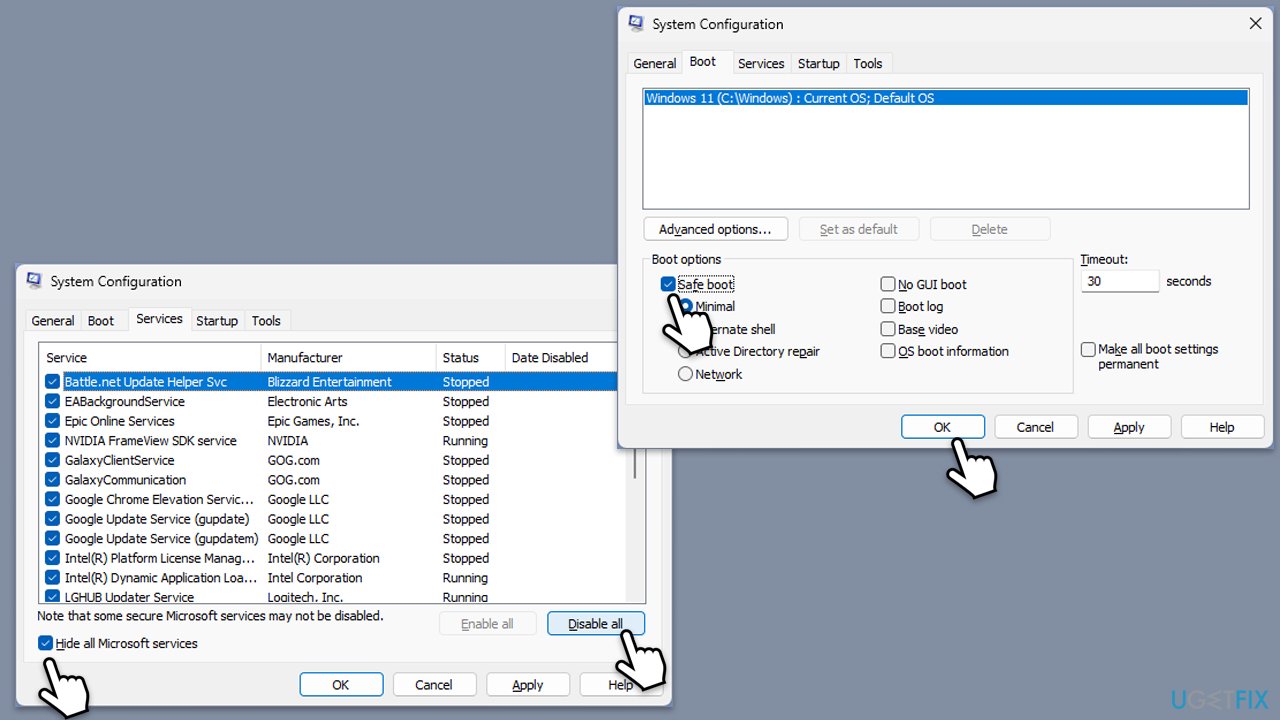
- Type msconfig inWindows Search and press Enter to open the System Configuration window.
- Click on the Services tab and check the Hide all Microsoft Services box.
- Click Disable all to disable non-Microsoft services, then click the Startup tab.
- Open the Task Manager, disable all startup items, and close the Task Manager.
- Go to the Boot tab and mark the Safe boot option.
- Click OK on the System Configuration window and restart your computer.
- If the problem does not exist, third-party software is at fault. To determine which app is causing it try enabling half of the available programs, restarting, and checking if the the problem is still absent. Continue till you find the offending software and either update or uninstall it.
Fix 8. Reinstall Steam
Reinstalling Steam can fix issues with the client itself that might be causing Error 16.
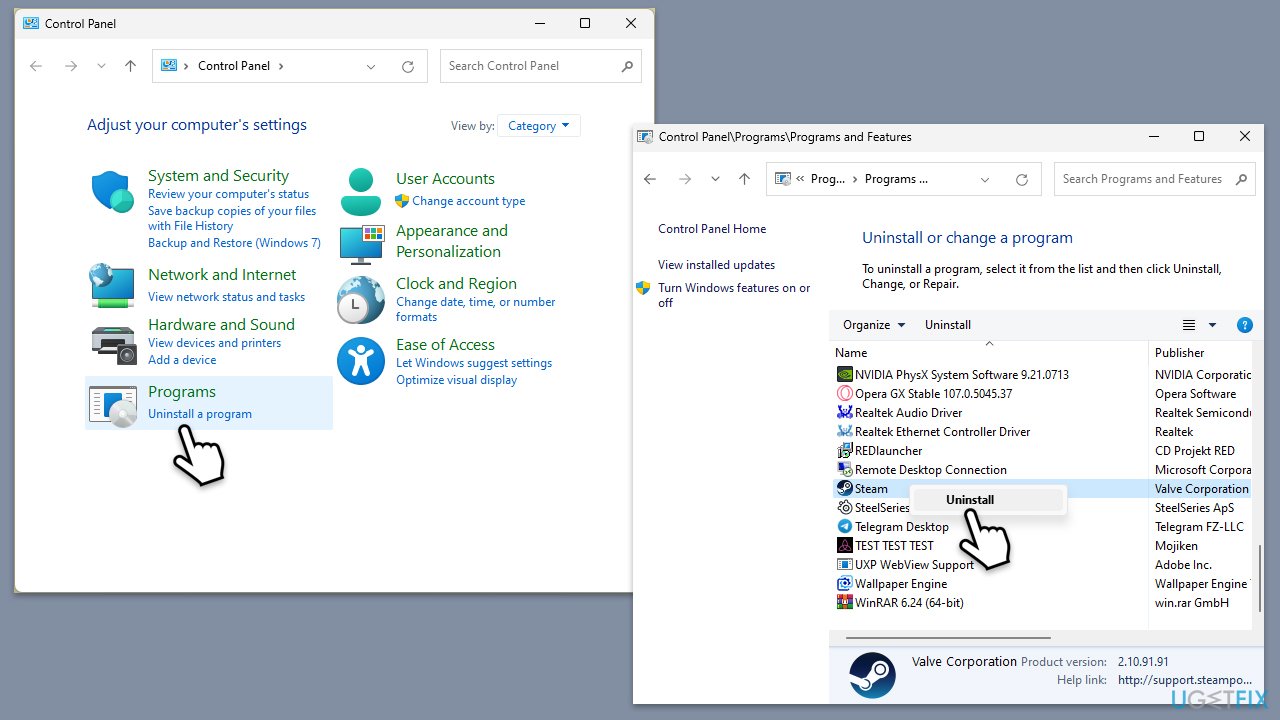
- Type Control Panel in Windows search and press Enter.
- Select Programs > Uninstall a program.
- Find Steam in the list and select Uninstall.
- Follow the prompts to remove Steam from your system.
- After uninstallation, restart your computer.
- Download the latest version of Steam from the official website.
- Run the installer and follow the instructions to install Steam.
Bottom line
To fix Steam error 16, you can verify the integrity of game files, clear cache files within Steam, reinstall the malfunctioning game, run a clean boot, or reinstall Steam itself. If these steps do not resolve the issue, consider using a PC repair tool to address any underlying Windows problems.
Frequently asked questions
Steam error 16 typically occurs due to issues with the Steam client, such as corrupted files or problems with the Steam service running in the background.
To fix Steam error 16 on Windows 11, try restarting your computer, clearing the download cache in Steam, or reinstalling the Steam client.
Yes, ensuring that Steam has the necessary permissions to access its installation folder and related files can help resolve error 16 on Windows 10.




Report an issue
What's wrong with this guide? We review every report and update or remove content.
Report received — thank you. We'll review and fix it.
You need a free account to submit a report.
Be the first to comment