How to fix
Steam Error Code (41)
on Windows
Resolve Steam Error Code (41) on Windows 10 or 11 quickly with our expert solutions. Get your gaming back on track, fixed in minutes!

What causes How to fix Steam Error Code (41) in Windows?
- Server outage
- Ongoing server issue
- Antivirus interference
- Firewall blocking Steam
- Corrupted game cache
Repairs Windows system files, removes malware, and restores a clean OS state — without reinstalling.
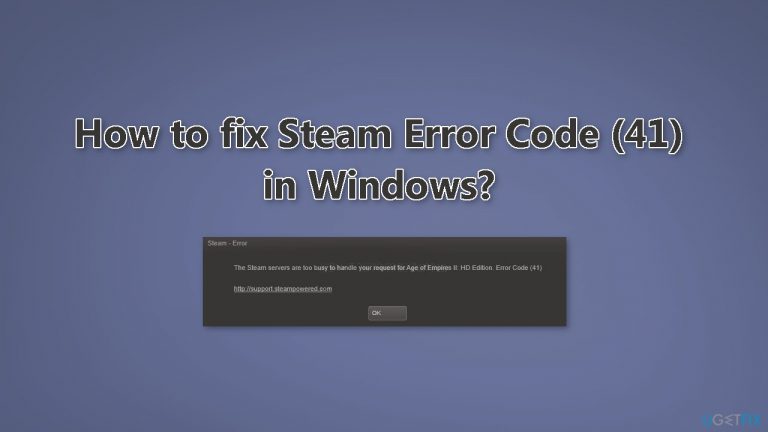
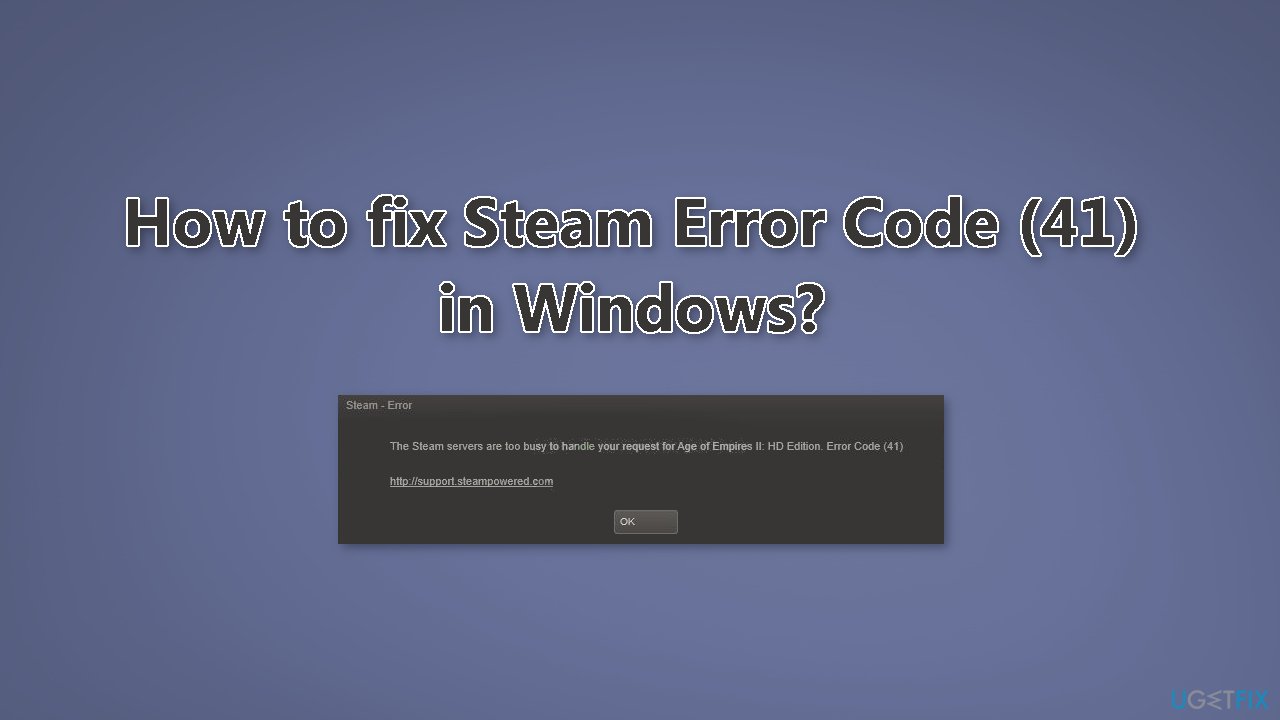
Hello. I was playing a Steam game and suddenly I received an Error Code (41) with the message "The Steam servers are too busy to handle your request." How do I fix this?
Steam Error Code (41) is a common issue faced by many Steam users while playing certain games on their Windows PC. The error message "The Steam servers are too busy to handle your request" is displayed along with the game name and Error Code (41). This error is usually triggered due to a server outage or some other ongoing server issue.
Steam is a popular digital distribution platform for video games that allows users to purchase, download, and play games on their PCs. It also offers features such as game updates, cloud saves, and in-game voice and chat. Steam has a large community of users and provides a convenient way for users to access and play their favorite games.
However, when users face Error Code (41), it can impact their gaming experience as they are unable to access the game they wish to play. The error can also occur at inconvenient times such as during a multiplayer match or when trying to save progress in a game.
There are several possible solutions to fix the Steam Error Code (41), such as checking the server status of Steam and making sure its services are up and running, disabling the antivirus or firewall temporarily, adding the Steam app to the exception list of the antivirus, allowing Steam through Windows Defender Firewall, clearing the cache folder of the problematic game, etc.
In this guide, you will find 9 steps that should help you fix Steam Error Code (41) in Windows. Keep in mind that the manual troubleshooting process can be lengthy. You can use a maintenance tool like [d1] that can fix most system errors, BSODs,[ref en-1] corrupted files, registry[ref en-2] issues, or clear cookies and cache.[ref en-3] Otherwise, follow the step-by-step instructions below.
Solution 1. Check Steam Server Status
Check the Steam server status to ensure its services are running. The error message may indicate a server outage or issue, so confirming the server status is the first step.
Solution 2. Update Graphics Driver
- Open Device Manager and expand the Display Adapters tab
- Right-click on your graphics driver and select Properties
- Go to the Driver tab and click on Update Driver
- Press on Search Automatically for Drivers
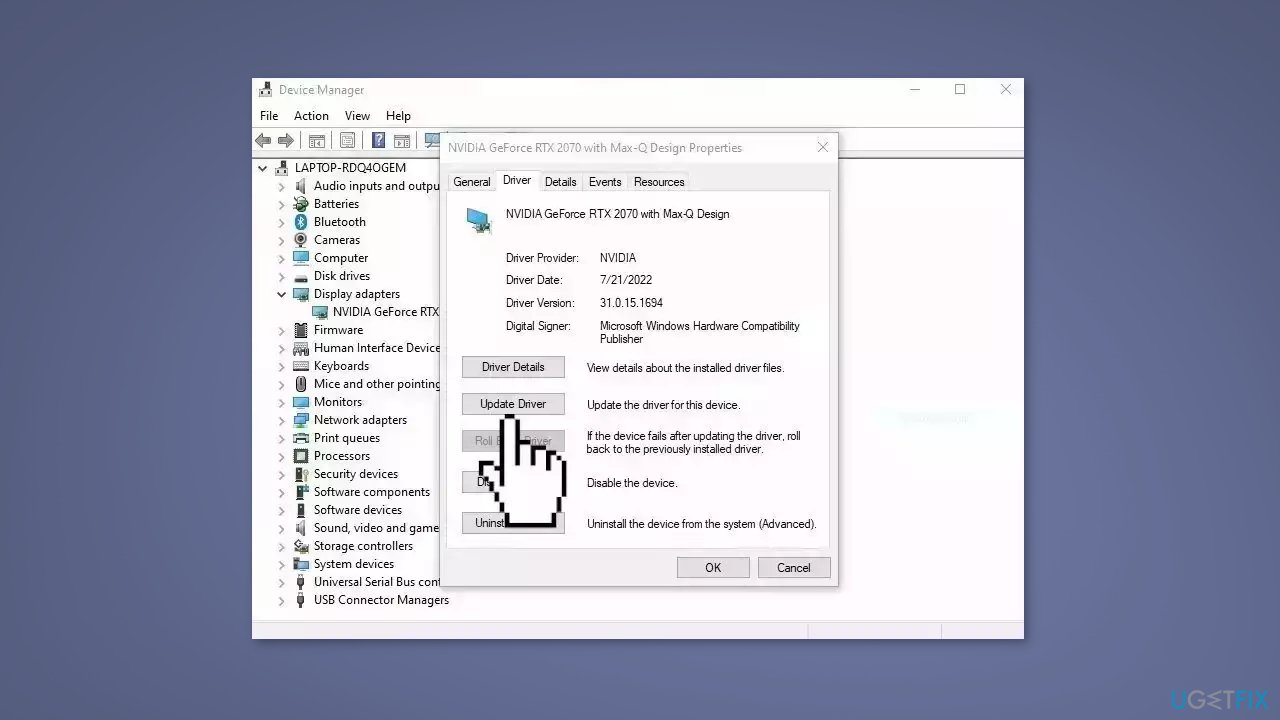
- If a graphic driver update is available, install it and then restart your PC
- Upon restart, launch the Forspoken game and check if it fixed the issue.
- You may also use a dedicated utility like [rev id="DriverFix"] that can find the best drivers for your machine and install them automatically
Solution 3. Allow Steam through Antivirus and Firewall
This error may be caused by your security software blocking Steam or a related process. To determine if this is the case, temporarily disable your antivirus or firewall. If you are using Windows Security on Windows 11/10, disable it and check if the error persists.
If disabling your security software resolves the error, you can allow the Steam app through your antivirus or firewall by adding it to the exceptions, exclusions, or whitelist. The specific location for adding exceptions or whitelisting may vary depending on the security software you are using.
To allow Steam through Avast antivirus:
- Navigate to Home > Settings > General > Exclusions
To allow Steam through AVG:
- Go to Home > Settings > Components > Web Shield > Exceptions
To allow Steam through Windows Security:
- Go to Virus & threat protection > Manage settings > Add or remove exclusions > Add an exclusion
Note: the default location for Steam games is C:\Program Files (x86)\Steam\steamapps\common.
To allow Steam through Windows Defender Firewall:
- Open the Windows Security app
- Go to the Firewall & network protection tab from the left-side pane
- Click on the Allow an app through firewall option and then tap on the Change settings button
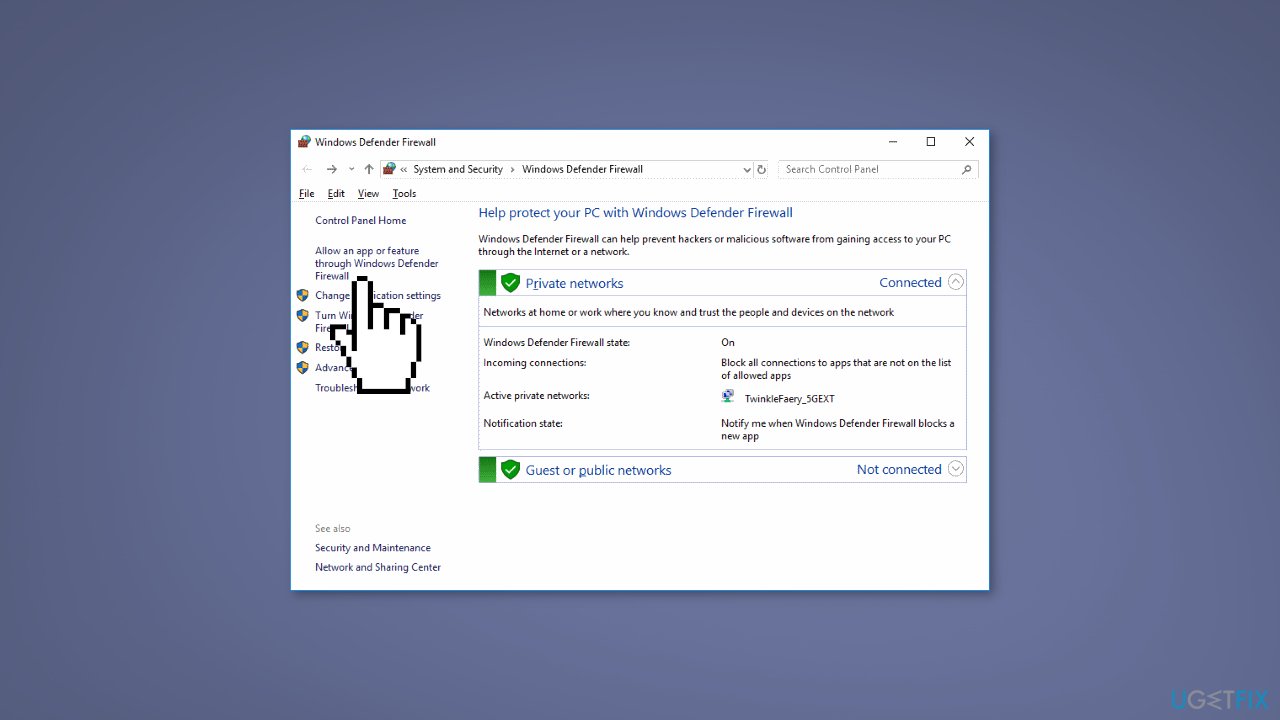
- Under the Allowed apps and features list, select the Steam app
- If it is not listed, click on the Add an app button and browse the C:\Program Files (x86)\Steam\ location and select its main executable
- Check the Public and Private networks options, and close the window
- Reopen Steam and try playing your game to check if the error is resolved
Solution 4. Verify Integrity of Game Files
- Open Steam and go to the Library
- Right-click on the game that is stuck and select Properties
- Click Local Files and then choose Verify integrity of game files
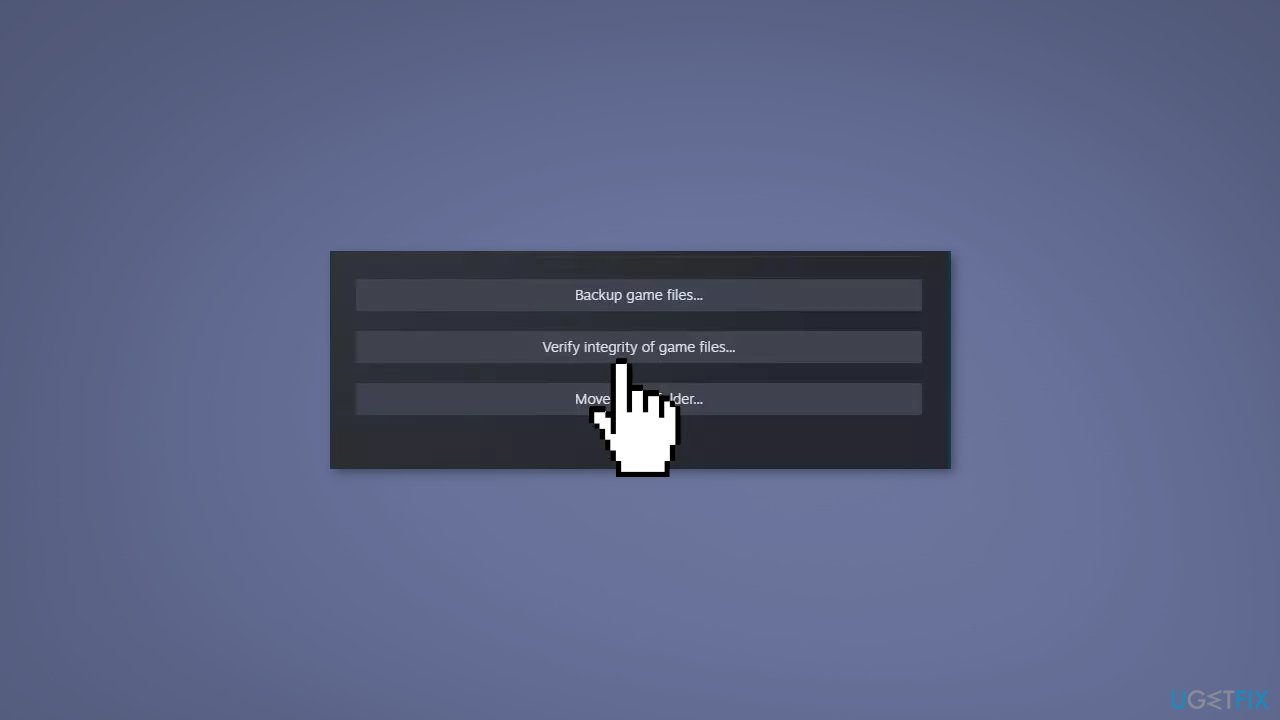
Solution 5. Customize Launch Options
- Go to Steam and navigate to LIBRARY
- Right-click on the problematic game and choose the Properties option
- Inside the General tab, locate the Launch Options field
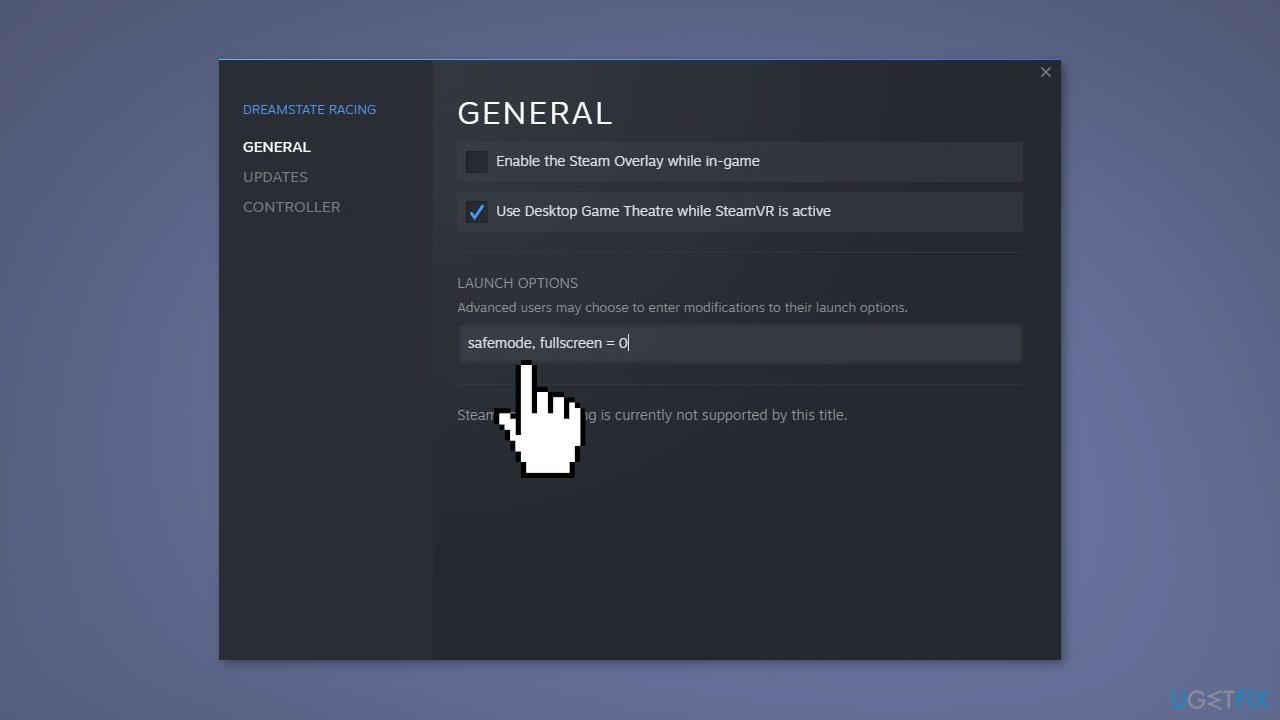
- Enter the following command in the box: safemode, fullscreen = 0
- Save the changes and reopen the game to check if the error code 41 is fixed
Solution 6. Clear the Cache Folder
To clear the cache folder for a problematic game:
- Press the Windows key + R to open the Run dialog
- Type %appdata% in the text field and press Enter
- In the opened location, select the folder with the name of the game that you are experiencing the error code 41
- Press the Delete key on your keyboard to clear the cache folder for the problematic game
- Reopen the game and check if the error is now fixed
Solution 7. Disable Game Mode
- Open the Settings app and navigate to the Gaming tab
- Click on the Game Mode option
- Turn off the toggle associated with the Game Mode option
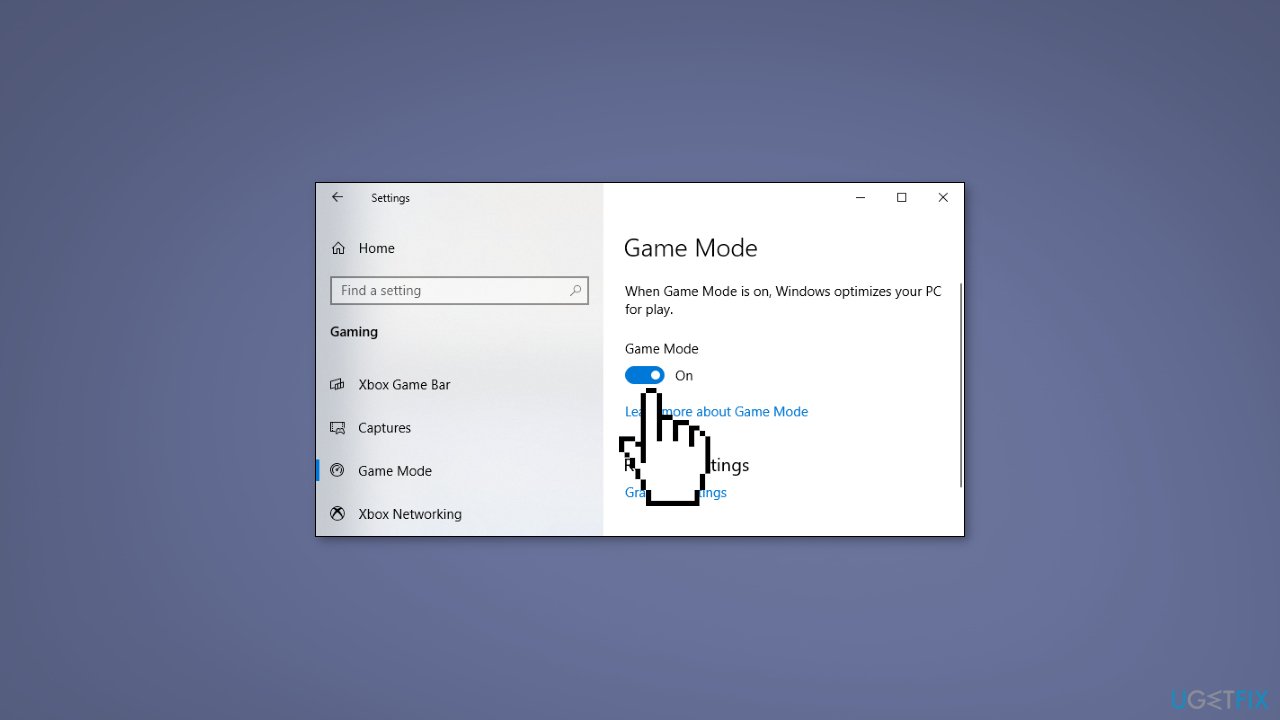
- Check if the error is fixed
Solution 8. Opt out of All Beta Programs
- Open Steam and click on the Steam menu option
- Select the Settings option from the appeared menu options
- In the Account tab, click on the Change button present under the Beta participation option
- Select NONE – Opt out of all beta programs
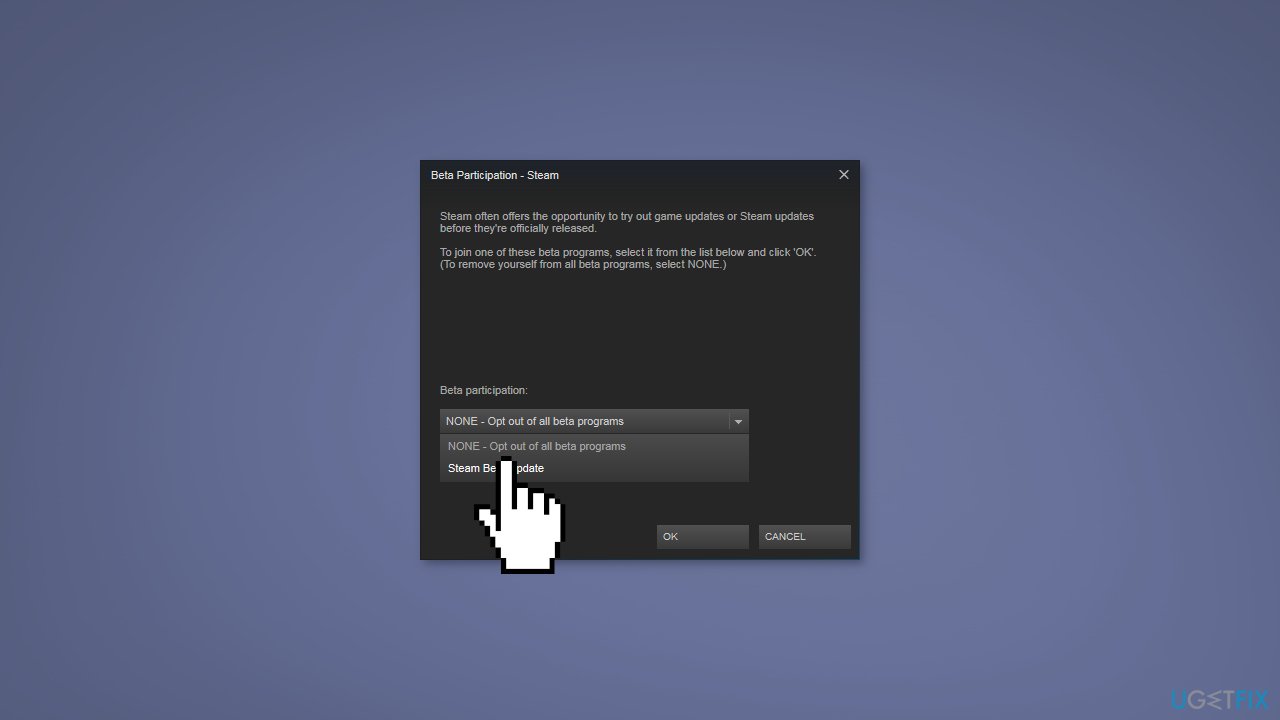
- Reopen the Steam app and check if you are able to play your game
Solution 9. Reinstall the Game
- Open the Steam app and go to LIBRARY
- Right-click on the game with which you are facing the error
- Click on the Uninstall option from the context menu
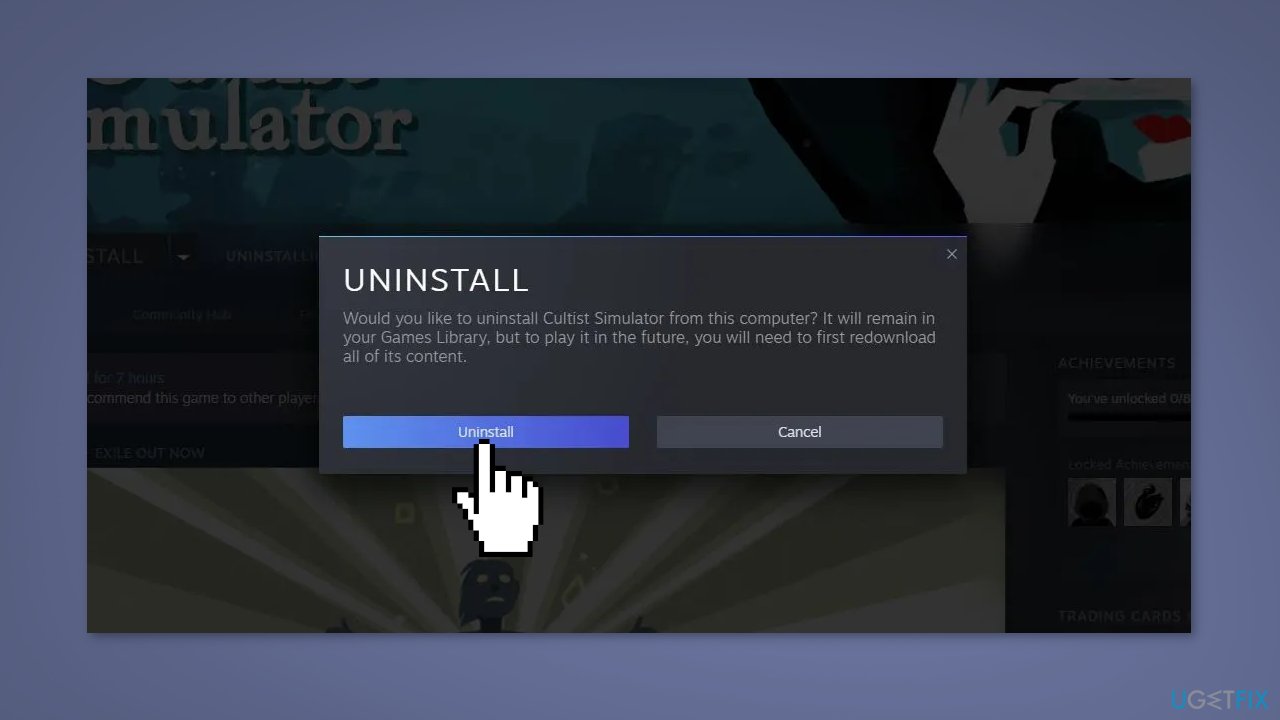
- Restart your PC
- Open Steam to reinstall the game
Bottom line
Steam Error Code (41) can be resolved by checking the server status, disabling antivirus or firewall temporarily, adding Steam to the exception list, allowing it through Windows Defender Firewall, and clearing the cache folder of the game. If none of these solutions work, consider using a maintenance tool to fix system errors.
Frequently asked questions
Steam Error Code (41) often occurs due to network connectivity issues or corrupted game files on your Windows system. It can also be triggered by a faulty installation of the Steam client.
To fix Steam Error Code (41) in Windows 11, try verifying the integrity of your game files through the Steam client settings. Additionally, resetting your network connection or reinstalling Steam may help resolve the issue.
Yes, you can quickly troubleshoot Steam Error Code (41) on Windows 10 by restarting your computer and clearing the download cache in the Steam client settings. This often resolves temporary glitches that cause the error.




Report an issue
What's wrong with this guide? We review every report and update or remove content.
Report received — thank you. We'll review and fix it.
You need a free account to submit a report.
Be the first to comment