How to fix
Steam error code E20
on Windows
Fix Steam error code E20 effortlessly on Windows 10 or 11 with our expert solutions. Get back to gaming in minutes—expert-tested and reliable!

What causes How to fix Steam error code E20 in Windows?
- Network connection issues
- Inconsistencies in network communication with Steam servers
- Third-party antivirus software interference
- Firewall conflicts with Steam
- DNS settings problems
Repairs Windows system files, removes malware, and restores a clean OS state — without reinstalling.
Hi, I've been trying to connect to my Steam account for several hours now and I keep getting the error code E20, which says that I should try to connect in Offline mode (it doesn't work either). So my question is: should I be worried about this or is this some type of Steam outage?
Millions of people use the digital distribution network Steam to buy, play, and manage video games. It offers a vast library of titles across various genres, providing users with access to new releases, indie games, and classic titles. In addition to improving the overall gaming experience, Steam also makes community interaction easier with tools like friend lists, group chats, and forums.
Even with all of its advantages and extensive use, Steam occasionally has technical problems. When someone tries to log into their Steam account using the Steam client or the website, they may run into issues such as Steam error code E20.
Error code E20 on Steam is usually associated with issues with network connections, which may surface due to inconsistencies in your network's ability to communicate with Steam servers. Even though the problem can be annoying, there are usually a few troubleshooting methods that can fix it.
Your Windows system's network troubleshooter is the first thing to look for and potentially fix any connection problems. Resetting your internet connection or altering the Domain Name System (DNS) settings to a more dependable service provider may also be able to help you get beyond this obstacle.
Another popular Steam error E20 fix is to temporarily disable any third-party antivirus software and the firewall. Although these security precautions are essential for shielding your system from harmful threats, they occasionally conflict with trustworthy programs like Steam, which can result in error E20. If you disable these programs, even for a short while, you might provide Steam with the clear path it needs to connect successfully.
To address Steam error code E20 and related problems in a thorough manner, using PC repair software [d1] is recommended. These programs are made to automatically identify and resolve Windows issues that may be causing the error.
Fix 1. Check the Steam server status
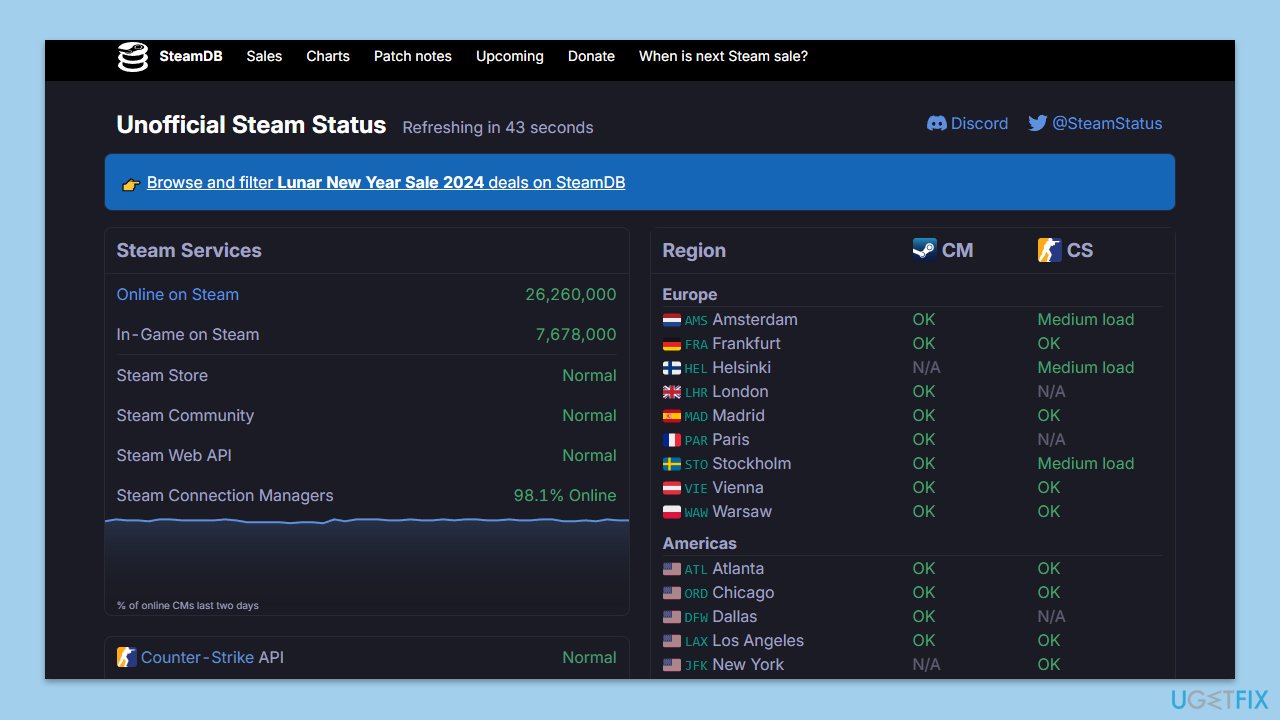
Before attempting more complex solutions, it's crucial to verify whether the issue lies with Steam's servers. If Steam's servers are down, you won't be able to log in, regardless of any fixes you apply on your end. You can check resources such as Downdetector, a special Steam server status page, or even Steam's Twitter for information about issues with Steam servers.
Fix 2. Run Steam as an administrator
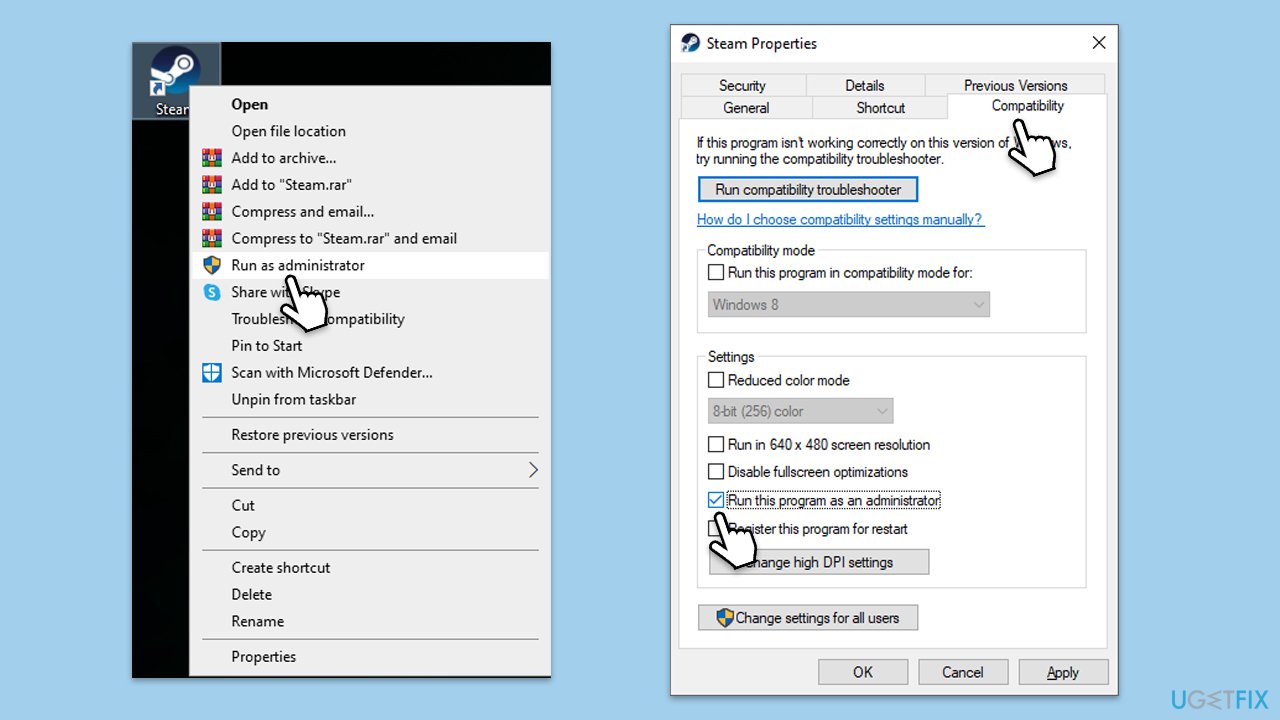
Problems with restricted access to system files and folders, which Steam may require to function properly, can be fixed by running Steam with administrator privileges.
- Right-click on the Steam shortcut on your desktop.
- Select Properties from the context menu.
- Go to the Compatibility tab.
- Check the box next to Run this program as an administrator.
- Click Apply and then OK.
- Double-click on the Steam shortcut to run it as an administrator.
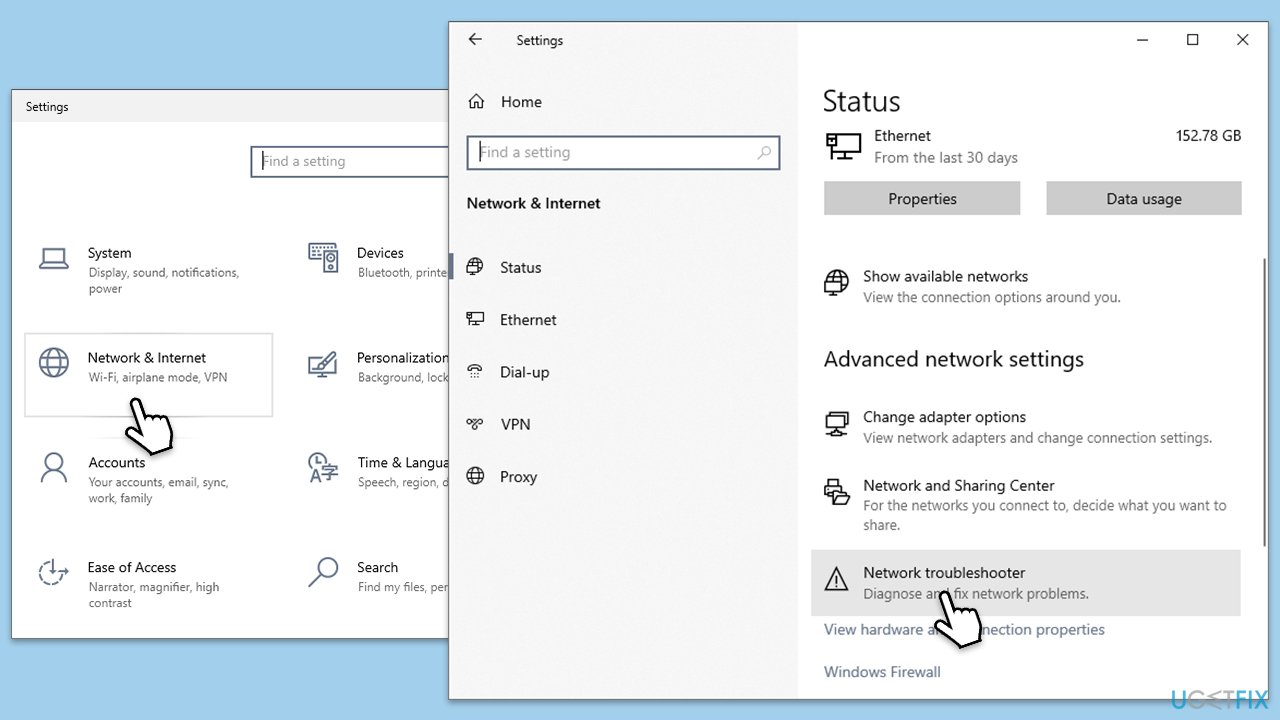
Fix 3. Run Network troubleshooter
The Network troubleshooter can help identify and automatically fix issues with your internet connection that might be preventing Steam from connecting to its servers.
- Right-click on Start and pick Settings.
- Go to the Network & Internet section.
- On the right side, find the Advanced network settings section.
- Click Network troubleshooter and wait.
- The fixes will be automatically applied.
Fix 4. Clear Steam HTML cache
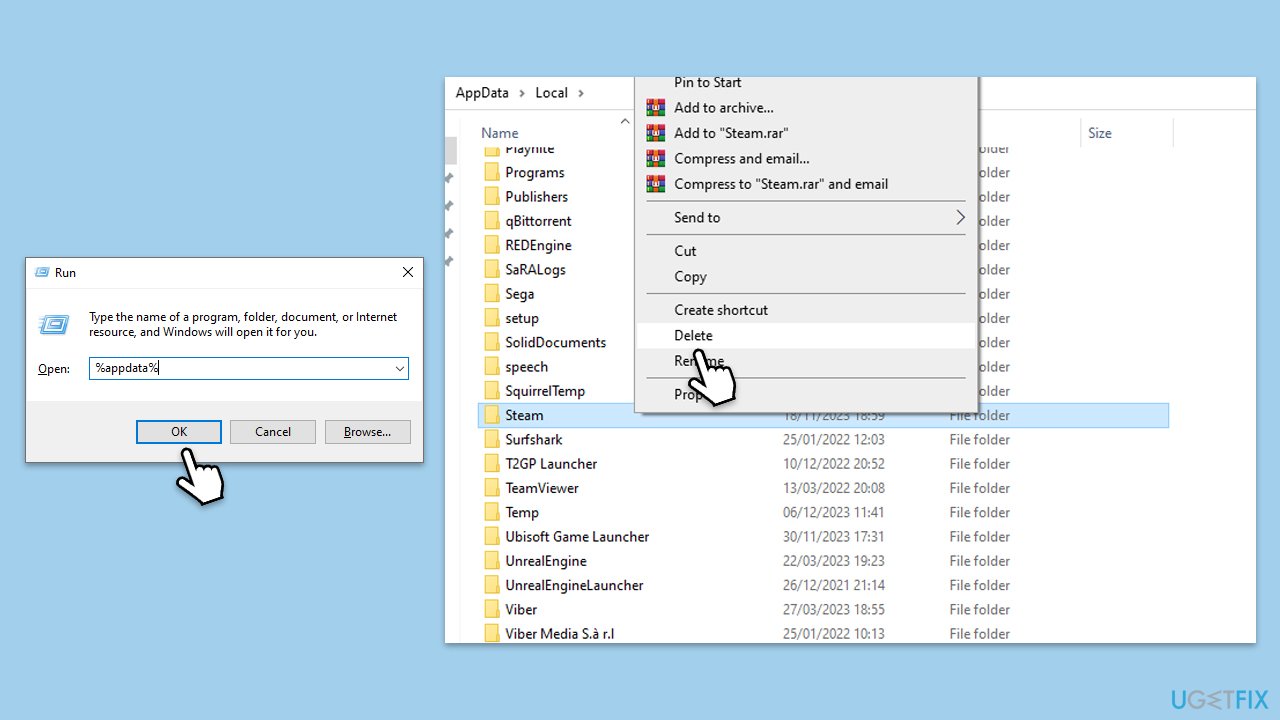
This removes outdated or corrupt cache files, which can solve problems related to account login and Steam's in-client web browser.
- Press Win + R on your keyboard to open the Run dialog box.
- Type %appdata% and press Enter.
- In the opened window, navigate to the Roaming folder and find the Steam folder.
- Delete the Steam folder.
- Go back to the AppData folder and open the Local folder.
- Locate and delete the Steam folder here as well.
- Restart your PC and open Steam, which will recreate these folders with default settings.
Fix 5. Change DNS settings
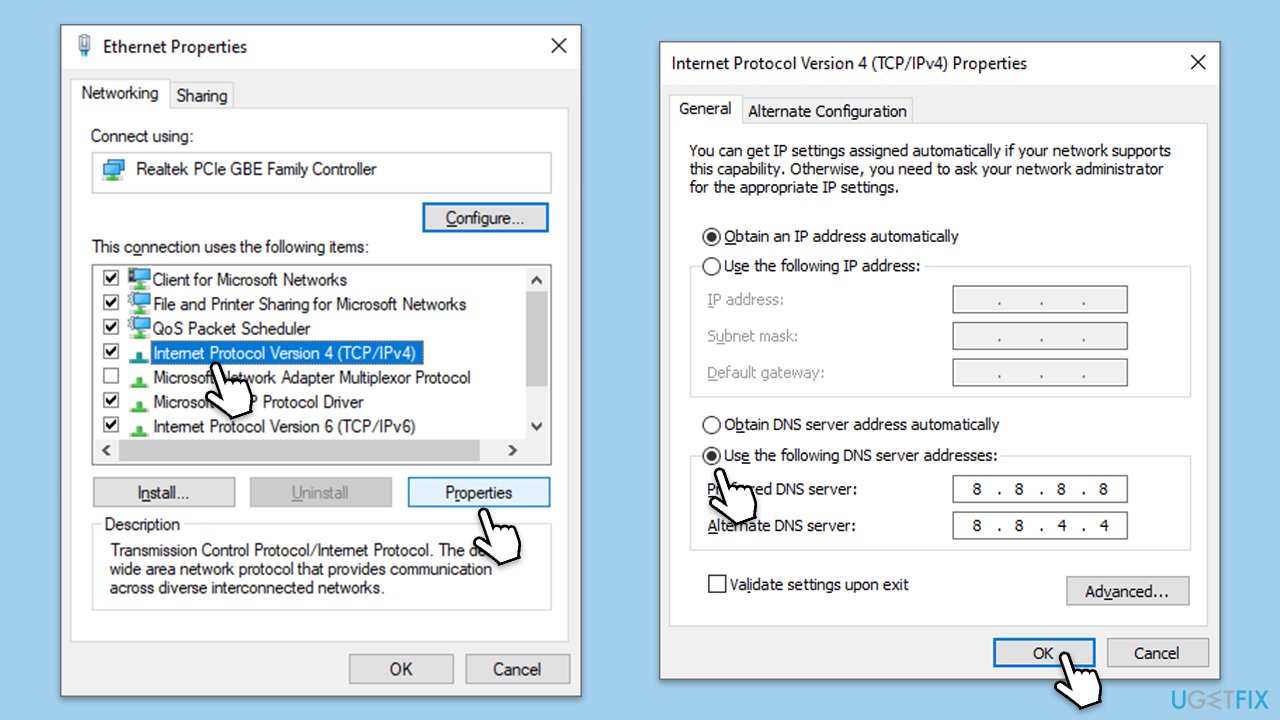
Changing your DNS settings to Google's public DNS can improve your internet connection stability and speed, potentially resolving issues with connecting to Steam.
- Right-click on Start and select Settings.
- Go to Network and Internet section.
- Click on Change adapter options.
- Right-click on your internet connection and pick Properties.
- Click Internet Protocol Version 4 (TCP/IPv4) once and go to Properties
- Select Use the following DNS server addresses option and set your DNS to Google's:
Preferred DNS server: 8.8.8.8
Alternate DNS server: 8.8.4.4 - Click OK.
Fix 6. Temporarily disable Firewall
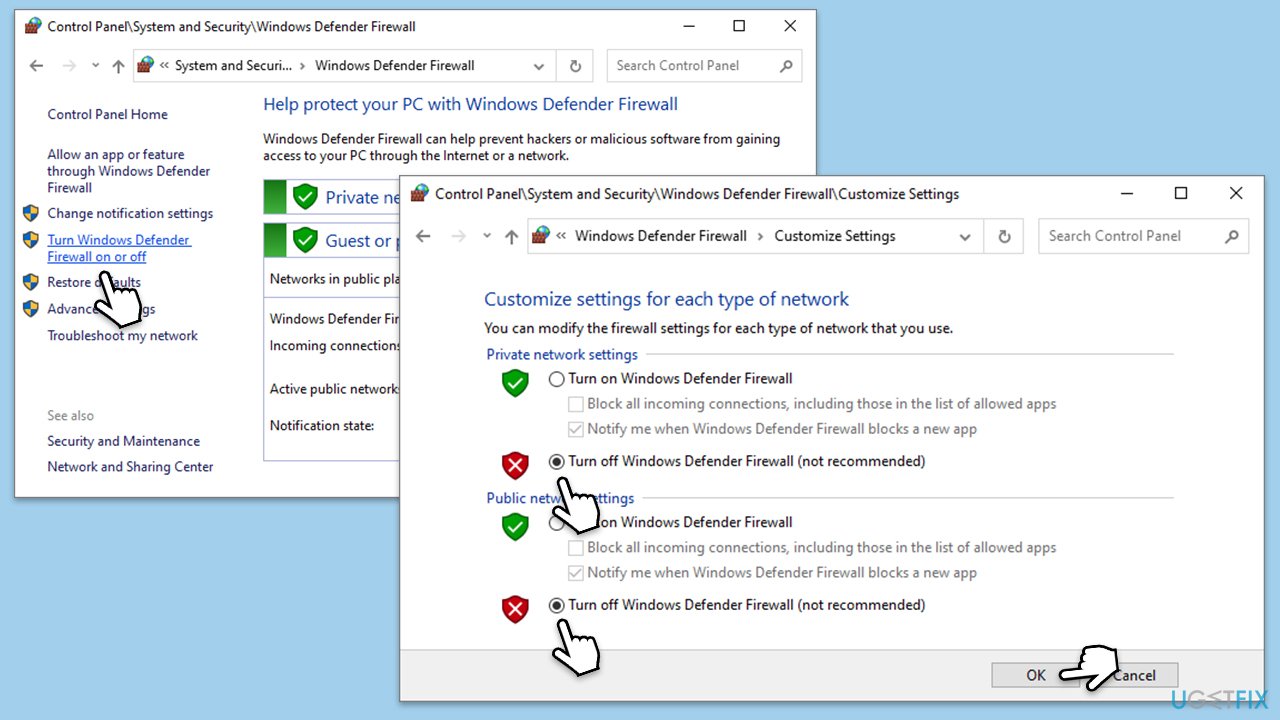
Disabling your Windows Firewall and any third-party antivirus temporarily can help determine if these security measures are blocking Steam. Remember to enable them again after testing to keep your system protected.
- Type Firewall in the Windows search bar and select Windows Defender Firewall.
- Click Turn Windows Defender Firewall on or off.
- Select Turn off Windows Defender Firewall for both private and public network settings.
- If you have a third-party antivirus, open its control panel and look for the option to disable it temporarily.
- Try to log into Steam. Remember to turn your Firewall and antivirus back on afterward.
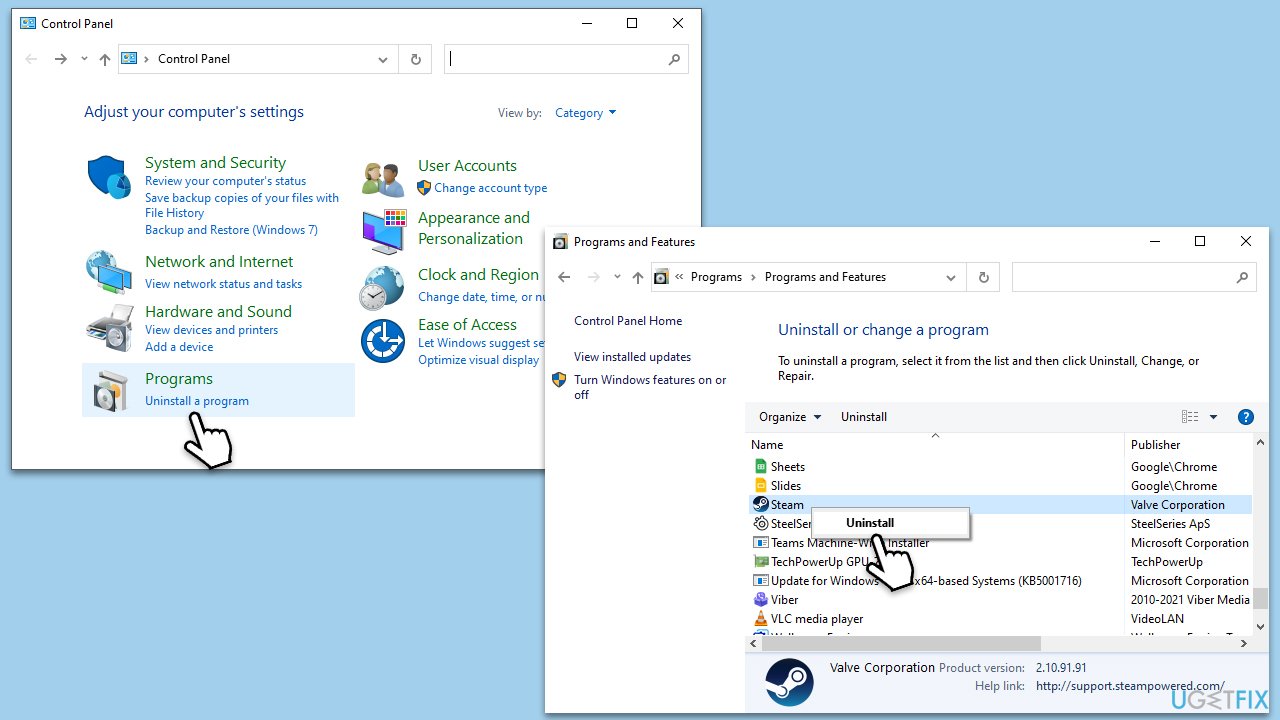
Fix 7. Reinstall Steam
Reinstalling Steam can fix issues caused by corrupt Steam files. It's a more drastic measure but can resolve persistent problems.
- Go to the Control Panel.
- Select Programs > Uninstall a program.
- Find Steam in the list and select Uninstall.
- Follow the prompts to remove Steam from your system.
- After uninstallation, restart your computer.
- Download the latest version of Steam from the official website.
- Run the installer and follow the instructions to install Steam.
Bottom line
To fix Steam error code E20, you can use the Windows network troubleshooter, reset your internet connection, change your DNS settings, or temporarily disable third-party antivirus software and firewalls. If these methods do not resolve the issue, consider using PC repair software to identify and fix underlying Windows problems.
Frequently asked questions
Steam error code E20 typically indicates a connection issue with the Steam servers or a problem with your internet settings on Windows 10 or Windows 11.
To troubleshoot error code E20 on Windows 11, try resetting your router, checking your firewall settings, or running Steam as an administrator.
Yes, you can verify the integrity of the game files through Steam by right-clicking the game in your library, selecting 'Properties', and then clicking 'Verify integrity of game files' under the 'Local Files' tab.




Report an issue
What's wrong with this guide? We review every report and update or remove content.
Report received — thank you. We'll review and fix it.
You need a free account to submit a report.
Be the first to comment