How to fix
Steam error E502 L3
on Windows
Resolve Steam error E502 L3 on Windows 10 and 11 effortlessly. Follow these proven solutions for a smooth gaming experience, expert-tested and updated 2…

What causes How to fix Steam error E502 L3 in Windows?
- Network connectivity issues
- Unstable internet connection
- Steam server outages
- Maintenance periods on Steam's servers
- Unexpected server issues
Repairs Windows system files, removes malware, and restores a clean OS state — without reinstalling.
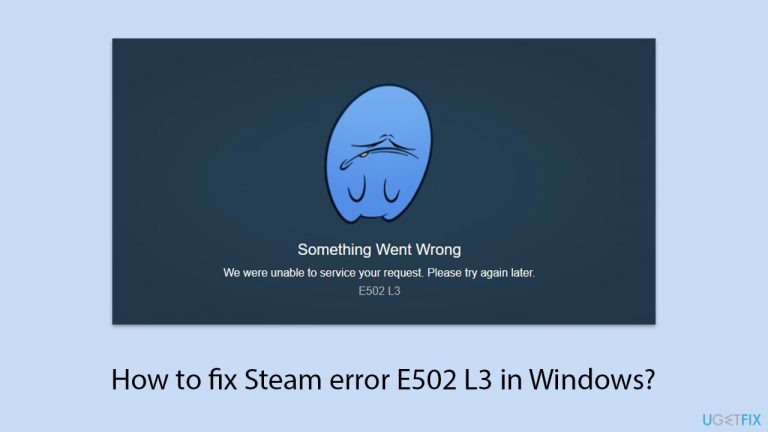
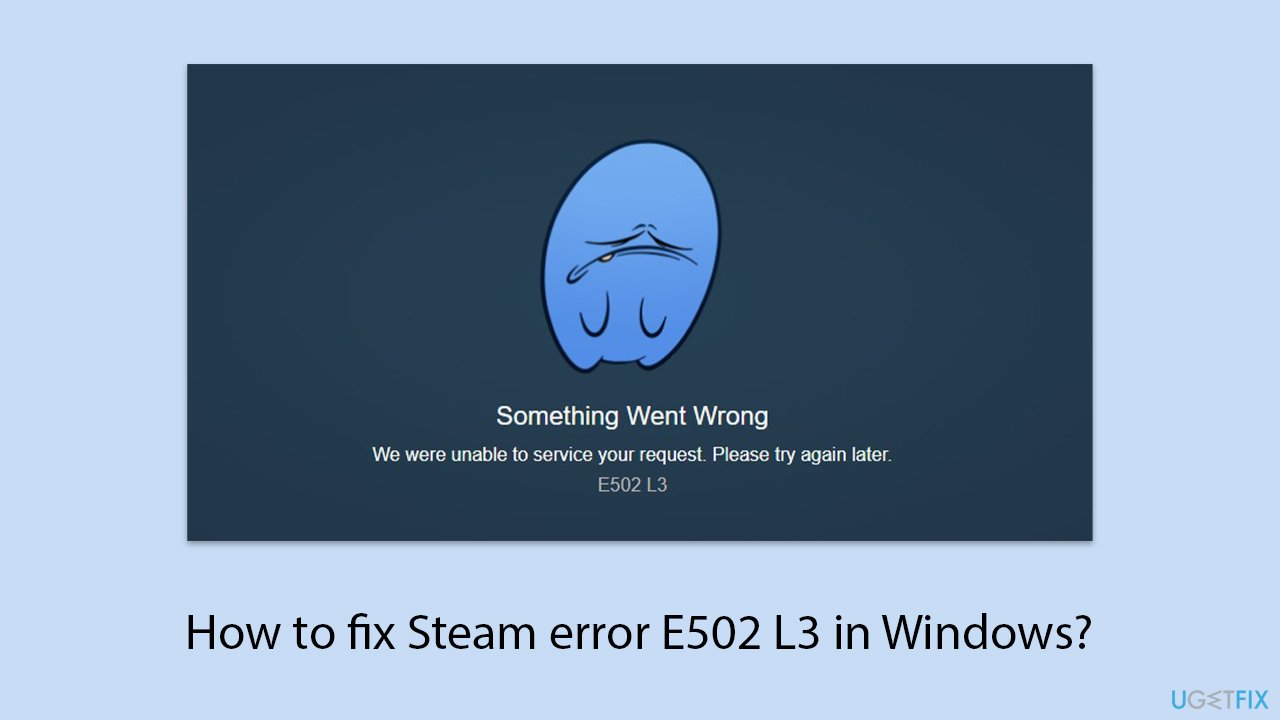
I can't access the Store on Steam. Instead, I see an error message "Something went wrong. We were unable to service your request. Please try again later. E50 L3." What does this mean and how can I fix this?
Steam users may occasionally encounter the error message "Something Went Wrong. We were unable to service your request. Please try again later. E502 L3." This issue typically arises when trying to access the Steam Store, purchase games, or execute other platform transactions. The error disrupts the normal functionality of Steam, preventing users from completing their desired actions.
Steam Error E502 L3 is usually caused by connection issues
The E502 L3 error is generally linked to network connectivity issues or problems on Steam's server side. An unstable internet connection can interrupt the communication between your computer and Steam's servers, leading to this error.
Alternatively, the issue might stem from Steam's own servers. If the servers are down, either for maintenance or due to unexpected outages, they cannot process user requests, resulting in the E502 L3 error message.
Ways to fix E502 L3 error on Steam
Depending on the underlying reason, the E502 L3 error may require several steps. To begin with, be sure your internet connection is dependable and fast enough. If there's nothing wrong with the internet connection, the next thing to check is the state of Steam's servers.
Real-time information about server outages or maintenance periods can be found on websites such as Steam's official status page. Waiting for these issues to be resolved by Steam, or reconnecting once your internet stability is confirmed, often resolves the error. Please refer to the directions below for further details on how to carry out these steps.
If your system is experiencing ongoing issues with Steam or other Windows apps, you might want to use the [d1] maintenance and repair tool. This utility is intended to efficiently improve system operation by automatically identifying and resolving underlying Windows problems.
Fix 1. Check on Steam's server status
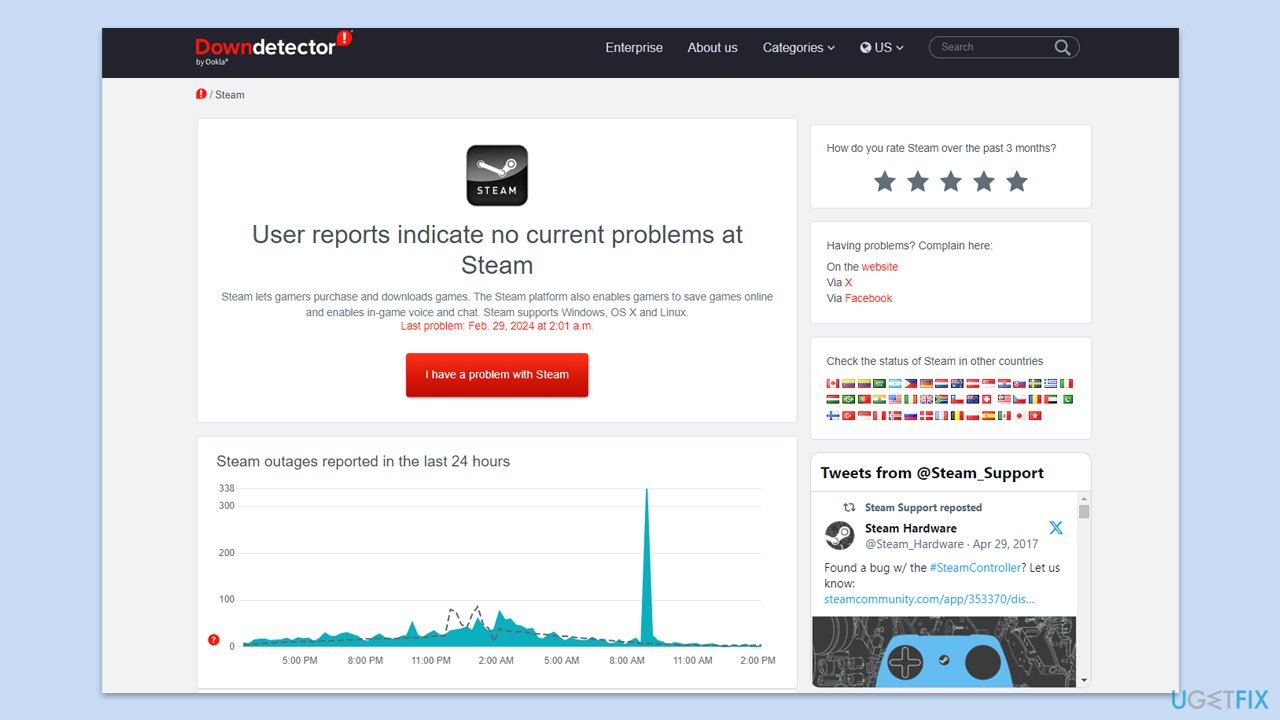
This solution involves verifying whether the issue is at Steam's end by checking their server status. If the servers are down, you may experience the E502 L3 error, as the server cannot process requests during downtime.You can rely on several sources for this, including Downdetector, the dedicated Steam server status page, or Steam’s official Twitter.
Fix 2. Run Network troubleshooter
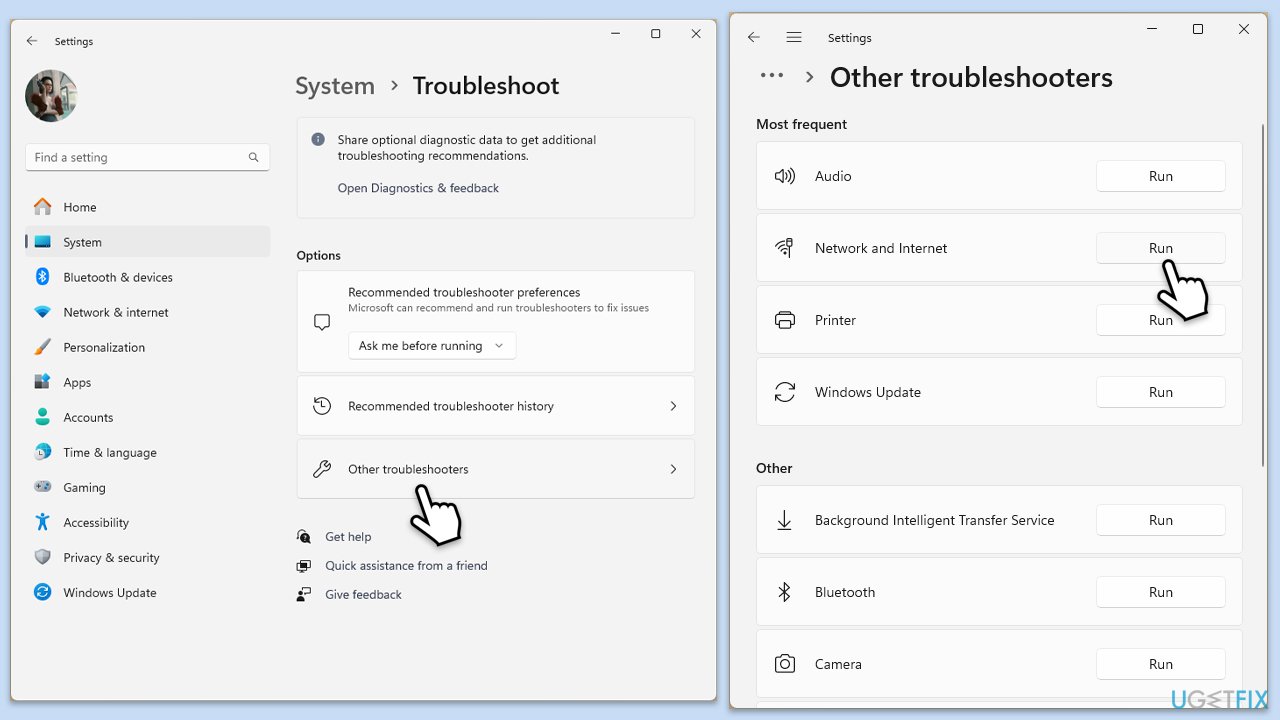
Running the Network Troubleshooter will assist you in identifying and resolving internet connection issues that may be generating the error.
Windows 11
- Type Troubleshoot in Windows search and press Enter.
- Select Other troubleshooters.
- Find Network & Internet troubleshooter from the list and select Run.
- Wait till the process is finished and apply the offered fixes.
- Restart your computer.
Windows 10
- Right-click on Start and pick Settings.
- Go to the Network & Internet section.
- On the right side, find the Advanced network settings section.
- Click Network troubleshooter and wait.
- The fixes will be automatically applied.
Fix 3. Restart Steam
Restarting Steam can fix problems resulting from temporary bugs or unsuccessful data loading by refreshing the application's activities.
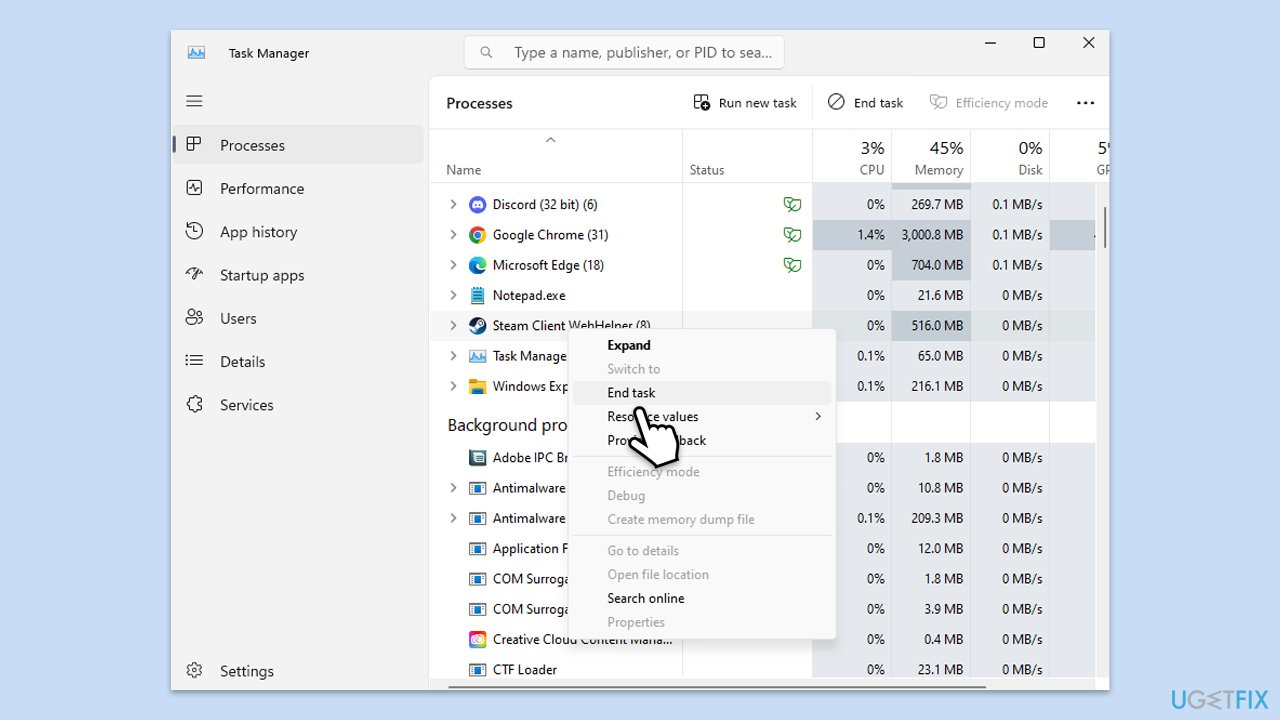
- Open the Task Manager by pressing Ctrl + Shift + Esc.
- In the Task Manager, look for any processes related to Steam.
- Select each Steam-related process and click End Task.
- Wait a few seconds, then reopen Steam and check if the problem persists.
Fix 4. Temporarily disable third-party security software and add Steam to the exception list
Security software occasionally can impede Steam's regular functions. Conflicts can be resolved by adding Steam as an exception or temporarily disabling this and similar apps.
- Temporarily disable your antivirus or/and firewall software.
- Test if Steam works without interference.
- If the issue resolves, add Steam to the exception or whitelist in your security software settings.
- Re-enable the software after that.
Fix 5. Clear Steam's caches
Clearing Steam's caches removes stored data that could be corrupt or outdated, potentially fixing issues related to data handling.
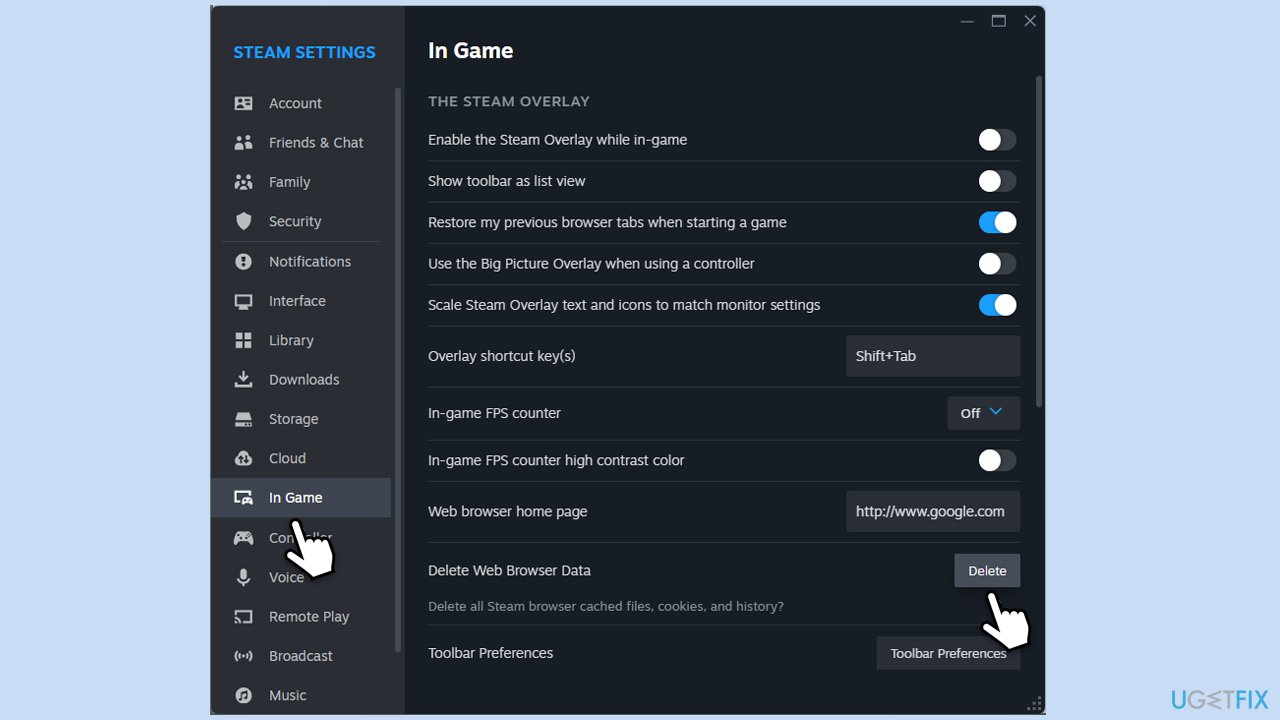
- Open the Steam app.
- Go to Steam > Settings.
- Select the In Game section on the left.
- Scroll down to the Delete Web Browser Data section.
- Click Delete.
- Go to the Downloads section.
- Under Clear Download Cache, click Clear Cache.
- Restart Steam.
Fix 6. Reinstall Steam
Reinstalling Steam ensures that you have the latest version of the software and can fix problems caused by corrupted or missing files.
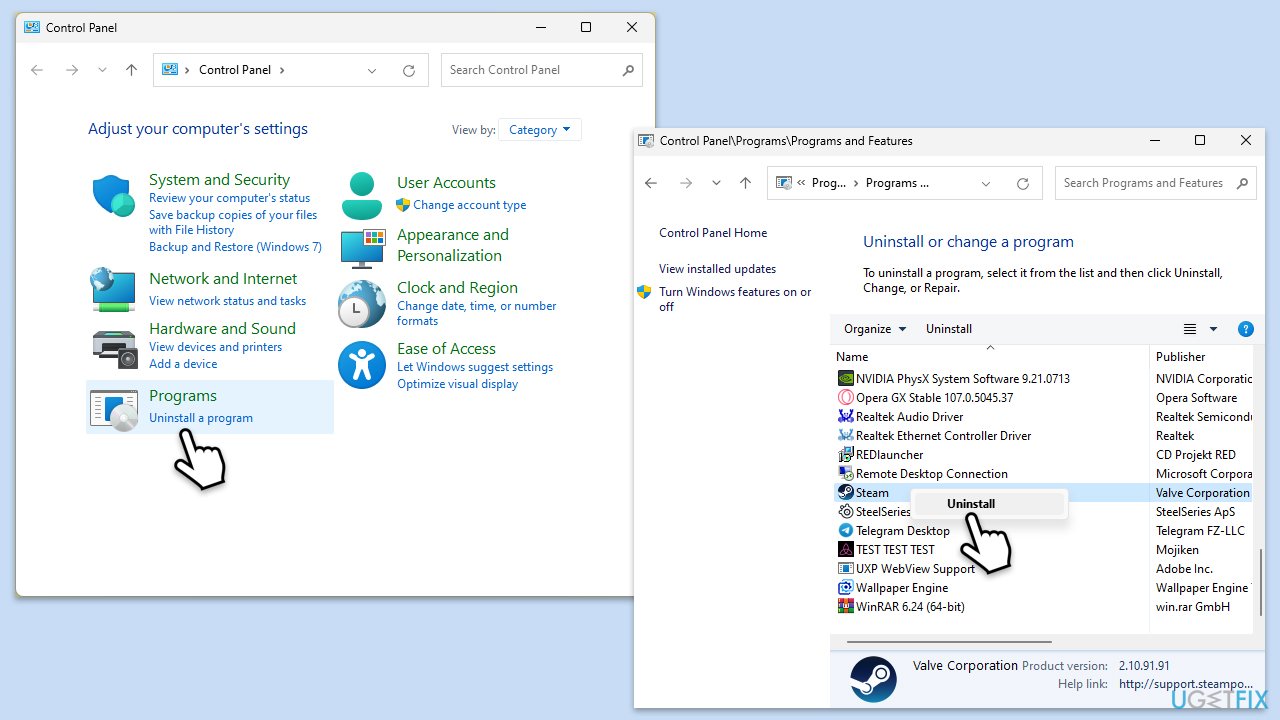
- Type Control Panel in Windows search and press Enter.
- Go to Programs > Uninstall a program.
- Find Steam in the list and select Uninstall.
- Follow the prompts to remove Steam from your system.
- After uninstallation, restart your computer.
- Download the latest version of Steam from the official website.
- Run the installer and follow the instructions to install Steam.
Fix 7. Reset your internet connection
Resetting your internet connection can help clear any network errors that might be causing connectivity issues with Steam.
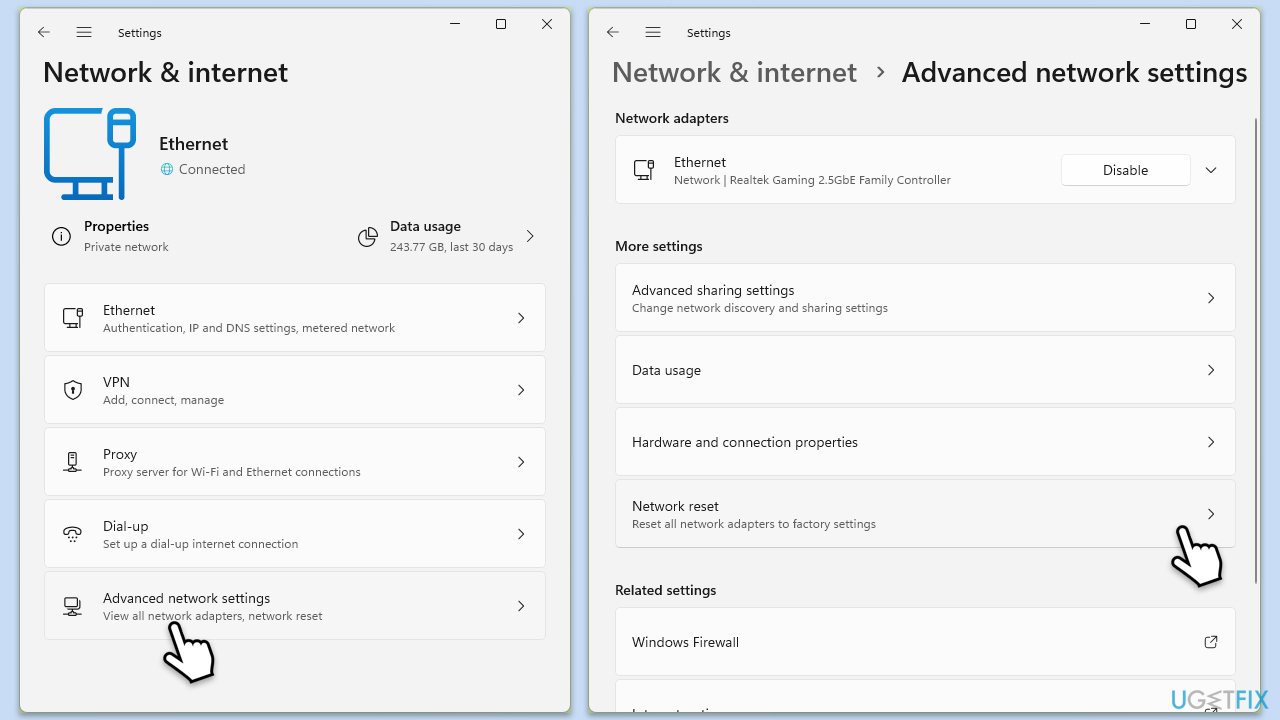
- Right-click on Start and pick Settings.
- Go to Network & Internet.
- Under Advanced network settings, click Network reset.
- Click Reset Now.
- Confirm the action and then restart your system.
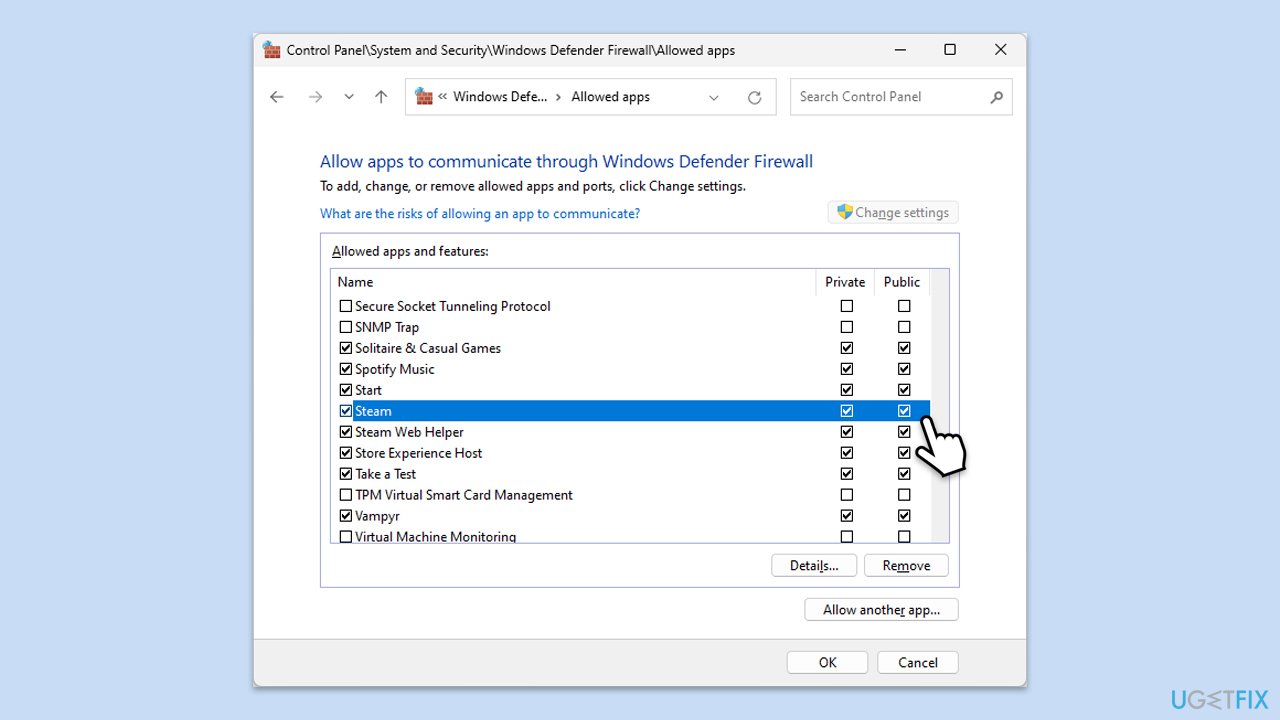
Fix 8. Allow Steam through Windows Defender Firewall
If you don't use any third-party apps that could interfere with Steam's connection, you should see if Windows Defender Firewall is not causing the issue.
- Type in Control Panel in Windows search and press Enter.
- Go to System and Security and click on Windows Defender Firewall.
- On the left side of the window, click Allow an app or feature through Windows Defender Firewall.
- Click Change settings (if you are not on an administrator account, you will be asked to enter a password).
- Scroll down and enable Private and Public access to the following entries:
Steam
Steam Web Helper - Finally, click OK.
Bottom line
To fix the E502 L3 error, check your internet connection for stability and speed, and verify the status of Steam's servers on their official status page. If the problem persists, consider using the maintenance and repair tool for Windows to resolve underlying issues. If none of these solutions work, waiting for server issues to be resolved may be necessary.
Frequently asked questions
The Steam error E502 L3 typically occurs due to server issues, internet connectivity problems, or corrupted Steam files on your Windows system.
To fix the error E502 L3 on Windows 11, try restarting your router, verifying your internet connection, and clearing the Steam cache.
Yes, reinstalling Steam can resolve the E502 L3 error by replacing corrupted files; however, ensure you back up your game data before proceeding on Windows 10.




Report an issue
What's wrong with this guide? We review every report and update or remove content.
Report received — thank you. We'll review and fix it.
You need a free account to submit a report.
Be the first to comment