
How to fix Steam error "No download source" in Windows?

Prefer to fix it yourself? The manual steps follow.
- 7methods
- 2 minutes for the first fix, 5 to 30 minutes for the repairs
- Easy
Applies to Steam games that fail to install or update on Windows 11 or Windows 10
7 methods in this guide
I was trying to launch Dota 2 and I got an error with the message "No download source." What is this and how can I fix it? I can't play the game anymore.
"No Download Source" means Steam asked its content servers for a game's files and none of them could hand them over, so the update or install stops with "Content unavailable". Most often the servers of your download region are slow or behind. Change the download region in Steam's settings first.
Steam could not download the files of the game's update from any content server, so it shows "Content unavailable" with the detail "No Download Source". Your game files are not damaged. Start with Fix 1: open Steam > Settings > Downloads, pick another nearby Download region, restart Steam and retry the update. If that fails, clear the download cache with Fix 2.
| Error | "An error occurred while updating [game] (content unavailable) :" followed by "No Download Source". In the Downloads list the game shows Content unavailable. |
|---|---|
| Where it appears | In the Steam client, when a game installs or updates, or when you press Play on a game that still has an update waiting. Dota 2 and Counter-Strike are the games readers name most. |
| Main cause | No content server in your download region delivered the game's files: the region is slow, overloaded or not yet holding the new build, or something between your PC and the servers blocks it. |
| Fastest fix | Pick another nearby region under Steam > Settings > Downloads > Download region and retry the update (Fix 1). |
| Also written as | no download source steam, steam content unavailable no download source, Content unavailable, (Content unavailable) "No Download Source" in the log, steam won't download, steam download error. |
| Steam's own code | Steam's client text file lists Content unavailable as update error 40. The detail "No Download Source" is printed next to it in the dialog and in the content log. |
| Vendor status | Not a bug with a patch. Steam Support's page on update and installation errors lists the fixes used here, with a change of download region named for servers that are "slow, overloaded or have a hardware failure". |
| Affects | Any Steam game on Windows 11 and Windows 10. Microsoft ended support for Windows 10 on 14 October 2025, which does not change this error. |
| Time to fix | 2 minutes for Fixes 1 and 2. 5 to 30 minutes for repairing the library, verifying files or reinstalling Steam. |
Facts checked on 15 October 2026. Steps written for the Steam client on Windows 11 (25H2 and 26H2) and Windows 10 22H2, read against Steam Support's page on update and installation errors and the Steam client's own text file.
What the Steam "No download source" error means and where it shows
Steam does not keep games on one server. It splits each game into pieces and spreads them over content servers in many regions, then picks the servers of the region it thinks you are in. When the client asks for a piece and no server answers with it, the download has no source, and Steam stops.
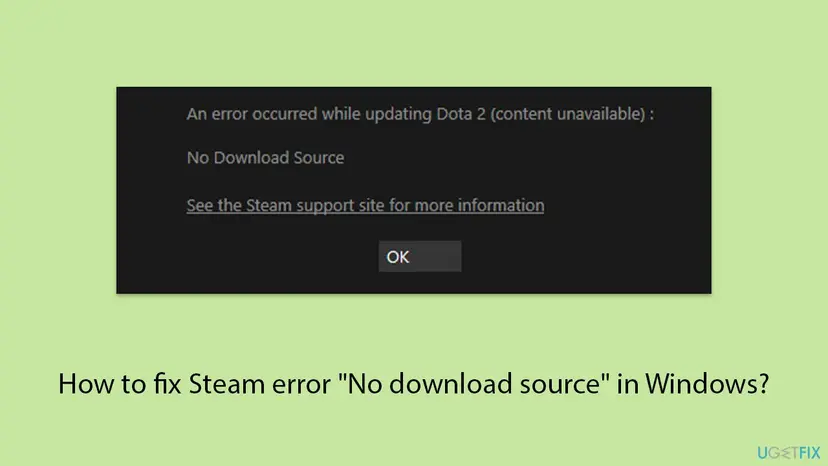
The window most readers see reads: "An error occurred while updating Dota 2 (content unavailable) :" with the line "No Download Source" under it. The name of the game changes, the rest stays the same. Steam Support explains that the reason for an update error is always the text in brackets at the end.
| Text you see | Where | Same problem? |
|---|---|---|
| An error occurred while updating [game] (content unavailable) : No Download Source | Steam's error window | Yes |
| Content unavailable | Steam's Downloads list, next to the game | Yes |
| An error occurred while launching this game: Content unavailable | After you press Play on a game with a failed update | Yes: the update must finish first |
| (Content unavailable) "No Download Source" | The file logs\content_log.txt in the Steam folder | Yes, with the depot and chunk that failed |
| Content servers unreachable | Steam's error window | Close: Steam reached no server at all. The same fixes apply, start with Fix 5. |
Steam does not start a game while an update for it is waiting. If the update cannot download, pressing Play brings up the same error. The game files on your disk are not the problem; the missing update is.
What causes "Content unavailable: No download source", from most to least likely
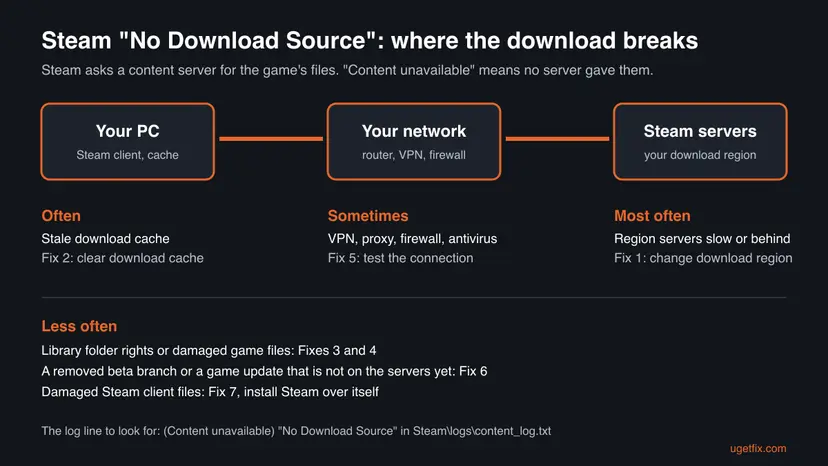
Valve publishes no numbers on this error. The order below follows Steam Support's own list of fixes for update errors and what readers describe: a fresh game update, a region that worked yesterday, a download that stops at once.
| Cause | How to tell | Fix |
|---|---|---|
| The servers of your download region are slow, overloaded or behind. Steam Support: servers in a region "may be slow, overloaded or have a hardware failure causing download issues". | A big update just came out. Other games download fine, or downloads stop at once. | Fix 1 |
| Old data in Steam's download cache. Clearing it makes Steam "flush locally cached configuration data and acquire it from the Steam servers again". | It keeps failing after you changed the region. | Fix 2 |
| The library folder lost its write rights. Steam Support: library folders "need to be writable by all users in order to update properly". | Only games in one library or on one drive fail. | Fix 3 |
| Damaged or half-written game files. | One game only, after a crash or a power cut during an update. | Fix 4 |
| A VPN, proxy, firewall or antivirus between Steam and its servers, or a provider that caches data. | Every game fails, or it began after you installed such a program. | Fix 5 |
| The game's side: a beta branch you joined was removed, or the servers do not hold the new build yet. | Everyone with the game reports it on the same day, or you are on a beta. | Fix 6 |
| Damaged Steam client files. | All of the above changed nothing and other errors appear too. | Fix 7 |
Many guides tell you to uninstall Steam through the Control Panel. Steam Support warns: "Uninstalling Steam will delete all game content." Fix 7 installs Steam over itself instead, which keeps your games.
How to fix Steam "No download source"
Fixes 1 and 2 answer the causes behind most cases and take two minutes each. Fixes 3 and 4 repair the library and the game's files. Fix 5 looks at your connection, Fix 6 at the game's side, and Fix 7 rebuilds Steam without deleting your games.
| What you see or did | Start with |
|---|---|
| A big update just came out, or downloads stop at once with Content unavailable. | Fix 1 |
| You already changed the region and it still fails. | Fix 2 |
| Only games on one drive or in one library fail. | Fix 3 |
| One game fails after a crash or a power cut. | Fix 4 |
| Every game fails, or you use a VPN or a new security program. | Fix 5 |
| You joined a beta of the game, or many players report it today. | Fix 6 |
| Nothing above helped. | Fix 7 |
Fix 1. Change the download region in Steam's settings
2 minutesNo riskEveryone starts here, and above all when a new update just came out or the download stops at once.
Steam picks content servers in your own region. Steam Support says those servers "may be slow, overloaded or have a hardware failure" and advises a temporary switch to another region, which uses another set of servers.
- Open Steam, select the Steam menu in the top left corner and choose Settings.
- Select Downloads on the left.
- Open the list next to Download region and pick another region close to you, for example a neighbouring city or country.
- Close Settings. If Steam asks to restart, let it.
- Open the Downloads page at the bottom of the Library and press the resume button next to the game.
- If it fails again, pick a second region and try once more. Steam Support: "You may need to test several regions other than your own."
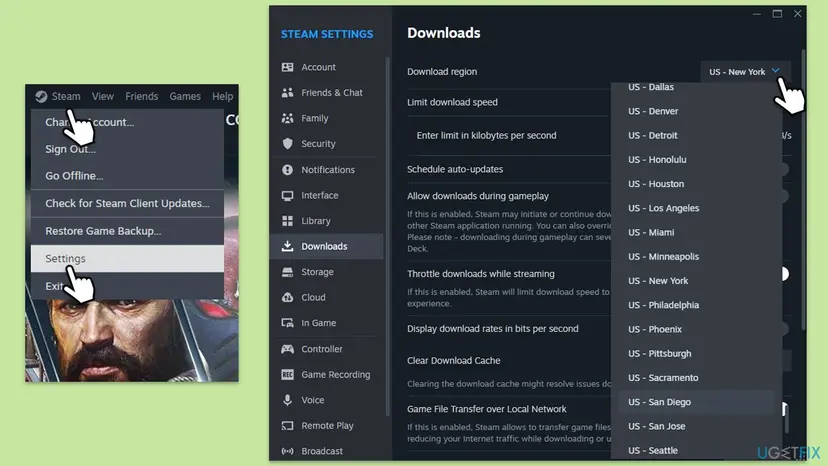
A far region is slower. Once the update has finished, set Download region back to your own so that future downloads use the nearest servers.
It worked if: The game's progress bar starts moving in the Downloads list and the update finishes without the error.
If not: If two or three regions all give "Content unavailable", clear the download cache with Fix 2.
Fix 2. Clear Steam's download cache
2 minutesLow riskThe error stays after a change of region, or Steam keeps resuming the same broken download.
Steam keeps local data about what to download and from where. Steam Support says clearing the cache makes the client "flush locally cached configuration data and acquire it from the Steam servers again", so a stale list of sources is replaced.
- Open the Steam menu and choose Settings.
- Select Downloads on the left.
- Next to Clear Download Cache, select Clear Cache.
- Confirm with Ok. Steam warns that it "will clear your local download cache and restart Steam".
- Sign in to Steam again when it restarts. Have your password and Steam Guard code ready.
- Open Downloads and resume the game's update.
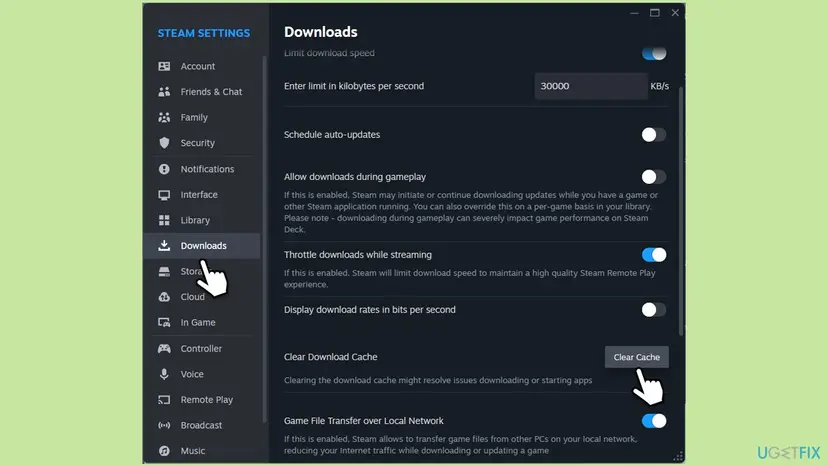
Clearing the cache does not remove installed games or saves. Steam's own text says it "might resolve issues downloading or starting apps", which covers both forms of this error.
It worked if: Steam restarts, you sign in, and the update downloads.
If not: If only games on one drive fail, repair that library folder with Fix 3. If one game fails, go to Fix 4.
Fix 3. Repair the Steam library folder
3 minutesLow riskGames on one drive or in one Steam library fail while others update, or the game sits on a second drive.
Steam Support says library folders "need to be writable by all users in order to update properly" and that these rights can break. Repair Folder sets them again, so Steam can write the downloaded pieces.
- Open the Steam menu and choose Settings.
- Select Storage on the left.
- At the top, pick the drive that holds the game from the list of drives.
- Select the ... button on the right.
- Choose Repair Folder and confirm if Windows asks for administrator rights.
- Wait until Steam reports that it is done, then resume the update in Downloads.
Steam Support also suggests a test on another drive: add a new library with Steam > Settings > Storage > + on a different disk and move or install the game there. If the update works there, the first drive is the problem. Check it for errors: Check a disk for errors (chkdsk)
It worked if: Steam finishes the repair, and the update of the game continues.
If not: If the library is fine and one game still fails, check its files with Fix 4.
Fix 4. Verify the game's files, then reinstall the game if needed
5 to 30 minutes, by the size of the gameLow riskOne game fails while others update, above all after a crash or a power cut during an update.
A half-written update leaves Steam asking for pieces that do not match what is on disk. Verifying compares the installed files with the originals and fetches what is missing or wrong, which gives the update a clean starting point.
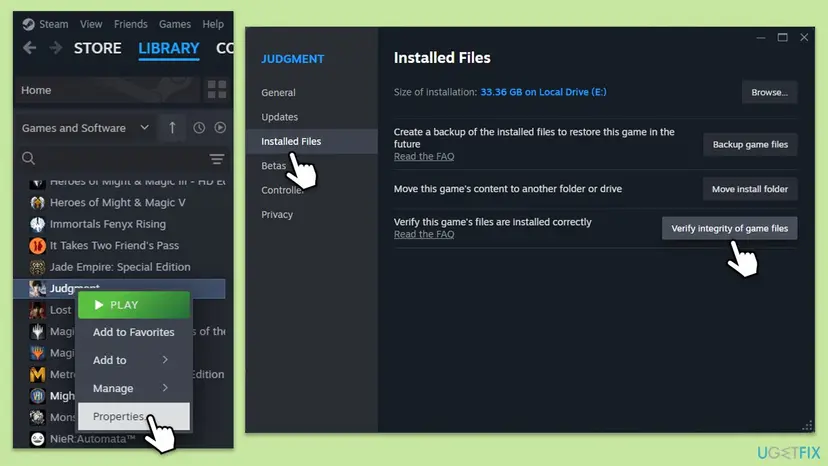
- Restart and open Steam. Restart your computer and launch Steam.
- Open the game's menu. Right-click the game in your Library, or open the game's Library page and select the gear icon on the far right.
- Open Properties. Select Properties in the menu.
- Verify the files. Select the Installed Files tab and select Verify integrity of game files.
- Wait for the result. Steam checks the game's files. This can take several minutes.
These steps were written for Steam on Windows. The full page with the other versions and what each result means: How to verify game files in Steam, Epic Games, Xbox app, EA app, Battle.net and GOG Galaxy
If verifying itself stops with "Content unavailable", the download is still the problem: go back to Fix 1 with another region. If verifying finishes and the update still fails, reinstall the game.
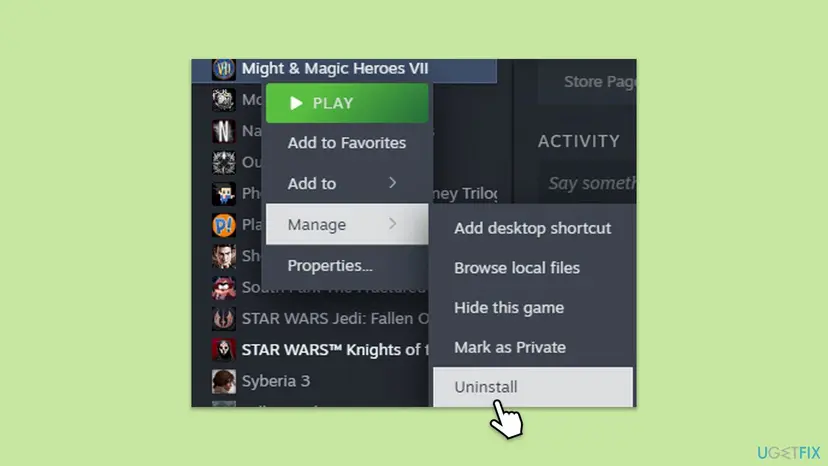
- In the Library, right-click the game and choose Manage > Uninstall.
- Restart the PC.
- Open Steam, select the game and press Install.
Most games keep saves in Steam Cloud or in your Documents folder, but some keep them in the game folder. Before you uninstall, check the game's store page for Steam Cloud, or copy the game folder (Manage > Browse local files) to another drive.
It worked if: Steam reports that all files were validated, or the fresh install downloads to the end.
If not: If every game fails, or the reinstall stops with the same error, test the connection with Fix 5.
Fix 5. Test the connection: VPN, proxy, router, firewall and antivirus
10 to 15 minutesLow riskEvery game fails, Steam also says "Content servers unreachable", or you use a VPN, a proxy or new security software.
Steam Support names firewalls, antivirus, proxies and "web-optimizers" as programs that can stop Steam from reaching its servers. It also notes that some providers "cache or compress online data", which breaks Steam downloads.
- Disconnect any VPN and exit its app. Turn off a proxy under Settings > Network & internet > Proxy.
- Restart the modem and the router: unplug them, wait 30 seconds and plug them in again. Steam Support lists this first among its advanced steps.
- Add the Steam folder, by default
C:\Program Files (x86)\Steam, and your Steam library folders to the exceptions of your antivirus and firewall. - Retry the update.
- If it still fails, connect the PC to another network for one test, for example a phone hotspot. Steam Support advises a network "preferably from a different service provider".
- If it works there, the problem is your usual network. Reset Windows' network settings: Reset the network and flush DNS
- If it fails everywhere, do a clean boot to find a program on the PC that blocks Steam: How to perform a clean boot in Windows

If the update works only while your antivirus is paused, keep protection on and add exceptions for Steam instead. To pause it for one test: Turn off Microsoft Defender protection for a moment Turn it back on right after.
Changing the DNS server, as some guides suggest, may help when your provider's DNS is broken, but Steam Support does not list it for this error. Try the steps above first. To check the connection itself: How to check your internet connection in Windows
It worked if: The update downloads on your own network, or the test on another network points at the router, the provider or one program.
If not: If it fails on every network and after a clean boot, the cause is probably on the game's side. Go to Fix 6.
Fix 6. Leave a game beta and check whether the problem is on the game's side
5 minutesLow riskYou joined a beta of the game, or many players report the same error on the same day.
A download has no source when the build Steam asks for is not on the content servers. That happens when a beta branch you joined was closed, or when a new build has not reached all servers yet. In a game developer's public issue tracker in July 2025, logs showed this exact line for freshly updated content, and only Valve's fix ended it.
- In the Library, right-click the game and choose Properties.
- Select Game Versions & Betas (older clients: Betas).
- If a beta is selected, choose None to go back to the normal version.
- Close the window and resume the download.
- If you were not on a beta, open the game's page in the Library and read the latest news, or the game's Steam Community discussions, for reports of the same error today.
- If many players report it, wait a few hours and retry. A change on your PC will not help while the build is missing on Steam's side.
Valve keeps no public status page for its content servers. A burst of reports in the game's discussions on the day of an update is the best sign that the problem is not yours.
It worked if: Back on the normal version the download starts, or the reports show it is a server problem that will pass.
If not: If you were not on a beta, nobody else reports it and everything above failed, repair Steam with Fix 7.
Fix 7. Repair Steam by installing it over itself, without uninstalling
10 minutesRead the warningFixes 1 to 6 did not help, or Steam shows other errors too.
A fresh copy of the client replaces damaged Steam files, including the parts that handle downloads. Steam Support says to install into the same folder, which keeps your games.
Steam Support: "WARNING! Uninstalling Steam will delete all game content." The userdata folder in the Steam folder holds local settings and saves of games without Steam Cloud. Copy it to another drive first if you are unsure.
- Exit Steam through the Steam menu and Exit.
- In a browser, open
https://store.steampowered.com/about/and download the Steam installer. - Run it and choose the folder where Steam is already installed, by default
C:\Program Files (x86)\Steam. Steam Support: "Installing into same location will preserve all installed games." - Start Steam, let it update and sign in.
- Open Downloads and resume the game's update.
Our guide to Steam error code 2 has the deeper repair from Steam Support, which deletes everything in the Steam folder except steam.exe, steamapps and userdata. Use it only if the reinstall over itself did not help.
It worked if: Steam starts, updates itself, your games are still in the Library, and the update downloads.
If not: If a repaired Steam still shows "No Download Source" for one game, read the log and contact support as described below.
If Steam still says "No download source": the log to read and whom to ask
Steam writes every download step to a text file. It shows which part of the game failed and why, which tells you whether the region, the disk or the game's build is the problem.
- Exit Steam through Steam > Exit.
- Open the folder
C:\Program Files (x86)\Steam\logsin File Explorer. - Open
content_log.txtwith Notepad and press Ctrl + End to jump to the newest lines. - Look for a line with
(Content unavailable) "No Download Source". It names the AppID and the depot that failed. - Look a few lines above for other reasons, such as
Disk write errororCorrupt download. Those point to the drive (Fix 3) or to damaged files (Fix 4), not to the servers.
- When it is the game's build: the same depot fails from every region and on every network. Report it in the game's Steam discussions or to the developer through the game's Support link in the Library.
- When it is Steam: contact Steam Support at
https://help.steampowered.comwith the game, the time, the regions you tried and the lines fromcontent_log.txt. - When it is the drive: the log shows disk errors, or the game installs fine on another drive. Check the disk: Check a disk for errors (chkdsk)
- When it is the account: a game you do not own, or a free weekend that has ended, cannot download. The log then names a licence problem, not a download source.
How to keep "Content unavailable: No download source" from coming back
- Set Download region back to your own region once the update has finished.
- Let big updates finish before you exit Steam or shut down the PC.
- Give the Steam folder and your library folders a permanent exception in your antivirus.
- Exit Steam through the Steam menu, not by ending it in Task Manager during a download.
- Leave a game beta when it ends, so Steam does not ask for a build that is gone.
- Do not uninstall Steam through Windows to cure the error. It removes your games.
- Do not let a cleaner or tune-up program delete files from the Steam folder.
- Do not download game files or patches from other websites to get around the error.
- Do not keep a VPN on while Steam downloads if it routes you to a far country.
The rule behind it is short. Steam needs a reachable content server that holds the build you ask for, and a folder it can write to. Keep those two in order and the message stays rare.
Frequently asked questions
What does "No download source" mean on Steam?
It means Steam could not get a piece of the game's files from any content server. Steam spreads each game over servers in many regions, and the client asks the servers of your region for every piece. When none of them delivers it, Steam stops the download and shows "Content unavailable" with the detail "No Download Source". It does not mean your game is broken or your account is banned. Most often the servers of your region are slow or do not have the new update yet, which is why changing the download region (Fix 1) helps most readers.
What is "Content unavailable" on Steam?
It is the reason Steam gives when a download or update cannot get its files. Steam's client text file lists it as update error 40. You see it in the Downloads list next to the game, in the error window as "(content unavailable)", and in the log content_log.txt together with "No Download Source". The fixes are the same as on this page: change the download region, clear the download cache, repair the library folder and verify the game's files, in that order.
Why does the error show when I try to launch the game?
Because Steam will not start a game that has an update waiting. When you press Play, Steam first tries to finish the update. If that download has no source, you get "Content unavailable" instead of the game. The reader's question above is this case: Dota 2 would not start because its update failed. Fix the download with Fix 1 and Fix 2, let the update finish in the Downloads list, and the game will start again.
Why can't I download anything on Steam?
When every game fails, the problem is between your PC and Steam's servers, not in one game. Start with Fix 1 and Fix 2, because a bad region or a stale download cache stops every download at once. If that does not help, go to Fix 5: disconnect any VPN or proxy, restart the router, add Steam to your antivirus exceptions and test once on another network. Steam Support names firewalls, antivirus programs, proxies and providers that cache data as common reasons for downloads that never start.
Steam won't download games or updates and shows no error. Is this the same problem?
Not always. A download that sits at 0 bytes with no message is often paused, scheduled or limited. Check Steam > Settings > Downloads: Schedule auto-updates may restrict updates to certain hours, and Limit download speed may be set too low. Also check that the drive has free space. If the game then shows "Content unavailable" or "Content servers unreachable", follow the fixes on this page from Fix 1.
Is it Steam's fault or mine?
It can be either, and two tests tell them apart. Try two or three other download regions: if one works, it was the servers of your region. Try another network, such as a phone hotspot: if it works there, the problem is your network or a program on your PC. If the same game fails from every region and every network, and other players report it the same day, the problem is on Steam's or the game's side, and waiting a few hours is the fix.
Will clearing the download cache delete my games or saves?
No. Clearing the download cache removes only Steam's local data about downloads and then restarts Steam. Steam's own text says it "will clear your local download cache and restart Steam. You will need to login to Steam again." Your installed games, your saves and your settings stay where they are. Have your password and your Steam Guard code ready, because you have to sign in again after the restart.
Does changing DNS to 8.8.8.8 fix "No download source"?
Sometimes, but it is not the first thing to try. A DNS server only turns Steam's server names into addresses. If your provider's DNS is broken, Steam may find no servers, and a public DNS such as Google's 8.8.8.8 and 8.8.4.4 can help. Steam Support does not list DNS among its fixes for update errors. It lists the download region, the cache, the library folder and the network itself, so try Fixes 1 to 5 first.
I searched in Russian, Vietnamese, Arabic or Spanish. Is this the same error?
Yes. Readers reach this page with "что делать" (what to do), "lỗi gì đây" (what error is this), "sao ko tải dc" (why can't I download), "حل" (solution) and "no me sale para descargar" (it won't let me download). The Steam window is in your language, so look for the translation of "Content unavailable". The cause and the fixes are the same. Only the menu names differ, so follow the order of the steps: Steam menu, Settings, Downloads, then the region list.
Sources
- Steam Support: Update & Installation Issues (download region, download cache, repair library folder, verify files, reinstall into the same location, network and antivirus checks) (help.steampowered.com)
- Steam client text file steamui_english.json, as mirrored by SteamTracking (update error 40 Content unavailable, Download region, Clear Download Cache, Game Versions & Betas) (github.com)
- SmartlyDressedGames U3-SDK issue 5121: Dedicated server unable to install new workshop files (Steam logs with (Content unavailable) "No Download Source", July 2025, used as a report) (github.com)
Did this fix work?
One click, no account. It tells the next reader which guides are worth their time.
Questions and experiences: fix Steam error "No download source" in Windows
Still broken, or found a fix we did not cover? Ask here: members and our editors answer. Reading is open; writing needs a free account.
…