How to fix
Steam Friends list black box
on Windows
Resolve the Steam Friends list black box issue on Windows 10 or 11 with proven solutions. Get back to gaming in minutes, expert-tested tips included.

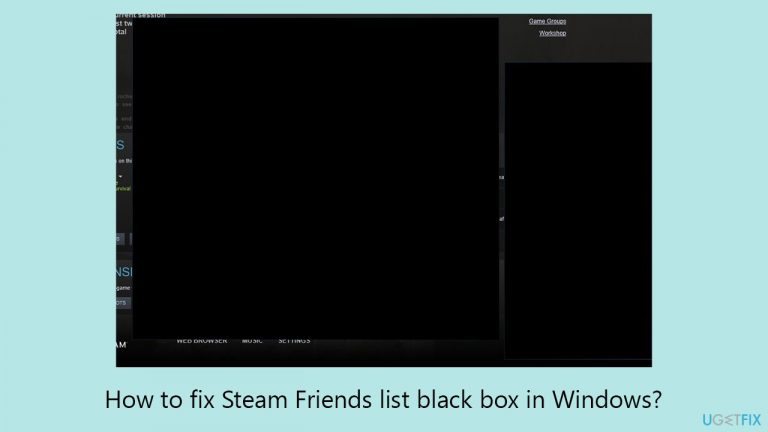
What causes How to fix Steam Friends list black box in Windows?
- Corrupted cache files within Steam
- Outdated graphics drivers
- Malfunctioning graphics drivers
- Conflicting Windows settings or system files
Repairs Windows system files, removes malware, and restores a clean OS state — without reinstalling.
After launching my PC today and opening Steam, I saw that my friend list is just a black box, along with messages that are sent from my friends. I can't see anything they write me and I can't see who's online. Any idea how to fix this?
Steam, the world's leading digital distribution platform for PC gaming, offers a comprehensive gaming experience that extends beyond just playing games. It provides a social component through its Friends List feature, allowing gamers to connect, chat, and share their gaming experiences.
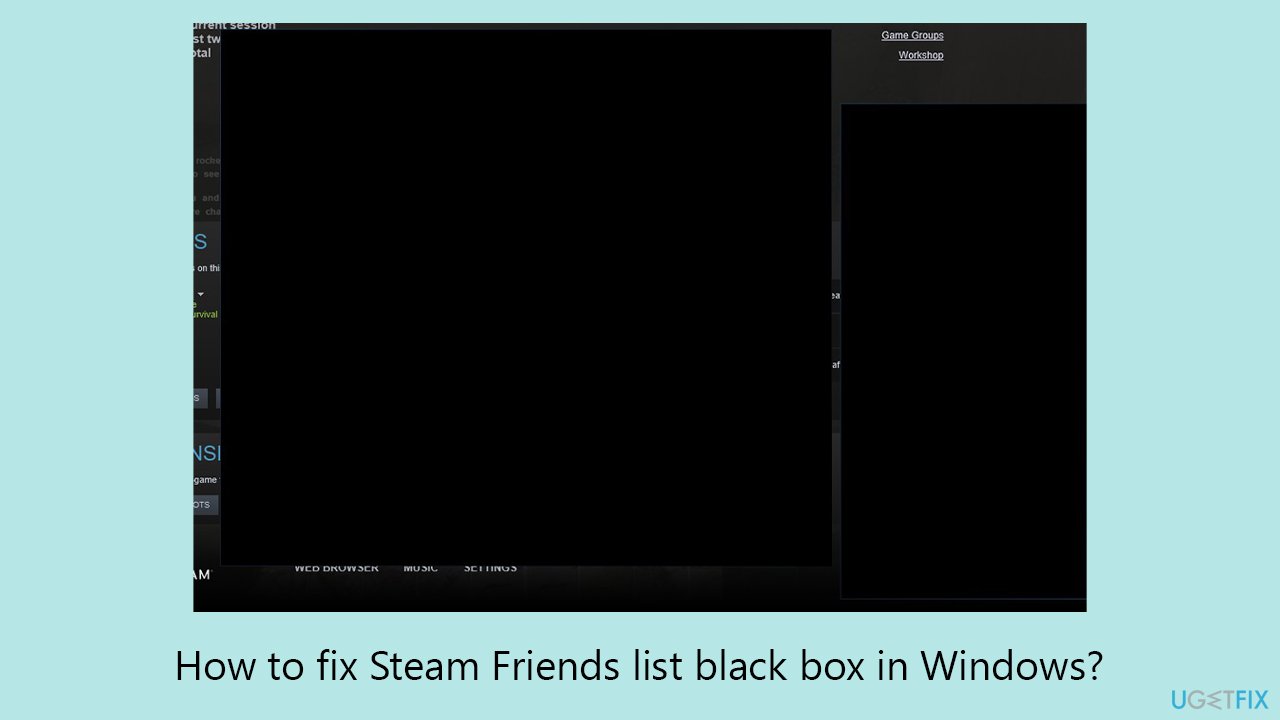
However, some Windows users encounter an issue where their Steam Friends List displays as black boxes instead of the typical interface. This issue also affects messages sent by friends, which appear as black boxes, hindering communication and disrupting the social aspect of gaming on Steam.
This problem can arise from several underlying causes. One common factor could be corrupted cache files within Steam. Over time, these cache files can accumulate and sometimes become corrupted, leading to display issues like the black box phenomenon. Another potential cause is outdated or malfunctioning graphics drivers. Since Steam's interface relies heavily on your computer's graphics capabilities, any issues with these drivers can directly impact how Steam displays content, including the Friends List.
If you're experiencing this issue, there are several steps you can take to address it. First, clearing Steam's cache can be a good starting point, as it removes any corrupted data that might be causing the display problem. Ensuring that your graphics drivers are up to date is also crucial. Outdated drivers may not support the latest features and updates of Steam, leading to display issues. Updating these drivers can often resolve the black box issue.
Additionally, the problem could stem from Windows itself. Occasionally, Windows settings or system files might conflict with Steam, leading to graphical glitches. In such cases, using a dedicated PC repair tool can be an effective solution. These tools are designed to scan, diagnose, and fix various Windows issues that might be affecting applications like Steam.
For instance, [d1] PC repair tool specializes in identifying and resolving underlying Windows problems that could be causing the black box issue on Steam's Friends List, offering a comprehensive solution to ensure a smooth gaming experience. Before proceeding, make sure Steam is updated to the latest version.
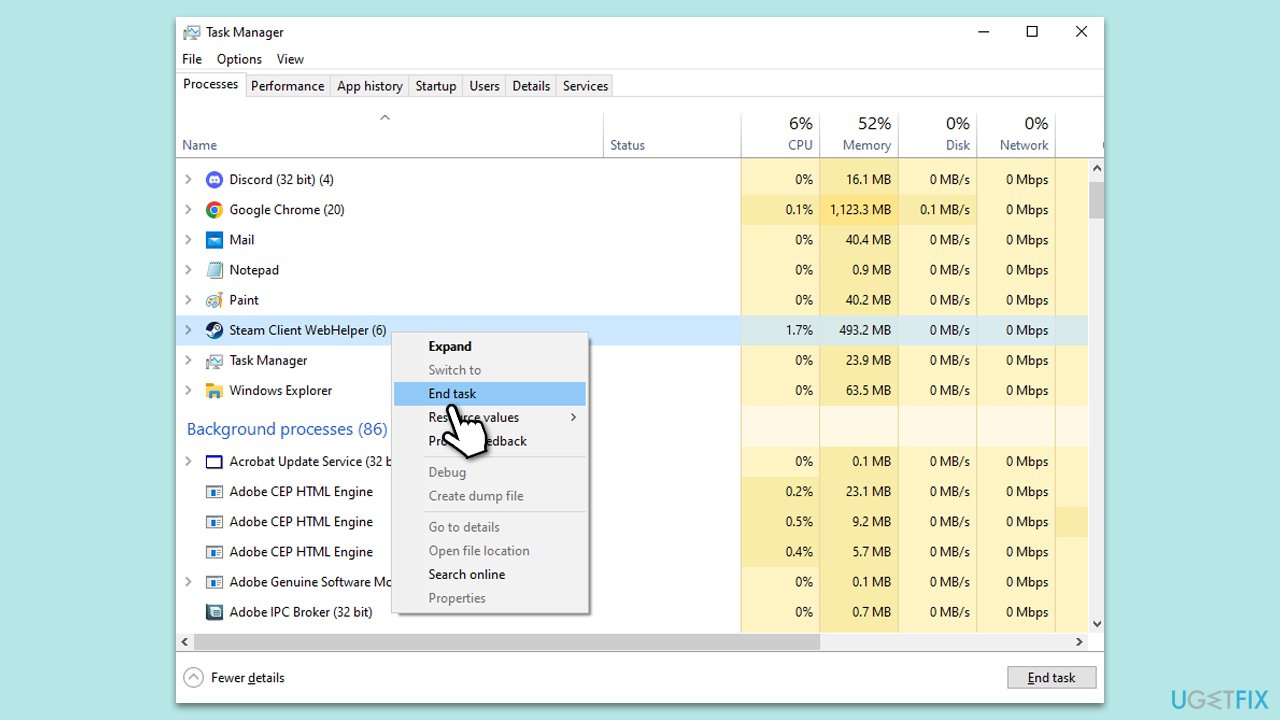
Fix 1. Restart Steam with all its components
Restarting Steam completely ensures that all components of the application are refreshed. This can resolve issues caused by temporary glitches or processes that didn't start correctly. It's a simple yet effective first step in troubleshooting.
- Open the Task Manager by pressing Ctrl + Shift + Esc.
- In the Task Manager, look for any processes related to Steam.
- Select each Steam-related process and click End Task.
- Wait a few seconds, then reopen Steam and check if the problem persists.
Fix 2. Log out and into your Steam account
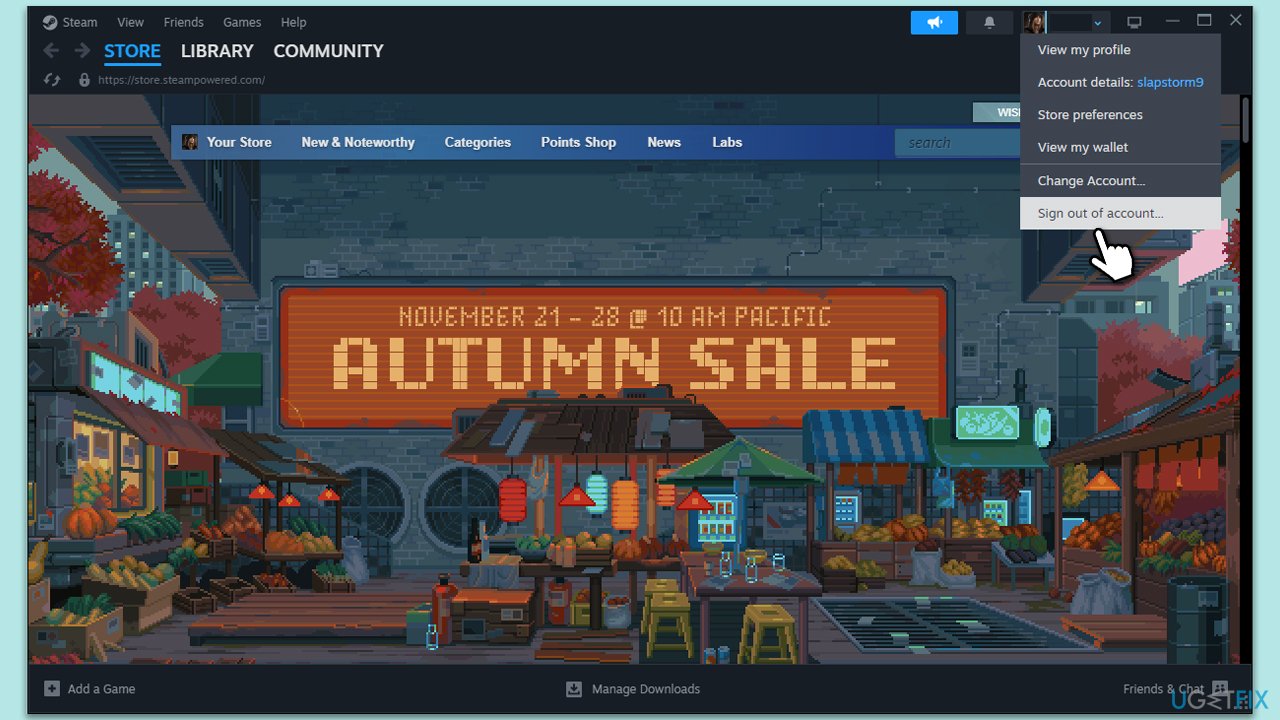
Logging out and then back into your Steam account can reset your account settings on the client. This can sometimes resolve display issues by refreshing your account data.
- Open Steam and click on your profile name at the top right corner.
- Select Sign out of account from the dropdown menu.
- Once logged out, log back in using your Steam credentials.
- Verify if the issue with the Friends List has been resolved.
Fix 3. Clear Steam web cache
The Steam cache can accumulate and sometimes become corrupt, leading to various issues, including display problems. Clearing the cache can resolve these issues by removing outdated or corrupt files.
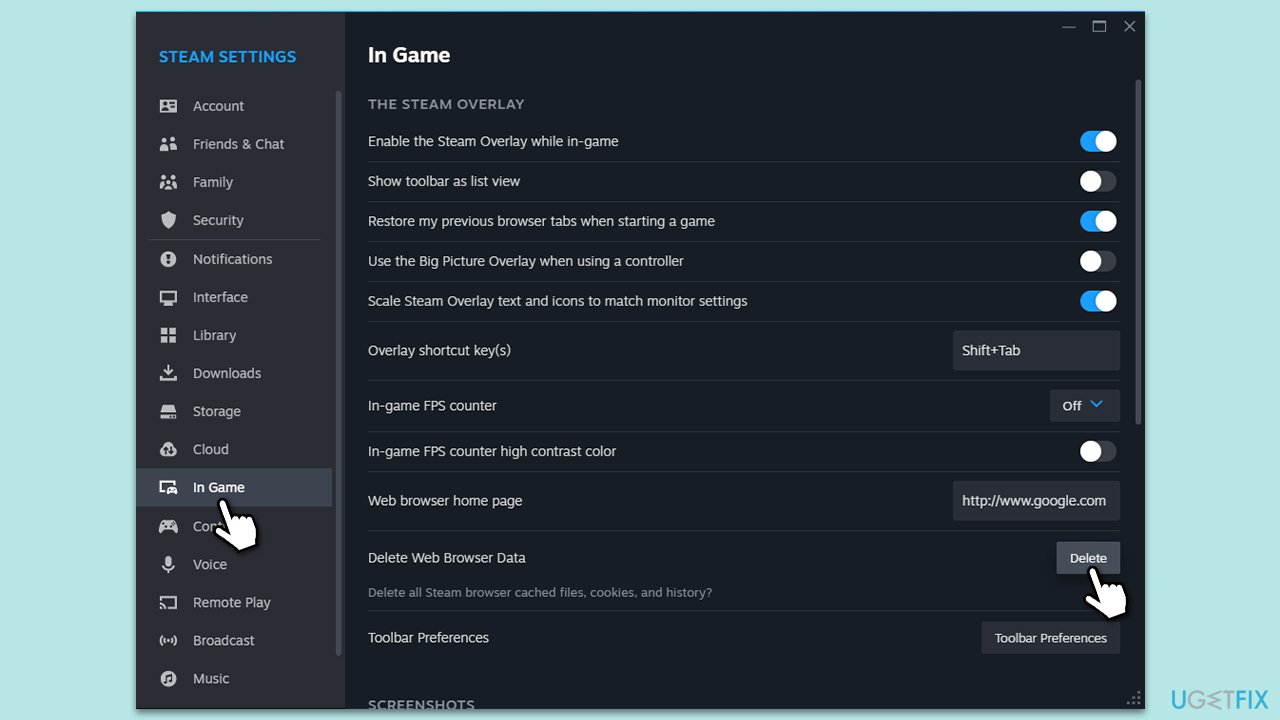
- Open the Steam app.
- Go to Steam > Settings.
- Select the In Game section on the left.
- Scroll down to the Delete Web Browser Data section.
- Click Delete.
- Restart Steam.
Fix 4. Delete the clientui folder
The clientui folder contains files related to Steam's user interface. Deleting it can resolve issues with the Friends List display as Steam will create a new, uncorrupted folder upon restart.
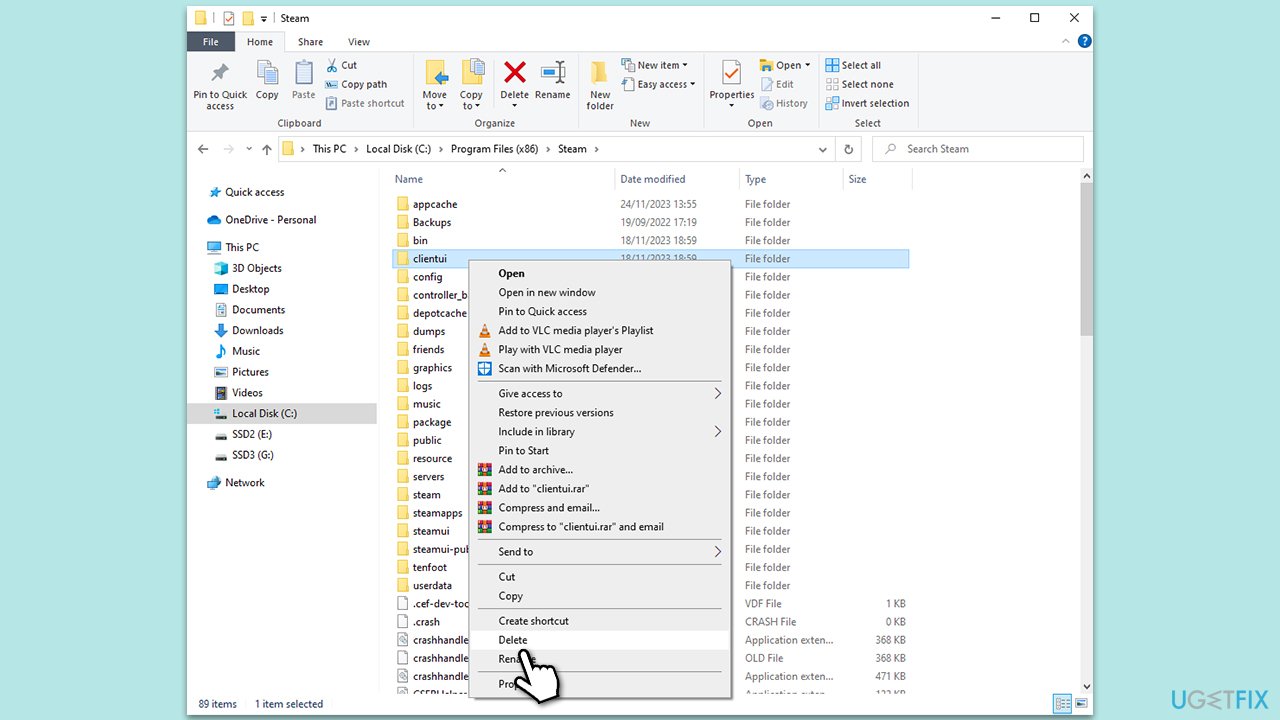
- Exit Steam completely.
- Navigate to the Steam directory (usually C:\Program Files (x86)\Steam).
- Find and delete the clientui folder.
- Restart Steam, which will automatically create a new clientui folder.
Fix 5. Check if Steam servers are active
If Steam servers are down, it can affect the functionality of the client, including the Friends List. Checking server status can confirm if the issue is on your end or Steam's.
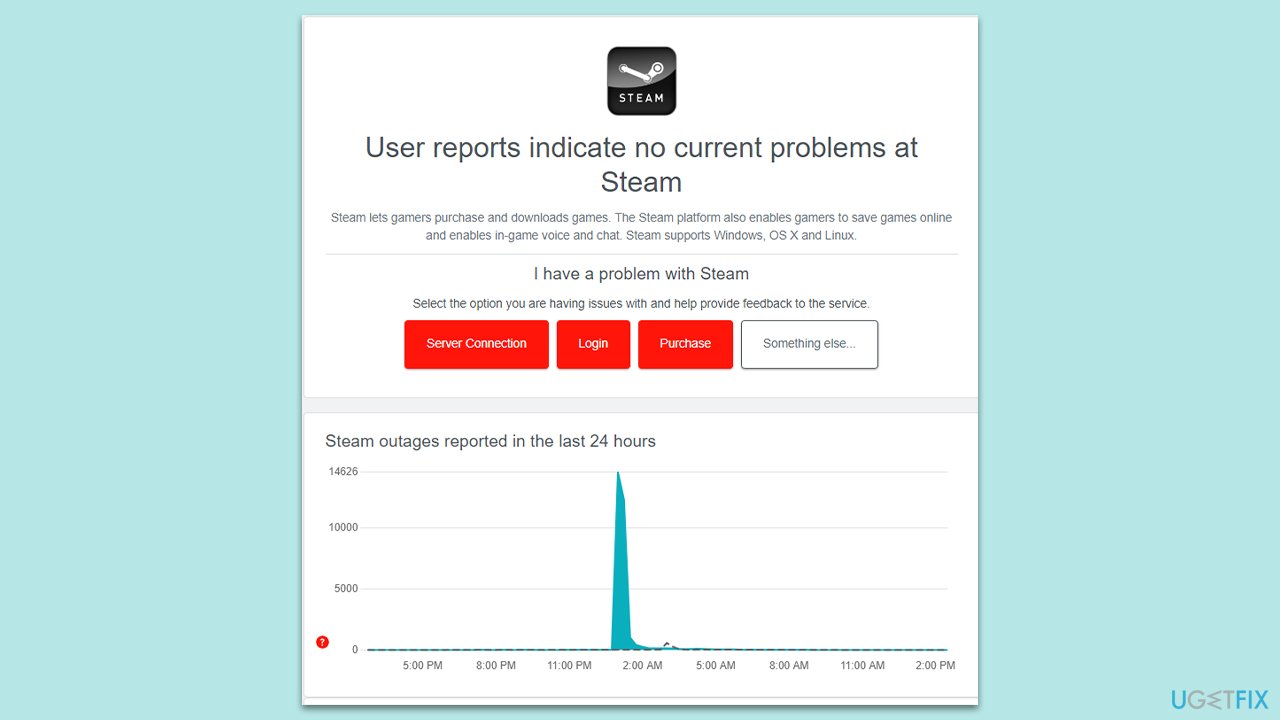
- Visit a website like DownDetector or Steam Status website to check if there are any reported issues with Steam servers.
- If there are server issues, wait until they are resolved and try accessing the Friends List again.
- If no server issues are reported, the problem likely lies within your local setup or network.
Fix 6. Run network troubleshooter
Network issues can affect Steam's ability to display content properly. Running the network troubleshooter can identify and resolve these issues.
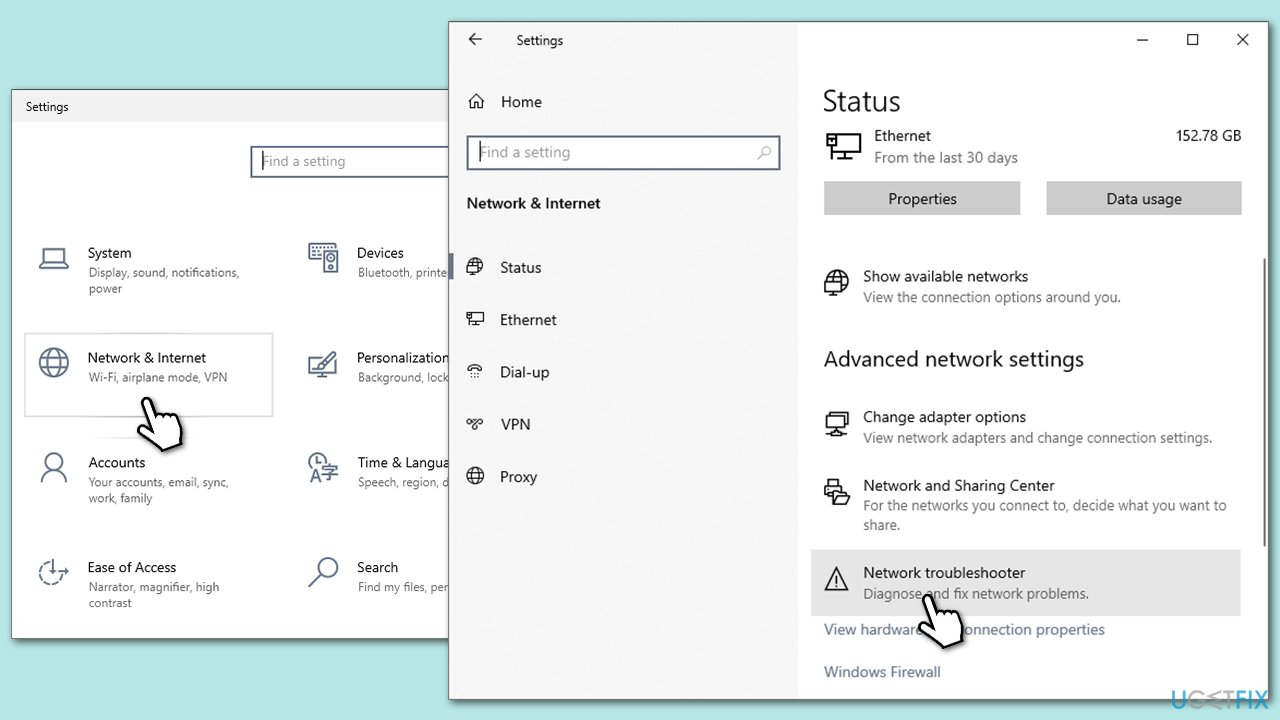
- Right-click on Start and pick Settings.
- Go to Network & Internet section.
- On the right side, find the Advanced network settings section.
- Click Network troubleshooter and wait.
- The fixes will be automatically applied.
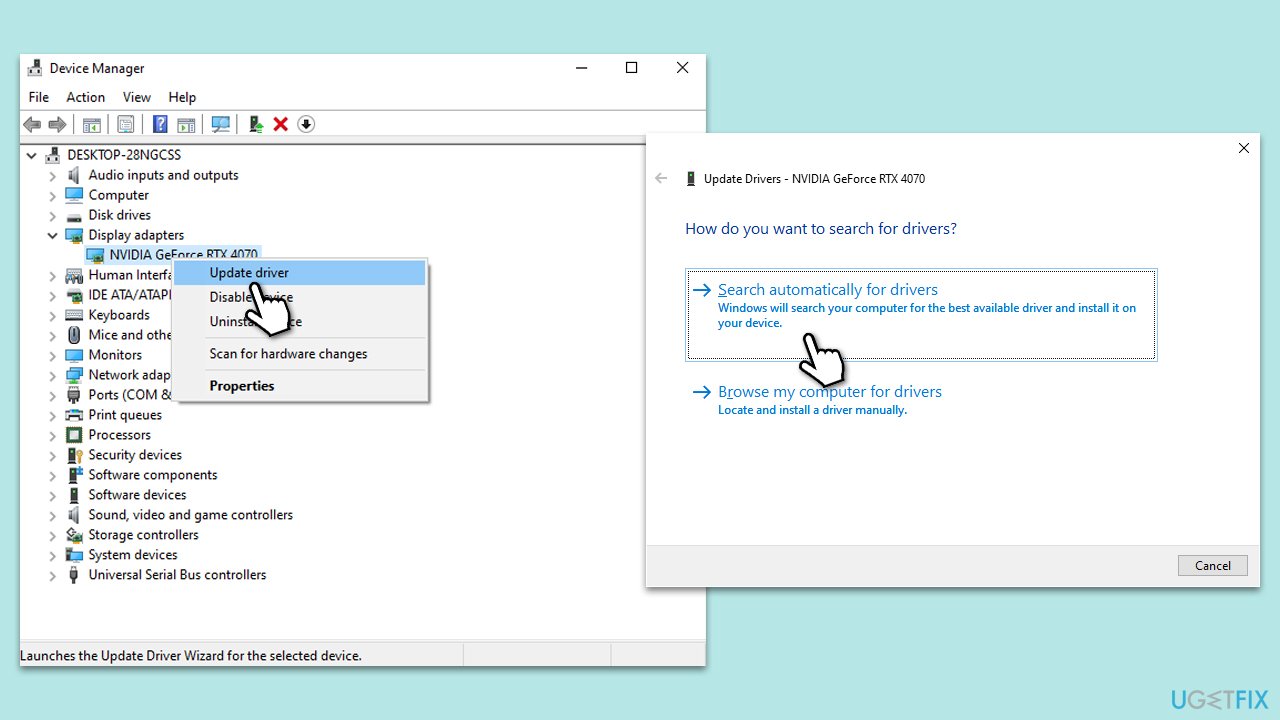
Fix 7. Update GPU drivers
For the all-in-one solution for your drivers, we recommend using [rev id="DriverFix"], which can quickly and easily install the latest versions of drivers for your system. Otherwise, proceed with the manual steps below:
- Right-click on the Start button and select Device Manager from the menu.
- Expand the Display adapters section.
- Right-click on your graphics card and select Update driver.
- Pick Search automatically for drivers.
- If updates are found, allow them to install.
- Restart your computer after updating all necessary drivers.
Bottom line
To fix the Steam Friends List black box issue, you can start by clearing Steam's cache and ensuring your graphics drivers are up to date. If the problem persists, consider using a dedicated PC repair tool to diagnose and fix any underlying Windows issues. If none of these solutions work, further troubleshooting may be necessary.
Frequently asked questions
The black box issue in the Steam Friends list on Windows 10 may occur due to outdated graphics drivers or corrupted Steam files. Updating your graphics drivers and verifying the integrity of the Steam installation can help resolve this problem.
To update your graphics drivers on Windows 11, go to Device Manager, locate your graphics card, right-click on it, and select 'Update driver'. Follow the prompts to search automatically for updated driver software.
If the issue persists after updating drivers, consider clearing the Steam cache or reinstalling Steam altogether, as this can resolve any underlying software conflicts affecting the Friends list.




Report an issue
What's wrong with this guide? We review every report and update or remove content.
Report received — thank you. We'll review and fix it.
You need a free account to submit a report.
Be the first to comment