How to fix
“Steam friends network unreachable” error
on Windows
Resolve the "Steam friends network unreachable" error on Windows 10 and 11 quickly and effectively. Expert-tested solutions for seamless gaming!

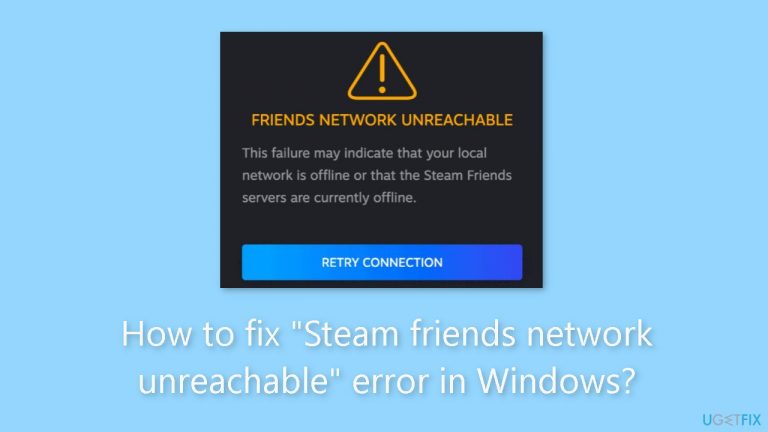
What causes How to fix “Steam friends network unreachable” error in Windows?
- Problems with the Friends & Chat settings in Steam
- Corrupt cache data
- Momentary Steam client difficulties
- Network connectivity issues
- Firewall or antivirus interference
Repairs Windows system files, removes malware, and restores a clean OS state — without reinstalling.
Hello. When I try to message friends on Steam I keep getting the "Steam friends network unreachable" error message. Is there any way to fix this?
The digital distribution platform Steam, created by Valve Corporation, is well-known for its large selection of video games as well as other software programs. It acts as a platform for customers to buy, download, and manage their games while also offering social features, a fluid multiplayer gaming experience, and more. Since it is convenient and offers a large selection of games, Steam is quite well-liked among gamers.
Windows users who attempt to access their Steam Friends and Chat services frequently experience the "Steam friends network unreachable" problem. This error can happen for a number of reasons, such as problems with the Friends & Chat settings in Steam, corrupt cache data, or momentary Steam client difficulties. Users who experience this issue may not be able to access multiplayer capabilities, connect with their friends on the platform, or even use the in-game overlay for social engagement.
Users of Steam who frequently play multiplayer games or rely on Steam's social services may find the "Steam friends network unreachable" issue to be rather inconvenient. The error can prevent users from playing games with friends, coordinating strategy, or just taking advantage of Steam's social features because it interferes with the platform's seamless communication. In more extreme circumstances, it may result in a poorer overall gaming experience.
Users may want to check and modify their Steam Friends & Chat settings, clear the cache, or restart the Steam client as potential fixes for this problem. Users must be informed of these troubleshooting procedures in order to return to normal operation and make sure they can fully appreciate the Steam gaming experience.
In this guide, you will find 6 steps that should help you fix "Steam friends network unreachable" error in Windows. If you experience any other OS issues, you can run a maintenance tool like [d1] that can fix most system errors, BSODs,[ref en-1] corrupted files, registry[ref en-2] issues, or clear cookies and cache.[ref en-3] Otherwise, follow the step-by-step instructions below.

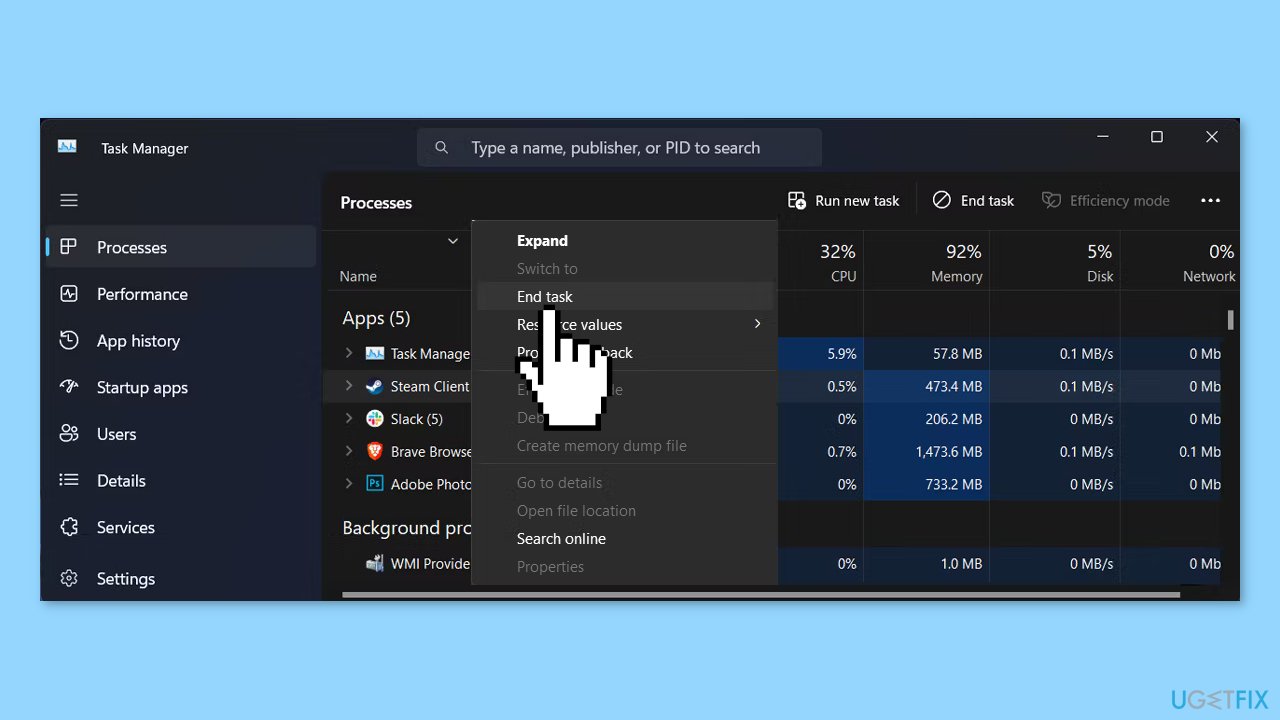
Solution 1. Restart Steam
- Right-click on the taskbar and select Task Manager.
- Then, right-click Steam and select End task.
- Restart Steam and check if the issue is now fixed.
Solution 2. Check Steam Friends and Chat Settings
- Launch the Steam app.
- Go to Steam > Settings.
- From the left pane, select Friends & chat.
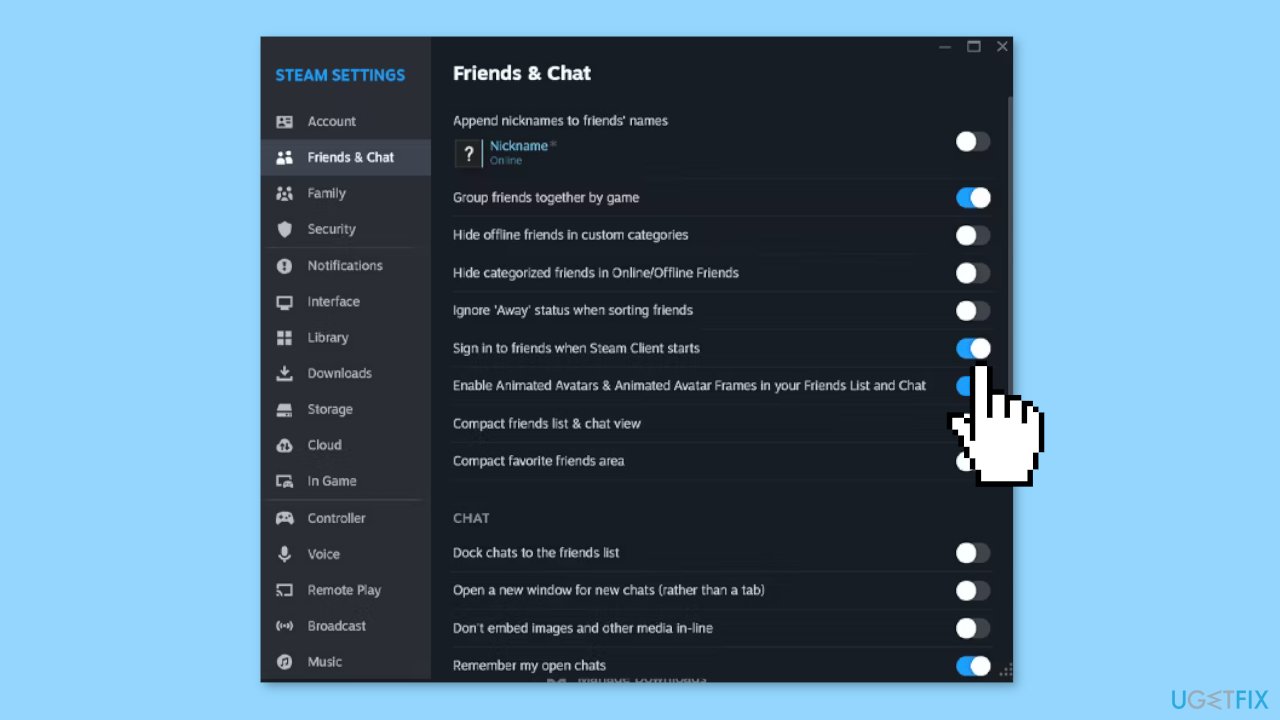
- Turn on the toggle next to Sign in to friends when Steam Client starts.
- Restart Steam and check if you can connect to the network.
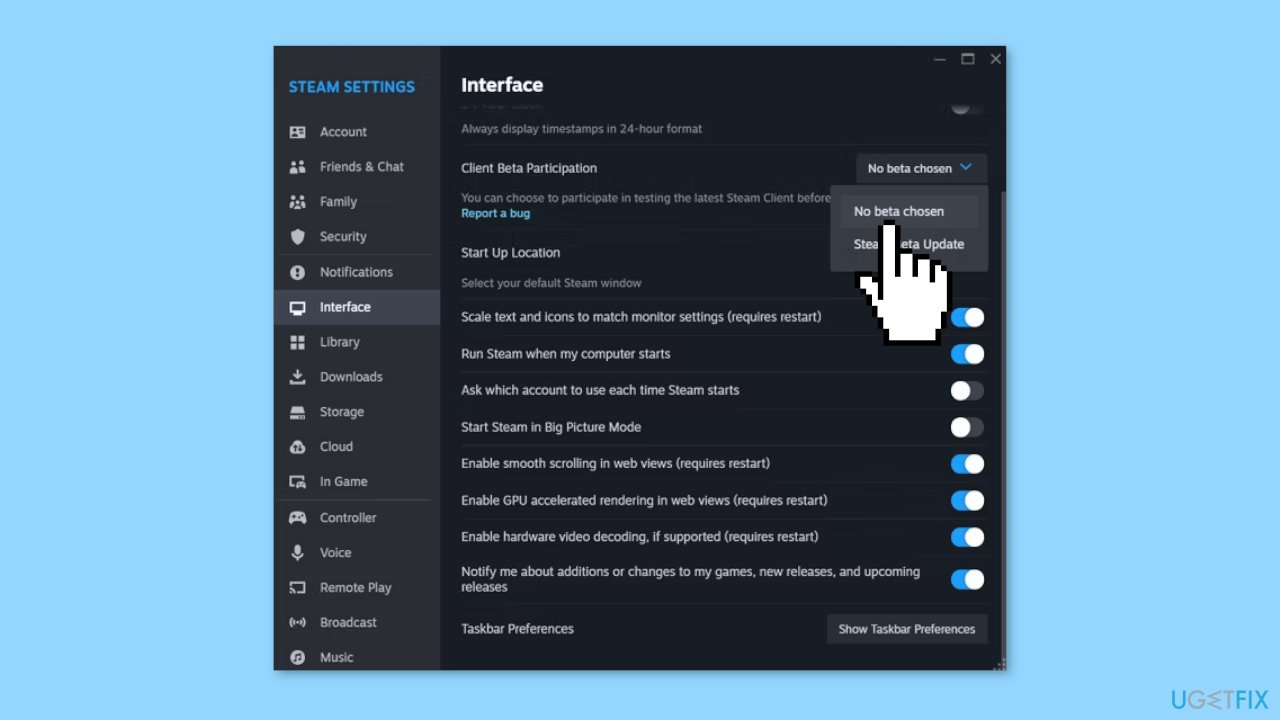
Solution 3. Leave Beta Participation
- Launch the app.
- Open the Steam menu and select Settings.
- Click Interface in the left-hand menu.
- Extend the drop-down menu next to Client Beta Participation.
- Select the No beta chosen option.
Solution 4. Edit Steam Executable
- Search for Steam within the Start menu search bar and select Open file location.
- Then, right-click Steam and head to Properties.
- Open the Shortcut tab and add -nofriendsui into the Target field.
- Click Apply and OK to save the new settings and restart Steam.
Solution 5. Delete the Steam Appdata Folder
- Press the Windows key + R to launch a Run dialog.
- Then, type %appdata% and press Enter.
- In the File Explorer window, locate and permanently delete the Steam folder.
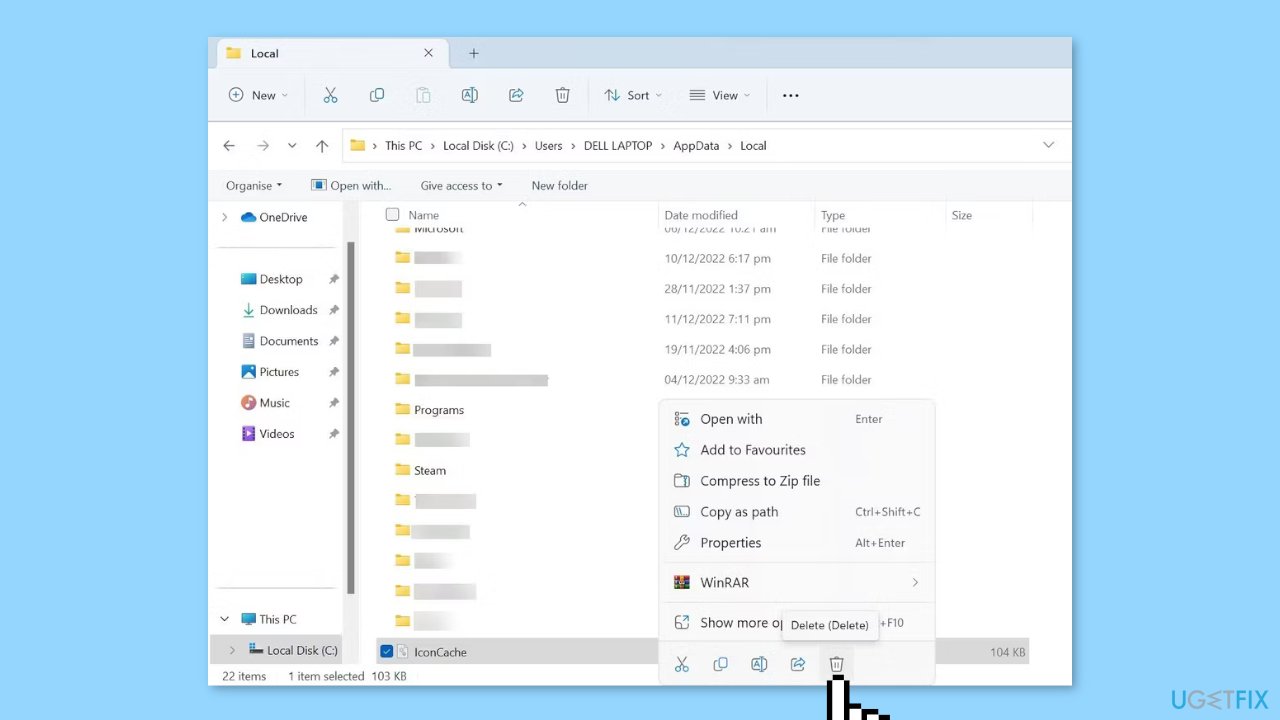
Solution 6. Delete Web Data
- Head to your Steam library and launch one of your games.
- While in the game, press the Shift + Tab keys to access Steam’s Community.
- Click the Settings icon on the lower part of the screen.
- In the Steam Settings window, select In Game.
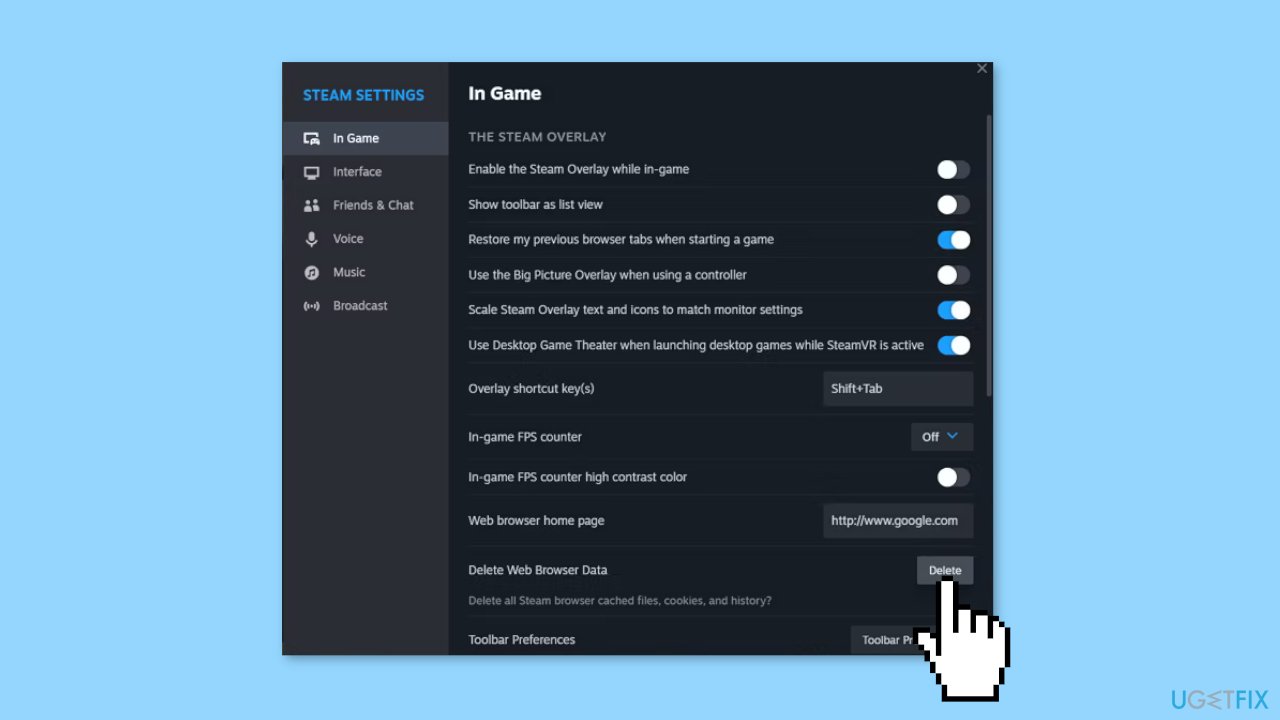
- Click on Delete next to Delete Web Browser Data.
- Confirm the action.
- Close the game, restart Steam, and check if the issue is now solved.
Bottom line
To fix the 'Steam friends network unreachable' error, users can check and modify their Steam Friends & Chat settings, clear the cache, or restart the Steam client. If these steps do not resolve the issue, consider running a maintenance tool to address other potential system errors.
Frequently asked questions
Start by checking your internet connection and ensuring that Steam servers are operational. You can visit the Steam Status website to verify server status.
To clear the Steam cache, go to Steam settings, click on 'Downloads,' and then select 'Clear Download Cache.' This can help refresh your connection to the Steam friends network.
Yes, make sure that both Steam and its associated services are allowed through your Windows Firewall. You can do this by checking the Firewall settings and adding exceptions for Steam.




Report an issue
What's wrong with this guide? We review every report and update or remove content.
Report received — thank you. We'll review and fix it.
You need a free account to submit a report.
Be the first to comment