How to fix
Steam needs to be online error
on Windows
Resolve the Steam "needs to be online" error on Windows 10 or 11 quickly and easily. Get expert-tested solutions and fixed in minutes.

What causes How to fix Steam needs to be online error in Windows?
- Incorrect time and date settings
- DNS conflict
- Winsock corruption
- Strict firewall settings
- Third-party security programs or VPNs
- Installation location in Program Files (x86)
Repairs Windows system files, removes malware, and restores a clean OS state — without reinstalling.
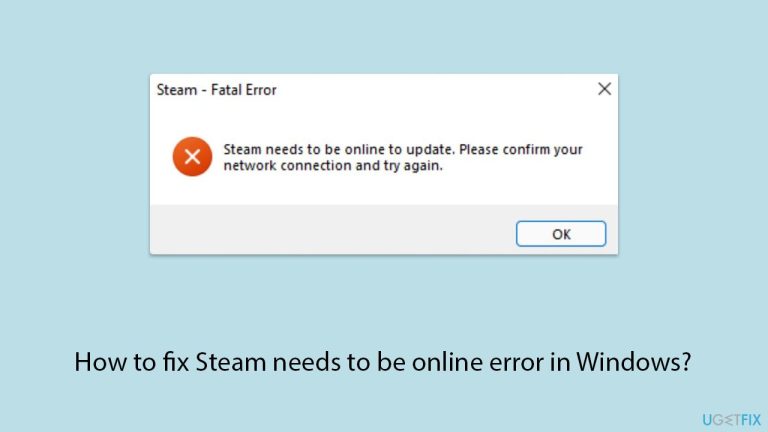
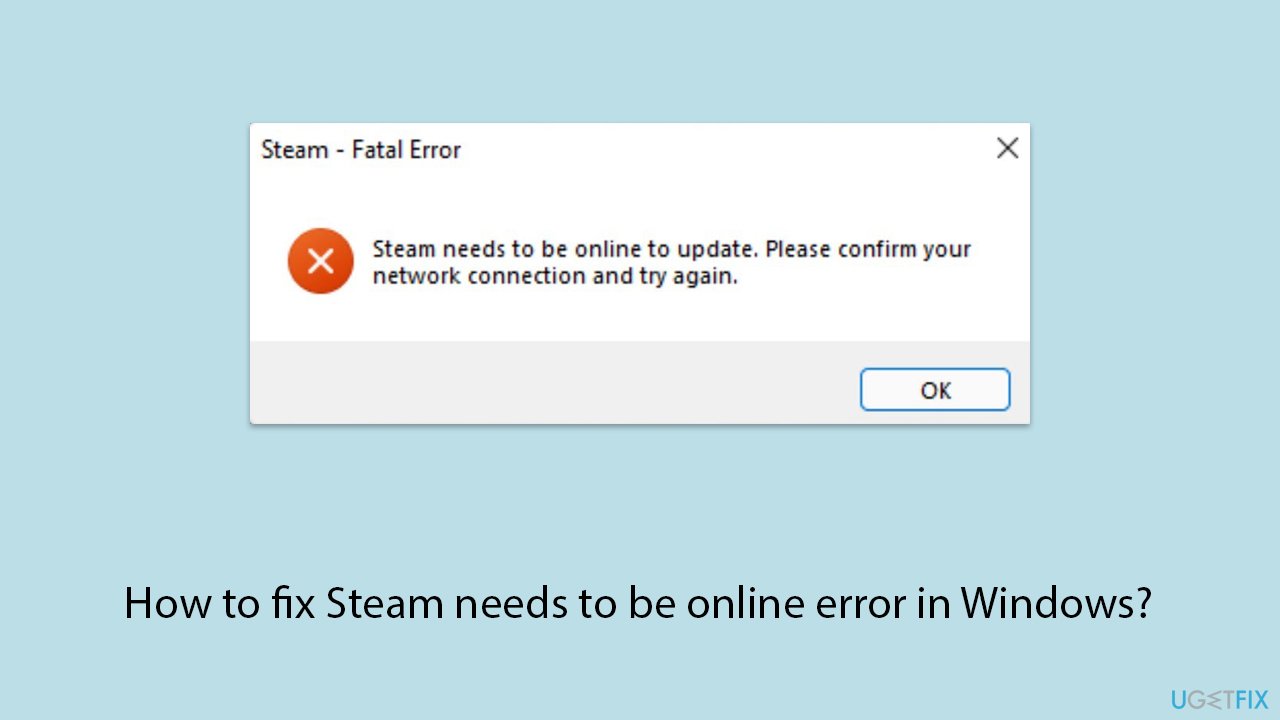
So I tried to launch Steam on my brand new gaming laptop I just got yesterday and to my surprise, I didn't get very far. After installing it, I got Fatal Error which said "Steam needs to be online to update. Please confirm your network connection and try again." My internet is working - I use it for everything else just fine. What is going on?
The Steam needs to be online error in Windows can keep users from accessing their Steam library, starting games, or even logging in to their accounts. This problem usually happens when Steam cannot get a stable internet connection, despite the system being online. Several users have complained about getting this error without apparent reason, and it becomes annoying when there are no apparent connectivity problems.
One of the main reasons behind this problem is incorrect time and date settings on the computer. Steam employs correct system time for authenticating connections, and differing settings can result in authentication problems. Other network problems such as DNS conflict, Winsock corruption, or very strict firewall settings can prevent Steam from accessing the internet. Third-party security programs or VPNs in certain cases can also prevent Steam's connection, leading to this error.
Users have also found that the installation location of Steam can sometimes cause problems. Installing Steam in the Program Files (x86) directory can cause some permission restrictions that can prevent it from connecting. Installing Steam in the Program Files directory has helped a number of users solve the problem. Similarly, erroneous LAN settings, particularly automatic proxy settings, can affect the way Steam connects to servers.
To repair the Steam must be online error, proper time and date settings are a good place to start. Double-checking firewall and security software settings, rebooting network components like DNS and Winsock, and ensuring there are not third-party programs getting in the way of Steam is also a good idea. If it still doesn't work, using a utility like [d1] PC repair can identify root-level system issues that are likely the source of the connectivity problem.
Fix 1. Check time and date settings
Incorrect time and date settings can prevent Steam from establishing a secure connection. Steam verifies system time to authenticate connections, and a mismatch can cause issues.
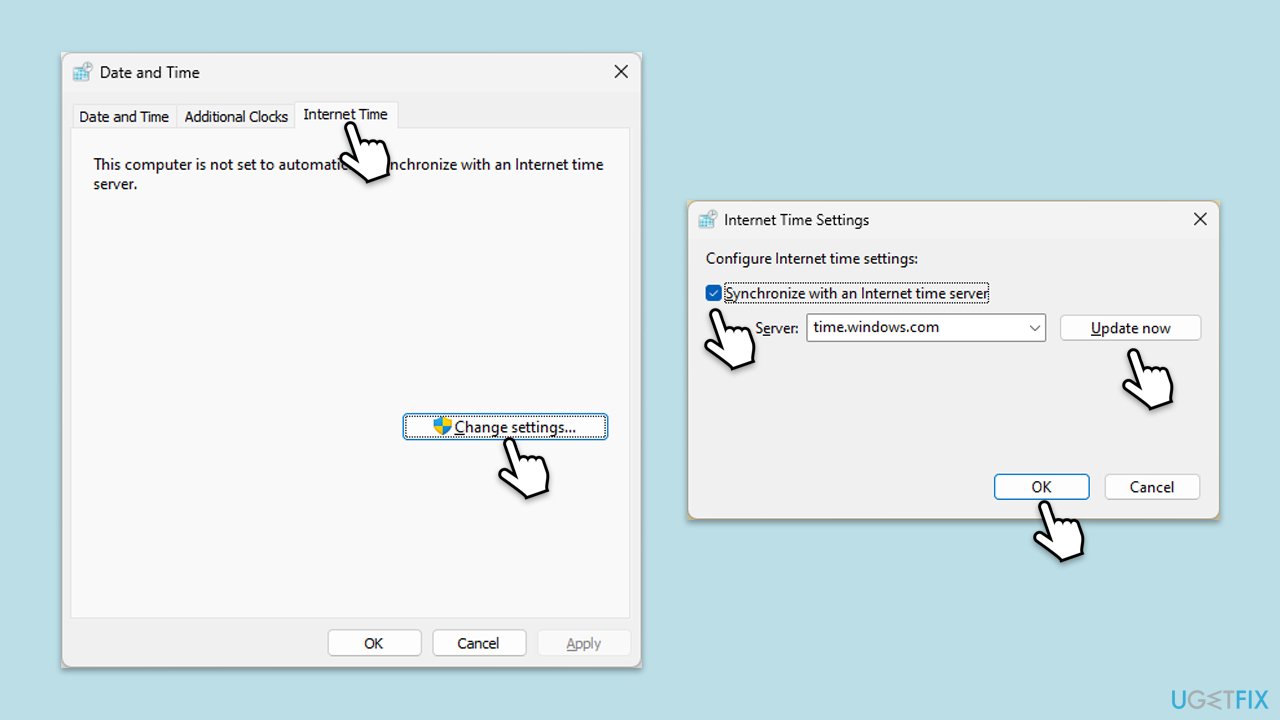
- Type in Control Panel in Windows search and press Enter.
- Go to Clock and Region and click on Date and Time.
- Pick the Internet Time tab and select Change Settings.
- Make sure that Synchronize with an Internet time server box is ticked.
- Click Update now and OK.
Fix 2. Use a different internet connection
Network restrictions or ISP-related issues can prevent Steam from connecting properly. Switching to a different network can help determine if the issue is caused by your current internet connection.
- Connect your device to a different Wi-Fi network or use a mobile hotspot.
- Launch Steam and check if the error persists.
- If Steam works on another network, your primary connection might have restrictions affecting it.
Fix 3. Allow Steam through the firewall
Windows Firewall or third-party security software may block Steam’s access to the internet, preventing it from going online.
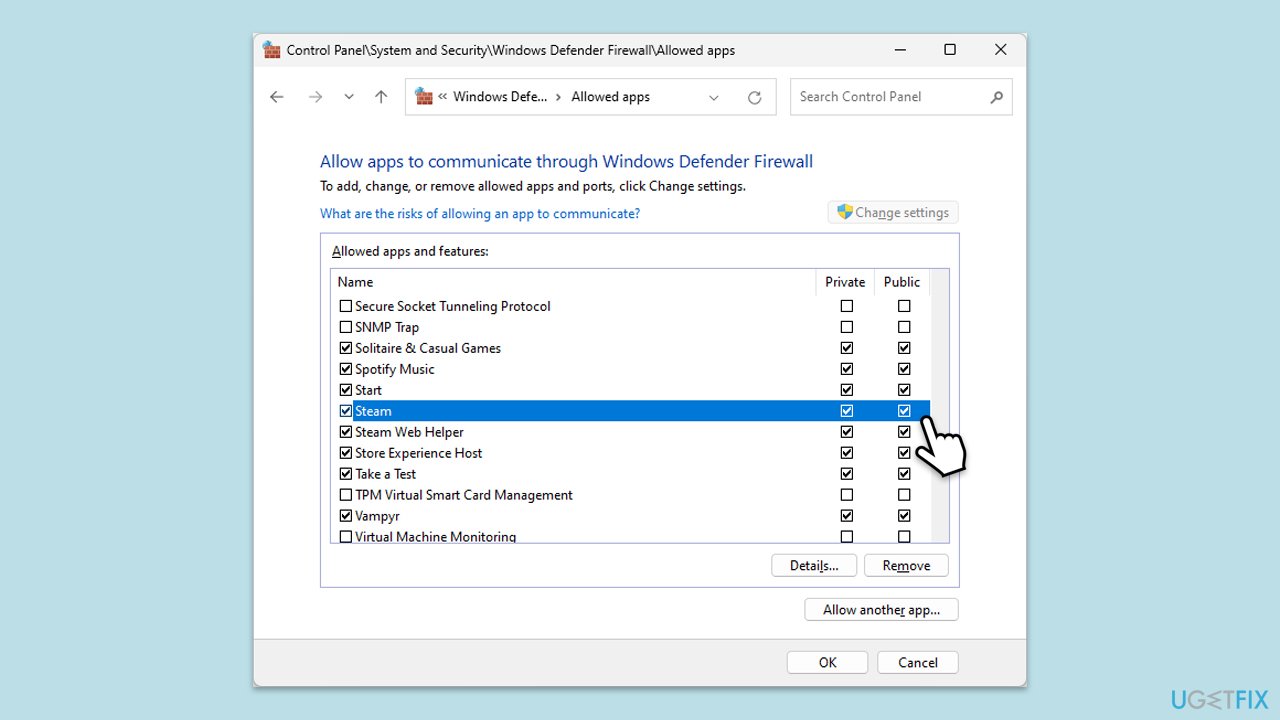
- Type in Control Panel in Windows search and press Enter.
- Go to System and Security and click on Windows Defender Firewall.
- On the left side of the window, click Allow an app or feature through Windows Defender Firewall.
- Click Change settings (if you are not on an administrator account, you will be asked to enter a password).
- Scroll down and enable Private and Public access to the following entries:
Steam
Steam Web Helper - Finally, click OK.
Fix 4. Disable third-party antivirus and VPNs
Security programs and VPN services can interfere with Steam’s connection, causing it to fail.
- Temporarily disable your antivirus software and check if Steam goes online.
- If you use a VPN, turn it off and restart Steam.
- If disabling these programs resolves the issue, add Steam as an exception in your security software.
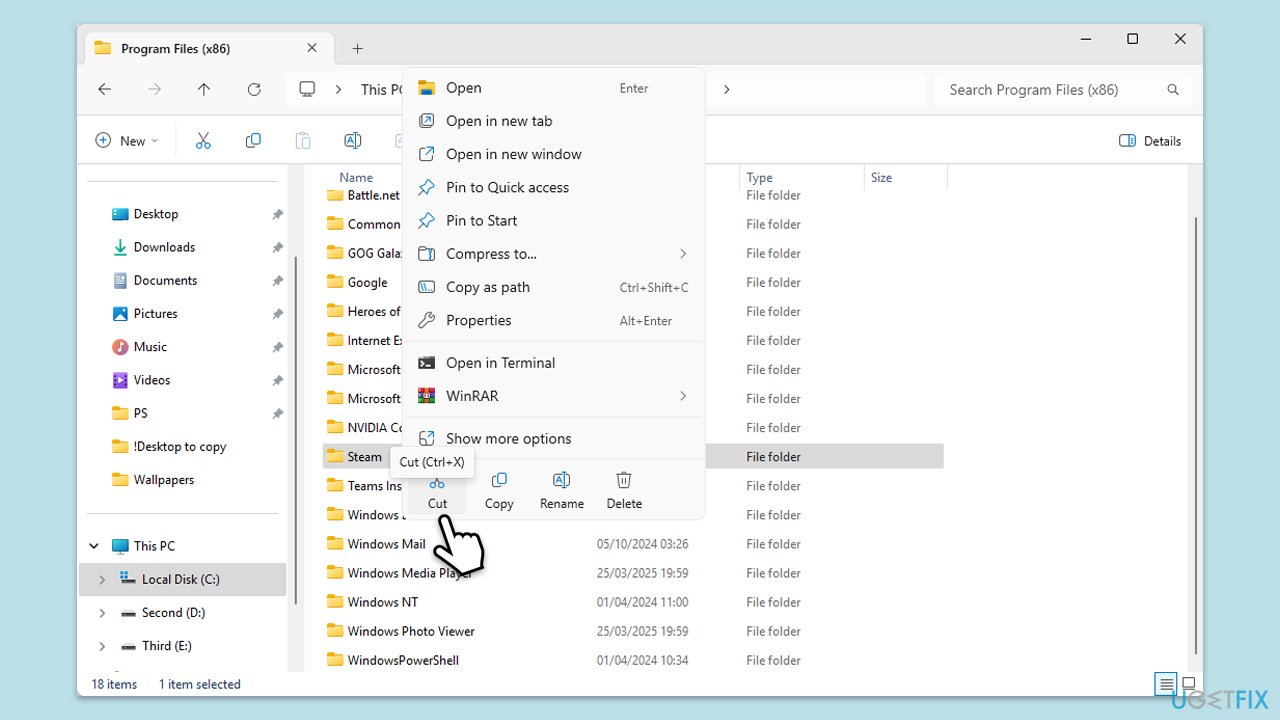
Fix 5. Move Steam to the Program Files directory
Some users have found that installing Steam in Program Files (x86) can cause permission-related issues, preventing it from going online.
- Close Steam completely.
- Navigate to C:\Program Files (x86)\Steam.
- Cut the entire Steam folder and paste it into C:\Program Files.
- Open the new folder and double-click Steam.exe to launch it.
- Note that you might have to redo some shortcuts after this.
Fix 6. Reset network settings (Flush DNS and Reset Winsock)
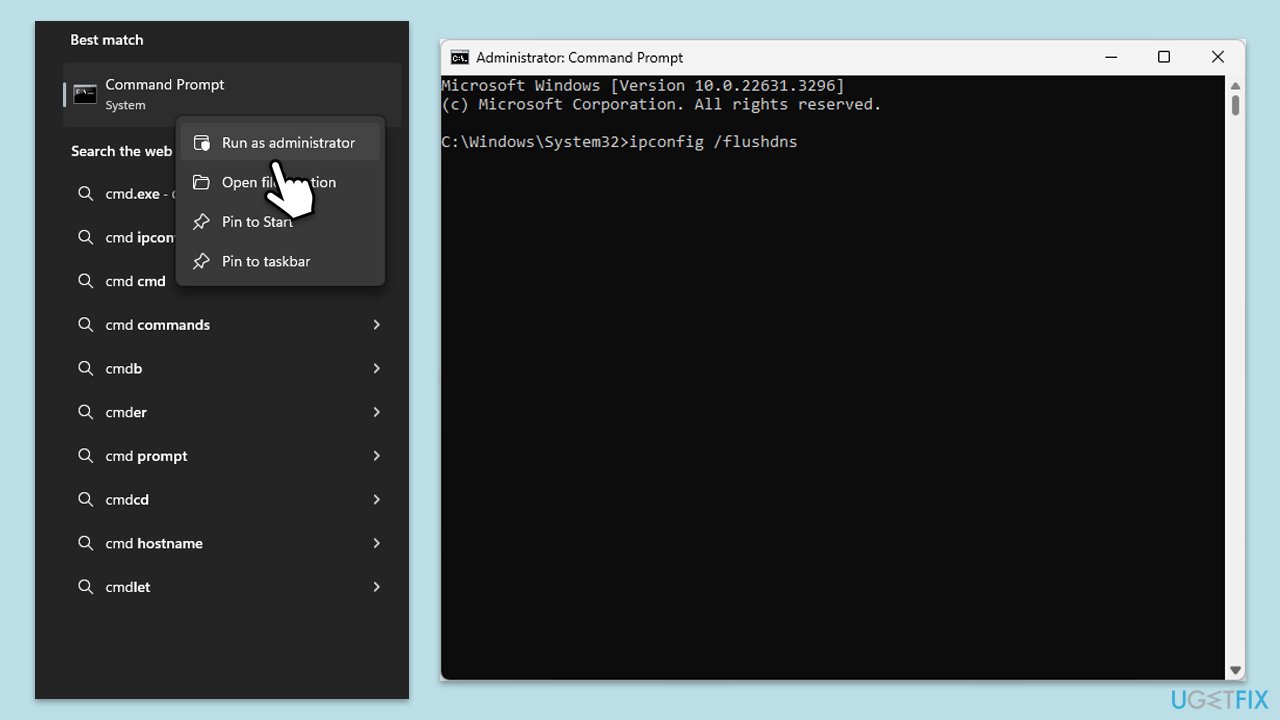
Corrupt network settings can prevent Steam from connecting. Resetting DNS and Winsock can help resolve the issue.
- Type cmd in Windows search.
- Right-click on Command Prompt result and pick Run as administrator.
- When the User Account Control window shows up, click Yes.
- In the new window, copy and paste the following commands, pressing Enter each time:
ipconfig /flushdns
ipconfig /registerdns
ipconfig /release
ipconfig /renew
netsh winsock reset - Reboot your system and check if the issue is resolved.
Fix 7. Disable automatic proxy configuration in LAN settings
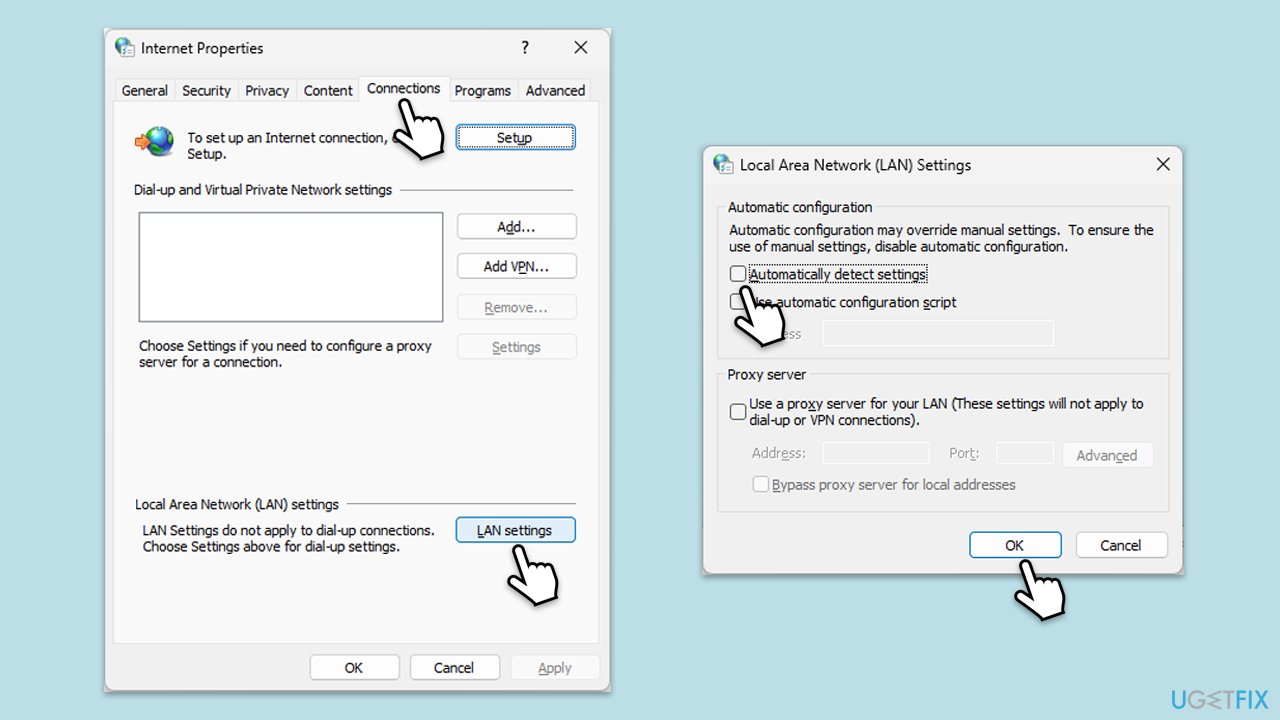
Steam may fail to connect if proxy settings are misconfigured. Disabling the automatic configuration can help.
- Type Internet Options in Windows search and press Enter.
- Click on the Connections tab and then LAN settings.
- Uncheck Automatically detect settings and Use a proxy server for your LAN.
- Click OK, restart your computer, and check if Steam works.
Fix 8. Verify Steam’s offline mode settings
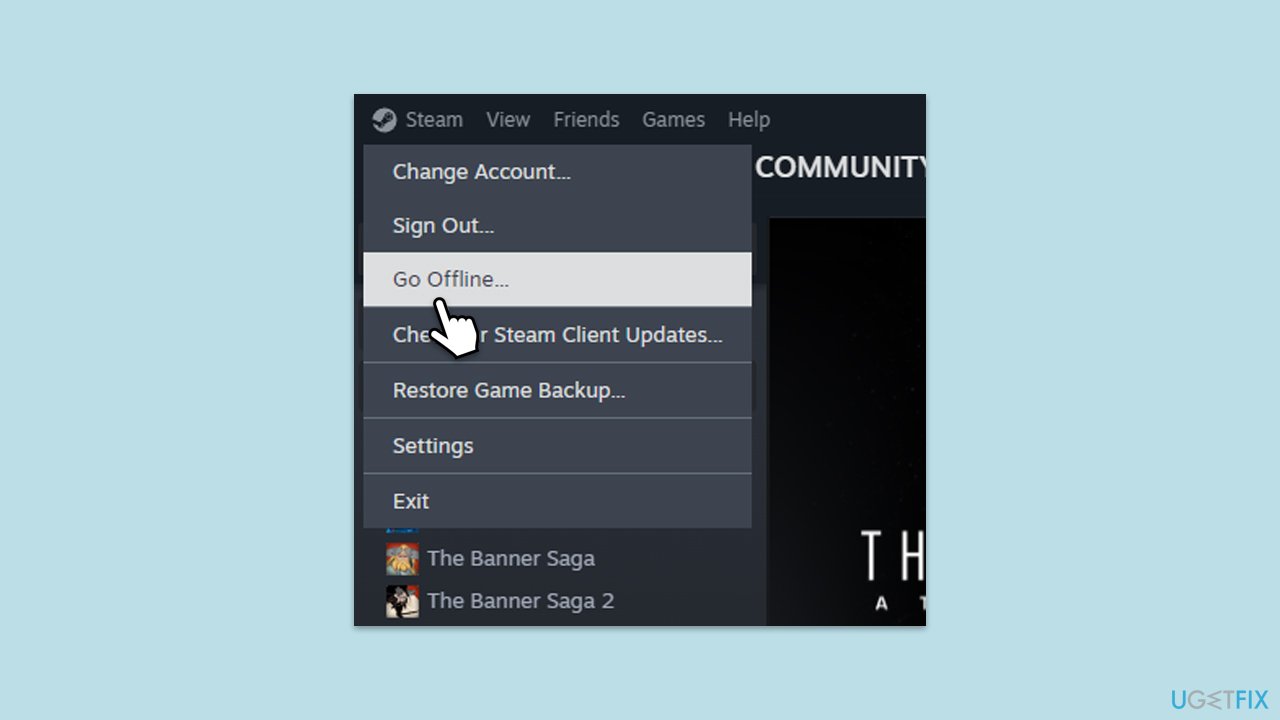
If Steam is stuck in offline mode, it may fail to establish a proper connection. Checking and toggling the offline mode setting can resolve the issue.
- Open Steam and go to the Steam menu in the top-left corner.
- Click Go Offline, wait a few seconds, then click Go Online.
- Restart Steam and check if the issue is resolved.
Fix 9. Reinstall Steam without deleting game files
If Steam’s core files are corrupted, reinstalling the client without removing game data can help fix the error.
- Close Steam and open File Explorer.
- Navigate to the following location:
C:\Program Files (x86)\Steam or C:\Program Files\Steam - Delete all files except the steamapps and userdata folders, as well as Steam.exe.
- Double-click Steam.exe to redownload missing files.
- Open Steam and check if it can go online.
Bottom line
To fix the Steam needs to be online error, start by checking and correcting the time and date settings on your computer. Additionally, review your firewall and security software settings, reboot network components like DNS and Winsock, and ensure no third-party programs are interfering with Steam. If the issue persists, consider using a utility like PC repair to identify deeper system issues.
Frequently asked questions
Try restarting your computer and ensuring that your internet connection is stable. If the issue persists, check your firewall settings to make sure Steam is allowed to access the internet.
You can fix this error by running Steam as an administrator, which may help it bypass any permission issues. Additionally, verify that the Steam client is fully updated.
Yes, you can clear the download cache and delete the 'ClientRegistry.blob' file, which can often resolve this issue without the need for a reinstallation.




Report an issue
What's wrong with this guide? We review every report and update or remove content.
Report received — thank you. We'll review and fix it.
You need a free account to submit a report.
Be the first to comment