How to fix
Steam Remote Play feature not working
on Windows
Resolve Steam Remote Play issues on Windows 10 or 11 effortlessly. Fix connectivity problems with expert-tested solutions and enjoy seamless gaming in m…

What causes How to fix Steam Remote Play feature not working in Windows?
- Momentary bug or malfunction in a Steam module
- Problems with game piracy
- Faults with the guest device
- Misconfigured firewall or network settings
Repairs Windows system files, removes malware, and restores a clean OS state — without reinstalling.
Hello. When I try to play Steam games remotely, it does not work. Is there a way to fix this?
A useful tool in the gaming industry is Steam's Remote Play feature, which lets users play their favorite Steam games on a variety of gadgets. It offers versatility and simplicity, whether streaming games to another computer or utilizing the Steam Link app on a mobile device. However, there are times when this capability may run into problems, frustrating users and preventing them from remotely accessing their games.
The unexpected disappearance of Steam Remote Play is one of the regular issues users may run across. Understanding the probable causes and their effects on users is crucial because there are many different reasons why this might occur. First off, a momentary bug or malfunction in a Steam module can prevent Remote Play from working. As a result, customers who depend on the capability to play games across several devices may not be able to connect to the main computer.
Second, problems with game piracy may potentially have an impact on Steam Remote Play. When it comes to remote streaming, some games have restrictions or limitations, and trying to stream a pirated copy may cause connectivity issues or other faults. Thirdly, faults with the guest device itself, such as out-of-date software or hardware problems, may prevent Remote Play from functioning properly. On their guest device, users may encounter latency, disconnections, or difficulty starting games.
Additionally, problems can arise from misconfigured firewall or network settings on either the host or guest device. The communication between devices required for Remote Play to work may be blocked by an incorrectly designed network or severely restrictive firewall settings.
Users may want to think about fixing these issues by checking the integrity of their Steam client, examining network settings, upgrading the software on their guest devices, and making sure they have legal versions of the games they want to play. This guide includes 7 steps that should enable you to fix Windows' unresponsive Steam Remote Play feature.
You can also run a maintenance tool like [d1] that can fix most system errors, BSODs,[ref en-1] corrupted files, and registry[ref en-2] issues. Otherwise, follow the step-by-step instructions below.

Solution 1. Re-Enable Remote Play on Steam
- Launch the Steam client and ensure you are not in Family View.
- Click on Steam in the top left corner, then select Settings.
- In the Settings dialog, navigate to the Remote Play tab in the left pane.
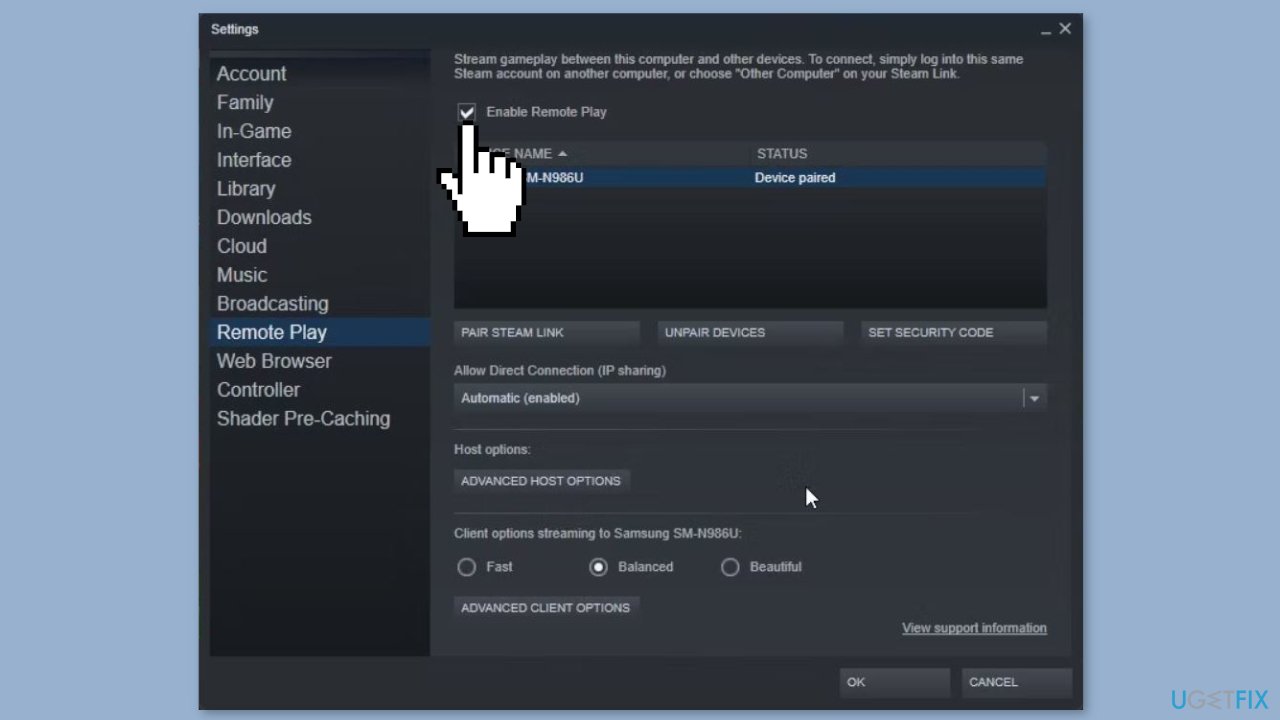
- Uncheck the Enable Remote Play option, then click OK to disable Remote Play.
- Relaunch the Steam client.
- Go to Settings > Remote Play and check the Enable Remote Play option.
- Click OK to apply the changes.
- Relaunch the Steam client and verify if there is any improvement.
Solution 2. Unpair the Guest Steam Link Device
- Launch the Steam client on your PC.
- Click on Steam and select Settings.
- In the Settings dialog, open the Remote Play tab in the left pane.
- Ensure the Enable Remote Play option is selected. Next, choose your remote device under Device Name and select Unpair Devices.
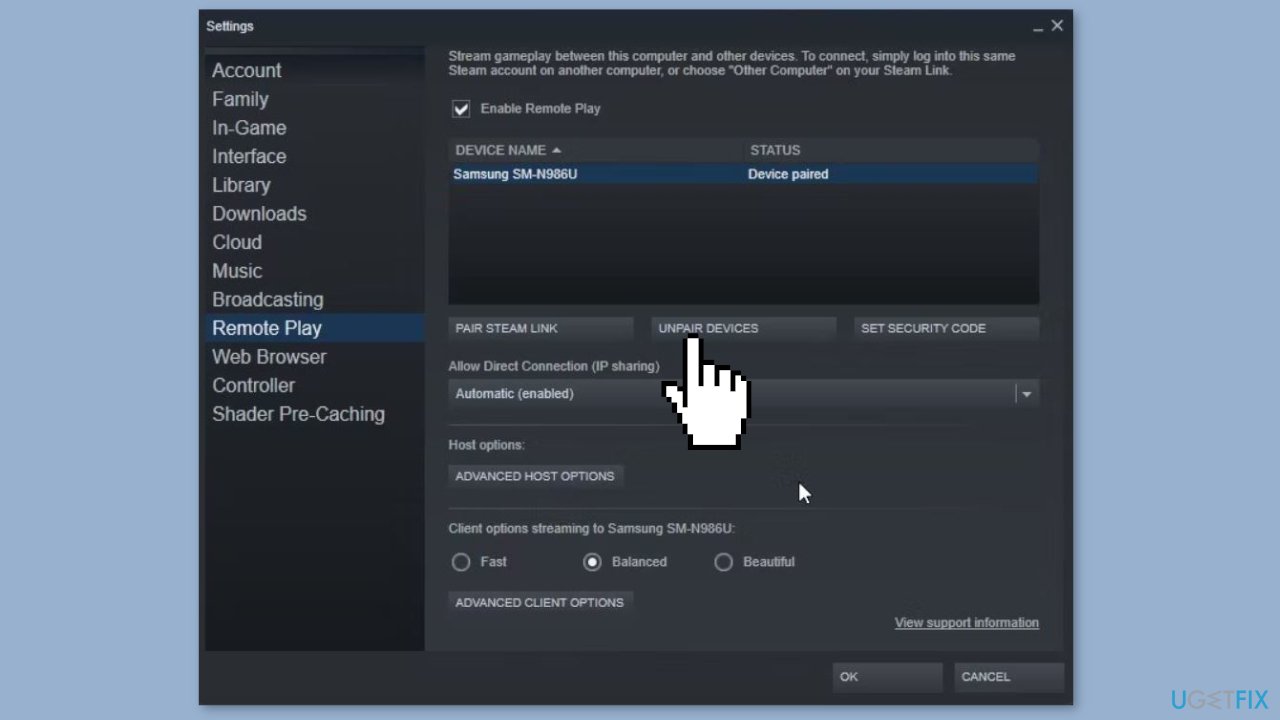
- Click OK to confirm the action and unpair your device.
- Click OK to save the changes and close Steam.
- Next, to pair the device again, launch the Steam Link app on your guest device.
- Tap on Start Playing to view the authorization code. On your host machine, type the given PIN and click OK to authorize the device.
Solution 3. Update Steam Client and Games
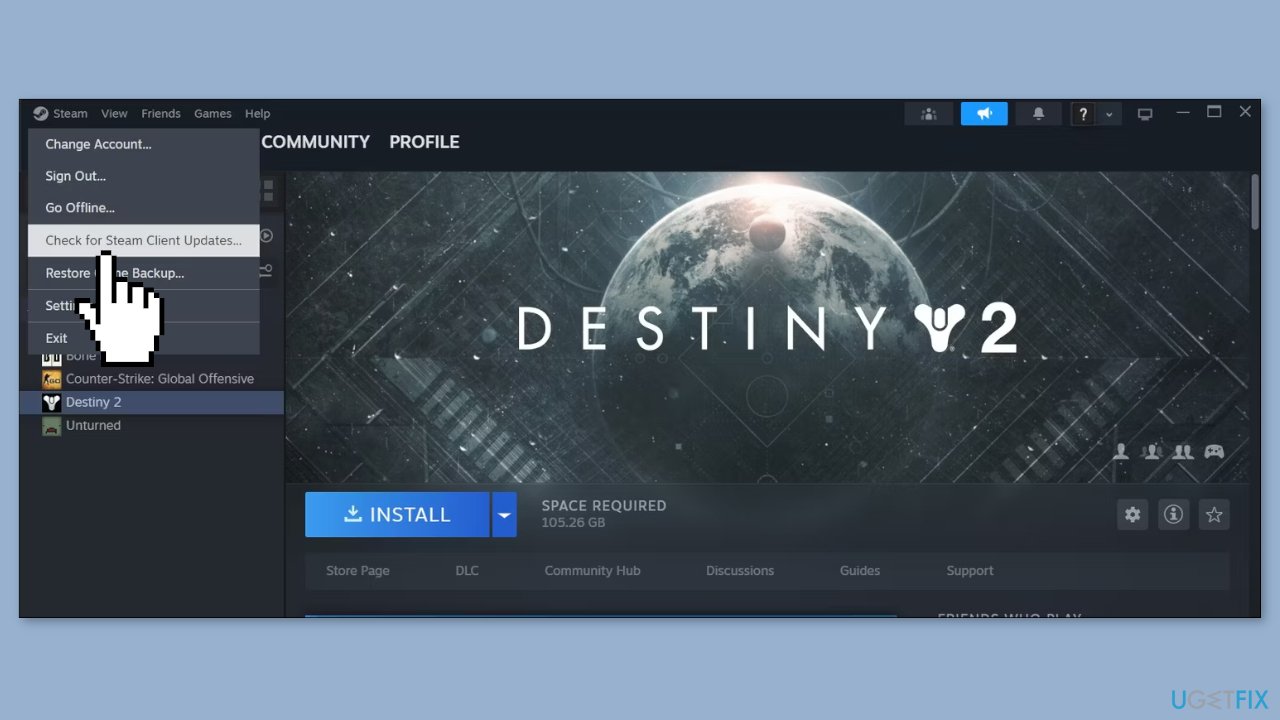
- Launch the app and click on Steam in the top left corner.
- Select Check for Steam Client Updates.
- Steam will scan for a new update and install it if available.
Solution 4. Disable Steam Client Beta Participation
- In the Steam client, click on Steam in the top left corner. Ensure you are not in Family View.
- Select Settings to open Steam Settings.
- Next, open the Interface tab from the left pane.
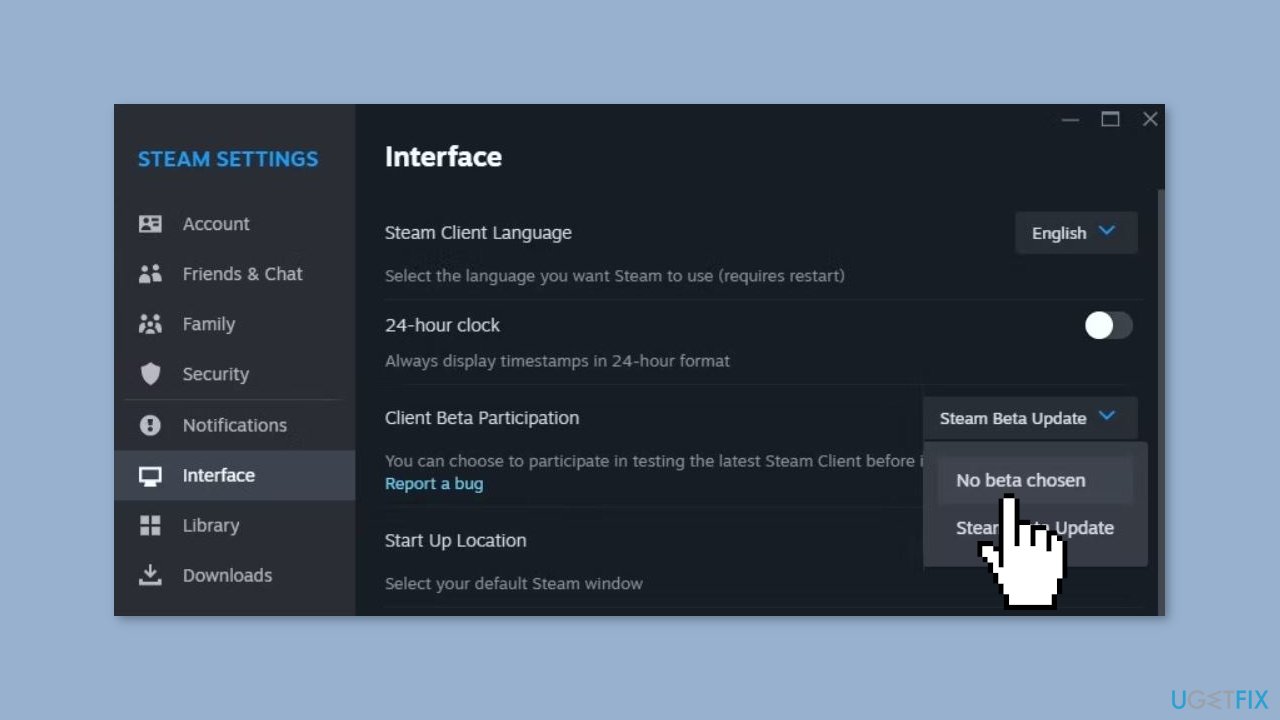
- Click the Client Beta Participation drop-down and choose No beta chosen.
- When prompted, click Restart Now. Steam will shut down the client and commence installing the latest version of the stable release.
Solution 5. Disable IPv6
- Press the Windows key + R to open Run.
- Type control and click OK to open Control Panel.
- Next, click on Network and Internet > Network and Sharing Center.
- In the left pane, click on Change adapter settings to view your network adapters.
- Right-click on your network connection (Ethernet/Wi-Fi) and select Properties. In the Properties dialog, scroll down and locate Internet Protocol Version 6 (TCP/IPv6).
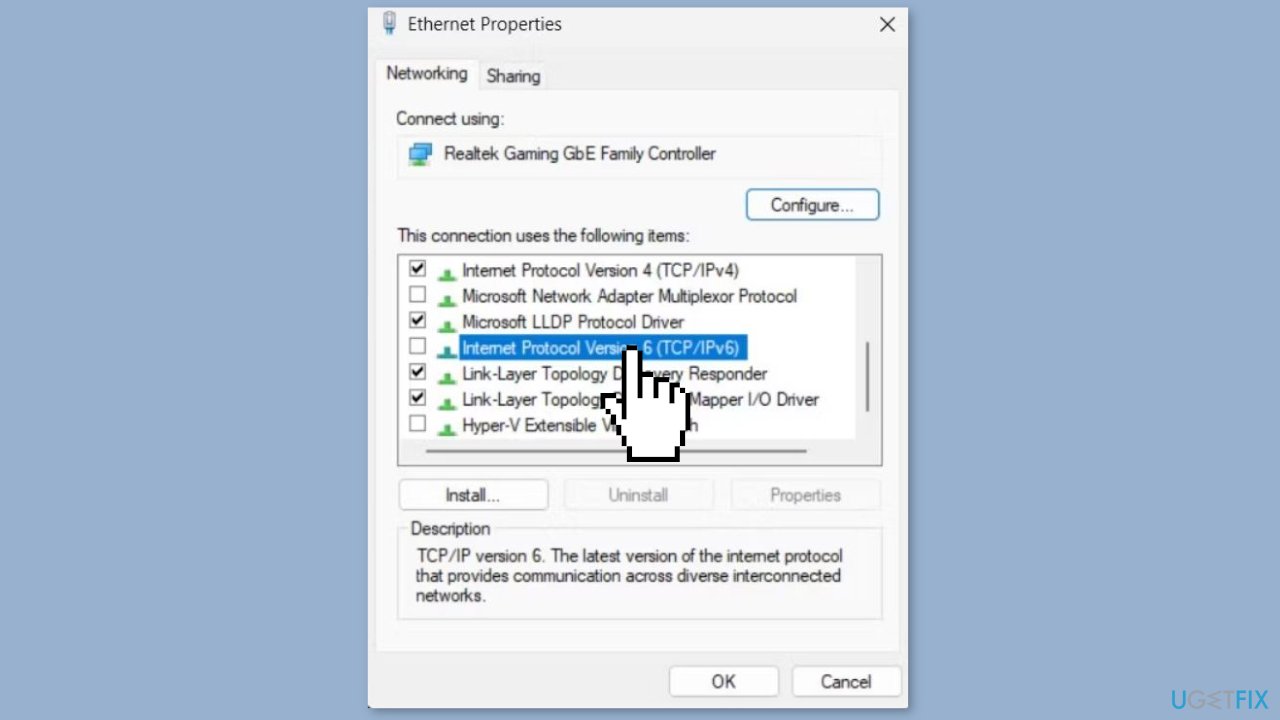
- Uncheck the TCP/IPv6 option and click OK to save the changes.
- Close the Control Panel and check if Remote Play is working. If the issue persists, enable the IPv6 option in the connection properties and proceed with the next steps.
Solution 6. Disable and Re-Enable Steam Overlay
- Launch the Steam client on your guest device.
- Click on Steam in the top right corner and select Settings. Next, open the In-Game tab in the left pane.
- Here, check the Enable Steam Overlay while in-game option. Next, configure the Overlay shortcut keys if desired. Otherwise, leave it as default.
- Click OK to save the changes.
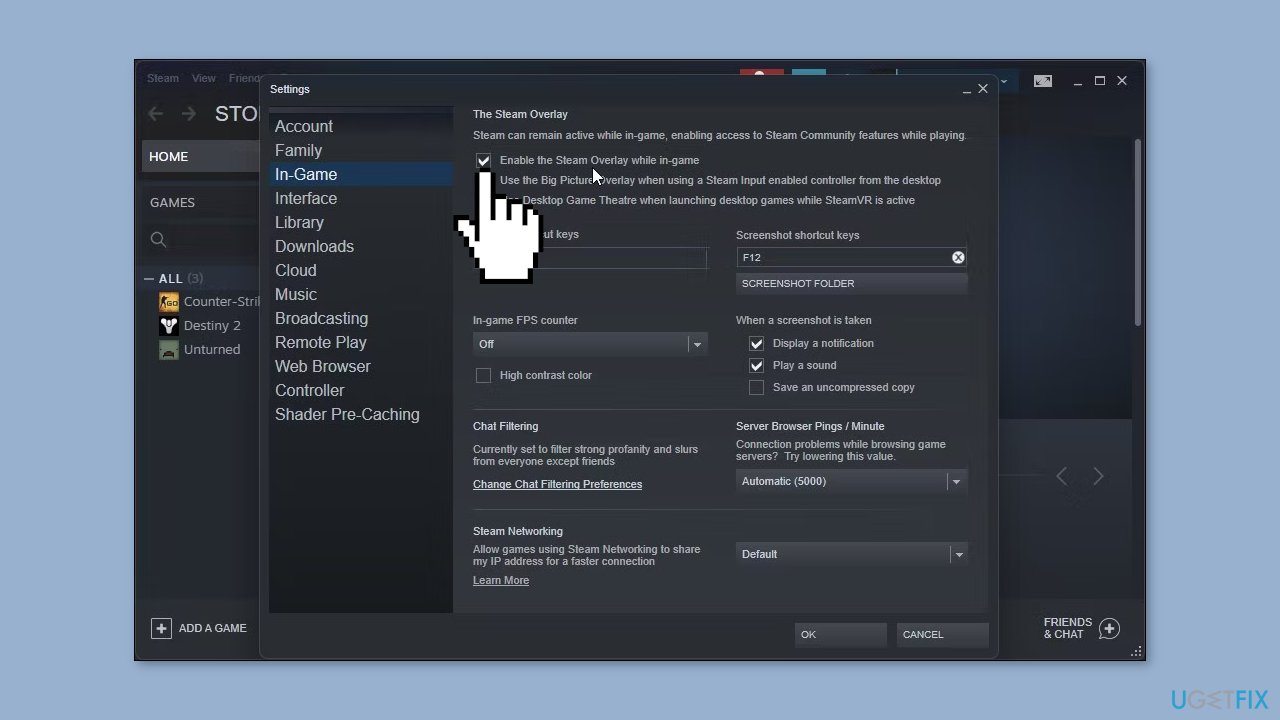
- Next, launch the game you want to stream, and then open Steam Overlay using the Shift + Tab key or your custom key.
- Now the game should stream without any issues on Remote Play.
Solution 7. Disable Hardware Encoding
- Launch the Steam client on your PC.
- Click on Steam and select Settings.
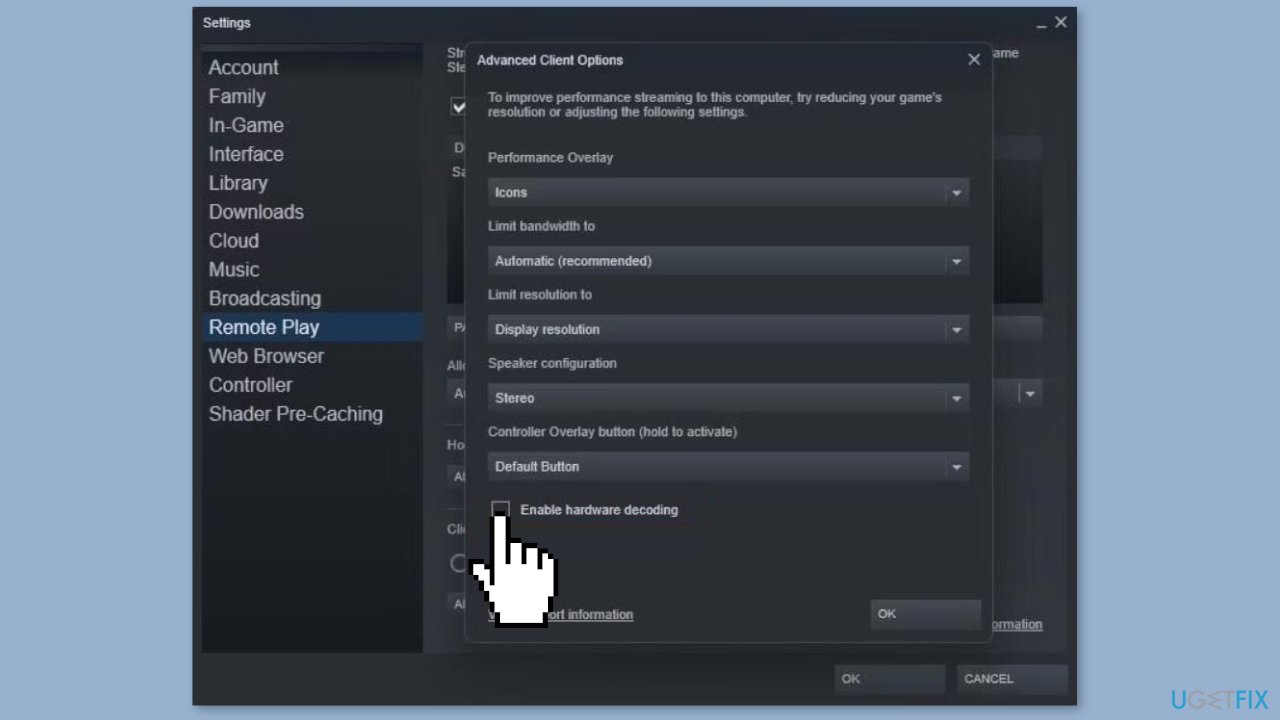
- In the left pane, open the Remote Play tab. Next, click on Advanced Client Options. In the pop-up dialog, uncheck the Enable hardware encoding option.
- Click OK to save the changes and disable hardware encoding.
Bottom line
To fix the unresponsive Steam Remote Play feature, users should check the integrity of their Steam client, examine network settings, upgrade the software on their guest devices, and ensure they have legal versions of the games. If these steps do not resolve the issue, consider running a maintenance tool or seeking further assistance.
Frequently asked questions
Ensure that both your gaming PC and the device you are trying to connect are on the same network, and check your firewall settings to allow Steam access.
Try adjusting the audio settings in Steam and ensure that your audio drivers are up to date; also, verify the audio settings on your gaming PC.
Lag can be caused by network issues or insufficient system resources, so try closing unnecessary applications and using a wired connection for better stability.




Report an issue
What's wrong with this guide? We review every report and update or remove content.
Report received — thank you. We'll review and fix it.
You need a free account to submit a report.
Be the first to comment