How to fix
“Steam Servers are currently unavailable” error
on Windows
Resolve the "Steam Servers are currently unavailable" error on Windows 10 and 11 easily. Get expert-tested solutions and fix it in minutes!

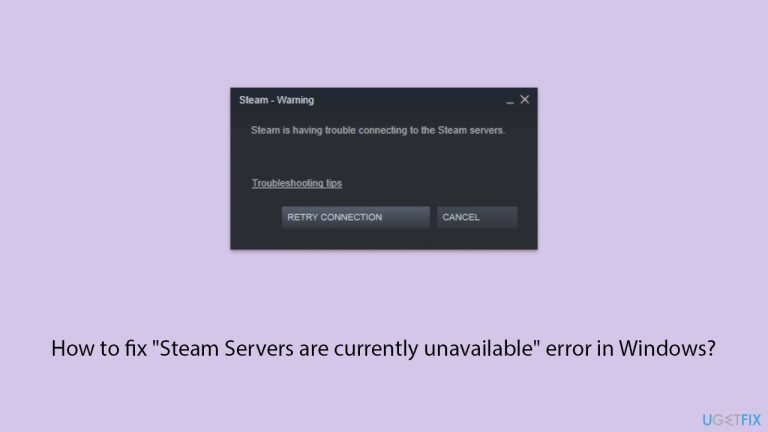
What causes How to fix “Steam Servers are currently unavailable” error in Windows?
- Corrupted Steam cache data
- Download region settings issues
- Game file transfer over local network option interference
- Network configuration issues
- Problematic internet settings or hardware misconfigurations
Repairs Windows system files, removes malware, and restores a clean OS state — without reinstalling.
So for no reason at all, I keep getting "Steam Servers are currently unavailable" error when trying to install games on Steam. I don't know what caused it but it's really annoying, and I am unable to download any games at all. How can I fix this?
"Steam Servers are currently unavailable" (with variations like "Steam is having trouble connecting to Stream servers", "Steam servers are too busy", etc.) error turns out to be quite annoying to many Windows users who would want to play their favorite games. Generally, this is just an error message, indicating that the Steam client is unable to connect to its servers.
Of course, the possibility might be there that the servers of Steam are down; however, this is hardly ever the case. In most cases, this "Steam Servers are currently unavailable" error is related to local settings or network configurations on your computer.
Several factors can contribute to the "Steam Servers are currently unavailable" error. Corrupted Steam cache data can accumulate over time and lead to connectivity issues. The download region settings assigned by Steam based on your location can sometimes cause problems, and changing to a different region may help.
The "Game file transfer over local network" option can also interfere with server connections, and disabling it may resolve the issue. Network configuration issues such as problematic internet settings or network hardware misconfigurations can prevent Steam from connecting properly.
To address the "Steam Servers are currently unavailable" error, users have found success with several different methods. Clearing the Steam cache is a straightforward way to fix issues related to corrupted data. Changing the download region can bypass regional connectivity issues, while disabling the "Game file transfer over local network" option can eliminate potential conflicts.
Running the network troubleshooter in Windows may pick up and correct any common problems that are related to the network. An internet settings reset will revert the settings to their default option should misconfiguration be the cause. If these methods do not work, the reinstallation of Steam would help resolve any issues due to corrupted program files.
If these steps are hard to apply or don't bring complete success, a utility tool like [d1] should be tried for deeper system issues that may cause Steam malfunction and loss of connectivity.
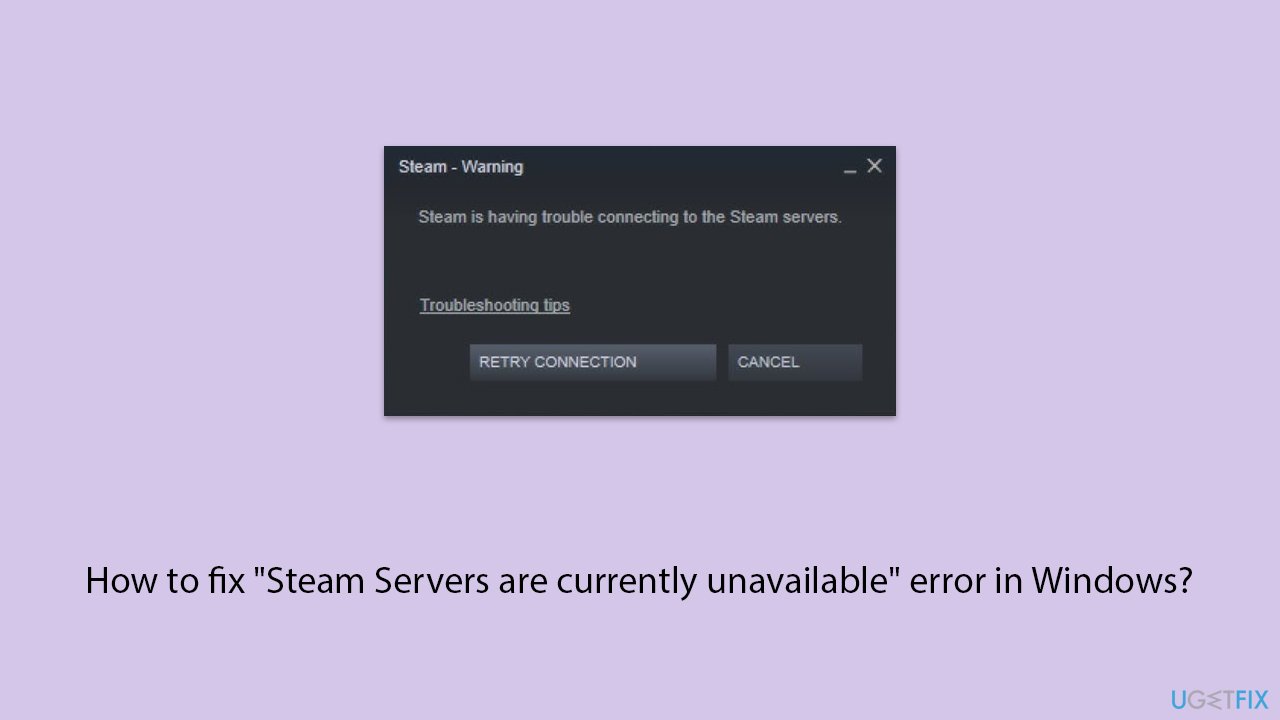
Fix 1. Clear Steam cache
Clearing the Steam cache can resolve issues related to corrupted data that may prevent the client from connecting to servers. This method helps remove any temporary files that might be causing the "Steam Servers are currently unavailable" error.
- Open the Steam app.
- Go to Steam > Settings.
- Select the Downloads section on the left.
- Scroll down to the Clear Download cache section.
- Click Clear Cache.
- Next, go to the In Game section on the left.
- Under Delete web browser data, click on Delete.
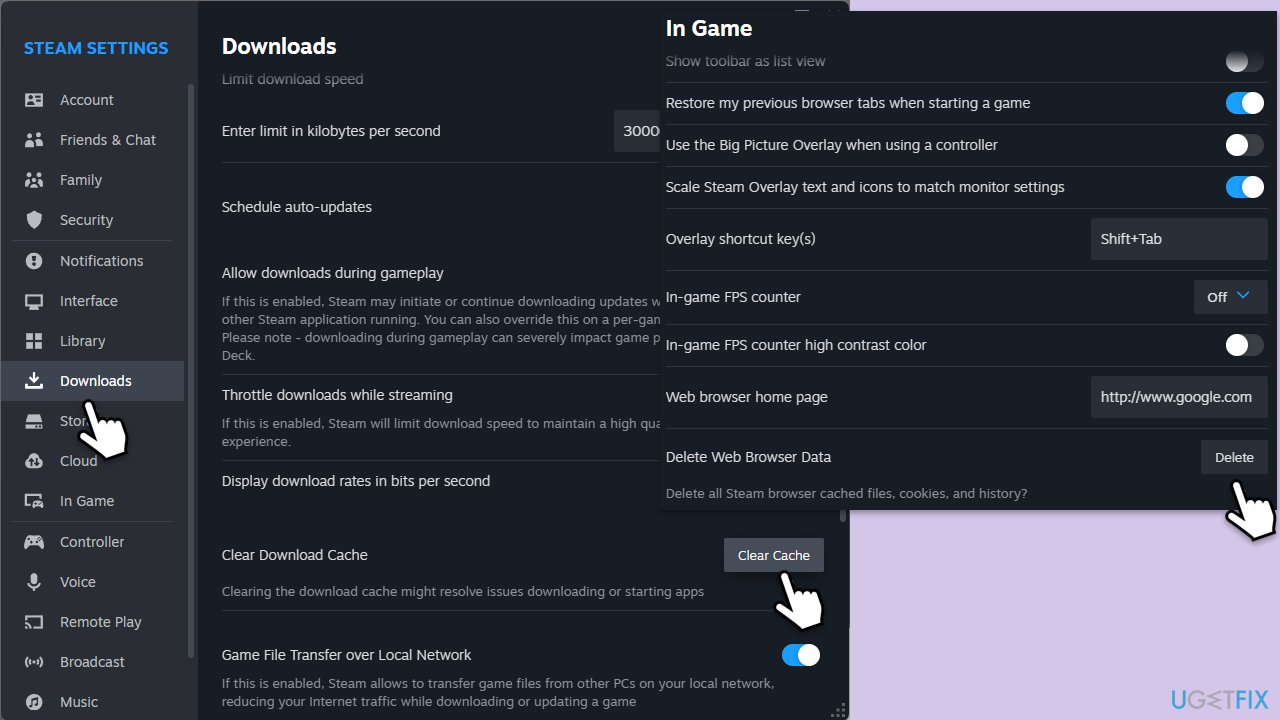
Fix 2. Change download region
Sometimes, changing the download region in Steam can bypass regional connectivity issues and fix the "Steam Servers are currently unavailable" error.
- Open Steam and go to Settings.
- Click on the Downloads tab and find the Download Region option.
- Select a different region from the dropdown menu.
- Restart Steam and check if the issue is resolved.
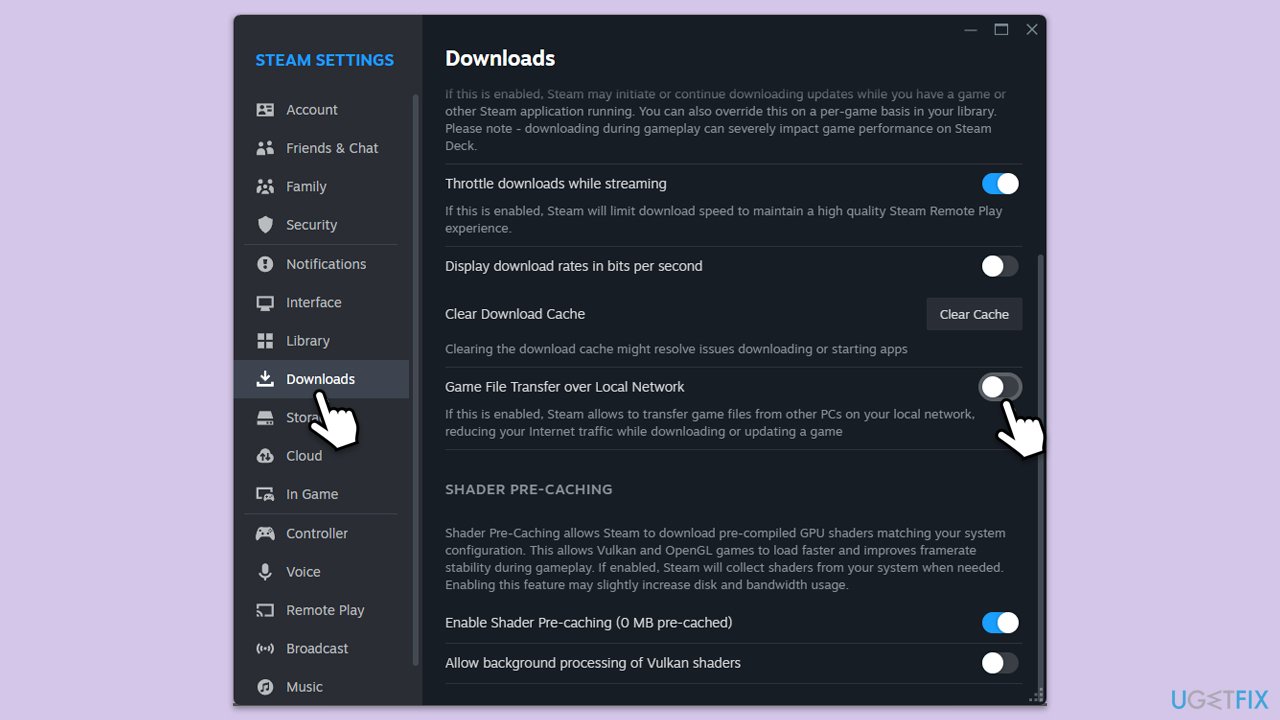
Fix 3. Disable the "Game file transfer over local network" option
Disabling this feature can prevent conflicts that might lead to the "Steam Servers are currently unavailable" error.
- Open Steam and go to Settings.
- Navigate to the Downloads tab.
- Disable the Enable game file transfer over local network setting.
- Restart Steam and try to connect again.
Fix 4. Run Windows network troubleshooter
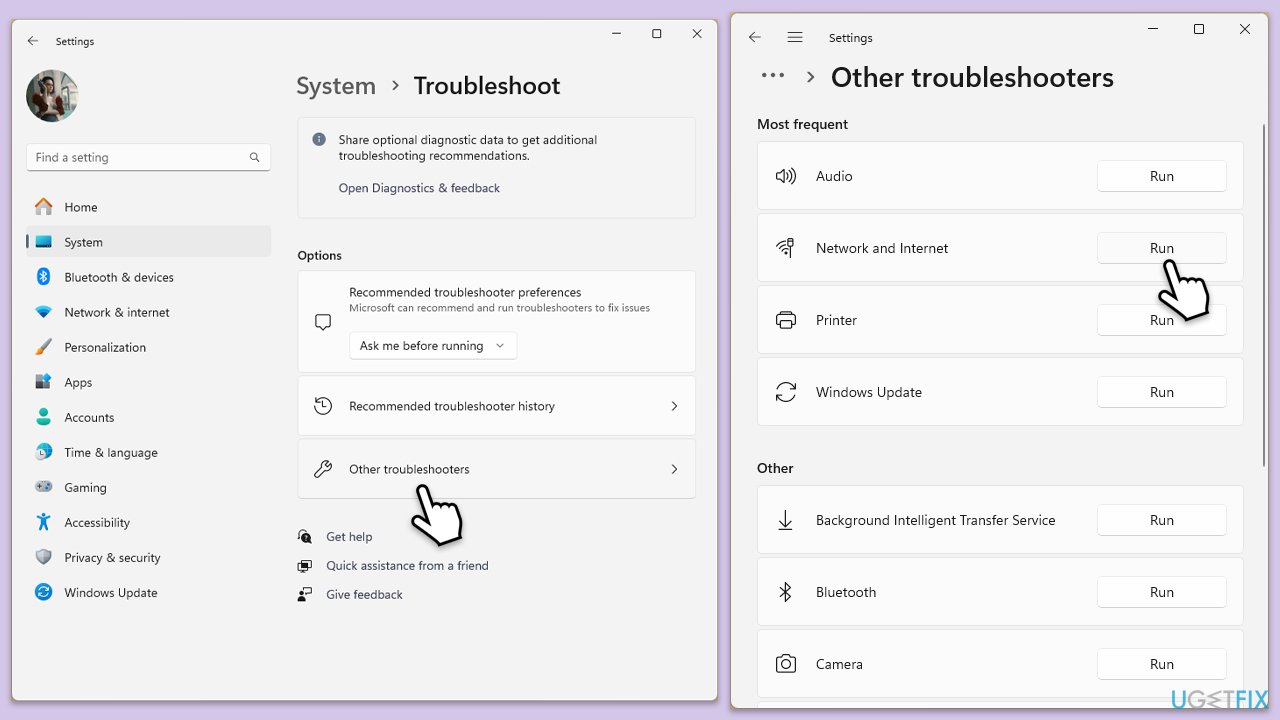
The Windows network troubleshooter can detect and resolve common network-related issues that might be preventing Steam from connecting to its servers.
Windows 11
- Type Troubleshoot in Windows search and hit Enter.
- Select Other troubleshooters.
- Locate Network & Internet troubleshooter from the list and click Run.
- Wait till the process is finished and apply the recommended fixes.
- Restart your computer.
Windows 10
- Right-click on Start and pick Settings.
- Go to the Network & Internet section.
- On the right side, find the Advanced network settings section.
- Click Network troubleshooter and wait.
- The fixes will be automatically applied.
Fix 5. Reset internet settings
Resetting your internet settings to their default configuration can fix misconfigurations causing the "Steam Servers are currently unavailable" error.
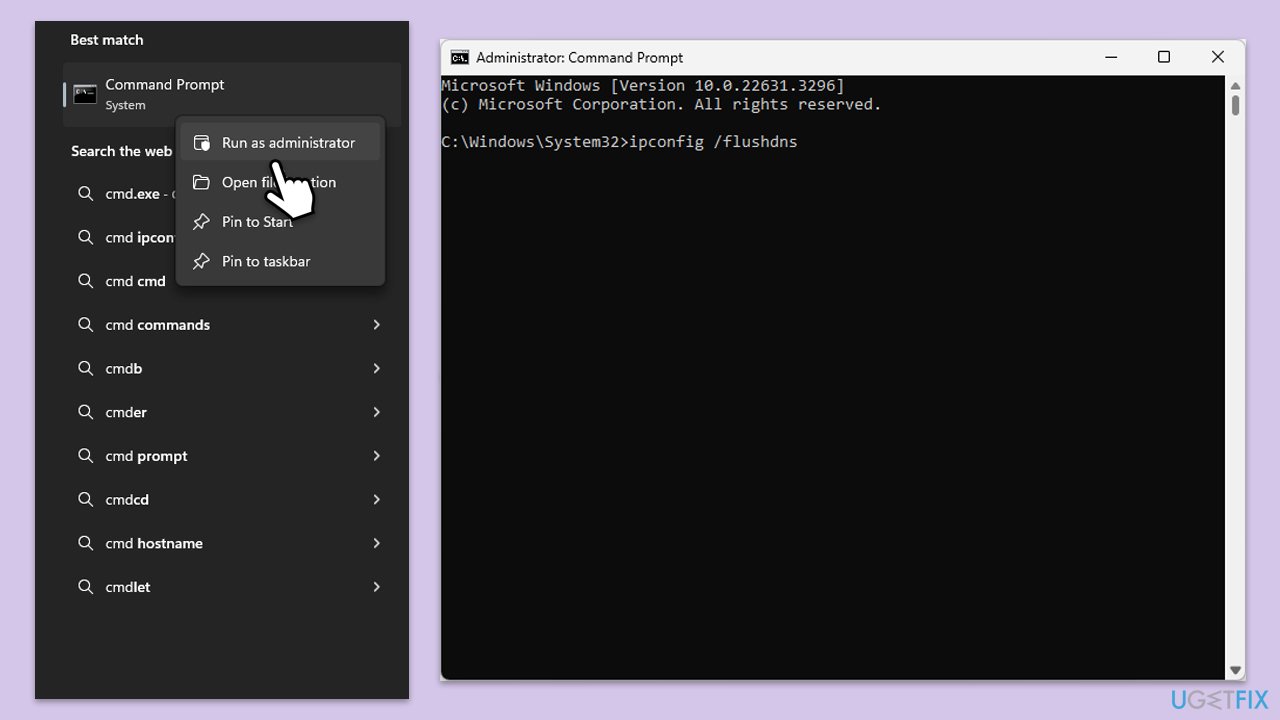
- Type cmd in Windows search.
- Right-click on Command Prompt result and pick Run as administrator.
- When the User Account Control window shows up, click Yes.
- In the new window, copy and paste the following commands, pressing Enter each time:
ipconfig /flushdns
ipconfig /registerdns
ipconfig /release
ipconfig /renew
netsh winsock reset - Reboot your system and check if the issue is resolved.
Fix 6. Try Clean Boot
Sometimes, security or similar software can block Steam from connecting to its servers. Running your PC in Clean Boot mode could help you find out whether third-party software is causing the error.
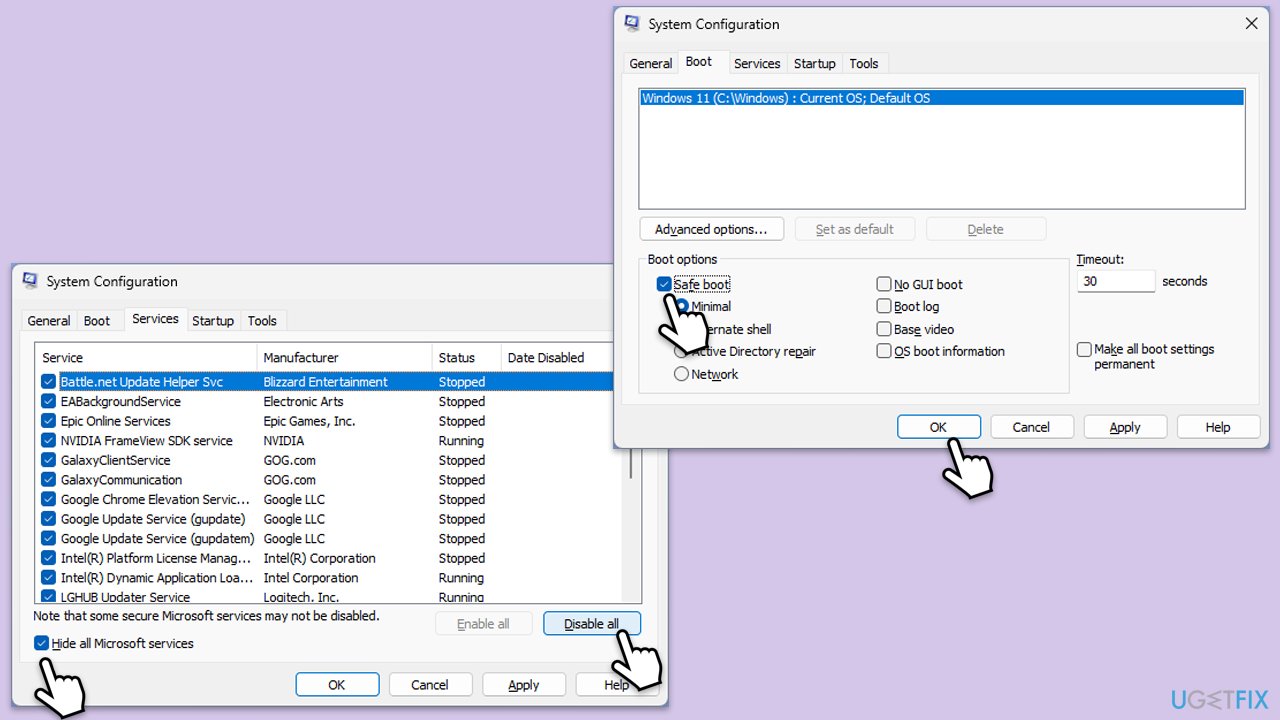
- Type msconfig inWindows Search and press Enter to open the System Configuration window.
- Click on the Services tab and check the Hide all Microsoft Services box.
- Click Disable all to disable non-Microsoft services, then click the Startup tab.
- Open the Task Manager, disable all startup items, and close the Task Manager.
- Go to the Boot tab and mark the Safe boot option.
- Click OK on the System Configuration window and restart your computer.
- If the problem does not exist, third-party software is at fault. To determine which app is causing it try enabling half of the available programs, restarting, and checking if the the problem is still absent. Continue till you find the offending software and either update or uninstall it.
Fix 7. Reinstall Steam
Reinstalling Steam can fix deeper issues with corrupted program files that prevent connectivity.
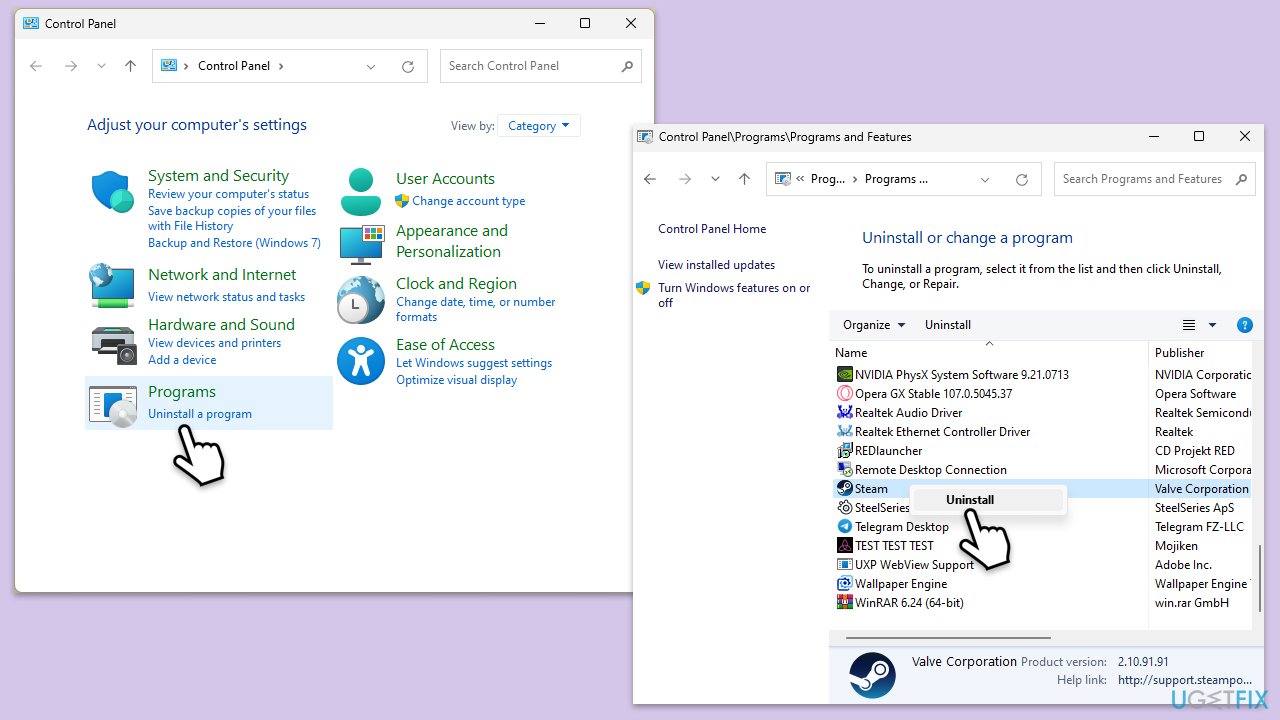
- Go to the Control Panel.
- Select Programs > Uninstall a program.
- Find Steam in the list and select Uninstall.
- Follow the prompts to remove Steam from your system.
- After uninstallation, restart your computer.
- Download the latest version of Steam from the official website.
- Run the installer and follow the instructions to install Steam.
Bottom line
To fix the "Steam Servers are currently unavailable" error, users can clear the Steam cache, change the download region, disable the game file transfer over local network option, run the network troubleshooter, or reset internet settings. If these methods do not resolve the issue, reinstalling Steam may help address any corrupted program files.
Frequently asked questions
This error can be caused by server maintenance, network connectivity issues, or incorrect Steam client settings on Windows 10.
You can check Steam's server status by visiting their official Twitter page or third-party websites that track server uptime for Steam.
Try restarting your router, verifying your Internet connection, or changing your DNS settings to Google DNS (8.8.8.8) on Windows 11.




Report an issue
What's wrong with this guide? We review every report and update or remove content.
Report received — thank you. We'll review and fix it.
You need a free account to submit a report.
Be the first to comment