How to fix
Steam showing installed games as uninstalled
on Windows
Resolve the issue of Steam displaying installed games as uninstalled on your Windows 10 or 11. Quick fixes and expert-tested solutions await!

What causes How to fix Steam showing installed games as uninstalled?
- Steam Client not detecting game files
- Read-only attribute set on game files
- Insufficient permissions to access game files
- Corrupted game files
- Issues with Steam installation
Repairs Windows system files, removes malware, and restores a clean OS state — without reinstalling.
Hello. All of a sudden Steam is showing installed games as uninstalled even though I did not uninstall them. What could be the issue?
Steam is a video game platform that offers digital distribution and storefront services. It was launched in September 2003 as a way for Valve to provide automatic updates for their games, and it expanded to distributing and offering third-party game publishers' titles in late 2005.
Some of the features that Steam offers include digital rights management (DRM), game server matchmaking, anti-cheat measures, social networking, and game streaming services. Additionally, it provides users with automatic game updating, saved game cloud synchronization, and community features such as friends messaging and in-game chat. There is also a community market where users can buy and sell items.
One of the most common issues that people encounter when trying to use Steam is when suddenly Steam starts showing installed games as uninstalled. This problem usually appears when the Steam Client does not detect the game files and decides to show them as uninstalled. In most cases. the games are not actually uninstalled. In this guide, you will find 6 steps that should help you fix Steam showing installed games as uninstalled.
However, the manual troubleshooting process can be lengthy. To avoid it, you can use a maintenance tool like [d1] that can fix most system errors, BSODs,[ref en-1] corrupted files, and registry[ref en-2] issues. It can also clear cookies and cache[ref en-3] automatically which are often the culprits behind many malfunctions. Otherwise, follow the step-by-step instructions below.
Solution 1. Restart Steam
- Open Steam
- Click on your Username box in the top right corner
- Click on Log out
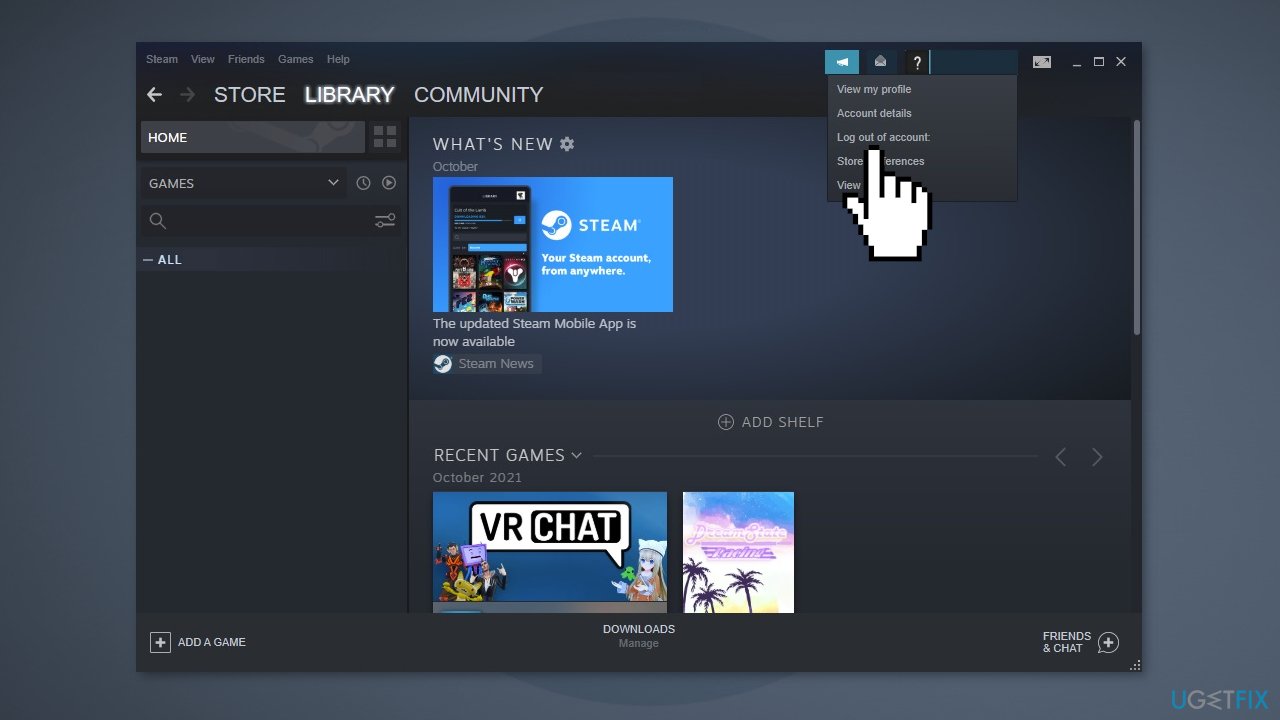
- Close the Steam Client and reopen it after a while
- Log in to your account again
Solution 2. Run Steam as an Administrator
- Search for the Steam Launcher
- Right-click on it and open its Properties
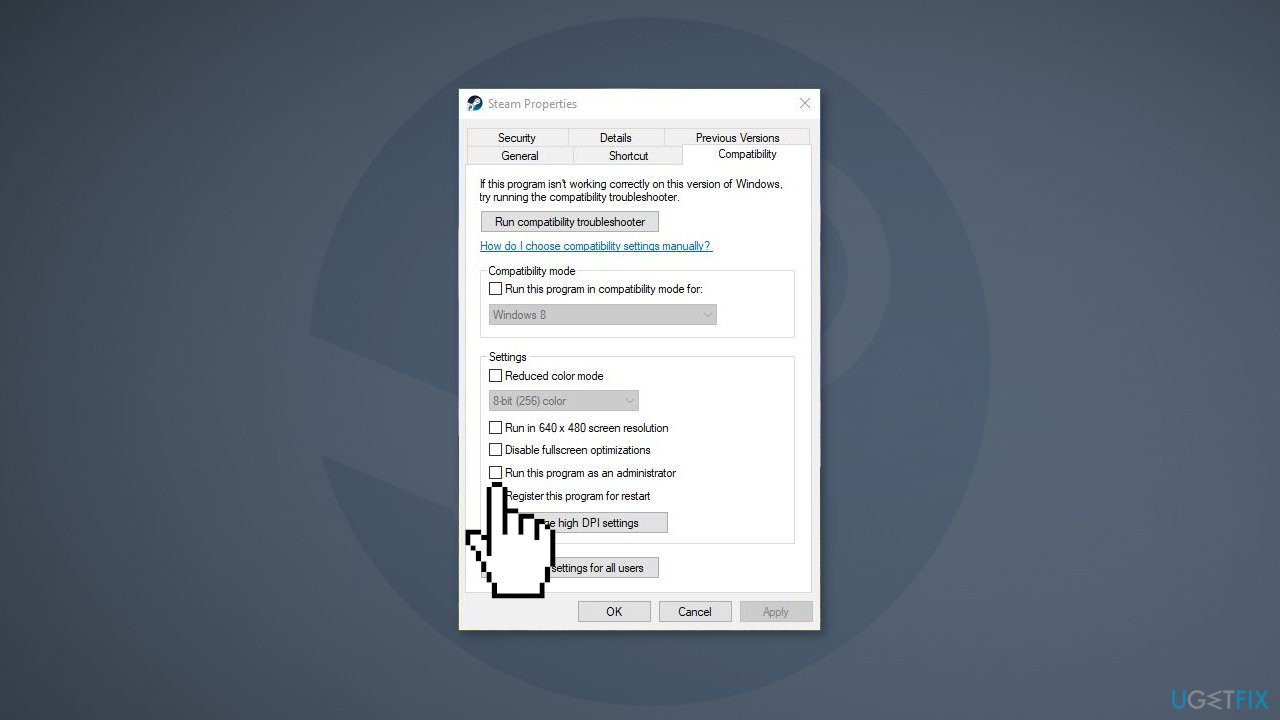
- Click on the Compatibility tab and check the Run this program as an administrator box
- Click on Apply and OK
Solution 3. Disable Read-only for Steam
- Locate the Steam folder on your drive
- Right-click on it and click on the Properties option
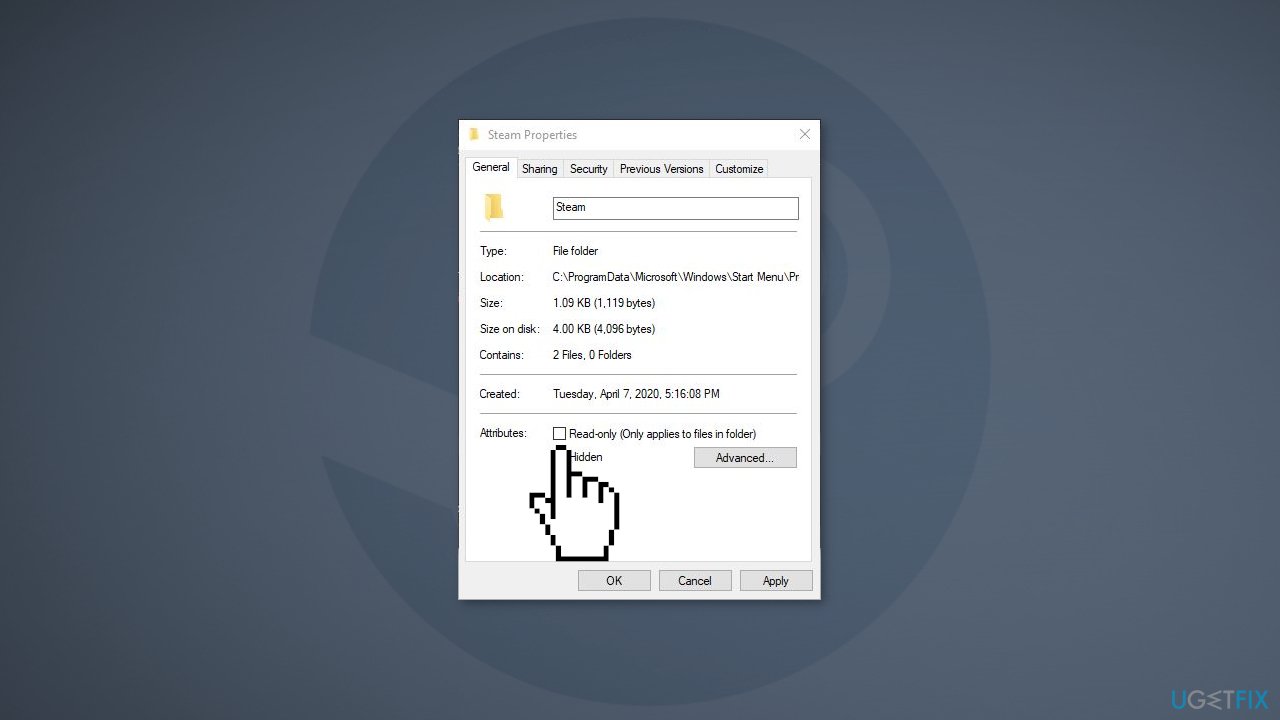
- Go to the General tab and uncheck the Read-only box in the Attributes section
- Click Apply and OK to save the changes
Solution 4. Manually Add Games to the Steam Library
- Open your Steam Account
- Click on the Steam option in the top right corner of the screen
- Click on the Settings option
- Click on the Downloads tab and open the Steam Library Folders option
- Click on Add Library Folder
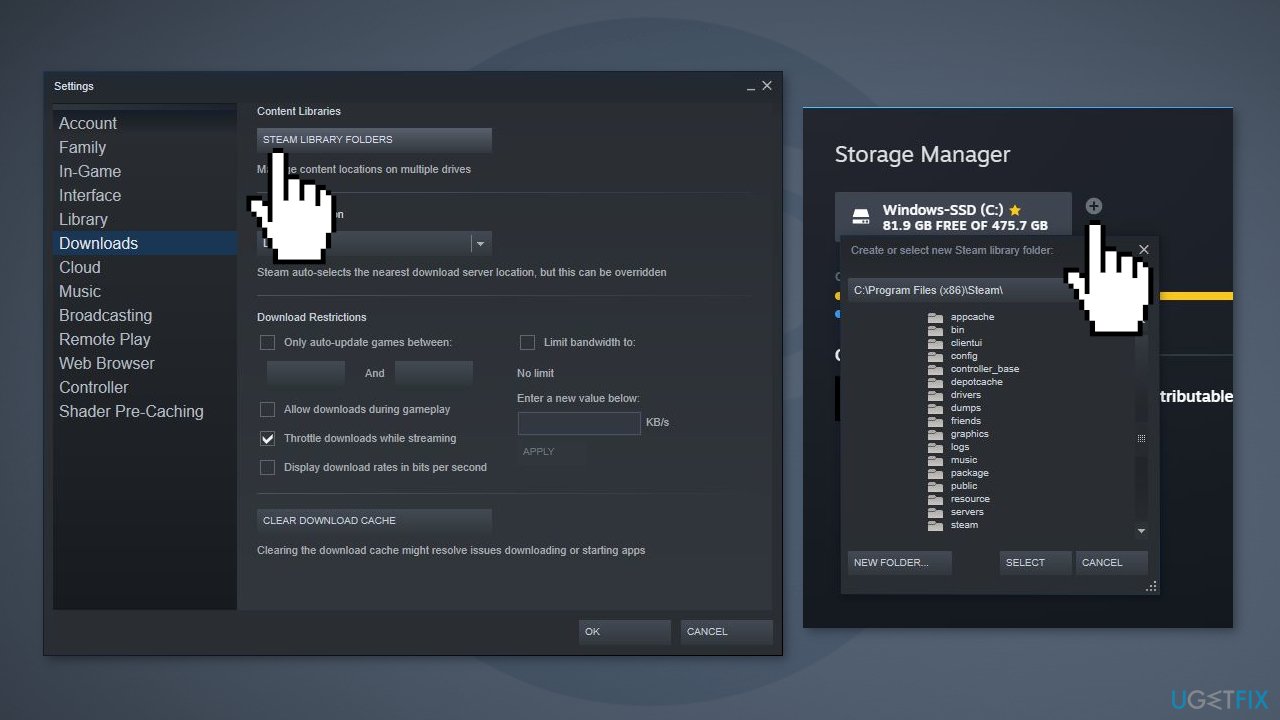
- Click the + button to add the folder with all your game data
- Close the tabs, click on OK, and see if the issue is resolved
Solution 5. Transfer Game Folder
- Open the current location of your Game folder that is shown as uninstalled on Steam
- Copy and paste the folder to another drive of your choice
- Delete the previous game folder
- Open your Steam account
- Find the game in your Library section
- Click on Install and select where you transferred the game folder
- Let the application discover the existing files and complete the process
Solution 6. Move the .acf file
- Open your Steam Account and click on the Library tab
- Download the game that Steam shows as uninstalled
- Click the Pause button to pause the game’s downloading process
- Click the Steam option on the top right corner of the screen and click on Exit
- Locate the steamapps folder on your disk drive
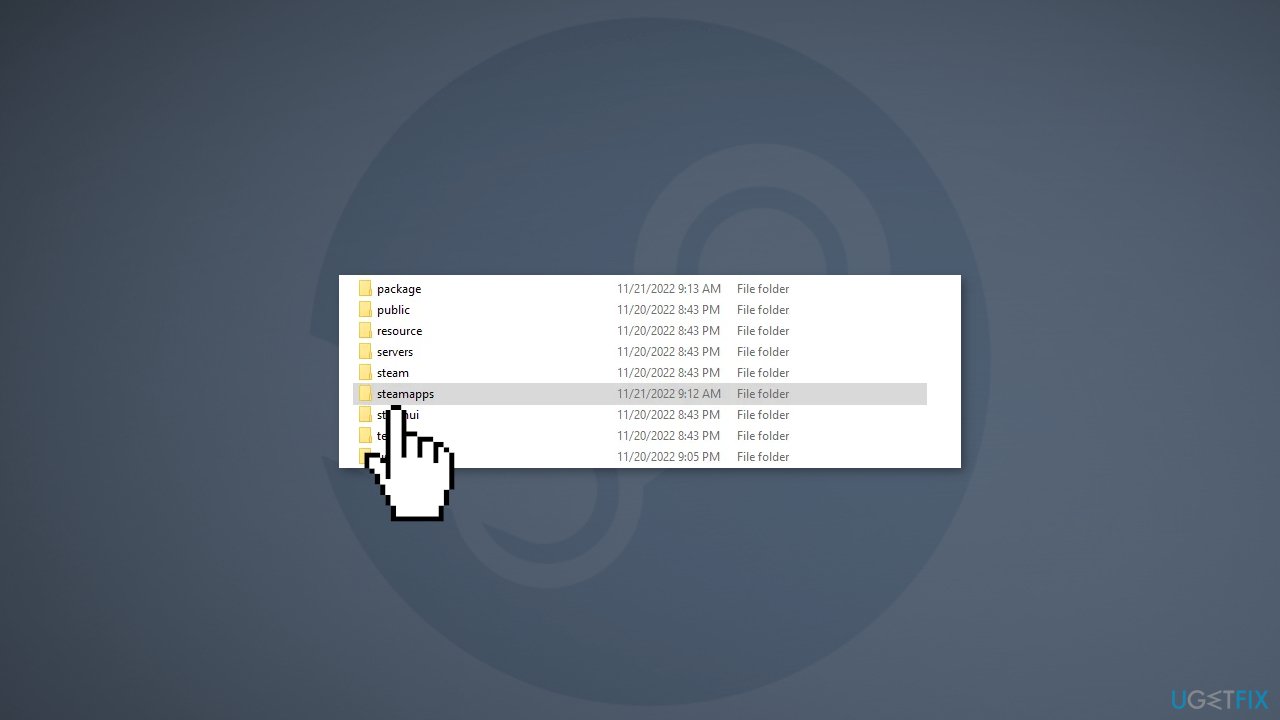
- Find the .acf file of the uninstalled game
- Copy and paste the .acf file of the uninstalled game to another folder
- Open the Steam Library again to see the game as uninstalled
- Exit Steam and place the .acf file back in its original location
- Open Steam and resume the game’s update, and it should detect all game files
Bottom line
To fix Steam showing installed games as uninstalled, you can restart Steam, run it as an administrator, and check the read-only status of your game files. If these steps do not resolve the issue, consider using a maintenance tool to address potential system errors.
Frequently asked questions
This issue can occur due to corrupted installation files or incorrect game library settings in Steam. You can try verifying the integrity of game files or reconfiguring the Steam library folder settings to resolve the problem.
Make sure that the game files are located in the correct Steam library folder and that the folder is properly set in Steam's settings. If the problem persists, consider reinstalling Steam or the affected games.
You can manually add the game installation back to Steam by going to Steam > Games > Add a Non-Steam Game to My Library, or by reinstalling the game directly from your library.




Report an issue
What's wrong with this guide? We review every report and update or remove content.
Report received — thank you. We'll review and fix it.
You need a free account to submit a report.
Be the first to comment