How to fix
Steam sign-in error E84
on Windows
Resolve Steam sign-in error E84 on Windows 10 and 11 swiftly with our expert-tested solutions. Get back to gaming in minutes!


What causes How to fix Steam sign-in error E84 in Windows?
- Technical problem with the new user interface
- Issues related to the October update
- Corrupted files
- Registry issues
- Cookies and cache problems
Repairs Windows system files, removes malware, and restores a clean OS state — without reinstalling.
Hello. I can't sign into Steam and I get the E84 error. Is there a way to fix this?
Steam is a popular digital distribution platform developed by Valve Corporation. It enables users to buy and play video games, as well as gain access to various community features. Steam includes a variety of features such as game updates, downloadable content, multiplayer functionality, and social features such as friend lists, chat, and game achievements.
However, following the October update, some users have reported receiving error code E84 when attempting to sign in to their Steam accounts. This error is specifically related to Steam's new UI for the sign-in screen. The precise cause of the E84 error is unknown, but it appears to be a technical problem with the new user interface.
This sign-in error can be extremely frustrating for users because it prevents them from accessing their Steam accounts and using the platform's features. Until the error is resolved, users may be unable to launch their games, communicate with friends, or access their game libraries and saved data.
Valve Corporation has been actively working to investigate and resolve this issue. Following updates to Steam was released to address the E84 error and improve the sign-in experience. Users who are experiencing this error are encouraged to keep their Steam client up to date in order to receive the most recent bug fixes and improvements.
In this guide, you will find 7 steps that should help you fix Steam sign-in error E84. You can also try running a repair tool like [d1] that can fix most system errors, BSODs,[ref en-1] corrupted files, registry[ref en-2] issues, or clear cookies and cache.[ref en-3] Otherwise, follow the step-by-step instructions below.
Solution 1. Add a Launch Parameter
- Click the Start Menu.
- Type Steam in the search bar.
- Right-click on the Steam application.
- Select Open file location from the context menu.
- In the file location window, right-click on the Steam shortcut.
- Choose Properties from the dropdown menu.
- In the Properties window, locate the Target field.
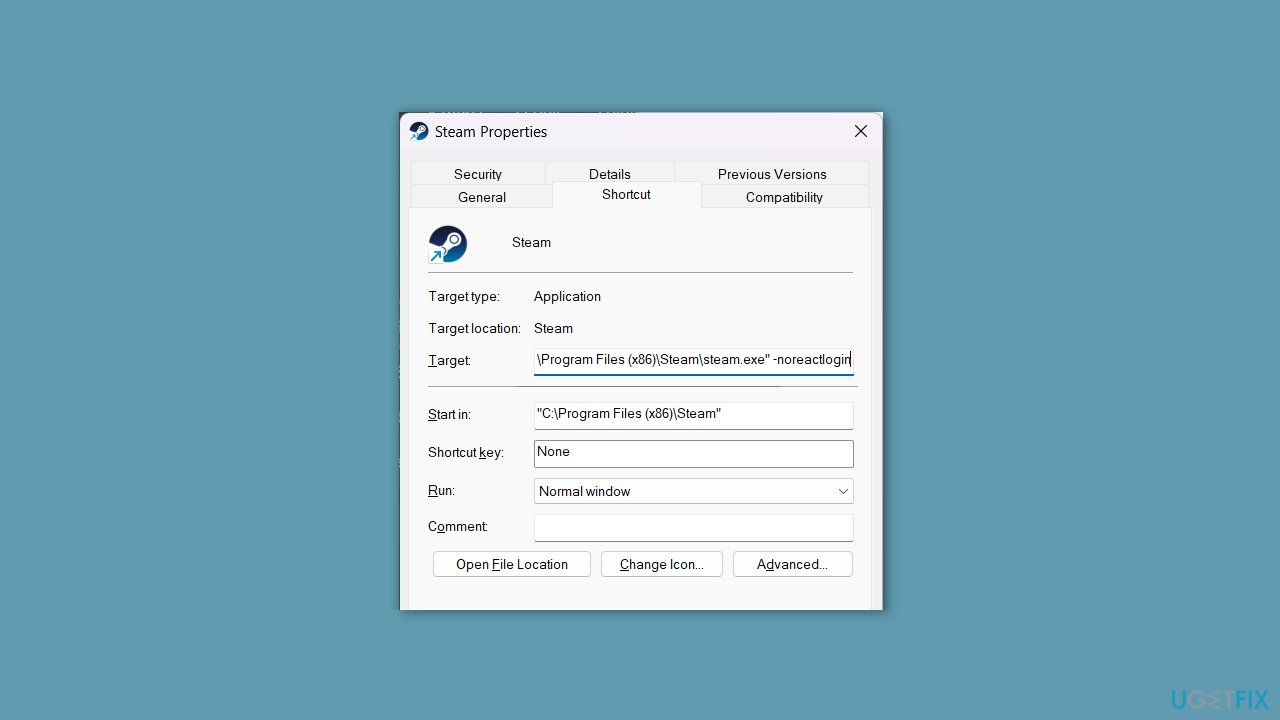
- At the end of the text in the Target field, add -noreactlogin.
- Click the Apply button.
- Click the OK button.
- Launch the Steam application.
- Attempt to log in to your Steam account.
Solution 2. Reset the Steam Password
- Open the Steam application.
- Click on the Help option.
- Select I can't sign in from the menu.
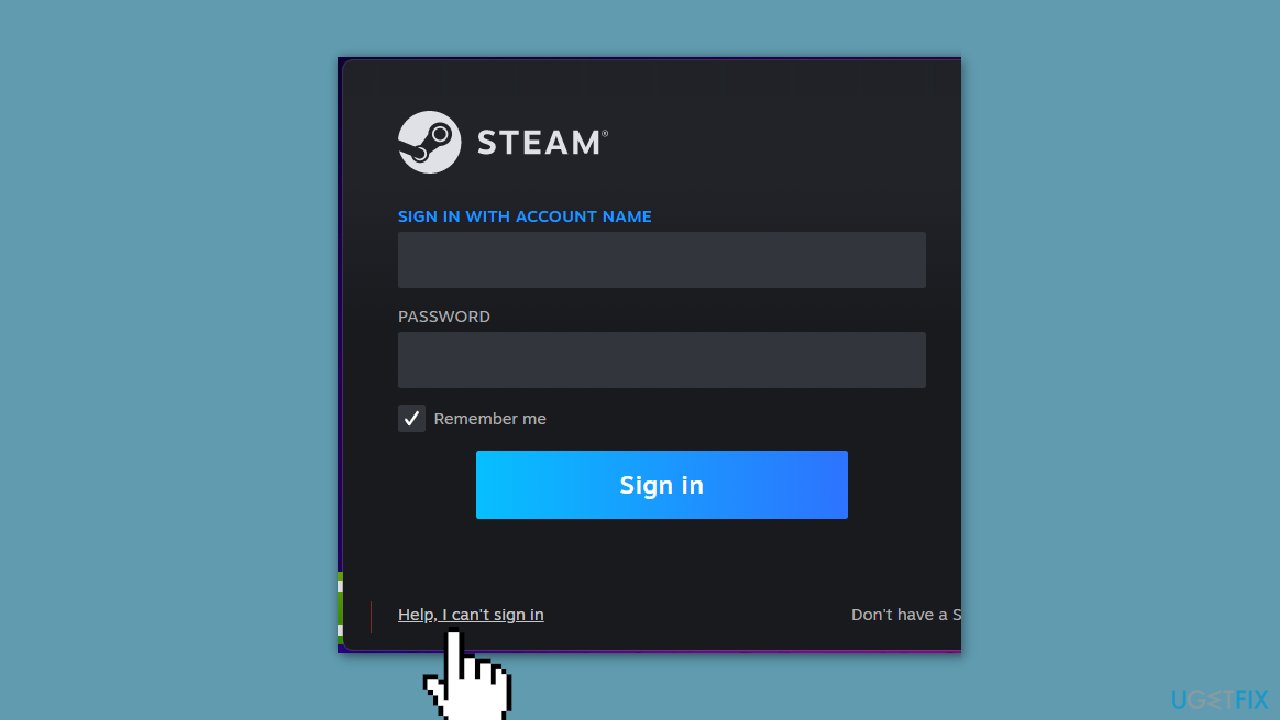
- Choose I forgot my Steam Account name or password.
- Enter your email address.
- Complete the verification process to confirm you're not a robot.
- Click on the Search button.
- Once your account is detected by Steam, select the option to Email an account verification code.
- Check your email account for the Steam verification email.
- Open the email and click on the Resume Recovery link provided.
- On the recovery page, select the option to Reset my password.
- Enter your new password and confirm it.
- Click on the Change Password button.
- You will be redirected to a page confirming that your password has been updated.
- Attempt to log in to your Steam account using your new password.
Solution 3. Clear Temporary Files
- Press the Windows key + R to open the Run dialog box.
- In the Run dialog box, type temp and press Enter.
- The Windows temporary files window will open.
- Press Ctrl + A to select all the files.
- Press the Delete key to remove all the selected files.
- Open Run again.
- This time, type %temp% and press Enter.
- The Local temporary files window, containing application-specific temporary files, will open.
- Press Ctrl + A to select all the files.
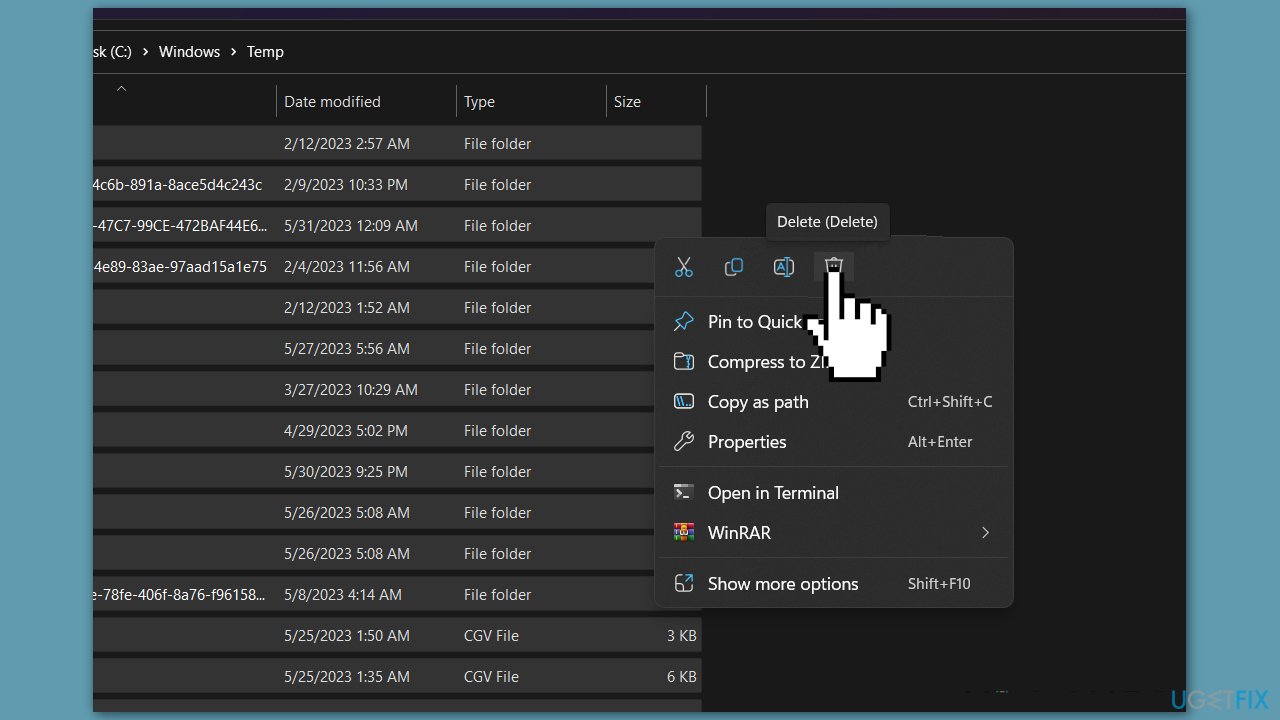
- Press the Delete key on your keyboard to remove the selected temporary files.
- If you encounter a popup stating "This action can't be completed," simply close it as some temporary files may still be running in the background.
- Once the deletion process is complete, launch the Steam application.
- Try logging in with your credentials.
Solution 4. Clear Steam Cache
- Press the Windows key + R to open the Run window.
- Type appdata into the Run window and click OK.
- The appdata folder will open.
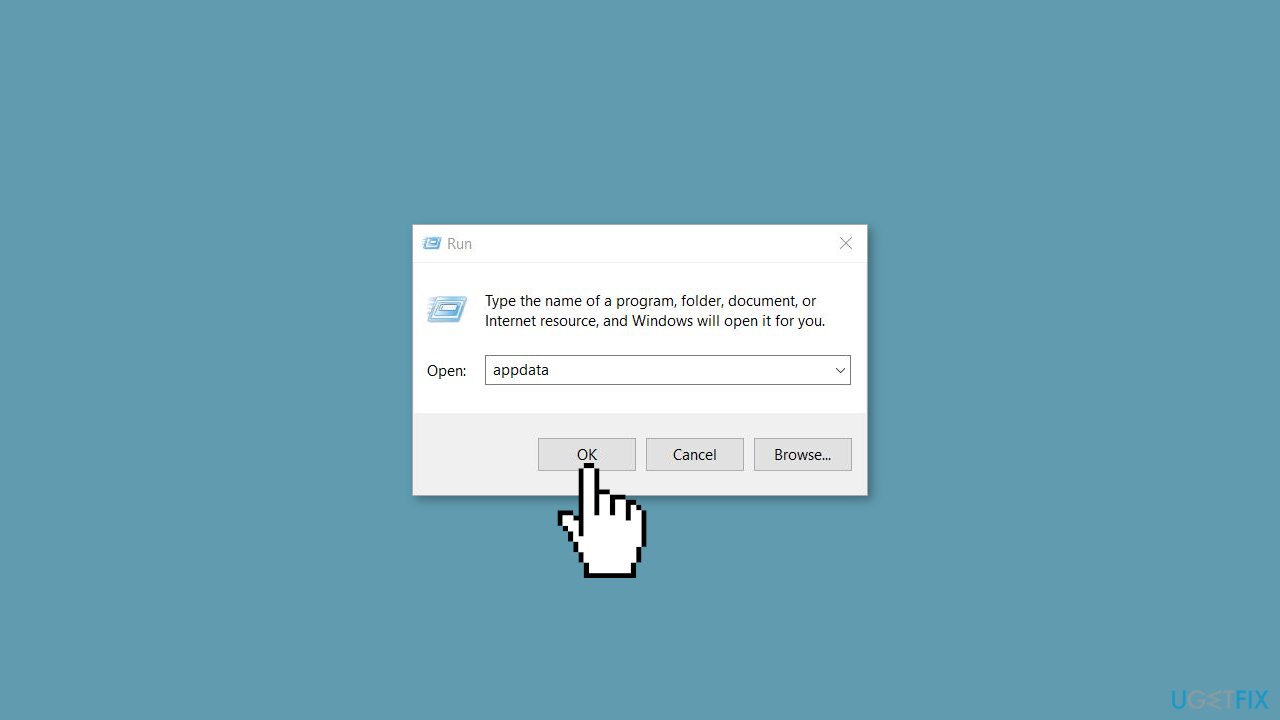
- Navigate to the Local folder.
- Locate the Steam folder within the Local folder.
- Delete the Steam folder.
- Launch the Steam application.
- Attempt to log in to your Steam account.
Solution 5. Check Date and Time
- Press the Windows key + I to open the Settings menu.
- In the Settings menu, click on Time & language from the options on the left.
- Open the Date & time settings.
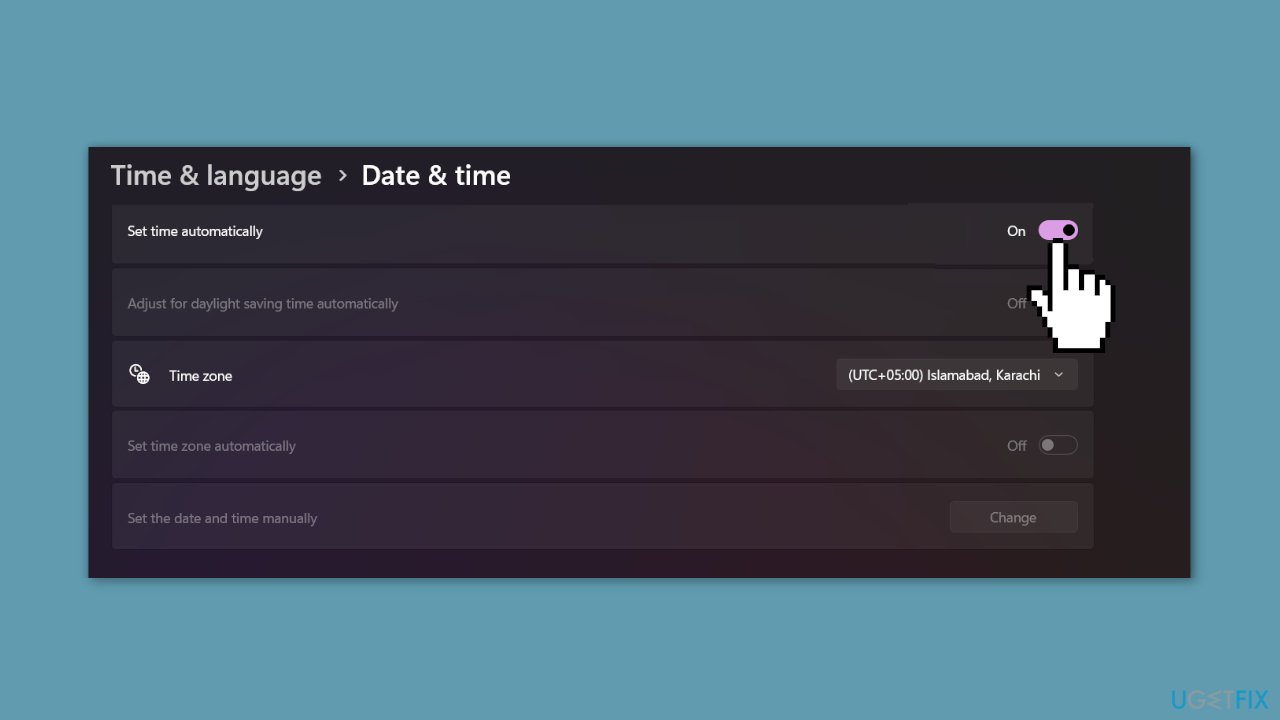
- Ensure that the Set time automatically option is enabled.
- Click on the Sync now option to synchronize the time with the time server.
- Once the synchronization is complete, open the Steam application.
- Check if the error persists or not.
Solution 6. Delete the Steam Package Folder
- Right-click on the Steam application.
- Select Open file location from the context menu.
- If you don't have a shortcut, directly navigate to the Steam app folder.
- Locate the package folder within the Steam folder.
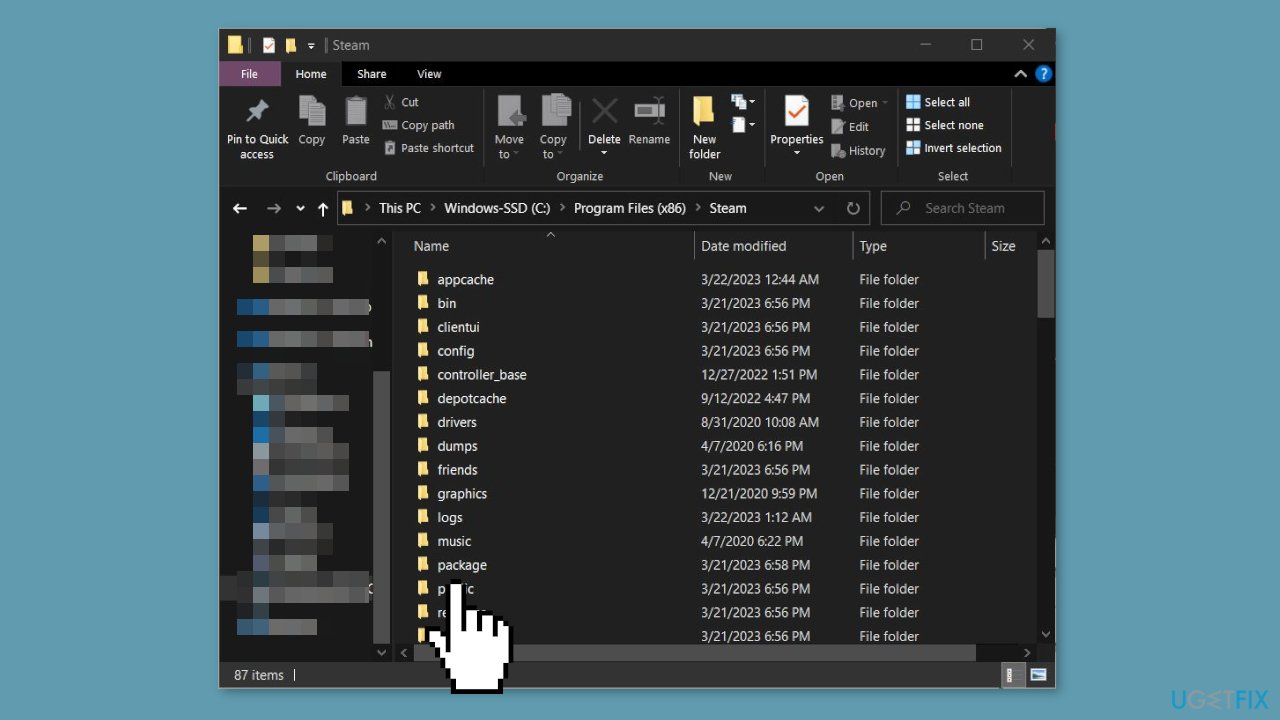
- Delete the package folder.
- Run the steam.exe file.
- Wait for Steam to download the package folder from the server.
- Once the download is complete, try logging in to your Steam account.
Solution 7. Reinstall Steam
- Right-click on the Steam application and select Open file location.
- Navigate to the Steamapps > Common folder.
- Copy all the game folders present in this location.
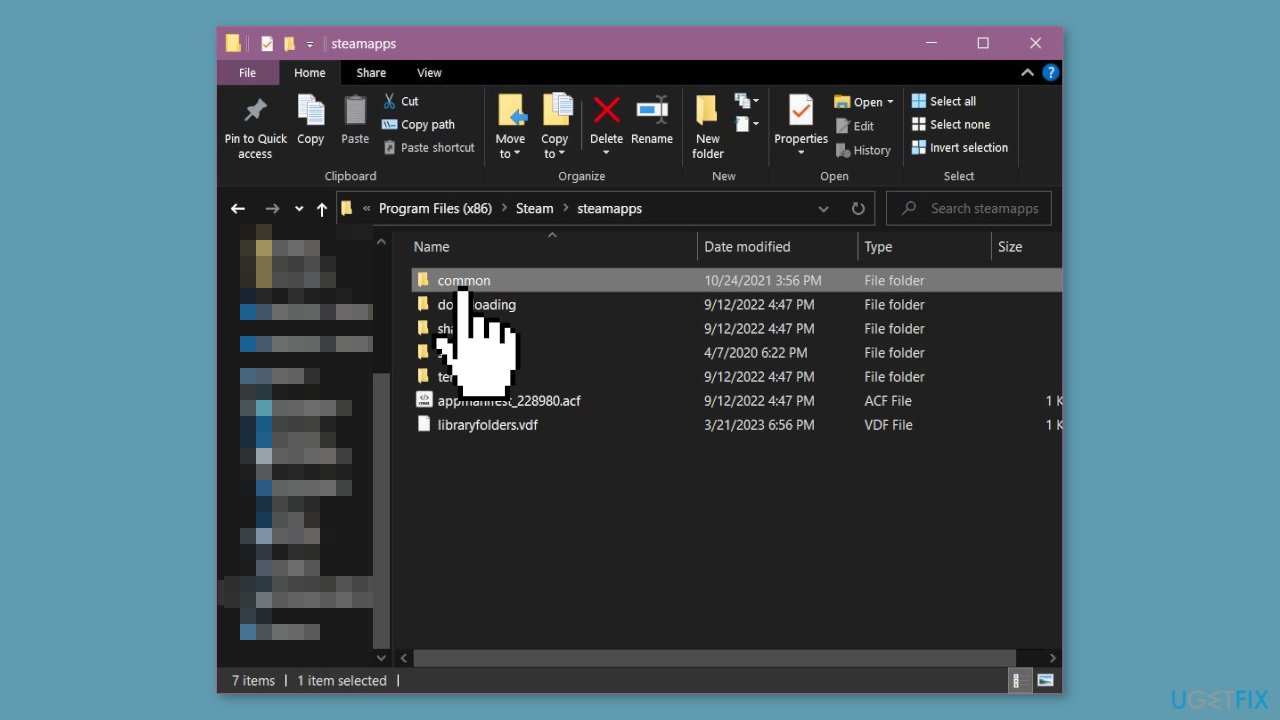
- Paste the copied game folders into another drive or location.
- Click on the Start Menu and type Add or remove programs, then open it.
- Locate and select Steam from the list.
- Click on the three dots (options) button.
- Choose Uninstall from the dropdown menu.
- Confirm the uninstallation by clicking Uninstall again.
- Download the Steam installer from the official website.
- Once the installer is downloaded, run it to start the Steam installation process.
- After the installation is complete, navigate to the Steamapps > Common folder.
- Copy the previously saved game folders and paste them into the Steamapps > Common folder in the newly installed Steam directory.
- Once the copying is done, check if the login error is resolved.
- If the error is fixed, proceed to discover the game files by navigating to the Steam Library.
Bottom line
To fix the Steam sign-in error E84, users can try adding a launch parameter, running a repair tool, and ensuring their Steam client is up to date. If these solutions do not resolve the issue, users should consider further troubleshooting steps or contacting support.
Frequently asked questions
The Steam sign-in error E84 typically occurs due to network issues, corrupted Steam files, or problems with the account's authentication process.
To fix the E84 error on Windows 11, clear the Steam cache, verify the integrity of game files, and ensure your internet connection is stable.
Yes, you can try resetting your network settings and clearing the Steam download cache to resolve the E84 error without needing to reinstall Steam on Windows 10.




Report an issue
What's wrong with this guide? We review every report and update or remove content.
Report received — thank you. We'll review and fix it.
You need a free account to submit a report.
Be the first to comment