How to fix
Steam Web Helper high RAM usage
on Windows
Resolve high RAM usage by Steam Web Helper on Windows 10 and 11 easily. Boost performance with expert-tested solutions and fixed in minutes.

What causes How to fix Steam Web Helper high RAM usage in Windows?
- Multiple instances of Steam Client WebHelper running simultaneously
- High memory usage on systems with little RAM available
- General performance difficulties when browsing through the Steam client
- Longer load times due to high RAM usage
- Slowdowns in the system caused by excessive resource consumption
Repairs Windows system files, removes malware, and restores a clean OS state — without reinstalling.
Hello. I noticed that the Steam application on my Windows PC is using high amounts of RAM even when I am not using it much. It makes my computer run slower than it should. Is there a way to fix this?
Steam is a digital distribution platform widely utilized by gamers to purchase, download, and manage their video games. In addition to its major capabilities, which include acting as a download manager and keeping an extensive library of games, Steam has several other elements that are essential to the entire user experience. The Steam Client WebHelper, which is effectively an embedded web browser controlled by Steam, is one important component.
The Steam Client WebHelper is responsible for handling various aspects of Steam's functionality, including rendering store pages, managing friends lists, and facilitating chat windows. A new instance of the Steam Client WebHelper is created in response to each of these actions. As such, the WebHelper is essential to the smooth functioning of these functionalities in the Steam client.
On Windows, though, users have mentioned running into problems with the Steam Web Helper using a lot of memory. This phenomenon, especially on systems with little RAM[ref en-1] available, can result in a significant use of system resources, slowing down the system and perhaps causing slowdowns.
The Steam Web Helper's high RAM usage can have a negative effect on users, particularly those whose systems have less memory. When browsing through the Steam client, users may see general performance difficulties, longer load times, and slowdowns in their system. When using the platform's numerous capabilities, it's usual for multiple instances of the Steam Client WebHelper to run simultaneously, which worsens the issue.
Although there might be many reasons for this high RAM use, tweaking the Steam client's settings or changing the Steam Client WebHelper's setup are usually the first steps toward a solution. Users have looked at a number of approaches to lessen this problem and enhance system functionality.
In this guide, you will find 5 steps that should help you fix Steam Web Helper high RAM usage in Windows. You can also run a maintenance tool like [d1] that can fix most system errors, BSODs,[ref en-2] corrupted files, registry[ref en-3] issues, or clear cookies and cache. Otherwise, follow the step-by-step instructions below.

Method 1. Use Offline Mode
- Access the main screen on Steam.
- Click on Steam to open the drop-down menu.
- Select Go Offline... from the options provided.

Note: Keep in mind that this method has limitations, including the inability to download new updates or connect online to certain games.
Method 2. Disable Hardware-Accelerated Rendering
- Click on the Steam button and access Settings.
- Scroll down to the Interface section.
- Look for the option labeled Enable GPU accelerated rendering in web views.
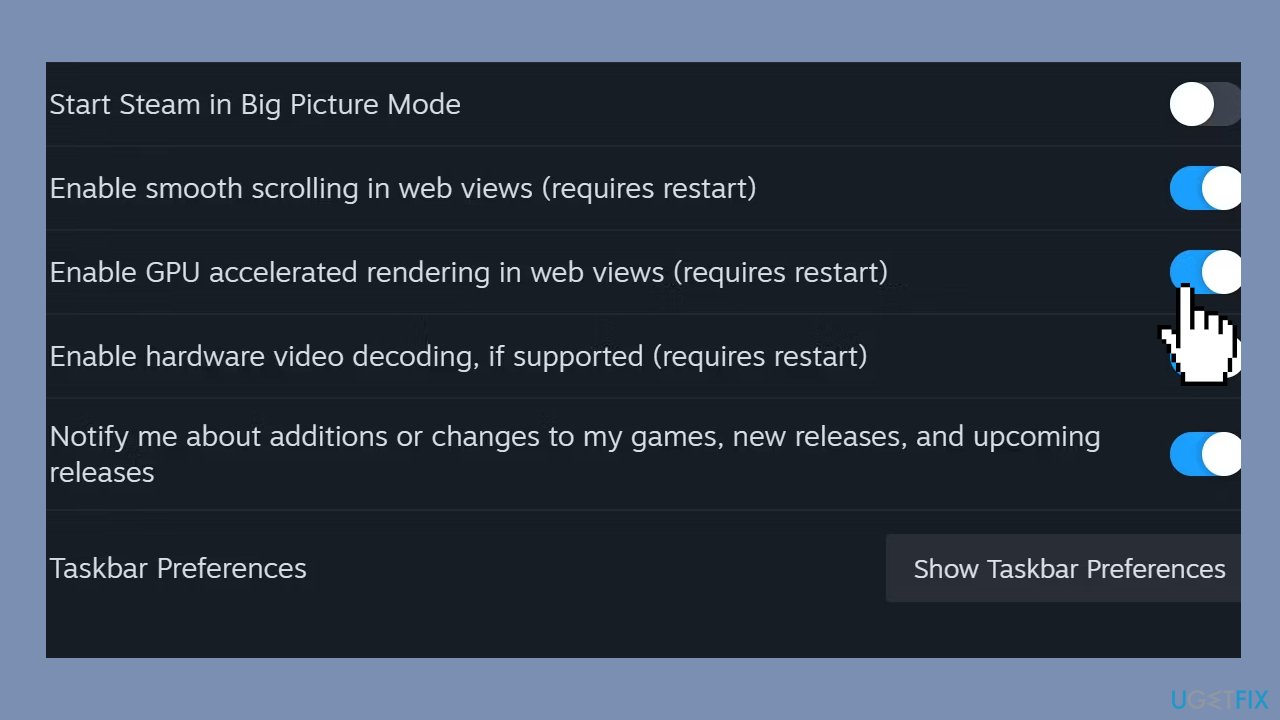
- Ensure that the toggle for this option is set to off.
- Restart Steam to apply the changes.
Method 3. Enable Low Performance Mode
Enabling this mode will disable specific animations while navigating through the Steam library.
- Open the Steam settings menu and navigate to the Library tab.
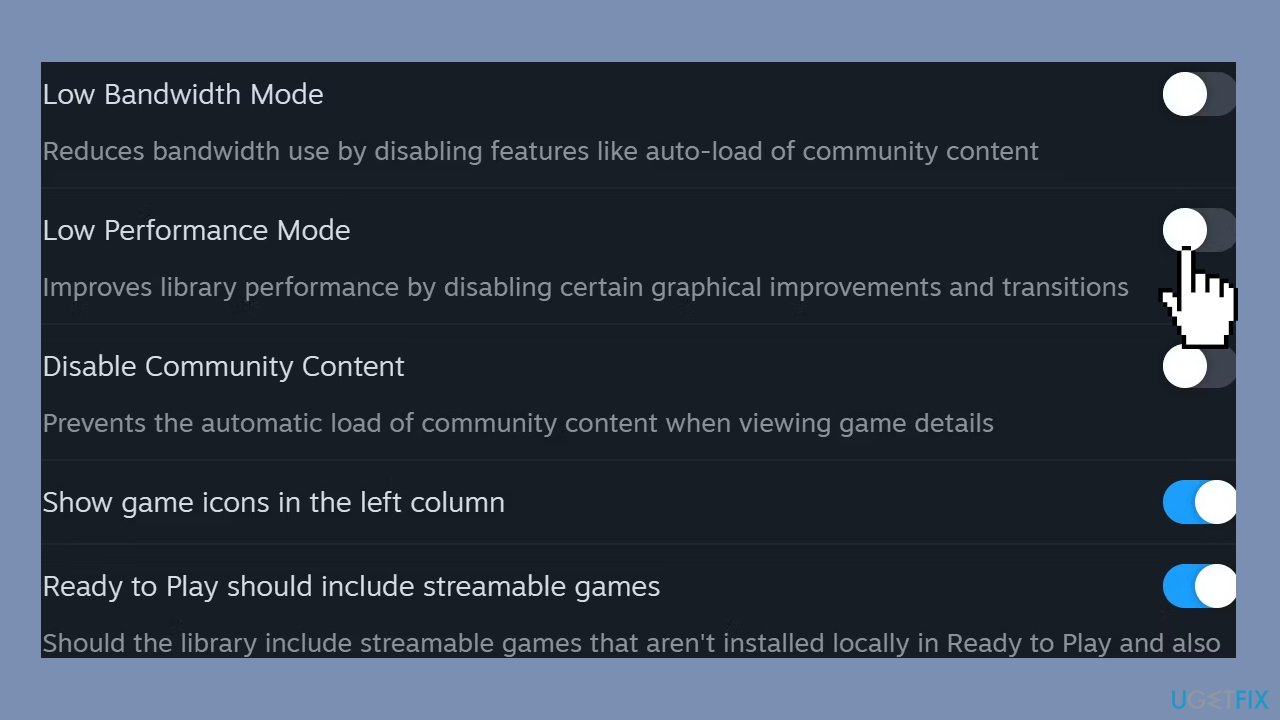
- Locate the option for Low Performance Mode within the Library settings.
- Toggle the Low Performance Mode switch to enable it.
Method 4. Launch the Steam Mini Games List
- Open the Steam settings menu and navigate to the Library tab.
- Locate the option for Low-Performance Mode within the Library settings.
- Toggle the Low-Performance Mode switch to enable it.
- Note that enabling this mode will disable specific animations while navigating through the Steam library.
Method 5. Create a Custom Batch File for Minimal Steam
Note that this stripped-down version of Steam lacks features like viewing friends, accessing the store, organizing screenshots, or checking news.
- Navigate to the Steam installation directory, where steam.exe is located.
- Create a new .txt file within the Steam directory.
- Paste the following commands into the .txt file:
start steam.exe -dev -console -nofriendsui -no-dwrite -nointro -nobigpicture -nofasthtml -nocrashmonitor -noshaders -no-shared-textures -disablehighdpi -cef-single-process -cef-in-process-gpu -single_core -cef-disable-d3d11 -cef-disable-sandbox -disable-winh264 -cef-force-32bit -no-cef-sandbox -vrdisable -cef-disable-breakpad
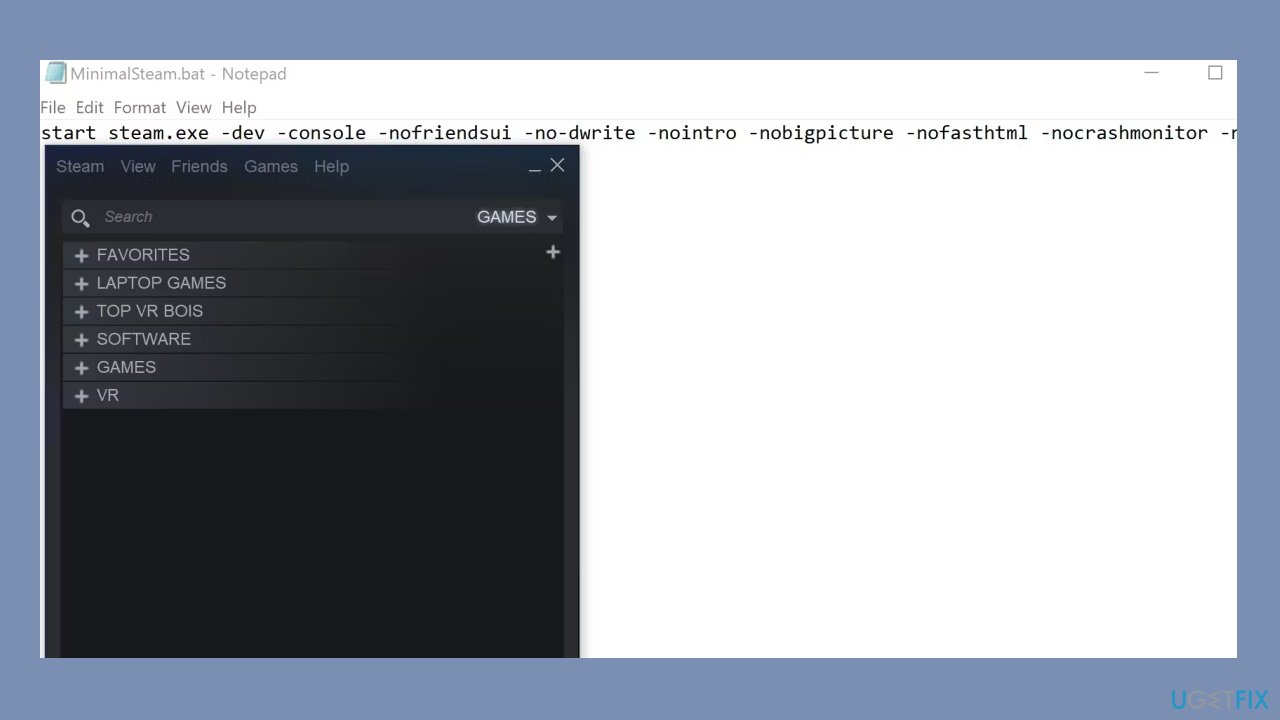
- Rename the .txt file by changing the file extension to .bat.
- Ensure that Steam is closed.
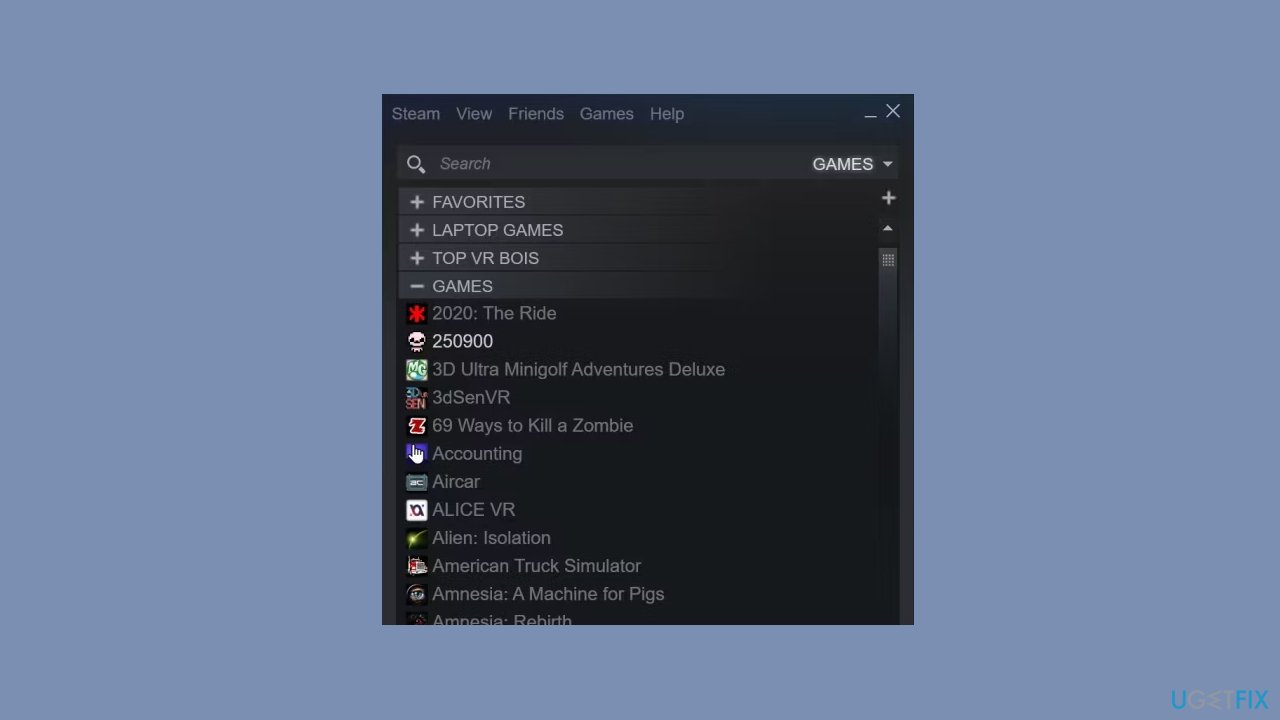
- Open the newly created .bat file. Steam should launch with a minimalistic interface resembling the Steam Mini Games List.
- Keep in mind that using this configuration may result in Steam crashing under certain circumstances. If this occurs, remove the command -cef-disable-breakpad from the batch file.
Bottom line
To address the high RAM usage of Steam Web Helper, you can tweak the Steam client's settings or adjust the setup of the Steam Client WebHelper. If these steps do not resolve the issue, consider exploring additional methods to enhance system performance.
Frequently asked questions
High RAM usage by Steam Web Helper can occur due to multiple browser tabs being open, corrupted files, or background processes conflicting with Steam. Regularly clearing the browser cache and ensuring Steam is updated can help mitigate this issue.
To reduce RAM consumption, you can disable the Steam Web Helper process in Task Manager or limit the number of active browser tabs and downloads. Additionally, consider disabling hardware acceleration in the Steam settings.
Yes, it is safe to end the Steam Web Helper process in Windows 10 or Windows 11, as it will restart automatically when needed. However, this may temporarily interrupt any ongoing downloads or web activity related to Steam.




Report an issue
What's wrong with this guide? We review every report and update or remove content.
Report received — thank you. We'll review and fix it.
You need a free account to submit a report.
Be the first to comment