How to fix
Steamclient64.dll error on Steam
on Windows
Resolve the Steamclient64.dll error on Windows 10 and 11 effortlessly. Get expert-tested solutions and fix the issue in minutes!

What causes How to fix Steamclient64.dll error on Steam?
- Incorrect or incomplete Steam client installation
- Spyware or virus infections
- Software conflicts with other programs
- Missing steamclient64.dll file
- Temporary files or errors
Repairs Windows system files, removes malware, and restores a clean OS state — without reinstalling.
Hello. I tried to launch various games I downloaded from Steam multiple times but I receive the Steamclient64.dll error. Is there a way to fix this?
Steam is a popular online gaming platform where users can buy, download, and play video games on their computers. Valve Corporation created it and released it in 2003. Steam has since grown to become one of the most popular PC gaming platforms, with a diverse selection of games from both large and independent developers.
However, while using Steam, users may encounter an error known as the Steamclient64.dll error. This error occurs when the steamclient64.dll file on the computer is missing. The Steam client requires this file to launch and function properly, so the error may prevent users from accessing the platform or playing games that require the Steam client.
The Steamclient64.dll error can be caused by a number of factors, including incorrect or incomplete Steam client installation, spyware or virus infections, or software conflicts with other programs on the computer. Users who rely on Steam for their gaming experience may be irritated by this issue.
Fortunately, there are several options for dealing with the Steamclient64.dll error. Users can restart their computers or manually copy the Steamclient64.dll file to the correct directory. They can also attempt to uninstall and reinstall the Steam client, as well as run a virus scan on their computer. These solutions, however, may not always work and may necessitate more advanced technical knowledge to implement.
In this guide, you will find 8 steps that should help you fix Steamclient64.dll error on Steam. However, you can also try a maintenance tool like [d1] that can fix most system errors, BSODs,[ref en-1] corrupted files, registry[ref en-2] issues, or clear cookies and cache.[ref en-3] Otherwise, follow the step-by-step instructions below.
Solution 1. Restart your PC
Restarting your computer is one of the easiest solutions for Steamclient64.dll errors. It clears any temporary files or errors and can resolve various hardware and software issues.
Solution 2. Install Windows Updates
- Press the Windows key + R to open the Run box
- Type ms-settings:windowsupdate in the text box and press Enter
- Click the Check for updates button
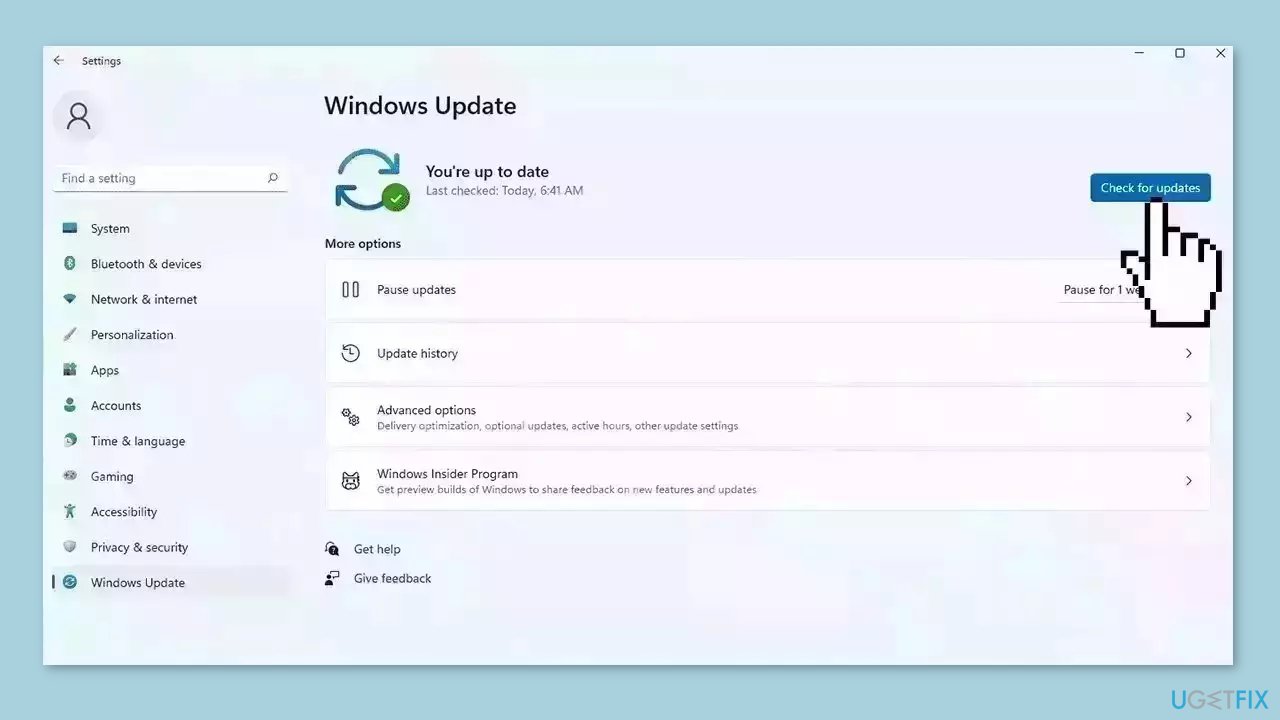
- If a new update is available, click the Download & Install all button.
- Restart your computer after the process is finished and check to see if the problem is fixed
Solution 3. Fix Corrupted System Files
Use Command Prompt commands to repair system file corruption:
- Open Command Prompt as administrator
- Use the following command and press Enter:
sfc /scannow
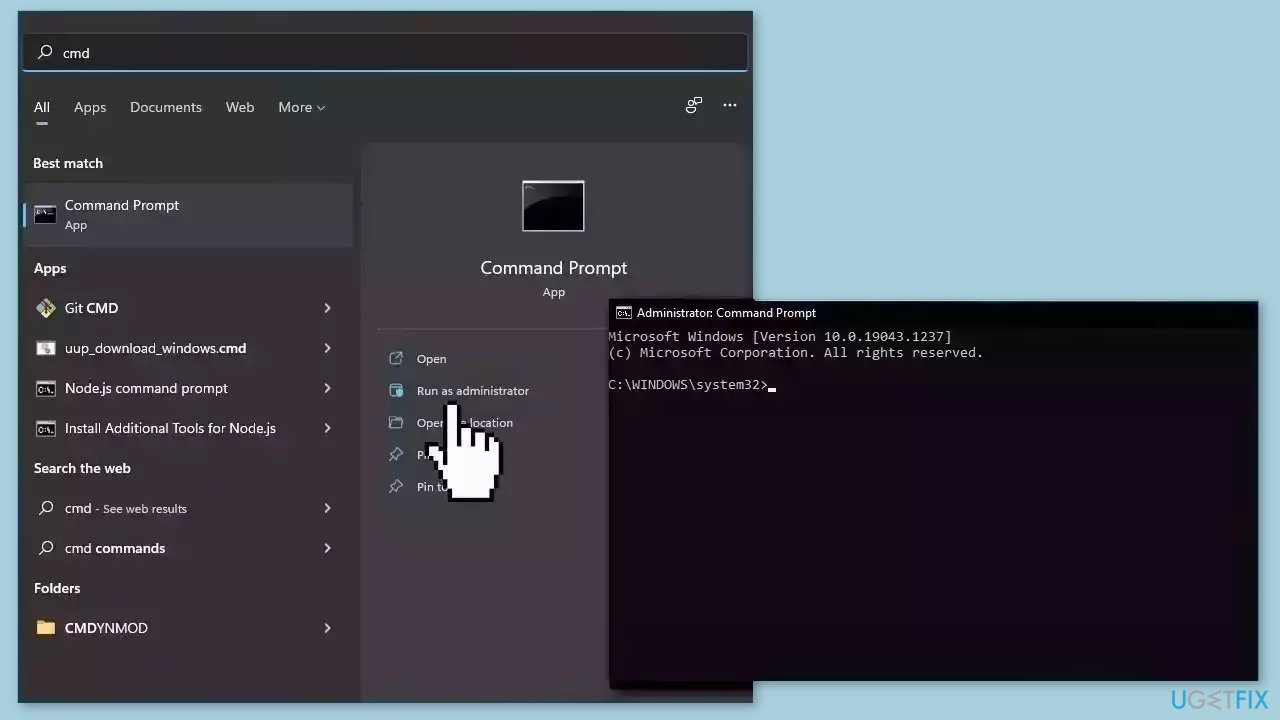
- Reboot your system
- If SFC returned an error, then use the following command lines, pressing Enter after each:
DISM /Online /Cleanup-Image /CheckHealth
DISM /Online /Cleanup-Image /ScanHealth
DISM /Online /Cleanup-Image /RestoreHealth
Solution 4. Run Steam as an Administrator
- Right-click on the Steam program.
- Choose the option to Run as administrator.
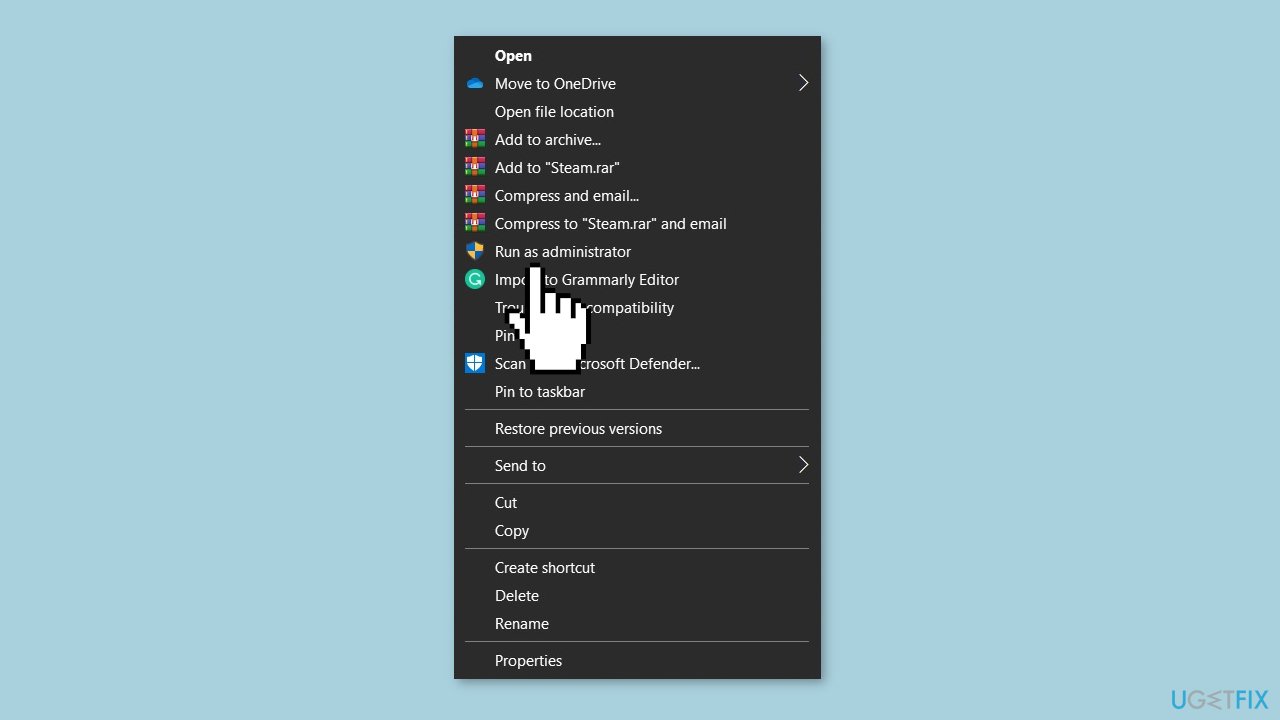
Solution 5. Update Graphics Driver
Outdated drivers could be the cause of this issue. In this case, you can fix it automatically by using [rev id="DriverFix"], which will scan your PC for missing and out-of-date device drivers. Or you can update them manually:
- Open Settings.
- Click on Update & Security.
- Click on Windows Update.
- Click the Check for updates button.
- Click the View optional updates option.
- Click the Driver updates tab.
- Select the driver you want to update.
- Click the Download and install button.
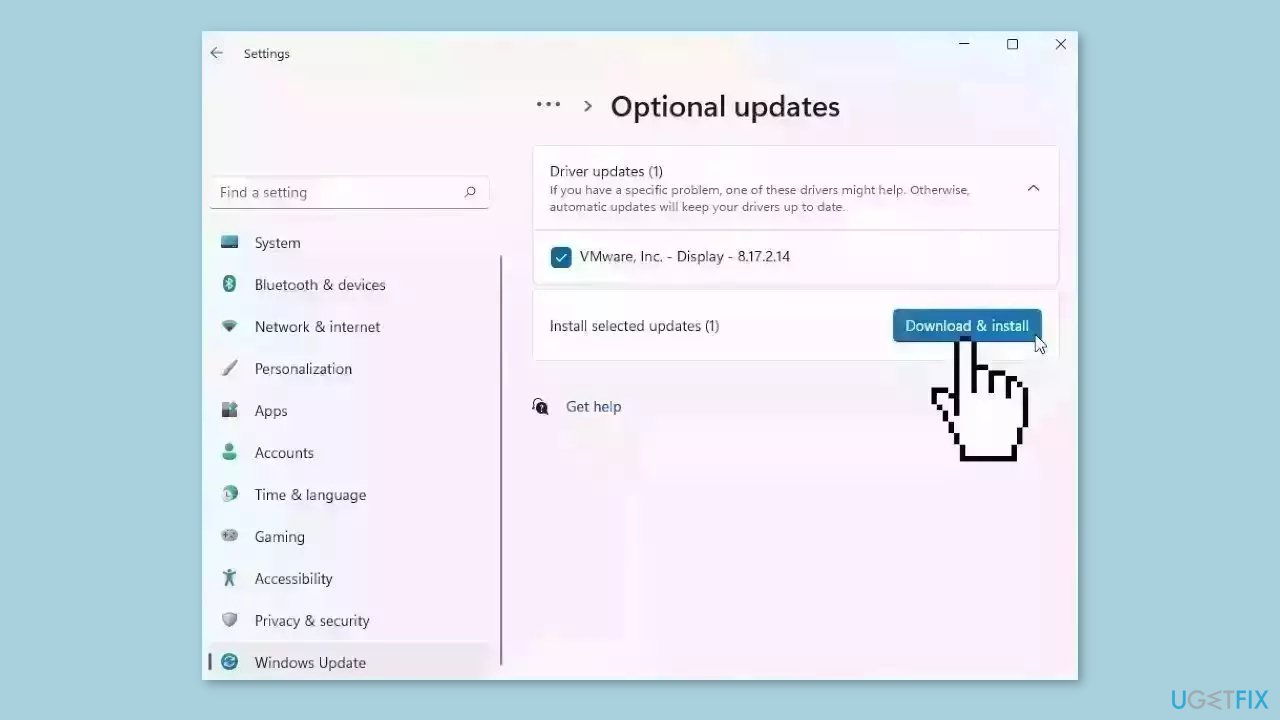
If the View optional updates link is not available after checking for updates, then Windows Update does not have any new drivers or any updates for other products at that particular time.
Solution 6. Update Steam
- Open Steam.
- Click on Steam located in the top left corner.
- Select Check for Steam Client Updates from the drop-down menu.
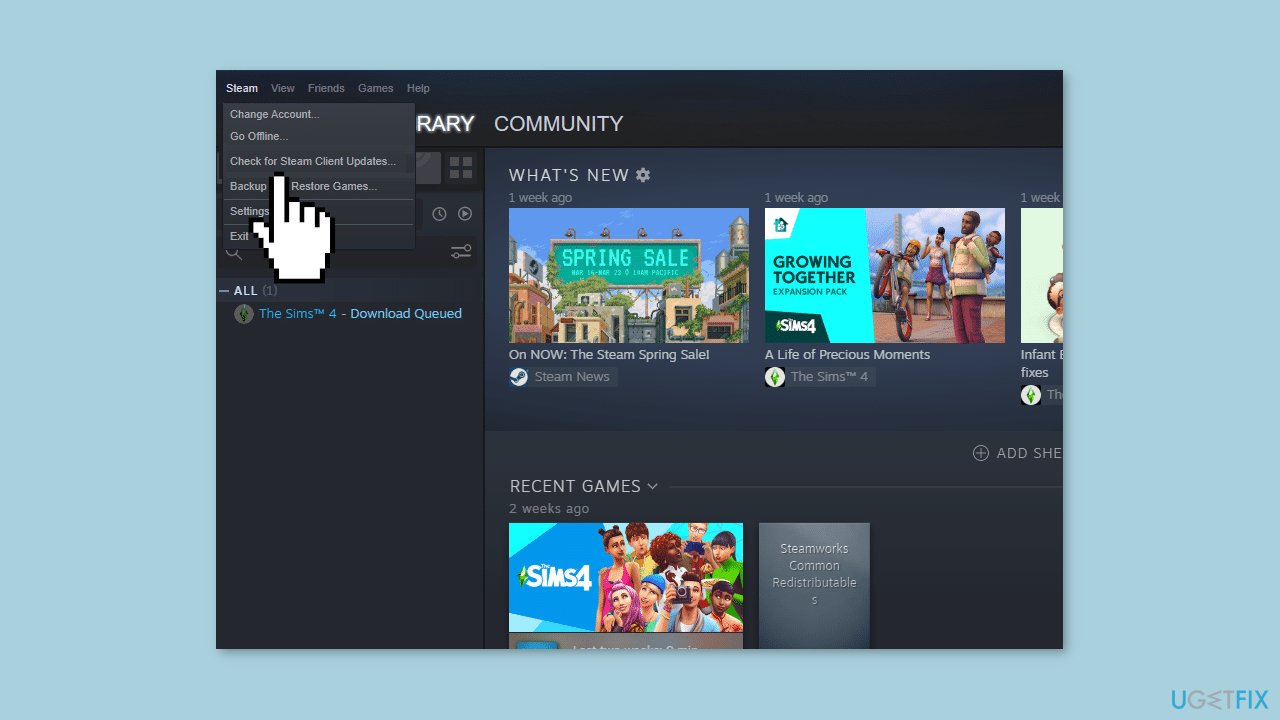
Solution 7. Reinstall Steam
- Press the Windows key and type Control Panel in the search bar, then click on Open.
- Set the view by selecting Large icons, then click on Programs and Features.
- Find Steam from the list and select Uninstall.
- Click Uninstall again to confirm the process.
- Navigate to Local Disk (C:) > Program Files (x86) and delete the Steam folder by pressing the Delete key.
- Go to Steam's official website and click Install Steam.
- Click the Install Steam button to download the app to your desktop.
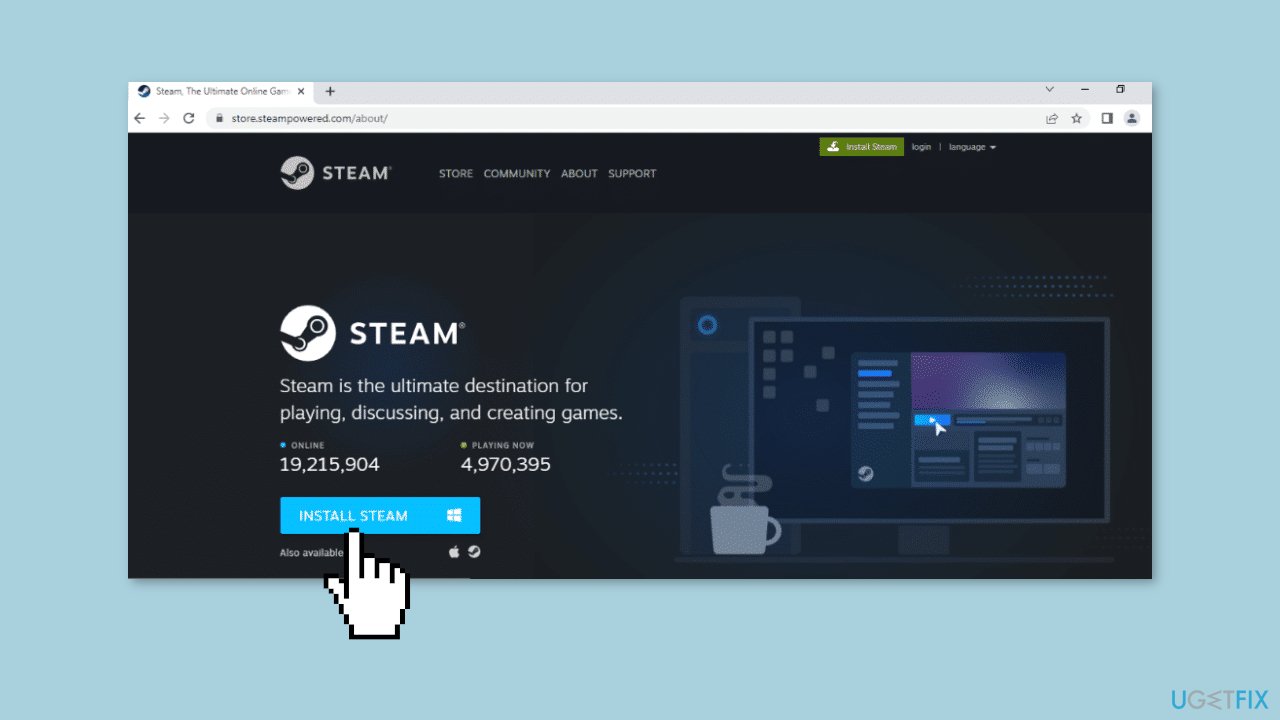
- Click on the downloaded SteamSetup.exe file to launch the installation process.
- In the Steam Setup window, click Next.
- Choose your preferred language and click Next.
- Click Browse... to select the destination folder, then click Install.
- Once the installation is complete, click Finish.
- Log in to your existing Steam account by entering your credentials.
Solution 8. Copy Steamclient64.dll from another PC
If none of the above solutions fix the Steamclient64.dll error, another method is to manually copy the file. Follow these steps:
- Find a reliable source for the Steamclient64.dll file.
- Copy the file to the appropriate directory on your computer. Depending on your Windows version, there are several directories where the file can be placed.
- Restart your computer for the changes to take effect.
- Once you've restarted, launch Steam and the error should be resolved.
Bottom line
To fix the Steamclient64.dll error, you can restart your PC, install Windows updates, manually copy the steamclient64.dll file, or uninstall and reinstall the Steam client. Additionally, running a virus scan may help. If none of these solutions work, consider using a maintenance tool or seeking further technical assistance.
Frequently asked questions
The Steamclient64.dll error usually occurs due to a corrupted or missing DLL file, often caused by an incomplete installation of Steam or conflicts with antivirus software.
To fix the error on Windows 11, try verifying the integrity of the game files through Steam, or reinstalling Steam to replace the missing DLL file.
Yes, updating Windows 10 can help resolve the Steamclient64.dll error by ensuring that all system files and dependencies are up to date.




Report an issue
What's wrong with this guide? We review every report and update or remove content.
Report received — thank you. We'll review and fix it.
You need a free account to submit a report.
Be the first to comment