How to fix
Stellaris error “Launching the game failed”
on Windows
Resolve the "Launching the game failed" error in Stellaris on Windows 10 and 11 with our expert-tested solutions. Fix it quickly and easily!

What causes How to fix Stellaris error “Launching the game failed” in Windows?
- Compatibility problems between the game and the Windows operating system
- Corrupted game files due to incomplete downloads or interruptions
- Outdated graphics drivers
- DirectX issues
- Conflicts with other software
Repairs Windows system files, removes malware, and restores a clean OS state — without reinstalling.
I can't launch Stellaris on Windows due to the "Launching the game failed" error. How do I fix this?
Stellaris, developed by Paradox Interactive, is a grand strategy game set in space, where players explore a galaxy filled with wonders and perils. It blends together empire management, diplomacy, and space warfare with a rich science fiction setting. Despite its engaging gameplay and immersive universe, some players encounter a frustrating obstacle: the "Launching the game failed" error when attempting to start the game on a Windows operating system.
This error can arise from a variety of issues. Most commonly, it is linked to compatibility problems between the game and the Windows operating system. Stellaris, like many complex games, requires specific system configurations and settings to run smoothly. If these requirements are not met, or if there are conflicts with other software, the game might fail to launch.
Another potential cause could be corrupted game files. These files can become damaged due to incomplete downloads or interruptions during game updates. Additionally, outdated graphics drivers or DirectX issues can also trigger this error, as Stellaris relies heavily on these components to render its detailed space environments and intricate gameplay mechanics.
If you're facing the "Launching the game failed" error, checking the game's compatibility with your Windows version is a good starting point. Ensuring that your system meets the minimum requirements for Stellaris can also help. Occasionally, simple steps like verifying the integrity of game files through the game platform can resolve such issues.
Keeping your graphics drivers up to date is also crucial for a seamless gaming experience. Furthermore, checking for Windows updates and ensuring that DirectX is functioning properly can also be beneficial.
In conclusion, while the "Launching the game failed" error can be a hurdle in enjoying Stellaris, understanding its possible causes can be the first step toward a solution. For a more comprehensive approach to resolving such issues, especially those stemming from underlying Windows problems, using a PC repair tool like [d1] can offer an automated and efficient fix. This tool is designed to diagnose and repair common Windows errors, potentially providing a hassle-free solution to your gaming troubles.
Fix 1. Check system compatibility
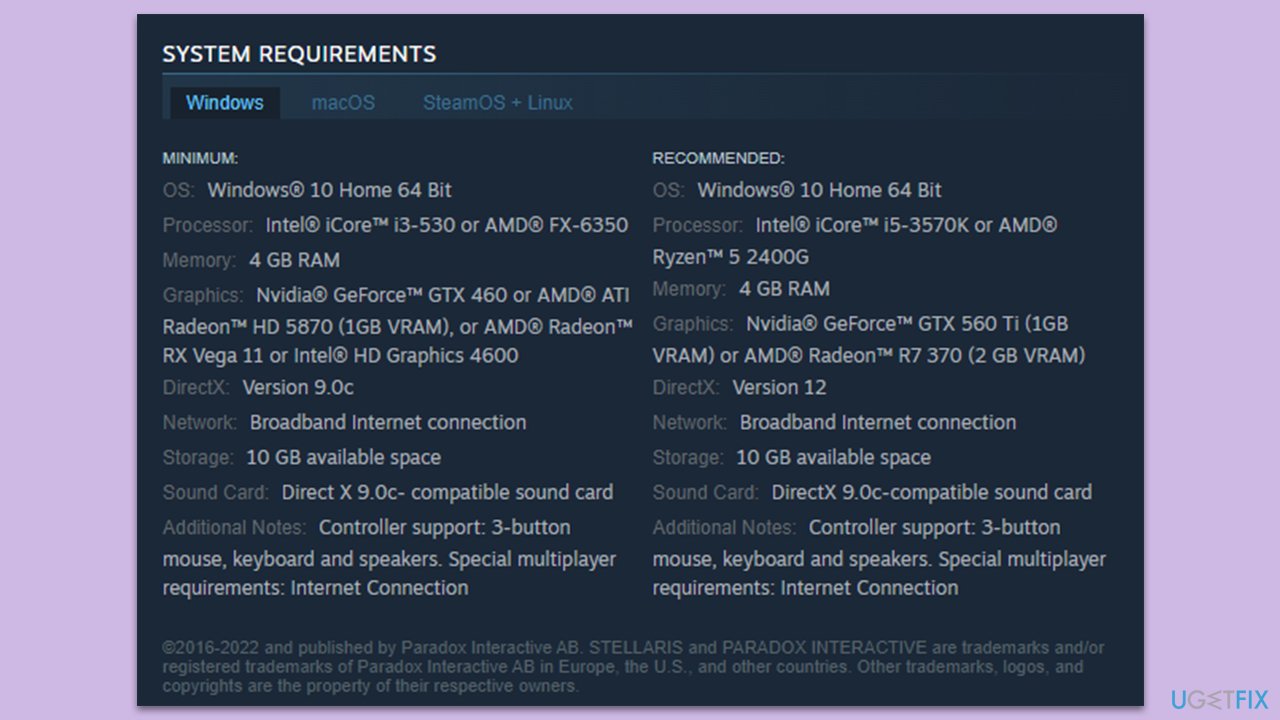
Ensuring that your PC meets the minimum requirements for Stellaris is essential for the game to run properly. Incompatibility with your system's hardware or operating system can cause the game to fail to launch.
Minimum requirements:
- Processor: Intel® iCore™ i3-530 or AMD® FX-6350
- Memory: 4 GB RAM
- Graphics: Nvidia® GeForce™ GTX 460 or AMD® ATI Radeon™ HD 5870 (1GB VRAM), or AMD® Radeon™ RX Vega 11 or Intel® HD Graphics 4600
- DirectX: Version 9.0c
- Network: Broadband Internet connection
- Storage: 10 GB available space
- OS: Windows® 10 Home 64 Bit
- Sound Card: Direct X 9.0c- compatible sound card.
Recommended requirements:
- Processor: Intel® iCore™ i5-3570K or AMD® Ryzen™ 5 2400G
- Memory: 4 GB RAM
- Graphics: Nvidia® GeForce™ GTX 560 Ti (1GB VRAM) or AMD® Radeon™ R7 370 (2 GB VRAM)
- DirectX: Version 12
- Network: Broadband Internet connection
- Storage: 10 GB available space
- OS: Windows® 10 Home 64 Bit
- Sound Card: DirectX 9.0c-compatible sound card.
Fix 2. Update graphics drivers
Outdated graphics drivers can lead to performance issues and errors in games. Keeping them updated ensures that your system communicates effectively with the game.
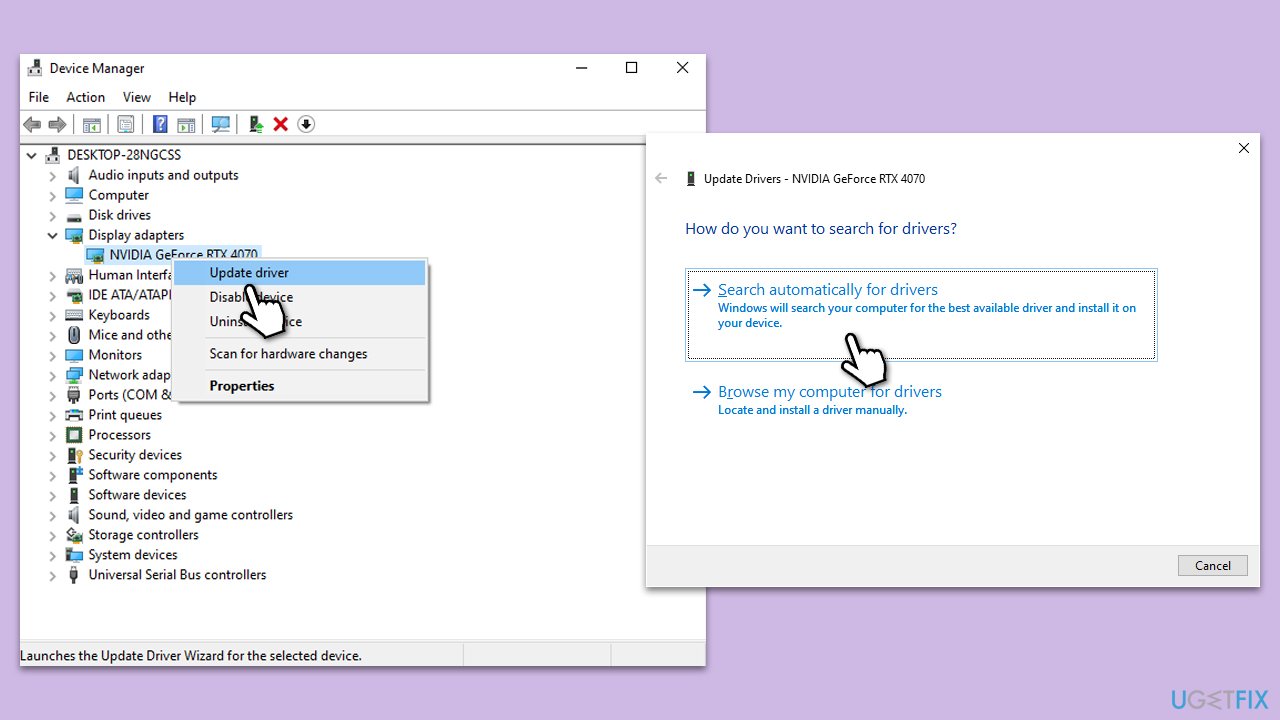
- Right-click on the Start button and select Device Manager from the menu.
- Expand the Display adapters section.
- Right-click on your graphics card and select Update driver.
- Pick Search automatically for drivers.
- If updates are found, allow them to install.
- Restart your computer after updating all necessary drivers.
Fix 3. Verify game files
Corrupted or missing game files can prevent Stellaris from launching. Verifying the integrity of game files can fix this issue by replacing corrupted files.
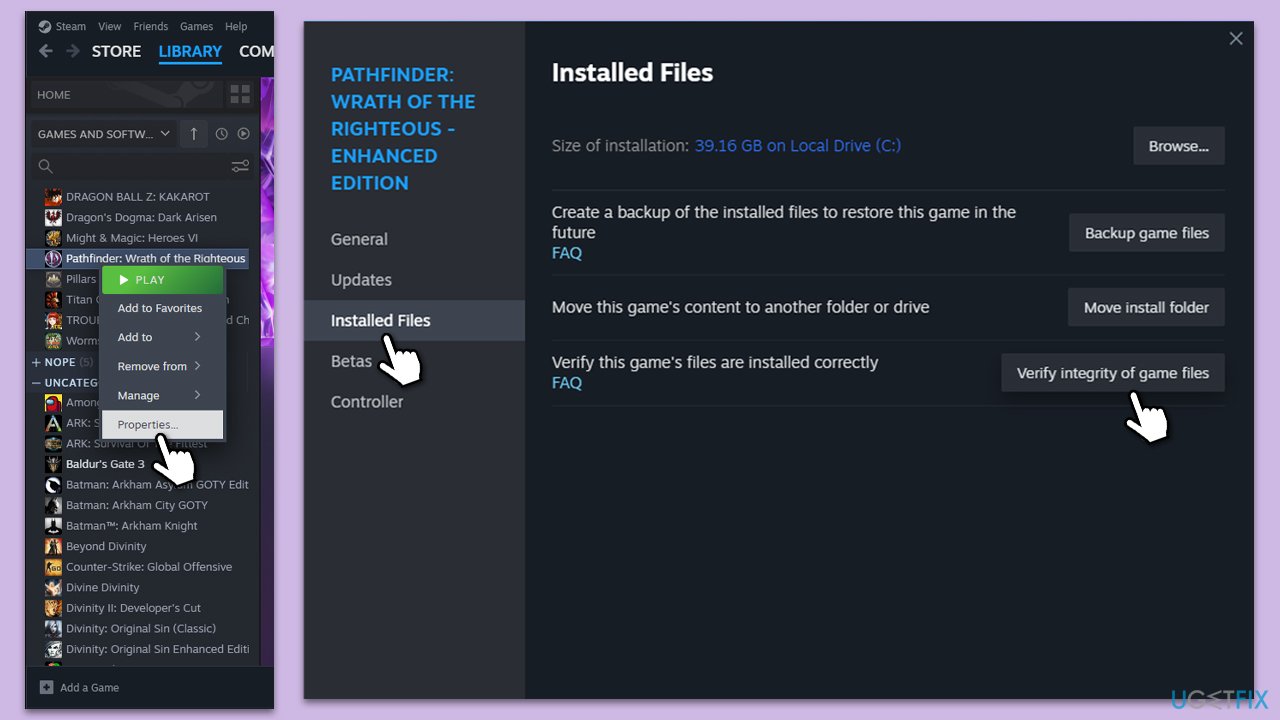
- Open Steam and go to your Library.
- Right-click on Stellaris and select Properties.
- Navigate to the Installed Files section.
- Click on Verify Integrity of Game Files.
- Wait for the process to complete. If any files are found to be missing or corrupted, Steam will automatically re-download and replace them.
- Once done, try launching the game again.
Fix 4. Run as administrator
Running the game with administrator privileges can resolve issues related to permissions, allowing the game to access necessary system resources.
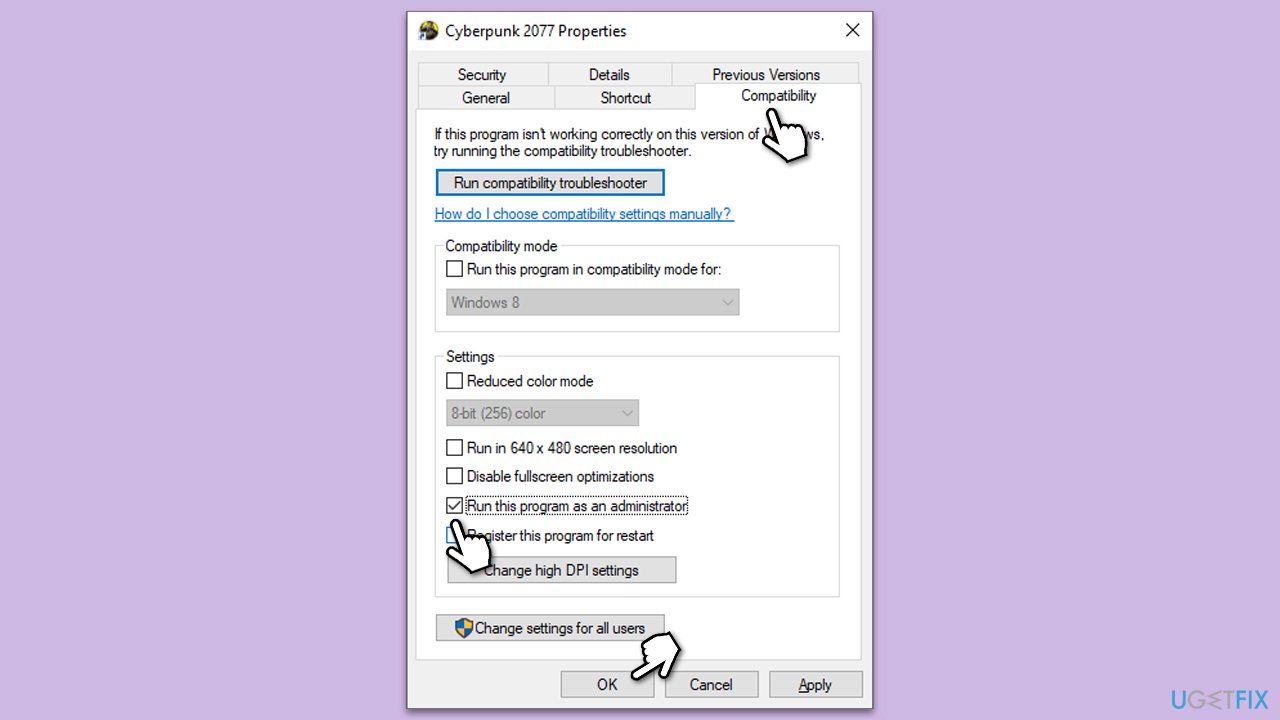
- Locate the Stellaris executable file or shortcut.
- Right-click on it and select Properties.
- Go to the Compatibility tab.
- Check the box next to Run this program as an administrator.
- Click Apply and then OK.
- launch the game as normal.
Fix 5. Disable Fullscreen optimizations
Fullscreen optimizations can sometimes interfere with how games are displayed and run. Disabling them can improve game performance and stability.
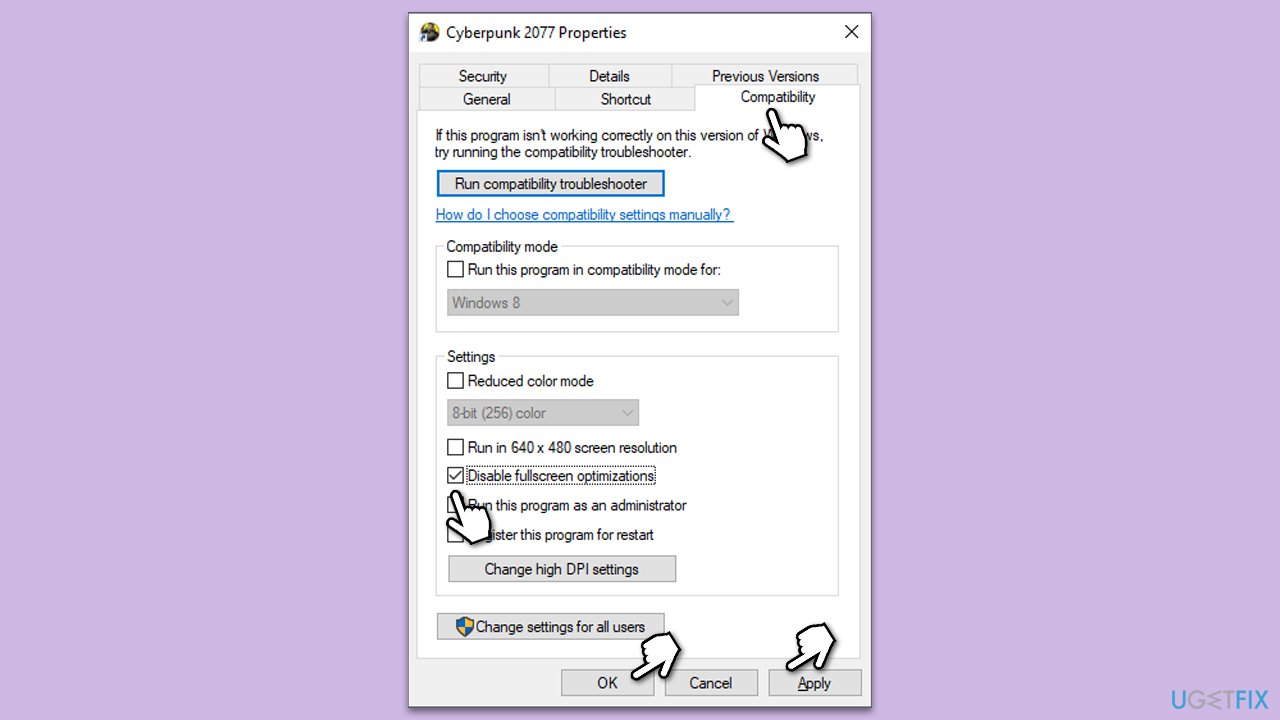
- Right-click on the Stellaris executable or shortcut.
- Select Properties.
- In the Properties window, go to the Compatibility tab.
- Check the box that says Disable full-screen optimizations.
- Click Apply and then OK.
Fix 6. Update Windows
An outdated Windows operating system can lead to compatibility issues with games. Regular updates can fix bugs and improve overall performance.
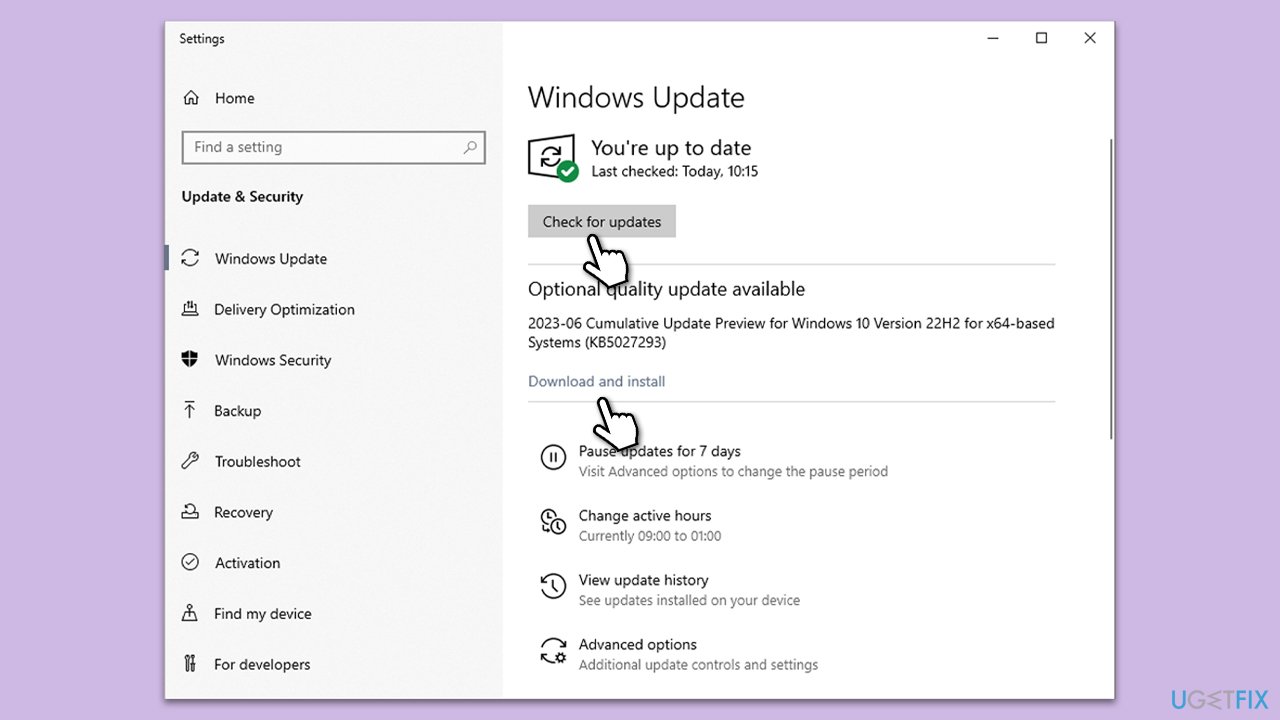
- Type Updates and press Enter.
- In the new window, click Check for updates.
- Wait till all the files are downloaded and installed.
- If optional updates are available, install them as well.
- Restart your device when done.
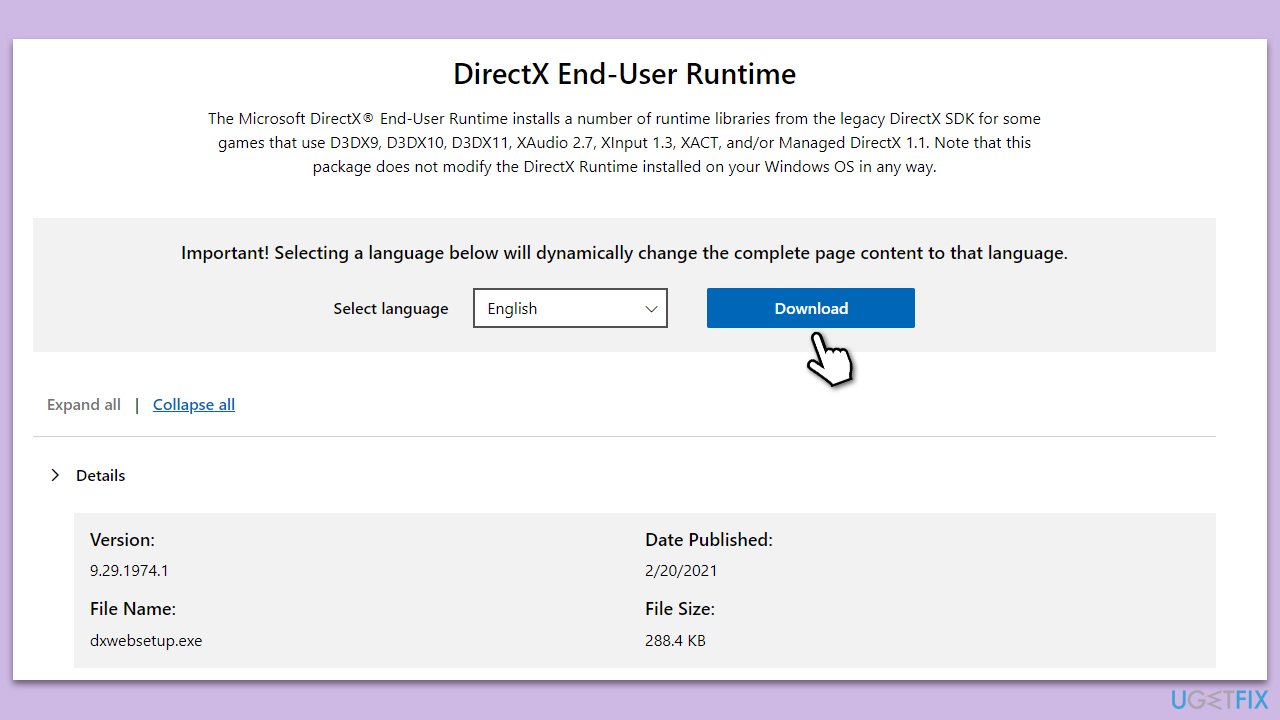
Fix 7. Install the latest DirectX version
DirectX is crucial for handling the visuals of games like Stellaris. Installing the latest version can prevent and fix launching issues.
- Visit the official Microsoft DirectX End-User Runtime Web Installer download page.
- Download the setup file to your computer.
- Once the download is complete, open the setup file.
- Follow the on-screen instructions to install the latest version of DirectX.
- Complete the installation and restart your computer.
- After restarting, launch Steam and try to run the game again.
Fix 8. Perform a Clean Coot
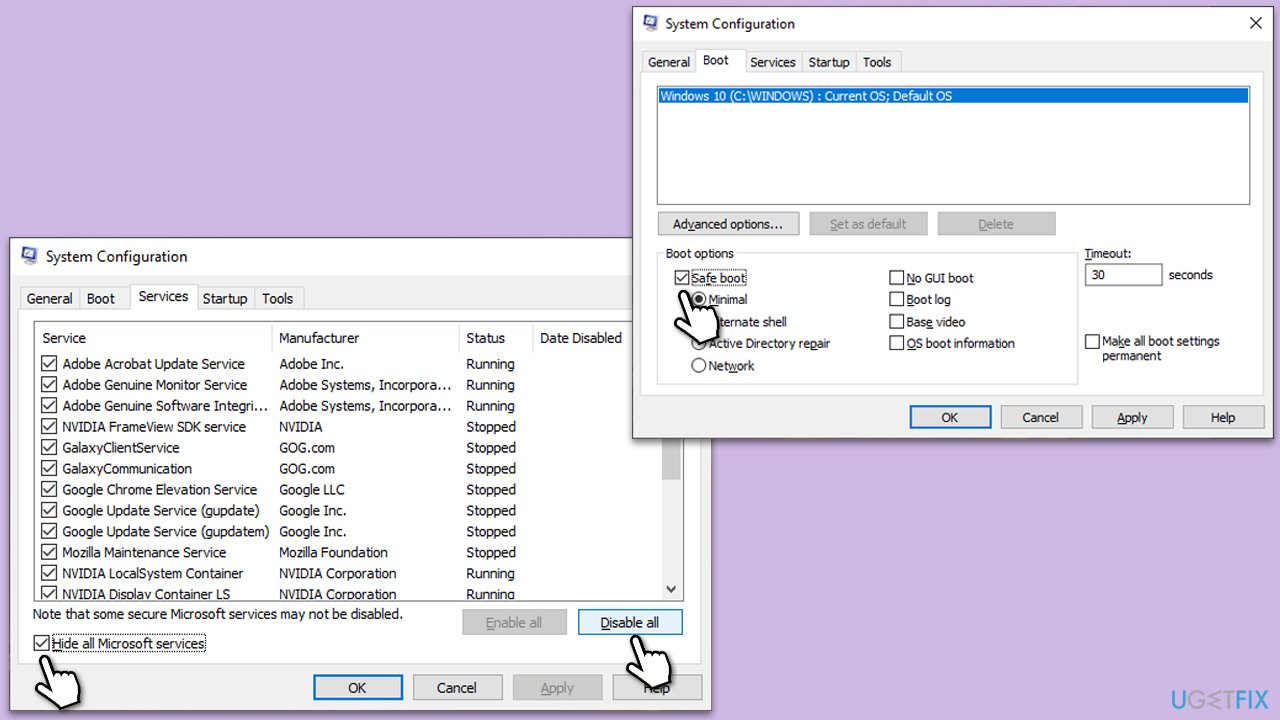
Performing a clean boot starts Windows with a minimal set of drivers and startup programs. This can help identify if background programs are causing conflicts with the game.
- Type msconfig in Windows search and press Enter.
- Go to the Services tab.
- Mark Hide all Microsoft services and select Disable all.
- Go to the Startup tab and click Open Task Manager.
- In the Task Manager, right-click on each of the items and select Disable, then close the Task Manager.
- Go to the Boot tab, tick Safe Boot, then click Apply and OK.
- If the problem is gone, re-enable services and startup items one by one to identify the problematic software.
- You can then update or uninstall software causing the game fail to start.
Bottom line
To fix the 'Launching the game failed' error, check the game's compatibility with your Windows version, ensure your system meets the minimum requirements, and verify the integrity of game files. Keeping your graphics drivers up to date and checking for Windows updates can also help. If none of these solutions work, consider using a PC repair tool for a more comprehensive fix.
Frequently asked questions
First, ensure that your graphics drivers are up to date and verify the game files through the game launcher. Additionally, try running the game as an administrator to see if it resolves the launching issue.
Temporarily disable your antivirus or add Stellaris to its exceptions list to prevent it from blocking the game. After making the changes, attempt to launch the game again on Windows 10 or Windows 11.
Right-click the Stellaris shortcut, select 'Properties', then navigate to the 'Compatibility' tab and check 'Run this program in compatibility mode' for an earlier version of Windows. This can sometimes help with launching issues on Windows 10 and Windows 11.




Report an issue
What's wrong with this guide? We review every report and update or remove content.
Report received — thank you. We'll review and fix it.
You need a free account to submit a report.
Be the first to comment