How to fix
Stereo Mix not working
on Windows
Resolve Stereo Mix issues in Windows 10 or 11 effortlessly. Quick solutions and expert-tested tips ensure flawless audio in minutes.

What causes How to fix Stereo Mix not working in Windows?
- Windows updates disrupting settings
- Incompatibility with audio drivers
- Outdated or improperly configured drivers
- Incorrect sound settings
- Conflicts with other audio software
- Hardware limitations or lack of support from the sound card
Repairs Windows system files, removes malware, and restores a clean OS state — without reinstalling.
I've been attempting to enable Stereo Mix on my Windows PC, and although it shows up in the panel, it's not capturing any sound. How do I fix the Stereo Mix not working?
Stereo Mix is an integral feature in Windows operating systems, primarily serving as a virtual audio device that allows users to record the sound coming from their computer. This functionality is particularly useful for a range of applications, from capturing audio during screen recordings to recording the output of audio applications. By enabling Stereo Mix, users can directly capture the audio stream being played, without the need for external recording devices.
However, a common issue that some users encounter is the non-functionality of Stereo Mix. Despite being visible and seemingly active in the Sound control panel, Stereo Mix fails to pick up or record any sound. This problem can be perplexing, as the feature appears to be enabled but does not perform its intended function.
One of the primary causes of Stereo Mix not working in Windows is often attributed to Windows updates. These updates, while crucial for system security and functionality, can occasionally disrupt existing settings or compatibility with audio drivers, leading to the malfunctioning of Stereo Mix.
Apart from Windows updates, several other factors could contribute to this problem. Incompatibility with audio drivers is a significant concern. If the drivers are outdated or not properly configured, Stereo Mix might not function correctly. Another potential cause could be incorrect sound settings or conflicts with other audio software, which can prevent Stereo Mix from accessing the audio stream. Hardware limitations or issues, such as a lack of support from the sound card, could also be at play.
If you are experiencing this issue, checking for driver updates or adjusting your audio settings might provide a resolution. Ensuring that your audio drivers are up-to-date and correctly configured can often resolve such issues. Additionally, exploring the sound settings to ensure that there are no conflicts with other audio software or settings may be beneficial.
In cases where the cause of the problem is not immediately apparent or if the issue persists, using a PC repair tool [d1] might be a viable solution. Such tools are designed to diagnose and fix underlying Windows issues automatically, potentially resolving the Stereo Mix problem without requiring extensive troubleshooting.
Fix 1. Update audio drivers
Updating audio drivers can resolve compatibility issues and ensure that your system’s audio components are working correctly. Outdated or corrupt drivers often cause problems with Stereo Mix.
- Right-click on Start and pick Device Manager.
- Expand the Sound, video and game controllers section.
- Right-click on your audio device and select Update driver.
- Choose Search automatically drivers.
- Follow the on-screen instructions to install any available updates.
- Restart your computer after the update.

Note that Windows might fail to find the most recent driver updates. If that's the case, you should either download the drivers from the manufacturer's website. Alternatively, you can always rely on automatic tools like [rev id="DriverFix"].
Fix 2. Enable Stereo Mix
Sometimes Stereo Mix is disabled by default. Enabling it manually can resolve the issue.
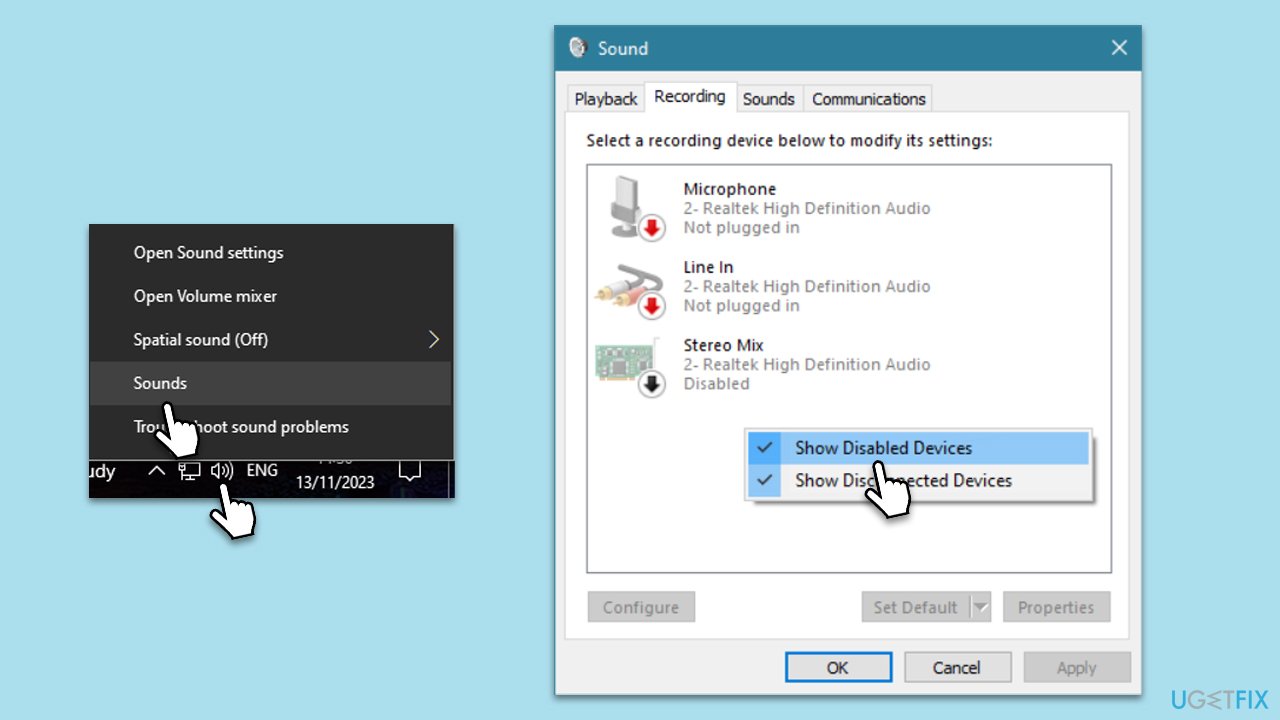
- Right-click the speaker icon on the taskbar and select Sounds.
- Go to the Recording tab.
- Right-click on an empty area and check Show Disabled Devices.
- If Stereo Mix appears, right-click on it and select Enable.
- Click OK to save the changes.
Fix 3. Set Stereo Mix as the default device
Setting Stereo Mix as the default recording device can help in picking up the audio.
- Right-click the speaker icon on the taskbar and select Sounds.
- Go to the Recording tab.
- Right-click on Stereo Mix and select Set as Default Device.
- Click OK to apply the changes.
Fix 4. Adjust audio format settings
Incompatible audio format settings can hinder Stereo Mix's functionality.
- Right-click the speaker icon on the taskbar and select Sounds.
- Go to the Recording tab and double-click on Stereo Mix.
- In the Stereo Mix Properties, go to the Advanced tab.
- Under Default Format, select a different sample rate and bit depth, then click Test.
- If you hear the test tone, click Apply, then OK.

Fix 5. Disable audio enhancements
Audio enhancements can interfere with Stereo Mix. Disabling them can help.
- Right-click the speaker icon on the taskbar and select Sounds.
- Go to the Playback tab and double-click on your default playback device.
- In the Properties window, go to the Enhancements tab.
- Check the box for Disable all enhancements or Disable all sound effects.
- Click Apply, then OK.

Fix 6. Reinstall audio drivers
Reinstalling your audio drivers can fix any corruption issues and reset configurations.
- Right-click on Start and pick Device Manager.
- Expand the Sound, video, and game controllers section.
- Right-click on your audio driver and select Uninstall device.
- Mark the Delete the driver software for this device option.
- Click Uninstall and follow the on-screen instructions.
- Restart your PC.

Fix 7. Check for Windows updates
Sometimes a Windows update can provide the necessary fix for Stereo Mix issues.
- Type Updates in Windows search and press Enter.
- Here, click Check for updates.
- Wait till Windows downloads and installs all the files.
- If optional updates are available, install them as well.
- Reboot your PC.

Fix 8. Restore default sound settings
Restoring the default sound settings can resolve conflicts and restore functionality.
- Right-click the speaker icon on the taskbar and select Sounds.
- Go to the Playback tab and click on your default playback device, then click Properties.
- In the Properties window, go to the Advanced tab and click Restore Defaults.
- Do the same for the Recording tab.
- Click OK to apply changes.
Fix 9. Revert the recent Windows update
Reverting a recent Windows update can resolve issues caused by the update, particularly if Stereo Mix stopped working after the update was installed.
- Type Control Panel in Windows search and press Enter.
- Select Programs > Uninstall a program.
- Click on View installed updates on the left side of the window.
- Sort all the updates by date.
- Right-click on the most recent update and select Uninstall.
- Proceed with on-screen instructions.

Bottom line
To fix Stereo Mix not working, check for driver updates and ensure your audio drivers are correctly configured. Additionally, explore sound settings to identify any conflicts with other audio software. If these solutions do not resolve the issue, further troubleshooting may be necessary.
Frequently asked questions
Stereo Mix may not appear if your audio drivers are outdated or if the feature is disabled in your sound settings. Ensure that you have the latest audio drivers and check the 'Recording' tab in your sound settings to enable it.
To enable Stereo Mix, right-click on the sound icon in the taskbar, select 'Sounds', go to the 'Recording' tab, and right-click to show disabled devices. Then, right-click on Stereo Mix and select 'Enable'.
If Stereo Mix is enabled but not functioning, try updating your audio drivers or adjusting the default recording device settings in the sound control panel. Additionally, ensure that no other applications are using the audio input that could conflict with Stereo Mix.




Report an issue
What's wrong with this guide? We review every report and update or remove content.
Report received — thank you. We'll review and fix it.
You need a free account to submit a report.
Be the first to comment