How to fix
Stuck Disk Cleanup Process
on Windows
Resolve the stuck Disk Cleanup process on Windows 10 or 11 quickly and effectively. Follow our expert-tested solutions for a smooth experience!

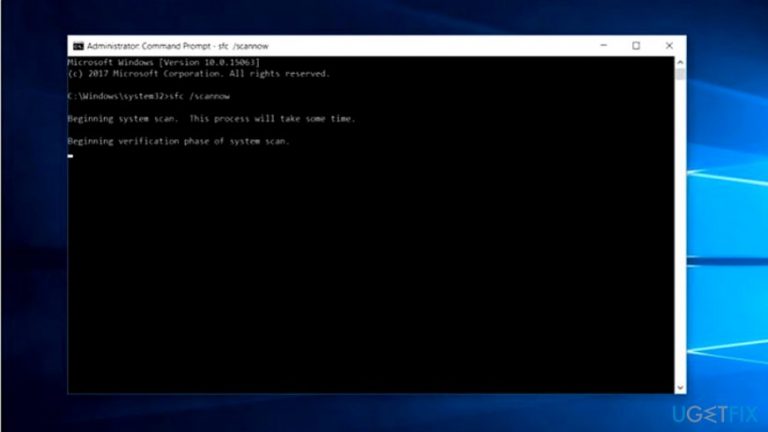
What causes How to Fix Stuck Disk Cleanup Process on Windows?
- Corrupted temporary files
- Misplaced temporary files
- Errors in the system
- Malware not causing the issue
Repairs Windows system files, removes malware, and restores a clean OS state — without reinstalling.
Can you suggest me a solution how to finish disk cleanup on Windows? It gets stuck midway or at the end and fails to complete eventually.
Stuck Disk Cleanup Process problem on Windows might appear due to temporary files. They might be corrupted or misplaced. You should not exclude the possibility that there are errors in the system which prevent disk cleanup function from executing properly.
Luckily, this error is quite common, so there are solutions. Below you will find guidelines how to solve the problem on Windows 7, 8 and Windows 10 version.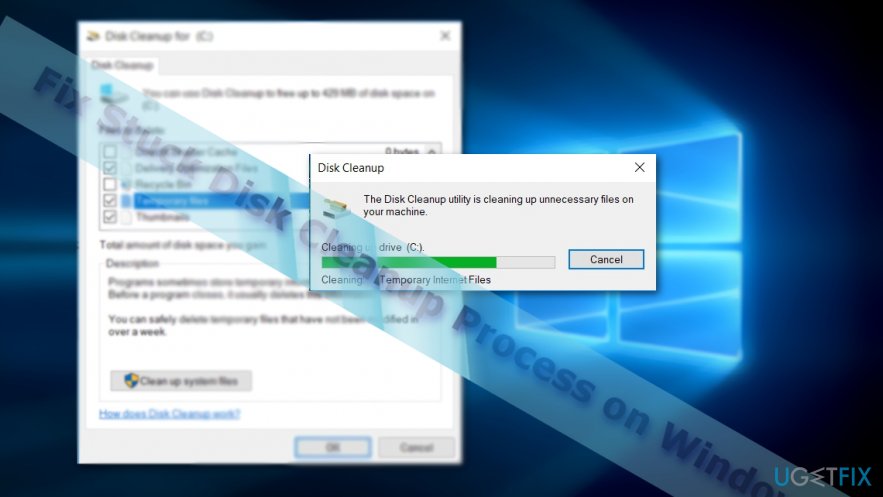
Option 1. Run Windows Troubleshooter
First, let us begin with Windows 7 OS.
- Click on the Start button.
- Go to Control Panel.
- Enter Troubleshooting.
- Choose Fix problems with Windows updates under System and Security section.
- Follow the instructions.
Now let us proceed to Windows 8 version.
- Go to Troubleshooting section (you may also enter Safe mode if the issue persists in Normal mode).
- Once the window appears, click on View all. Once the list of locations appears, select Windows update.
- Choose Advanced in a new window. Run as administrator option will appear. Make sure the box Apply repairs automatically. Proceed by clicking on Next.
- Wait for the process to complete. If that does not solve the issue, repeat the same procedure except leave Apply repairs automatically box unmarked.
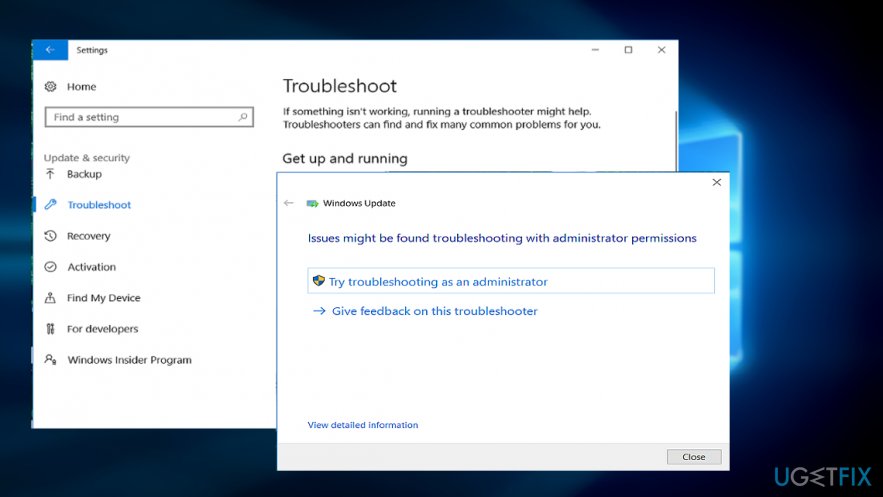
On Windows 10 system, the very process is similar, but you will not see several options.
- Click on the Start button and type Troubleshoot.
- Select Troubleshoot.
- Choose Windows Update.
- Click on Run the troubleshooter.
- Opt for Try troubleshooting as an administrator.
- Wait for the process to end.
- Reboot the system.
Option 2. Run System File Checker
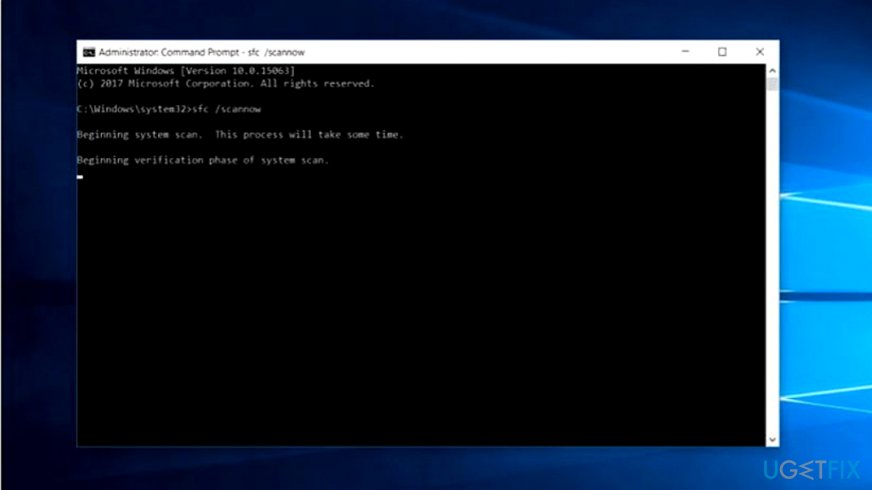
This Windows-integrated tool comes in handy when the problem is internal. In other words, if malware has not caused it. You may need to run the software as administrator.
- Click on the Start button, type cmd.
- Right-click on Comand Prompt and choose Run as administrator option.
- Once the program launches, type sfc /scannow. Click Enter and wait for the tool to solve problems.
Lastly, though stuck disk cleanup process is entirely internal, i.e., Windows-based, these methods should help. Nonetheless, if you notice additional error messages or your computer has become unbearably slow, scan the device with malware elimination tool.
Bottom line
To fix the stuck disk cleanup process, you can run the Windows Troubleshooter for your specific version of Windows or use the System File Checker tool. If these solutions do not resolve the issue, further investigation may be needed.
Frequently asked questions
Try ending the Disk Cleanup process via Task Manager and then restart your computer. After rebooting, run Disk Cleanup again to see if it completes successfully.
You can try running the Disk Cleanup tool in Safe Mode, which often allows it to complete without interference from other applications.
To minimize the chances of Disk Cleanup freezing, ensure your system is updated and avoid running heavy applications while the cleanup is in progress.




Report an issue
What's wrong with this guide? We review every report and update or remove content.
Report received — thank you. We'll review and fix it.
You need a free account to submit a report.
Be the first to comment