How to fix
Sudo apt-get command not found
on Windows
Discover quick fixes for common command errors on Windows 10 and Windows 11. Troubleshoot with confidence, expert-tested solutions await you!


What causes How to fix sudo apt-get command not found on Mac?
- Command not installed on the machine
- APT commands not available for macOS
- Differences in command usage between operating systems
- Advanced Package Tool not functioning properly on macOS
- Library or application not accessible
Repairs Windows system files, removes malware, and restores a clean OS state — without reinstalling.
Hello. I have an issue with sudo apt-get command not found on my Mac device. Cannot run the command properly. I try to use the command line function, but the apt-get command not found appears using the Terminal as normal. I have no idea why this happens. Can I resolve this issue somehow?
There are various reasons why some functions do not work on devices. Command-line on Windows machines or Terminal on macOS is the function that gets used due to its convenience. The issue with sudo apt-get command not found on Mac gets reported by users[ref en-1] pretty often and it seems to bother people out of nowhere.
In most cases, the issue with apt-get command not found on Mac is related to downloading command.[ref en-2] Advanced Package Tool - apt allows users to install the application using this packaging system, but this APT sometimes is not properly working on macOS devices.
When the error with "command not found" appears on your Terminal, it means that the particular command you try to run is used for the library or the application that is not accessible. It might be the case that the needed program is not installed on the machine, so you receive the sudo apt-get command not found error on Mac.
Sometimes people do not realize that not 100 percent of commands on Windows, Linux, macOS are the same. Not all operating systems use the same managers and utilities, so not all ATP commands are available for macOS. To fix sudo apt-get command not found on Mac, you should know possible alternatives.
APT commands get used for downloading, updating, and upgrading applications by using the Terminal or command line function. The option is not working the same on macOS as it does on Linux distributors. This is why there are alternatives that work the same as the APT and can work on various devices with some better features even.

How to fix sudo apt-get command not found on Mac
If you have an issue with sudo apt-get command not found on Mac, and no other problems, you shouldn't even consider malware[ref en-3] as the reason behind it. macOS is different from the Windows operating system in many ways, so you can encounter various problems when you go for an Apple device after many years of Windows usage. If you have additional issues with the system, you might benefit from proper file organizing with [rev id="Mac Washing Machine X9"] tool. The following steps should help you solve the issues and fix sudo apt-get command not found on Mac.
Use Homebrew instead of sudo apt-get command
- Open Finder and go to Utilities.
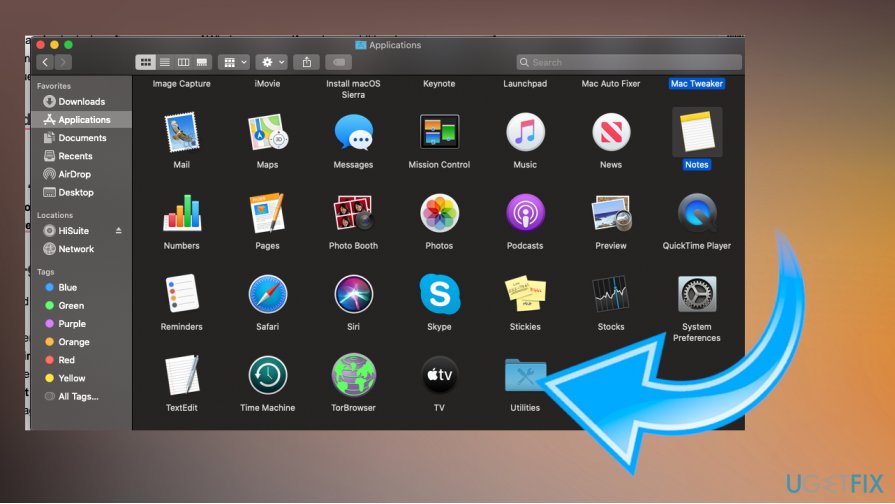
How to fix sudo apt get command not found on mac utilities - Start Terminal.
- Run xcode-select –install and ruby -e “$(curl -fsSL https://raw.githubusercontent.com/Homebrew/install/master/install)”
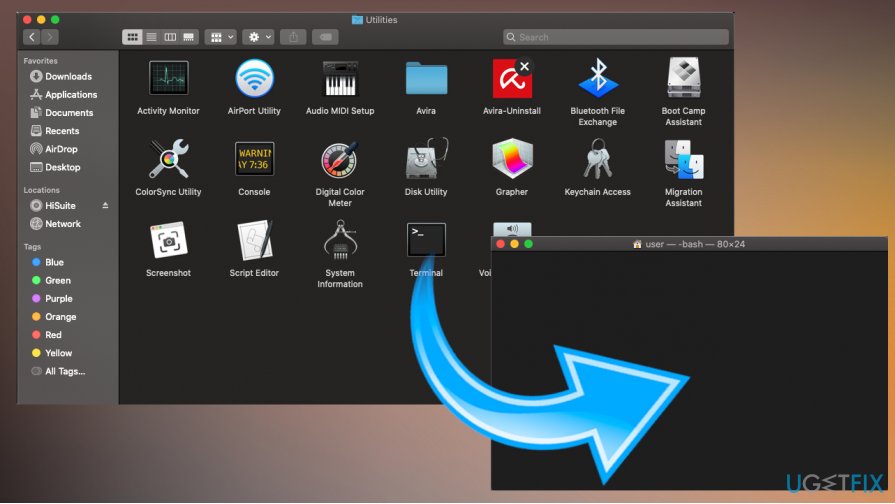
How to fix sudo apt get command not found on mac terminal - Once the installation is finished, use brew install package_name command and install the wanted software.
Use MacPorts to fix sudo apt-get command not found
- Open App Store from the Dock and find Xcode.
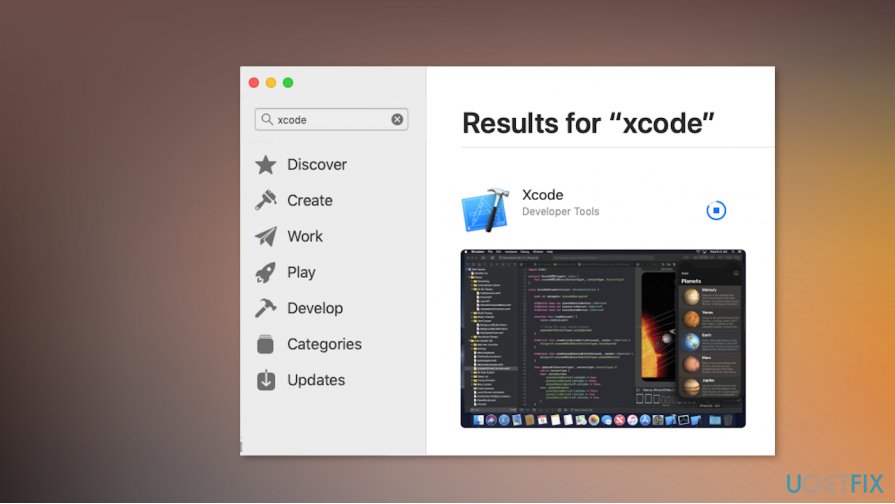
How to fix sudo apt get command not found on mac install - Install the app.
- Start the application and agree to the Terms.
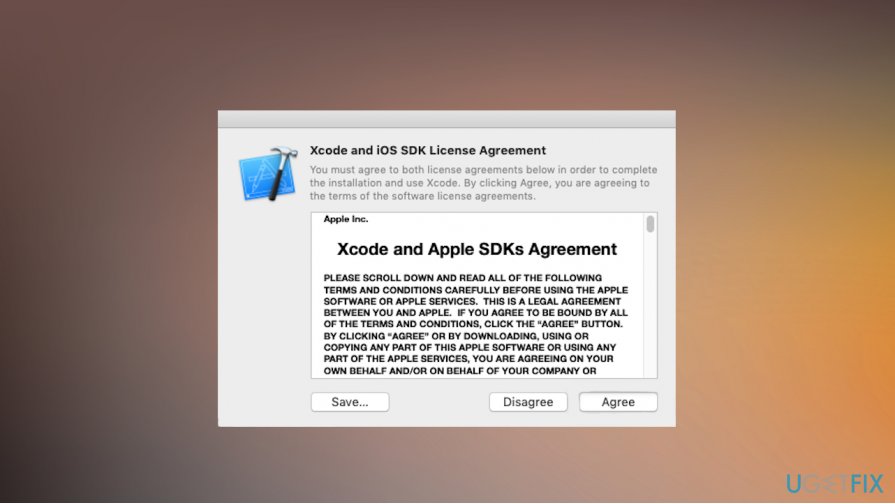
How to fix sudo apt get command not found on mac terms conditions - Start Terminal and run xcode-select –install
- Go to MacPorts site and find your OS version.
- Restart the Terminal and run sudo port selfupdate.
- Then you should be able to install packages with sudo port install package_name.
Bottom line
To fix the sudo apt-get command not found error on Mac, consider using alternative package managers like Homebrew or MacPorts. Ensure that the necessary applications are installed and accessible. If none of these solutions work, further investigation into the specific command or system configuration may be required.
Frequently asked questions
No, sudo apt-get commands are specific to Linux-based systems. On Windows 10 and Windows 11, you should use package managers like Chocolatey or Windows Subsystem for Linux (WSL) for similar functionality.
Ensure that the package manager is properly installed and added to your system's PATH. You can also try running the command prompt as an administrator to avoid permission issues.
Yes, you can install the Windows Subsystem for Linux (WSL) to run Linux distributions and use commands like apt-get. This allows you to access Linux tools directly from your Windows environment.




Report an issue
What's wrong with this guide? We review every report and update or remove content.
Report received — thank you. We'll review and fix it.
You need a free account to submit a report.
Be the first to comment