How to fix
“Suspicious Ransomware Activity detected” pop-up
on Windows
Resolve the "Suspicious Ransomware Activity detected" pop-up on Windows 10 or 11 easily with our expert-tested solutions. Fixed in minutes!

What causes How to Fix “Suspicious Ransomware Activity detected” pop-up?
- Malware infection
- Adware infection
- Disabled Firewall
- Risk of personal information leak
- Tech-support scam
Repairs Windows system files, removes malware, and restores a clean OS state — without reinstalling.
Today Chrome generated an intimidating pop-up alert, which reported an Error 0x8007042C and “Suspicious Ransomware Activity.” None of the personal files have been encrypted yet and web browser, after a forced restart, works fine. Should I worry?
If you get an error "Suspicious Ransomware Activity detected" on Google Chrome, Mozilla Firefox, Microsoft Egde or another web browser, you should immediately check the system for malware. Although it warns people about a ransomware attack, disabled Firewall, a risk of personal information leak, and other serious issues, the real reason of this message is malware, namely adware infection.
"Suspicious Ransomware Activity detected" scam
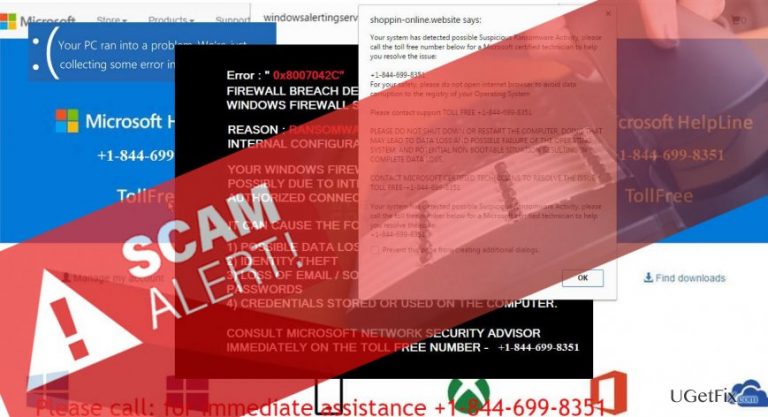
"Suspicious Ransomware Activity detected" with an Error Code0x8007042C is a tech-support-scam, which has been developed by cyber crooks who seek to swindle people’s money by prompting them to call for scammer. The message has been developed in a catchy way arousing the feelings of urgency and dangerousness.
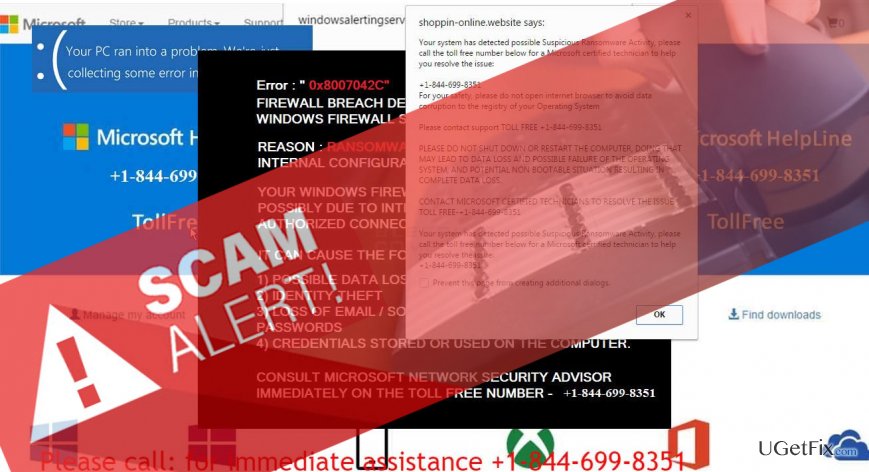
Your system has detected possible Suspicious Ransomware Activity, please call the toll free number below for a Microsoft certified technician to help you resolve the issue:
+1-844-699-8351
For your safety, please do not open internet browser to avoid data corruption to the registry of your Operating System
Please contact support TOLL FREE +1-844-699-8351
PLEASE DO NOT SHUT DOWN OR RESTART THE COMPUTER, DOING THAT MAY LEAD TO DATA LOSS AND POSSIBLE FAILURE OF THE OPERATING SYSTEM, AND POTENTIAL NON BOOTABLE SITUATION RESULTING IN COMPLETE DATA LOSS.
CONTACT MICROSOFT CERTIFIED TECHNICIANS TO RESOLVE THE ISSUE
TOLL FREE-+1-844-699-8351
This alert occurs unexpectedly and freezes a web browser completely. It is generated by Shoppin-online.website and warns people about a risk of losing data, identity theft, loss of email and social network passwords, and so on. To fix "Suspicious Ransomware Activity" scam people are prompted to call for the supposedly toll free telephone number +1-844-699-8351 owned by certified Microsoft technicians. Please beware that such information is FAKE.
What is the purpose of Suspicious Ransomware Activity tech-support-scam?
By spreading "Suspicious Ransomware Activity detected" scam cyber crooks seek to deceive people and trick them into dialing the number, which is owned by scammers. These dishonest people may either try to prolong the conversation to increase the bill for mobile service or swindle personal information to access victim’s computer remotely.
Distributing "Suspicious Ransomware Activity detected" adware
"Suspicious Ransomware Activity detected" is caused by an adware infection. You should beware that this type of malware typically spreads via freeware bundles or fake pop-ups messages. To prevent it from installing, people have to be extra cautious when installing freewares from third-party download sources. Moreover, updating and activating a powerful anti-malware, such as [d1] would decrease the chances of getting the "Suspicious Ransomware Activity"scam infection to minimal.
Fixing Suspicious Ransomware Activity
First of all, you'll have to close your web browser, but you won't be allowed to do that in a normal way. "Suspicious Ransomware Activity" tech-support-scam freezes a web browser, so you'll have to press Ctrl + Shift + Del, locate web browser's process in Task Manager, and disable it. The boot your PC into Safe Mode:
- Press Windows key and move your cursor over the Power button.
- Press and hold the Shift key and select Restart.
- When PC restarts, choose Troubleshoot → Advanced Options → Startup Settings.
- Click Restart.
- You will then see a new table with the list of boot settings. Press F5 to enable Safe Mode with Networking mode.
Once Safe Mode is enabled, navigate to the Control Panel → Programs & Features. Locate all suspicious entries, right-click on each of them, and select Uninstall. The date of the malware installation should coincide with the date of the first "Suspicious Ransomware Activity" scam occurence. To speed up the removal and ensure the success, we would recommend removing malware automatically with the help of [d1]. After that, you'll have to reset all web browsers to default settings.
Bottom line
To fix the 'Suspicious Ransomware Activity detected' pop-up, immediately check your system for malware and avoid calling the provided toll-free number. If the issue persists after scanning for malware and ensuring your Firewall is enabled, consider seeking professional help.
Frequently asked questions
First, run a full system scan using Windows Defender or another trusted antivirus program to identify and remove any potential threats. If the pop-up persists, consider using a dedicated anti-ransomware tool for further protection.
Disabling this warning is not recommended, as it serves to protect your system from potential threats. Instead, focus on resolving the underlying issue by scanning your system for malware and ensuring your security settings are properly configured.
To prevent future pop-ups, keep your Windows 10 or Windows 11 operating system and all software updated, and utilize a reputable antivirus program. Additionally, be cautious when downloading files or clicking on links from unknown sources.




Report an issue
What's wrong with this guide? We review every report and update or remove content.
Report received — thank you. We'll review and fix it.
You need a free account to submit a report.
Be the first to comment