How to fix
Svchost.exe high CPU usage
on Windows
Resolve Svchost.exe high CPU usage in Windows 10 and 11 with effective tips and expert-tested solutions to boost your PC's performance now!

What causes How to fix Svchost.exe high CPU usage in Windows?
- High CPU usage can significantly slow down system performance
- Increased power consumption can decrease battery life on portable devices
- Excessive heat generation may lead to thermal throttling
- Unresponsiveness and sluggishness during computer use
- Corrupted system files may contribute to high CPU usage
Repairs Windows system files, removes malware, and restores a clean OS state — without reinstalling.
Hello. My Windows PC has gotten really slow and I noticed that a process named Svchost.exe is using high amounts of CPU. How do I fix this problem?
Svchost.exe (Service Host) is a critical Windows system process that serves as a container for multiple services required by various software programs. It enables these services to operate in the background and carry out necessary tasks. However, in some cases, svchost.exe may consume a significant amount of CPU[ref en-1] resources, resulting in high CPU usage.
High CPU usage by svchost.exe can have a number of consequences for users. For starters, it can significantly slow down the system's overall performance, causing lag and delays in task execution. When using their computers, users may experience unresponsiveness and sluggishness.
Second, increased CPU usage can result in increased power consumption, resulting in decreased battery life on laptops and other portable devices. Furthermore, excessive CPU usage may generate excessive heat, potentially overheating the system and triggering thermal throttling or even system instability.
Identifying the specific service or services causing the issue and taking appropriate action are two possible solutions to svchost.exe high CPU usage. The Windows Task Manager or Resource Monitor can be used to monitor CPU usage and identify the svchost.exe process that is consuming the most resources.
Once identified, additional troubleshooting steps can be taken, such as disabling or restarting the associated service, updating related software or drivers, or running malware or virus scans on the system. Installing Windows updates or patches may also be beneficial, as these can sometimes address known issues related to high CPU usage.
In this guide, you will find 7 steps that should help you fix Svchost.exe high CPU usage in Windows. You can also try running a maintenance tool like [d1] that can fix most system errors, BSODs,[ref en-2] corrupted files, and registry[ref en-3] issues. Otherwise, follow the step-by-step instructions below.
Method 1. Fix Corrupted System Files
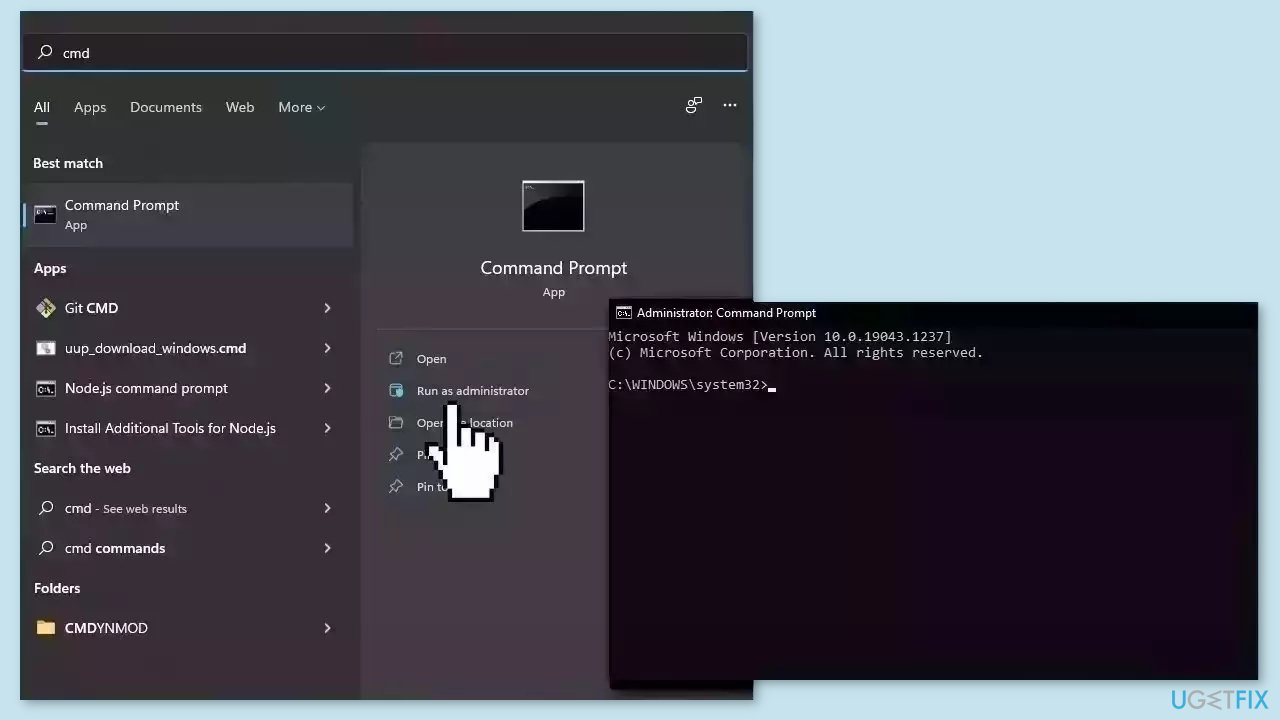
Use Command Prompt commands to repair system file corruption:
- Open Command Prompt as administrator
- Use the following command and press Enter:
sfc /scannow
- Reboot your system
- If SFC returned an error, then use the following command lines, pressing Enter after each:
DISM /Online /Cleanup-Image /CheckHealth
DISM /Online /Cleanup-Image /ScanHealth
DISM /Online /Cleanup-Image /RestoreHealth
Method 2. Disable Svchost.exe Services
- Right-click the Start menu and select Task Manager.
- Navigate to the Details tab.
- Right-click the svchost.exe process and select Go to Services.
- In the next popup window, right-click on any of the processes and click Stop.
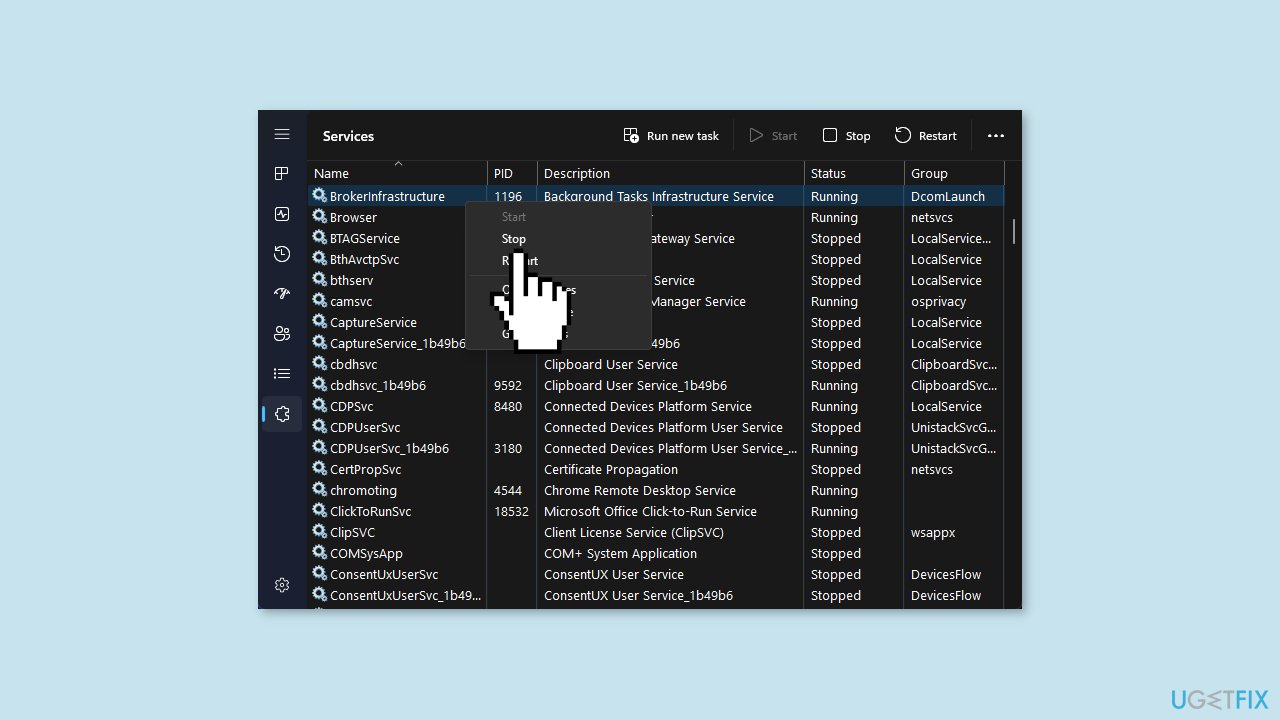
- Repeat the previous step until you locate the faulty process triggering the error.
- Once you locate the problematic process, right-click and select the Open Services button.
- In the Services window, right-click on the process name triggering the error and click Properties.
- Change the Startup Type to Disable and click OK.
- Restart your PC to check if the error is fixed.
Method 3. Run a Malware Scan
It is possible that a malware infection may be the cause of the Svchost.exe high CPU usage in Windows. It is important to run a comprehensive security scan to rule out this possibility and ensure that the computer is not infected. This can help to prevent further issues with the Windows operating system and ensure that it is functioning properly.
If you have access to a security scanner, or if your organization pays for one, you can use it to scan your entire system to check for a virus infection. Otherwise, you can use Windows Defender to scan your system:
- Click on the Windows Start menu or press the Windows key on your keyboard
- Type Microsoft Defender in the search bar and click on Microsoft Defender Antivirus to open the application
- Click on the Virus & threat protection option in the left-hand menu
- Click on the Quick scan or Full scan option, depending on your preference
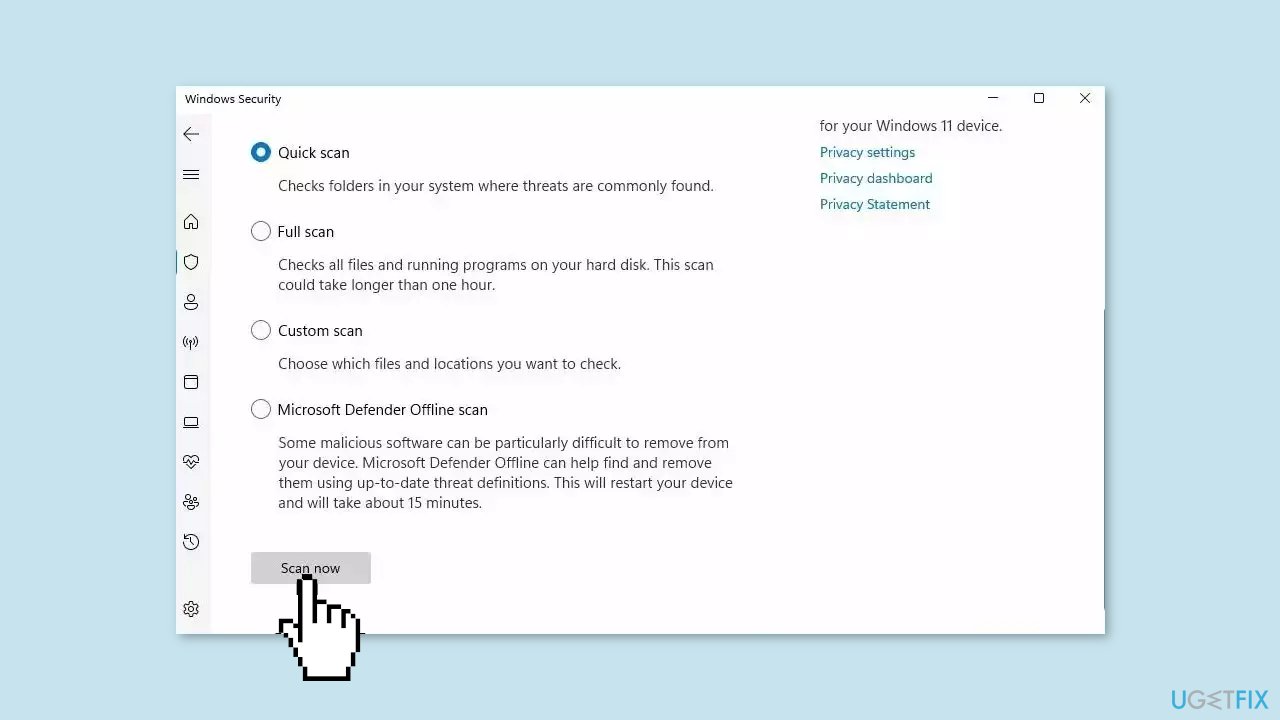
- If you choose Quick scan, Microsoft Defender Antivirus will scan the most vulnerable and commonly infected areas of your computer
- If you choose Full scan, Microsoft Defender Antivirus will scan your entire computer, including all files, folders, and programs
- Click on the Scan now button to start the selected scan type and wait for the scan to complete
- The time it takes will depend on the size of your hard drive and the number of files being scanned
- Once the scan is complete, you will be informed of any detected threats, and you can choose to quarantine or remove them
- If no threats are found, Microsoft Defender Antivirus will inform you that your device is secure
Method 4. Clear Event Viewer Log
- Press the Windows key + R to open the Run dialog box.
- Type eventvwr in the dialog box and hit Enter.
- In the popup window, click on Application under the Windows Logs directory in the left pane.
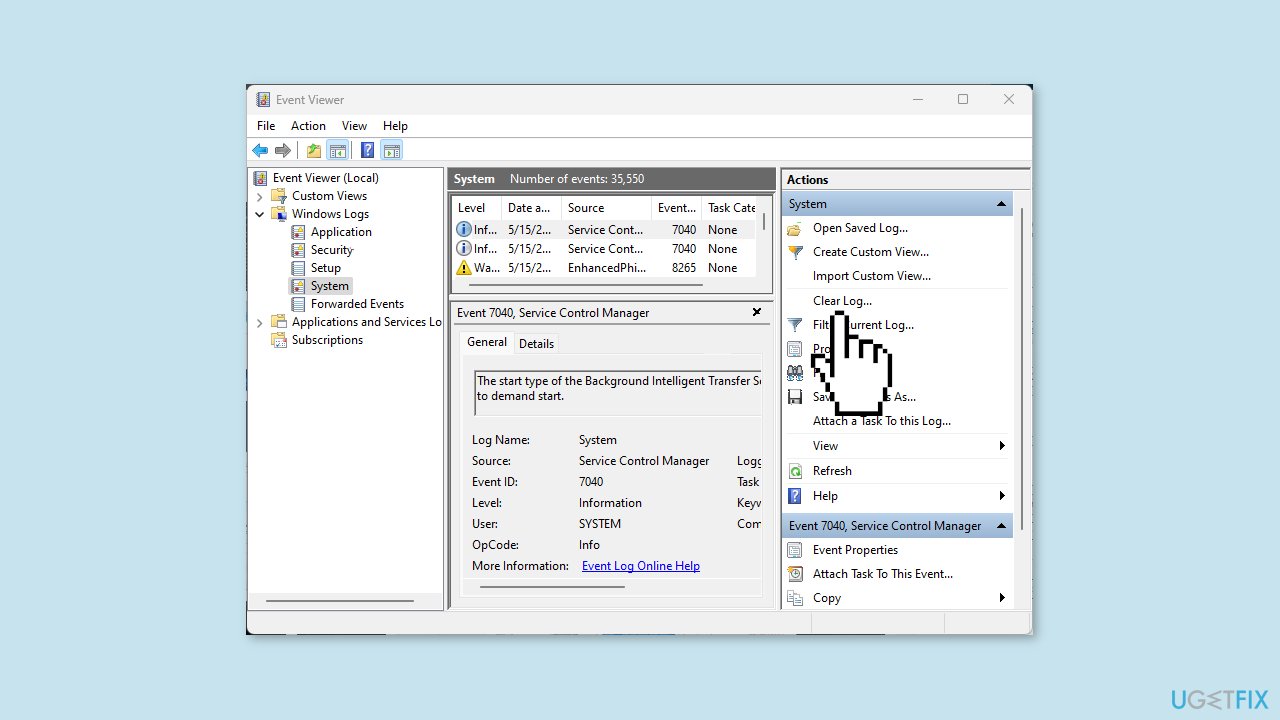
- Click Clear Logs and confirm the action.
- Repeat the previous step to clear the Security, Setup, and System logs.
- Restart your PC to check if the error is fixed.
Method 5. Troubleshoot Windows Updates
- Press the Windows key + R.
- Type services.msc in the dialog box and hit Enter.
- In the Services window, locate Windows Update.
- Right-click on Windows Update and click Stop.
- Press the Windows key + E to open File Explorer.
- Navigate to the path C:\Windows.
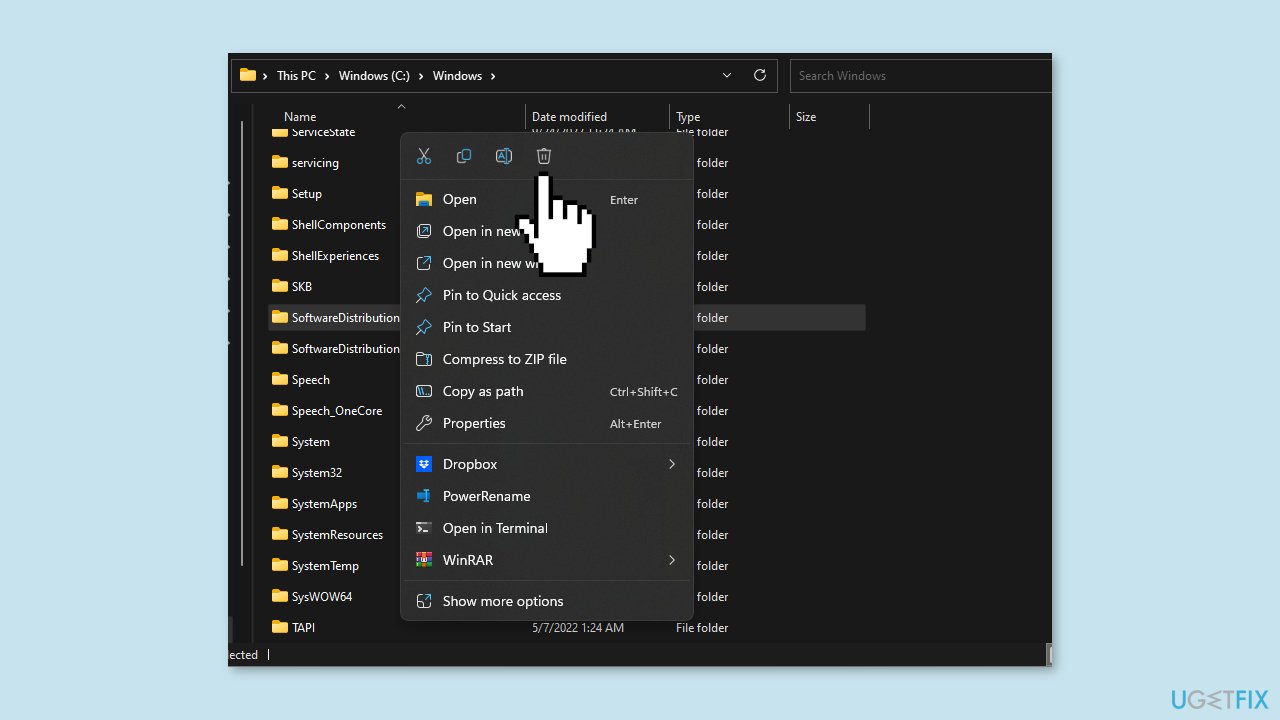
- Locate the SoftwareDistribution folder.
- Right-click on the SoftwareDistribution folder and select Delete.
- Restart your PC.
- Check for Windows Updates.
Method 6. Try Clean Boot
- Press the Windows key + R on your keyboard.
- Type msconfig in the Run dialog box that appears.
- Click on OK or press Enter to open the System Configuration window.
- Select the Services tab at the top of the window.
- Check the box next to Hide all Microsoft services.
- Click on the Disable all button.
- Select the Startup tab at the top of the window.
- Click on the Open Task Manager link.
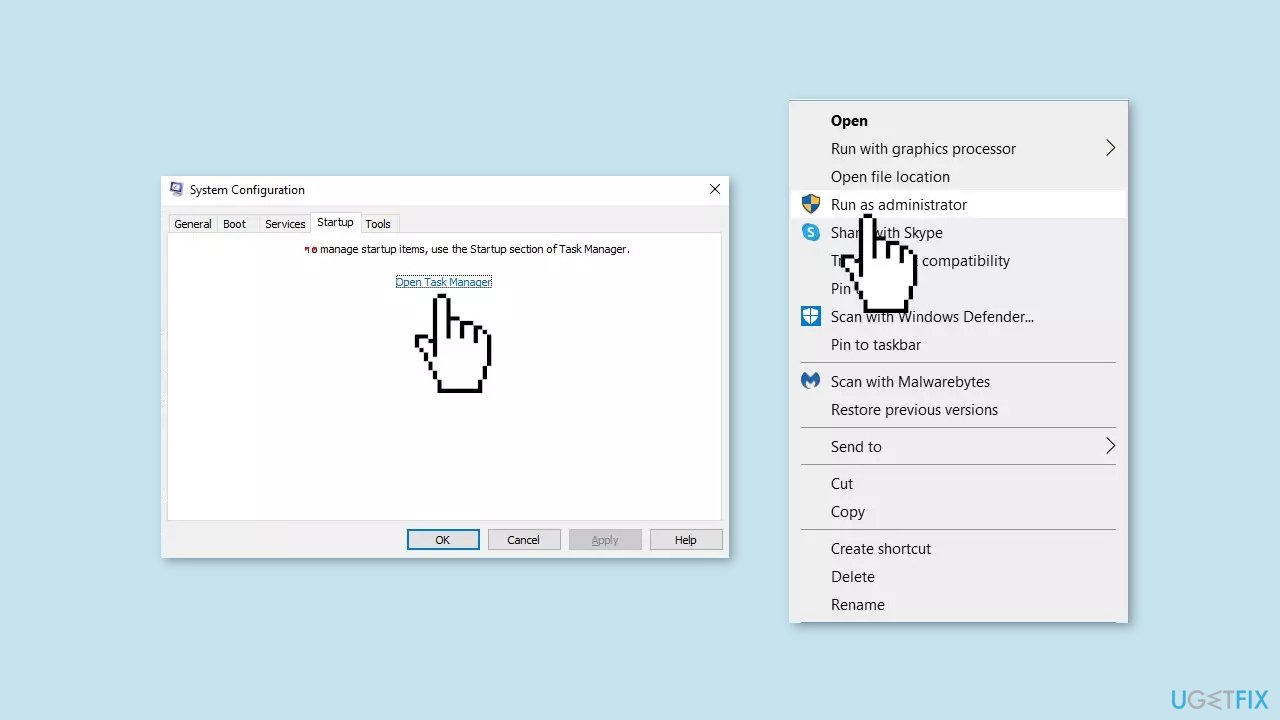
- In the Task Manager window that appears, right-click on each app listed under the Startup tab.
- Select Disable from the context menu for each app.
- Close the Task Manager window and go back to the System Configuration window.
- Click on the Apply button and then click on OK to save the changes.
- Restart your PC.
- Once your PC has restarted, uninstall the faulty app.
- Download the app from official sources.
- Right-click on the installer and select Run as administrator.
- Follow the on-screen instructions to install the app.
Method 7. Use System Restore
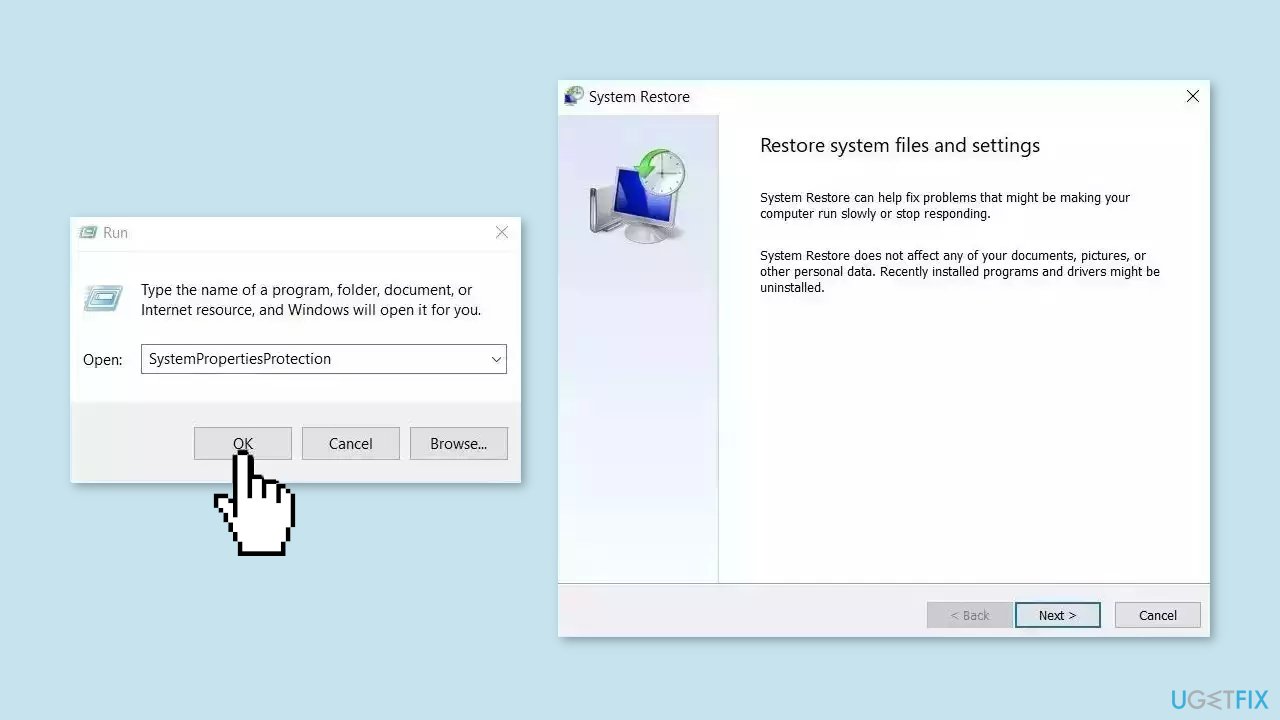
System Restore is a feature in Microsoft Windows that allows users to revert their computer's state to a previous point in time. This can be helpful if you have made changes to your system that are causing problems.
- Go to the Start menu, type restore, and click on Create a restore point.
- Click System Restore, then follow the prompts until you can select a restore point.
- Select the one you want (ideally before the issue started occurring) and go ahead with the process.
Bottom line
To fix Svchost.exe high CPU usage, you can repair corrupted system files using Command Prompt, monitor CPU usage with Task Manager or Resource Monitor, and update related software or drivers. If these steps do not resolve the issue, consider running malware scans or installing Windows updates.
Frequently asked questions
High CPU usage by Svchost.exe in Windows 10 can be caused by various factors, including malware infections, Windows updates, or issues with specific services running under the process.
To identify the specific service causing high CPU usage by Svchost.exe in Windows 11, open Task Manager, right-click on the Svchost.exe process, and select 'Go to service(s)' to see the associated services.
To reduce Svchost.exe CPU usage in Windows, you can disable unnecessary services, perform a full malware scan, or apply the latest Windows updates to fix any underlying issues.




Report an issue
What's wrong with this guide? We review every report and update or remove content.
Report received — thank you. We'll review and fix it.
You need a free account to submit a report.
Be the first to comment