How to fix
“Sync is not available for your account” error
on Windows
Resolve the "Sync is not available for your account" error on Windows 10 and 11 effortlessly. Get expert-tested solutions that work! Fixed in minutes.

What causes How to fix “Sync is not available for your account” error?
- Faulty Windows settings
- Unverified Microsoft account
- Registry policy restricts syncing
- Clash of connected work or school account
- Corruption of system files
Repairs Windows system files, removes malware, and restores a clean OS state — without reinstalling.
Hello. What issue could trigger the error message "Sync is not available for your account. Contact your system administrator." error on Windows? I started getting it on Windows Store after I initiated a factory reset on it due to some problems. However, the same message shows up within Windows Settings. Does anyone have any ideas?
"Sync is not available for your account" is an error message that shows up on Windows 10 PCs, laptops, tablets, and other devices. That's a known Windows bug, which has been harassing users since the release of Windows 10 OS in 2017[ref en-1]. Typically, the error shows up on the Windows screen after rebooting the machine and logging in to the user account. The same notification can occur withing the Windows Store after initiating a factory reset.
In fact, the "Sync is not available for your account" error can be dubbed as a Windows sync problem in short. It may also occur when trying to connect Windows device to the Wi-Fi network, hotspot[ref en-2], or either Internet access points. Anyway, the culprit of the problem is more or less the same - faulty Windows settings.
According to experts, the alterations of Windows settings can not only be initiated manually by the user but also triggered by Windows 10 updates (e.g. v2004) or the installation of some third-party apps. As a consequence, setting alterations trigger inconsistencies, such as unverified Microsoft account, Registry policy restricts syncing, the clash of connected work or school account, corruption of system files, and similar.
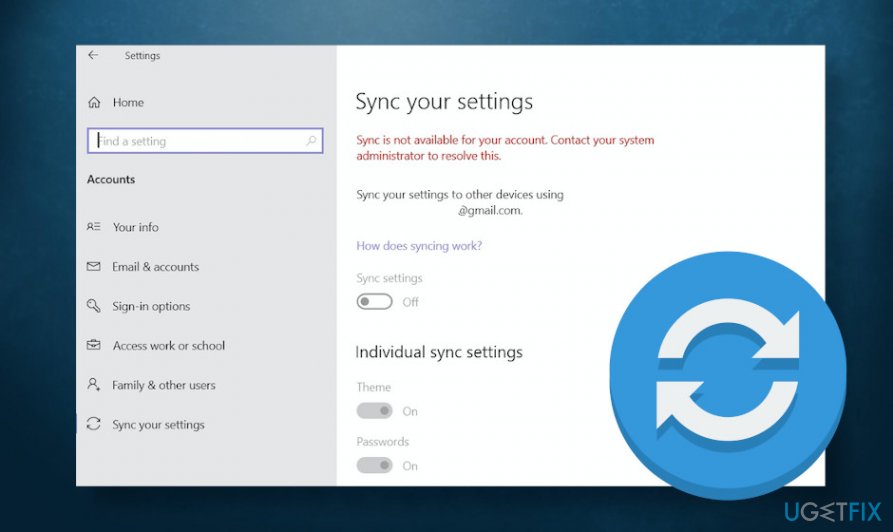
Recently, some people reported a renewed issue, which asks the user to sync the devices using @gmail.com account. The error message says:
Sync your settings
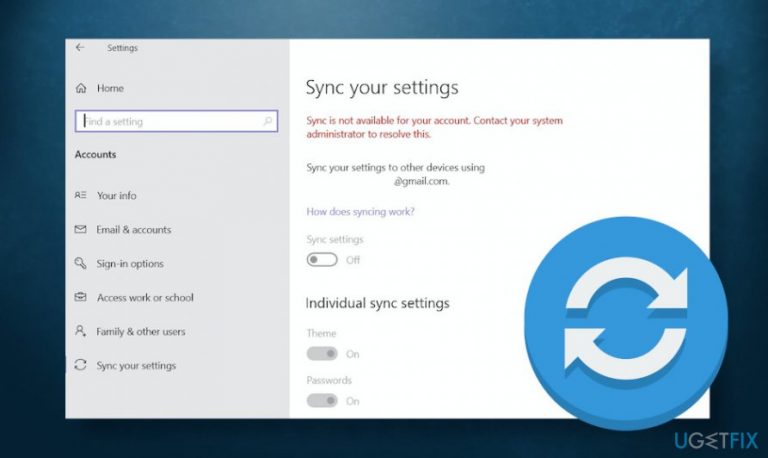
Sync is not available for your account. Contact your system administrator to resolve this.
Since there's more than one reason why this and other sync problems can occur, we'll provide all possible Sync is not available for your account error fixes. Scroll through the list of solutions and try them one-by-one.
Disable Work or School account
Based on users' reports, the error Sync is not available for your account most frequently happens because of the settings on the Access work or school settings[ref en-3]. As a rule, this bug happens on the PCs, laptops, Notebooks, and other Windows devices that have been connected work or school accounts prior to the installation of Windows 10 update.
One of the workarounds would be to disconnect the work or school account (temporarily). Upon fixing the sync problem, you will be able to re-add the work/school account without problems. Here's what you should do:
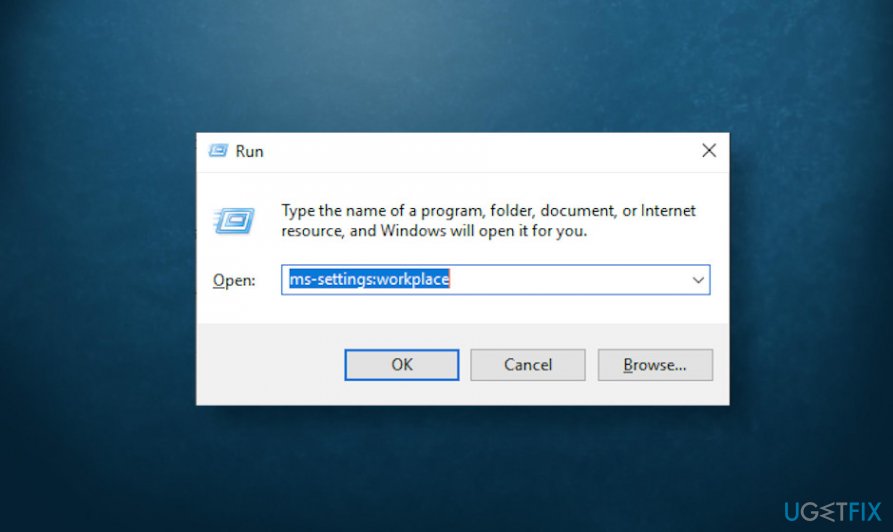
- Press Windows key + R simultaneously.
- When the Run opens, type ms-settings:workplace, and press Enter to run the command.
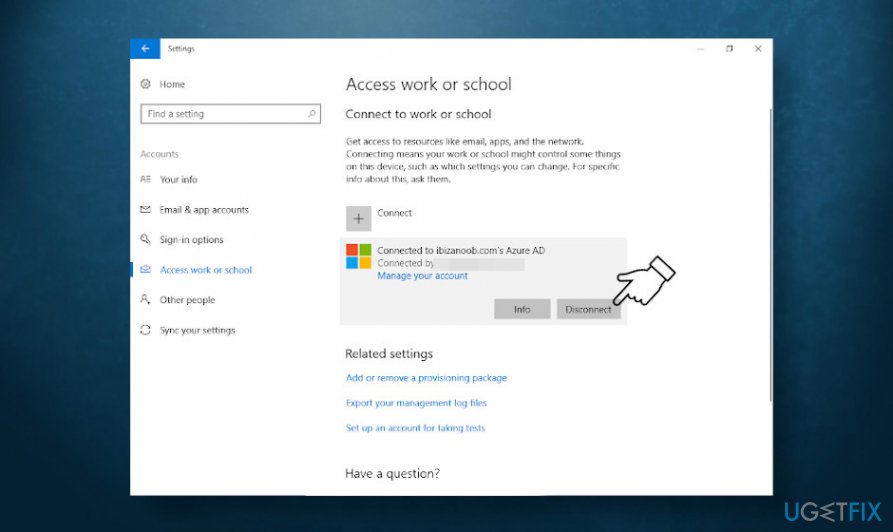
- When the Work and school tab opens, look for the Disconnect button on the right pane.
- Click Yes on the confirmation window and restart the machine.
- When the system reboots, press Windows key + R again.
- Type the ms-settings:sync in the run and press Enter.
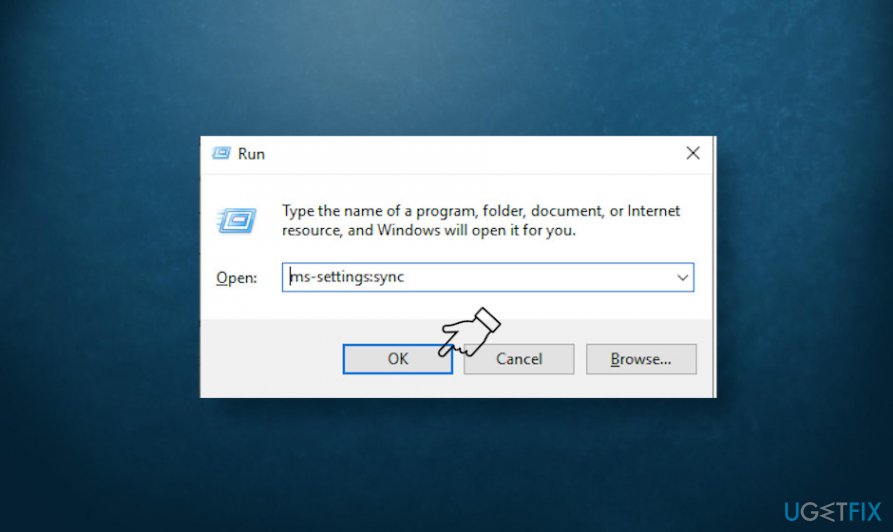
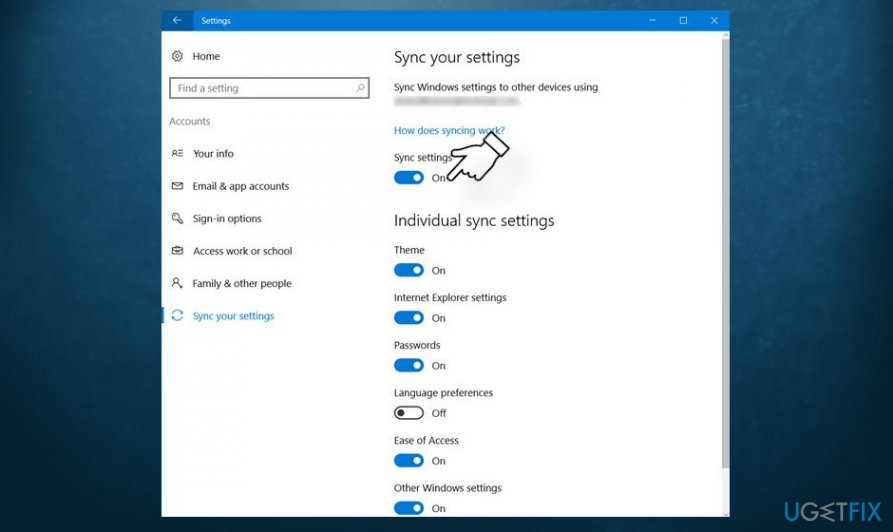
- The Sync your settings menu should open. Locate the Sync settings option and slide a toggle to enable this feature.
- In case this option did not trigger the Sync is not available for your account error, then you can re-add the work/school account that has been connected before.
Microsoft account needs verification
After altering Windows settings abruptly, it might be that the system has turned on auto protection and, therefore, requires Microsoft account verification.
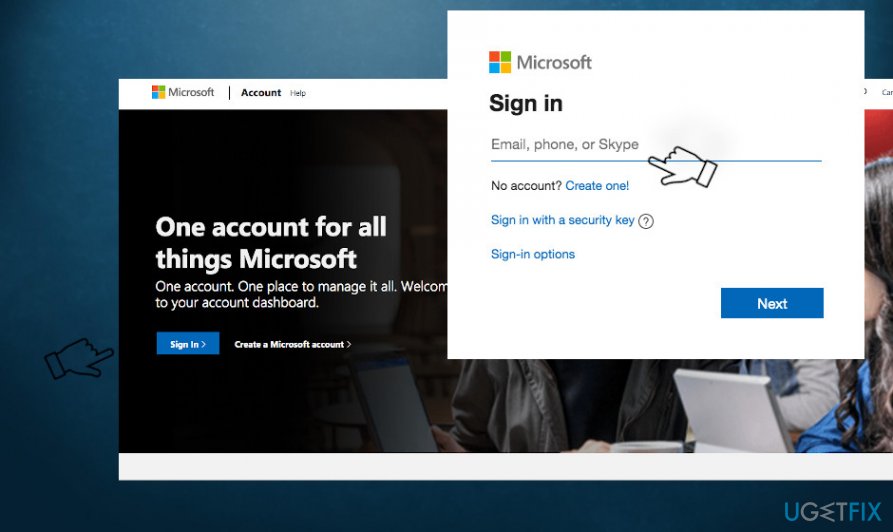
- Navigate to the official Microsoft's website and click Sign In.
- Enter the login and password of your Microsoft account.
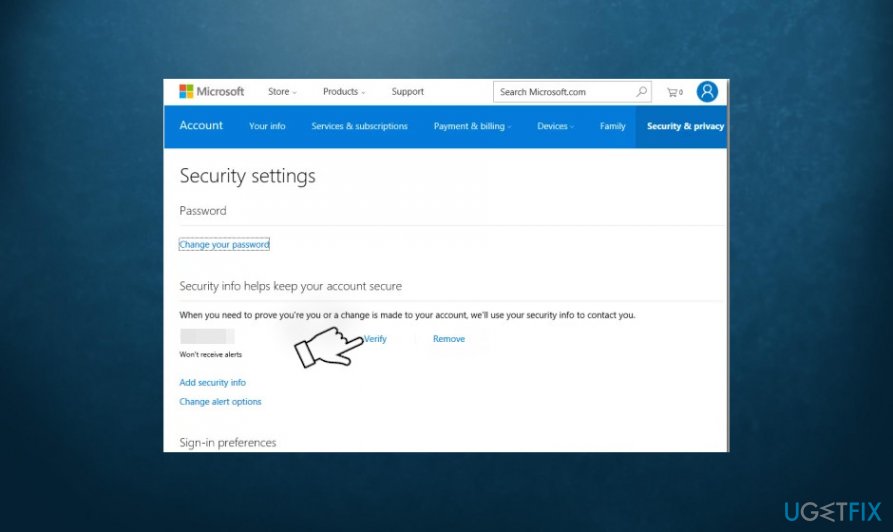
- Once you log in, navigate to the Your info > Security & Privacy and then click the Verify hyperlink.
- The account verification should contain a verified phone number or email account.
- Use the verification code that you have just received ob the phone or email address to finish the verification.
- Then restart the computer.
- When the system reboots, press Windows key + R again.
- Type the ms-settings:sync in the run and press Enter.
- The Sync your settings menu should open. Locate the Sync settings option and slide a toggle to enable this feature.
Use Registry Editor to repair sync problems
One of the ways to fix Sync is not available for your account error can be initiated via Windows Registry Editor. In case your Microsoft account has accidentally been disabled and cannot be re-enabled due to missing Registry keys, try performing these steps:
- Press Windows key + R to open the Run dialog.
- Type regedit into the Run and press Enter to run.
- Click Yes on the User Account Control pop-up to confirm the command.
- Now navigate to the HKEY_LOCAL_MACHINE\\SOFTWARE\\Microsoft\\Windows\\CurrentVersion\\Policies\\System directory using the left pane.
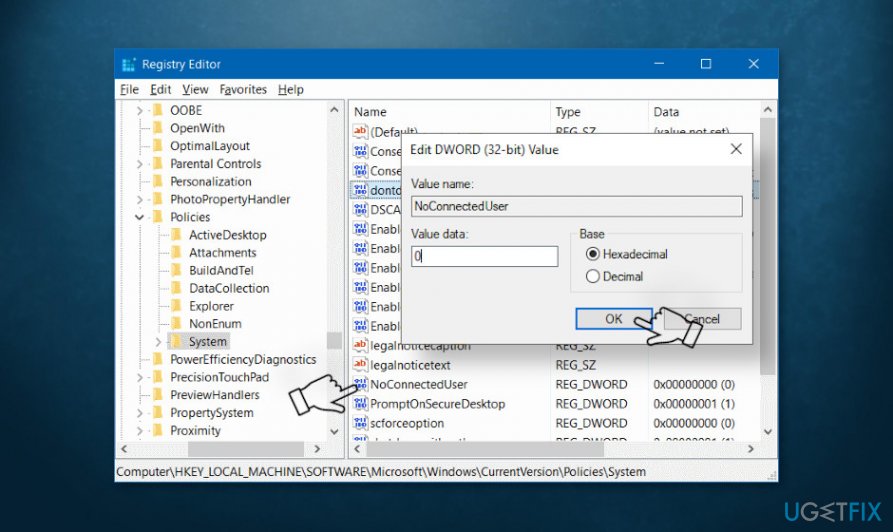
- Locate the NoConnectedUser value on the right pane. Double-click on it.
- Look at the Edit DWORD (32-bit) Value and change its value data to 0.
- Click OK to save the changes and close the Registry Editor.
- Restart the system to save the changes.
Bottom line
To resolve the 'Sync is not available for your account' error, users can try disabling the Work or School account, checking their Microsoft account verification, and ensuring that their system files are not corrupted. If none of these solutions work, further investigation into Windows settings and updates may be necessary.
Frequently asked questions
First, check your Microsoft account settings and ensure you are logged in correctly. If the problem persists, try resetting the sync settings by navigating to Settings > Accounts > Sync your settings.
You can resolve this by signing out and back into your Microsoft account through Settings > Accounts. Additionally, ensure that your device has the latest updates installed, as outdated software can cause sync issues.
Yes, check if sync is enabled by going to Settings > Accounts > Sync your settings and make sure the toggle is turned on. Also, ensure that the necessary permissions for sync services are allowed in your Microsoft account.




Report an issue
What's wrong with this guide? We review every report and update or remove content.
Report received — thank you. We'll review and fix it.
You need a free account to submit a report.
Be the first to comment