How to fix
Sync settings grayed out
on Windows
Resolve the Sync settings grayed out issue on Windows 10 and 11 effortlessly. Get expert-tested solutions for smooth functionality and seamless experience.

What causes How to fix Sync settings grayed out in Windows?
- Corrupted system files
- Local Group Policy settings
- Account type restrictions
- Sync settings disabled by administrator
- Issues with Windows updates
Repairs Windows system files, removes malware, and restores a clean OS state — without reinstalling.
Hello. I just received my new Windows 10 laptop. I set the machine up with my usual account and password, however, when I go to the sync settings, they are greyed out. Is there anything I can do?
If people own more than one Windows 10 or 11 devices, they can have different settings for each of them, however, both of these versions offer ways to keep the devices in sync. Users can sync their desktop theme, certain passwords, language preferences, and other settings. By doing this, people can make sure that their settings are the same on each Windows computer. Most importantly, syncing the settings backs them up so people do not lose them if one device goes bad.
Even though this is a very useful feature, people sometimes run into issues when trying to use it. People report receiving the "Sync is not available with your account. Contact your system administrator to resolve this" error and seeing that the Sync settings are greyed out.
Users report experiencing this even on brand-new devices. It is unknown why exactly this happens as there are a couple of possibilities. In this guide, you will find 5 steps that should help you fix Sync settings grayed out in Windows. Keep in mind, that the manual troubleshooting process can be lengthy.
If you want to avoid it, you can use a maintenance tool like [d1]. It can fix most system errors, BSODs,[ref en-1] corrupted files, and registry[ref en-2] issues. Additionally, it can clear cookies and cache[ref en-3] which are often the culprits behind many malfunctions. Otherwise, follow the step-by-step instructions below.
Solution 1. Repair Corrupted System Files
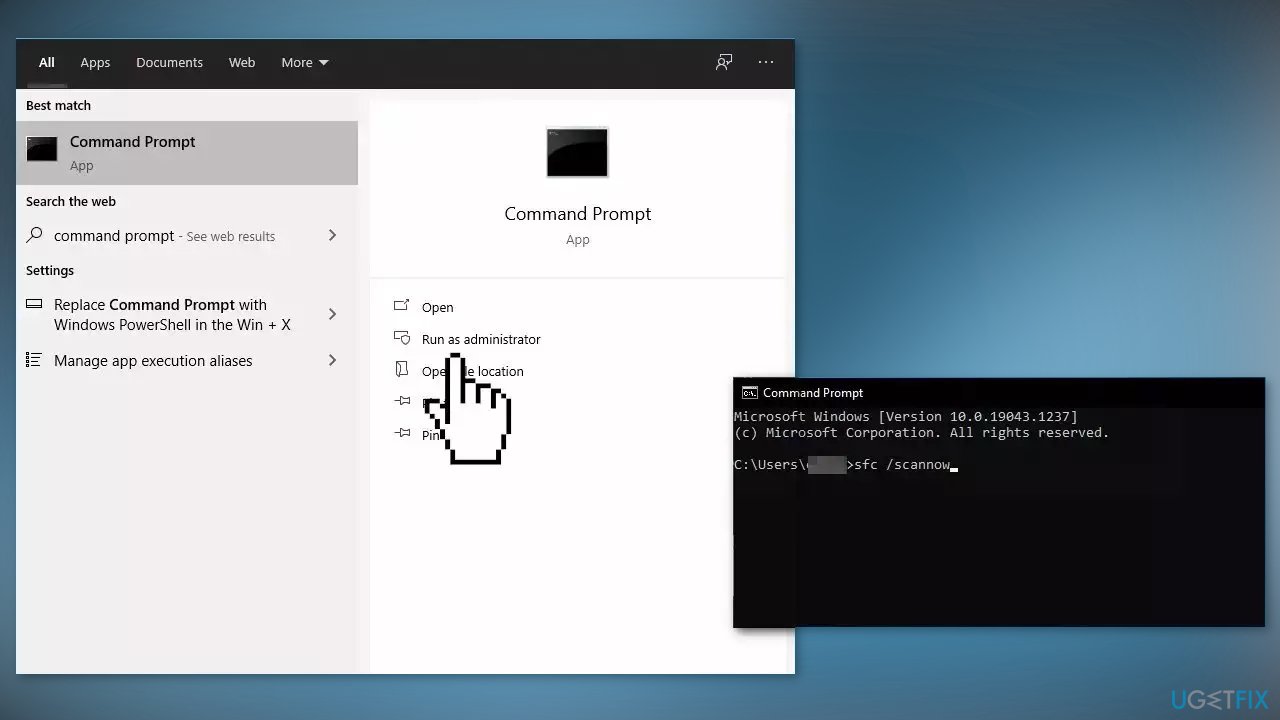
Use Command Prompt commands to repair system file corruption:
- Open Command Prompt as administrator
- Use the following command and press Enter:
sfc /scannow
- Reboot your system
- If SFC returned an error, then use the following command lines, pressing Enter after each:
DISM /Online /Cleanup-Image /CheckHealth
DISM /Online /Cleanup-Image /ScanHealth
DISM /Online /Cleanup-Image /RestoreHealth
Solution 2. Enable Sync using the Local Group Policy Editor
- Open the Local Group Policy Editor
- In the left pane of Local Group Policy Editor, navigate to the location below:
Computer Configuration\Administrative Templates\Windows Components\Sync your settings
- In the right pane of Sync your settings, tap on the Do not sync policy to edit it
- Select the dot associated with Not Configured or Disabled
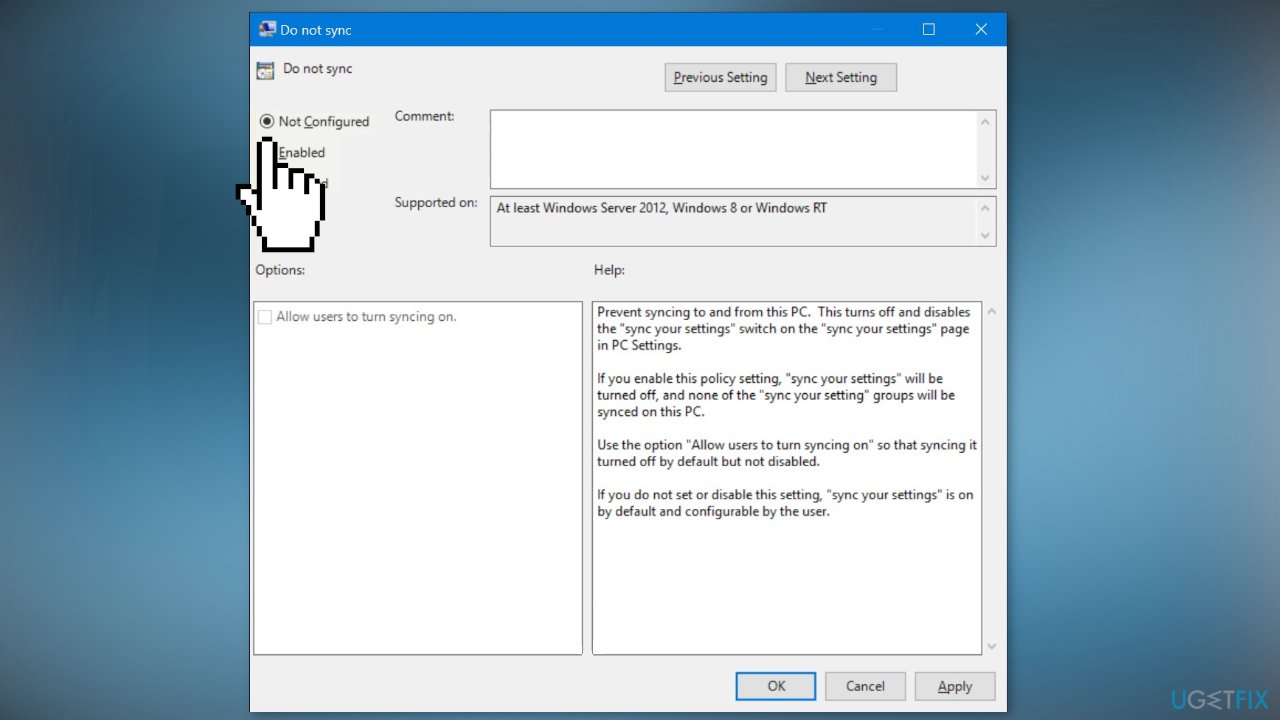
- Click on OK, close the Policy Editor, and check if the issue is resolved
Solution 3. Disconnect your Work or School Account
- Open Windows Settings by pressing the Windows key + I
- Click on Accounts
- Go to Access work or school
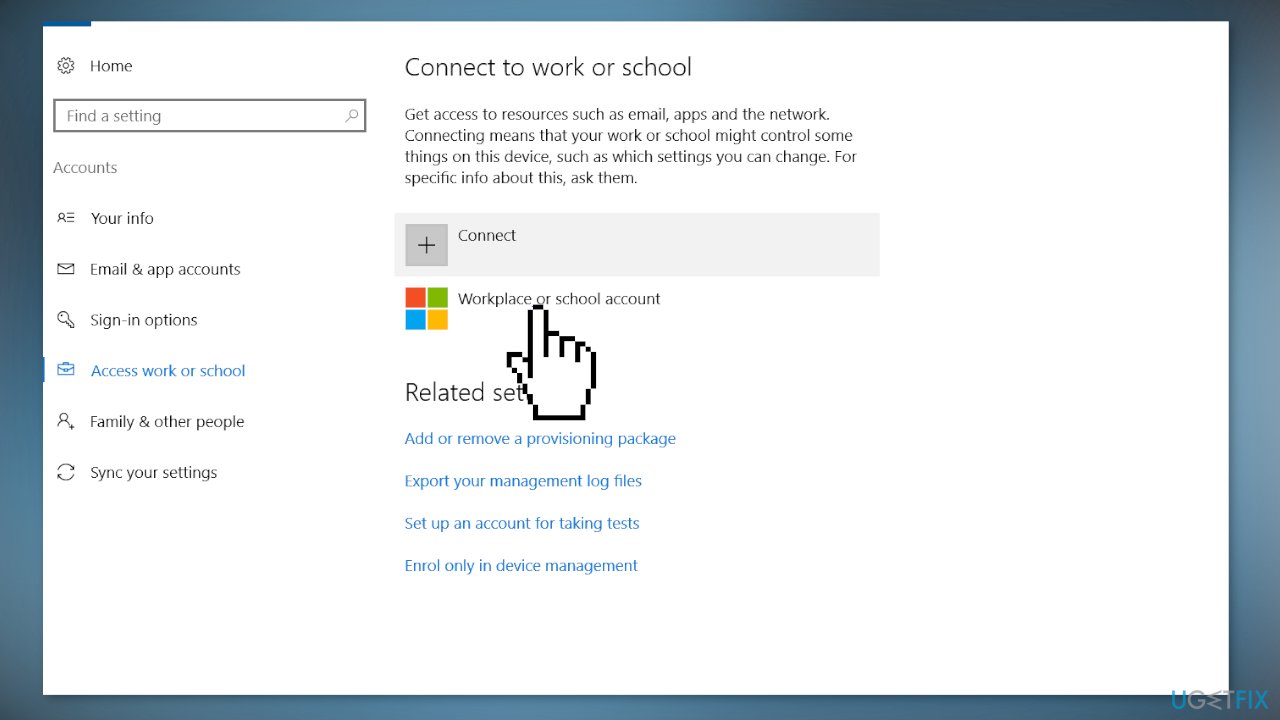
- Click on the drop-down menu associated with your account and click Disconnect
Solution 4. Create a new Local Administrator Account
- Select the Start menu and go to Settings
- Click on Accounts
- Under Family & other users select Add someone else to this PC
- Select I don't have this person's sign-in information, and on the next page, select Add a user without a Microsoft account
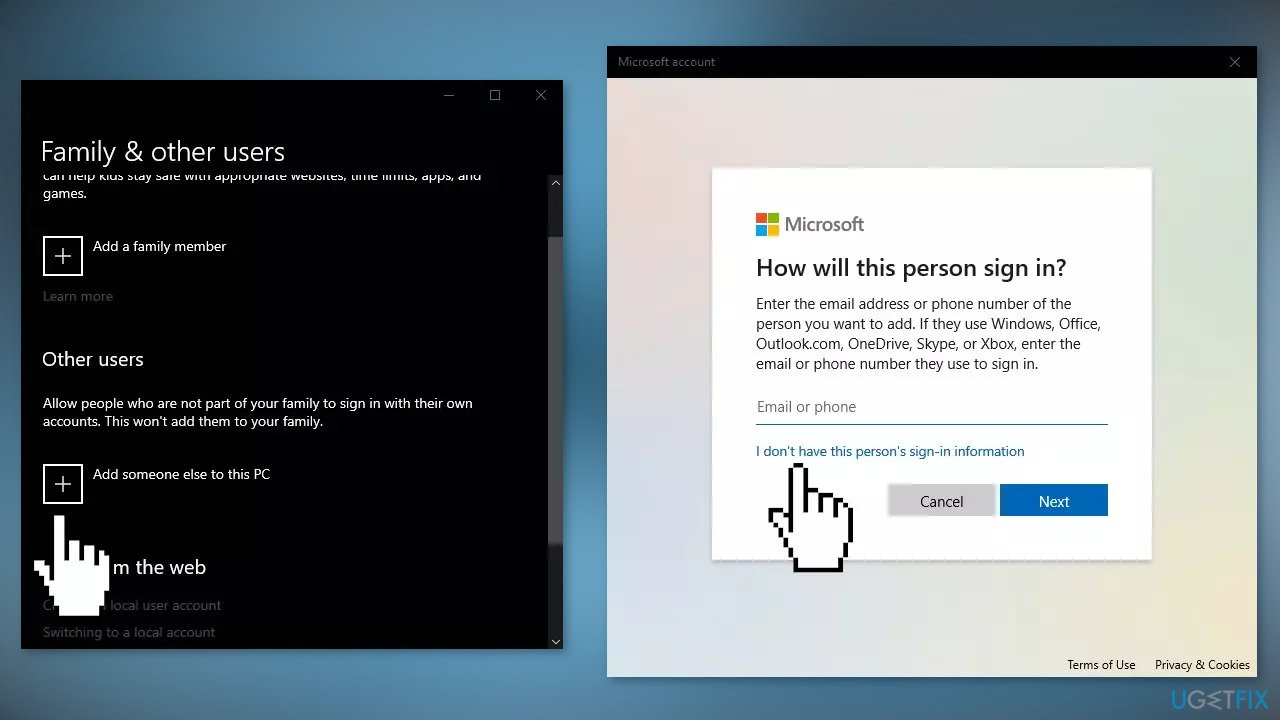
- Enter a user name, password, or password hint, or choose security questions and then select Next to finish the process
- Now, select Change account type
- Under Account type, select Administrator, and then select OK
- Sign in with the new administrator account and check if the issue is resolved
Solution 5. Run a Repair Install
- Download the Windows 10 ISO file
- Now mount the ISO file
- Double-click on the file setup.exe to start the repair, install from the mounted drive
- When the installation provides the License Terms, read them and click Accept
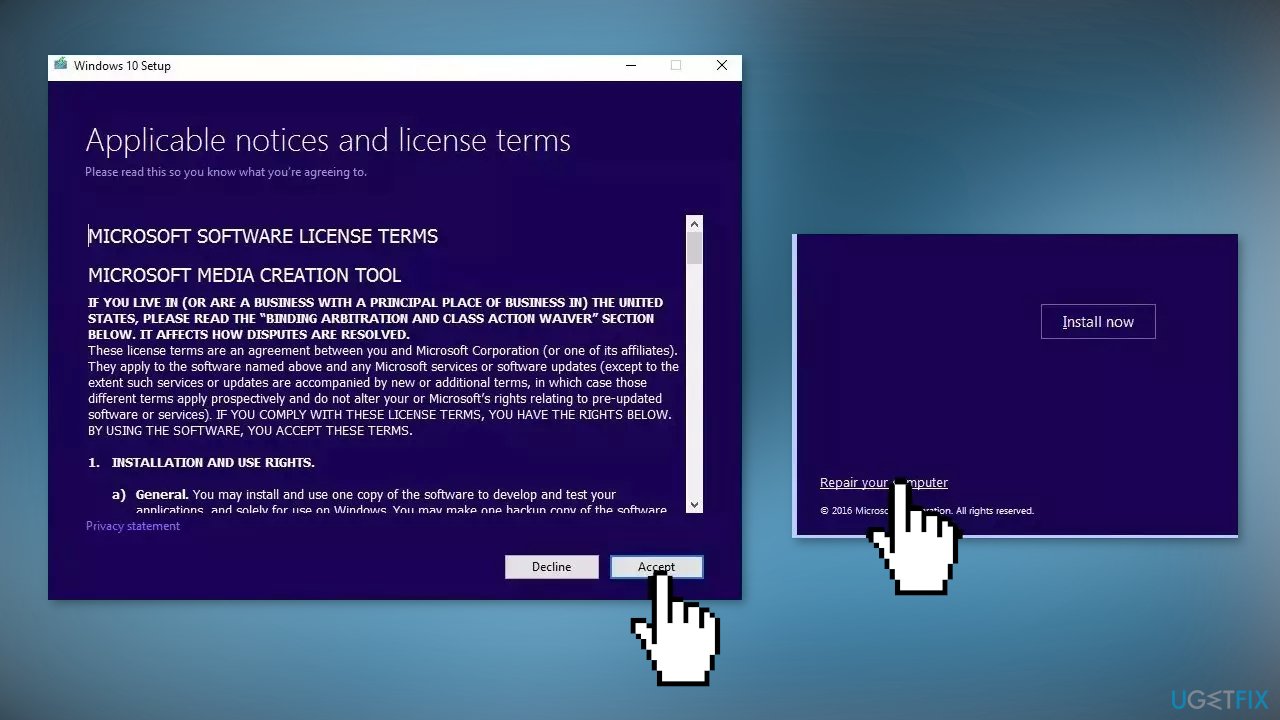
- Windows 10 will now check for updates and will install the ones available
- When all is set, click Install
- When the installation is complete, follow the on-screen instructions
Bottom line
To fix the Sync settings being grayed out, you can repair corrupted system files using Command Prompt or enable Sync through the Local Group Policy Editor. If these solutions do not resolve the issue, consider using a maintenance tool to address potential system errors.
Frequently asked questions
Sync settings may be grayed out due to a local group policy setting or because your Microsoft account isn't properly configured. Ensure you're logged in with a Microsoft account and check the group policy settings if you're using Windows 10 Pro or Enterprise.
To enable Sync settings in Windows 11, go to Settings > Accounts > Sync your settings and ensure the toggle is turned on. If the option is still grayed out, check for any Windows updates or user account control restrictions.
If Sync settings are still inaccessible, consider creating a new user account to see if the issue persists or perform a System File Checker scan to repair any corrupted system files in Windows.




Report an issue
What's wrong with this guide? We review every report and update or remove content.
Report received — thank you. We'll review and fix it.
You need a free account to submit a report.
Be the first to comment