How to fix
SysMenu.dll missing or not found error
on Windows
Resolve the SysMenu.dll missing error on Windows 10 and 11 easily. Follow our expert-tested guide and get your system running smoothly in minutes.

What causes How to fix SysMenu.dll missing or not found error in Windows?
- Missing SysMenu.dll file
- Corrupted SysMenu.dll file
- Outdated Windows version
- Software conflicts
- Improper installation of applications
Repairs Windows system files, removes malware, and restores a clean OS state — without reinstalling.
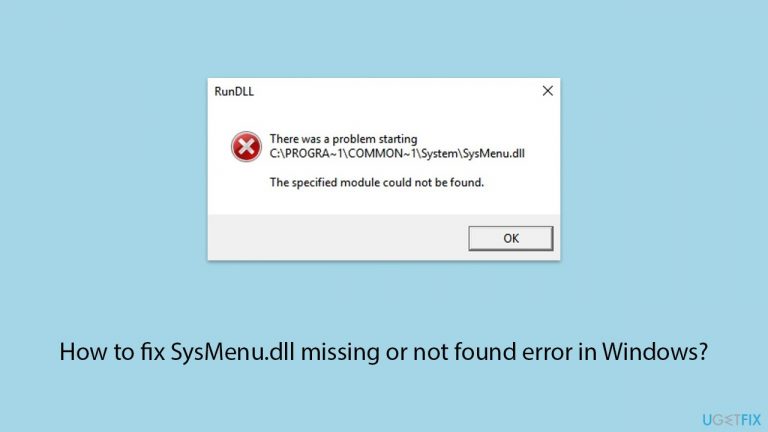
When I attempt to open File Explorer in Windows, it either crashes or keeps loading for a while, only to crash later anyway. I then receive a RunDLL error which says that "SysMenu.dll could not be found."
DLL, which stands for Dynamic Link Library, is an essential component of the Windows architecture. These files include instructions that multiple programs can use to complete specific tasks. Instead of each program having its own set of instructions for common activities, they can share information stored in DLL files, increasing efficiency and decreasing redundancy. This shared method enables modular architecture, in which updates or modifications to a DLL file benefit all programs that depend on it.
However, this interdependence can result in troubles. If a DLL file is missing, corrupted, or not found, any software that relies on it may fail to start or function properly, resulting in errors and potential system instability. The SysMenu.dll missing or not found error is an excellent illustration of such an issue.
SysMenu.dll is associated with system menus and various user interface components within Windows. It plays a crucial role in ensuring smooth interaction and accessibility for users. When SysMenu.dll is missing or corrupted, it can lead to errors upon system startup or when attempting to access certain settings or applications that rely on this file.
There are several ways you could fix SysMenu.dll missing or not found error; for example, repairing corrupted system files often yields good outcomes to many. Of course, it is not a universal solution because the reasons for the error might differ.
That's why we prepared a comprehensive guide below - follow each of the steps to find the method that works for you. If you want a more straightforward approach, you can always rely on [d1] PC repair app.

Fix 1. Install all Windows updates
Windows updates may contain the necessary files to replace or repair missing or corrupted DLL files, including SysMenu.dll. Ensuring your system is up-to-date is a crucial step in maintaining its health and functionality.
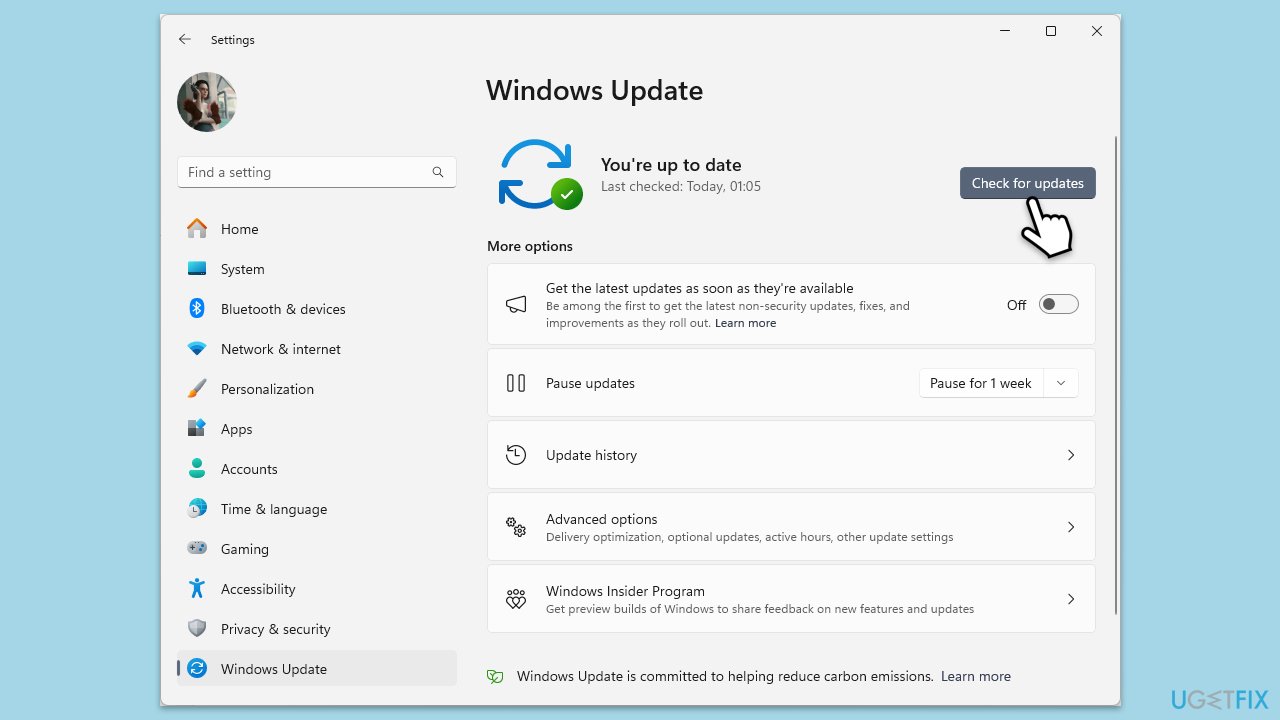
- Type Updates in Windows search and press Enter.
- When the new window opens, click Check for updates and wait.
- If there are optional updates available, install them as well.
- Restart your computer to implement the changes.
Fix 2. Repair corrupted system files
SFC and DISM are built-in Windows tools that can fix corrupted system files and restore missing files, including DLLs. Running these tools can help resolve issues caused by corrupted or missing SysMenu.dll files.
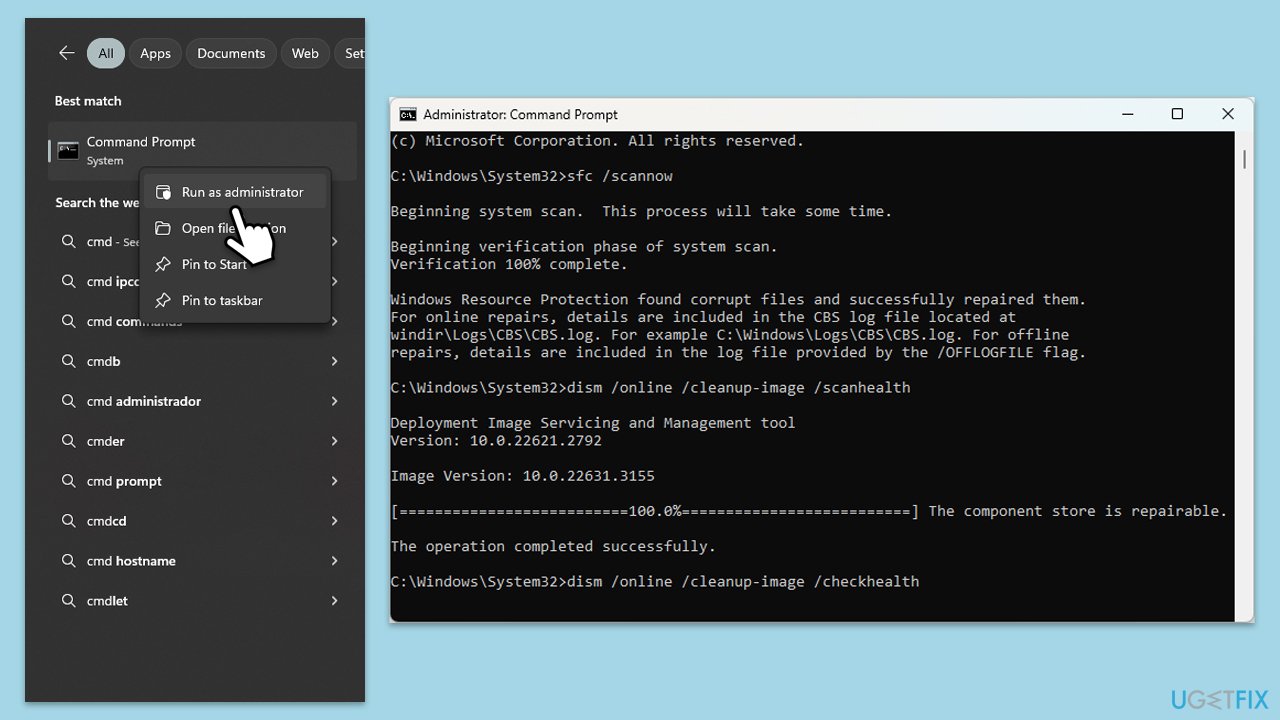
- Type cmd in Windows search.
- Right-click on Command Prompt and pick Run as administrator.
- User Account Control window will show up - click Yes when prompted.
- Then, copy and paste the following command, pressing Enter after:
sfc /scannow - Wait till the scan is finished. If Windows finds system file integrity violations, it will attempt to fix them. After this, use the set of the following commands, pressing Enter each time:
DISM /Online /Cleanup-Image /CheckHealth
DISM /Online /Cleanup-Image /ScanHealth
DISM /Online /Cleanup-Image /RestoreHealth - Close down the Command Prompt and restart your device.
Fix 3. Re-register the missing file
If the SysMenu.dll file is present but not properly registered, re-registering it in the system can resolve the issue. This process involves using Command Prompt to manually register the DLL file with Windows.
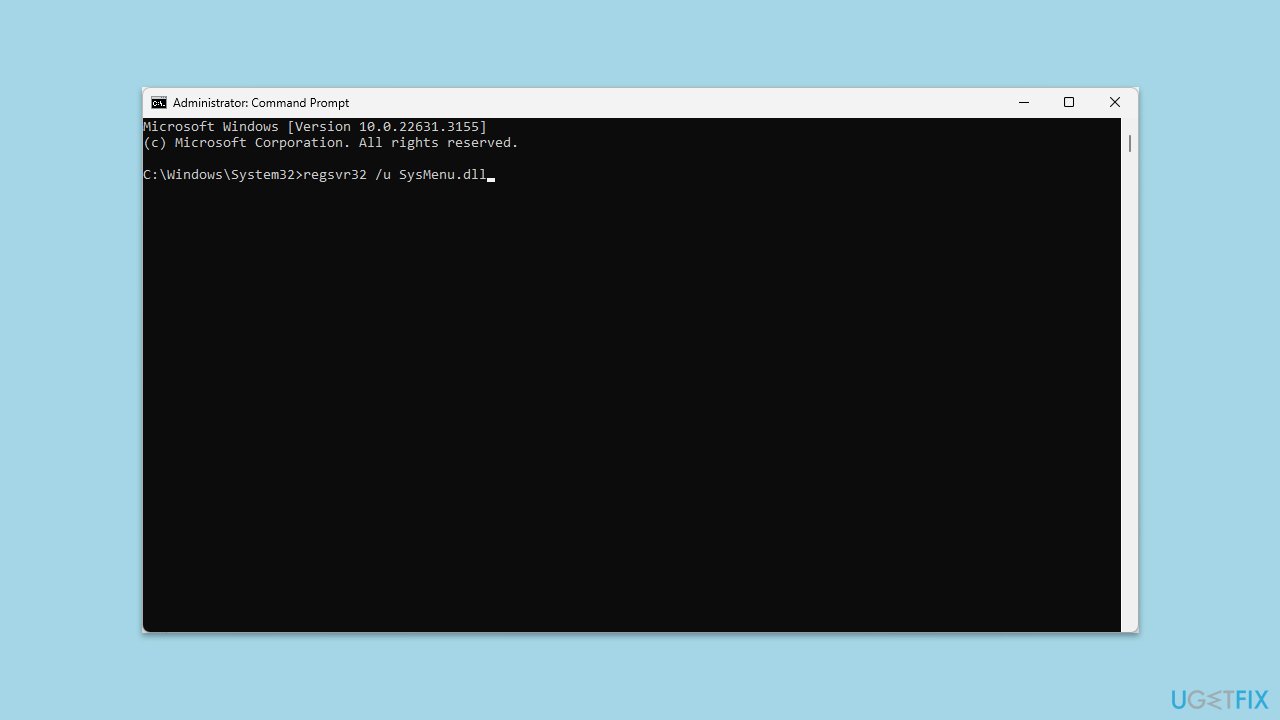
- Open Command Prompt as administrator.
- In the prompt, type in the following command and press Enter:
regsvr32 /u SysMenu.dll - After that, type the next command and hit Enter:
regsvr32 /i SysMenu.dll - Restart your device to apply the changes.
Fix 4. Try Clean Boot
Performing a clean boot starts Windows with a minimal set of drivers and startup programs. This can help identify if background programs are causing issues with SysMenu.dll.
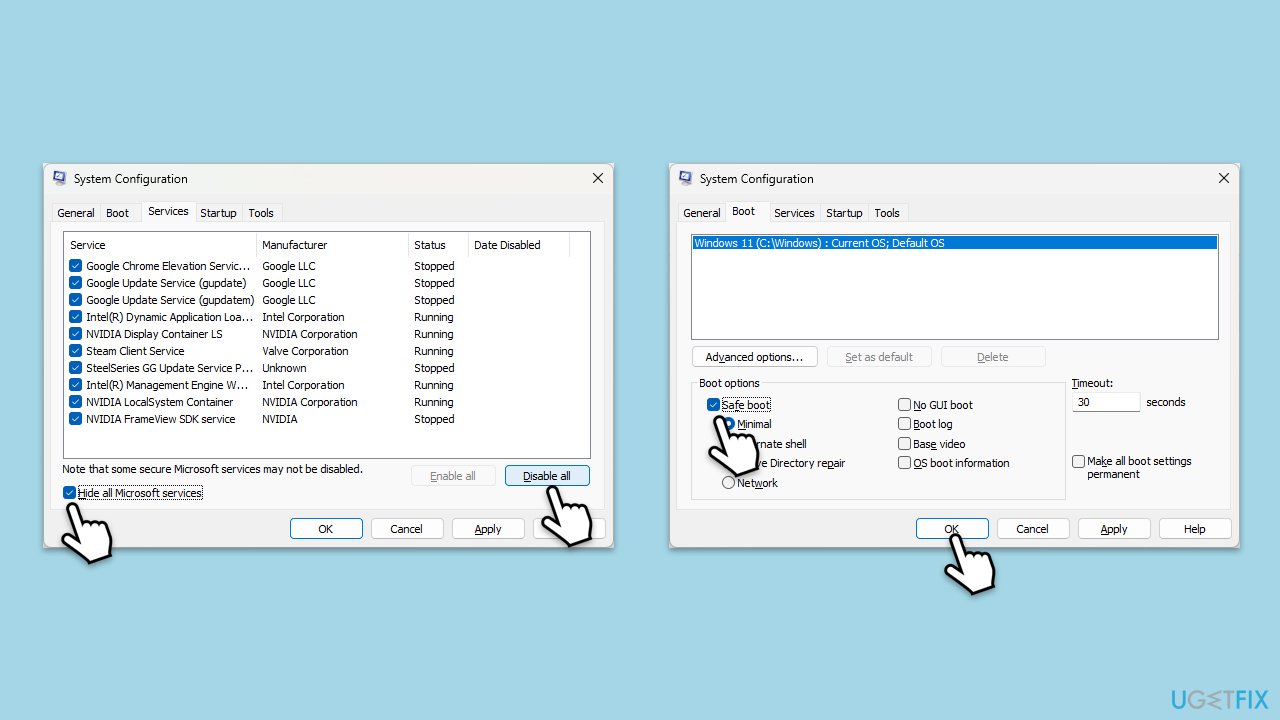
- Type msconfig inWindows Search and press Enter to open the System Configuration window.
- Click on the Services tab and check the Hide all Microsoft Services box.
- Click Disable all to disable non-Microsoft services, then click the Startup tab.
- Open the Task Manager, disable all startup items, and close the Task Manager.
- Go to the Boot tab and mark the Safe boot option.
- Click OK on the System Configuration window and restart your computer.
- If the problem does not exist, third-party software is at fault. To determine which app is causing it try enabling half of the available programs, restarting, and checking if the the problem is still absent. Continue till you find the offending software and either update or uninstall it.
Fix 5. Reset Windows
Resetting Windows reinstalls the operating system, which can fix issues with missing or corrupted files without affecting your personal files. However, you may need to reinstall some apps and programs.
- Open Windows Settings.
- Go to Windows Update/Update & Security.
- Select Advanced options.
- Under Additional options, select Recovery.
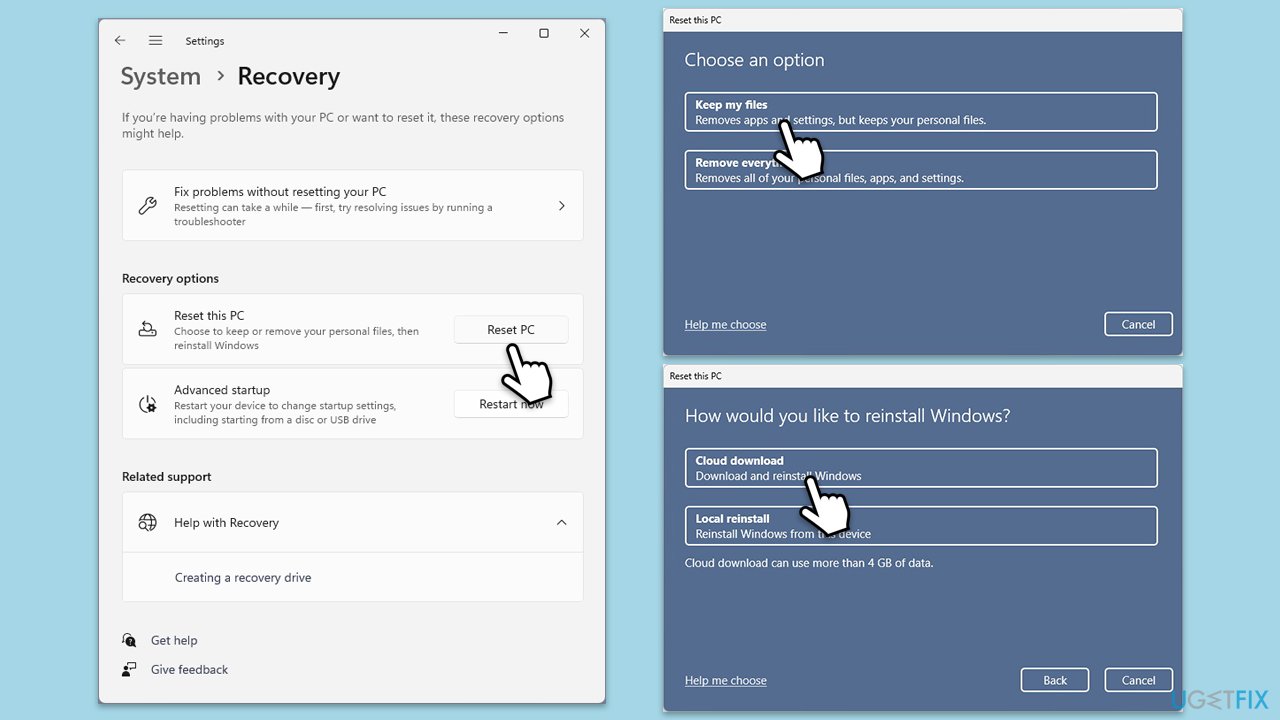
- Under Recovery options, click Reset PC.
- Select the option to Keep your files and then press Cloud download.
- Follow on-screen instructions to finish the process.
Fix 6. Repair-install Windows
A repair installation updates Windows to the latest version while fixing issues and preserving your files, settings, and applications. Try this if resetting Windows did not help. You will be able to keep all your files as well.
- Visit the official Microsoft website and download Windows 10 installation media (Windows 11 version).
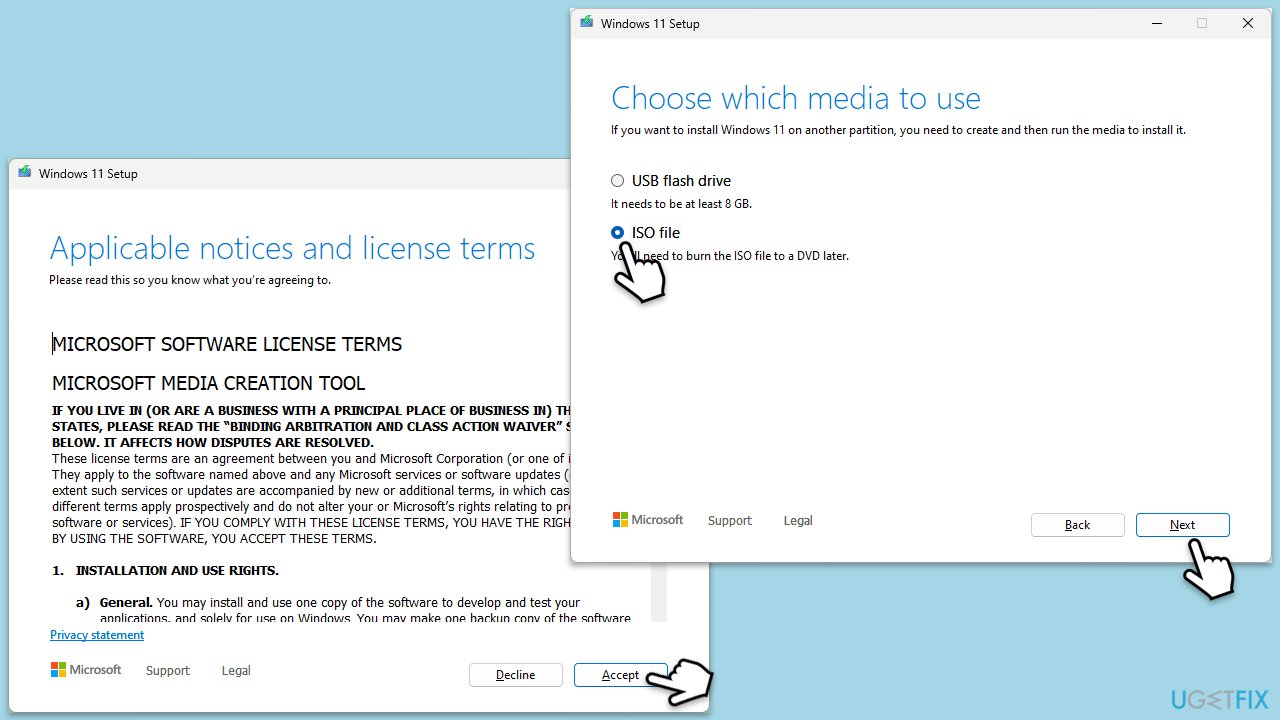
- Double-click the installer, select Yes when UAC shows up, and agree to the terms.
- Select the ISO file and click Next, then follow the instructions to finish the process.
- Right-click on ISO and click Mount.
- Open the location of the ISO, right-click on it, and select Mount.
- Launch the installer.
- Select Upgrade this PC now and click Next.
- Windows will start downloading the needed files.
- Agree to the terms once again and click Next.
- Before installing, ensure you are happy with your choices (otherwise, you can click the Change what to keep option).
- Finally, click Install to begin the upgrade process.
Bottom line
To fix the SysMenu.dll missing or not found error, you can install all Windows updates, which may replace or repair the missing or corrupted DLL files. Additionally, repairing corrupted system files can yield good outcomes. If none of these solutions work, consider using a PC repair app for further assistance.
Frequently asked questions
The SysMenu.dll missing error can occur due to accidental deletion, corruption of system files, or malware infections affecting the DLL file. Additionally, improper software installation or updates may also lead to this issue.
You can restore the SysMenu.dll file by running the System File Checker tool; open Command Prompt as an administrator and type 'sfc /scannow'. Alternatively, you can download the DLL file from a trusted source and place it in the appropriate system directory.
Downloading SysMenu.dll from third-party websites is not recommended due to the risk of malware or incompatible versions. It's safer to use built-in Windows tools or official software to resolve the missing DLL issue.




Report an issue
What's wrong with this guide? We review every report and update or remove content.
Report received — thank you. We'll review and fix it.
You need a free account to submit a report.
Be the first to comment