How to fix
“System call failed” error
on Windows
Resolve the "System call failed" error in Windows 10 effortlessly with expert-tested solutions that ensure your system runs smoothly again. Fixed in min…


What causes How to fix “System call failed” error in Windows 10?
- Prolonged explorer.exe performance
- Installation of Windows 10 April 2018 Update
- Third-party software interference
- Virus infection
- Malfunction of system files
Repairs Windows system files, removes malware, and restores a clean OS state — without reinstalling.
Hello all. Could someone please explain to me why explorer.exe keeps crashing with an error "System call failed?" It all started the next after I installed Windows 10 April Update. Thanks for any help.
"System call failed" is a pop-up error generated by Windows OS when the Explorer.exe[ref en-1] process encounters a problem. Explorer.exe or Windows Explorer File is one of the core Windows OS parts, so it's practically impossible for Windows to run smoothly without it.
Typically, it's located in C:\\Windows directory. It's responsible for the interconnection of folders and files via the graphical user interface. It's hardly possible not to notice Explorer.exe crashes and freezes. When this executable malfunctions, the PC gets stuck, programs unresponsive, all content stored on the desktop may disappear and then reappear after a while.
The "System call failed" error is directly related to explorer.exe crashes. However, no single reason would explain why this is happening. For the most part, the problem occurs due to the pro-longed explorer.exe performance. Thus, restarting it should solve the problem. Nevertheless, the problem may be a bit deeper.
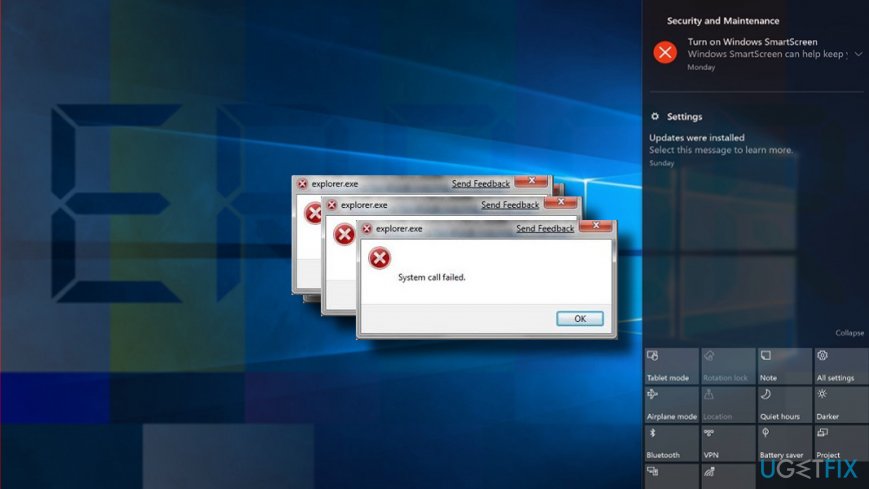
Experts claim that it's essential to draw once attention to the circumstances under which the "System call failed" error occurs. If, for instance, the problem emerged soon after the installation of Windows 10 April 2018 Update,[ref en-2] we would recommend you to install the latest cumulative or patch updates for Windows 10. If the problem can hardly be ignored, you can always use Previous Windows version feature or roll back the update.
Nevertheless, the update or upgrade is a seldom cause of the Explorer.exe "System call failed" error on Windows 10. It may be triggered by some third-party software or virus, as well as a malfunction of system's files. Since there are many different reasons why this problem can occur, you should learn how to fix "System call failed" error by reading the rest of the article.
This video will help you with this issue:
[youtube ZCzQxRbUR34]
Restart Explorer.exe process
If you tend to leave your PC on for weeks, the explorer.exe process may "overheat" and fail to work. Thus, we would strongly recommend you to restart your PC in the first place and check if that helped. If that did not help, you should"
- Press Ctrl + Alt + Del to open Task Manager;
- Open Details tab and find Explorer.exe;
- Right-click on it and select End Task;
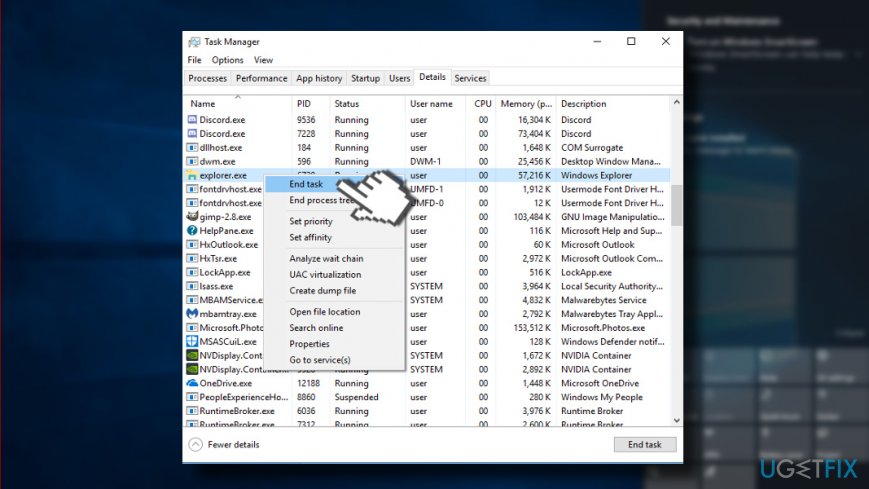
- Click Yes on the message saying "WARNING: Terminating a process can cause undesired results" if you agree.
- Then open File tab and select Run new task.
- Type explorer.exe and that's it.
Run System File Checker
- Right-click on Windows key and select Command Prompt (Admin).
- Alternatively, you can open search and type Command Prompt.
- Right-click on the option and select Run as Administrator.
- Now copy and paste sfc /scannow command.
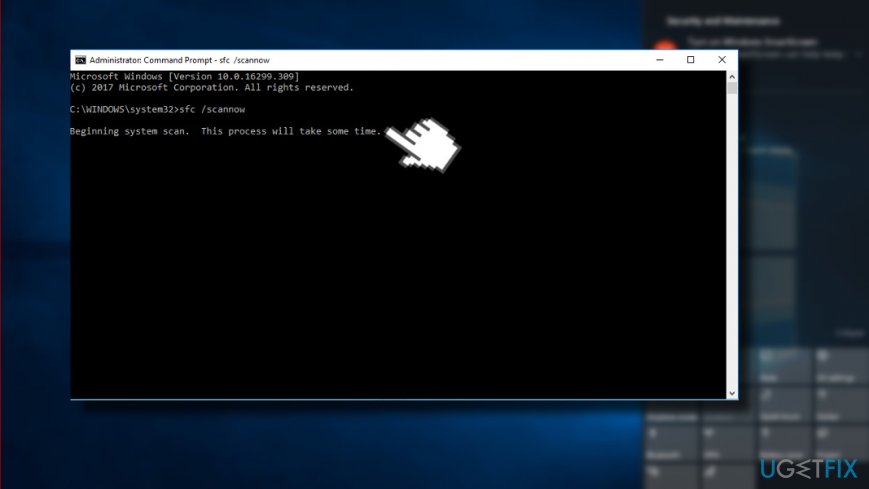
- Press Enter to execute it. The scan may take a while, so be patient.
- All errors should be fixed automatically, so your interference won't be needed. Close Command Prompt after a scan and check if System File Checker helped to fix "System call failed" error.
Re-register Windows 10 apps
- Press Windows key and type PowerShell.
- Right-click on PowerShell option and select Run as administrator.
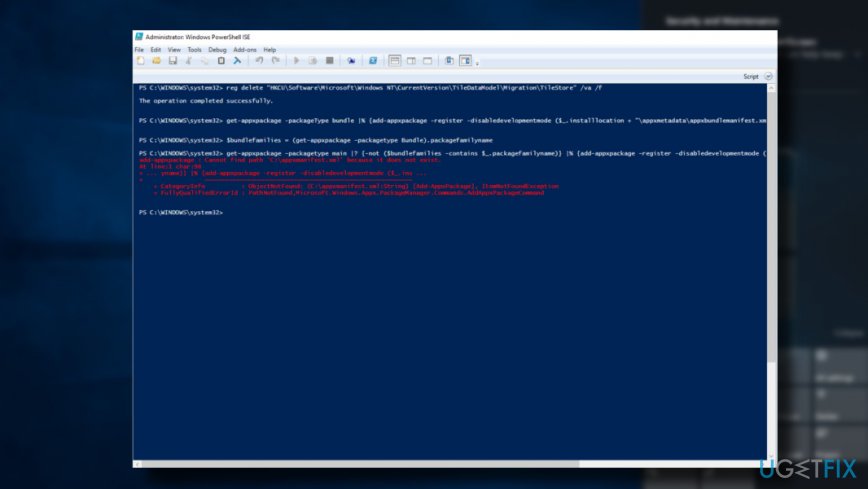
- Paste the following commands in the PowerShell window:
reg delete “HKCU\\Software\\Microsoft\\Windows NT\\CurrentVersion\\TileDataModel\\Migration\\TileStore” /va /f
get-appxpackage -packageType bundle |% {add-appxpackage -register -disabledevelopmentmode ($_.installlocation + "\\appxmetadata\\appxbundlemanifest.xml")}
$bundlefamilies = (get-appxpackage -packagetype Bundle).packagefamilyname
get-appxpackage -packagetype main |? {-not ($bundlefamilies -contains $_.packagefamilyname)} |% {add-appxpackage -register -disabledevelopmentmode ($_.installlocation + "\\appxmanifest.xml")}
- Now close PowerShell and check if the missing apps were successfully pinned to the Start Menu.
Try Clean Boot
- Click Windows key + R and type msconfig.
- Click System Configuration and open Services tab.
- Mark Hide all Microsoft services box and select Disable all.
- Open Startup tab and click Open Task Manager.
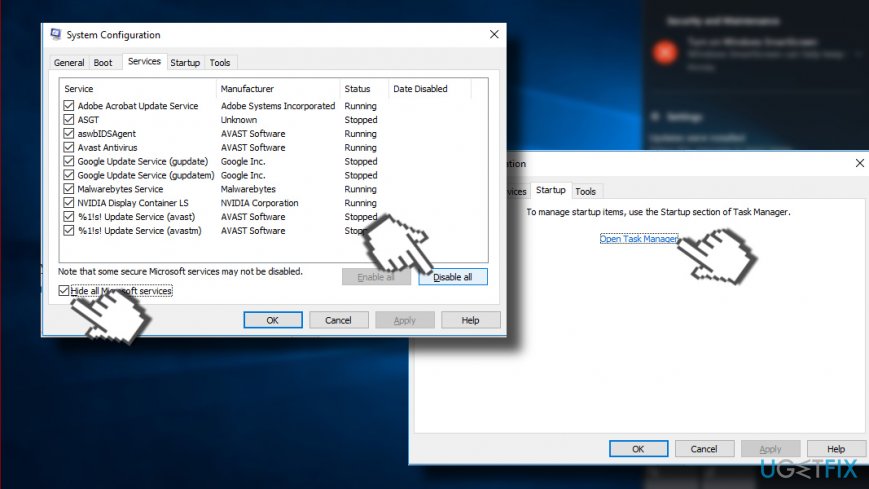
- Click on each startup item and select Disable.
- Close Task Manager and click OK on the System Configuration window.
- Reboot the system.
In case the problem disappeared, we would strongly recommend you to scan the system with [d1]. This software utility will scan the OS for malware, incompatible programs, virus infections[ref en-3], damaged system's files and other components that can result in explorer.exe crashes.
Bottom line
To fix the 'System call failed' error, you can restart the explorer.exe process, install the latest cumulative or patch updates for Windows 10, or roll back to a previous version of Windows. If these solutions do not resolve the issue, consider checking for third-party software conflicts or performing a system file check.
Frequently asked questions
The 'System call failed' error can be caused by corrupted system files, outdated drivers, or software conflicts. Running the System File Checker tool can help identify and fix these issues.
To resolve this error on Windows 11, you can try updating your system and drivers, or perform a clean boot to eliminate software conflicts. Additionally, running the DISM tool can repair system images that may be causing the error.
To prevent the 'System call failed' error, ensure that your Windows 10 is regularly updated and that you maintain proper driver functionality. Regularly running system maintenance tools can also help keep your system healthy.




Report an issue
What's wrong with this guide? We review every report and update or remove content.
Report received — thank you. We'll review and fix it.
You need a free account to submit a report.
Be the first to comment