How to fix
“System error 53 has occurred. The network path was not found”
on Windows
Resolve the "System error 53" in Windows 10 or 11 with expert-tested solutions that work quickly. Fix network path issues in minutes!


What causes How to fix “System error 53 has occurred. The network path was not found” in Windows?
- Network connectivity issues
- Shared resource is unavailable
- Incorrect file and folder permissions
- Necessary services are disabled
Repairs Windows system files, removes malware, and restores a clean OS state — without reinstalling.
Hello. I tried to access a Shared folder in Windows but I received the "System error 53 has occurred. The network path was not found" message. How do I fix this?
"System error 53 has occurred. The network path could not be found "is a Windows error message that appears when a user attempts but is unable to access shared resources on their computer. Shared resources may include files, printers, or folders on their computer, which they may need to access to complete tasks or projects.
Users may be working on a project or task that requires access to specific files or folders on their computer in many cases. If they are unable to access these resources as a result of the error message, they may be unable to complete their work on time, which can result in missed deadlines or project delays.
Furthermore, if users work in a team environment, they may need to share resources with their coworkers. If they are unable to access shared resources as a result of this error, it can have an impact on the entire team's productivity and cause project timelines to be pushed back.
Checking network connectivity, ensuring the shared resource is available, checking file and folder permissions, and enabling the necessary services are all possible solutions to this problem. However, the specific solution will be determined by the underlying cause of the problem.
In this guide, you will find 5 steps that should help you fix "System error 53 has occurred. The network path was not found" in Windows. However, you can also try using a system repair tool like [d1]. It can fix most system errors, BSODs,[ref en-1] corrupted files, registry[ref en-2] issues, or clear cookies and cache[ref en-3] automatically. Otherwise, follow the step-by-step instructions below.
Method 1. Check Connectivity using Ping
- Press the Windows key + R to open the Run dialog box.
- Type cmd and then press the Enter key or click the OK button. This will open the Command Prompt.
- Once the Command Prompt is open, type the following command:
ping <destination-IP>
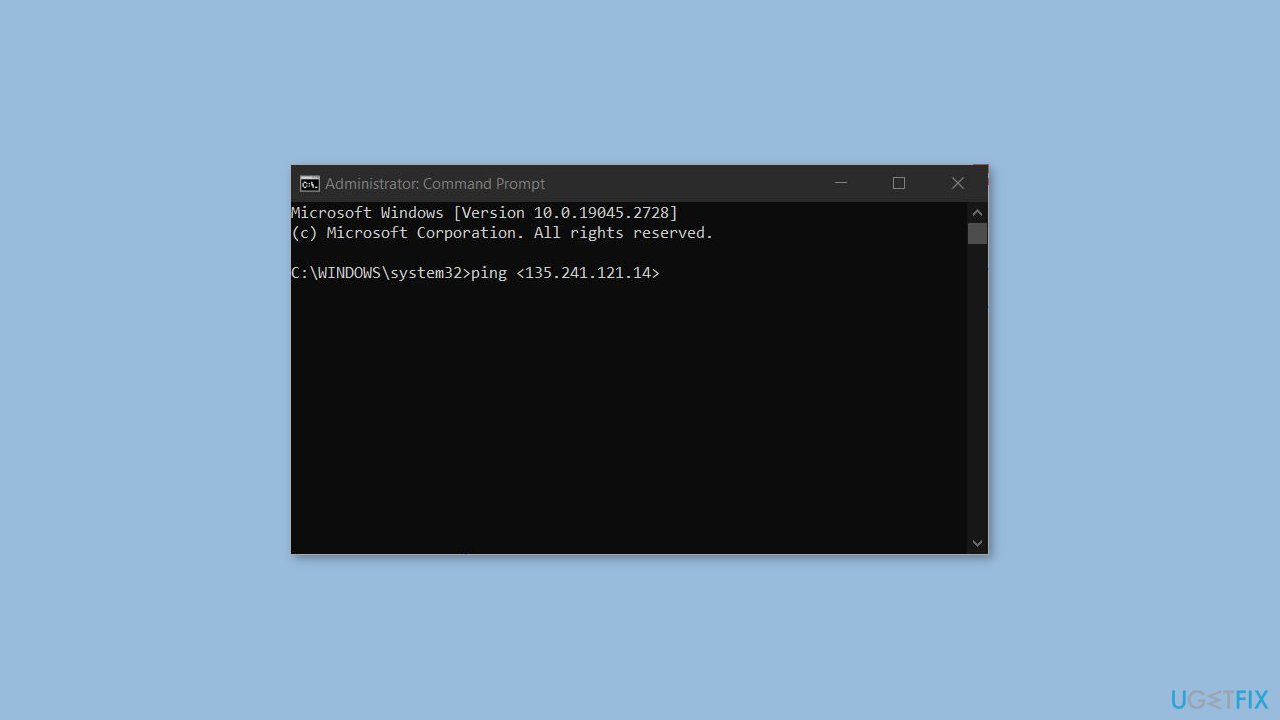
- Replace <destination-IP> with the IP address or domain name of the destination you want to ping.
- Press the Enter key to execute the command.
- The results of the ping command will be displayed in the Command Prompt window.
Method 2. Disable Windows Firewall
The antivirus installed on your computer can often prevent you from accessing resources from a remote device. To resolve this issue, it is recommended that you disable the Windows Firewall. Additionally, if you have any other security programs installed, you should also disable them.
- Press the Windows key + S to open the Search menu.
- Type control panel in the search box.
- Select the first result that appears.
- In the Control Panel window, use the drop-down menu in the top right corner to change the View type to Large icons.
- Click on Windows Defender Firewall.
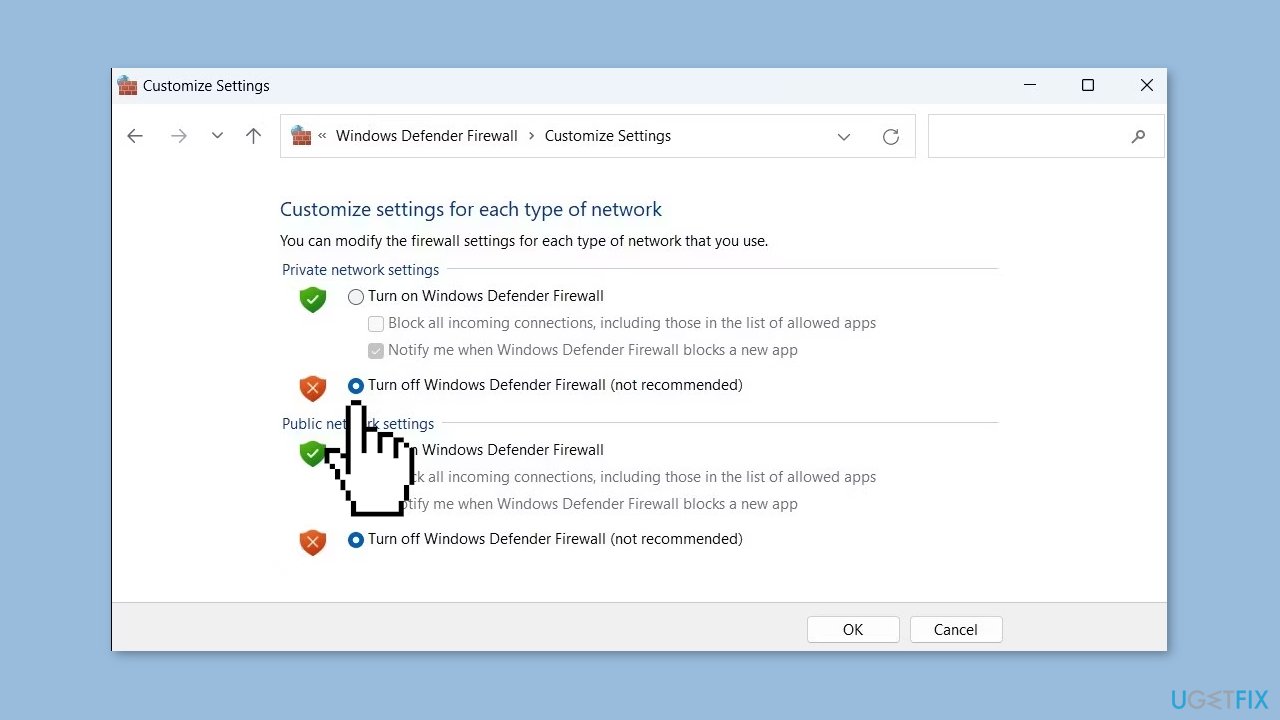
- Select Turn Windows Defender Firewall on or off from the left pane.
- Under Private and Public network Settings, select the Turn off Windows Defender Firewall (not recommended) option.
- Click OK to save the changes.
Method 3. Enable File and Folder Sharing
To access network resources, it is necessary to have files and folders enabled. If you are encountering an error while attempting to access network resources, it is recommended to ensure that the file and folder-sharing option is enabled. If this option is disabled, you will not be able to access anything from the remote computer. To resolve this issue, you should enable the file-sharing option to gain access to the resource.
- Right-click on the required drive and select Properties.
- Once the Properties dialog box appears, click on the Sharing tab.
- Check the status of the Network Path. If it says Not Shared, then click on the Advanced Sharing button.
- Check the box associated with Share this folder and note the Share name of the drive.
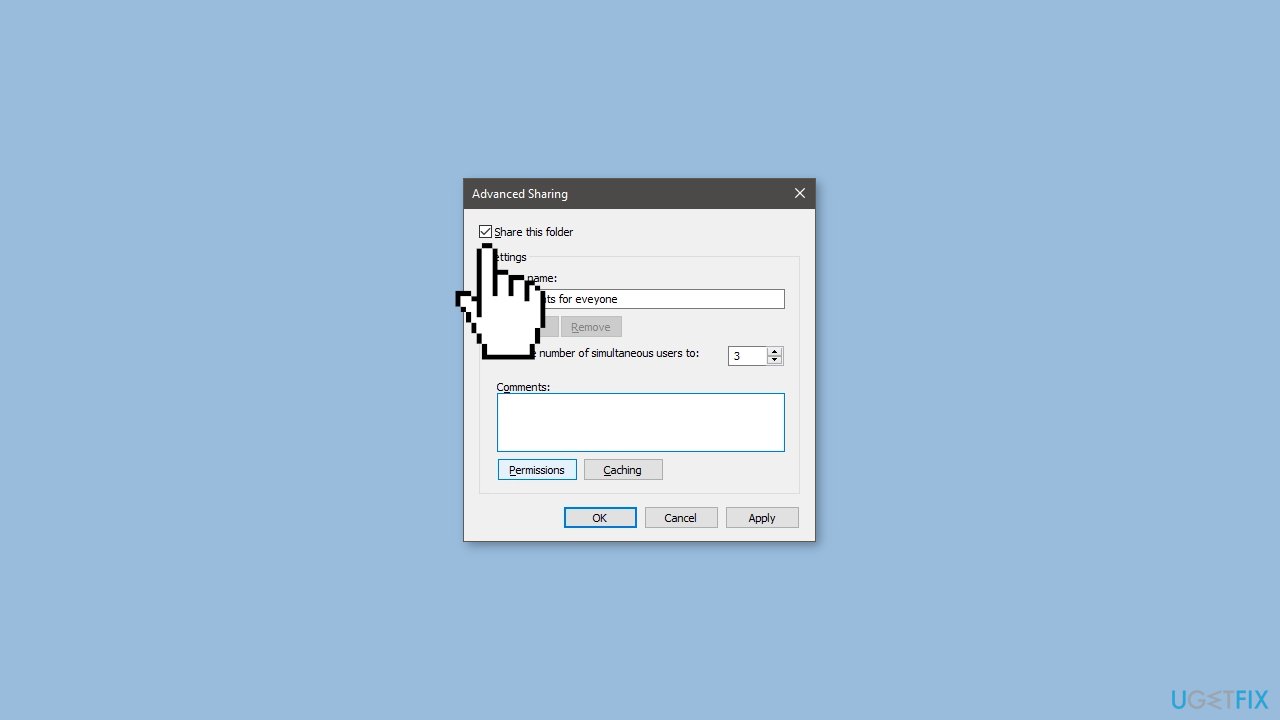
- Click on the Apply and OK buttons to save the changes.
- The target drive will now be shared and accessible to other devices on the network.
Method 4. Boot in Safe Mode
Starting the computer in Safe Mode with Networking allows it to start with network drivers and a minimal set of services, enabling us to connect to the internet and access the shared server without any hindrance. It is recommended to check for any third-party applications that may be causing the problem while in Safe Mode with Networking.
- Right-click on the Start button.
- Press and hold the Shift key and click on Restart.
- Once the computer restarts, click on Troubleshoot and then click on Advanced options.
- Click on the Startup Settings button and then allow the system to restart.
- When prompted, hit the number associated with Safe Mode with networking.
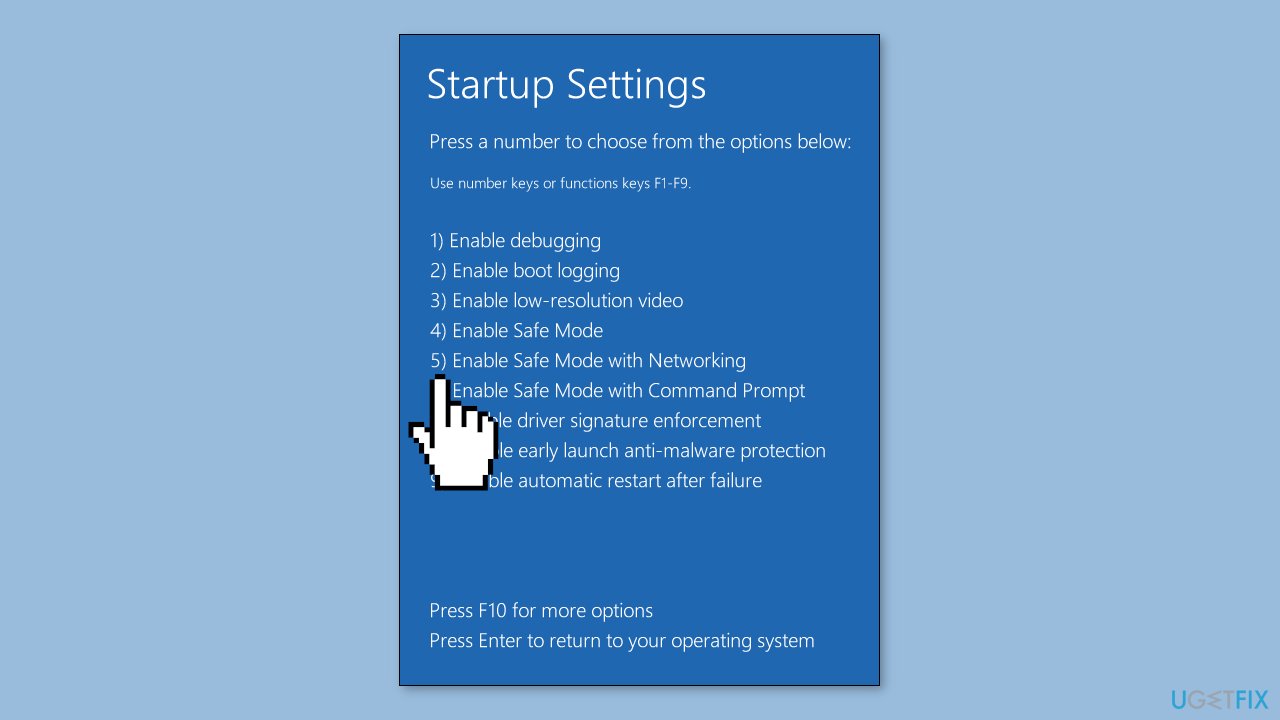
- The computer will now start in Safe Mode with networking, allowing you to troubleshoot any network-related issues.
Method 5. Restart TCP/IP NetBIOS Helper Service
- Open the Start Menu.
- Open Services.
- Look for TCP/IP NetBIOS Helper Service.
- Right-click on TCP/IP NetBIOS Helper Service.
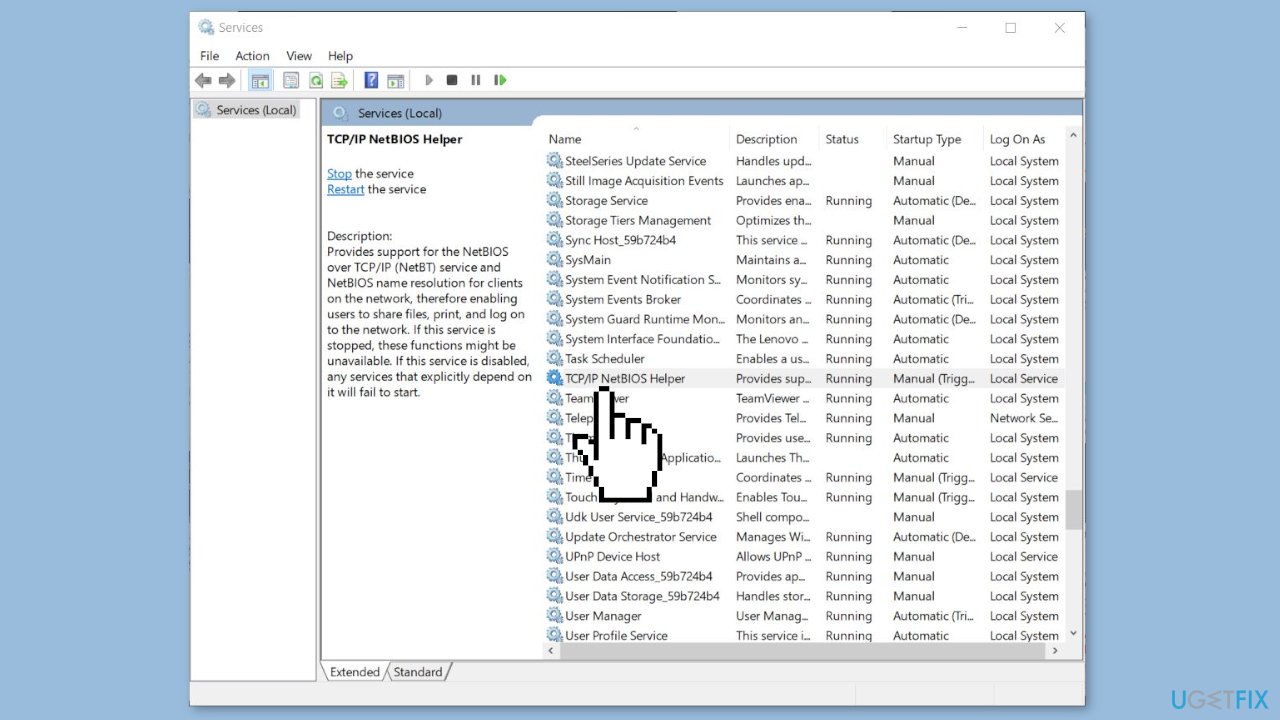
- Select Restart.
- Restarting the service will flush out any network glitches and resolve the issue.
Bottom line
To fix the 'System error 53 has occurred. The network path was not found' error, you can check network connectivity, ensure the shared resource is available, verify file and folder permissions, and enable necessary services. If these steps do not resolve the issue, consider using a system repair tool to address potential underlying problems.
Frequently asked questions
This error typically occurs due to incorrect network path references, issues with network connectivity, or when the target computer is unreachable on the network.
To fix this, ensure that the network sharing settings are enabled on both the local and remote computers, and verify that the correct network path is being used.
Yes, you can use the 'ping' command to check connectivity or 'net use' to map network drives, ensuring the correct path is specified for shared resources.




Report an issue
What's wrong with this guide? We review every report and update or remove content.
Report received — thank you. We'll review and fix it.
You need a free account to submit a report.
Be the first to comment