How to fix
System Restore error 0x80042302
on Windows
Resolve the System Restore error 0x80042302 in Windows 10 or 11 effortlessly. Follow our expert-tested guide for quick and efficient solutions.


What causes How to fix System Restore error 0x80042302 in Windows?
- Corrupted Volume Shadow Copy Service (VSS)
- Third-party antivirus interference
- Corrupted system files
- Insufficient disk space
- Conflicting services or drivers
Repairs Windows system files, removes malware, and restores a clean OS state — without reinstalling.
System Restore on my Windows 10 computer fails to create or apply restore points due to error code 0x80042302. I am facing a major problem because I must return my system to a previous state to address issues caused by recent updates. I need help understanding the cause of these issues and how to make System Restore functional again.
Users encounter the System Restore error 0x80042302 mainly during restore point creation or system rollback attempts which results in component failure messages. The error prevents System Restore from completing its operation successfully so users cannot revert their system to a functional state during attempts to reverse problematic updates or software modifications.
System Restore functions as an integrated recovery tool in Windows 10 and 11 that helps users fix system problems by returning the operating system to an earlier state without modifying their personal files. It maintains restore points containing system file copies, registry key backups and settings backups at predetermined times (before major software changes were made).
This feature is of great utility in problem-solving since it allows the user to revert back to a time when their computer operated optimally, basically undoing harmful adjustments without affecting documents and other data.
Several factors can lead to this error, disrupting System Restore’s functionality:
- Corrupted Volume Shadow Copy Service (VSS)
- Third-party antivirus interference
- Corrupted system files
- Insufficient disk space
- Conflicting services or drivers
To fix the 0x80042302 error, several troubleshooting steps can help, depending on the root cause. Restarting VSS, disabling antivirus temporarily, or repairing system files are effective solutions. Adjusting disk space or running System Restore in Safe Mode can also work.
The instructions below provide detailed instructions on how to get System Restore functioning again. For a faster solution, we recommend using [d1], a repair application that excels at fixing underlying Windows issues, such as corrupted files, service errors, or registry problems, that might contribute to the 0x80042302 error.

Fix 1. Restart Volume Shadow Copy Service
System Restore depends on the Volume Shadow Copy Service to create snapshots, and if it’s not running properly, the process can fail. Restarting this service may resolve the issue.
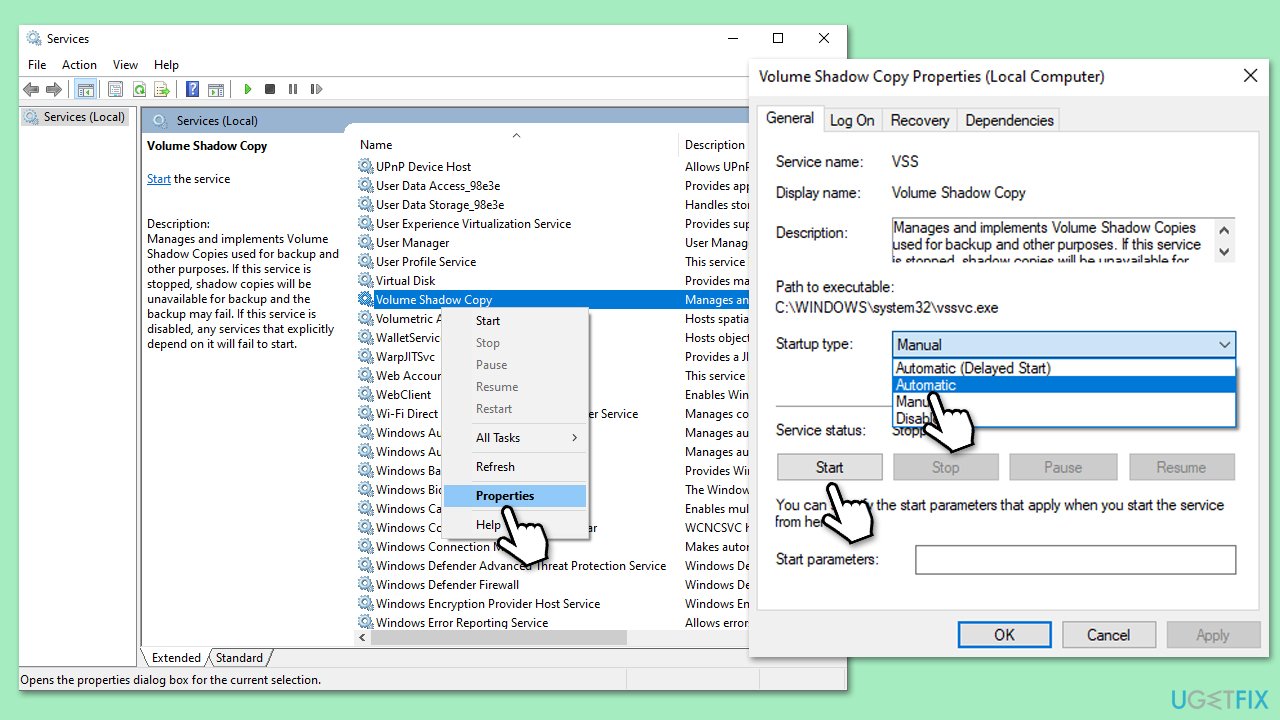
- Type Services in Windows search and press Enter to open the Services window.
- Scroll down and locate the Volume Shadow Copy service.
- Right-click on it and select Properties.
- In the Startup type dropdown menu, choose Automatic.
- Repeat this process with Microsoft Software Shadow Copy Provider and Windows Management Instrumentation.
- Click Apply and then OK to save the changes.
Fix 2. Disable third-party antivirus temporarily
Antivirus software can sometimes block the Volume Shadow Copy Service or other components needed for System Restore, causing the operation to fail. Temporarily disabling the antivirus can help determine if it’s the source of the problem and allow System Restore to proceed.
To disable third-party security software, you should open it up and go to Settings, then find real-time protection and pause it temporary.
Fix 3. Run System Restore in Safe Mode
Background processes or drivers can interfere with System Restore, preventing it from completing. Running it in Safe Mode starts Windows with minimal services, reducing potential conflicts.
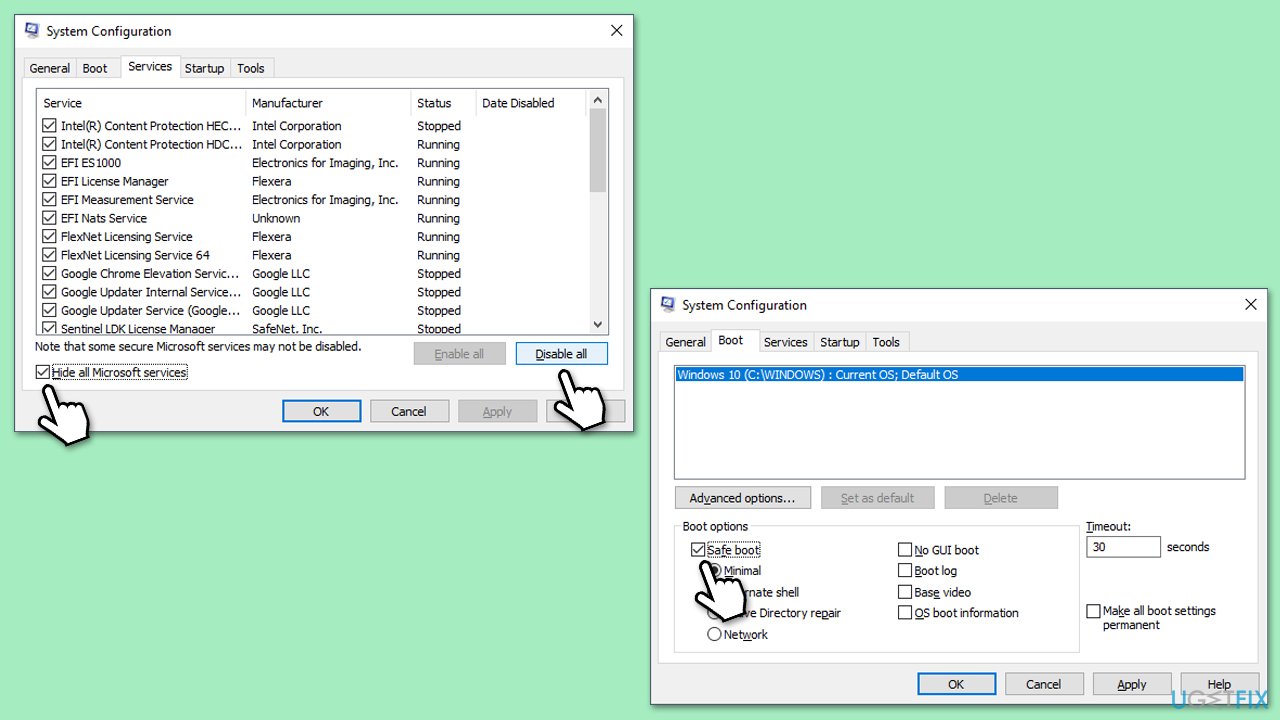
- Press Wind + R, type, and press Enter.
- In the System Configuration window, go to the Boot tab.
- Check Safe boot and select Minimal.
- Click OK and restart your computer.
- Once in Safe Mode, try running System Restore again.
- After completion, repeat steps 1-3 and uncheck Safe boot to return to normal mode.
Fix 4. Repair corrupted files
Damaged system files can disrupt the components System Restore relies on, leading to failures. Using SFC and DISM tools can repair these files and restore functionality.
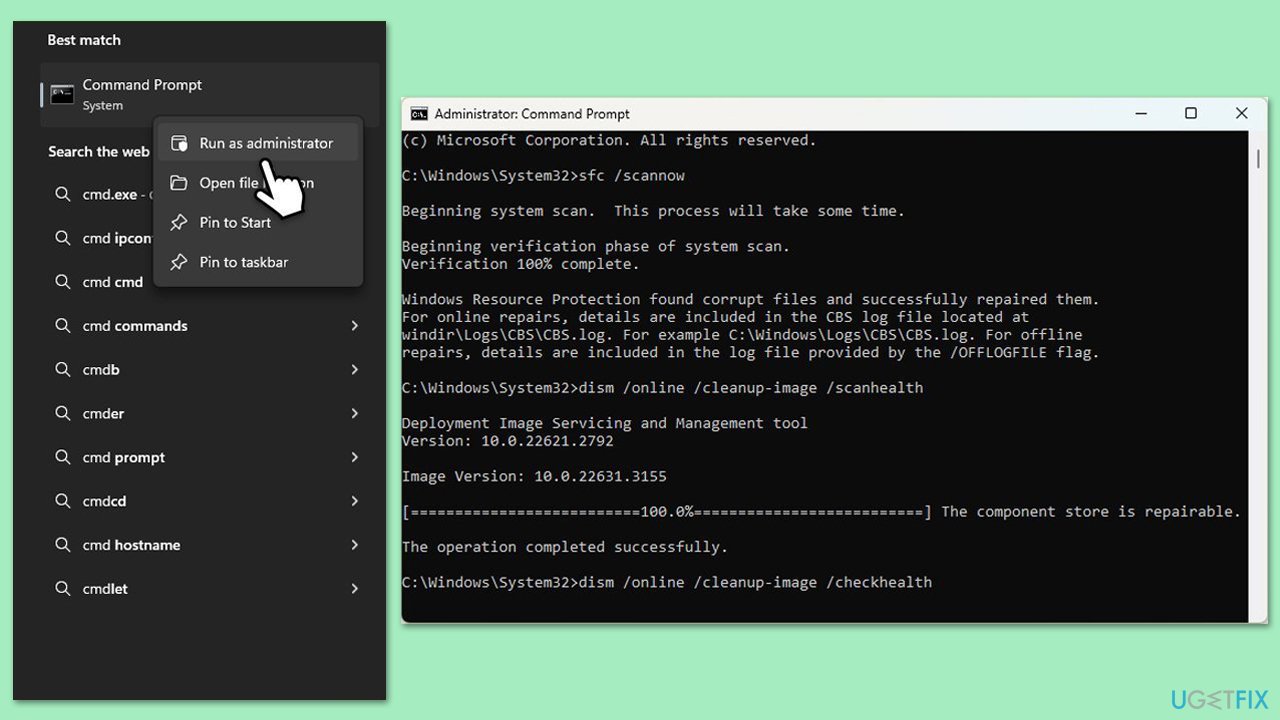
- Type cmd in Windows search.
- Right-click on Command Prompt and pick Run as administrator.
- The User Account Control window will ask whether you want to allow changes - click Yes.
- In the Command Prompt window, paste the following command and hit Enter:
sfc /scannow - Once the scan is complete, use the following commands and press Enter after each:
Dism /Online /Cleanup-Image /CheckHealth
Dism /Online /Cleanup-Image /ScanHealth
Dism /Online /Cleanup-Image /RestoreHealth - (Note: if you get an error executing this last command, add /Source:C:\RepairSource\Windows /LimitAccess to it and try again).
- Restart your computer.
Fix 5. Re-register VSS components
- Open Command Prompt as an administrator.
- Type the following commands one by one, pressing Enter after each:
- net stop vss
- net stop swprv
- cd %windir%\system32
- regsvr32 ole32.dll
- regsvr32 oleaut32.dll
- regsvr32 vss_ps.dll
- vssvc /register
- regsvr32 /i swprv.dll
- regsvr32 /i eventcls.dll
- regsvr32 es.dll
- regsvr32 stdprov.dll
- regsvr32 vssui.dll
- regsvr32 msxml.dll
- regsvr32 msxml3.dll
- regsvr32 msxml4.dll
- After executing these commands, restart your computer.
Fix 6. Free up disk space on the system drive
System Restore requires sufficient disk space to create or apply restore points, and low space can cause the process to fail. Ensuring enough free space can help.
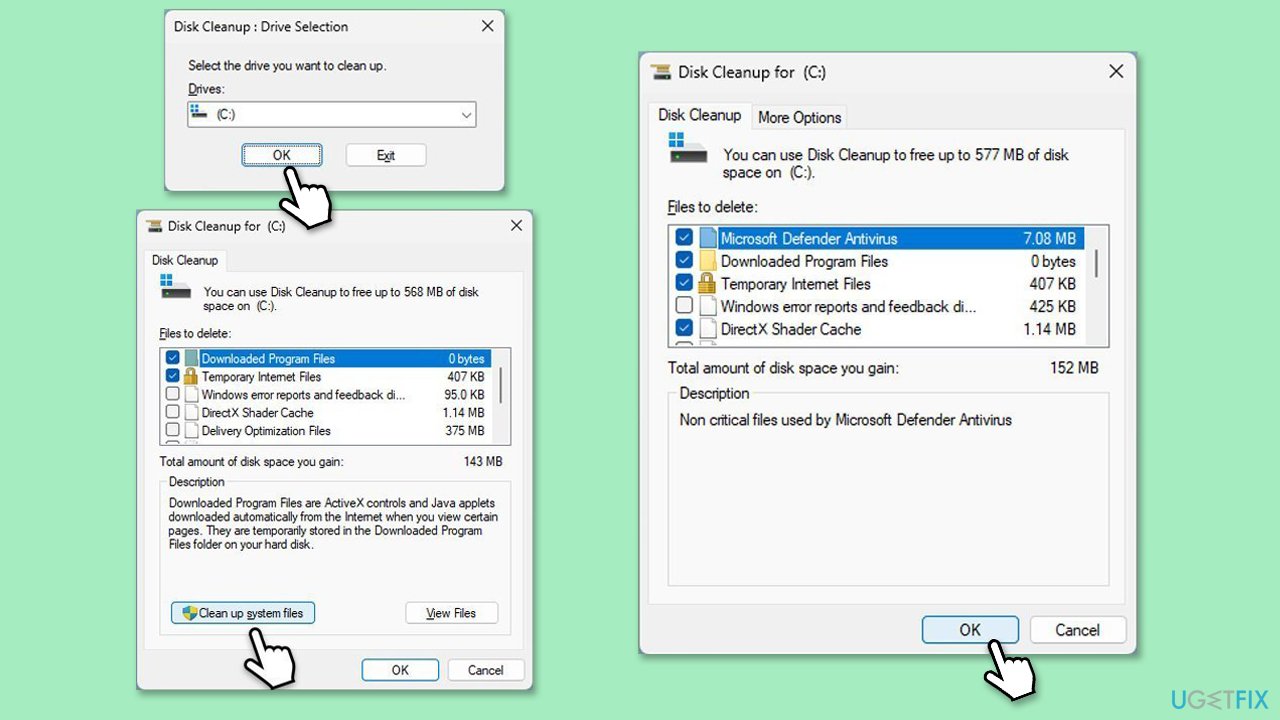
- Type Disk Cleanup in Windows search and hit Enter.
- If your Windows is installed on drive C, pick it from the list (it should be by default) and press OK.
- Click Clean up system files.
- Select your main disk again and click OK.
- Here, select the largest portions of the data used - these typically include Temporary Internet Files, Windows Update, Temporary Files, Recycle Bin, Delivery Optimization Files, and others.
- Click OK - the process should be finished shortly.
Bottom line
To fix the 0x80042302 error, you can restart the Volume Shadow Copy Service, disable your antivirus temporarily, or repair corrupted system files. Additionally, adjusting disk space or running System Restore in Safe Mode may help. If none of these solutions work, consider using a repair application to address underlying Windows issues.
Frequently asked questions
This error is typically caused by issues with the Volume Shadow Copy Service (VSS) or when the necessary restore points are not available for the system. It can also occur if third-party software conflicts with the system restore process.
You can fix this error by restarting the Volume Shadow Copy Service through the Services app, or by running the System File Checker (SFC) tool to repair any corrupted system files. Additionally, ensure that your drive is not low on space.
To prevent this error, regularly check that your system restore settings are correctly configured and that sufficient disk space is available for restore points. Keeping your Windows 10 system updated can also help avoid compatibility issues.




Report an issue
What's wrong with this guide? We review every report and update or remove content.
Report received — thank you. We'll review and fix it.
You need a free account to submit a report.
Be the first to comment