How to fix
System Restore error 0x80042306
on Windows
Resolve System Restore error 0x80042306 on Windows 10 or 11 effortlessly. Follow our expert-tested solutions for a smooth system recovery, fixed in minu…

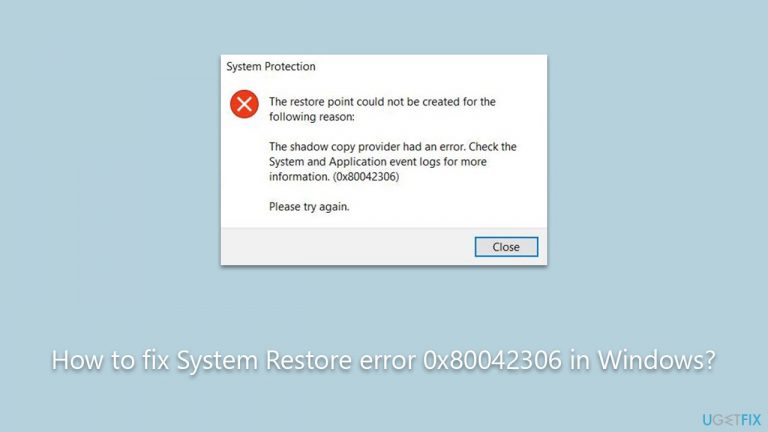
What causes How to fix System Restore error 0x80042306 in Windows?
- VSS is unable to run due to a conflict with another snapshot management provider
- Another software with its own snapshot management system is installed
- VSS is not started or has been stopped
- Underlying system problems may exist
- Insufficient permissions to run VSS
Repairs Windows system files, removes malware, and restores a clean OS state — without reinstalling.
When trying to create a System Restore point, I get a VSS error 0x80042306. Any tips on how to approach this would be appreciated.
Every computer system, no matter how sophisticated, can encounter errors. One of these errors in the Windows operating system revolves around the creation of a System Restore Point. Particularly, you may come across the error code 0x80042306. But what is it, why does it happen, and what can you do about it?
When attempting to create a System Restore Point in Windows, you might see an error message displaying the code 0x80042306. The root cause of this issue is tied to the Volume Shadow Copy Service (VSS). VSS is responsible for creating the "shadow copies" that serve as the snapshots for the System Restore Point.
The 0x80042306 error surfaces when the VSS is unable to run. This inability typically stems from another snapshot management provider already being installed on the system. In simpler terms, there's a clash occurring in the background between the VSS and another software that performs a similar task.
Computers are complex systems, and over time, various applications and services are installed either by you or by default with certain software packages. Some of these applications might have their own snapshot management systems. When these are present, they can interfere with the VSS, preventing it from functioning properly. Thus, you get the 0x80042306 error.

The conflict usually lies with another snapshot management provider being present. By identifying and potentially managing, altering, or removing this conflicting software, you can resolve the error. Detailed instructions on how to do this will be provided below this article.
In some cases, issues like this might run deeper than a simple conflict. It could be tied to other underlying system problems. For these situations, employing a dedicated PC repair tool, such as [d1], can be a strategic move to rectify such errors swiftly and effectively.
Fix 1. (Re)Start VSS
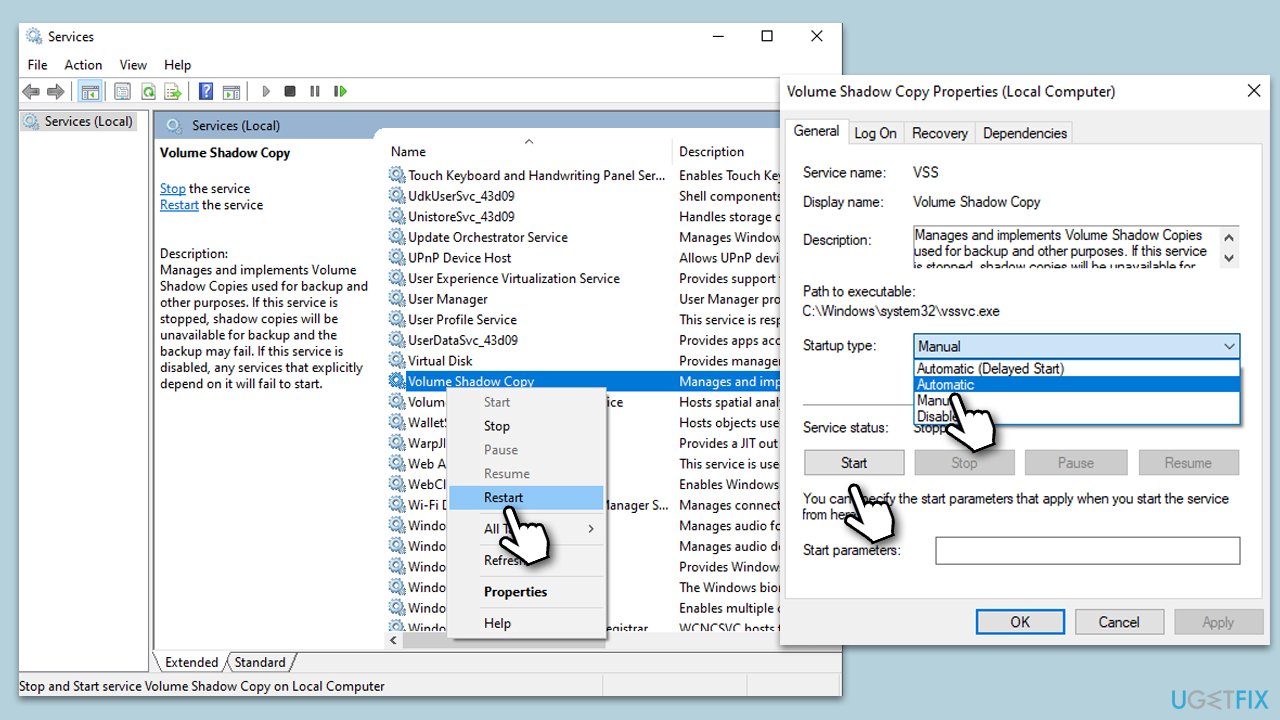
Volume Shadow Copy Service, often abbreviated as VSS, is a crucial component for creating System Restore Points in Windows. If, for some reason, this service gets interrupted, stops, or encounters an error, it can hinder the process of creating restore points. By manually restarting the service, it refreshes its operation, potentially rectifying any minor glitches or issues that could cause errors.
- Type Services in Windows search and press Enter.
- In the Services list, look for Volume Shadow Copy.
- Right-click on Volume Shadow Copy and select Properties.
- In the Properties dialog box, set the Startup type to Automatic.
- If the service status is Stopped, click on Start to start the service. If it's already running, select Restart.
- Click Apply and then OK to save your changes.
Fix 2. Perform Disk Cleanup
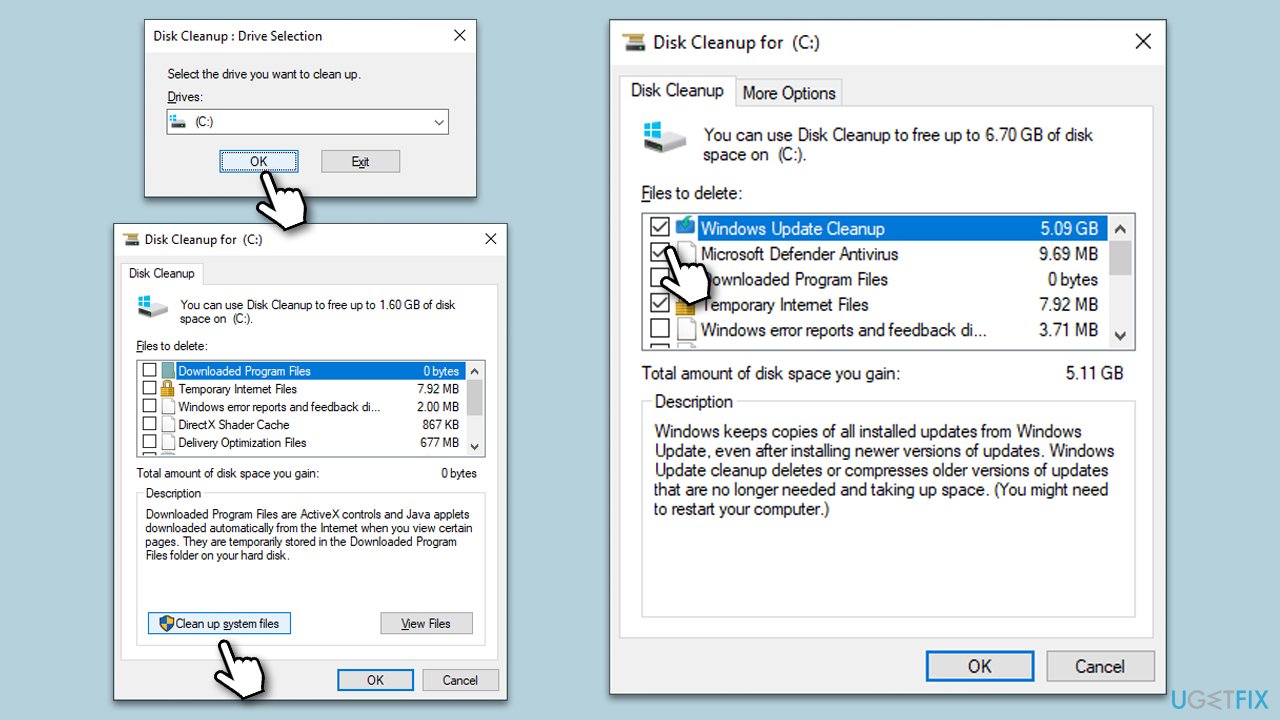
Accumulation of unnecessary files over time can clog your system and might interfere with the smooth functioning of various services. Performing a disk cleanup ensures that these unwanted files are removed, paving the way for services like VSS to operate without hiccups.
- Click on the Start button and type Disk Cleanup in the search bar.
- From the search results, select the Disk Cleanup application.
- A window will pop up, asking you to select a drive. Typically, select C:
- After you've selected the drive, click OK.
- A list will be presented with various types of files. Check the boxes beside the types of files you wish to delete.
- Once selected, click OK, followed by Delete Files in the confirmation dialog.
- After the cleanup is complete, try creating a System Restore Point again.
Fix 3. Run SFC and DISM scans
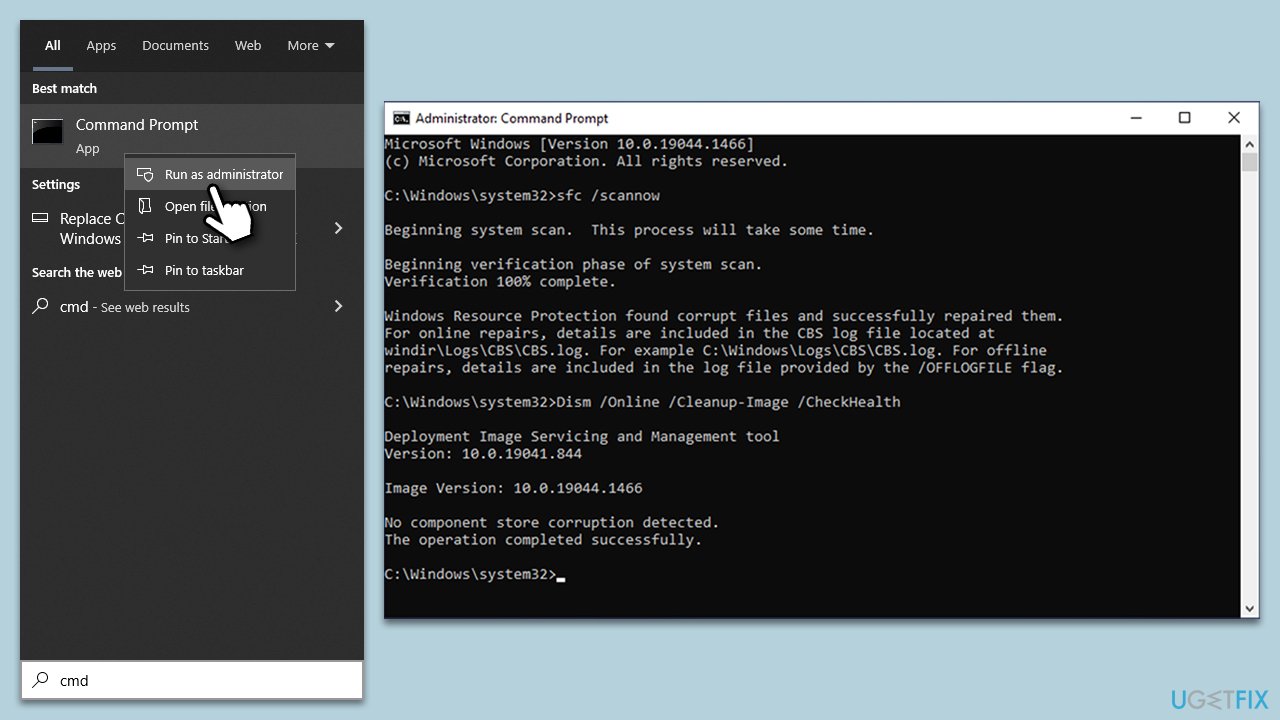
The System File Checker and the Deployment Image Servicing and Management are tools integrated into Windows. They help in identifying and repairing corrupted or missing system files that might be affecting the operation of services like VSS.
- Type cmd in Windows search.
- Right-click on Command Prompt and pick Run as administrator.
- User Account Control window will show up - click Yes when prompted.
- Then, copy and paste the following command, pressing Enter after:
sfc /scannow - Wait till the scan is finished. If Windows finds system file integrity violations, it will attempt to fix them. After this, use the set of the following commands, pressing Enter each time:
DISM /Online /Cleanup-Image /CheckHealth
DISM /Online /Cleanup-Image /ScanHealth
DISM /Online /Cleanup-Image /RestoreHealth - (Note: if you get an error executing this last command, add /Source:C:\RepairSource\Windows /LimitAccess to it and try again).
- Close down the Command Prompt and restart your system.
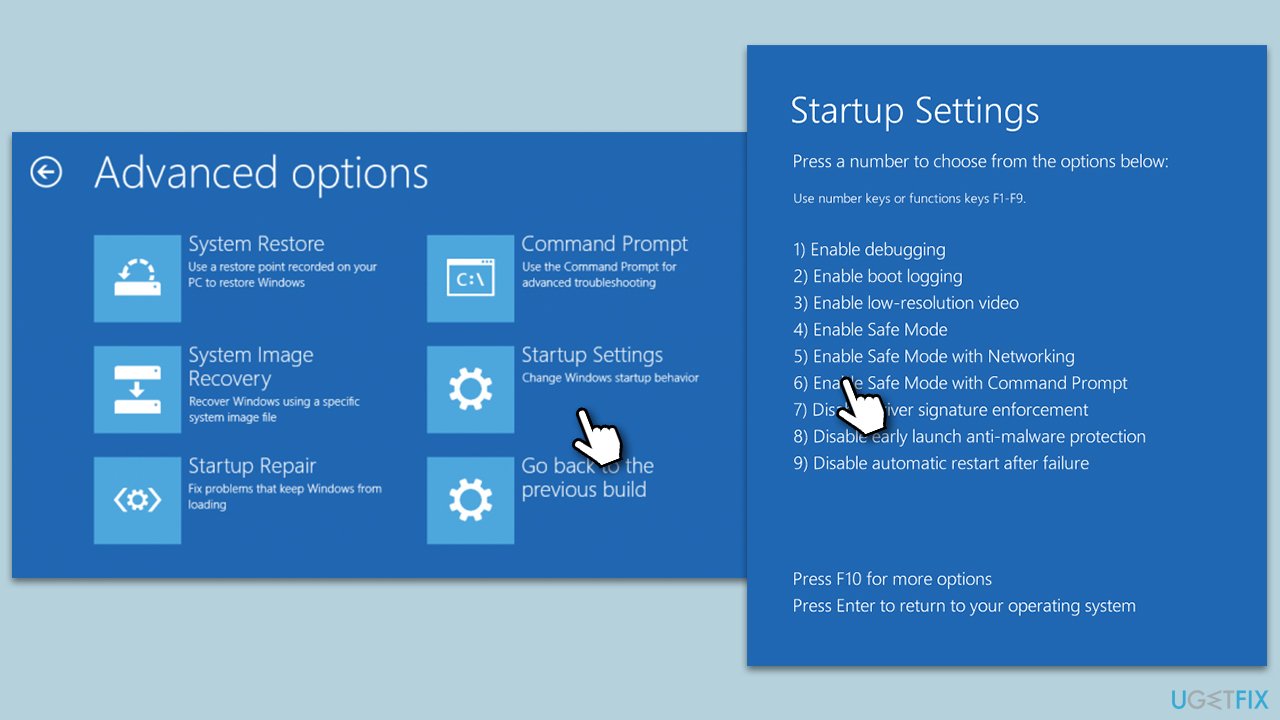
Fix 4. Create a restore point in Safe Mode
Booting Windows in Safe Mode ensures that only the most essential drivers and services are active. This mode can prevent third-party applications or services from interfering with the creation of a restore point.
- Restart your computer.
- During the startup, press the F8 key (it might also be Del, F2, F10, F12, etc. - depending on the device manufacturer) continuously to access the Recovery Environment.
- From the Advanced Startup, select Troubleshoot.
- Go to Advanced options > Startup Settings and then pick Restart.
- After a reboot, pick either 4/F4 for Safe Mode or 5/F5 for Safe Mode with Networking.
- Once the PC boots in Safe Mode, navigate to the System Restore Point creation process and attempt to set one.
- After the process, restart your computer in normal mode.
Fix 5. Re-register VSS components
There might be instances where the VSS components in your system are not properly registered, causing malfunctions. Re-registering these components can ensure they are correctly set up and can function effectively.
Instructions:
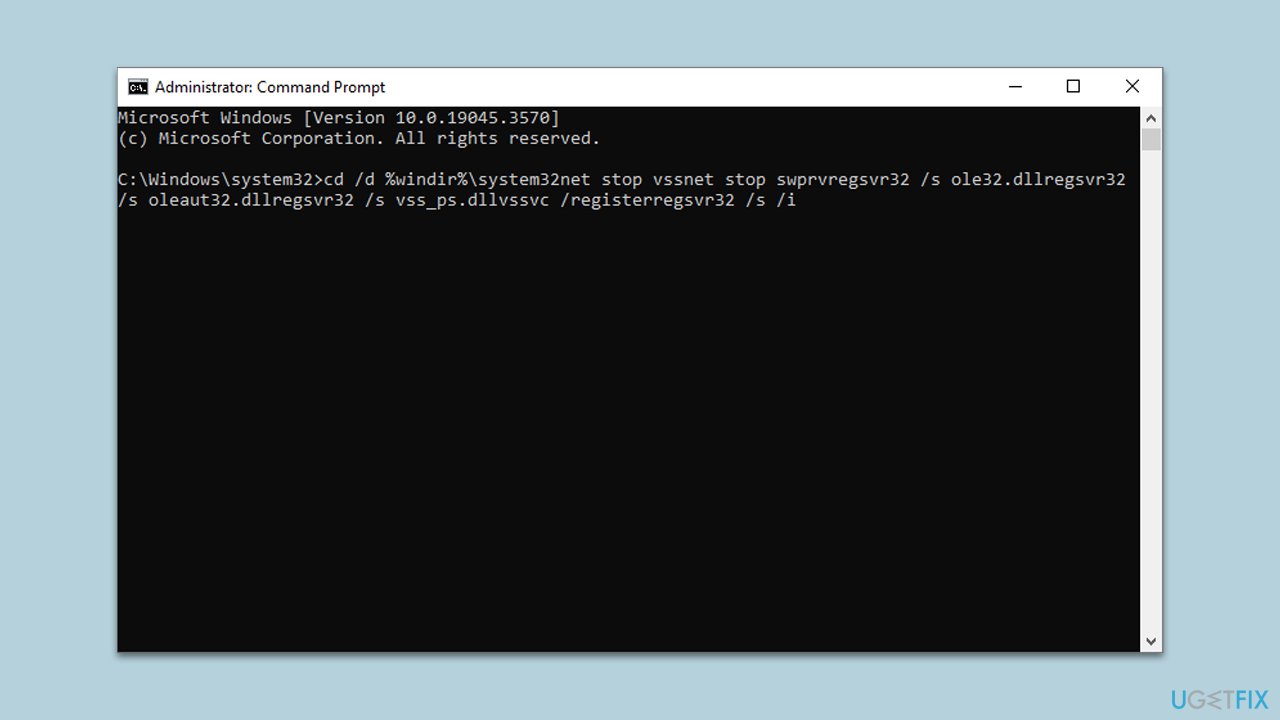
- Navigate to the Start button, type in Command Prompt, then right-click on it and select Run as administrator.
- In the Command Prompt window, enter the following commands one by one, making sure to press Enter after each lines:
cd /d %windir%\system32net stop vssnet stop swprvregsvr32 /s ole32.dllregsvr32 /s oleaut32.dllregsvr32 /s vss_ps.dllvssvc /registerregsvr32 /s /i
swprv.dllregsvr32 /s /i eventcls.dllregsvr32 /s es.dllregsvr32 /s stdprov.dllregsvr32 /s vssui.dllregsvr32 /s msxml.dllregsvr32 /s
msxml3.dllregsvr32 /s msxml4.dllvssvc /registernet start swprvnet start vss - After inputting all the commands, close the Command Prompt window, restart your PC, and try to create a Restore Point again.
Bottom line
To fix the System Restore error 0x80042306, you can restart the Volume Shadow Copy Service, identify and manage conflicting software, or use a dedicated PC repair tool. If these solutions do not resolve the issue, further investigation into underlying system problems may be necessary.
Frequently asked questions
The error code 0x80042306 typically indicates a problem with the Volume Shadow Copy Service (VSS), which is essential for creating restore points in Windows 10 and Windows 11.
To resolve this error, you can try restarting the Volume Shadow Copy Service and ensuring that your system is up to date with the latest Windows updates.
Yes, you can check the status of the Volume Shadow Copy Service by typing 'services.msc' in the Run dialog and looking for 'Volume Shadow Copy' in the list; it should be set to 'Running'.




Report an issue
What's wrong with this guide? We review every report and update or remove content.
Report received — thank you. We'll review and fix it.
You need a free account to submit a report.
Be the first to comment