How to fix
System Restore error 0x80070495
on Windows
Resolve System Restore error 0x80070495 in Windows 10 or 11 effortlessly. Get expert-tested solutions for a smooth recovery experience!

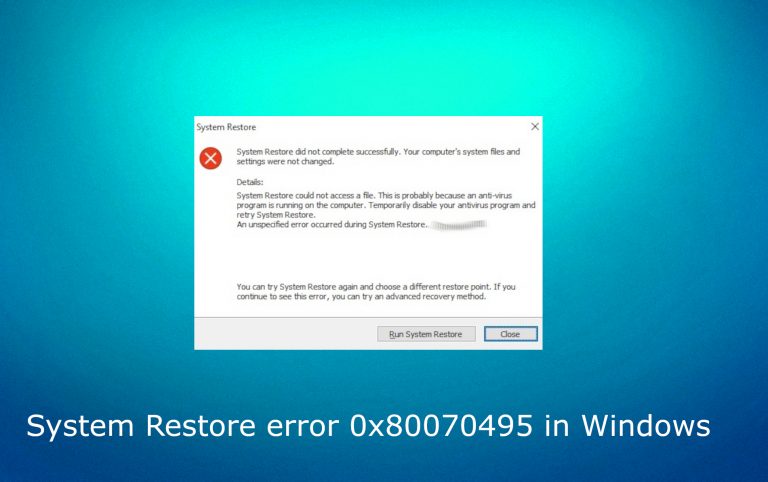
What causes How to fix System Restore error 0x80070495 in Windows?
- Files within the user profile become encrypted using the Encrypting File System (EFS) when setting up the Mail application to connect to an Exchange or Office 365 server.
- Encrypted files are included in the restore point created by System Restore.
- The EFS service is halted during the system restoration process due to a shutdown task.
- The System Restore program cannot access the EFS service to retrieve encrypted files during restoration.
Repairs Windows system files, removes malware, and restores a clean OS state — without reinstalling.
Hello. I need help. I get the error via System Restore. The error code 0x80070495 in Windows is indicated every time. I have no idea what have caused this and have not enough knowledge to fix it myself. Can you offer any tips?
System Restore error 0x80070495 in Windows is a common problem that arises in the System Restore program due to a specific issue. When setting up the Mail application to connect to an Exchange or Office 365 server and agreeing to the Make My PC more secure security policies, certain files within the user profile become encrypted using the Encrypting File System (EFS). These encrypted files are then included in the restore point if one chooses to create a restore point using System Restore.
During the system restoration process initiated by the System Restore program, a shutdown task is created to perform the restoration tasks. At this point, most system services, including EFS, are already halted. If any file encrypted by EFS is in the restore point, the System Restore program needs to access the EFS service to retrieve these files during restoration.
However, since the EFS service cannot be restarted due to the ongoing system shutdown, the restoration process encounters an error with code 0x80070495b, signifying ERROR_SHUTDOWN_IN_PROGRESS or other messages, error codes. Those codes can indicate the particular reason for the problem, but the procedure of fixing the error and the issue with the machine itself is not different.
System Restore is a valuable feature in Windows that allows users to revert their system back to a previous state if any issues or errors arise. However, users may encounter System Restore error 0x80070495 in Windows when attempting to perform a system restoration, which can be frustrating and hinder the process.
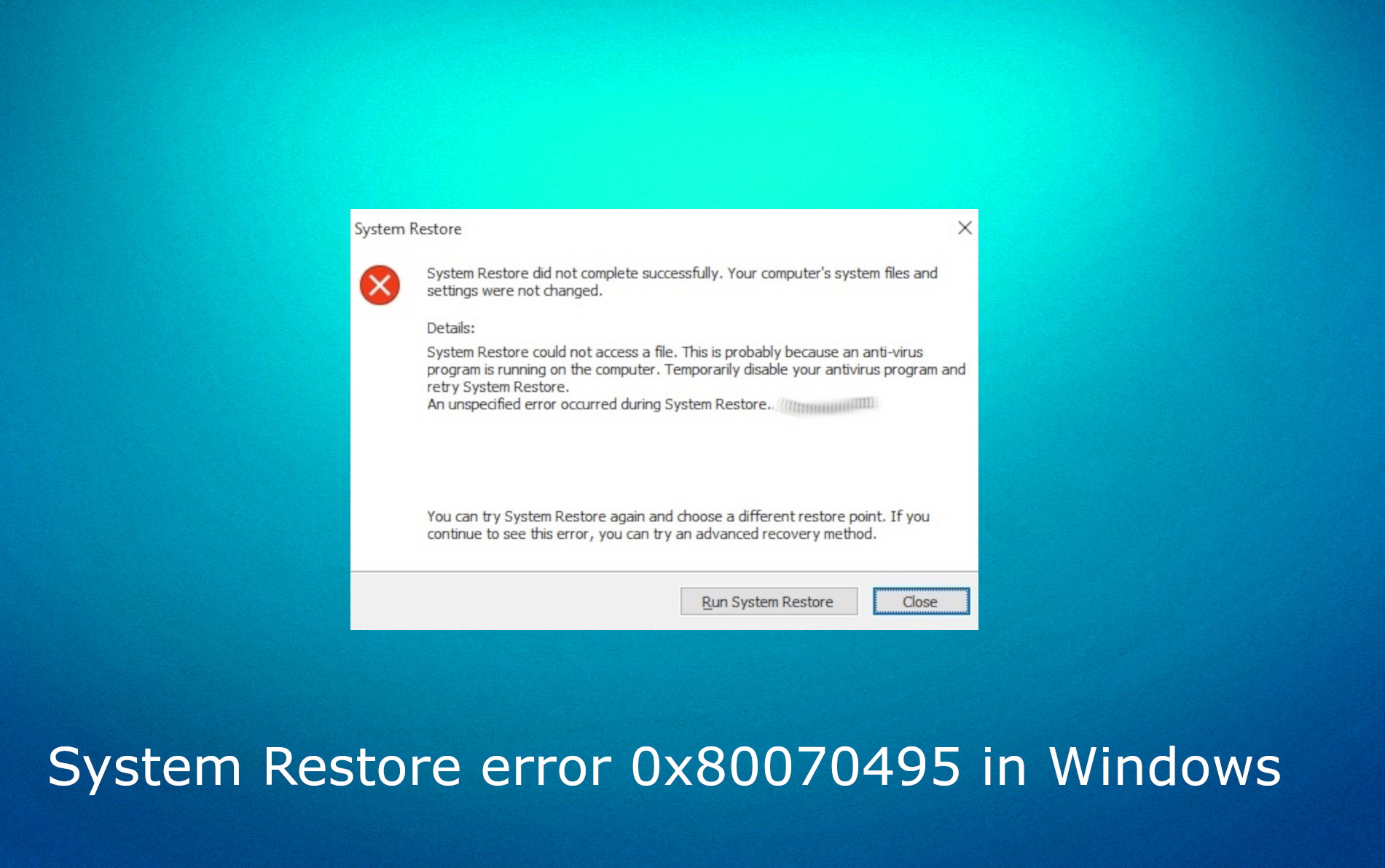
How to fix System Restore error 0x80070495 in Windows?
Error code 0x80070495 with any of the messages and indicators can occur in various scenarios, and it is not easy to fix. Users can disable EFS encryption for the affected files to resolve this issue before creating a restore point. This can prevent the error from occurring during the restoration process. Additionally, ensuring that all necessary services are running before initiating a system restore can help avoid encountering System Restore error 0x80070495 in Windows.
System restore is a feature often useful when malware infections alter the machine. It is the solution after serious threats like ransomware affect the computer. However, the feature does not always help with all the leftovers, so clearing the virus with a tool like [d1] might help with those corrupted files and altered parts of the system or even help run System restore properly, so you might be able to fix System Restore error 0x80070495 in Windows this way. If not, you can rely on the tips below.
Workaround
Unfortunately, there are no particular fixes for the error. System Restore error 0x80070495 in Windows is related to problems with the operating system. However, there might be a workaround that helps people.
- Open a command prompt as Administrator. You can search for CMD and choose the option right then in the results.
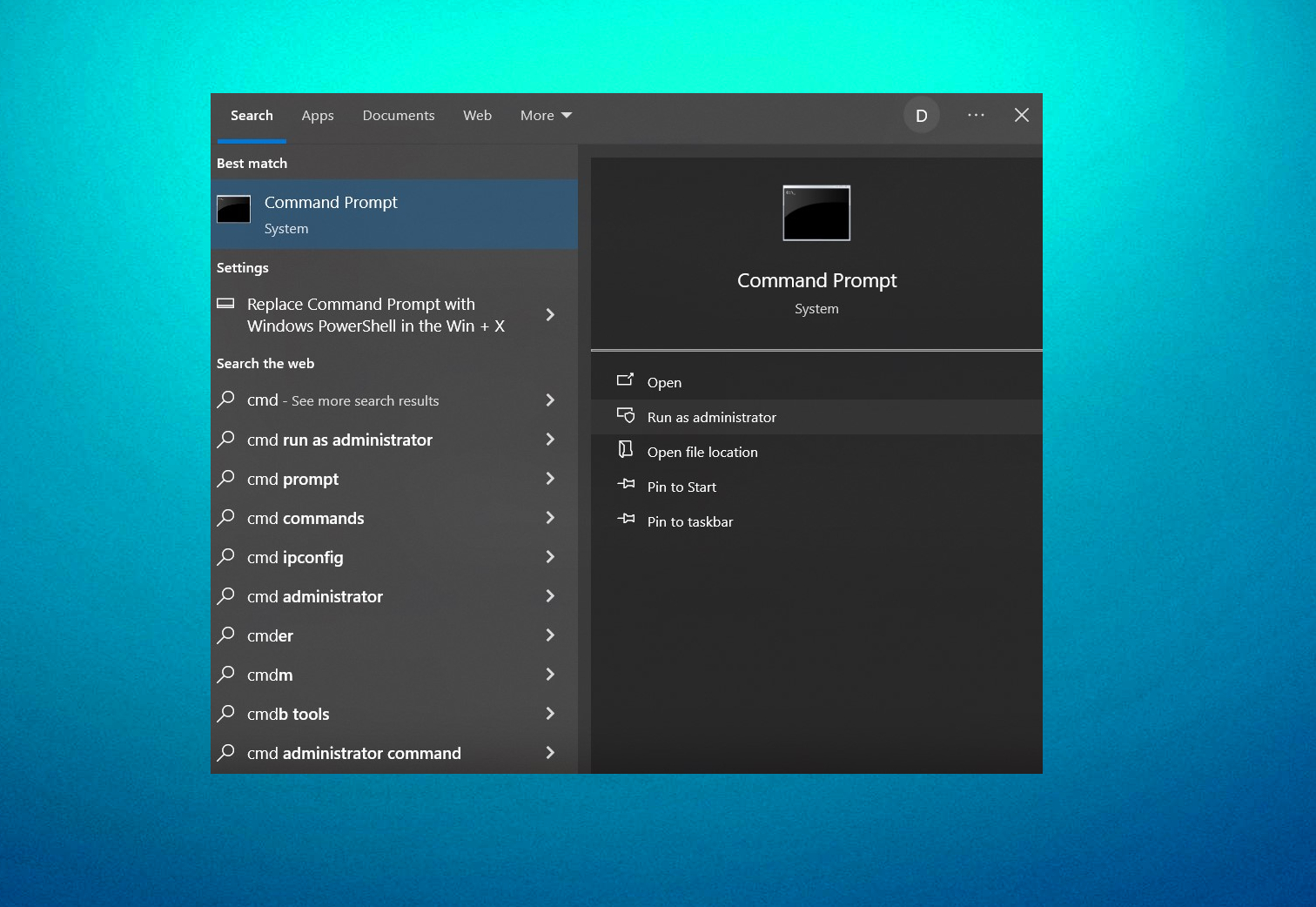
- Then run the following command:
reagentc /boottore - Restart the computer.
- The computer will restart into the Windows RE environment.
- Once there, click Troubleshoot, click Advanced Options, click System Restore, and then follow the prompt to start the System Restore program. Because EFS is always running in Windows RE, and because System Restore doesn't have to create a shutdown task to perform the restoration work in Windows RE, this specific issue will not occur in Windows RE.
- If running the command ends up with a Windows RE is disabled error, run the following command to install it,
reagentc /enable. Then run the boottore command againagain.
Run SFC and DISM
These are two powerful built-in tools in Windows. This step is common when there is an issue with system files and the system restore feature. These functions are designed to help repair system files that might be damaged or corrupted.
- Type cmd in Windows search again.
- Right-click on Command Prompt and select Run as administrator.
- User Account Control will ask whether you want to allow changes – click Yes.
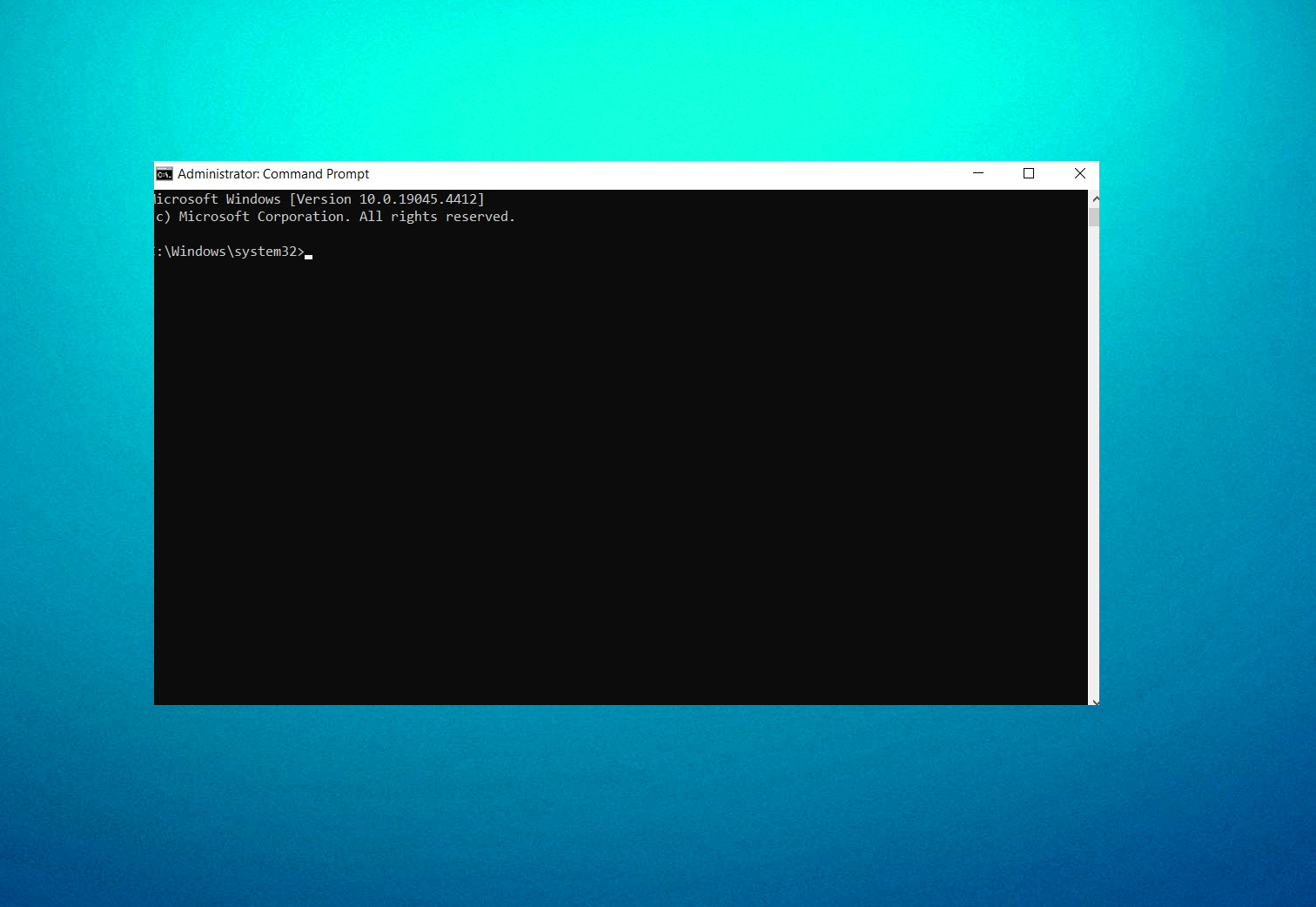
- Use the following command and press Enter:
sfc /scannow - After the SFC scan is complete, use the following commands, pressing Enter after each:
DISM /Online /Cleanup-Image /CheckHealth
DISM /Online /Cleanup-Image /ScanHealth
DISM /Online /Cleanup-Image /RestoreHealth - Restart your computer.
Bottom line
To fix System Restore error 0x80070495, users can disable EFS encryption for the affected files before creating a restore point. This can help prevent the error from occurring. If these solutions do not work, further troubleshooting may be necessary.
Frequently asked questions
This error typically occurs due to corrupted system files or issues with the System Restore service itself in Windows 10. It may also be triggered by recent updates or third-party software conflicts.
To troubleshoot this error on Windows 11, you can run the System File Checker tool by executing 'sfc /scannow' in the Command Prompt as an administrator. Additionally, ensure that the System Restore service is enabled and running.
Yes, you can try using the System File Checker and DISM tools to repair system files without affecting your personal data. If those do not work, consider performing a repair installation of Windows.




Report an issue
What's wrong with this guide? We review every report and update or remove content.
Report received — thank you. We'll review and fix it.
You need a free account to submit a report.
Be the first to comment