How to fix
System Restore Error 0x81000203
on Windows
Resolve System Restore Error 0x81000203 on Windows 10 quickly and effectively with our expert-tested solutions. Fixed in minutes!


What causes How to fix System Restore Error 0x81000203 on Windows 10?
- Incorrect setting of Volume Shadow
- Cumulative Update KB3176934
- TuneUp Utilities (2009, 2010, 2011)
- Windows Firewall or antivirus interference
- Hardware issues
Repairs Windows system files, removes malware, and restores a clean OS state — without reinstalling.
When I launch system restore tab where I can switch system restore from on to off or vice versa, I receive an error message saying “There was an unexpected error in the property page” etc. The error code is 0x81000203. I’m running Windows 10 Pro. Could someone specify what the issue might be?
Various IT forums are full of old posts related to System Restore Error 0x81000203.[ref en-1] While initially this bug prevailed in Windows 7 and 8 OS versions, people have recently started reporting it happening on Windows 10 as well.[ref en-2] It has been assumed that 0x81000203 error might have been triggered by the incorrect setting of Volume Shadow.
In most cases, this 0x81000203 error occurs when trying to do a system restore and the process is not happening, instead you see the error code on the screen. System Restore feature is the essential part of the Windows operating system that helps users to roll back when applications or files causing malfunctions.
There were many solutions provided and many causes indicated earlier, for example, people were offered to turn off Windows Firewall or antivirus, try to access system protection in a Safe Mode, check for hardware issues and similar. However, the majority of the solution methods did not work, thus enforcing people to tear their hair out. The same applies to the Windows 10 OS users.[ref en-3]
However, Microsoft specialists informed that the causes of this failure on Windows 10 are either Cumulative Update KB3176934 or TuneUp Utilities (2009, 2010, 2011). They may be influencing the settings of Volume Shadow or system protection. Our team has initiated a research about System Restore error 0x81000203 and has managed to find a couple of useful tips that could help Windows 10 users to resolve this bug in a comprehensive, nonetheless easy, way.
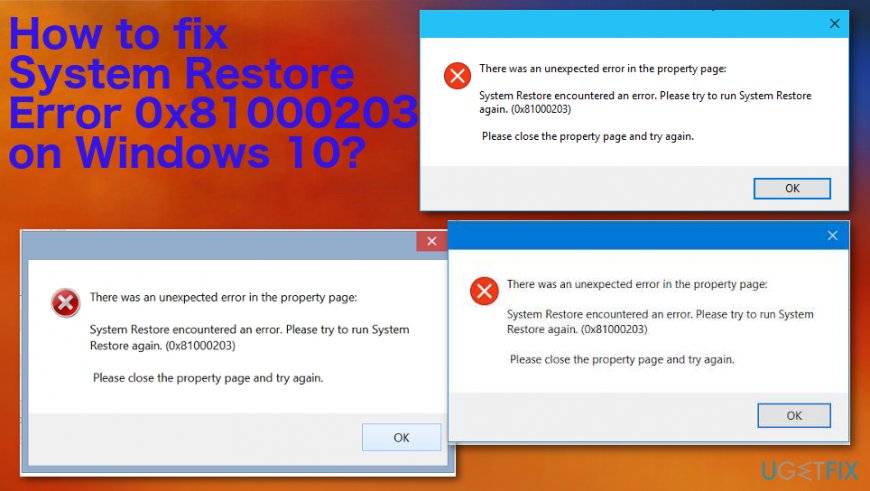
There was an unexpected error in the property page. System Restore encountered an error. Please try to run System Restore again. (0x81000203) Please close the property page and try again.
Ways to fix System Restore Error 0x81000203 on Windows 10
As we have already pointed out, the reason for 0x81000203 error on Windows 10 might be the Cumulative Update KB3176934. Therefore, open Settings App by clicking Win key + I, go to Update & Security, and click on Update History link below Check for Updates button. Look for the KB3176934 update and its status. If it has successfully installed, then select Uninstall Updates at the top of the page, find this particular update, click on it, and select Uninstall.
You should also consider checking the system using professional tools like [d1]. This is a great solution for automatic fixes or even malware[ref en-4] removal.
Disable Turbo Mode to fix 0x81000203 error on Windows 10
- Open TuneUp utilities start center
- At the bottom find the PC Optimization Mode and select Economy there or Standard.
- Try System Restore again.
Check the Volume Shadow Copy Service
- Click Win key + S and type Services.
- Right-click on the Services search results and select Run as Administrator.
- Select Volume Shadow Copy Service and change its status to Start.
- Besides, select Automatic as a Startup type.
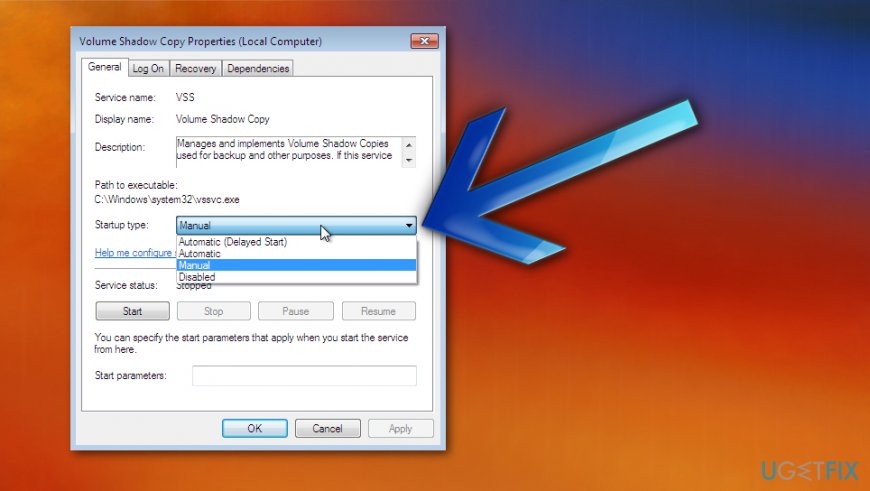
How to fix system restore error 0x81000203 on windows 10 startup type - After that, double-click on Service and select System Protection tab. If the service is turned off, select Start.
Open an Elevated Command Prompt
If the previous method did not work, then try to perform several commands using an elevated Command Prompt. For this purpose, you have to:
- Right-click on Win key and select Command Prompt (Admin).
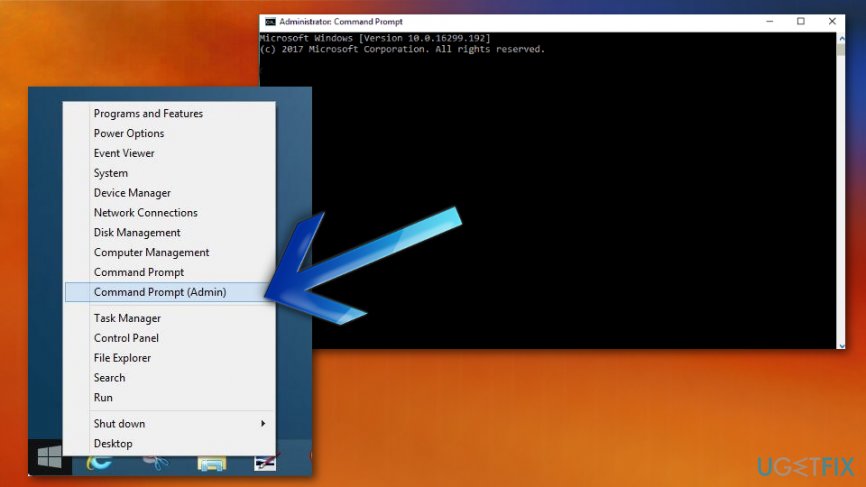
How to fix system restore error 0x81000203 on windows 10 command prompt - Type the following commands in the log and press Enter after each:
reg delete "HKLM\\SOFTWARE\\Policies\\Microsoft\\Windows NT\\SystemRestore" /v "DisableSR" /f
reg delete "HKLM\\SOFTWARE\\Policies\\Microsoft\\Windows NT\\SystemRestore" /v "DisableConfig" /f
reg add "HKLM\\Software\\Microsoft\\Windows NT\\CurrentVersion\\SPP\\Clients" /v " {09F7EDC5-294E-4180-AF6A-FB0E6A0E9513}" /t REG_MULTI_SZ /d "1" /f
schtasks /Change /TN "Microsoft\\Windows\\SystemRestore\\SR" /Enable
vssadmin Resize ShadowStorage /For=C: /On=C: /Maxsize=25GB
sc config wbengine start= demand
sc config swprv start= demand
sc config vds start= demand
sc config VSS start= demand
Enable System Protection
Some specialists claim that error code 0x81000203 may be caused by TuneUp Utilities (2009, 2010, 2011), which might be blocking system protection and restore. It is recommended to check whether Turbo Mode is set up in the TuneUp tool. If it is, turn it off and navigate to the system protection on Control Panel to check whether 0x81000203 error is gone.
Hopefully, some of the tips listed here were helpful for you, and now you don’t see System Restore Error 0x81000203 anymore.
Bottom line
To fix System Restore Error 0x81000203 on Windows 10, users can try turning off Windows Firewall or antivirus, accessing system protection in Safe Mode, or checking for hardware issues. If these solutions do not resolve the issue, further investigation may be necessary.
Frequently asked questions
This error typically occurs due to corrupted restore points or issues with the Volume Shadow Copy Service (VSS). It can also happen if system files are damaged or if there is insufficient disk space.
You can try running the System File Checker tool by executing 'sfc /scannow' in the Command Prompt, or you may need to restart the Volume Shadow Copy Service to resolve the error.
Yes, if System Restore fails, you can use the Windows Recovery Environment to perform a system reset or repair installation, which can help fix underlying issues.




Report an issue
What's wrong with this guide? We review every report and update or remove content.
Report received — thank you. We'll review and fix it.
You need a free account to submit a report.
Be the first to comment