How to fix
SYSTEM SCAN AT RAISED IRQL CAUGHT IMPROPER DRIVER UNLOAD Blue Screen
on Windows
Resolve the SYSTEM SCAN AT RAISED IRQL CAUGHT IMPROPER DRIVER UNLOAD Blue Screen error in Windows 10/11 quickly and effectively. Expert-tested solutions…

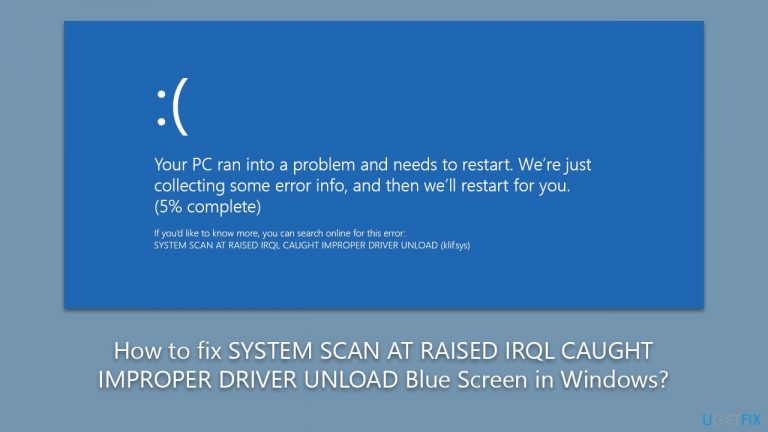
What causes How to fix SYSTEM SCAN AT RAISED IRQL CAUGHT IMPROPER DRIVER UNLOAD Blue Screen in Windows?
- Conflicting drivers
- Corrupted system files
- Outdated drivers
- Hardware issues
Repairs Windows system files, removes malware, and restores a clean OS state — without reinstalling.
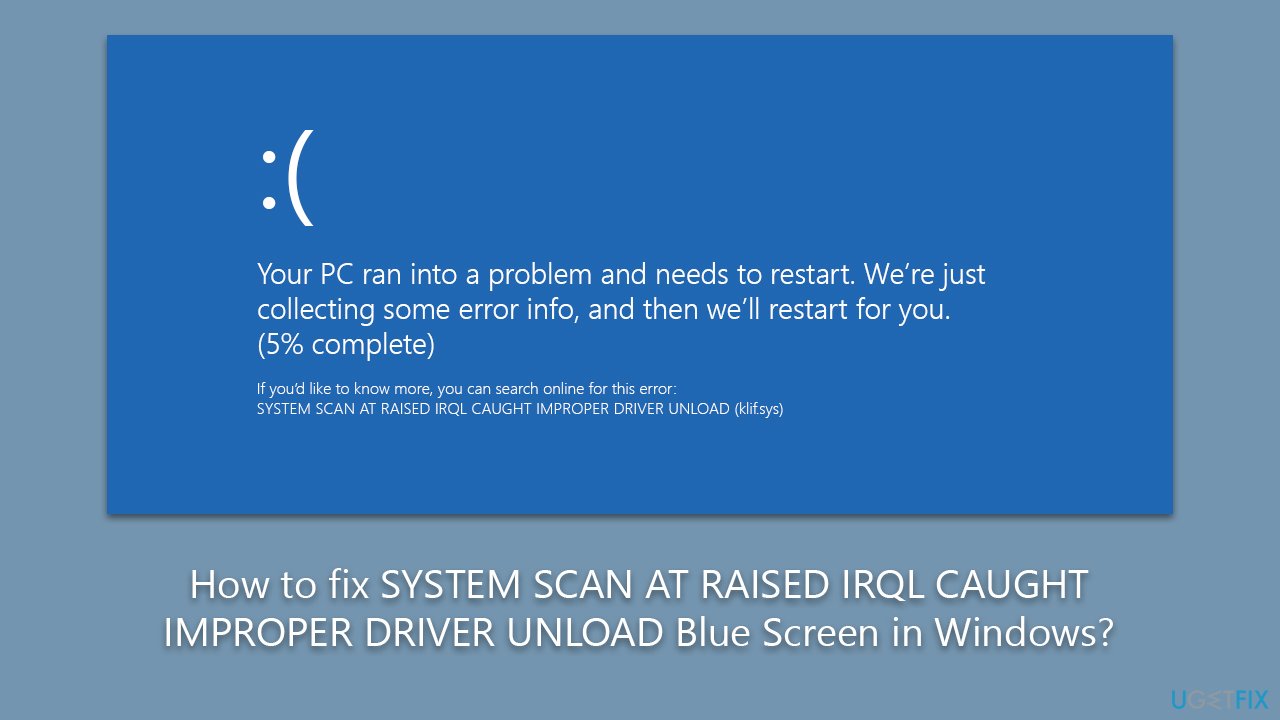
I have recently received a prompt from Windows to update it. I obliged like I always do, and everything seemed to be fine. The system then rebooted, loaded to 100%, and then crashed with SYSTEM SCAN AT RAISED IRQL CAUGHT IMPROPER DRIVER UNLOAD Blue Screen error code.
The SYSTEM SCAN AT RAISED IRQL CAUGHT IMPROPER DRIVER UNLOAD Blue Screen of Death (BSOD) error is a common issue that Windows users may encounter when attempting to apply the latest Windows updates. The BSOD is a critical error screen displayed by Windows when it encounters a fatal system error that could potentially cause data loss or system instability. It plays a crucial role in the Windows ecosystem as it helps identify and resolve issues that can disrupt normal system operation.
There are various circumstances when users may receive a BSOD, and the SYSTEM SCAN AT RAISED IRQL CAUGHT IMPROPER DRIVER UNLOAD crash is one of them. This error often occurs during the Windows update process, and it can result in users being unable to access Windows and getting stuck in a boot loop. To bypass this issue, users can enter Safe Mode and perform troubleshooting steps from there.
When users encounter the SYSTEM SCAN AT RAISED IRQL CAUGHT IMPROPER DRIVER UNLOAD BSOD, they may also see a "what failed" indication pointing at drivers such as klif.sys, mwac.sys, NNSNAHSL.sys, or other drivers. These drivers could be related to third-party software or antivirus programs that may be conflicting with the Windows update process, causing the error.
Aside from conflicting drivers, other factors that could cause this issue include corrupted system files, outdated drivers, or hardware issues. It's essential to identify the root cause of the problem to implement the appropriate solution.
One possible solution for users facing SYSTEM SCAN AT RAISED IRQL CAUGHT IMPROPER DRIVER UNLOAD BSOD or similar Windows issues is to use a reliable PC repair tool like [d1]. This tool can automatically repair corrupted files, update outdated drivers, and resolve other common Windows issues, providing a convenient and effective solution for users who may not be familiar with manual troubleshooting steps.
1. Access Safe Mode [if applicable]
If you are stuck in a boot loop and can't access Windows, you can try booting into Safe Mode instead.
- Restart your computer.
- Once Windows starts booting, press the Power button, interrupting the loading process - do this two more times.
- After that, Windows will automatically enter Advanced Startup mode.
- Select Troubleshoot > Advanced options > Startup Settings and Restart.
- After a reboot, pick either 4/F4 for Safe Mode or 5/F5 for Safe Mode with Networking.
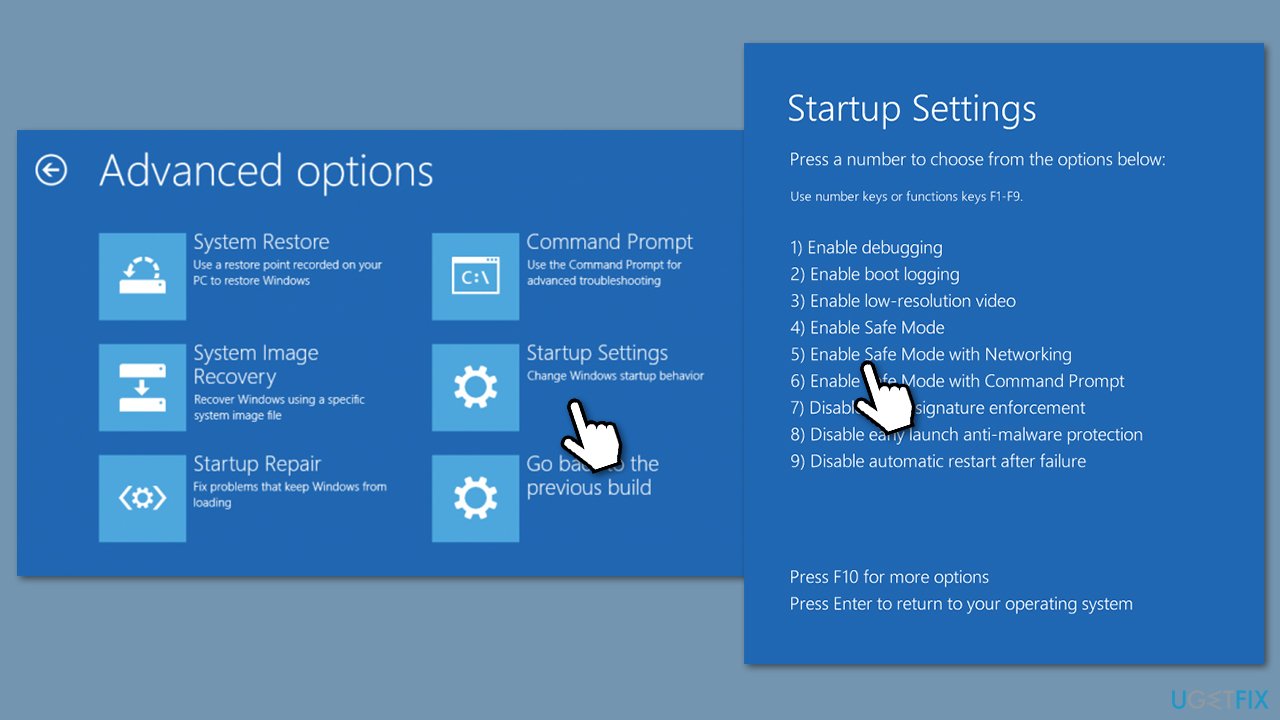
Once you can access Windows, proceed with the troubleshooting steps below.
2. Uninstall the associated application
Once Windows is updated by Microsoft, it might cause compatibility issues with third-party security apps and files related to them. For example, klif.sys is related to Kaspersky antivirus. Therefore, uninstalling the app could solve the issue.
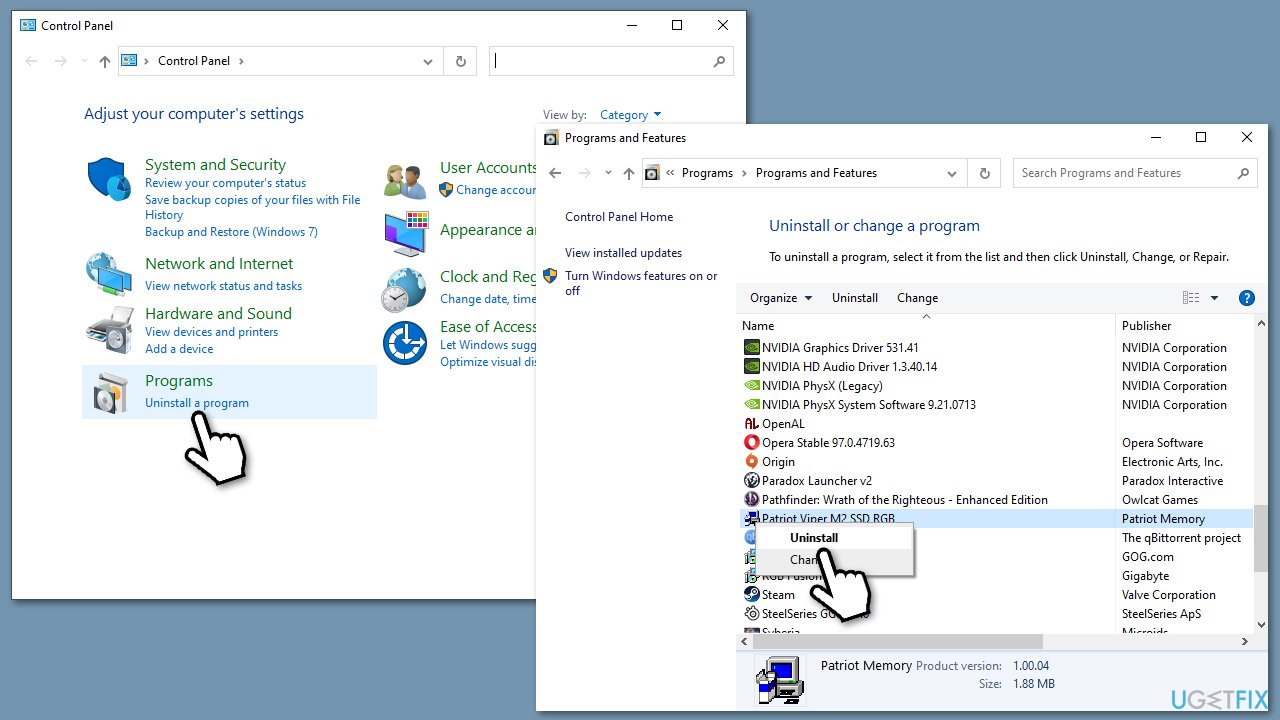
- Type Control Panel in Windows search and press Enter.
- Go to Programs > Uninstall a program.
- Go through the list of the installed apps, find the antivirus, right-click, and select Uninstall.
- Follow the prompts and reboot your system.
3. Delete the associated driver
You could also remove the file that's causing Windows to crash. Since it's likely to be a driver file, follow these steps:
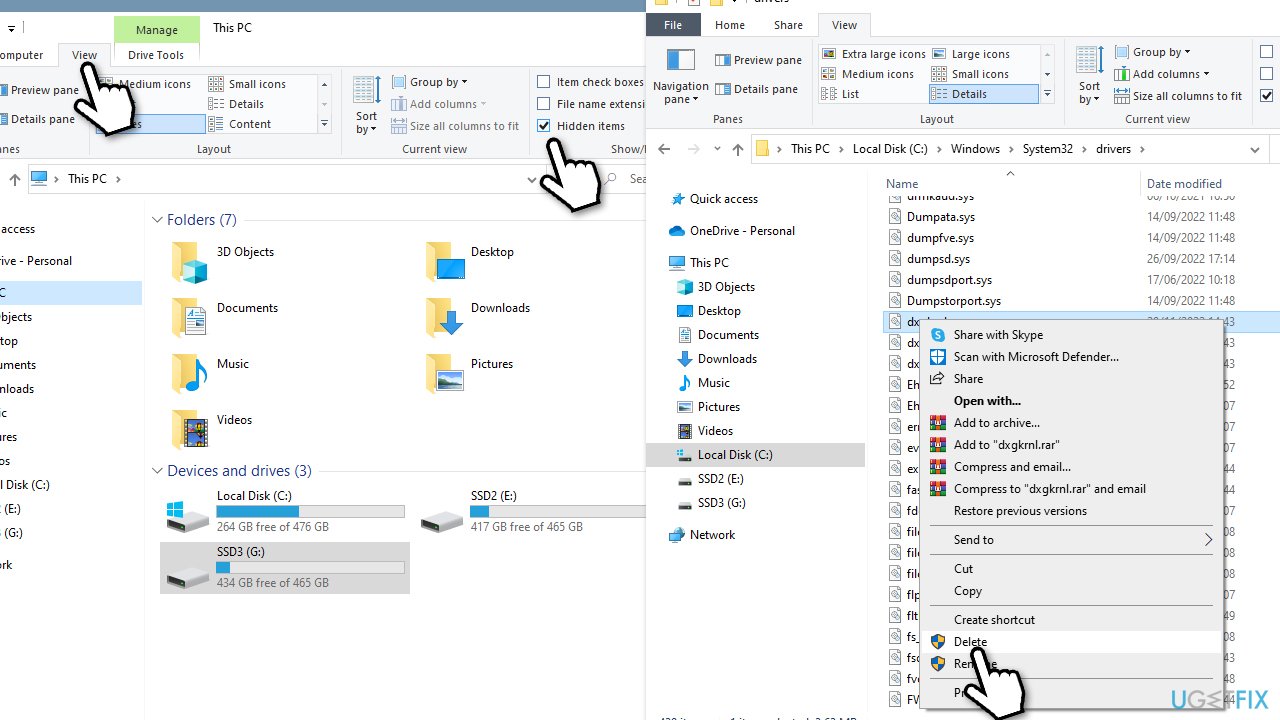
- Press Win + E to open File Explorer.
- At the top, go to the View tab.
- Here, mark the Hidden items checkbox.
- Navigate to the following location:
C:\Windows\System32\drivers - Here, scroll through the list and find the entry of the file referenced in the BSOD message, for example, klif.sys.
- Mark the file and press Shift + Del on your keyboard to delete it.
4. Uninstall the latest Windows update
Alternatively, you could uninstall the Windows update that's causing the problem. Here's how:
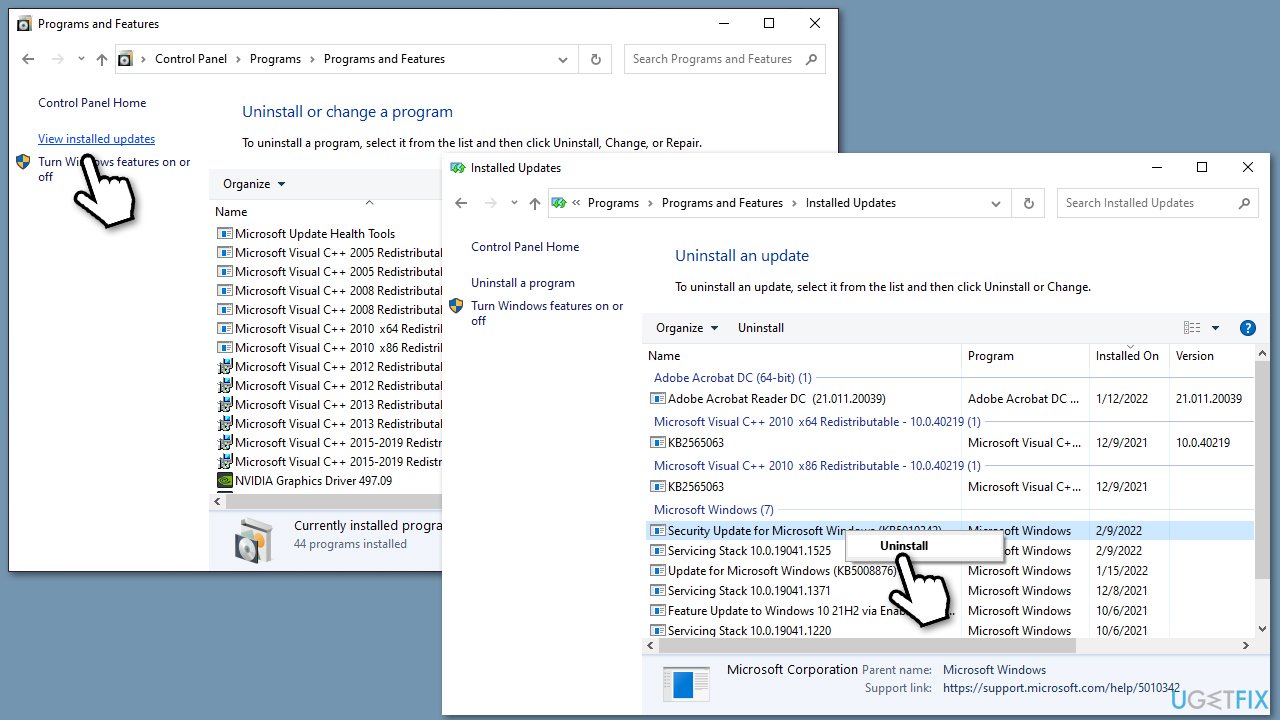
- Type Control Panel in Windows search and press Enter.
- Select Programs > Uninstall a program.
- Click on View installed updates on the left side of the window.
- Sort all the updates by date.
- Right-click on the most recent update and select Uninstall.
- Proceed with on-screen instructions and restart your PC.
5. Repair corrupted files
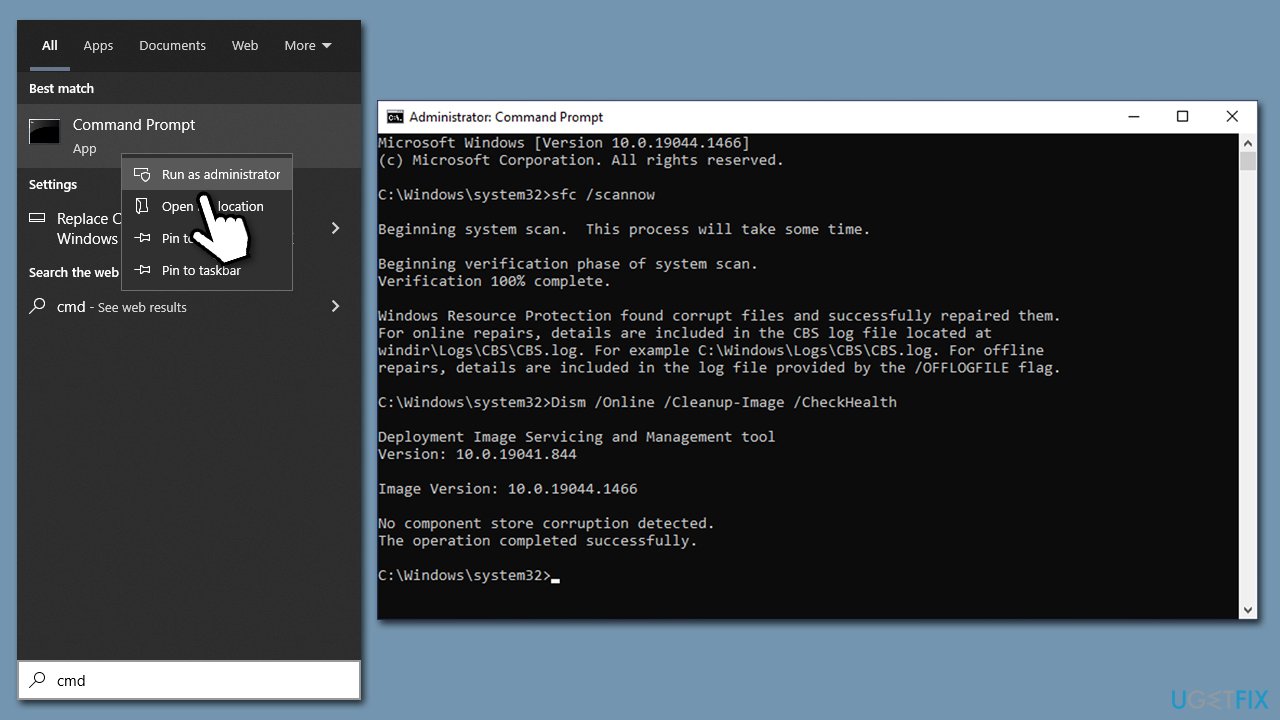
- Type in cmd in Windows search
- Right-click on Command Prompt result and select Run as administrator
- Type sfc /scannow and press Enter
- Wait till the scan is finished. Even if nothing was found or the scan returned an error, proceed with the following commands, pressing Enter after each:
DISM /Online /Cleanup-Image /CheckHealth
DISM /Online /Cleanup-Image /ScanHealth
DISM /Online /Cleanup-Image /RestoreHealth - Restart your computer.
6. Use System Restore
This option is available for those who can't access Windows and for those who can also.
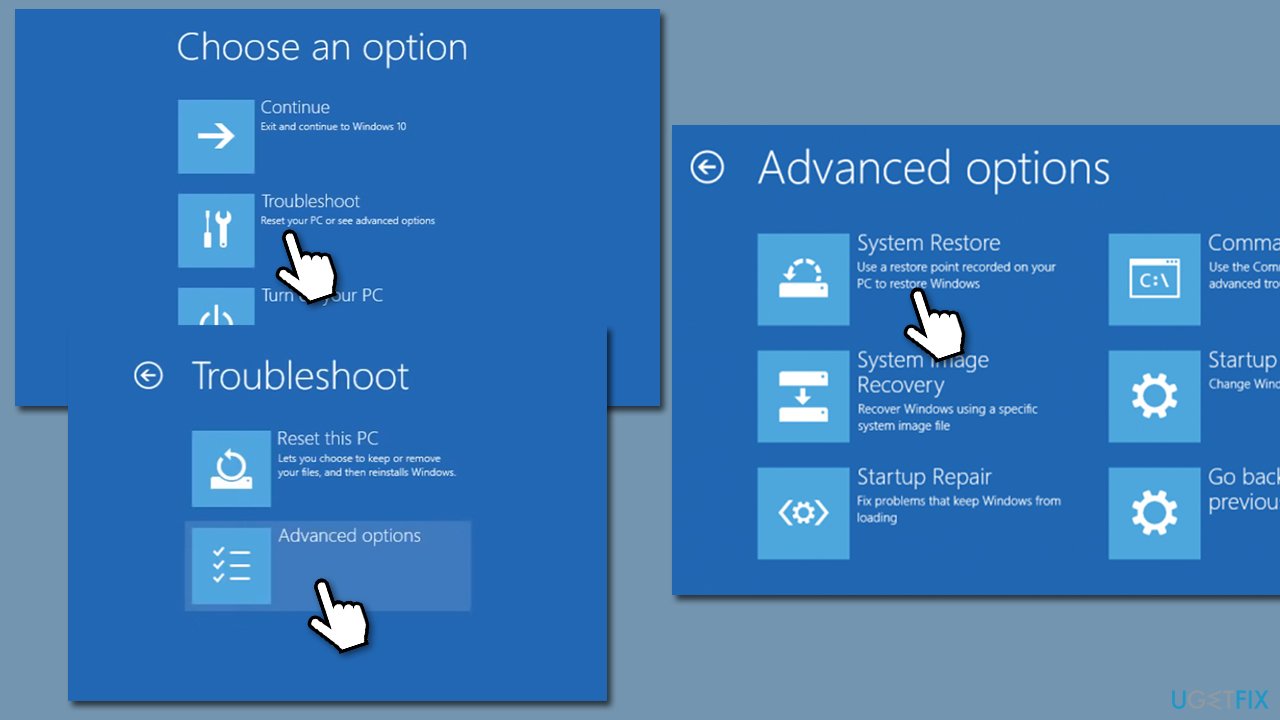
- Access the recovery environment as explained at the beginning. Alternatively, press and hold the Shift key while selecting Power > Restart on the login screen.
- Go to Troubleshoot and then select Advanced options.
- Click System Restore and follow the prompts.
- Your PC will restart.
Bottom line
To fix the SYSTEM SCAN AT RAISED IRQL CAUGHT IMPROPER DRIVER UNLOAD BSOD, users can enter Safe Mode and perform troubleshooting steps. Additionally, using a reliable PC repair tool may help repair corrupted files and update outdated drivers. If these solutions do not resolve the issue, further investigation into the specific drivers or hardware may be necessary.
Frequently asked questions
This error typically occurs due to faulty or incompatible drivers that conflict with the Windows operating system. Updating or reinstalling these drivers can help resolve the issue.
To troubleshoot this error on Windows 11, you can boot into Safe Mode and uninstall recently installed drivers or updates, then restart your PC to see if the problem persists.
To prevent this error from recurring, ensure that all your drivers are up-to-date and compatible with Windows 10 or Windows 11, and regularly check for system updates.




Report an issue
What's wrong with this guide? We review every report and update or remove content.
Report received — thank you. We'll review and fix it.
You need a free account to submit a report.
Be the first to comment