How to fix
System32 folder takes too much space
on Windows
Free up valuable space by resolving System32 folder issues in Windows 10 or 11. Expert-tested solutions for efficient management, fixed in minutes!

What causes How to fix System32 folder takes too much space in Windows?
- Malware infections
- Potentially unwanted programs (PUPs)
- Unnecessary system files generated by applications
- Unknown .exe files present
Repairs Windows system files, removes malware, and restores a clean OS state — without reinstalling.
Hello. I was running out of space on my Windows PC and I noticed that the System32 folder contains random .exe files and takes up the majority of space. What should I do?
The System32 folder is an essential component of the Windows operating system, and it is located in the Windows directory (typically C:WindowsSystem32). It contains important system files and libraries that are required for Windows to function properly. These files are in charge of executing various programs, processes, and services on the computer, ensuring that the operating system runs smoothly.
Users may, however, encounter an issue in which the System32 folder takes up an unusually large amount of space. This can be concerning, particularly when users discover unknown .exe files within the folder. The presence of these unknown files could be caused by malware infections, potentially unwanted programs (PUPs),[ref en-1] or unnecessary system files generated by specific applications.
The presence of unknown .exe files in the System32 folder can have a number of negative consequences for users. For starters, it may result in decreased disk space availability. Large files in the System32 folder can take up a significant amount of disk space, potentially causing low disk space warnings or limiting the available storage for other important files and applications.
Additionally, the presence of unwanted or unnecessary .exe files can have a negative impact on system performance. These files may consume system resources such as the CPU[ref en-2] and memory, resulting in decreased performance and slower system responsiveness. Users may notice slower application launches, longer system boot times, or command execution delays.
Unknown .exe files in the System32 folder are concerning from a security standpoint. They could indicate that malware or malicious software is present on the system. Such files can jeopardize computer security, potentially leading to data theft, unauthorized access, or other harmful activities.
In this guide, you will find 4 steps that should help you fix System32 folder taking up too much space. You may also use a maintenance tool like [d1] that can fix most system errors, BSODs, corrupted files, and registry[ref en-3] issues. Otherwise, follow the step-by-step instructions below.
Fix 1. Use Command Prompt
- Open the Command Prompt as an administrator.
- Type the following command and press Enter:
schtasks.exe /delete /TN "\OmApSvcBroker" /f
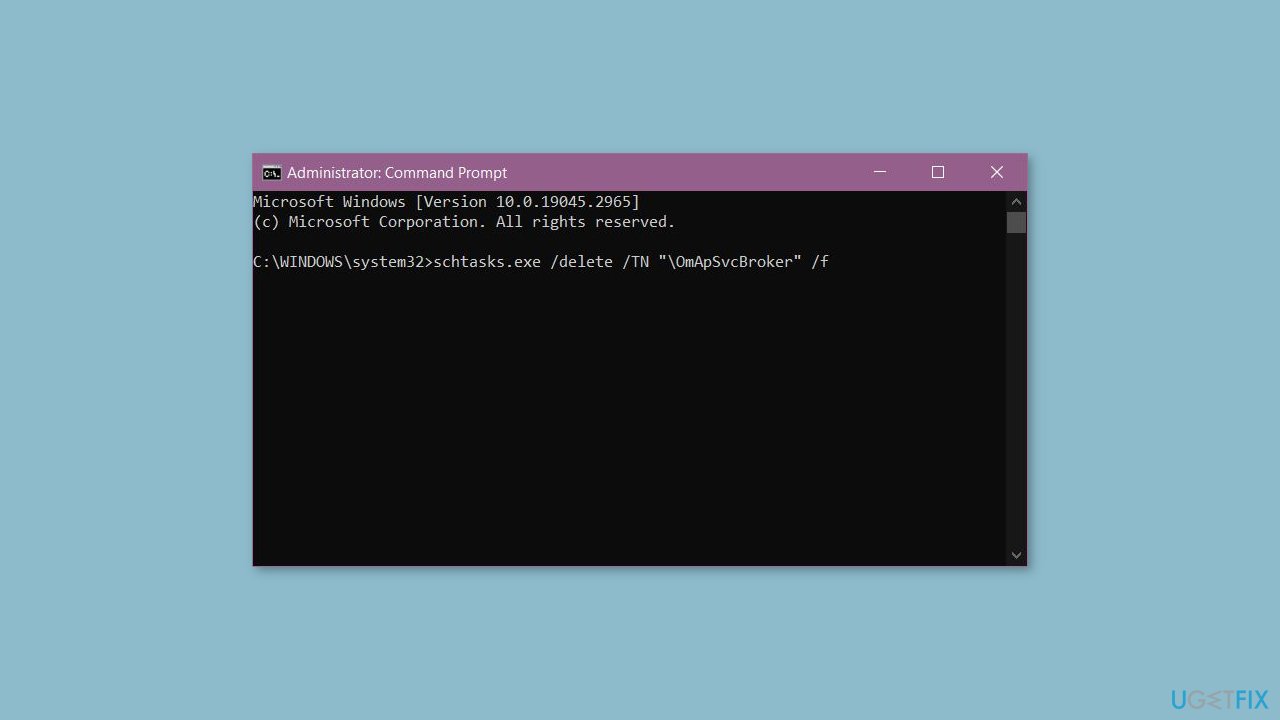
- Wait for the task to be deleted. You should see a confirmation message.
- Once the task is successfully deleted, restart Windows to ensure the changes take effect.
Fix 2. Delete OmApSvcBroker.exe
- Open File Explorer on your computer.
- Navigate to the C:\Program Files (x86)\MSI\MSI NBFoundation service directory.
- Locate the OmApSvcBroker.exe file within the directory.
- Right-click on the OmApSvcBroker.exe file.
- From the context menu, select Delete or Move to Recycle Bin.
- If prompted for confirmation, click Yes to confirm the deletion.
- The OmApSvcBroker.exe file will be deleted from its location.
Fix 3. Delete Junk Files in System32 Folder
- Open File Explorer on your computer.
- Navigate to the C:\Windows\System32 folder.
- In the System32 folder, carefully review the files and ensure you identify only junk executable files that are safe to delete. Exercise caution to avoid deleting critical system files.
- Select the junk executable files you want to delete. You can either individually select files or use Ctrl + Click or Shift + Click to select multiple files.
- Right-click on the selected files.
- From the context menu, choose Delete or Move to Recycle Bin.
- If prompted for confirmation, click Yes to proceed with the deletion.
- The selected junk executable files will be deleted from the System32 folder.
- Repeat the process for any additional junk executable files you want to remove.
- After deleting the files, empty the Recycle Bin to permanently reclaim the disk space.
Fix 4. Run a Malware Scan
Regrettably, problems on Windows computers are often caused by malware. It is likely that this is the case for you, which means it's time to scan your system for any potential threats.
- Click on the Windows Start menu or press the Windows key on your keyboard.
- Type Microsoft Defender in the search bar and click on Microsoft Defender Antivirus to open the application.
- Click on the Virus & threat protection option in the left-hand menu.
- Click on the Quick scan or Full scan option, depending on your preference.
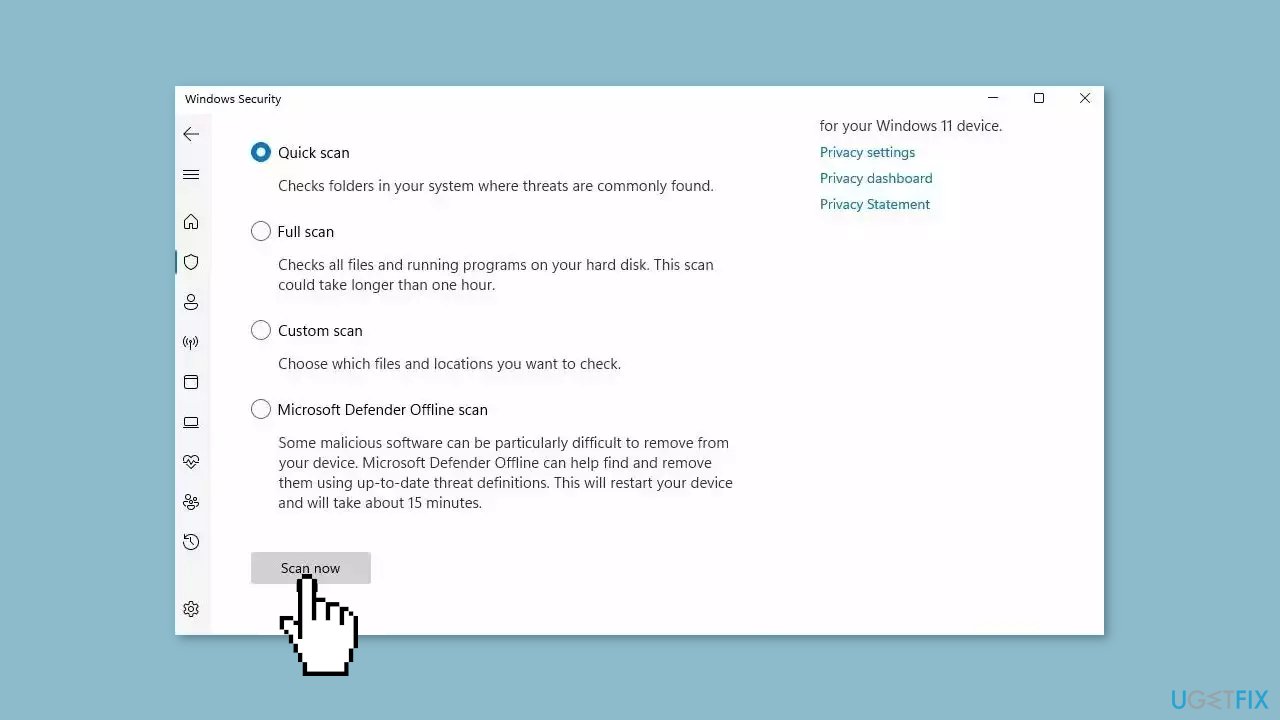
- If you choose Quick scan, Microsoft Defender Antivirus will scan the most vulnerable and commonly infected areas of your computer.
- If you choose Full scan, Microsoft Defender Antivirus will scan your entire computer, including all files, folders, and programs.
- Click on the Scan now button to start the selected scan type and wait for the scan to complete.
- The time it takes will depend on the size of your hard drive and the number of files being scanned.
- Once the scan is complete, you will be informed of any detected threats, and you can choose to quarantine or remove them.
- If no threats are found, Microsoft Defender Antivirus will inform you that your device is secure.
Bottom line
To address the issue of the System32 folder taking up too much space, users can follow the steps outlined in this guide, which include scanning for malware, removing unnecessary files, and using maintenance tools. If these solutions do not resolve the problem, consider seeking professional assistance or further troubleshooting.
Frequently asked questions
The System32 folder may take up excessive space due to accumulated temporary files, outdated drivers, or corrupted system files that need to be addressed.
You can use the Disk Cleanup tool or third-party software to remove unnecessary files, but be cautious not to delete essential system files.
Yes, altering or deleting files in the System32 folder can lead to system instability or even prevent Windows 10 or Windows 11 from booting properly.




Report an issue
What's wrong with this guide? We review every report and update or remove content.
Report received — thank you. We'll review and fix it.
You need a free account to submit a report.
Be the first to comment