How to fix
SYSTEM_SERVICE_EXCEPTION (asmtxhci.sys) BSOD
on Windows
Resolve the SYSTEM_SERVICE_EXCEPTION (asmtxhci.sys) BSOD on Windows 10/11 quickly and effectively. Expert-tested solutions and tips await!


What causes How to fix SYSTEM_SERVICE_EXCEPTION (asmtxhci.sys) BSOD on Windows?
- Automatic Windows update
- Update for Skype
- Disabling programs from startup
- Corruption of ASMedia’s controller drivers
- Prevalence on ASUS laptops
Repairs Windows system files, removes malware, and restores a clean OS state — without reinstalling.
Yesterday my Windows 10 system ran an automatic update and this morning a problem showed up. When I started up Windows and logged in to my account, a BSOD sating SYSTEM_SERVICE_EXCEPTION asmtxhci.sys blocked the screen and made the system to freeze. This doesn’t happen when logging in the safe mode. How this issue should be fixed?
Blue Screen of Death (BSoD)[ref en-3] that displays SYSTEM_SERVICE_EXCEPTION (asmtxhci.sys) error message means that your system ran into a problem related to the drivers of ASMedia’s controller. To be more precise, asmtxhci.sys is a driver of the ASMedia USB 3.x XHCI Controller, which is responsible for system’s USB 3.x ports and devices related to it.
USB 3.x is the newest standard of the port that is used for file transfer and received significant improvements over the 2.0 version. Initially released in 2013, the USB 3.0 offers 10 times faster transfer rate reaching 5 Gbit/s mark and is marked with the blue color instead of the standard black.[ref en-1] Nevertheless, the new technology also brings in further problems, including the SYSTEM_SERVICE_EXCEPTION (asmtxhci.sys) error.
The asmtxhci.sys error states the following:
Your PC ran into a problem and needs to restart. We're just collecting some error info, and then we'll restart for you. (1% complete)
If you'd like to know more, you can search online later for this error: SYSTEM_SERVICE_EXCEPTION (asmtxhci.sys)
At this point, users are forced to restart the machine, which is simply how BSoD is designed to work. However, the crash can come back very soon, and users are then starting to look for ways to fix SYSTEM_SERVICE_EXCEPTION (asmtxhci.sys) error permanently.
The vast majority of people report this issue after upgrading to Windows 10, running the update for Skype or disabling programs from startup. Additionally, SYSTEM_SERVICE_EXCEPTION (asmtxhci.sys) BSOD is prevalent on ASUS laptops because asmtxhci.sys driver is a part of ASUS motherboards and notebooks.
Regardless of the time and context in which SYSTEM_SERVICE_EXCEPTION (asmtxhci.sys) error appears, the core of it is apparent – the corruption of ASMedia’s controller drivers. As long as you won’t fix the driver issue, this irritating BSOD will appear randomly from time to time, thus preventing you from using your PC normally. Therefore, you can fix SYSTEM_SERVICE_EXCEPTION (asmtxhci.sys) error with the help of the guidelines provided below.
How to Fix SYSTEM_SERVICE_EXCEPTION (asmtxhci.sys) BSOD on Windows automatically?
To begin with, we would recommend using professional software to troubleshoot the issues on your Windows system. Our recommendation in this case would be [d1]. Once installed, it will automatically check Windows registry[ref en-2] entries, startup programs, malware, and other issues that may cause SYSTEM_SERVICE_EXCEPTION (asmtxhci.sys) and similar errors. If checking the system with the optimization tool did not help, then you should perform the following fixes manually.
Fix 1. Update drivers
The first SYSTEM_SERVICE_EXCEPTION (asmtxhci.sys) fix revolves around updating the currently installed ASMedia USB driver on your machine. It appears that this fix helped most of the users immediately:
- Right-click on the Start button and select Device Manager
- Expand the Universal Serial Bus controllers section
- Right-click on ASMedia USB 3.0 eXtensible Host Controller and select Update Driver
- Then, select Search automatically for updated driver software
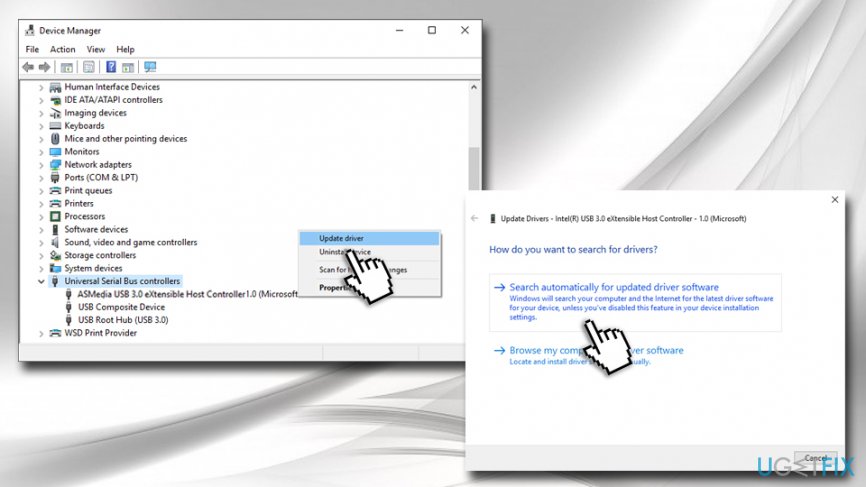
System service exception error fix update asmedia driver - Wait till Windows installs new updates and then reboot your computer
While there are plenty of driver updating programs that claim to update drivers automatically, use such tools at your own risk, as some of them might fail to update the driver to the latest version, fail to locate it or install a wrong driver in the first place.
Fix 2. Roll back to the previous drivers
If you have recently updated drivers and soon after that started facing SYSTEM_SERVICE_EXCEPTION (asmtxhci.sys) BSOD, you should roll back to the previous version of drivers and stick to it until the manufacturers fix the issue.
For this purpose, you have to download the version of the driver that you’ve been using before the update. In order to do that, please follow these steps:
- Go back to the Device Manager
- Expand the Universal Serial Bus controllers section again
- Right-click on ASMedia USB 3.0 eXtensible Host Controller and select Properties
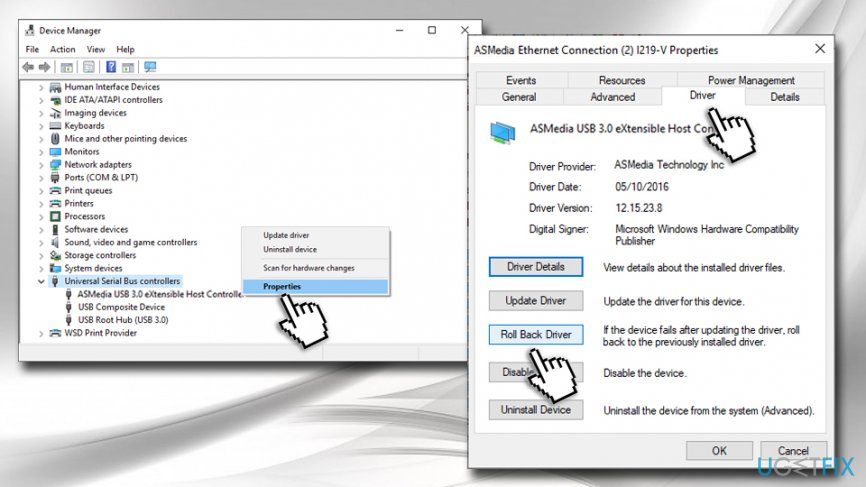
System service exception error fix go to driver tab to rollback - Go to Driver tab
- Click on Roll Back Driver
- Select the reason why you are rolling back and then pick Yes
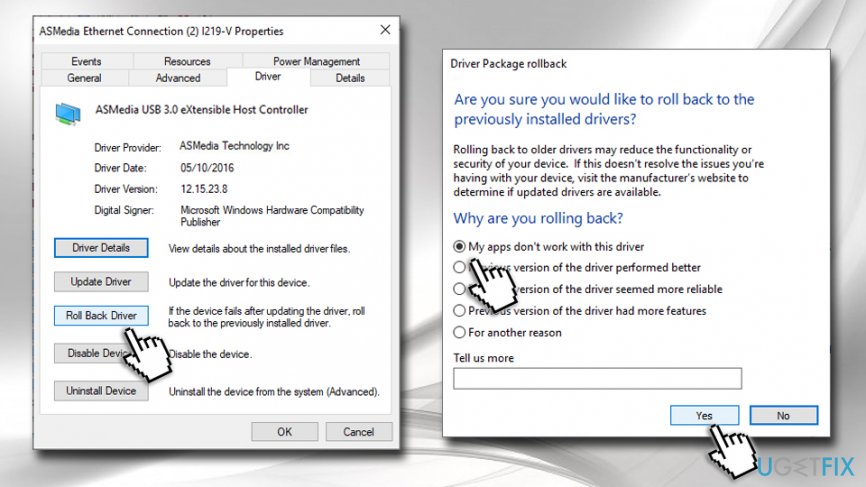
System service exception error fix select why you rollback - Reboot your system
Alternatively, you could completely uninstall the driver and look for the previous version on the manufacturer's website. To check which driver version is currently installed, simply go back to Properties > Driver tab, and you will find the driver date and version installed.
Hopefully, this guide has helped you to solve SYSTEM_SERVICE_EXCEPTION (asmtxhci.sys) error, and your computer is not facing the annoying BSODs anymore.
Bottom line
To fix the SYSTEM_SERVICE_EXCEPTION (asmtxhci.sys) error, users should focus on updating or reinstalling the ASMedia USB 3.x XHCI Controller drivers. If the issue persists after attempting these fixes, consider seeking further assistance or exploring additional troubleshooting methods.
Frequently asked questions
The SYSTEM_SERVICE_EXCEPTION (asmtxhci.sys) BSOD is often caused by outdated or incompatible drivers, particularly for USB devices or related hardware. It can also occur due to system file corruption or conflicts with software updates.
To update drivers, go to Device Manager, locate the device related to asmtxhci.sys, right-click and select 'Update driver'. You can also visit the manufacturer's website for the latest drivers compatible with Windows 10 or Windows 11.
Yes, you can run the System File Checker tool by opening Command Prompt as an administrator and typing 'sfc /scannow'. This will scan for and repair corrupted system files that may be causing the BSOD.




Report an issue
What's wrong with this guide? We review every report and update or remove content.
Report received — thank you. We'll review and fix it.
You need a free account to submit a report.
Be the first to comment