How to fix
SystemSettings.exe Application Error
on Windows
Resolve the SystemSettings.exe Application Error in Windows 10 quickly and effectively. Expert-tested solutions inside for a seamless experience!

What causes How to fix SystemSettings.exe Application Error in Windows 10?
- Missing files
- Corrupt files
- Malware infections
- Conflicts with third-party applications
- System failures
Repairs Windows system files, removes malware, and restores a clean OS state — without reinstalling.
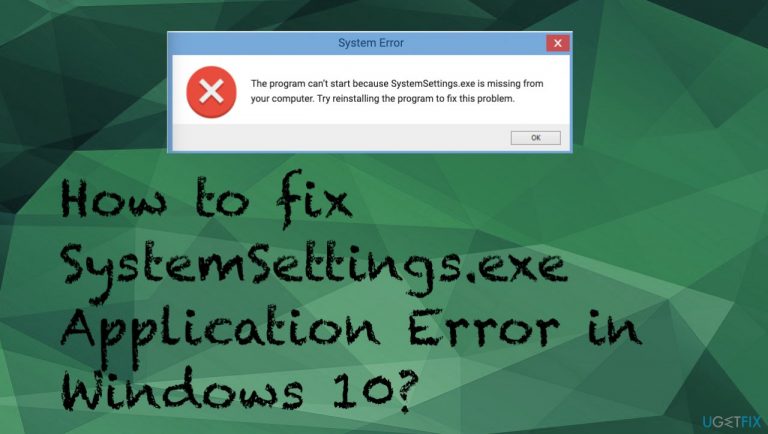
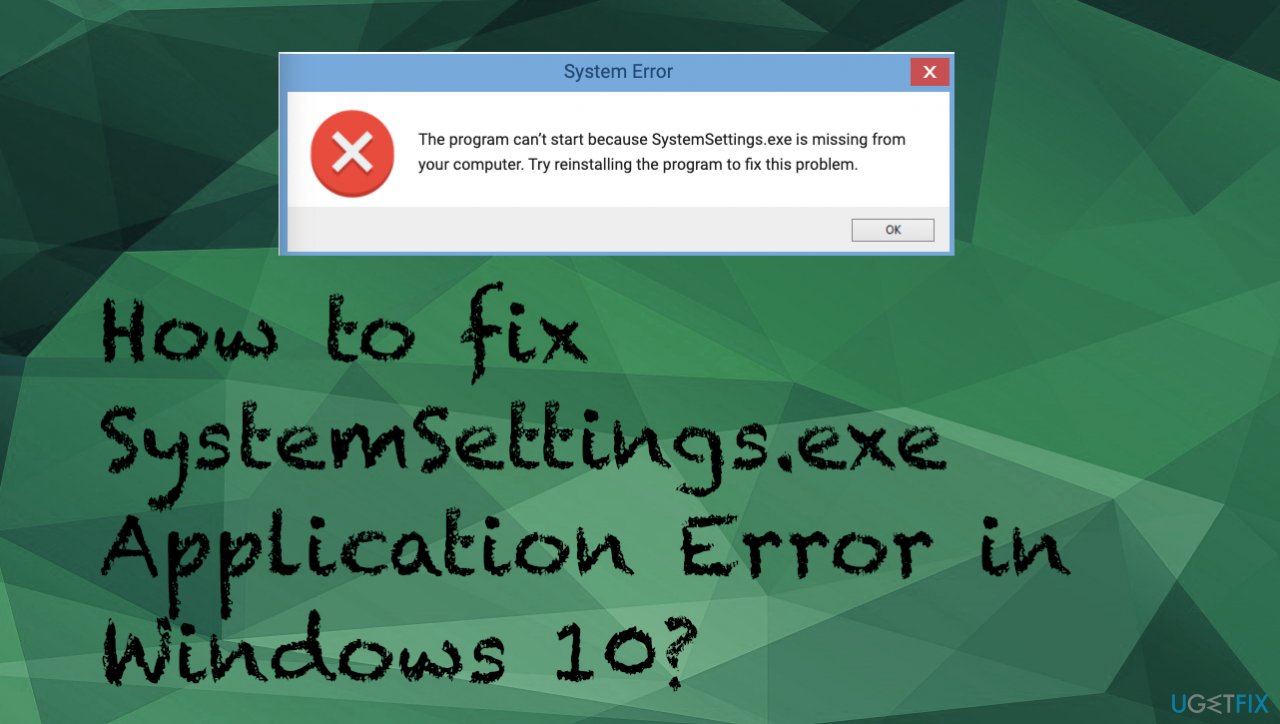
Hello. I get this SystemSettings.exe Error pop-up window on the screen. I tried to search on the system via taskbar search, and once I typed a couple of characters there, the window appeared. Maybe you know something about this and can explain why I get the pop-up. How can I fix this issue?
Executable file errors are common, and the particular SystemSettings.exe Application Error in Windows 10 can be associated with missing or corrupt files. Sometimes malware infections[ref en-1] also lead to these application errors. People encounter this error[ref en-2] in various cases. Those include Windows launch, an initial program running.
This file is known as a settings file and is the executable application belonging to the Windows operating system. The error related to this file gets triggered when the process requires the executable to run but fails to launch the EXE. When the attempt is not successful, the system terminated the procedure altogether, so the error occurs.
These prematurely-aborted startup processes and other activities can lead to more serious issues and damage besides the SystemSettings.exe Application Error in Windows. Hence, it is important to solve the root cause and repair those affected, altered, or corrupted files. The application or system function, in most cases, cannot launch until the error gets resolved. The message can state about not found file, failure to initialize, undisclosed problem, file not running, application issue.
There is a whole list of different errors related to this file, but the main issue is missing or corrupted files, even though problematic Windows 10 is the system that often receives this pop-up.[ref en-3] Conflicts with third-party applications and various failures on the system can lead to these problems, but it is possible to solve the issue.
To solve the issue and fix the SystemSettings.exe Error, you can run [d1] and find issues with corrupted, altered files that can be repaired. Also, restoring some other parts of the machine can help solve these system error issues. If the quick solution is not working, rely on the thorough guide below with all the fixes.
Fix 1. Check the system via Command Prompt
- Type CMD in search and choose the application with admin rights.
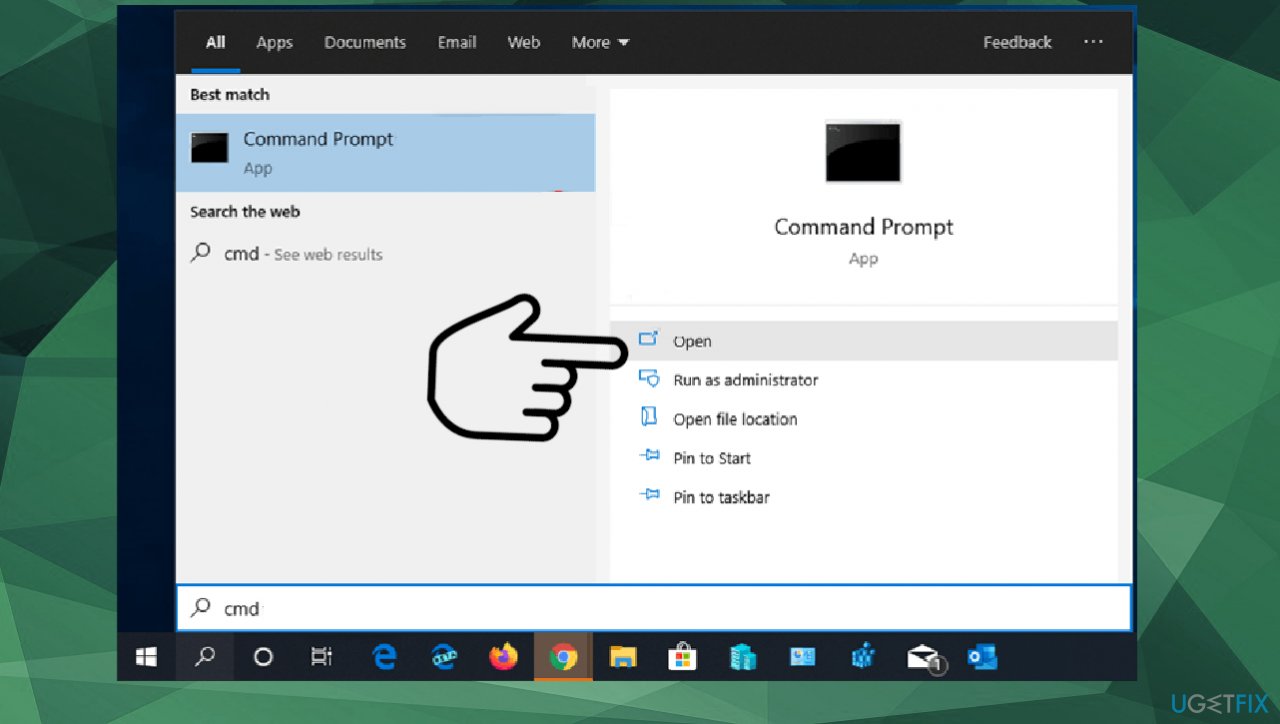
Fix systemsettings exe application error in windows cmd - You can also access the Power Shell by clicking the Windows key and X.
- Type the following commands separately and hit Enter to launch the check:
DISM /Online /Cleanup-Image /RestoreHealth
sfc /scannow - Wait for processes to end if any issues got indicated.
Fix 2. Create another user
- Click on Start at the bottom left corner.
- Click on the gear icon.
- Choose on Accounts once Windows Settings pop up.
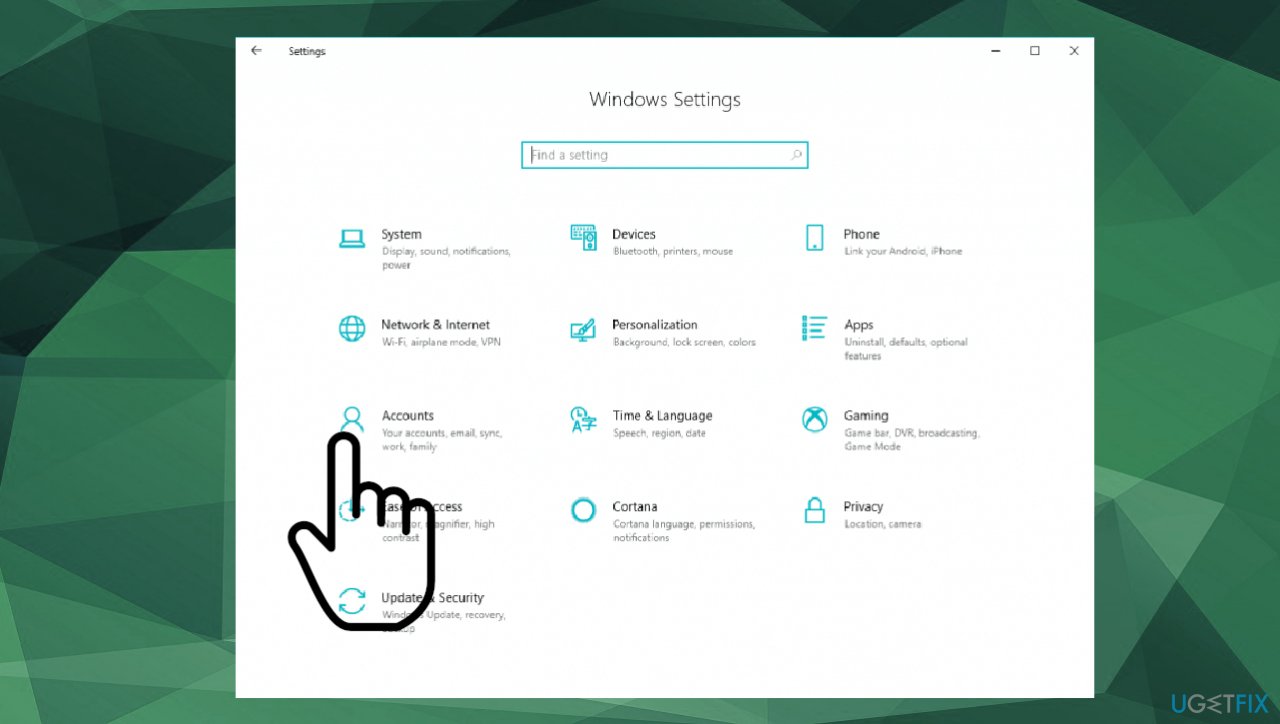
Fix systemsettings exe application error in windows accounts - Select Family & other users on the left.
- Select Add someone else to this PC.
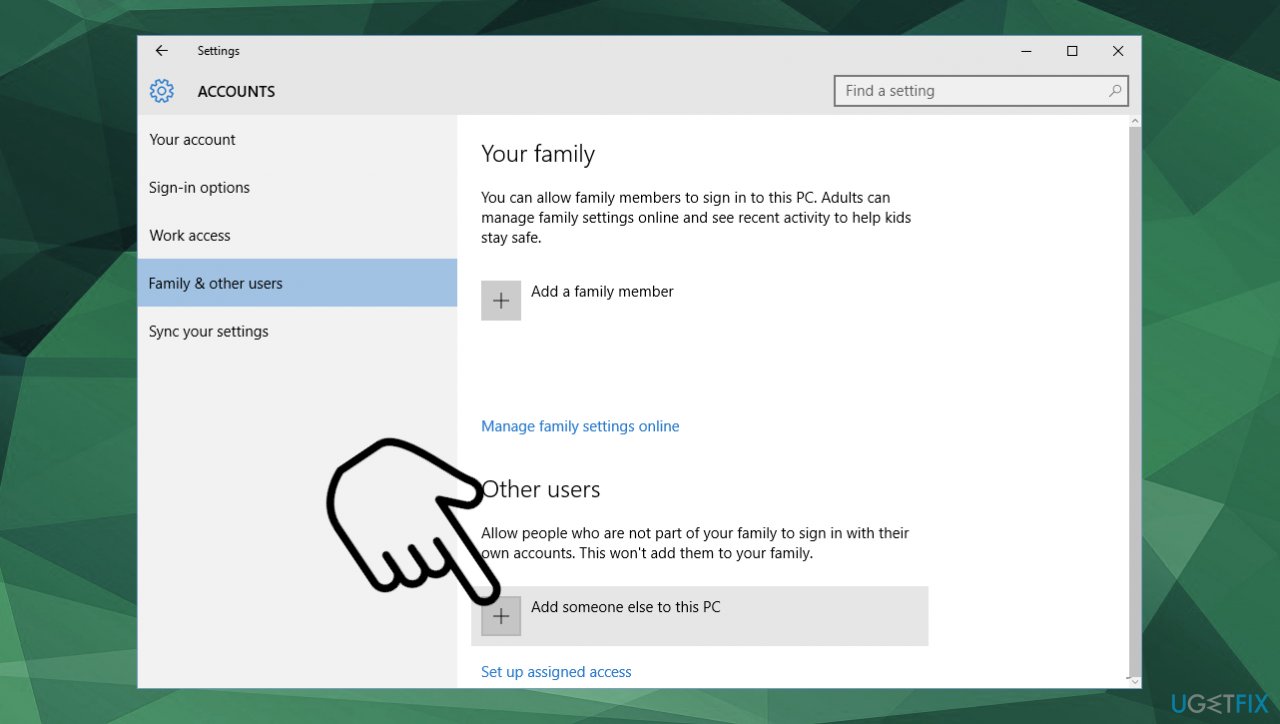
Fix systemsettings exe application error in windows add user - Choose I don’t have this person’s sign-in information.
- Then add a user without a Microsoft account.
- Enter the credentials.
- Log into the account and check if the issue is resolved.
Fix 3. Restore the system to a previous point
- Type in search System Restore and press ENTER.
- Find and click System Restore.
- Please enter the administrator password (if applicable / prompted).
- Follow the steps in the wizard.
- Choose a relevant restore point.
- Restore your computer.
Fix 4. Update Windows operating system
- Go to Settings.
- Click Update & Security.
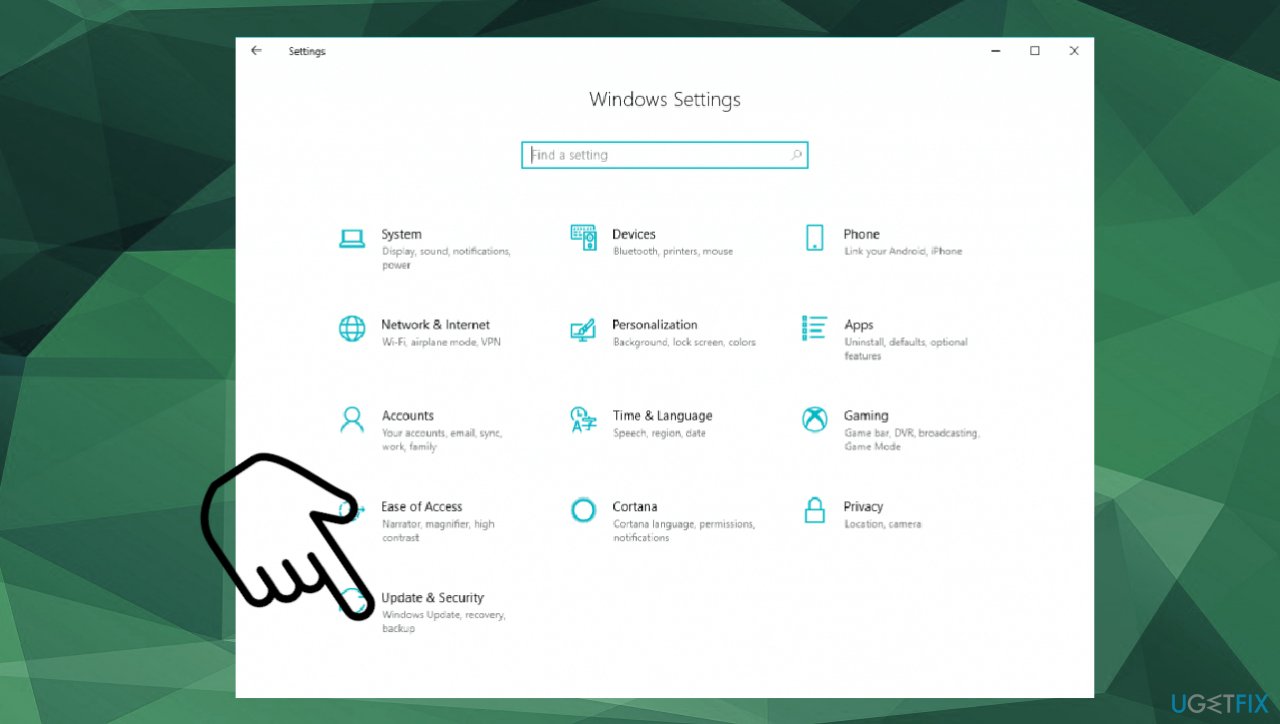
Fix systemsettings exe application error in windows updatesecurity - Choose Update.
- Click Check for Updates.
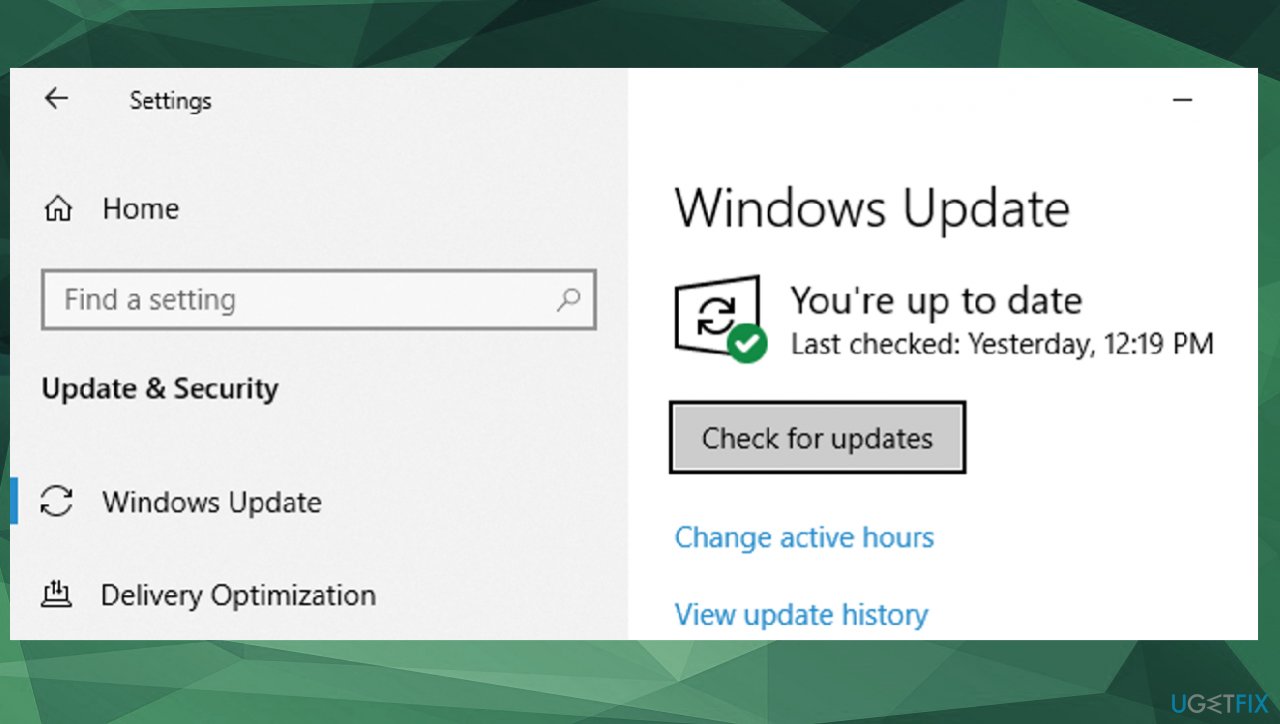
Fix systemsettings exe application error in windows update - If updates are available for download, click Install Updates.
- After the update is completed, restart your PC.
Bottom line
To fix the SystemSettings.exe Application Error, you can run system checks to identify and repair corrupted or altered files. Additionally, restoring other parts of the system may help resolve the issue. If these solutions do not work, refer to a thorough guide for more fixes.
Frequently asked questions
This error can be caused by corrupted system files, issues with Windows updates, or conflicts with third-party applications. Running the System File Checker and ensuring your system is up-to-date can help resolve these issues.
To run the System File Checker, open Command Prompt as an administrator and type 'sfc /scannow', then press Enter. This will scan for and repair any corrupted system files that may be causing the error.
Yes, you can reset Windows 10 settings by going to Settings > Update & Security > Recovery and selecting 'Reset this PC'. This process can help restore the default settings and fix persistent errors.




Report an issue
What's wrong with this guide? We review every report and update or remove content.
Report received — thank you. We'll review and fix it.
You need a free account to submit a report.
Be the first to comment