How to fix
Tab key not working
on Windows
Resolve the Tab key issue on your Windows 10 or 11 device effortlessly. Quick fixes and expert-tested solutions await you for seamless navigation!


What causes How to fix Tab key not working in Windows?
- Driver conflicts
- Outdated or incompatible drivers
- System settings adjustments needed
- Faulty keyboard
- Faulty connection
Repairs Windows system files, removes malware, and restores a clean OS state — without reinstalling.
Hello. The Tab key is not responding when I press it on my Windows PC keyboard. What could be the issue?
The Tab key is an important component of computer keyboards because it facilitates navigation and increases productivity. When the Tab key is pressed, users can move between selectable elements like text fields, buttons, and links in a structured manner. Its goal is to make user interactions more efficient by eliminating the need to manually click or use the arrow keys to navigate through various options or fields on a screen.
However, encountering a situation in which the Tab key is not working properly can have a significant impact on users' ability to smoothly navigate through applications and interfaces. This problem can cause frustration and decreased productivity, especially when working with forms, spreadsheets, or any other application that heavily relies on keyboard input.
Inability to use the Tab key effectively can disrupt workflow and slow task completion. Users may be forced to use alternative methods of navigation, such as the mouse or arrow keys, which can be time-consuming and inefficient. Furthermore, people who rely on keyboard shortcuts and prefer a keyboard-centric workflow may have their overall user experience harmed.
There could be several reasons for the Tab key not working in Windows. It could be related to software issues such as driver[ref en-1] conflicts, outdated or incompatible drivers, or system settings that need to be adjusted. This problem can also be caused by hardware issues such as a faulty keyboard or a faulty connection.
Users can try a variety of potential solutions to this problem. Updating keyboard drivers, adjusting system settings related to keyboard behavior, performing a keyboard layout reset, or troubleshooting hardware connections are some examples. This guide will walk you through eight steps that should help you fix Tab keys not working in Windows.
You can also find a maintenance tool like [d1] that can fix most system errors, BSODs,[ref en-2] corrupted files, and registry[ref en-3] issues. Otherwise, follow the step-by-step instructions provided below.
Solution 1. Restart your PC
If your Tab key is not functioning, restarting your computer is typically the easiest and initial troubleshooting step to take. This can frequently address small software malfunctions that could be causing the problem. Prior to restarting, ensure that you save any ongoing work or projects to avoid losing your progress.
Solution 2. Fix Corrupted System Files
Use Command Prompt commands to repair system file corruption:
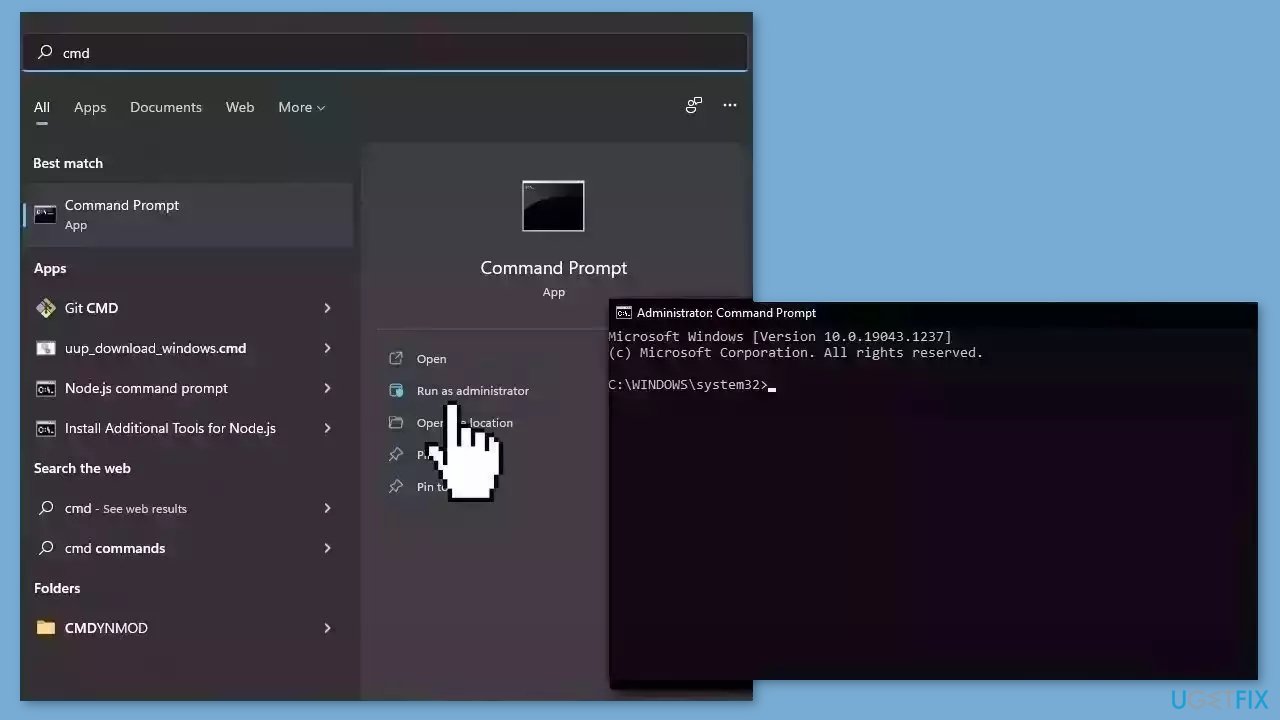
- Open Command Prompt as administrator
- Use the following command and press Enter:
sfc /scannow
- Reboot your system
- If SFC returned an error, then use the following command lines, pressing Enter after each:
DISM /Online /Cleanup-Image /CheckHealth
DISM /Online /Cleanup-Image /ScanHealth
DISM /Online /Cleanup-Image /RestoreHealth
Solution 3. Run the Keyboard Troubleshooter
Running the keyboard troubleshooter can be a helpful tool in resolving issues with keyboard malfunctions, such as Tab key problems. The troubleshooter is intended to automatically diagnose and resolve various keyboard-related issues.
When a user runs the keyboard troubleshooter, it checks for issues with the keyboard driver and settings, scans for hardware malfunctions, and attempts to resolve any issues that are discovered. If the troubleshooter detects any errors or discrepancies, it can offer solutions or apply automatic fixes to the system.
- Open the Settings window.
- In the Settings menu, select System > Troubleshoot > Other troubleshooters.
- Scroll down to the Keyboard section and click Run.
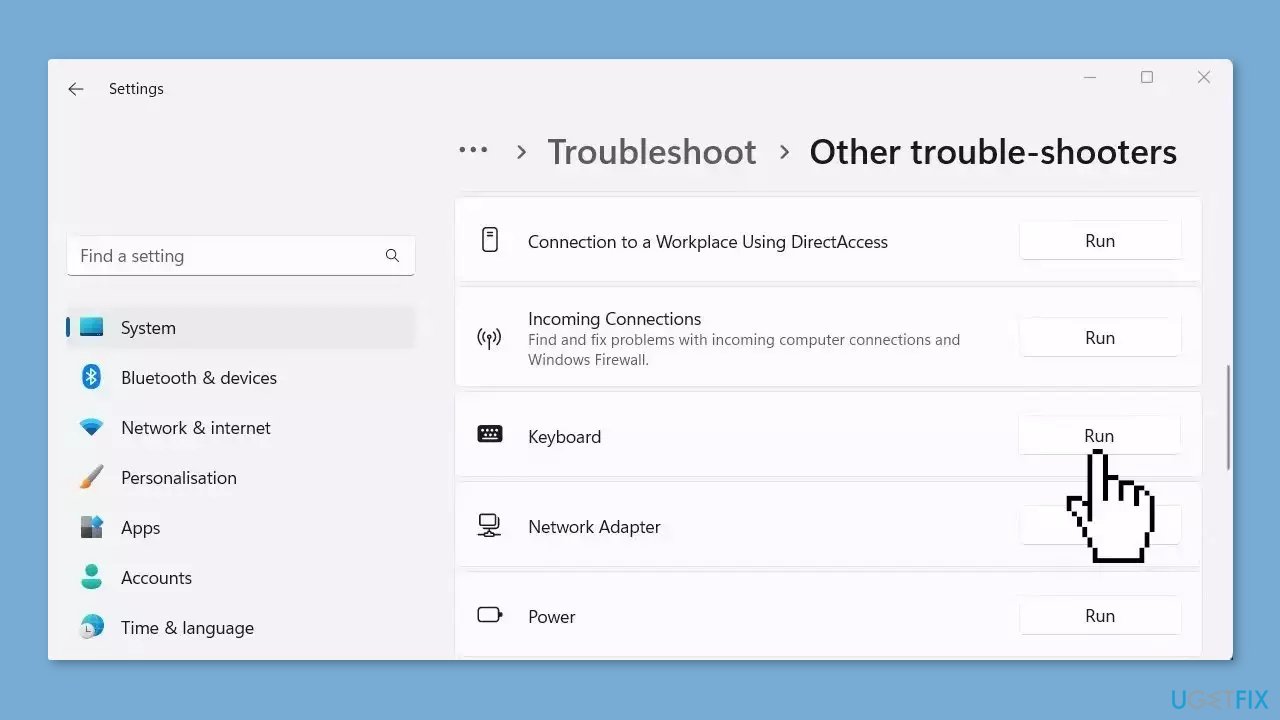
- Follow the on-screen instructions to finish the process.
- Check if the problem has been resolved.
Solution 4. Run the Hardware and Devices Troubleshooter
- Run Command Prompt as an administrator.
- Type the following command in the elevated command prompt window and press Enter:
msdt.exe -id DeviceDiagnostic
- The Hardware and Devices Troubleshooter will open.
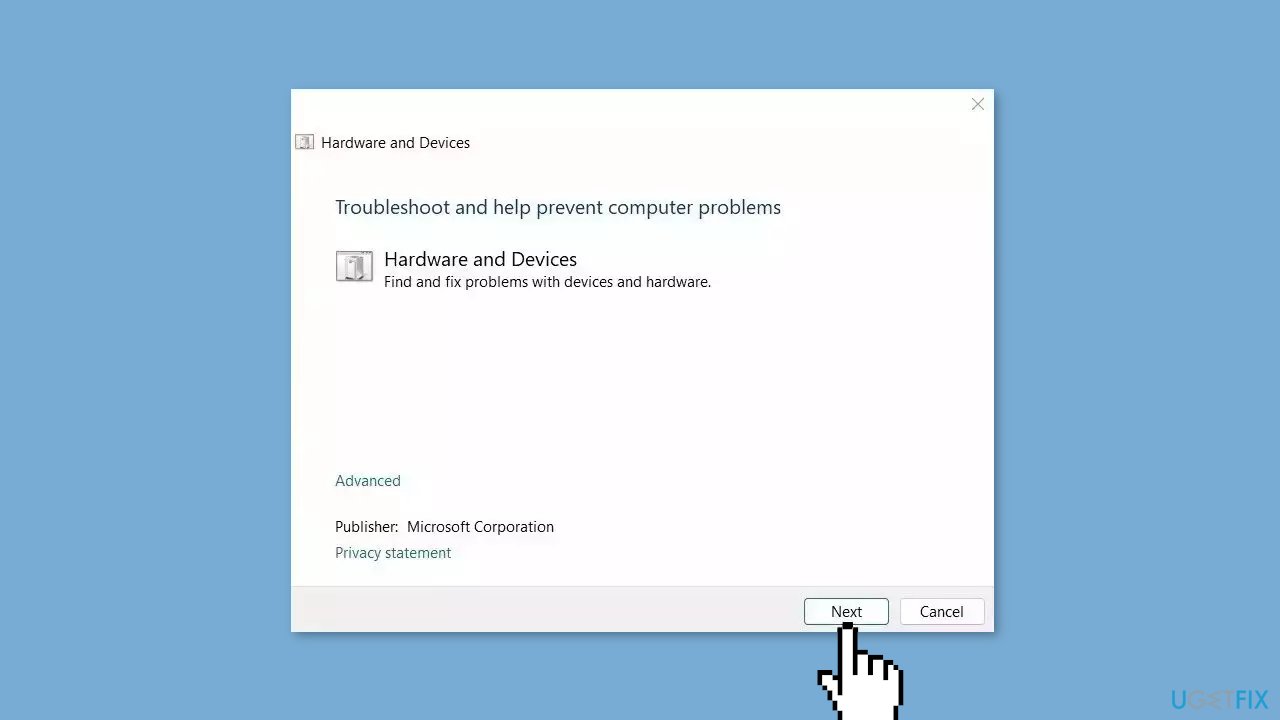
- Click Next to initiate the scan process.
- Follow the on-screen instructions.
- After completing the above steps, restart your computer.
- Check whether the arrow keys are now functioning properly.
Solution 5. Update the Keyboard Driver
- Right-click on the Start menu icon.
- Select Device Manager from the list of options.
- Navigate to the Keyboard section.
- Right-click on the keyboard device.
- Select Update driver from the context menu.
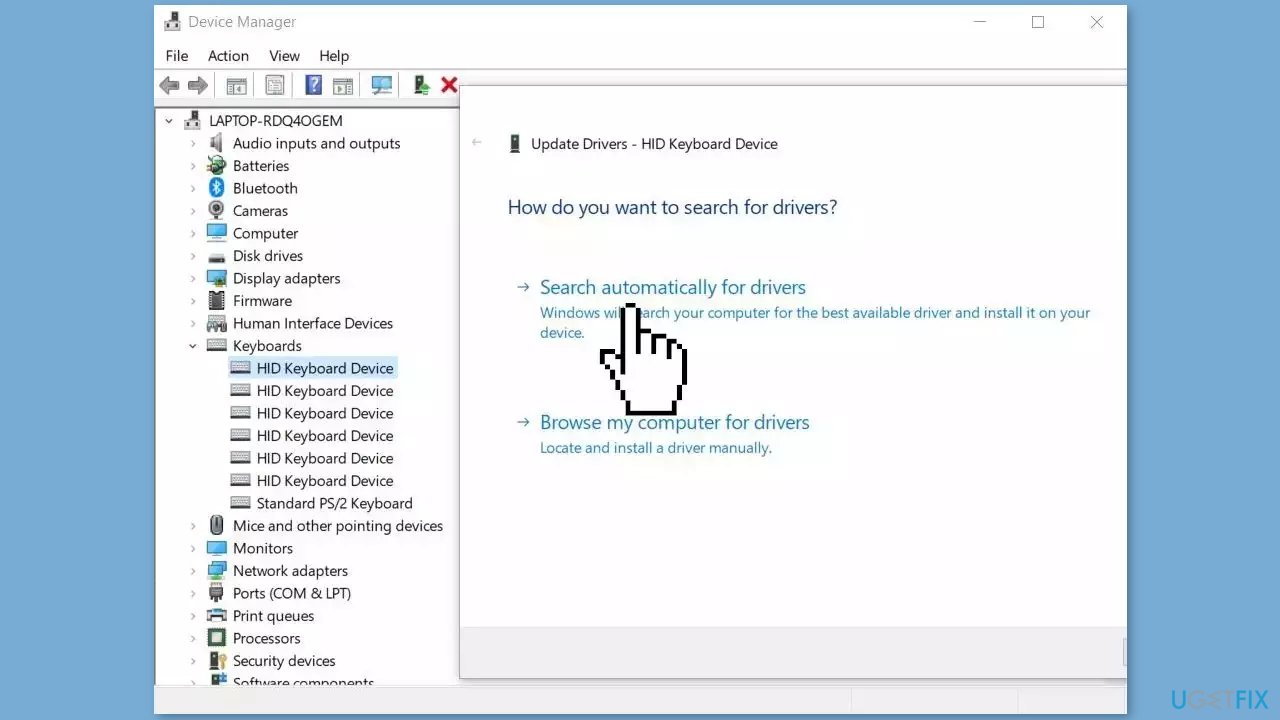
- Let Device Manager search for the required driver online.
- Wait for the process to finish and restart your device.
You can also use a dedicated utility like [rev id="DriverFix"] that can find the best drivers for your machine and install them automatically.
Solution 6. Reinstall the Keyboard Driver
- Launch Device Manager.
- Right-click on your keyboard driver.
- Select Uninstall device from the context menu.
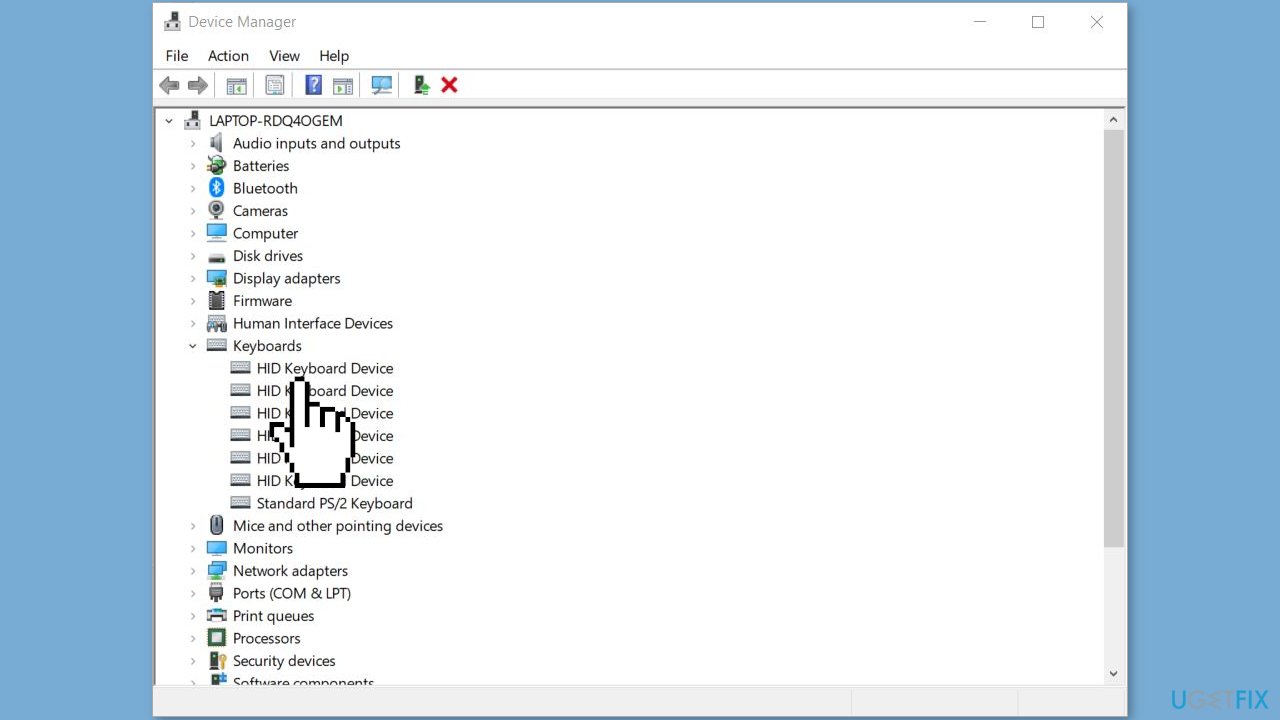
- A confirmation dialog may appear, asking if you want to uninstall the device.
- Confirm the uninstallation.
- Restart your computer.
- Once your system is back online, Windows will automatically detect and reinstall the keyboard driver.
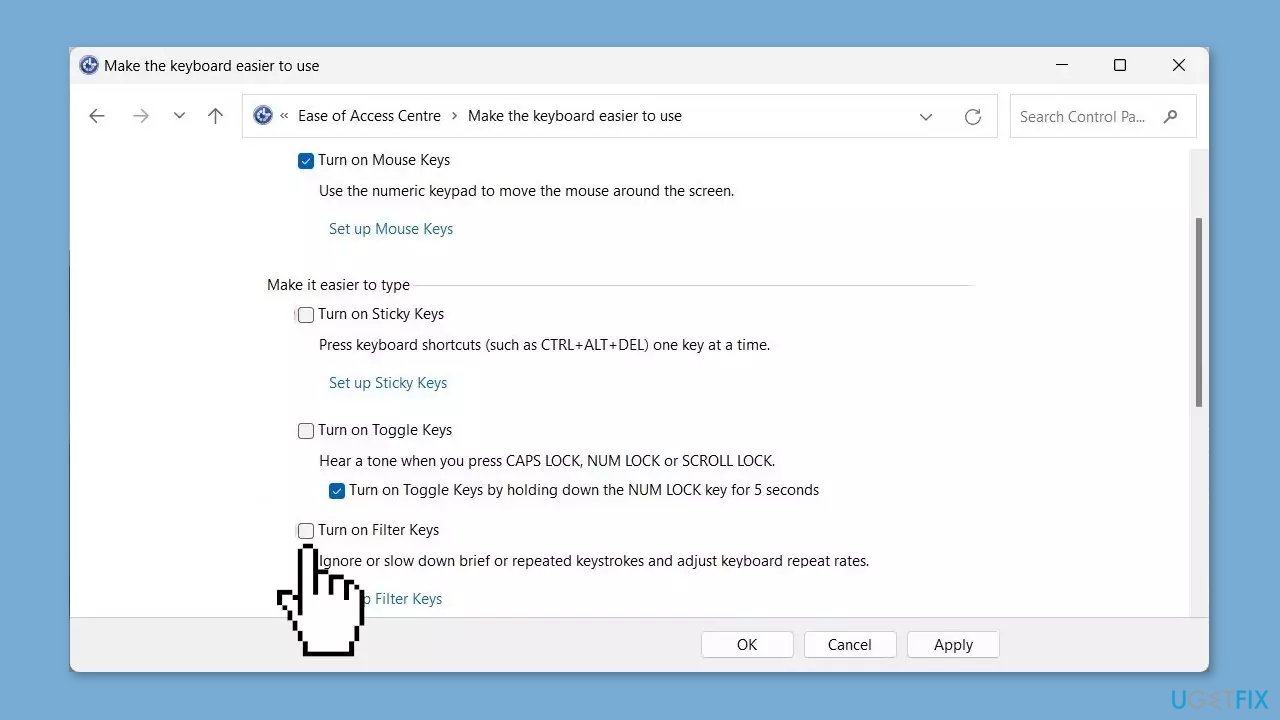
Solution 7. Disable the Sticky and Filter Keys
- Right-click on Start and select Settings from the menu list.
- On the Settings menu, click the Accessibility tab.
- Scroll down to the Interaction section and click on Keyboard.
- On the next page, toggle the Sticky keys and Filter keys options to Off.
Solution 8. Scan for Malware
Regrettably, keyboard problems on Windows computers are often caused by malware. It is likely that this is the case for you, which means it's time to scan your system for any potential threats.
- Click on the Windows Start menu or press the Windows key on your keyboard.
- Type Microsoft Defender in the search bar and click on Microsoft Defender Antivirus to open the application.
- Click on the Virus & threat protection option in the left-hand menu.
- Click on the Quick scan or Full scan option, depending on your preference.
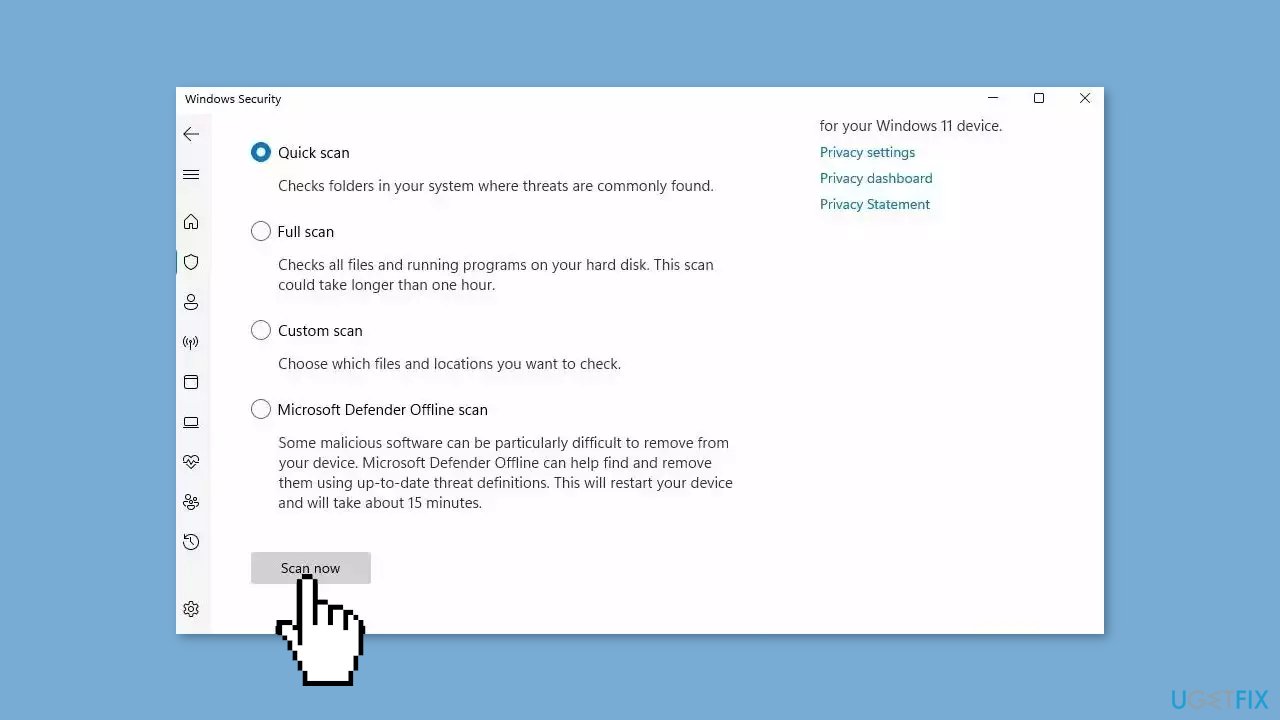
- If you choose Quick scan, Microsoft Defender Antivirus will scan the most vulnerable and commonly infected areas of your computer.
- If you choose Full scan, Microsoft Defender Antivirus will scan your entire computer, including all files, folders, and programs.
- Click on the Scan now button to start the selected scan type and wait for the scan to complete.
- The time it takes will depend on the size of your hard drive and the number of files being scanned.
- Once the scan is complete, you will be informed of any detected threats, and you can choose to quarantine or remove them.
- If no threats are found, Microsoft Defender Antivirus will inform you that your device is secure.
Bottom line
To fix the Tab key not working in Windows, you can try restarting your PC, updating keyboard drivers, adjusting system settings, or performing a keyboard layout reset. If these solutions do not resolve the issue, consider troubleshooting hardware connections or using a maintenance tool to fix system errors.
Frequently asked questions
First, check if the keyboard is properly connected and try using it on another device. If it still doesn't work, consider updating your keyboard drivers through Device Manager in Windows 10.
You can run the Keyboard Troubleshooter by going to Settings > Update & Security > Troubleshoot > Additional troubleshooters, then select Keyboard. If the issue persists, test the keyboard in another application to rule out software conflicts.
Sometimes, recent updates can cause hardware issues; try rolling back the update via Settings > Update & Security > Windows Update > View update history. Alternatively, reinstalling the keyboard driver might resolve the problem.




Report an issue
What's wrong with this guide? We review every report and update or remove content.
Report received — thank you. We'll review and fix it.
You need a free account to submit a report.
Be the first to comment