How to fix
Tamper Protection not working
on Windows
Resolve Tamper Protection issues in Windows 10 and 11 effortlessly. Get expert-tested solutions to keep your device secure and fixed in minutes.

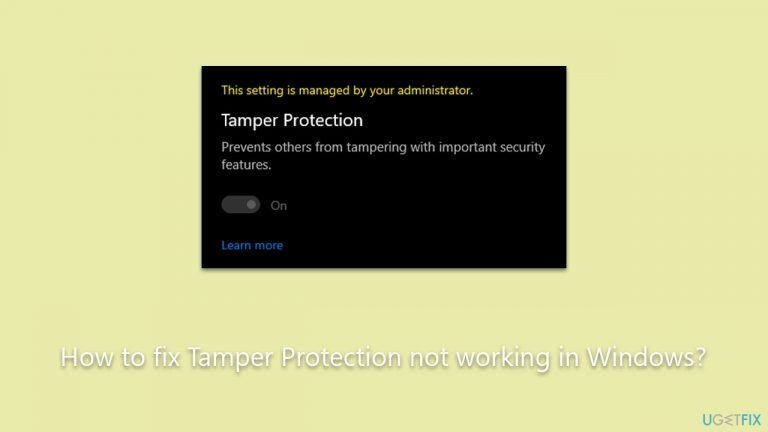
What causes How to fix Tamper Protection not working in Windows?
- Group Policy Settings
- System Corruption
- Malware
- Software Conflicts
Repairs Windows system files, removes malware, and restores a clean OS state — without reinstalling.
I am not sure when this happened, but I've recently noticed that Tamper Protection in Windows is turned off. I am also unable to turn it back on normally. Any ideas on how to proceed?
Microsoft Defender is the built-in antivirus program that comes with the Windows operating system. One of its key features, designed to bolster the security of the system, is Tamper Protection. This feature prevents malicious applications or threats from making changes to critical system settings related to Defender's functionality. In essence, it acts as an additional shield, ensuring that the antivirus software remains active and unaltered by outside threats.
However, several reports have emerged where individuals find that Tamper Protection is inexplicably turned off on their computers. Even more puzzling, when trying to reactivate it, some are met with a notification that the feature is "controlled by the administrator". This can be a point of confusion, especially for those who are certain they are the sole administrators of their machines.
There are a few reasons why you might encounter these issues:
- Group Policy Settings: Even if you're the sole user of your computer, it's possible that certain Group Policies, which dictate system behavior, have been set either by software or previous configurations, effectively limiting access to certain features.
- System Corruption or Malware: If system files related to Defender have become corrupted, or if there's active malware trying to disable the system's defenses, this could result in the Tamper Protection being deactivated.
- Software Conflicts: Occasionally, other third-party software or security solutions might conflict with Defender's features, resulting in unpredictable behavior.

If you're experiencing any of these challenges, it's essential to address them promptly to ensure your system remains secure. While there are solutions to these issues, which will be provided below, it's always good practice to consider all tools at your disposal.
In light of these challenges, it might also be beneficial to explore the [d1] PC repair app to further ensure your computer's optimal performance and security.
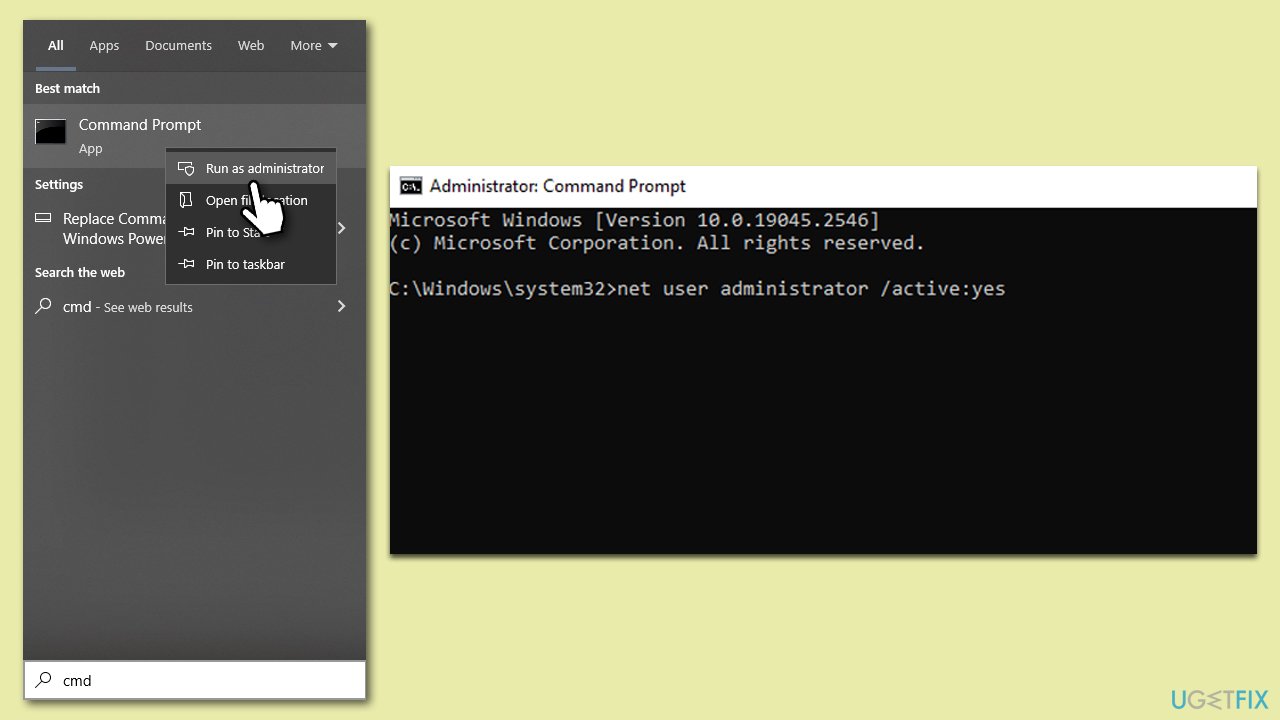
Fix 1. Enable administrator account in Command Prompt
Sometimes, even if you're the sole user of a computer, the administrator account may be disabled. This could limit your ability to modify system settings, including the Tamper Protection feature. By enabling the administrator account, you can regain access.
- Open the Start menu and type
cmd. - Right-click on Command Prompt and select Run as administrator.
- User Account Control will ask whether you want to make changes - click Yes.
- Type the following command and press Enter:
net user administrator /active:yes - Restart your computer.
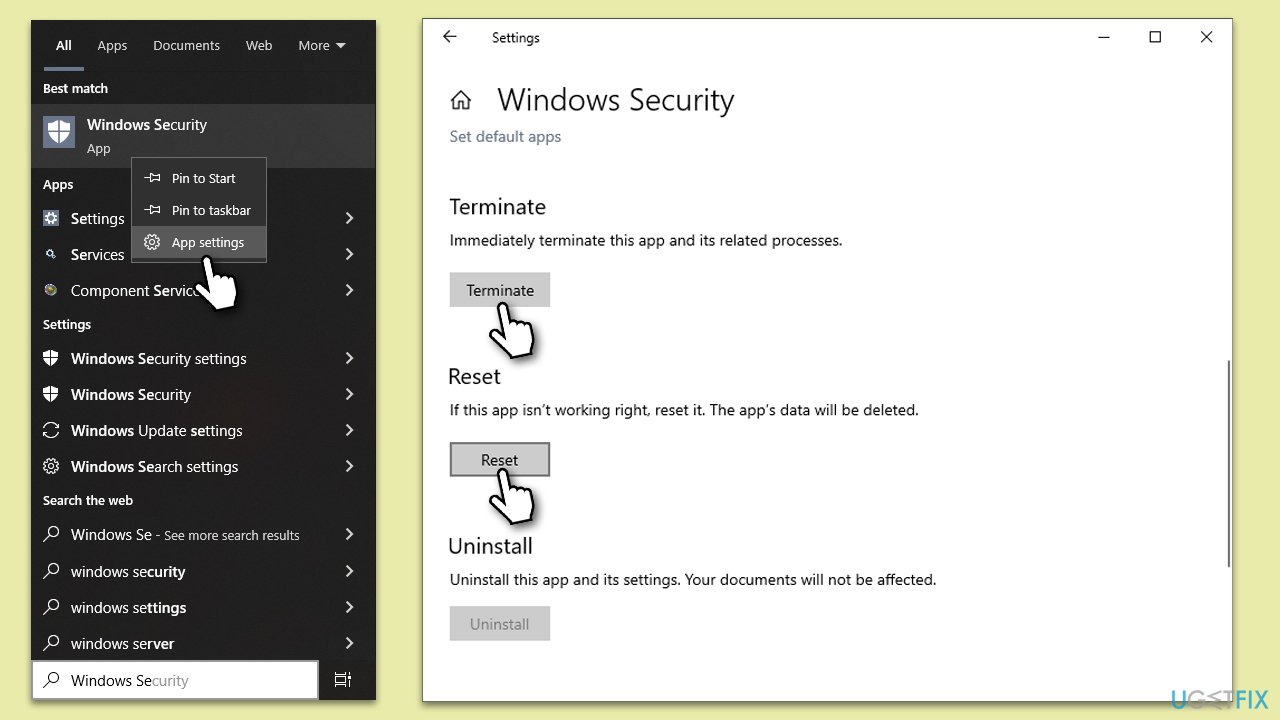
Fix 2. Reset the Windows Security app
Corruptions or glitches in the Windows Security app can sometimes interfere with features like Tamper Protection. Resetting the app can clear any irregularities and restore its default settings.
- Type Windows Security in the Windows search box.
- Right-click on the Windows Security search result and select App settings.
- Here, scroll down to find the Terminate button and click it.
- Then, click the Reset button.
- Wait for the process to complete, then restart your computer.
Fix 3. Scan your system for malware
Malware can often interfere with system functions, including disabling Tamper Protection. Using a tool like Microsoft Safety Scanner can help identify and remove threats.
- Visit the official Microsoft website and download the Microsoft Safety Scanner.
- Install and run the scanner.
- Follow the on-screen instructions to complete the scan and remove any detected threats.
- Restart your computer.
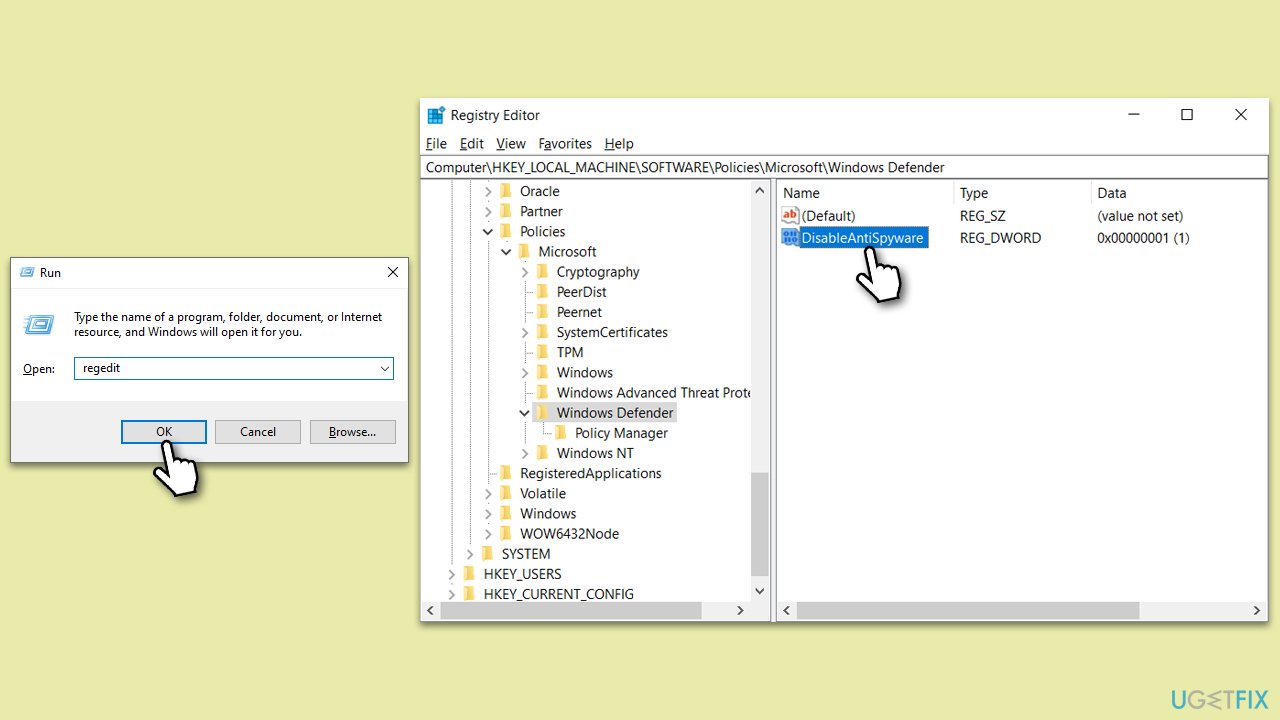
Fix 4. Remove the "DisableAntiSpyware" value in the Registry Editor
Sometimes, a registry value might be interfering with Tamper Protection. Removing this value can help.
- Press the Win + R simultaneously to open the Run dialog.
- Type regedit and press Enter.
- Navigate to HKEY_LOCAL_MACHINE\SOFTWARE\Policies\Microsoft\Windows Defender.
- Locate and right-click on DisableAntiSpyware and select Delete (if the DisableAntiSpyware value is missing, proceed with the next fix).
- Close the Registry Editor and restart your computer.
Fix 5. Enable Tamper Protection via the Registry
You can directly enable Tamper Protection through the Windows Registry if the regular methods aren't working.
- Press the Win + R simultaneously to open the Run dialog.
- Type regedit and press Enter.
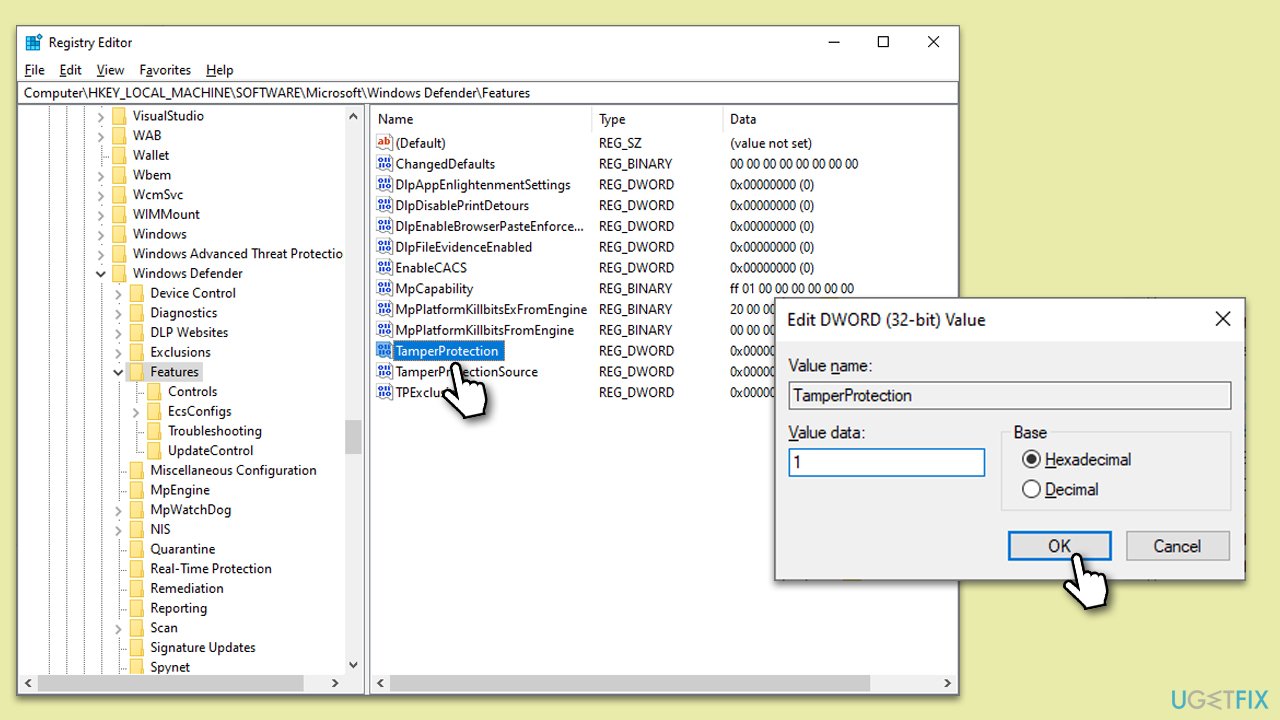
- Navigate to HKEY_LOCAL_MACHINE\SOFTWARE\Microsoft\Windows Defender\Features.
- Find TamperProtection and double-click it. If it doesn't exist, right-click on the right pane and select New > DWORD (32-bit) Value.
- Name the new value TamperProtection and set its value data to 1.
- Close the Registry Editor and restart your computer.
Fix 6. Delete unwanted policies via the Command Prompt
Certain policies can hinder the functionality of Tamper Protection. Removing these through Command Prompt can alleviate the issue.
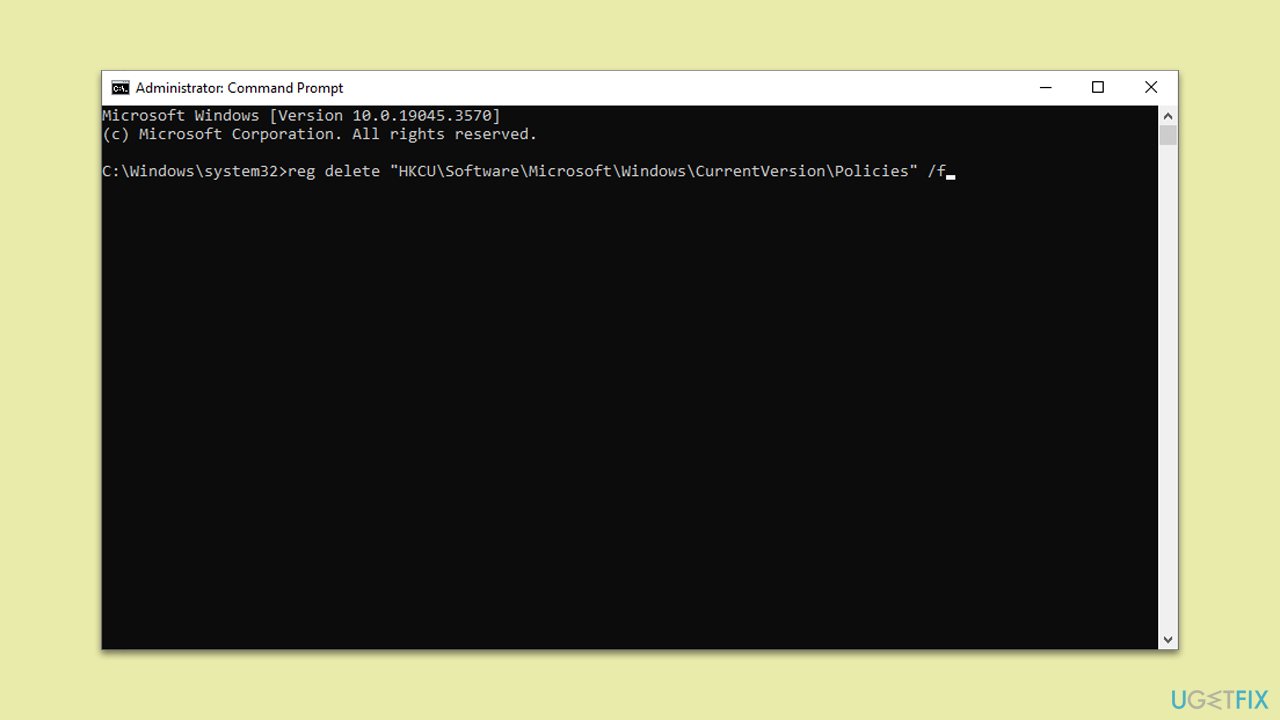
- Open Command Prompt as administrator.
- When UAC shows up, click Yes.
- Copy and paste the following commands into Command Prompt and hit Enter after each:
- reg delete "HKCU\Software\Microsoft\Windows\CurrentVersion\Policies" /f
- reg delete "HKCU\Software\Microsoft\WindowsSelfHost" /f
- reg delete "HKCU\Software\Policies" /f
- reg delete "HKLM\Software\Microsoft\Policies" /f
- reg delete "HKLM\Software\Microsoft\Windows\CurrentVersion\Policies" /f
- reg delete "HKLM\Software\Microsoft\Windows\CurrentVersion\WindowsStore\WindowsUpdate" /f
- reg delete "HKLM\Software\Microsoft\WindowsSelfHost" /f
- reg delete "HKLM\Software\Policies" /f
- reg delete "HKLM\Software\WOW6432Node\Microsoft\Policies" /f
- reg delete "HKLM\Software\WOW6432Node\Microsoft\Windows\CurrentVersion\Policies" /f
- reg delete "HKLM\Software\WOW6432Node\Microsoft\Windows\CurrentVersion\WindowsStore\WindowsUpdate" /f
- Close down everything and restart your PC.
Fix 7. Reset Windows
There are instances when multiple underlying issues or corruptions within the system can cause problems with features like Tamper Protection. If the previously mentioned solutions don't work, a more comprehensive approach might be to reset Windows. This action will reinstall Windows, removing all apps and drivers you installed. Your personal files might be kept if you choose to, but it's advisable to back them up before proceeding.
- Back up all essential files and data to an external drive or cloud storage.
- Open the Start menu and select Settings.
- Navigate to Update & Security.
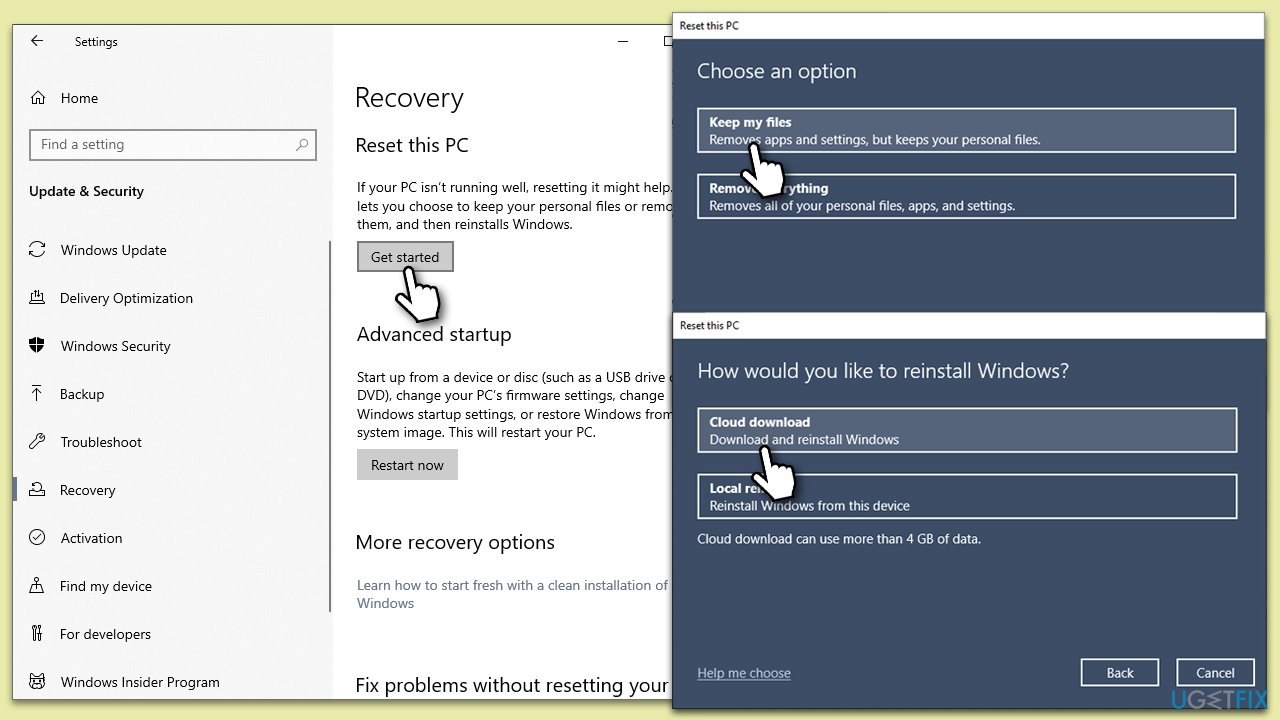
- From the left pane, select Recovery.
- Under the Reset this PC section, click on the Get started button.
- You'll be presented with two options: Keep my files and Remove everything. Choose according to your preference. (Note: "Keep my files" will remove apps and settings but keep personal files. "Remove everything" will remove all personal files, apps, and settings.)
- Follow the on-screen instructions to complete the reset process.
- After the reset is complete, set up Windows as you would on a new system.
- Once set up, reinstall any necessary applications and restore your backed-up files if needed.
Bottom line
To fix Tamper Protection not working in Windows, you can enable the administrator account using Command Prompt, check for system corruption, and review any conflicting software. If these solutions do not resolve the issue, consider exploring additional tools or seeking professional assistance.
Frequently asked questions
To enable Tamper Protection, go to Settings > Update & Security > Windows Security > Virus & threat protection, then click on 'Manage settings' under Virus & threat protection settings and toggle on Tamper Protection.
If Tamper Protection is enabled but not functioning, ensure that your Windows Security app is updated and that no third-party antivirus software is conflicting with its settings.
You can troubleshoot Tamper Protection by running the Windows Security troubleshooter, checking for Windows updates, and resetting the security settings to default.




Report an issue
What's wrong with this guide? We review every report and update or remove content.
Report received — thank you. We'll review and fix it.
You need a free account to submit a report.
Be the first to comment