How to fix
“Task Host is stopping background tasks” error after Windows update
on Windows
Resolve the "Task Host is stopping background tasks" error on Windows 10 or 11 effortlessly. Get expert-tested solutions for a smooth experience!


What causes How to fix “Task Host is stopping background tasks” error after Windows update?
- Windows Update installation files are troublesome
- Word files or other processes using DLL files are not closed in time
- Task host process is checking for running programs that need to be closed
- Corrupted or damaged files due to malware leftovers
- Faulty OS updates
Repairs Windows system files, removes malware, and restores a clean OS state — without reinstalling.
I updated Windows 10 on my PC, and the error alert comes up repeatedly. The task host window is stopping the background tasks is the message. I need some help here because I don't known if this is really linked to the upgrade and am afraid I might cause additional issues if I try to fix this myself. Help!
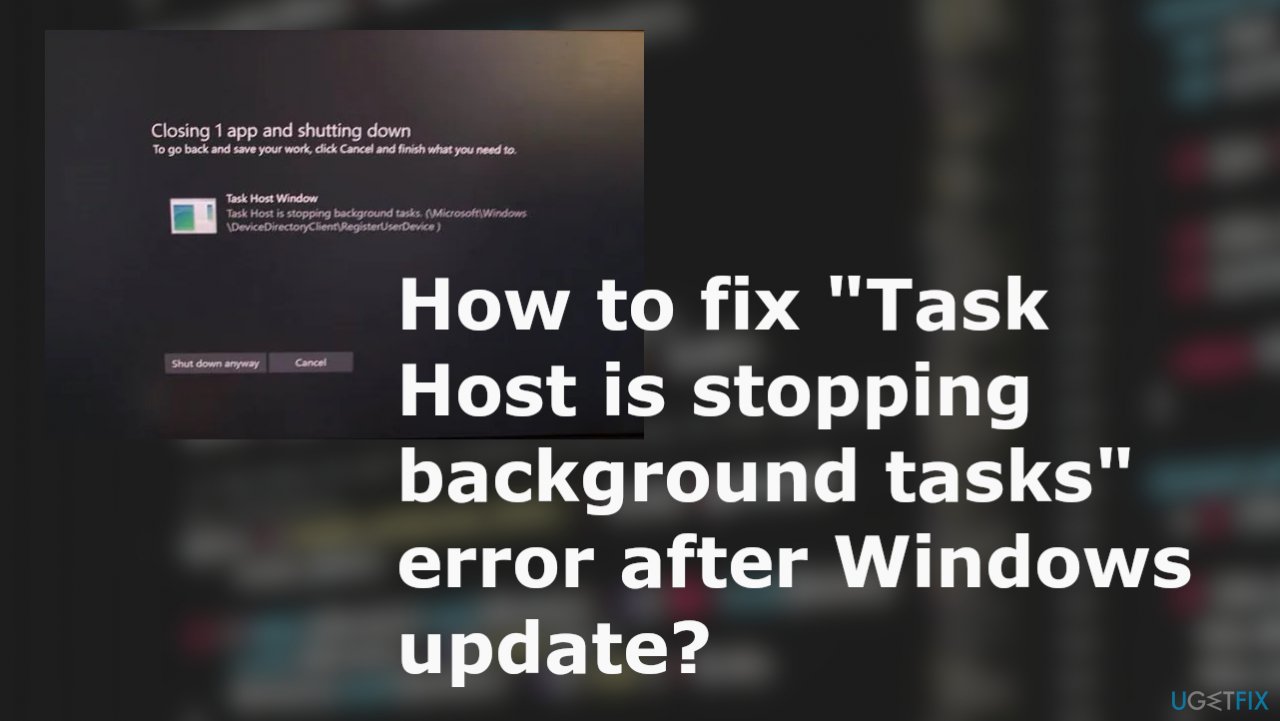
"Task Host is stopping background tasks" error after Windows update is the issue that users[ref en-1] have been reporting in online forums. The problem is appearing on shutdown, and the error is keeping the machine from the proper shutdown. This is the problem related to the taskhost.exe file, which is the generic host process for Windows 10.
The software needs to be closed one at a time when you turn off the machine. However, sometimes these programs may hang up, and users are unable to shut down the machine. The particular process can interrupt the procedure because it checks of all the running programs were closed to avoid any corruption or data loss.[ref en-2]
Generally, this is the main job of the Task Host process - to interrupt the shutdown to check for the issues regarding these applications that need to be closed. "Task Host is stopping background tasks" error after Windows update appears when some Word files or other processes that use DLL files are not closed in time of the shutdown.
The problem with these errors is fixable, and there are some different reasons behind the problem. It is possible that the Windows Update you were installing before the appearance of the error is troublesome, and those installation files prevent the machine from upgrading or even shutting down.[ref en-3]
You need and can fix "Task Host is stopping background tasks" error after the Windows update properly on the system, and that might include upgrading the machine again or triggering the scan for corrupted file repair. You can use [d1] and take care of those pieces that are corrupted or damaged due to malware leftovers or faulty OS updates. Other solutions are listed for you.
Fix 1. Turn Off Hybrid shutdown/fast startup
- Press Win+R to open the Run window and type the command powercfg.cpl hit OK.
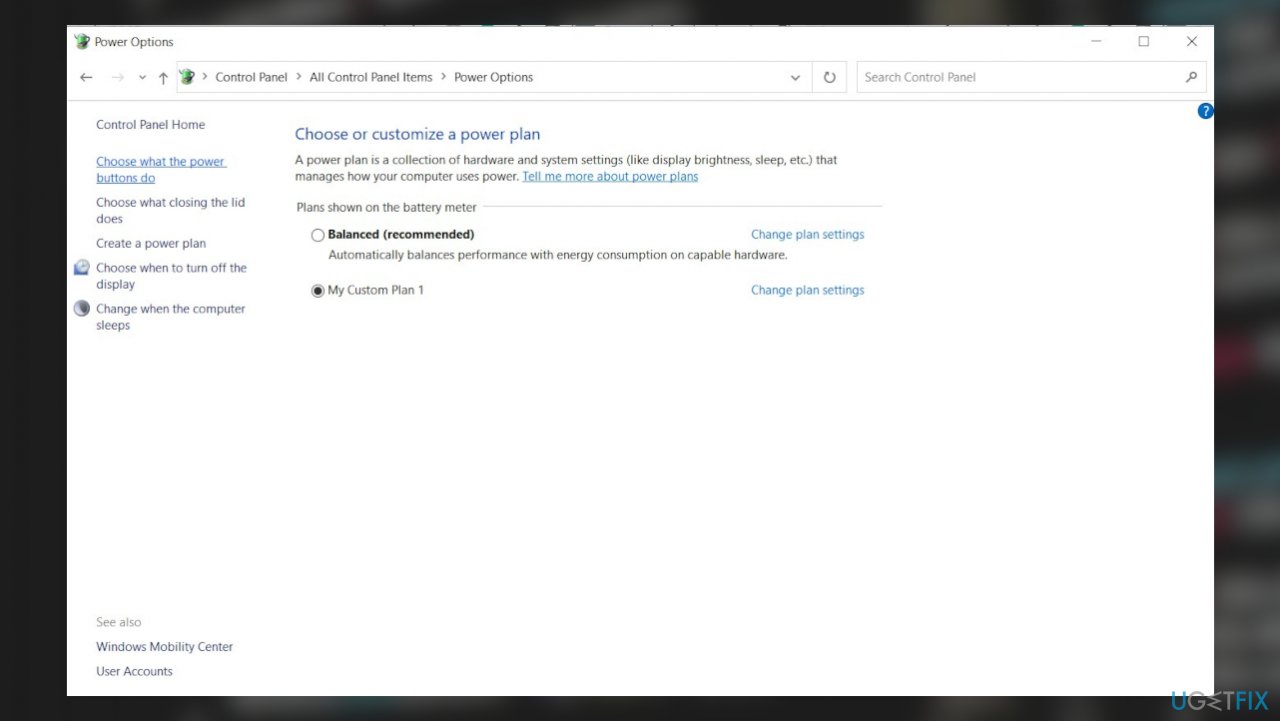
Task host error onshutdown power preference - Among the options on the left-hand side, select Choose what the power button does.
- Click on the option Change settings that are currently unavailable.
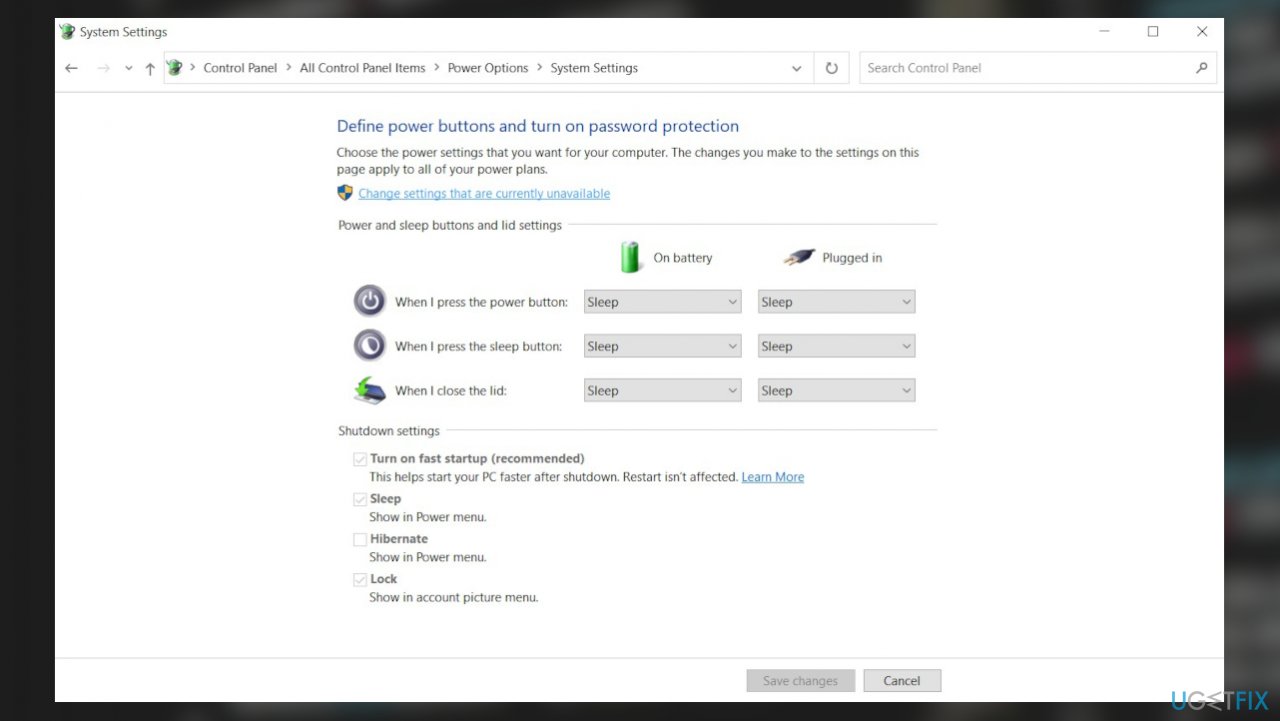
Task host error onshutdown power settings - Uncheck Turn on fast startup.
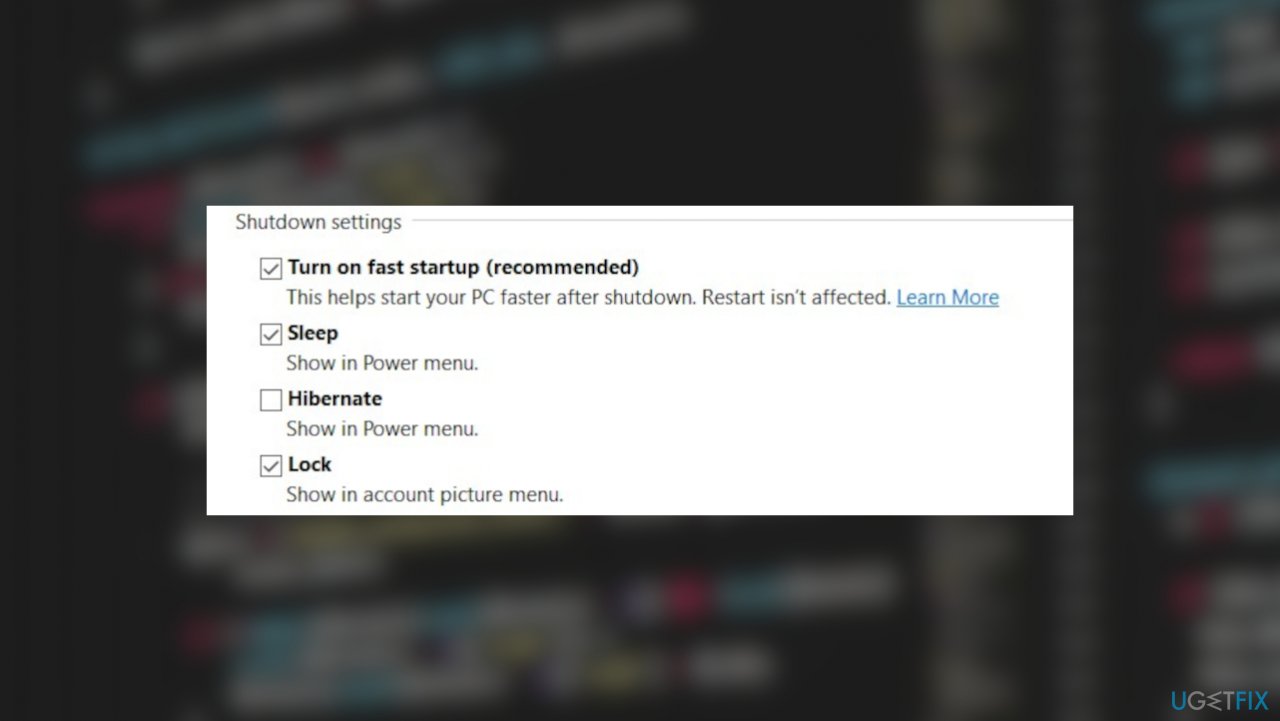
Task host error onshutdown powerbuttons
Fix 2. Check for Updates
- Press the Windows key + I to open settings.
- Click on Updates & Security.
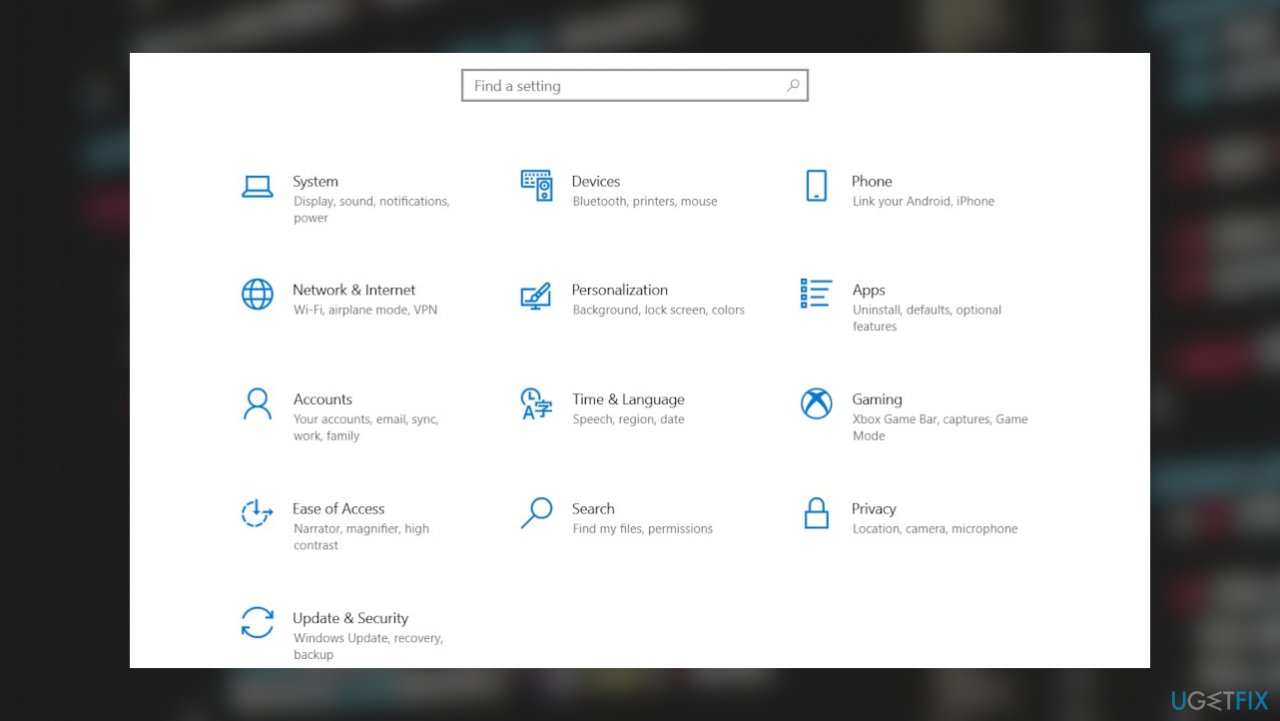
Task host error onshutdown settings - Select Windows update on the left pane.
- Click on Check for updates.
- You can pause updates or install any pending ones.
Fix 3. Restart InstallService service
- Right-click on the taskbar and click on the task manager.
- Go to the Services tab.
- Look for Installservice. Sort by name and navigate to I for easier findings.
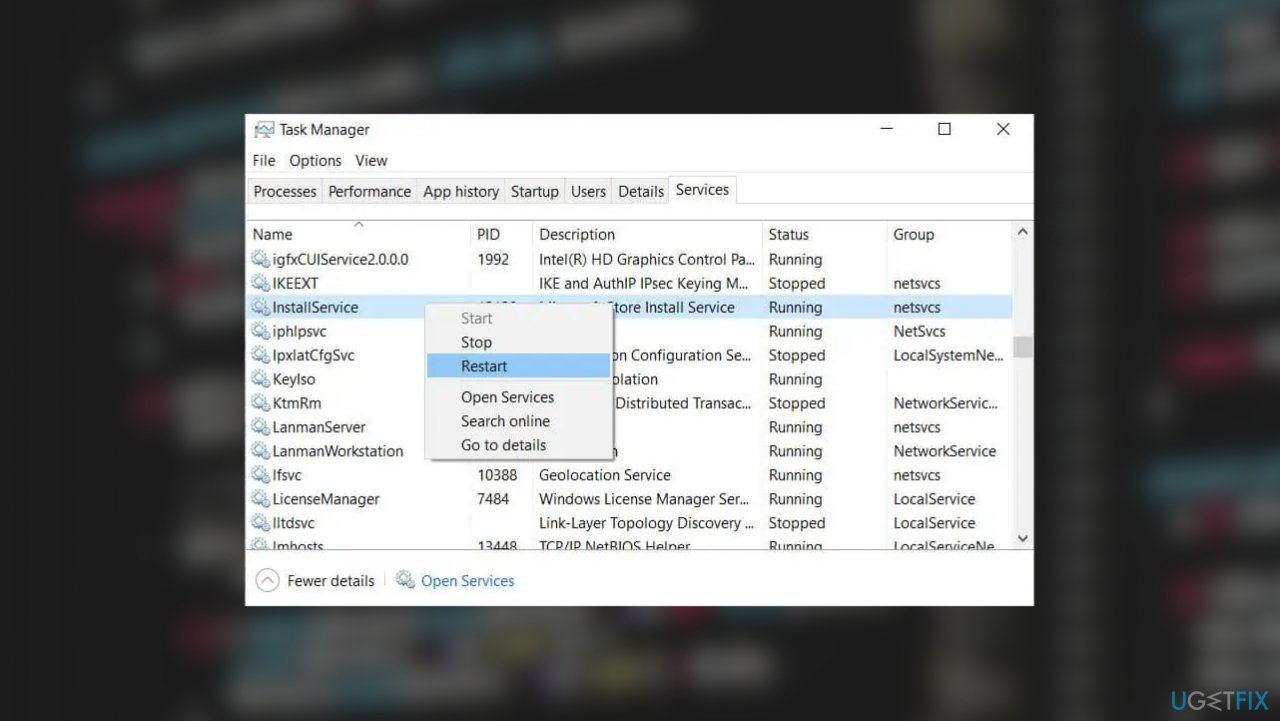
Task host error onshutdown restart servcies - Right-click on the service and click Restart.
Fix 4. Scan for affected files
- Search for
cmdon the search bar and Run as administrator.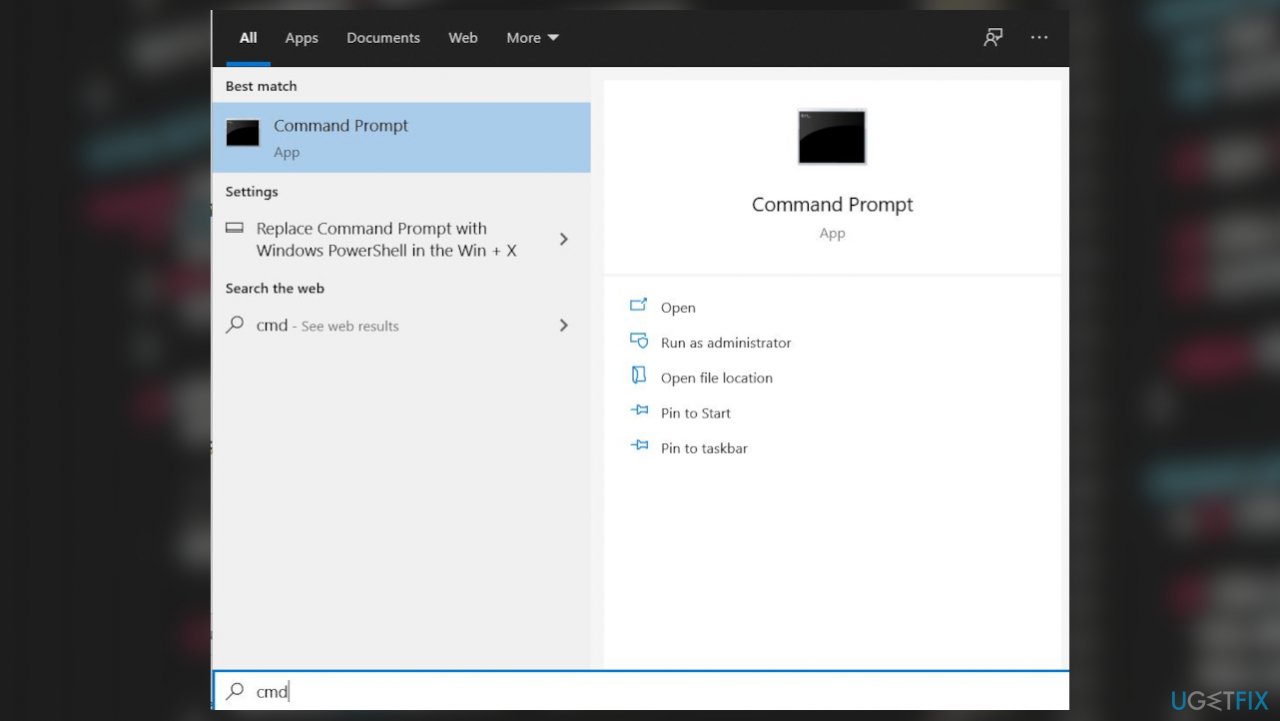
Task host error onshutdown command prompt - Type the following command and press Enter after each command:
sfc/scannow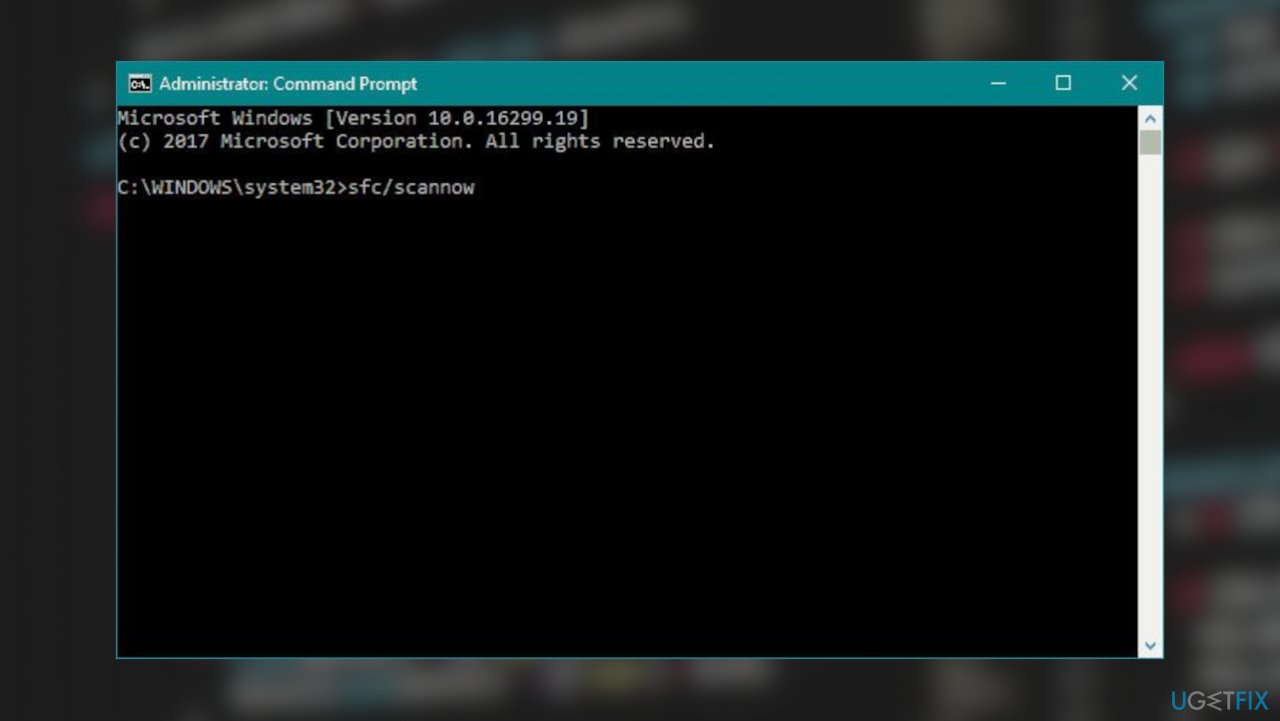
Task host error onshutdown sfct
DISM /Online /Cleanup-Image /Restore Health - Run scans and wait.
Fix 5. Reduce shutdown time
- Press Win + R to open the Run window and type the command regedit.
- Press Enter to open the registry editor.
- Go to the path:
HKEY_LOCAL_MACHINE/SYSTEM/CurrentControlSet/Control - Right-click WaitToKillServiceTimeout in the right pane and change the value to 5000.
- Go to:
HKEY_CURRENT_USER/Control Panel/Desktop - Again, right-click WaitToKillServiceTimeout in the right pane and change the value to 5000.
Bottom line
The 'Task Host is stopping background tasks' error can be fixed by upgrading the machine again or triggering a scan for corrupted file repair. If these solutions do not resolve the issue, consider exploring additional troubleshooting methods.
Frequently asked questions
This error typically occurs when background tasks are not terminating properly due to changes made during a Windows 10 or Windows 11 update, leading to conflicts in the Task Host process.
To fix this issue on Windows 11, you can try running the Windows Update Troubleshooter and resetting the Windows Update components to ensure all tasks are properly finalized.
To prevent this error from recurring in Windows 10, ensure that your system is fully updated and consider disabling unnecessary startup programs that may interfere with task management.




Report an issue
What's wrong with this guide? We review every report and update or remove content.
Report received — thank you. We'll review and fix it.
You need a free account to submit a report.
Be the first to comment