How to fix
Task Host is stopping PC from shutting down
on Windows
Resolve the Task Host issue preventing shutdown in Windows 10/11 effortlessly. Get expert-tested solutions and fix your PC in minutes!


What causes How to fix Task Host is stopping PC from shutting down in Windows?
- Background process managed by Task Host obstructing shutdown
- Update installation hanging mid-progress
- Corrupted system service refusing to close
- Application with unsaved data prompting user input
- Active applications keeping Task Host busy
Repairs Windows system files, removes malware, and restores a clean OS state — without reinstalling.
When I try to shut down my PC, a pop-up shows up saying that an app needs to shut down (even though there are no apps opened). It mentions that Task Host is preventing Windows shut down. How can I get rid of this?
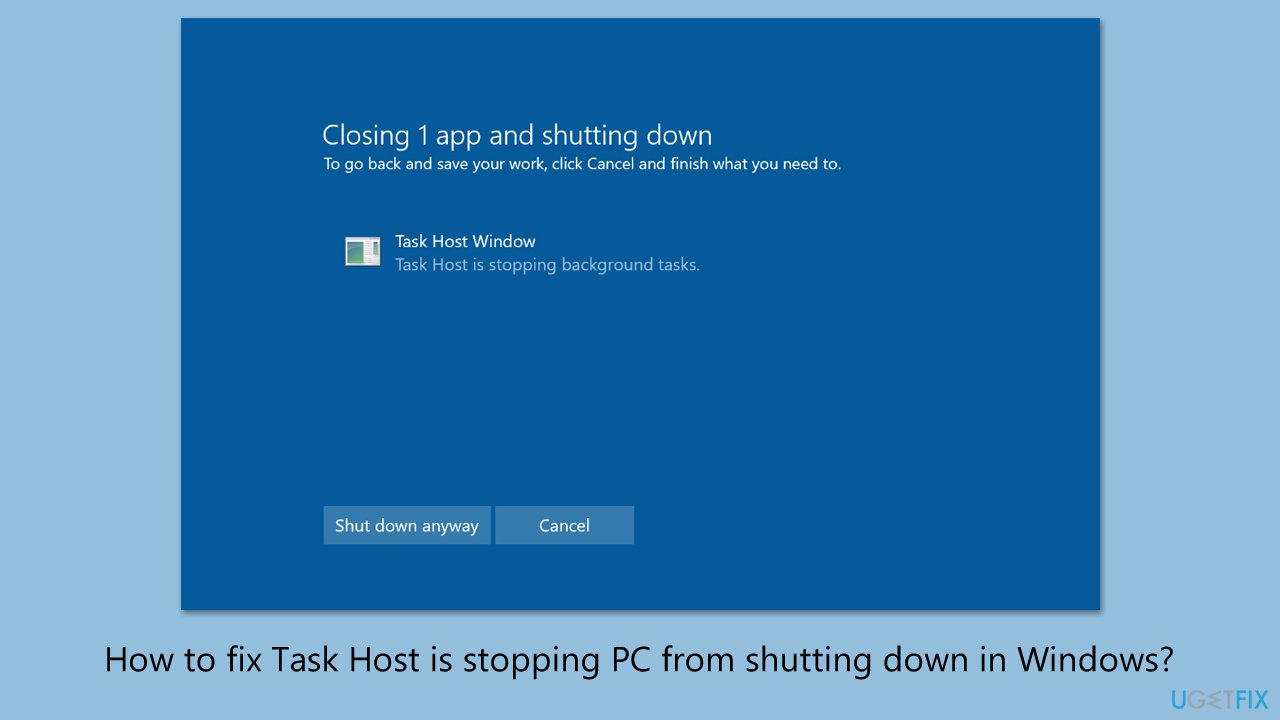
The shutdown process in Windows 11 is designed to close applications and services efficiently, allowing users to power off their systems seamlessly. However, an issue arises when the "Task Host Window" message appears, indicating that a background process (managed by Task Host) is obstructing this operation.
Users typically initiate a shutdown or restart through the Start menu, only to encounter a delay as the system displays this notification, leaving the PC unresponsive until the dialog is manually addressed or times out. For the individual reporting this on Windows 11, even a restart failed to eliminate the problem, suggesting a persistent interference requiring specific action.
This disruption stems from Task Host, a component that oversees background tasks such as Windows Updates, system maintenance, or third-party app processes. When these tasks fail to terminate gracefully, they hold the shutdown process hostage. The issue might originate from an update installation hanging mid-progress, a corrupted system service refusing to close, or an application with unsaved data prompting user input.
Without a clear indicator of the exact task at fault, pinpointing the cause demands a methodical approach. The inability to shut down promptly frustrates users, potentially leading to forced power-offs that risk data loss or system instability. Prolonged delays also disrupt workflows, especially for those needing quick system resets.
The solutions below offer multiple pathways to address this, with [d1] providing support for underlying Windows issues that might exacerbate the situation, restoring efficient shutdown functionality.
Fix 1. Close running applications
Active applications might keep Task Host busy, so closing them ensures no processes delay the shutdown.
- Press Ctrl + Shift + Esc and select Task Manager.
- Check the Apps section for open programs.
- Select each running app and click End Task.
- Try to shut down the PC again.
Fix 2. End Task Host Process
Terminating the Task Host process directly can sometimes be necessary when it refuses to release its hold on shutdown.
- Open Task Manager.
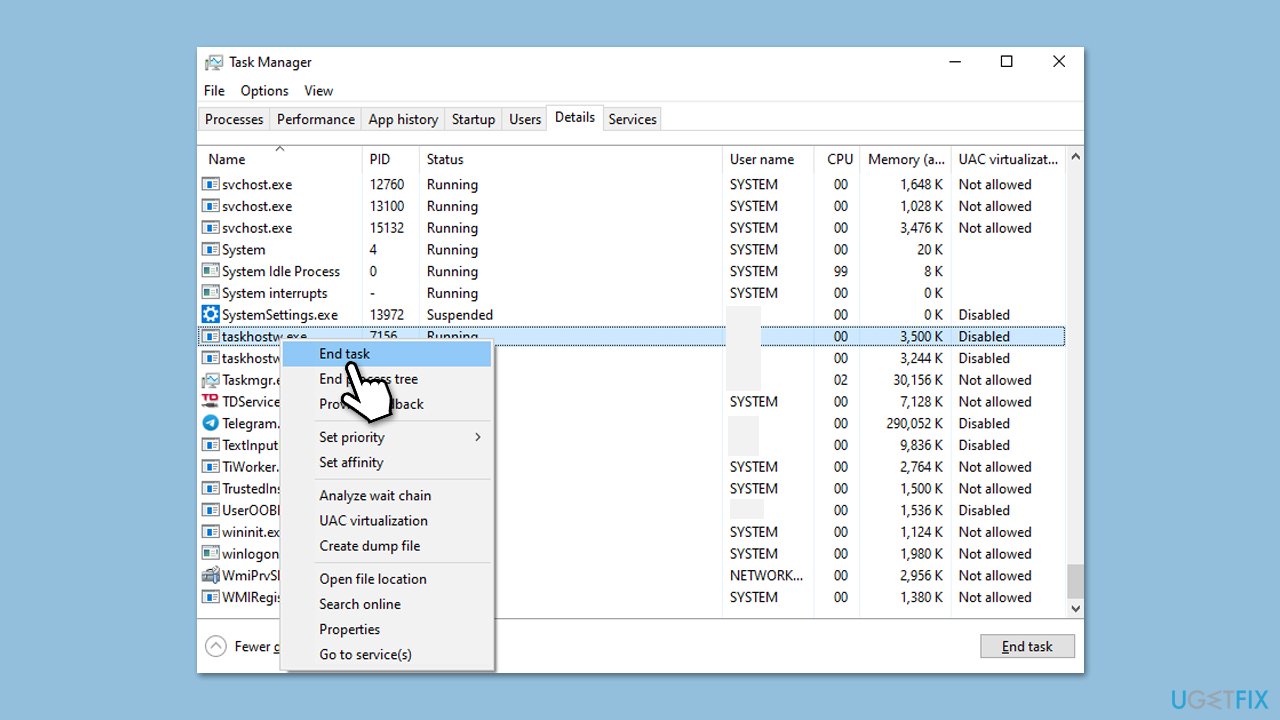
- Navigate to the Details tab and locate Task Host Window.
- Right-click it and select End Task.
- Wait briefly for the system to respond.
- Retry the shutdown process.
Fix 3. Disable Fast Startup
When Fast Startup is enabled, it might leave tasks running that interfere with a smooth shutdown. Disabling it could help.
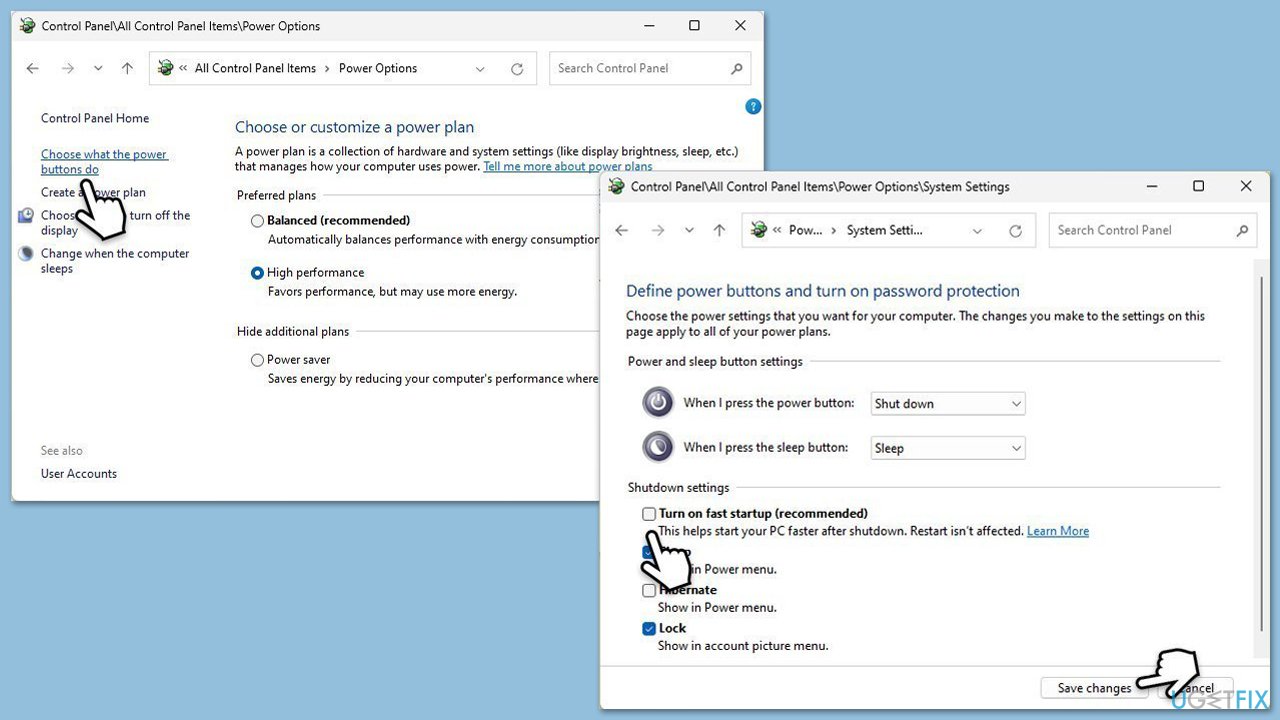
- Type Control Panel in Windows search and hit Enter.
- Select Small icons view and pick Power options.
- On the left side of the window, select Choose what the power buttons do
- Pick the Change settings that are currently unavailable option at the top
- Remove the tick from the Turn on fast startup (recommended) option and select Save changes.
Fix 4. Run System Maintenance troubleshooter
The System Maintenance Troubleshooter is designed to detect and fix issues with background tasks that might stall Task Host at shutdown.
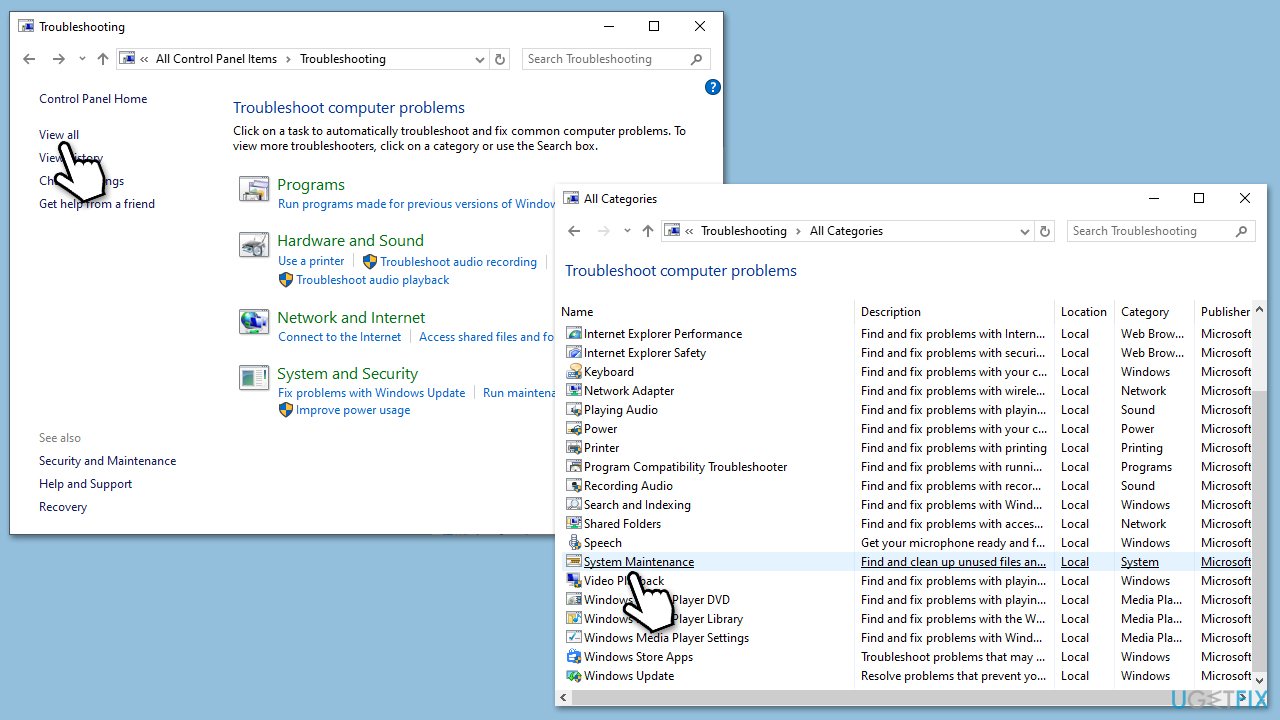
Type Control Panel in Windows search and press Enter.
- In the View by section, select Small icons from the drop-down.
- Click on Troubleshooting.
- Click View all on the left side of the window.
- Find System Maintenance, click it and follow the on-screen instructions.
- Restart once finished.
Fix 5. Update Windows
Pending Windows Updates can sometimes cause Task Host to hang during shutdown, and completing them might resolve the issue.
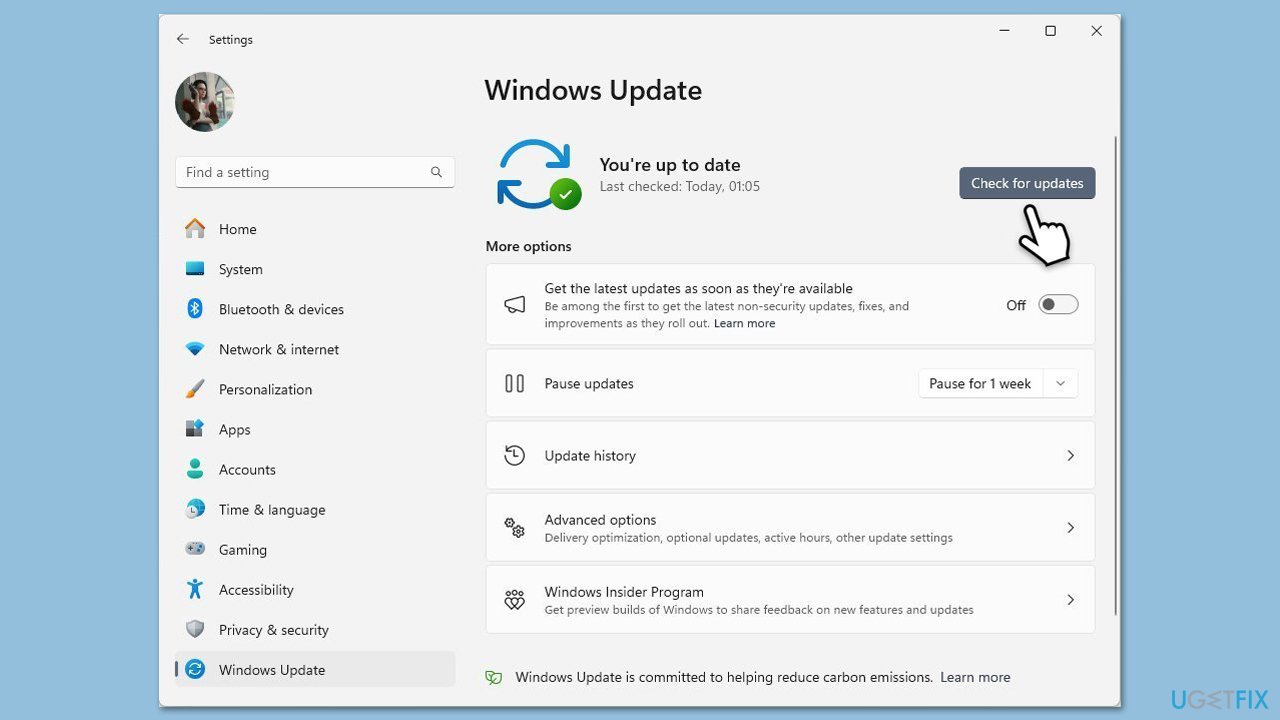
- Type Updates in Windows search and press Enter.
- In the new window, click Check for updates.
- Wait till all the necessary files are downloaded and installed.
- If optional updates are available, install them as well.
- When done, reboot your system to apply updates.
Fix 6. Check for corrupted system files
If system files are damaged, Task Host might struggle to close properly, but a scan can identify and repair these faults.
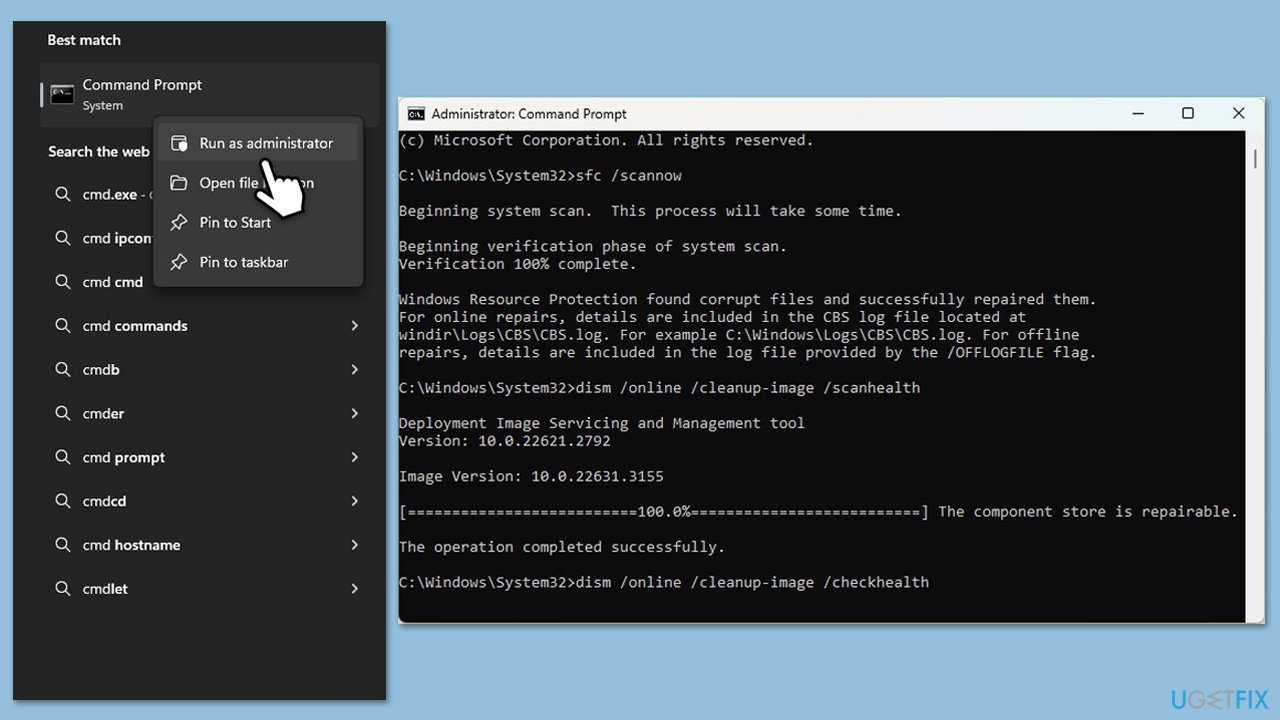
- Type in cmd in Windows search.
- Right-click on Command Prompt and select Run as administrator.
- When User Account Control shows up, click Yes.
- In the Command Prompt window, paste the following command and hit Enter:
sfc /scannow - Next, use the following commands, pressing Enter each time:
Dism /Online /Cleanup-Image /CheckHealth
Dism /Online /Cleanup-Image /ScanHealth
Dism /Online /Cleanup-Image /RestoreHealth
(Note: if you get an error executing this last command, add /Source:C:\RepairSource\Windows /LimitAccess to it and try again). - Reboot your computer.
Fix 7. Adjust Registry settings
Modifying the registry to reduce the timeout for services can force Task Host to terminate more quickly during shutdown.
- Press Win + R, type regedit, and press Enter.
Navigate to the following location:
HKEY_LOCAL_MACHINE\SYSTEM\CurrentControlSet\Control - Find WaitToKillServiceTimeout, double-click it and set its value to 5000 (if not present, create it as a new String).
- Click OK and close the Registry Editor.
- Shut down to confirm resolution.
Fix 8. Boot in Safe Mode
Booting into Safe Mode minimizes third-party interference, allowing a test to see if Task Host still blocks shutdown.
- Open Windows Settings.
- Select System.
- Under Recovery options, next to Advanced Startup, click Restart now.
- After a reboot, you will be presented with several options - pick Troubleshoot.
- Go to Advanced options > Startup Settings and then pick Restart.
- After a reboot, pick either 4/F4 for Safe Mode or 5/F5 for Safe Mode with Networking.
- Restart your computer.

Bottom line
To resolve the issue of Task Host preventing shutdown, users can close running applications via Task Manager, ensuring no processes delay the shutdown. If the problem persists, further investigation into Windows updates or system services may be necessary. If none of these solutions work, consider seeking additional support for underlying Windows issues.
Frequently asked questions
This error typically occurs when background tasks or applications are preventing the system from shutting down properly. It can be due to pending updates, running processes, or incompatible software.
You can open the Task Manager by pressing Ctrl + Shift + Esc and check the Processes tab for any applications or tasks that are still running before attempting to shut down. Ending these tasks may resolve the issue.
Yes, you can try performing a forced shutdown by holding the power button for a few seconds, or you can run the 'shutdown /s /f' command in Command Prompt to force close applications.




Report an issue
What's wrong with this guide? We review every report and update or remove content.
Report received — thank you. We'll review and fix it.
You need a free account to submit a report.
Be the first to comment