How to fix
Task Manager not responding
on Windows
Solve Task Manager issues in Windows 10 and 11 effortlessly. Get expert-tested solutions to fix unresponsiveness quickly, zero traces left.

What causes How to fix Task Manager not responding in Windows?
- System Glitches
- Corrupted Files
- Conflicts with Other Applications
- Malware Infections
Repairs Windows system files, removes malware, and restores a clean OS state — without reinstalling.
Hello. When I try to launch Task Manager in Windows I keep getting and error that the Manager is not responding. What should I do?
Task Manager is a built-in system utility in Windows that shows users an overview of their computer's running processes, performance statistics, and resource usage. It enables users to monitor and manage applications, processes, services, and performance metrics, making it an invaluable tool for system troubleshooting and optimization.
When the Task Manager application fails to launch or becomes unresponsive, the problem of Task Manager not responding in Windows occurs. This problem can have a significant impact on users in a variety of ways. For starters, it impairs their ability to monitor and manage running processes, which is critical for troubleshooting and terminating unresponsive applications.
Users may find it difficult to identify and resolve resource-intensive processes or applications that are causing system slowdowns without Task Manager. Furthermore, Task Manager is frequently used to terminate malware or unwanted programs, and its absence can impede the ability to effectively remove or handle such threats.
The Task Manager not responding issue can be caused by a variety of factors, including system glitches, corrupted files, conflicts with other applications, or malware infections. Users can address this issue by restarting the computer, updating Windows and device drivers, running malware scans, checking system file integrity, or using alternative methods to launch Task Manager.
It's important for users to resolve this issue promptly as the unavailability of Task Manager can limit their ability to manage system resources, troubleshoot problems, and maintain optimal system performance. In this guide, you will find 7 steps that should help you deal with the issue.
You can also try using a maintenance tool like [d1] which can fix most system errors, BSODs,[ref en-1] corrupted files, and registry[ref en-2] issues. Otherwise, follow the step-by-step instructions below.
Method 1. Fix Corrupted System Files
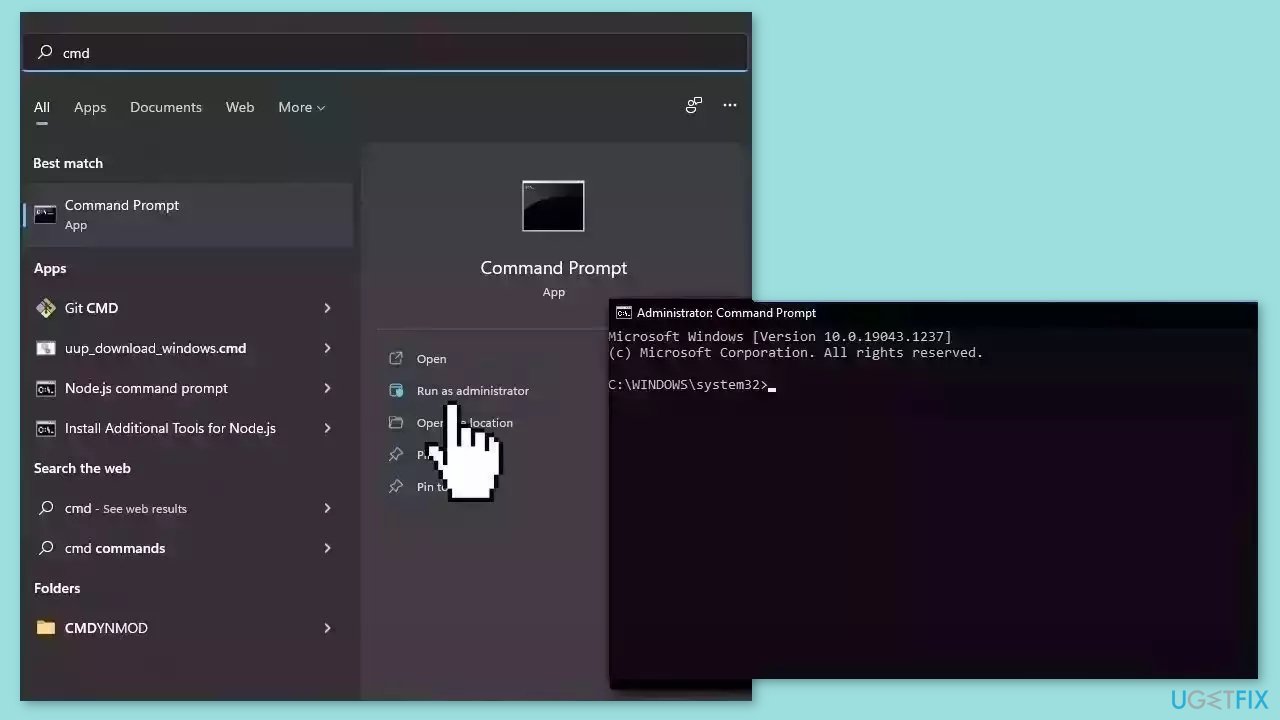
Use Command Prompt commands to repair system file corruption:
- Open Command Prompt as administrator
- Use the following command and press Enter:
sfc /scannow
- Reboot your system
- If SFC returned an error, then use the following command lines, pressing Enter after each:
DISM /Online /Cleanup-Image /CheckHealth
DISM /Online /Cleanup-Image /ScanHealth
DISM /Online /Cleanup-Image /RestoreHealth
Method 2. Install Windows Updates
- Press the Windows key + R to open the Run box.
- Type ms-settings:windowsupdate in the text box and press Enter.
- Click the Check for updates button.
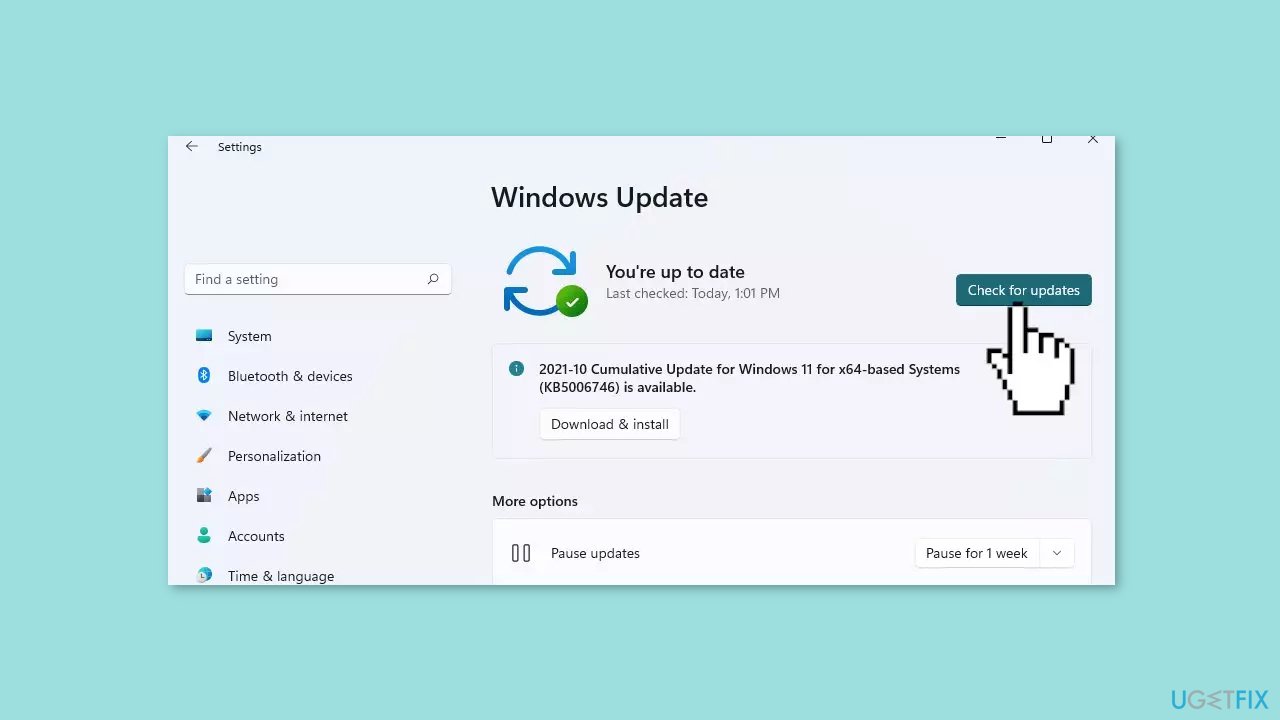
- If a new update is available, click the Download & Install all button.
- Restart your computer after the process is finished and check to see if the problem is fixed.
Method 3. Use System Restore
System Restore is a feature in Microsoft Windows that allows users to revert their computer's state to a previous point in time. This can be helpful if you have made changes to your system that are causing problems.
- Press the Windows key + R on your keyboard to open the Run box.
- Type SystemPropertiesProtection and press Enter.
- Go to the System Protection tab.
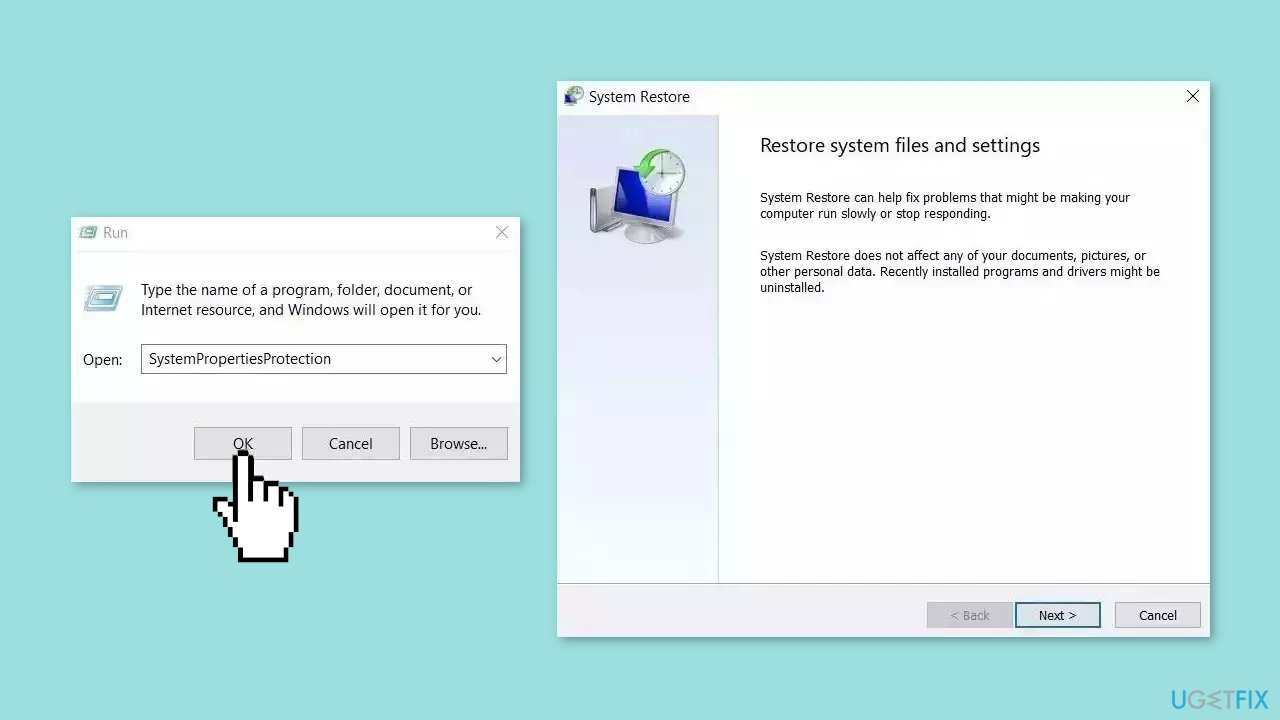
- You will see the System Restore… button. Click it to run System Restore.
- Follow the prompts until you can select a restore point.
- Select the one you want (ideally before the issue started occurring) and go ahead with the process.
Method 4. Switch the User Account
- Click on the Start menu and select Settings.
- Choose Accounts from the Settings menu.
- Navigate to Family & other people.
- Select the option to Add someone else to this PC.
- Choose the option I don't have this person's sign-in information.
- Click on the option to Add a user without Microsoft.
- Windows will prompt you to input a username, password, and password hint.
- Go to Your info.
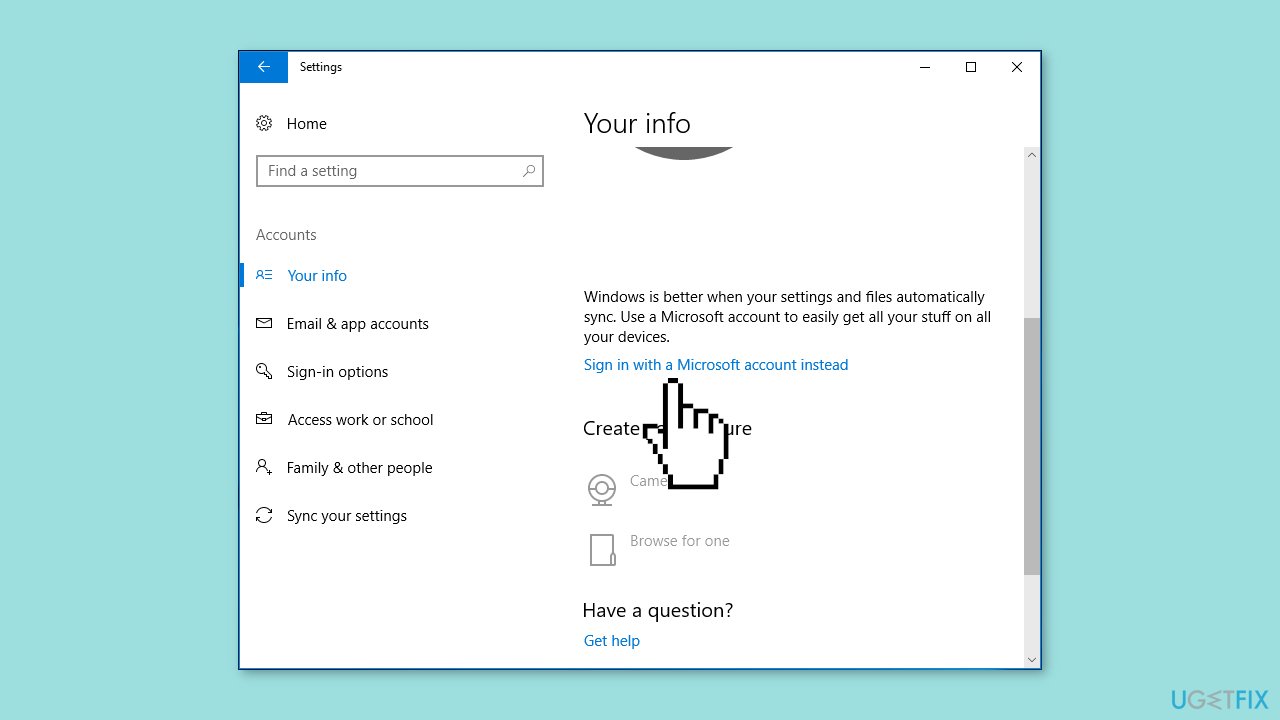
- Select the option to Sign in with a Microsoft account instead.
- Enter an email and password to sign in.
- After signing in, verify if Task Manager is working properly on this account.
Method 5. Enable Task Manager using Registry Editor
- Tap the Windows key + R simultaneously to open the Run dialog box.
- In the textbox, type regedit and click OK to launch the Registry Editor.
- Navigate to the following path: HKEY_CURRENT_USER\Software\Microsoft\Windows\CurrentVersion\Policies
- If there is no System key under Policies, right-click on Policies, choose New, and click Key to create it.
- Inside the System key, right-click on the empty space on the right side of the window, choose New, and then select DWORD (32-bit) Value.
- Name the new DWORD as DisableTaskMgr.
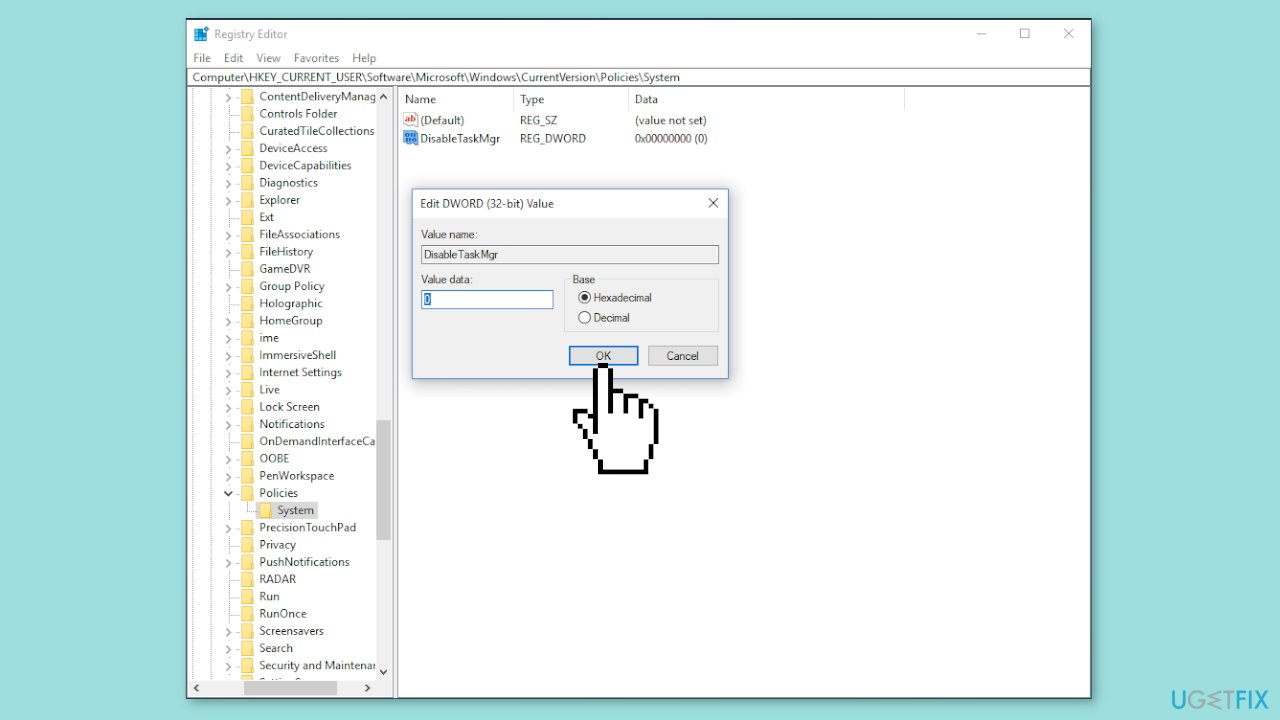
- Right-click on the DisableTaskMgr value and set its value to 0.
- Save all changes made in the Registry Editor and exit the editor.
- To ensure that all changes take effect, consider restarting your Windows operating system to fix any issues with Task Manager not working.
Method 6. Modify Group Policy Editor
- Press the Windows key + R to open the Run dialog box.
- Type gpedit.msc in the Run dialogue box and press Enter.
- In the Group Policy Editor window, navigate to the following path:
User Configuration > Administrative Templates > System > Ctrl+Alt+Del Options
- On the right side of the window, locate the entry named Remove Task Manager.
- Double-click on Remove Task Manager to open its settings.
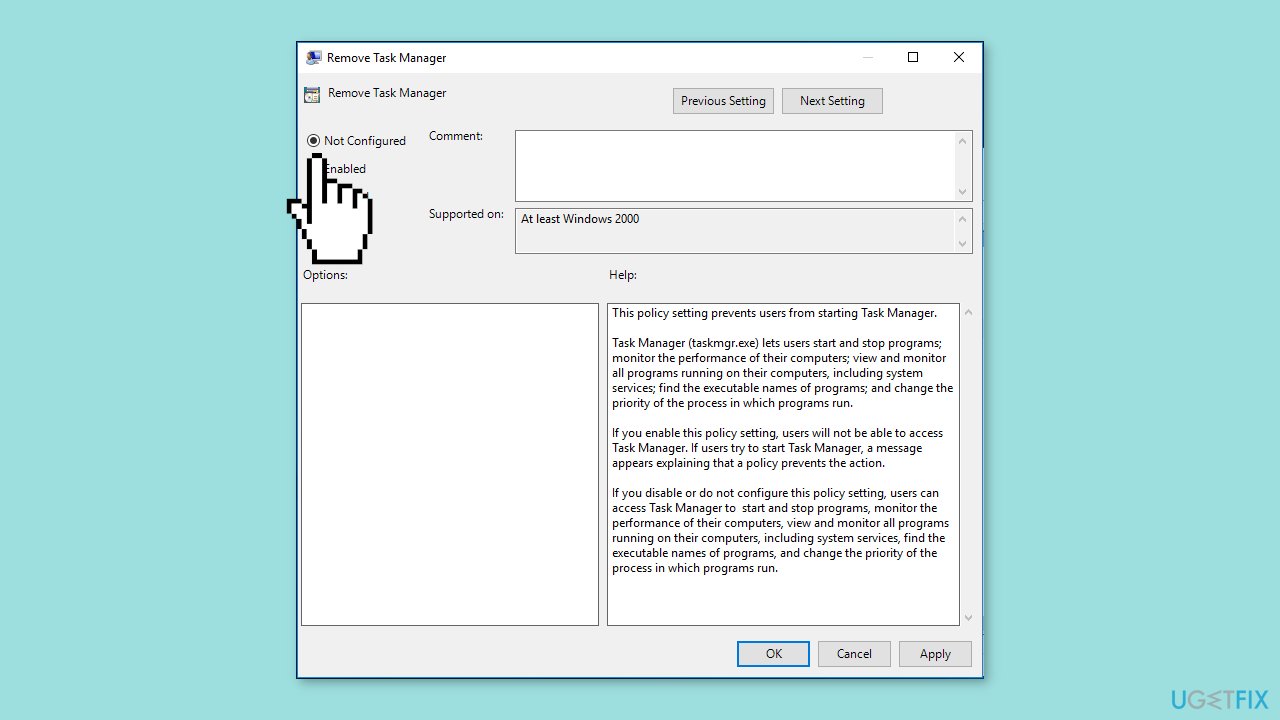
- Check if the policy setting is set to Enabled. This setting prevents you from starting Task Manager.
- To troubleshoot Task Manager not responding, ensure the setting is set to Not Configured or Disabled.
- Click on Apply and then OK to execute the change and save the settings.
Method 7. Re-register Task Manager
- Type Windows PowerShell in the search bar of the Start menu.
- Right-click on Windows PowerShell and select Run as administrator from the context menu.
- In the PowerShell window that opens, copy and paste the following codes:
Get-AppXPackage -AllUsers | Foreach {Add-AppxPackage -DisableDevelopmentMode -Register “$($_.InstallLocation)\AppXManifest.xml”}

- Press Enter to execute the code.
- Wait patiently for the system deployment process to complete. This operation may take about 2 to 10 minutes.
- After the process is finished, you can try running Task Manager and perform other related operations.
Bottom line
To fix the Task Manager not responding issue, users can restart their computer, update Windows and device drivers, run malware scans, and check system file integrity using the Command Prompt. If these methods do not resolve the problem, consider using a maintenance tool to address system errors.
Frequently asked questions
Try restarting the Task Manager by right-clicking the taskbar and selecting 'Task Manager' again. If that doesn't work, use the keyboard shortcut Ctrl + Shift + Esc to open it directly.
You can attempt to reset the Task Manager by navigating to the 'Details' tab, right-clicking on 'Taskmgr.exe', and selecting 'End Task', then reopening it. Additionally, ensure your Windows 11 is updated to the latest version for optimal performance.
Yes, running a System File Checker (SFC) scan can help; open Command Prompt as an administrator and type 'sfc /scannow'. This will check for and repair any corrupted system files that may be causing the issue.




Report an issue
What's wrong with this guide? We review every report and update or remove content.
Report received — thank you. We'll review and fix it.
You need a free account to submit a report.
Be the first to comment