How to fix
“Task Scheduler failed to launch action” error
on Windows
Resolve the "Task Scheduler failed to launch action" error on Windows 10 and 11 with expert-tested solutions. Fixed in minutes!


What causes How to fix “Task Scheduler failed to launch action” error in Windows?
- Wrong user assigned to the task
- User account does not exist anymore
- User account is locked
- Task settings not updated with new password
- Scheduled task not configured correctly
Repairs Windows system files, removes malware, and restores a clean OS state — without reinstalling.
Hello. The Task Scheduler on Windows is not working because I get the "Task Scheduler failed to launch action" error. How do I resolve this?
The Windows operating system's Task Scheduler is an essential component that enables users to automate and schedule a variety of operations and actions. These jobs may involve executing scripts, programs, or other procedures at particular intervals or in response to particular occasions. Users who utilize Task Scheduler can automate tedious chores and make sure that crucial procedures take place without their involvement.
However, users may encounter the "Task Scheduler failed to launch action" error in Windows. When there are problems with the user assignment, account status, or password changes connected to the tasks scheduled in Task Scheduler, this error frequently occurs.
A scheduled task with the wrong user assigned is one of the most frequent causes of this problem. Task Scheduler may not launch the action as planned if the task is set up to run under a certain user account but that account does not exist anymore or has been locked. The task settings may also have not been updated with the new password for the user account linked to the task, which might also result in this issue.
Users may experience the "Task Scheduler failed to launch action" problem in a number of ways. First of all, it interferes with the automation of crucial operations, sometimes resulting in delays or mistakes in crucial processes. For instance, routine processes like software upgrades, backups, or other scheduled chores might not be carried out, resulting in data loss or system vulnerabilities. Second, users who depend on Task Scheduler to streamline their workflow may find it annoying because they may need to quickly troubleshoot and fix the issue in order to restore task automation capabilities.
In this guide, you will find 4 steps that should help you fix "Task Scheduler failed to launch action" error in Windows. You can also fix a maintenance tool like [d1] that can fix most system errors, BSODs,[ref en-1] corrupted files, and registry[ref en-2] issues. Otherwise, follow the step-by-step instructions below.
Solution 1. Check the Account Status
- Press the Windows key.
- Type control panel and click on the Open option.
- Select View by as Category.

- Click on User Accounts.
- Click on User Accounts again.
- A list of user accounts will appear; check if the associated user account for the task is deactivated.
- Press the Windows key.
- Type cmd and click on Run as administrator.
- In the Command Prompt window, type the following command (replace accountname with the username for the account):
net user accountname /active:yes
- Press Enter.
- This will activate your account.
Solution 2. Assign User Rights Assignment
Local Policy Editor:
- Press Enter to activate your account.
- Type secpol.msc and click OK to open the Security Policy window.
- Locate and click on User Rights Assignment to expand it.
- In the right pane, double-click Logon as a batch job.
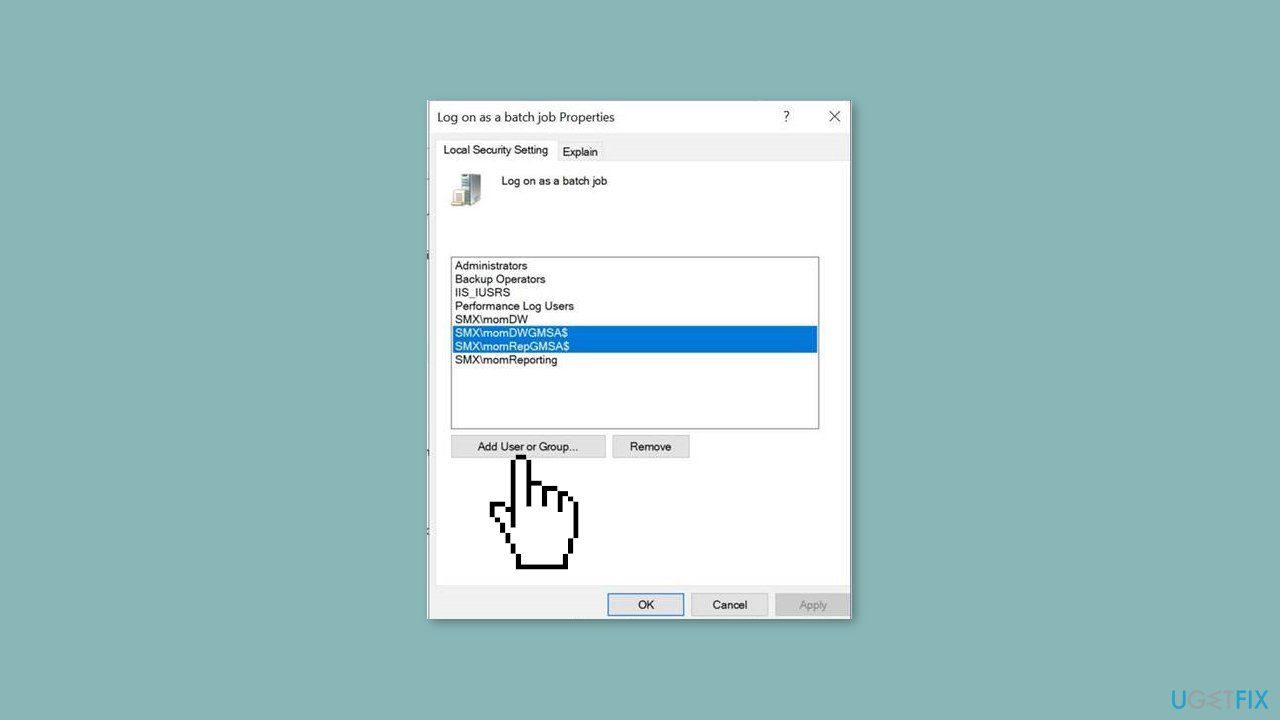
- Next, click the Add User or Group button in the Properties window.
- Add the account name, click Check names to verify, and then click OK to save the changes.
Use the Task Scheduler:
- Press the Windows key.
- Type task scheduler and click Open.
- Locate the task causing the issue, right-click it, and select Properties from the context menu.
- In the Properties window, navigate to the Security tab.
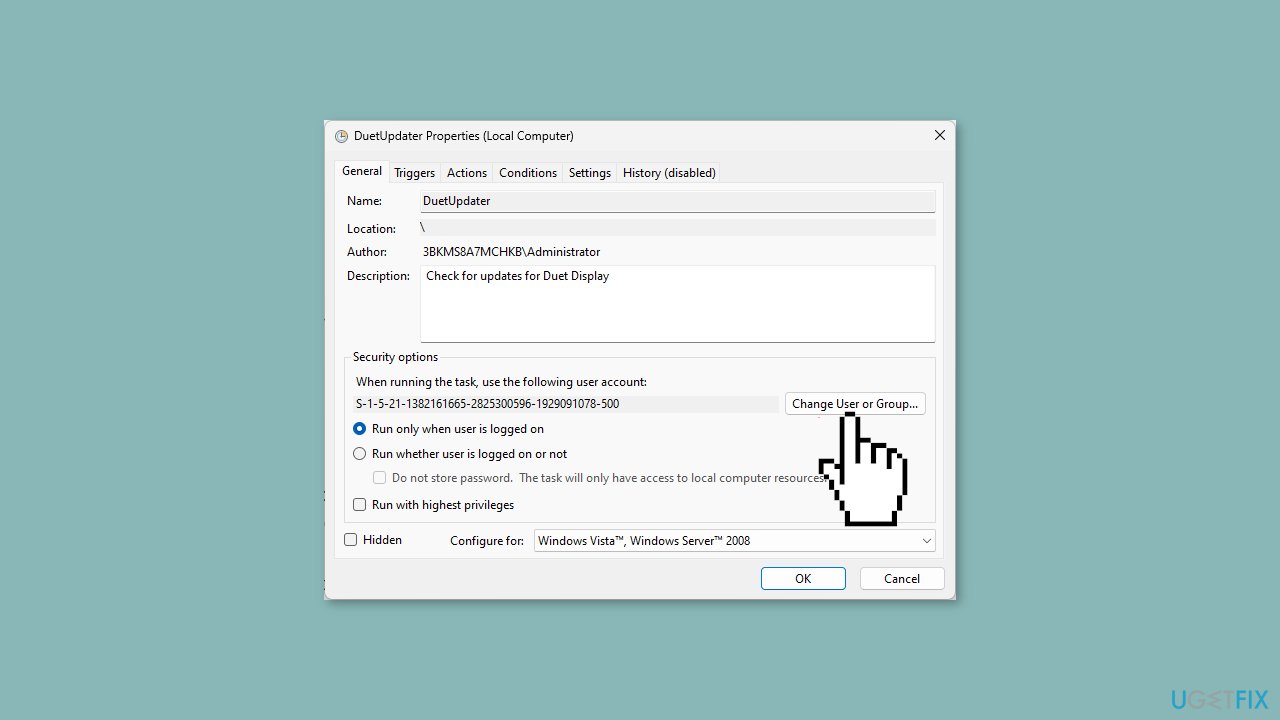
- Click the Change User or Group button.
- In the Enter the object name to select field, type Users and click Check Names. The correct word or address will replace it.
- Click OK to confirm the changes.
- You may receive a prompt to input your admin account password to proceed; follow the prompt if necessary.
Solution 3. Configure Task Scheduler
- Press the Windows key + R to open the Run window.
- Type taskschd.msc and click OK to open Task Scheduler.
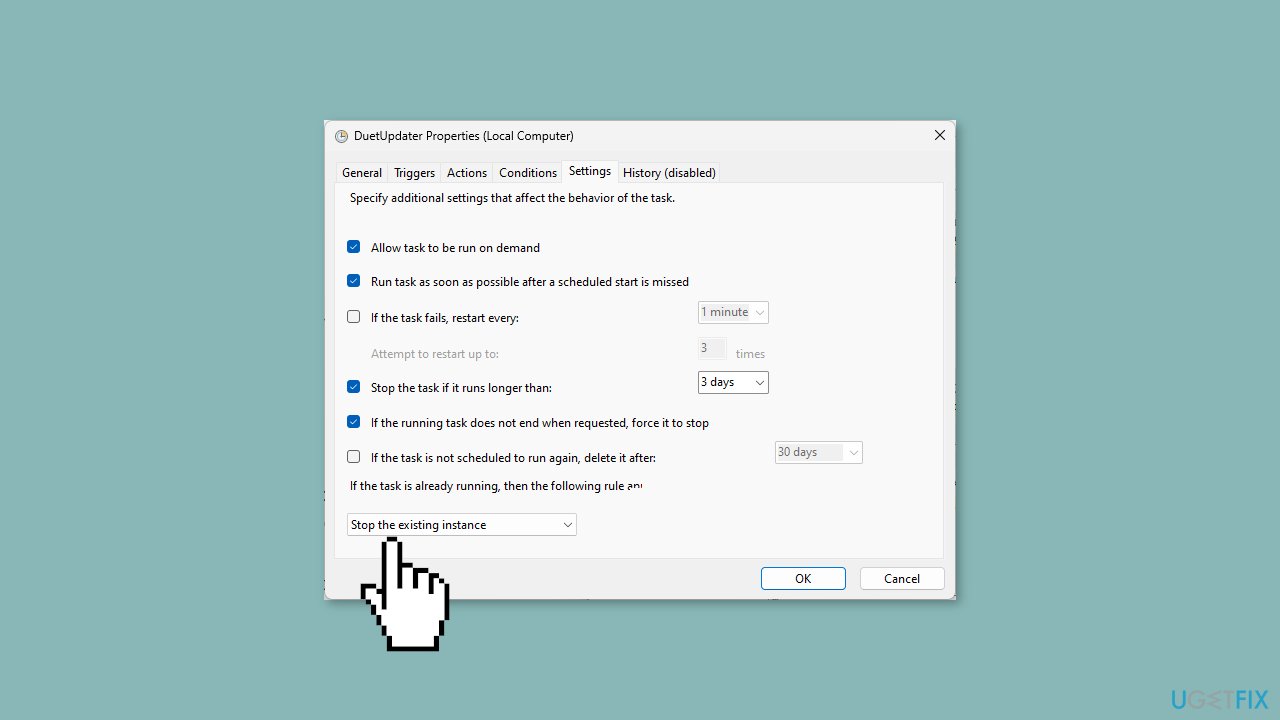
- Locate the problematic task, right-click it, and choose Properties from the context menu.
- Go to the Settings tab at the bottom of the window.
- If the task is currently running, follow this rule:
- Select Stop the existing instance from the drop-down menu.
- Click OK to confirm and apply the changes.
Solution 4. Check the Task Scheduler Service
- Press the Windows key + R to open the Run window.
- Type services.msc and click OK to open Services.
- Locate Task Scheduler in the list of services.
- Double-click Task Scheduler to open its properties.
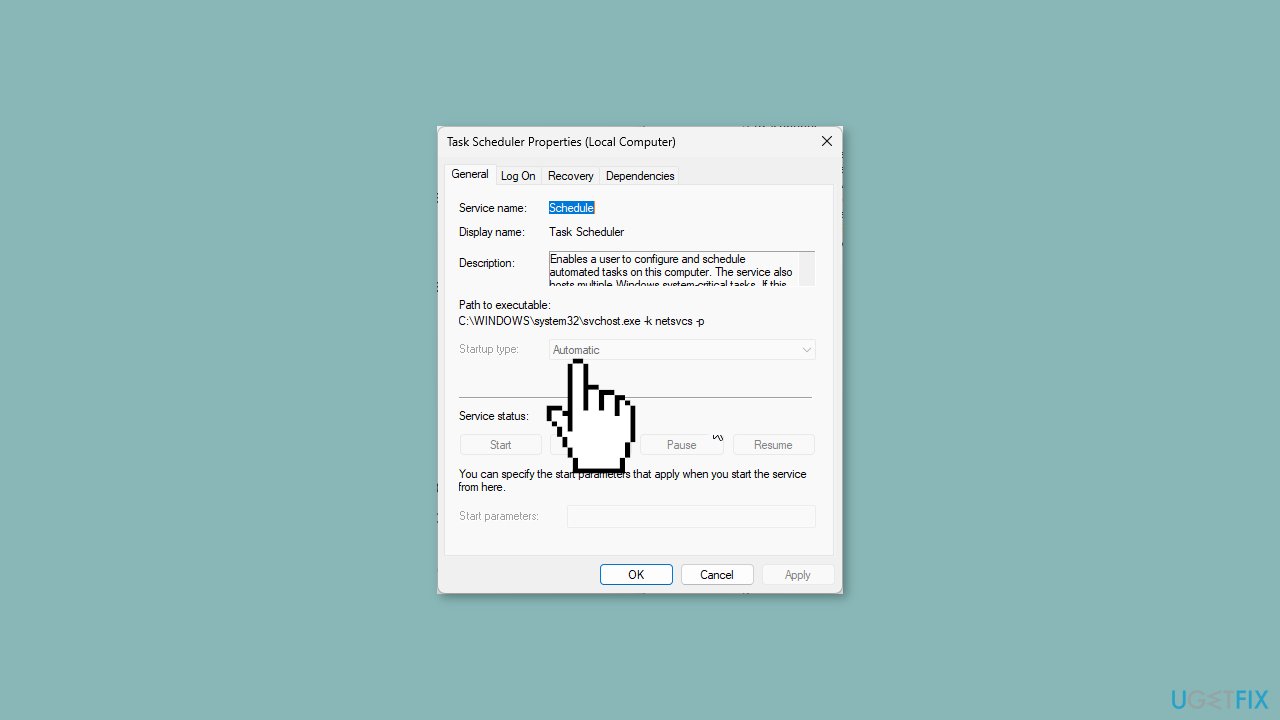
- Ensure that the Startup type is set to Automatic.
- Verify that the service is running or start it if it's not already running.
- Click OK to apply the changes if you made any adjustments.
Bottom line
To resolve the 'Task Scheduler failed to launch action' error, ensure that the correct user is assigned to the task, check the status of the user account, and update the task settings with the correct password. If these steps do not work, consider using a maintenance tool to fix system errors.
Frequently asked questions
This error typically occurs due to incorrect permissions, misconfigured tasks, or issues with the executable file associated with the action in Task Scheduler.
To fix this error, ensure that the task is set to run with the highest privileges and verify that the action's executable path is correct.
Yes, check the task's triggers and conditions to ensure they are correctly configured and that the task is enabled in Task Scheduler.




Report an issue
What's wrong with this guide? We review every report and update or remove content.
Report received — thank you. We'll review and fix it.
You need a free account to submit a report.
Be the first to comment