How to fix
Taskbar auto-hide not working over full-screen programs
on Windows
Fix taskbar auto-hide issues over full-screen programs in Windows 10 and 11. Get quick solutions with expert-tested tips to restore functionality.

What causes How to fix taskbar auto-hide not working over full-screen programs in Windows?
- Notifications from applications running in the background
- Software conflicts
- Outdated system components
- Misconfigured taskbar settings
- Minor glitches within Windows
Repairs Windows system files, removes malware, and restores a clean OS state — without reinstalling.
So, I have an issue with the taskbar auto-hide feature. Whenever I use programs in full-screen mode (such as Google Chrome), the taskbar often does not pop up when I hover over it with the mouse. This is very inconsistent because sometimes it does show up. Is there something I don't understand here?
Auto-hide in Windows is supposed to give a clean, distraction-free workspace by hiding the taskbar when it is not in active use. This feature proves particularly useful for maximizing screen space, especially during presentations or while using full-screen applications such as video players, games, or web browsers.
However, for some of them, there exists a problem when the taskbar does not auto-hide in case of enabling the full-screen mode for some particular applications such as Google Chrome or Microsoft Office applications.
This issue can occur due to several factors. Notifications from applications running in the background are a common cause, as they prompt the taskbar to reappear. Additionally, software conflicts or outdated system components may interfere with the smooth functioning of the auto-hide feature. Sometimes, misconfigured taskbar settings or minor glitches within Windows can also contribute to this problem, leaving the taskbar visible when it should remain hidden.
To fix taskbar auto-hide not working as intended when apps are in full-screen, several methods can be attempted. Ensuring that all background applications are closed or notifications are cleared may help resolve minor interruptions. Adjusting the taskbar settings to ensure the auto-hide option is enabled correctly can also be useful.
Restarting Windows Explorer, which governs taskbar behavior, often fixes temporary glitches. Updating your system to the latest version of Windows can eliminate compatibility issues or bugs that might affect taskbar functionality. Additionally, reviewing application-specific settings may uncover conflicting configurations that require adjustments.
If the problem persists, using the [d1] PC repair tool can help fix any underlying Windows issues automatically, ensuring a seamless user experience.
Fix 1. Re-enable Auto-hide via Settings
Sometimes, toggling the auto-hide setting off and back on can resolve any glitches preventing it from functioning properly. This refreshes the configuration and ensures the feature is applied correctly.
- Right-click on Start and pick Settings.
- Select Personalization, then click Taskbar.
- Under Taskbar behaviors, turn off Automatically hide the taskbar in desktop mode.
- Wait for a few seconds, then turn the option back on.

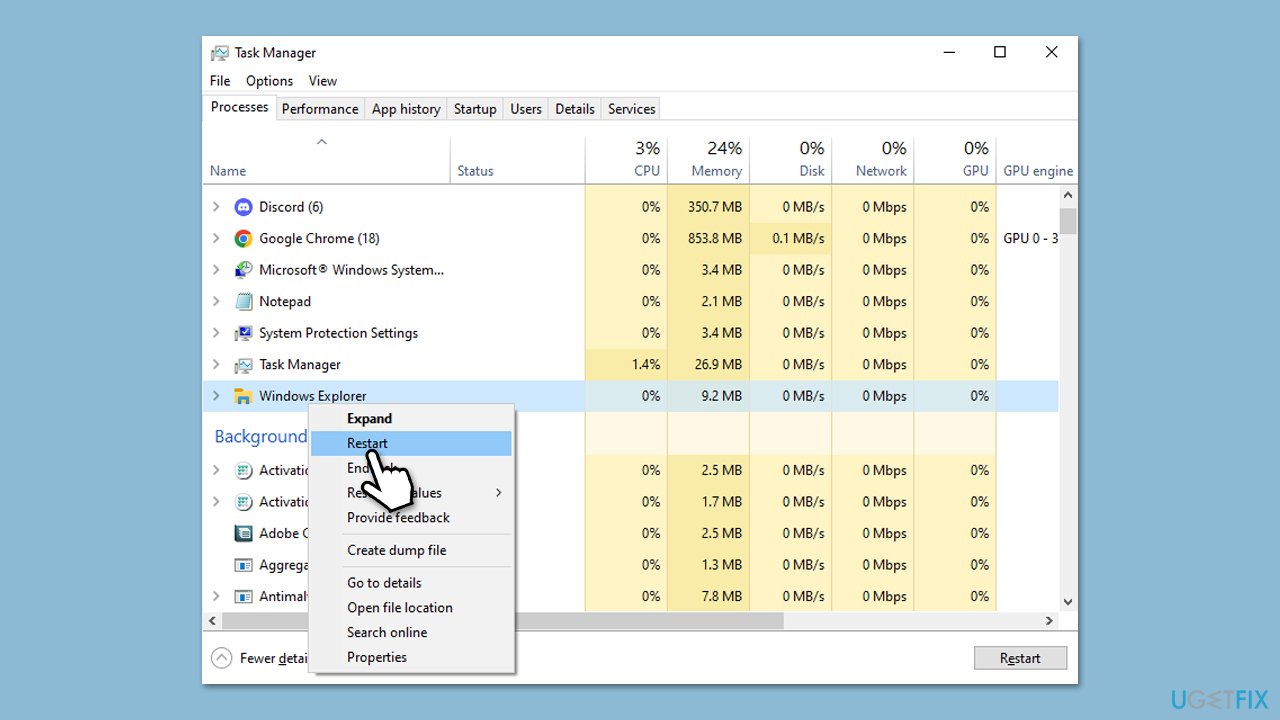
Fix 2. Restart Windows Explorer
Restarting Windows Explorer can help resolve temporary issues with the taskbar, as it refreshes the entire Windows interface.
- Press Ctrl + Shift + Esc to open Task Manager.
- Click More details if needed.
- Look for Windows Explorer.
- Right-click and select Restart.
- UI features will disappear for a few moments and reappear soon after.
Fix 3. Change scale settings
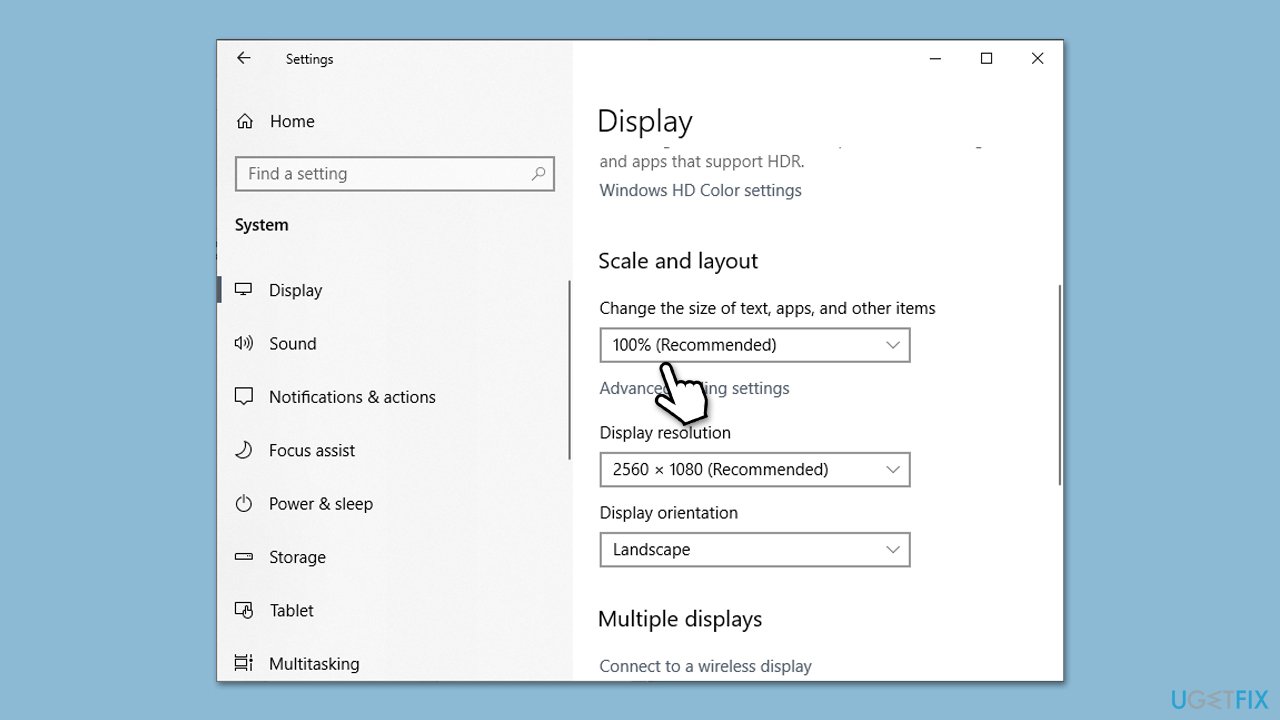
Incorrect display scaling can sometimes interfere with the taskbar’s auto-hide feature, especially on high-resolution monitors.
- Right-click on Start and pick Settings.
- Click on System and select Display.
- Locate Scale and layout and ensure the scaling is set to 100 percent (or you could try 125 percent).
- Restart your PC to apply the changes.
Fix 4. Clear notifications
Unseen notifications can prevent the taskbar from hiding, as they signal the system to keep it visible.
- Click on the taskbar to open the Action Center.
- Dismiss all notifications by clicking Clear all.
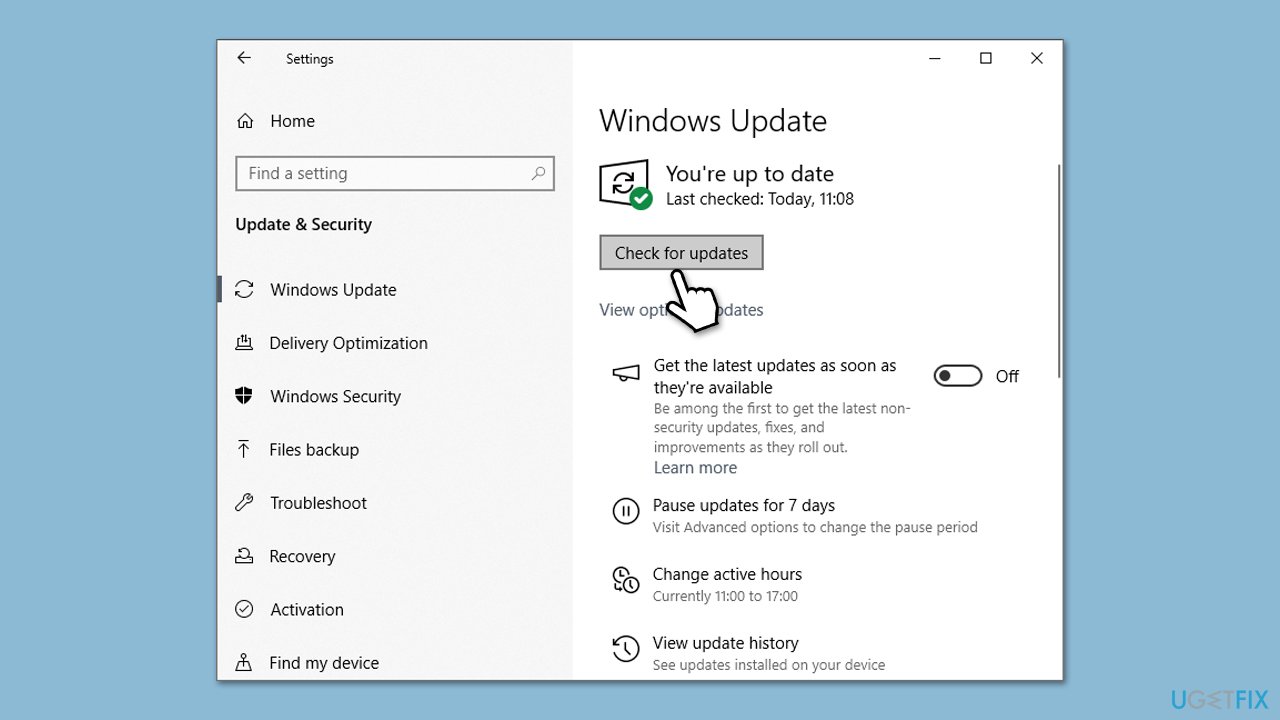
Fix 5. Update Windows
An outdated system can cause compatibility issues with the taskbar’s auto-hide feature. Keeping your system updated often resolves such bugs.
- Type Updates in Windows search and press Enter.
- Here, click Check for updates or Install updates (if available).
- Wait till Windows downloads and installs all the necessary files.
- If optional updates are available, install them as well.
- Reboot your system.
Fix 6. Adjust taskbar settings
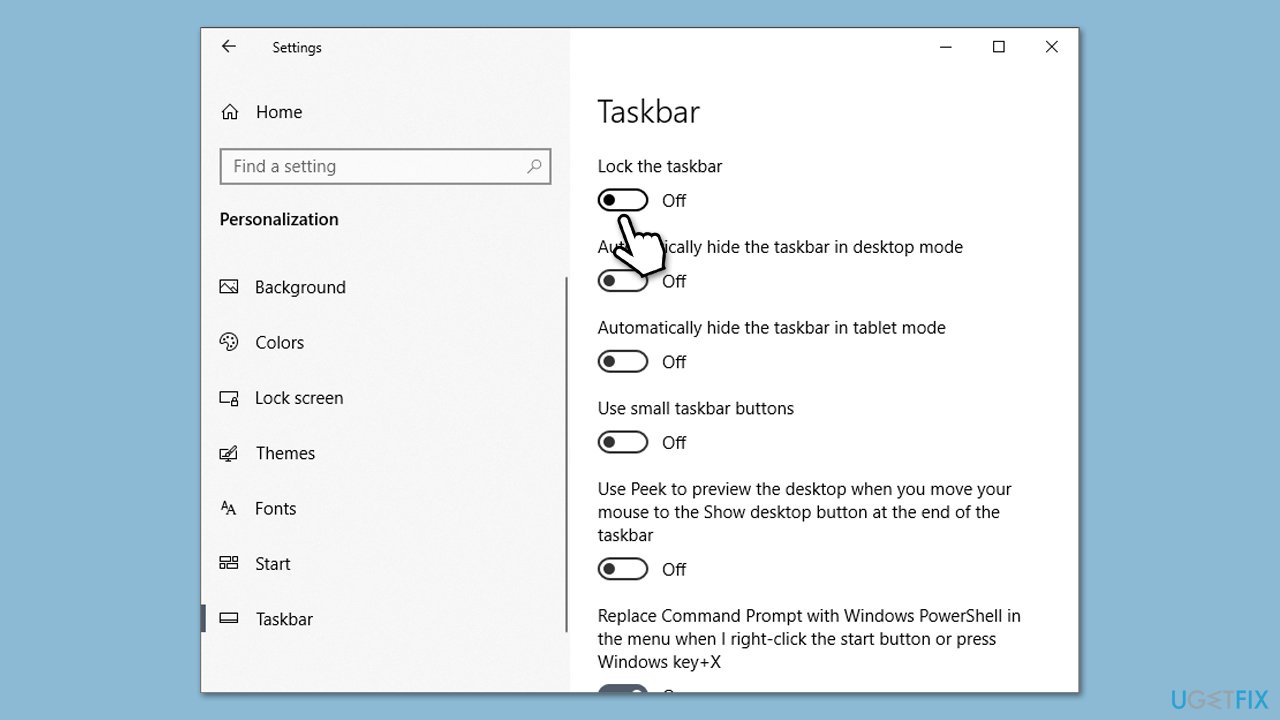
Ensuring that the taskbar settings are configured correctly can help fix persistent auto-hide issues.
- Right-click on Start menu and go to Settings.
- Select Personalization and click Taskbar.
- Make sure Lock the taskbar is disabled.
Fix 7. Change performance options
Excessive visual effects can sometimes interfere with taskbar functionality. Disabling them can enhance performance and stability.
- Type Adjust the appearance and performance in Windows search and press Enter.
- Under Visual Effects, select Adjust for best performance or manually uncheck unnecessary visual effects.
- Click Apply and then OK.

Fix 8. Try Clean Boot
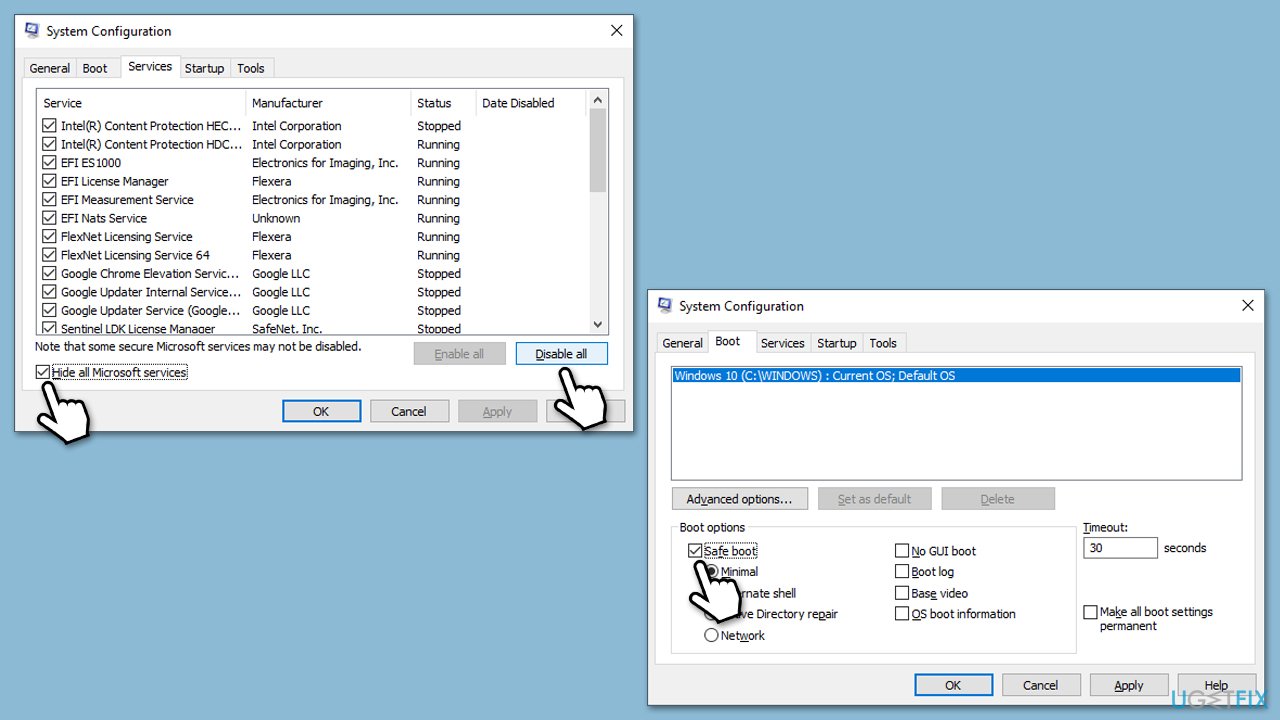
Some users reported that third-party software, such as NVIDIA app, has caused taskbar auto-hide not to work correctly. If that's the case, you can find out about which app is interfering with the feature by using Clean Boot:
- Type msconfig in the Windows search box and press Enter.
- Pick the Services tab.
- Mark Hide all Microsoft services and select Disable all.
- Select the Startup tab and click Open Task Manager.
- In the Task Manager, right-click on each of the items and select Disable, then close the Task Manager.
- Go to the Boot tab, mark the Safe Boot option, then click Apply and OK.
- On the System Configuration window, click OK.
- If the problem is resolved, it means that the software is causing this. Disable each of the entries (or do that in groups) and reboot the system in normal mode; i.e., use the method of elimination.
Bottom line
To fix the taskbar auto-hide issue, you can try closing background applications, adjusting taskbar settings, restarting Windows Explorer, and updating your system. If the problem persists, consider using a PC repair tool to address any underlying Windows issues.
Frequently asked questions
This issue may occur due to specific settings or bugs in Windows 10 that prevent the taskbar from auto-hiding. You can try restarting Windows Explorer or checking your taskbar settings to resolve the problem.
In Windows 11, ensure that the 'Automatically hide the taskbar' option is enabled in the taskbar settings, and try updating your graphics drivers, as outdated drivers can also cause this issue.
Yes, you can reset the taskbar settings by right-clicking the taskbar, selecting 'Taskbar settings,' and toggling the auto-hide option off and back on, or by using the Registry Editor for a more thorough reset.




Report an issue
What's wrong with this guide? We review every report and update or remove content.
Report received — thank you. We'll review and fix it.
You need a free account to submit a report.
Be the first to comment