How to fix
Taskbar not hiding in fullscreen
on Windows
Resolve the Taskbar not hiding issue in fullscreen on Windows 10 and 11 effortlessly. Get expert-tested solutions with screenshots for quick fixes!

What causes How to fix Taskbar not hiding in fullscreen?
- Application running in the background demanding attention
- Hidden application icons requiring user interaction
- Pending messages or update warnings from applications
- Tablet mode not functioning properly
Repairs Windows system files, removes malware, and restores a clean OS state — without reinstalling.
Hi, I encountered a problem with taskbar recently. Every time I go to YouTube or other video streaming site and try to watch something in fullscreen, the taskbar does not hide and stays visible. This is annoying as it covers the video at the bottom. Is there anything I can do to fix taskbar not hiding in fullscreen? Much appreciated.
Windows taskbar is an important system component: it allows users to start certain programs, search for files, view time and internet connection status, change language settings, etc. While most users prefer the feature to be visible most of the time, some might prefer it hidden when it is not used (i.e., it can be hidden when the cursor is not hovering over it), so it makes the desktop look tidier. Additionally, tablet mode is something that should hide the taskbar automatically.
Unfortunately, several users on IT forums complained, claiming that the taskbar won't hide in fullscreen when they are trying to view videos on YouTube, Twitch, and similar streaming websites. This might be particularly annoying as it does interfere with normal video viewing or even performing tasks in tablet mode.
In most of the cases, users reported that a simple computer restart helped them with Windows 10 taskbar not hiding when in fullscreen.[ref en-1] However, multiple users said that reboot did not help to get rid of the issue. Therefore, our team compiled a set of solutions that should help you fix taskbar not hiding in fullscreen.
Before you proceed with the following fixes, we suggest you check the obvious: in some cases, the application that runs in the background might demand your attention. You will find the application icon hidden and you can uncover it by clicking "Show hidden icons." Such apps like Facebook, anti-malware software, and similar might have a new message or an update warning pending, so you need to click on the icon in order for it to stop. If that is the case, the taskbar not hiding in fullscreen issue should be fixed.
If you do not have any icons flashing, please proceed with the following fixes.
Fix 1. Restart Windows Explorer
This simple method helped a lot of users to fix taskbar that won't hide in fullscreen. Please perform the following steps:
- On the keyboard, press Ctrl + Shift + Esc simultaneously
- In the Task Manager, locate Windows Explorer app
- Right click on it and select Restart
- See if the problem is fixed
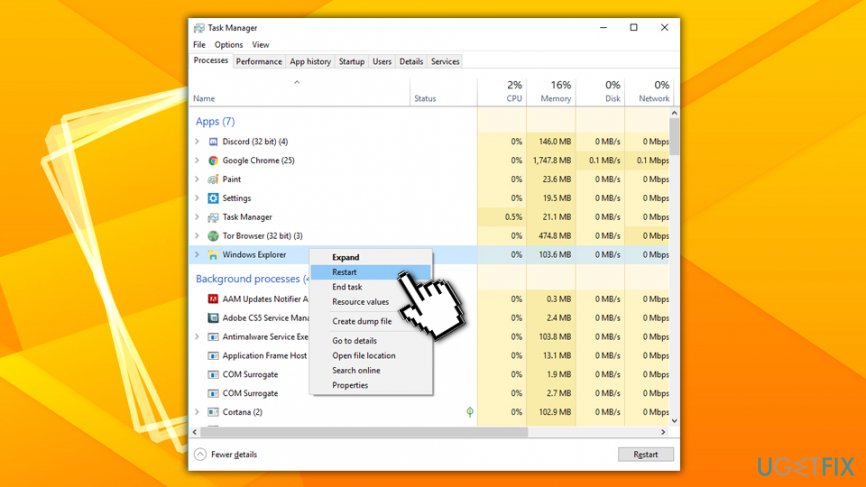
Taskbar not hiding in fullscreen restart explorer
Fix 2. Make sure that the auto-hide setting is on
If your taskbar was set to auto-hide, and it stopped doing so after Windows updates[ref en-2] or similar system changes, it can be that the feature was reset. Therefore, you should check taskbar settings in the following way:
- Right-click on the Start button and select Settings
- Go to Personalization > Taskbar
- On the right pane, make sure the switch by Automatically hide the taskbar in desktop mode is set to On
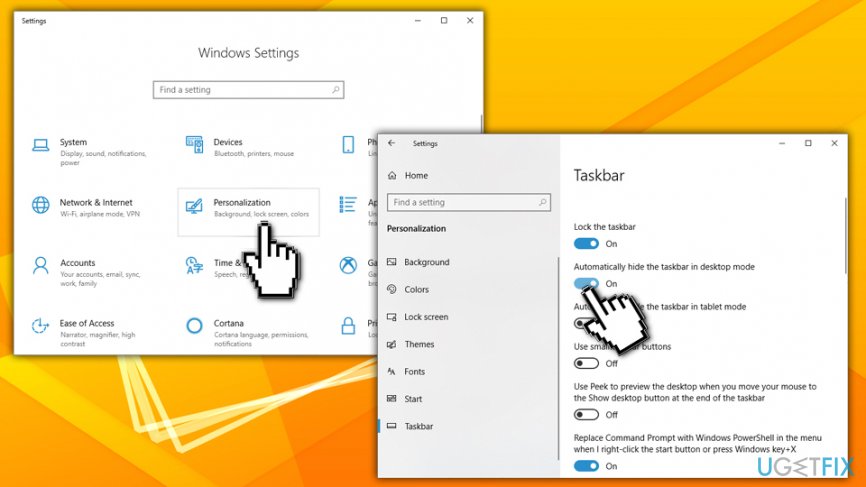
Taskbar not hiding in fullscreen check taskbar auto hide setting
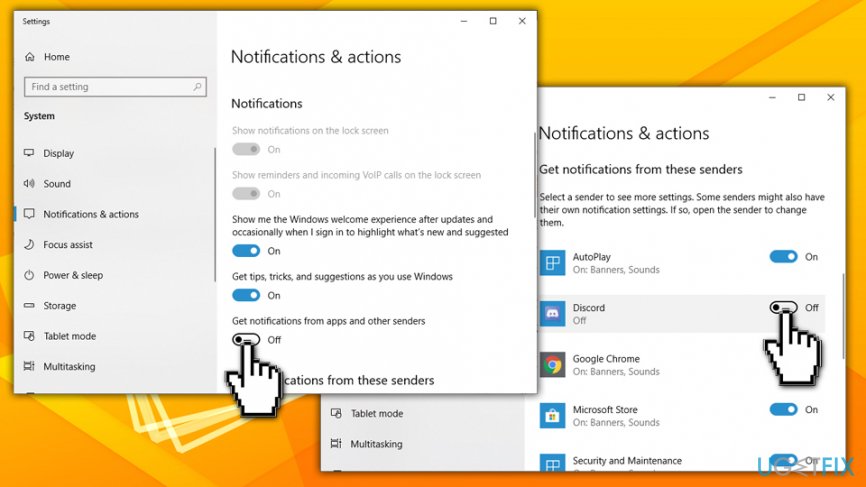
Fix 3. Disable notifications from all apps and senders
If there is a particular app that is causing the taskbar not to hide in fullscreen because of its notifications, you can disable the feature altogether:
- Right-click on the Start button and select System
- Go to Notifications & actions
- Locate Get notifications from apps and other senders and turn the switch to Off
Alternatively, if you are away of which app is causing you troubles, you can simply disable notifications from that specific app by scrolling down below.
Fix 4. Edit Local Group Policy
Editing Local Group Policy[ref en-3] could help you fix taskbar not hiding the issue, however, be aware that you will have to go back and re-enable the setting if you want the notifications back:
- In Cortana's search bar, type in gpedit.msc and hit Enter
- Go to User Configuration > Administrative Templates > Start Menu and Taskbar
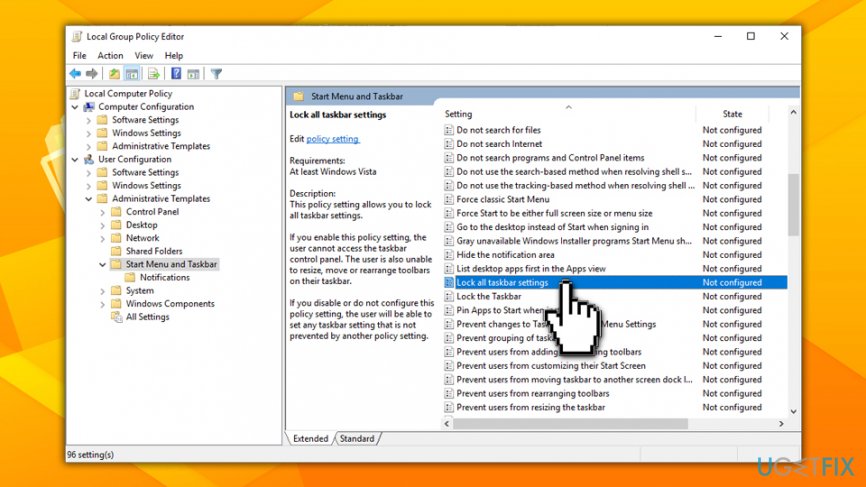
Taskbar not hiding in fullscreen edit group policy - In here, you can configure various policies; we recommend looking at Turn of automatic promotion of notification icons to the taskbar, Turn off all balloon notifications, Turn off feature advertisement balloon notifications and Lock all taskbar settings
- You can also click on Notification tab under the Start Menu and Taskbar in the left pane and configure several settings there
- To disable the policy, double click on the setting you want to configure, click Disabled, then Apply and OK
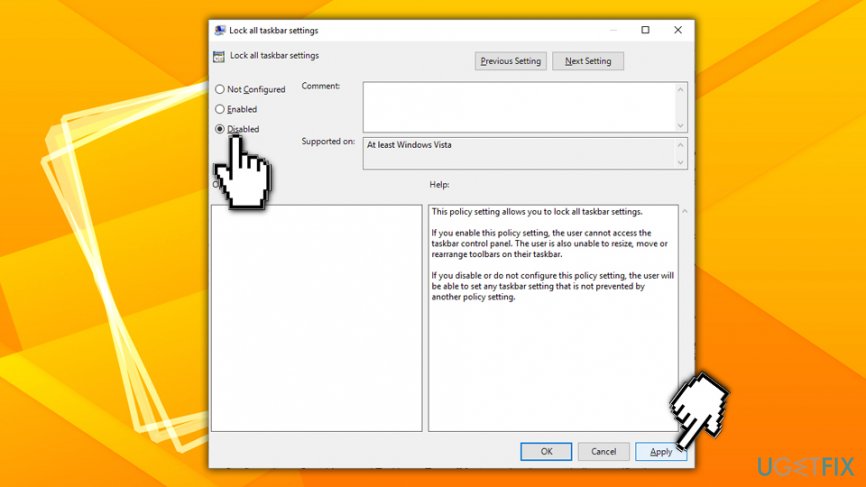
Taskbar not hiding in fullscreen edit group policy disable setting
Finally, if you have any computer problems and wish to fix them automatically, we suggest you download and install [d1] PC repair software.
Bottom line
To fix the taskbar not hiding in fullscreen, you can try restarting your computer, checking for hidden application icons, and ensuring that no background applications are demanding your attention. If these solutions do not resolve the issue, consider exploring additional troubleshooting steps.
Frequently asked questions
This issue can occur due to a misconfiguration in the taskbar settings or if an application is preventing it from hiding. Try restarting the app or checking for any notifications that might be keeping the taskbar visible.
Ensure that the 'Automatically hide the taskbar in desktop mode' option is enabled in taskbar settings. If the problem persists, check for any background applications that may be causing the taskbar to remain visible.
Start by restarting your computer, as this can resolve temporary glitches. Additionally, try updating your graphics drivers and ensuring that your Windows version is up to date.




Report an issue
What's wrong with this guide? We review every report and update or remove content.
Report received — thank you. We'll review and fix it.
You need a free account to submit a report.
Be the first to comment