How to fix
Teams error code 80070003
on Windows
Resolve Teams error code 80070003 on Windows 10 and 11 effortlessly. Follow our expert-tested solutions to get back on track in minutes.


What causes How to fix Teams error code 80070003 in Windows?
- Path to the file might be wrong
- Files might be missing
- Files may be temporarily inaccessible
- Corrupted temporary files
- Internet connection may be blocked
Repairs Windows system files, removes malware, and restores a clean OS state — without reinstalling.
Yesterday I installed MS Office and for some reason, I can't make Teams work - I keep getting error code 80070003. What does that mean and how can I bypass it?
Microsoft Teams has become very important for businesses and remote workers, helping people join video calls, chat, and collaborate across different devices. However, like other apps, Teams sometimes experiences issues that stop it from working properly.
One common problem is error code 80070003, which usually appears when Teams cannot connect to Microsoft’s servers, often occurring when logging in, starting a meeting, or using certain features of Teams, significantly slowing down productivity.
Error code 80070003 in Microsoft Teams shows up when syncing or updating files fails. It means Teams cannot get to or change files. Why? The path to the file might be wrong. Maybe the files are gone. The files might only be hard to reach for a short time.
80070003 error is particularly frustrating because it doesn’t provide clear information on what’s wrong, leaving users to troubleshoot multiple potential causes. Even restarting the app or computer may not always resolve the issue if it's tied to deeper configuration or internet-related problems.
To fix the 80070003 error, various solutions can be attempted, including resetting Teams' cache, adjusting firewall and network settings, or checking if the internet connection is blocked. Sometimes, reinstalling or updating Teams can resolve the issue.
Some users prefer fixing deeper problems with system tools like [d1] - they can automatically repair the issues causing connectivity problems, helping Teams function smoothly again.

Fix 1. Clear the Teams cache
Clearing the Teams cache helps remove temporary files that may have become corrupted, which can cause the error. This ensures that Teams can access the latest, correct files.
- Press Win + E to open File Explorer.
- Ensure Hidden files are visible.
- In the address bar, type in %appdata%\Microsoft\teams and press Enter.
- Delete the contents of the following folders:
%appdata%\Microsoft\teams\application cache\cache
%appdata%\Microsoft\teams\blob_storage
%appdata%\Microsoft\teams\Cache
%appdata%\Microsoft\teams\databases
%appdata%\Microsoft\teams\GPUcache
%appdata%\Microsoft\teams\IndexedDB
%appdata%\Microsoft\teams\Local Storage %appdata%\Microsoft\teams\tmp - Make sure you empty the Recycle Bin (or use Shift + Del combination to delete these files).
- Restart your system.

Fix 2. Verify date and time settings
Incorrect system date and time settings can interfere with syncing and cause error code 80070003.
- Type in Control Panel in Windows search and press Enter.
- Go to Clock and Region and click on Date and Time.
- Pick the Internet Time tab and select Change Settings.
- Make sure that the Synchronize with an Internet time server box is ticked.
- Click Update now and OK.

Fix 3. Update Microsoft Teams
Running an outdated version of Teams can cause syncing issues and lead to errors. Updating the app ensures that all the latest bug fixes are applied.
- Open Microsoft Teams.
- Click on the Settings and more button at the top-right corner.
- Select Check for updates.
- Teams will automatically download and install any available updates.
- Restart Teams after the update is completed.

Fix 4. Run the Windows Update troubleshooter
If error 80070003 is related to system file issues or failed updates, running the Windows Update Troubleshooter may help resolve any underlying problems.
- Type Troubleshoot into the Windows search bar and press Enter.
- Next, on the right side of the window, select Additional troubleshooters/Other troubleshooters.
- Scroll down to locate the Windows update option and click on it.
- Click on Run the troubleshooter/Run and allow the process to complete.
- Once it is finished, implement any recommended fixes and restart your system.
Fix 5. Repair or reset Microsoft Teams
If the Teams app is corrupted or misconfigured, repairing or resetting it can help resolve the error by restoring its default settings.
- Click on Start and pick Settings.
- Go to the Apps section.
- Locate Microsoft Teams from the list.
- Click on the three vertical dots and pick Advanced options.
- Click Terminate to ensure that the app is not running.
- Under the Reset section, click Repair and see if that solved your issue.
- If not, then try the Reset option.
Fix 6. Reinstall Microsoft Teams
Reinstalling Teams removes any corrupted files and ensures that the latest version of the app is properly installed, which can fix the error.
- Type Control Panel in Windows search and press Enter.
- Go to Programs > Uninstall a program.
- Find Microsoft Teams, right-click, and select Uninstall.
- Follow the prompts to remove the app.
- Once done, press Win + E to open File Explorer.
- In the View tab at the top of the window, enable Hidden Files.
- Go to C:\Program Files\WindowsApps location.
- Scroll down to find the Microsoft Teams folder and delete it (alternatively, you can rename it).
- Now type %AppData% in Windows search and press Enter.
- Delete the Teams folder here.
- Finally, restart your system and reinstall the app.

Fix 7. Perform Check disk
File system errors can prevent Teams from accessing certain data, causing error 80070003. Running a disk check can identify and fix these issues.
- Open Command Prompt as administrator.
- In the User Account Control window, click Yes.
- In the new window, type in the following command and press Enter after:
chkdsk c: /f
(Note: use chkdsk c: /f /r /x command if you are using SSD as your primary partition. Also, replace c: with another drive letter if you are not using default) - If you receive an error, type in Y, close down Command Prompt, and restart your computer.
- Wait till the scan is finished.

Fix 8. Ensure file paths and permissions are correct
If Teams cannot access specific files due to incorrect file paths or permissions, this can trigger the error. Ensuring the correct file access resolves this issue.
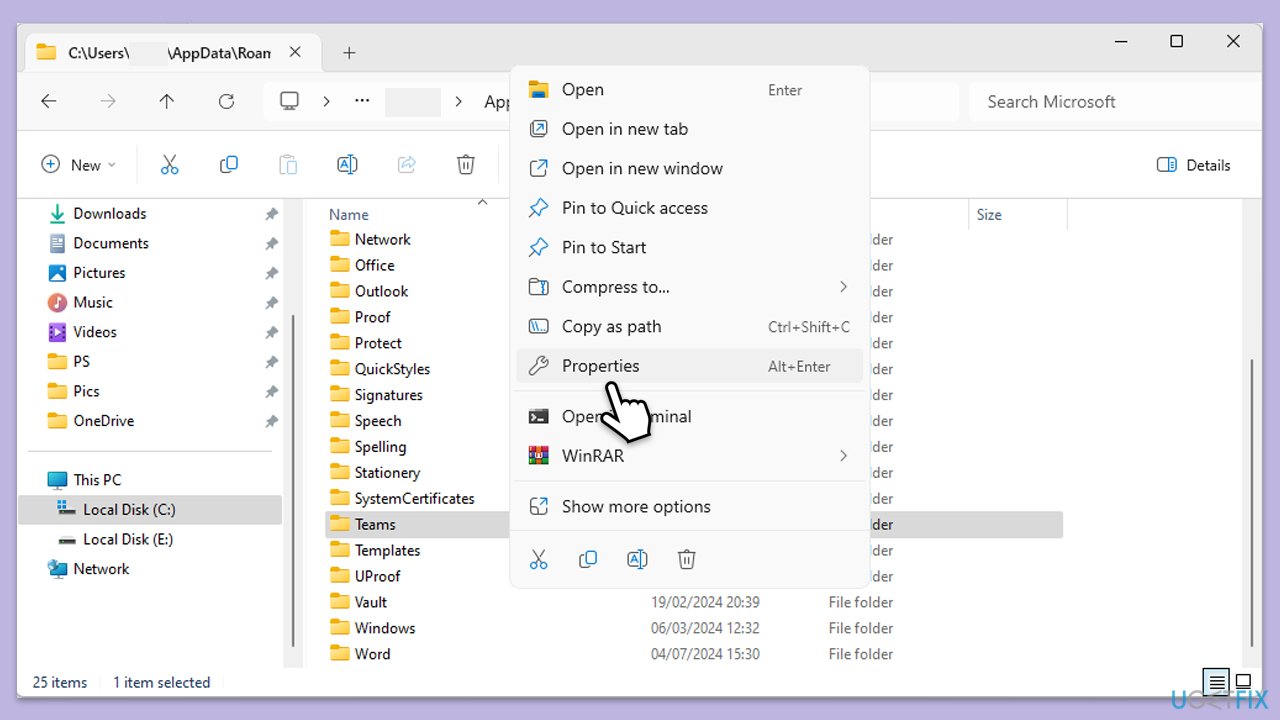
- Navigate to the directory where Teams stores files (%appdata%\Microsoft\Teams by default).
- Right-click the folder, select Properties, and go to the Security tab.
- Ensure that your user account has full control permissions.
- Apply the changes and restart Teams to see if the error is resolved.
Bottom line
To fix the error code 80070003, you can try clearing the Teams cache, adjusting firewall and network settings, or checking your internet connection. If these solutions do not resolve the issue, consider reinstalling or updating Teams, or using system tools to repair connectivity problems.
Frequently asked questions
The error code 80070003 typically indicates that a required file or folder is missing, preventing Microsoft Teams from launching properly on Windows 10 or Windows 11.
To fix this error, you can try clearing the Teams cache or reinstalling the application to ensure all necessary files are in place on Windows 10 or Windows 11.
To minimize the chances of encountering error code 80070003 in the future, ensure that your Windows 10 or Windows 11 system is regularly updated and that you maintain proper file permissions.




Report an issue
What's wrong with this guide? We review every report and update or remove content.
Report received — thank you. We'll review and fix it.
You need a free account to submit a report.
Be the first to comment