How to fix
Teams error code 107
on Windows
Resolve Teams error code 107 on Windows 10 and 11 with our expert-tested solutions for a seamless experience. Fixed in minutes!

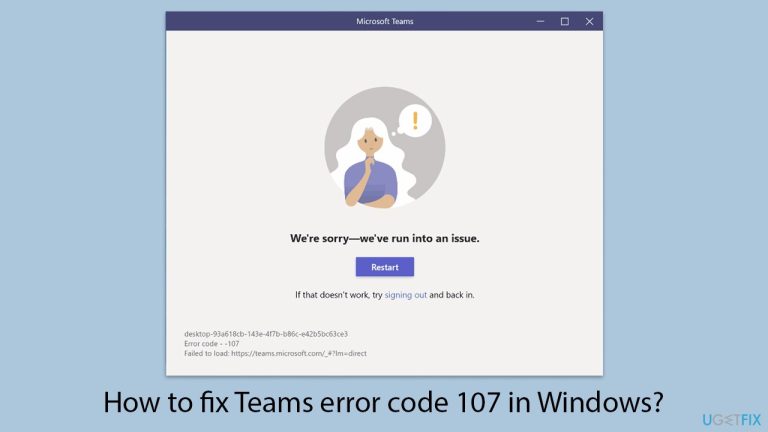
What causes How to fix Teams error code 107 in Windows?
- Network restrictions due to firewall or proxy settings
- Corrupted cache disrupting synchronization
- Outdated client version of Teams
- Temporary server outages
- Account authorization issues
Repairs Windows system files, removes malware, and restores a clean OS state — without reinstalling.
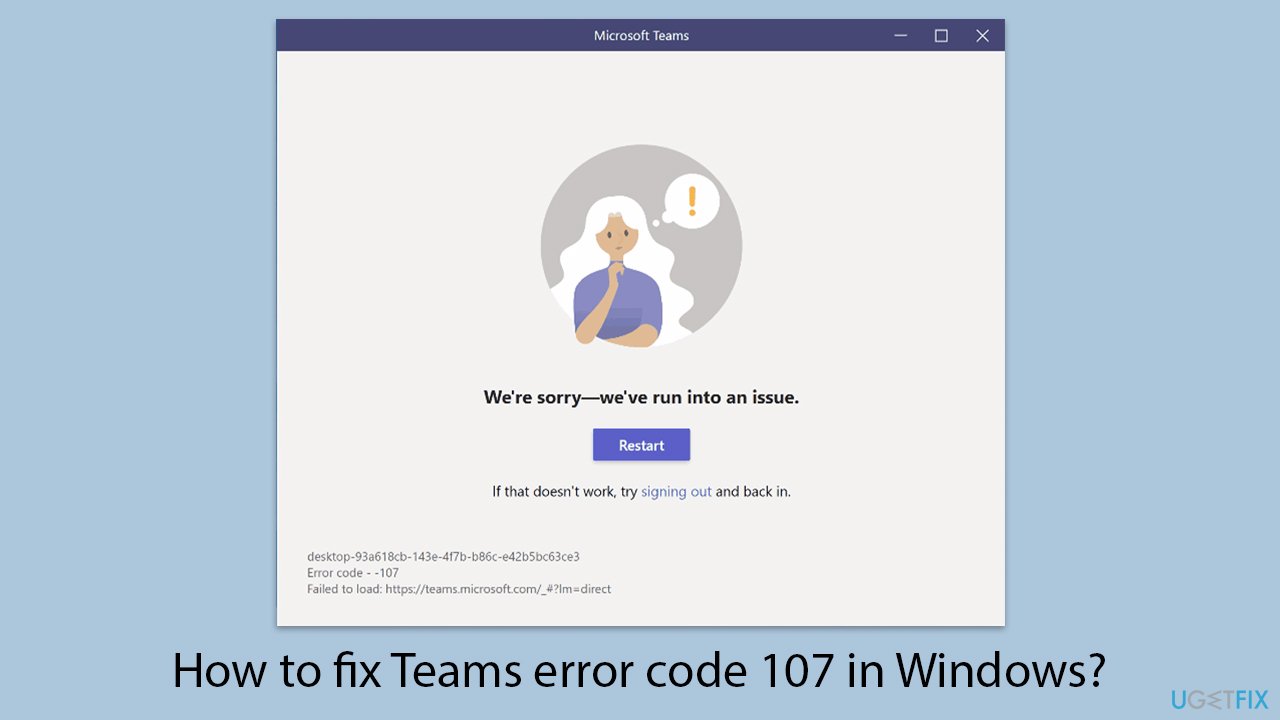
I have recently received a new Windows machine and needed to install all the apps anew. So, once everything was done, it was all good until I tried using the Teams app - I couldn't open it because I kept getting error code 107 every time I tried.
Understanding Microsoft Teams error code 107 in Windows
Microsoft Teams error code 107 is a login issue that can prevent users from accessing the platform altogether. The error generally occurs when the client application cannot connect to the Teams' servers. This can result from a variety of underlying causes, including restrictions laid on the network to software conflicts.
Common causes of Teams error code 107
- Network restrictions include restrictive settings in firewalls or proxies, which block Teams from accessing the internet. This is very common in organizational setups with stringent IT policies.
- Corrupted cache disrupts the synchronization that should exist between the Teams client and the servers.
- Outdated client version: It may be caused by an outdated version of Teams because the changes within updates, sometimes on the server side, may not be handled by the old client.
- Temporary server outages: Sometimes, the problem is not local. Microsoft Teams servers can go down and can be subjected to other service-related issues.
- Account authorization issues: Teams will block the attempt if your credentials are not authorized correctly, after which it shows error 107 as a result.
How to approach this issue
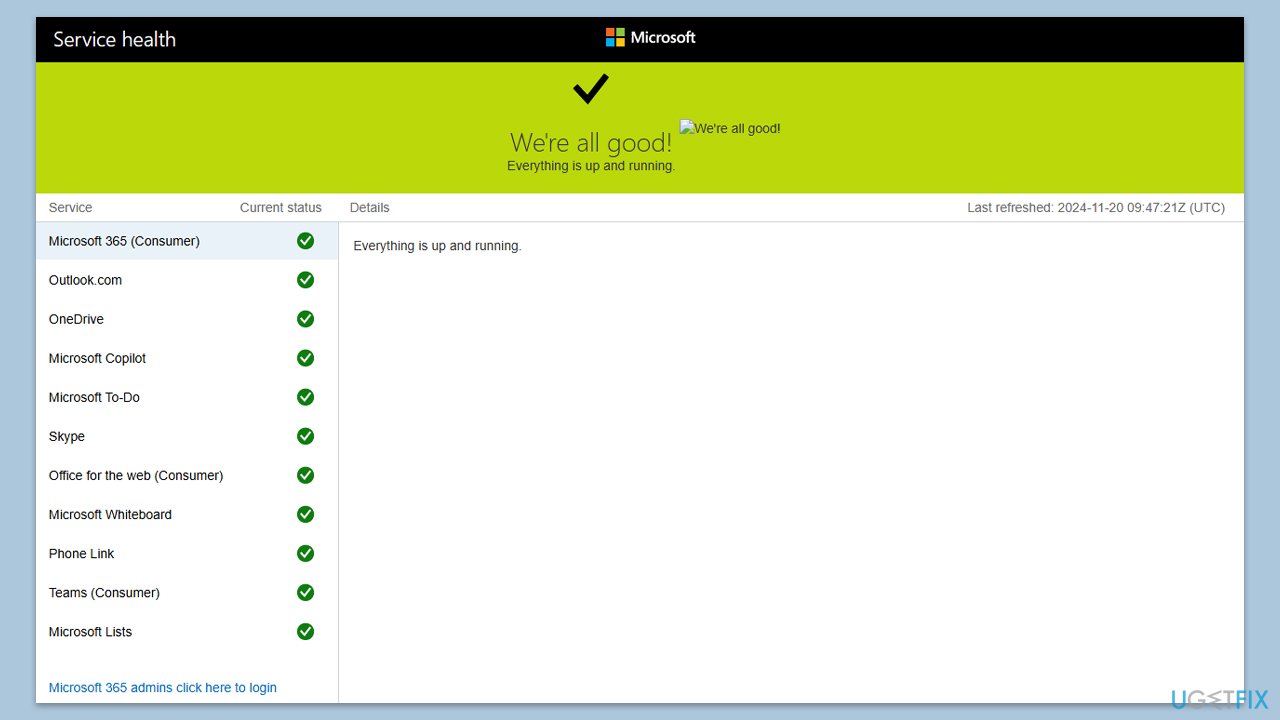
When faced with Teams error code 107, the first step is to determine whether the problem is with configuration on the client, network settings, or other external issues such as server status. Server availability can be checked using services like Microsoft's service status page. The troubleshooting usually involves local diagnostics, including network checks and app updates.
For users who can't troubleshoot the issue themselves, an advanced repair utility like [d1] repair can make life easier by bridging the gaps at deeper system levels.
Fix 1. Check for server status
Teams error code 107 can sometimes occur due to temporary issues with Microsoft’s servers. Ensuring that the problem is not server-related can save you unnecessary troubleshooting.
- Open your browser.
- Navigate to the official Microsoft Service Health page.
- Check the Teams (Consumer) status.
Fix 2. Restart the Microsoft Teams app
Restarting the app clears temporary glitches that might prevent it from connecting to servers.
- Exit the Teams app completely by right-clicking its icon in the system tray and selecting Quit.
- Relaunch the app from the Start menu or desktop shortcut.
- Try logging in again.
Fix 3. Clear Teams cache
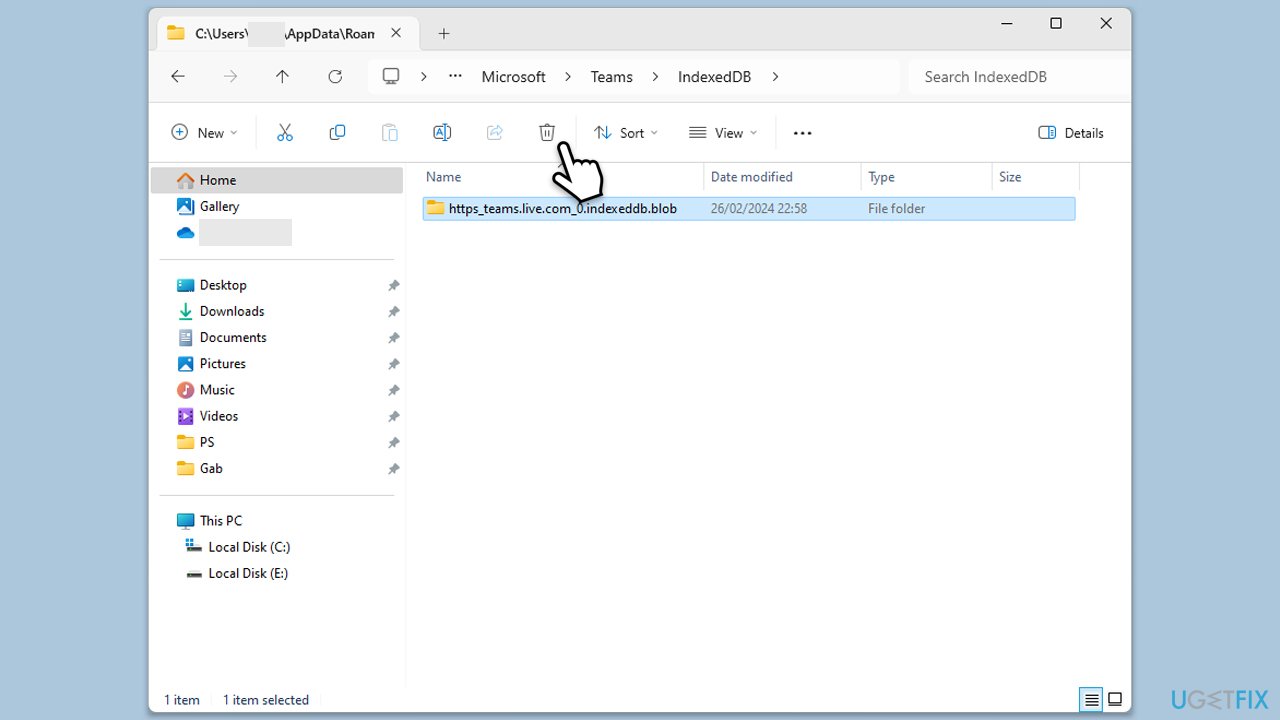
Corrupted or outdated cache files can interfere with login attempts. Removing these files forces Teams to rebuild them.
- Close down Microsoft Teams.
- Press Win + E to open File Explorer.
- Ensure Hidden files are visible.
- In the address bar, type in %appdata%\Microsoft\teams and press Enter.
- Delete the contents of the following folders:
%appdata%\Microsoft\teams\application cache\cache
%appdata%\Microsoft\teams\blob_storage
%appdata%\Microsoft\teams\Cache
%appdata%\Microsoft\teams\databases
%appdata%\Microsoft\teams\GPUcache
%appdata%\Microsoft\teams\IndexedDB
%appdata%\Microsoft\teams\Local Storage %appdata%\Microsoft\teams\tmp - Make sure you empty the Recycle Bin (or use Shift + Del combination to delete these files).
- Restart your computer.
Fix 4. Allow Teams through Firewall
Network restrictions, including firewalls or proxies, may block Teams from accessing the internet.
- Temporarily disable your third-party security software.
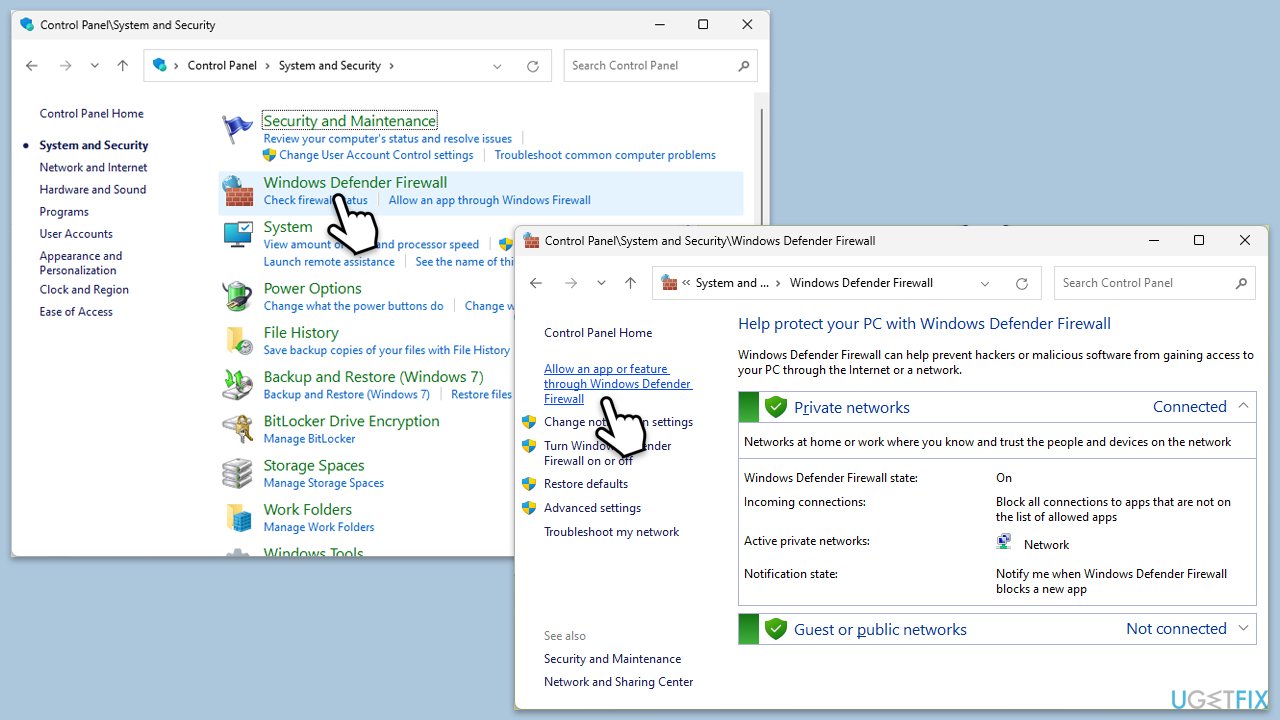
- Open the Control Panel and navigate to System and Security > Windows Defender Firewall.
- Select Allow an app or feature through Windows Defender Firewall.
- Click Change settings and enter your administrator password if prompted.
- Find Microsoft Teams in the list and check both the Private and Public boxes.
- Click OK to save your changes.
Fix 5. Use Microsoft Support and Recovery Assistant
Check out Microsoft's official troubleshooting tool.
- Open your browser and download Microsoft Support and Recovery Assistant from the official Microsoft support page.
- Install the software as per instructions and then launch it.
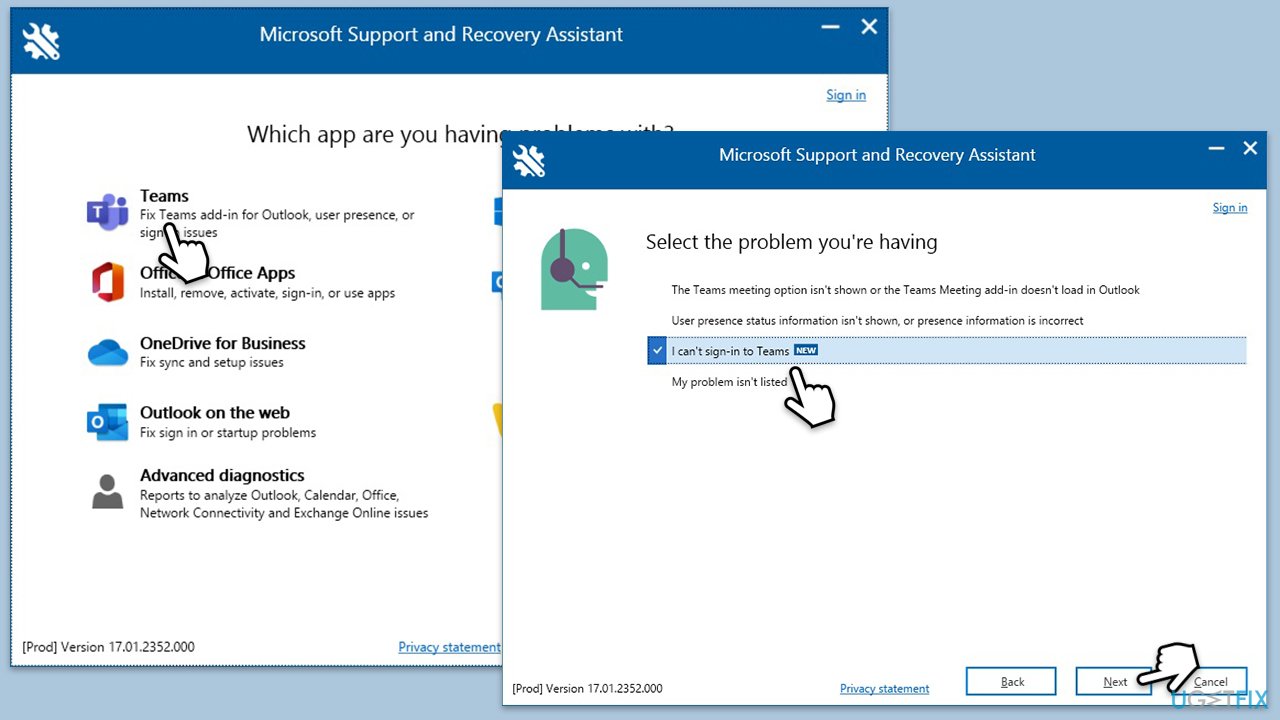
- Select Teams from the list and click Next.
- Pick I can't sign-in to Teams when asked to select the problem you are facing, then click Next.
- Follow the prompts to finalize the process.
Fix 6. Update Microsoft Teams
An outdated client can cause compatibility issues, especially if the servers have received updates.
- Open Microsoft Teams.
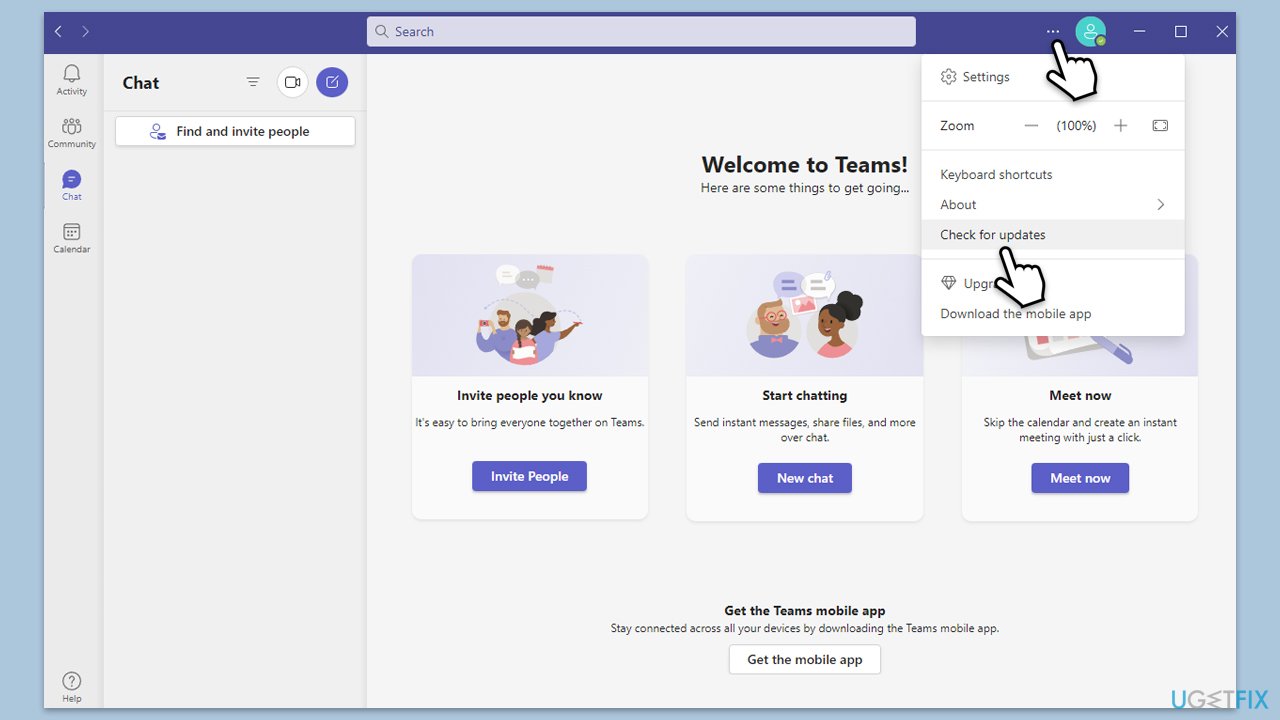
- Click on the Settings and more button at the top-right corner.
- Select Check for updates.
- Teams will automatically download and install any available updates.
- Restart Teams after the update is completed.
Fix 7. Reinstall Microsoft Teams
If other solutions fail, reinstalling the app ensures all files are fresh and eliminates possible corruption.
- Type Control Panel in Windows search and press Enter.
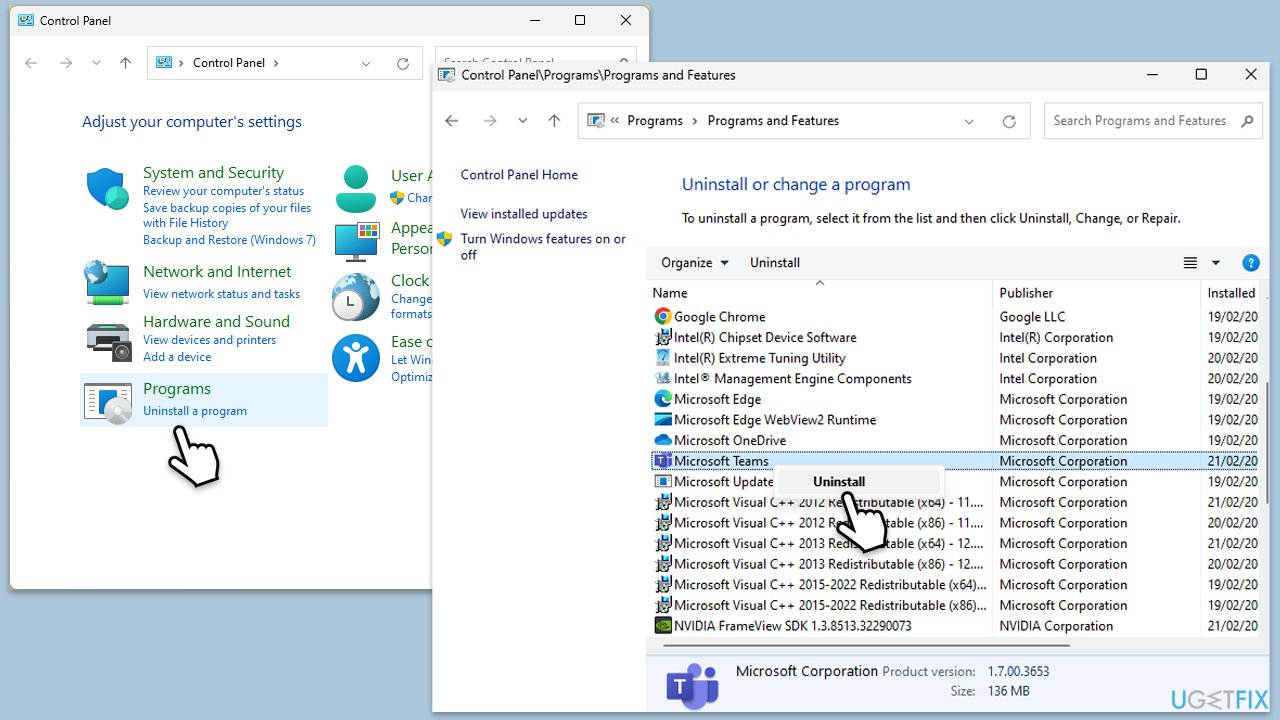
- Go to Programs > Uninstall a program.
- Find Microsoft Teams, right-click, and select Uninstall.
- Follow the prompts to remove the app.
- Once done, press Win + E to open File Explorer.
- In the View tab at the top of the window, enable Hidden Files.
- Go to C:\Program Files\WindowsApps location.
- Scroll down to find the Microsoft Teams folder and delete it (alternatively, you can rename it).
- Now type %AppData% in Windows search and press Enter.
- Delete the Teams folder here.
- Finally, restart your system and reinstall the app.
Bottom line
To fix Teams error code 107, check the server status, clear the cache, update the Teams app, and verify your account credentials. If these steps do not resolve the issue, consider using an advanced repair utility or seek further assistance.
Frequently asked questions
Teams error code 107 typically indicates a connectivity issue or a problem with the application’s installation. It may be caused by network restrictions or corrupted files.
To fix error code 107 on Windows 11, try clearing the Teams cache by deleting the contents of the 'Microsoft Teams' folder in the AppData directory. Additionally, ensure that your network settings allow Teams to connect.
Yes, reinstalling Microsoft Teams can effectively resolve error code 107 on Windows 10, as it replaces any corrupted files and updates the app to the latest version. Make sure to completely uninstall it first before reinstalling.




Report an issue
What's wrong with this guide? We review every report and update or remove content.
Report received — thank you. We'll review and fix it.
You need a free account to submit a report.
Be the first to comment